Reactivate a User
Use the Reactivate action to restore a previously deactivated user. This is useful if a user was deactivated by mistake or needs to regain access to the platform.
Permissions
Only users with the Admin role can reactivate users. See the Permissions page for details.
Steps
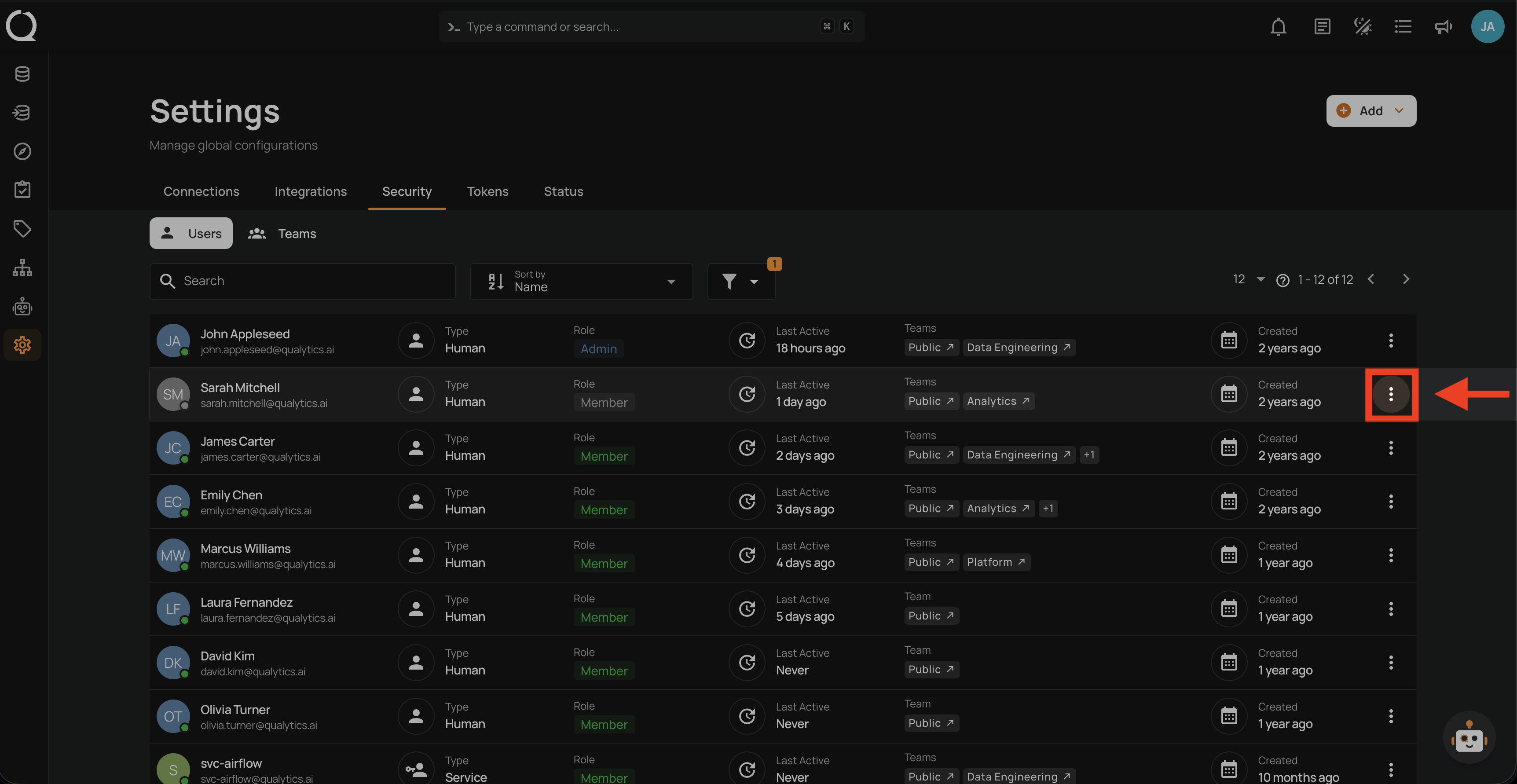
Step 1: Enable the Show Deactivated filter, then click the vertical ellipsis next to the deactivated user you want to restore.
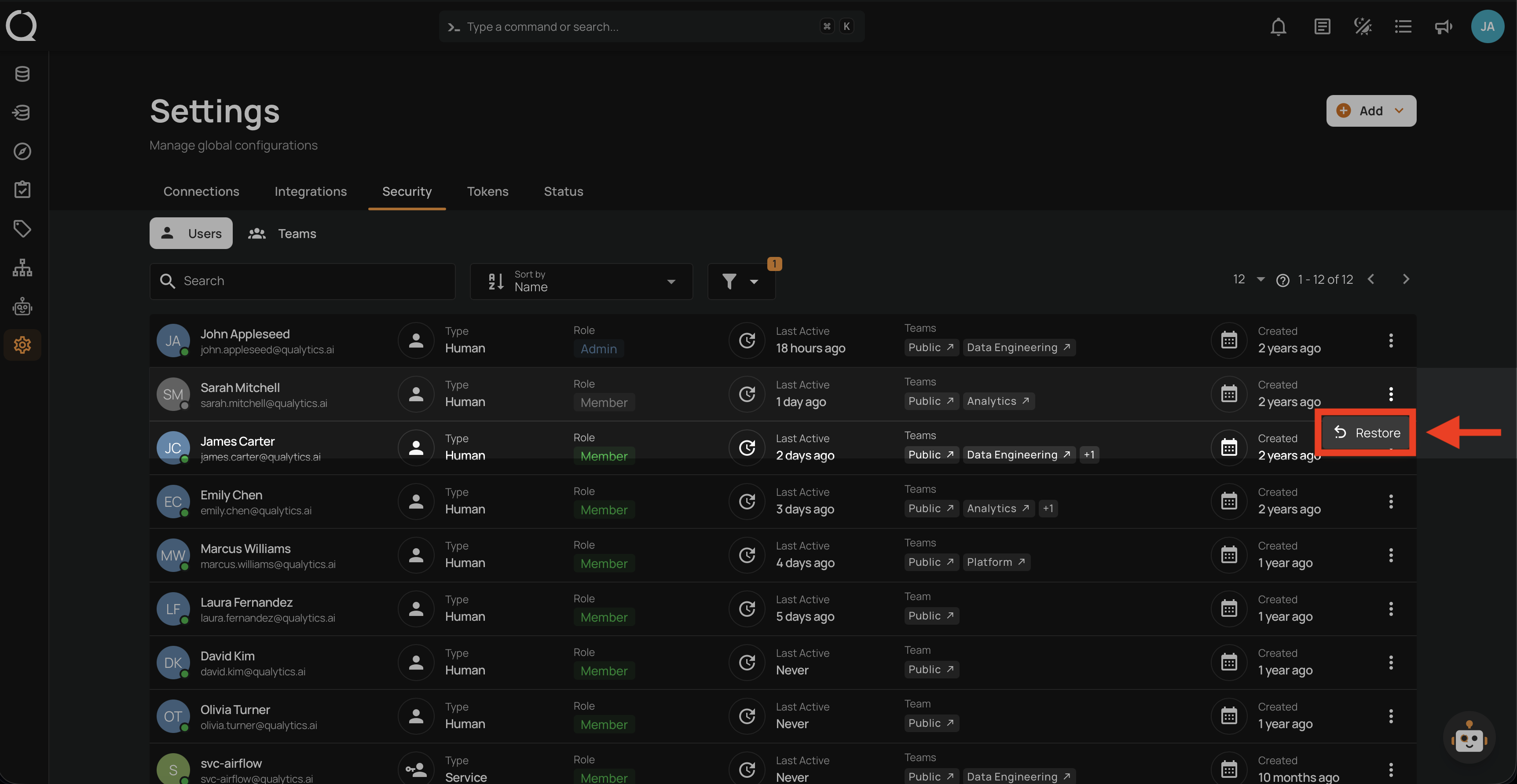
Step 2: Click Restore from the dropdown menu.
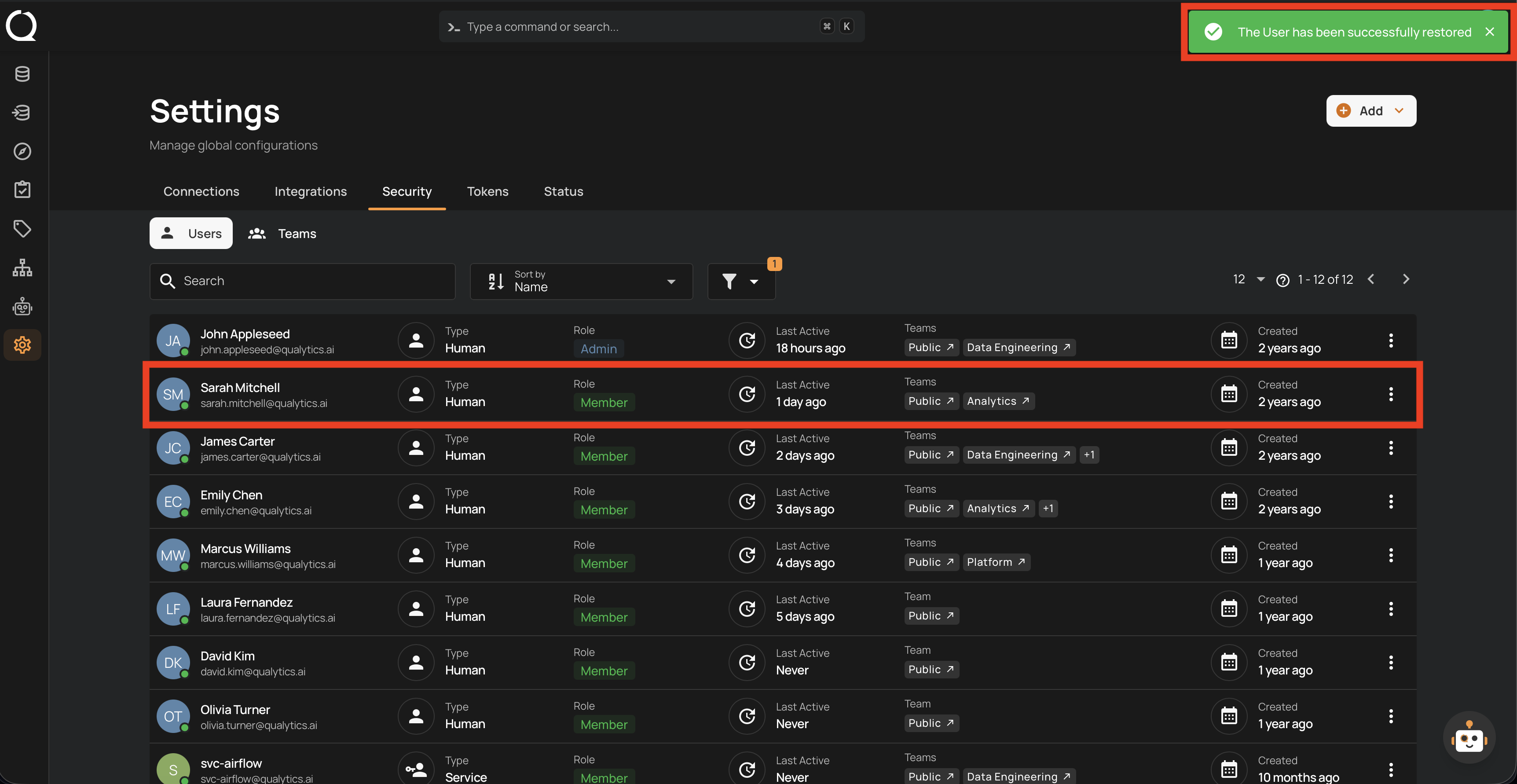
Step 3: A success notification confirms the user has been restored.
Tip
After reactivating a user, review their role and team membership to ensure they still match the intended access level. Update them if necessary using the Edit action.