Bulk-Assign Anomalies
Use this flow when you want to apply the same set of assignees to many anomalies at once. To add users on a single anomaly from its details view, see Add Anomaly Assignees. To take a user off an anomaly, see Remove Anomaly Assignees. For how the field behaves in detail, see Deep Dive · Anomaly Assignees. For programmatic access, see the Anomalies API.
Info
Bulk-editing assignees requires the Author team permission (or higher) on the datastore of every selected anomaly. Archived anomalies cannot have their assignees changed; restore them first.
You can launch a bulk assignment from two places, and the flow is identical because both lists use the same selection toolbar and Bulk Edit Anomalies modal. Pick the tab that matches where you start from.
Step 1: Open the source datastore and go to the Anomalies tab. You see the list of anomalies for that datastore.
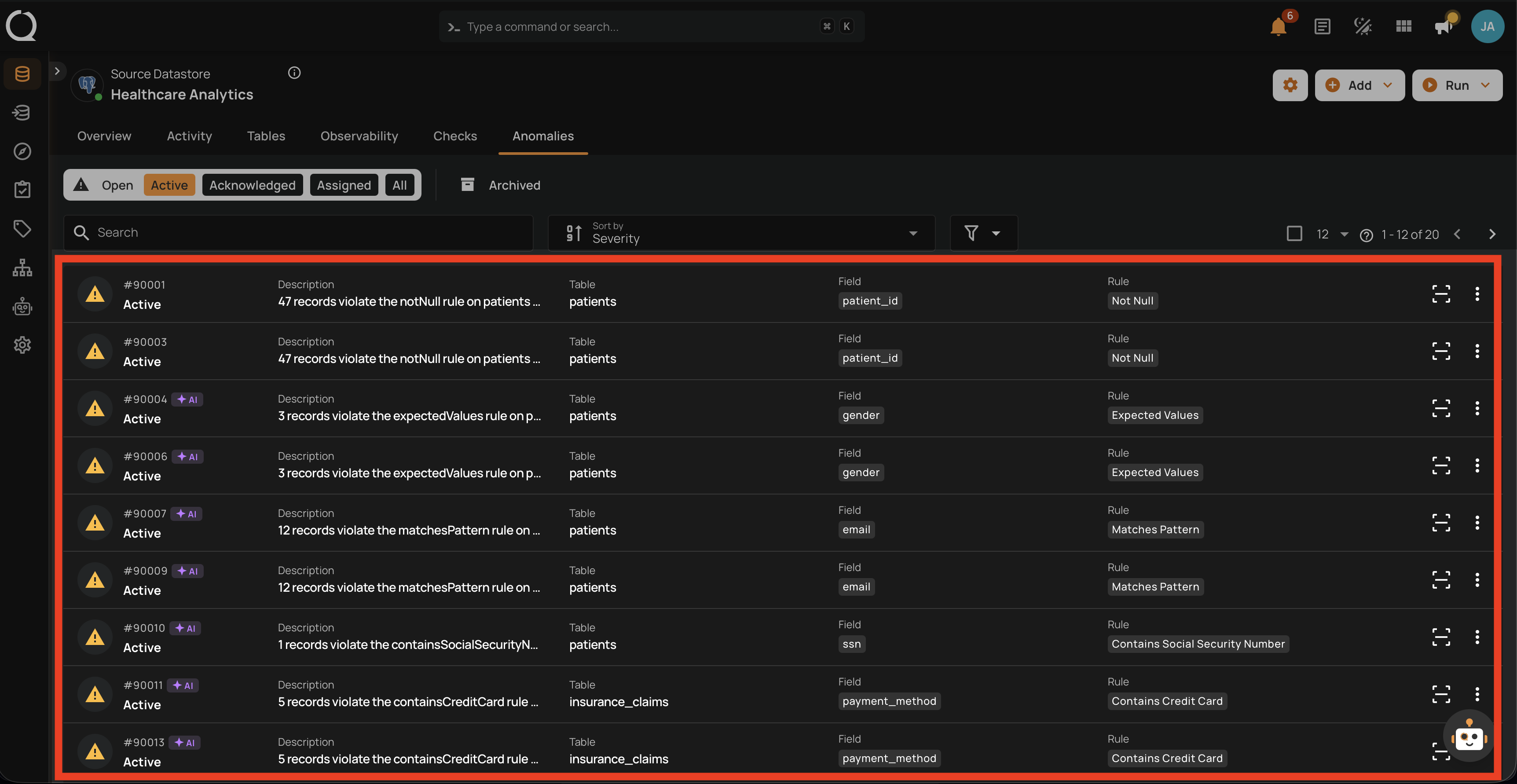
Step 2: Hover over each anomaly you want to include and click the checkbox on the left of the row. The selected rows stay highlighted and the top of the list switches into a selection toolbar showing the count (for example, 2 selected).
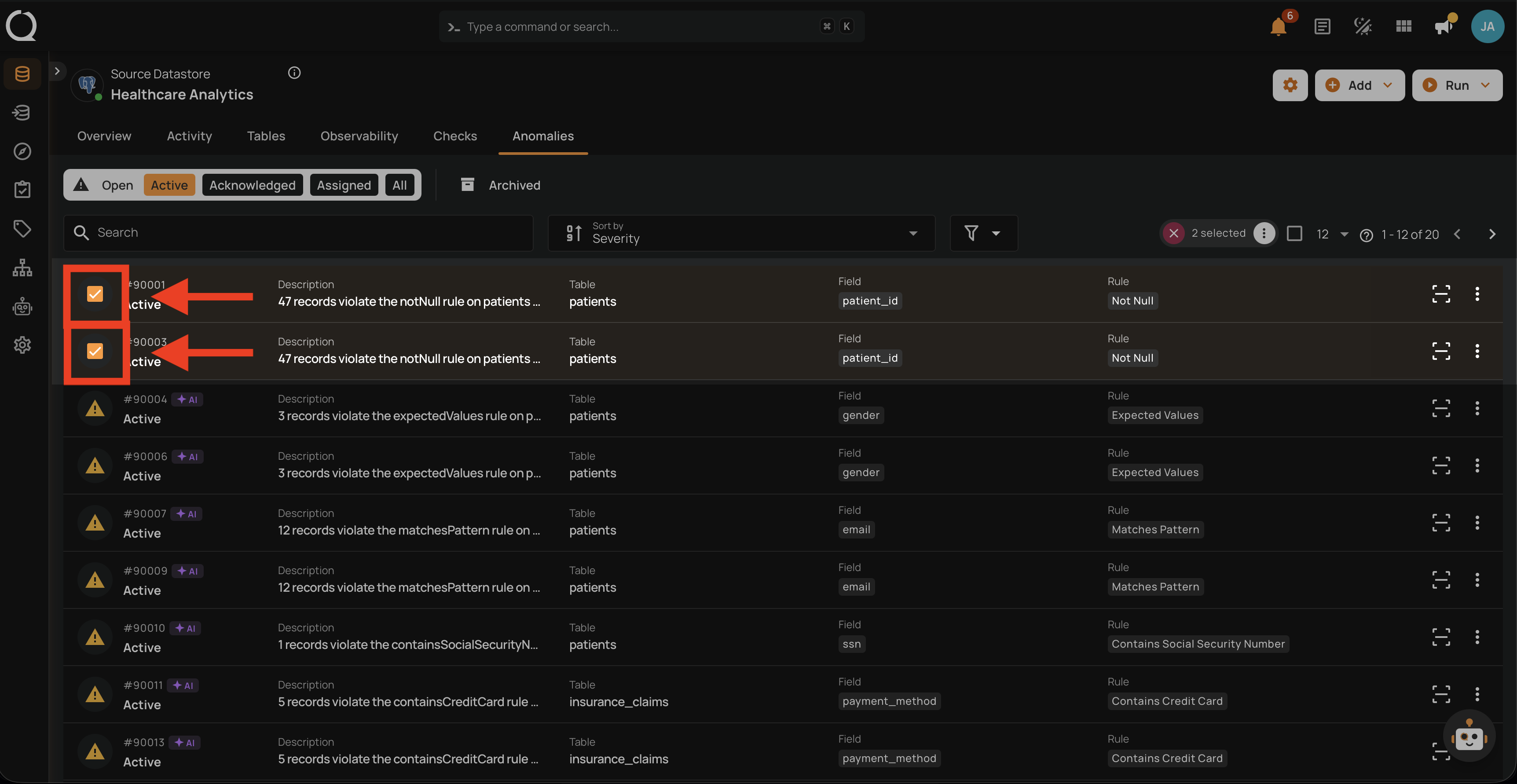
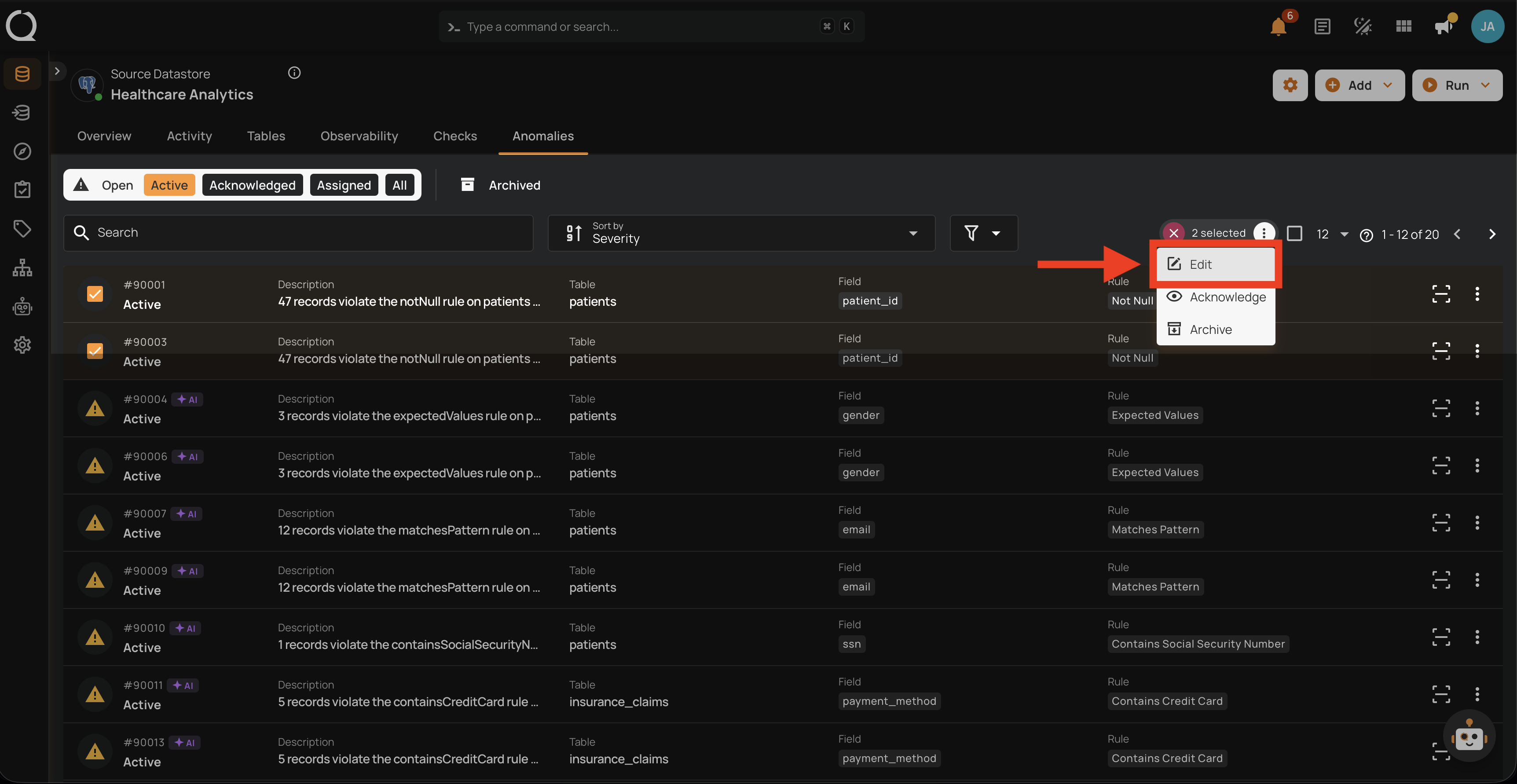
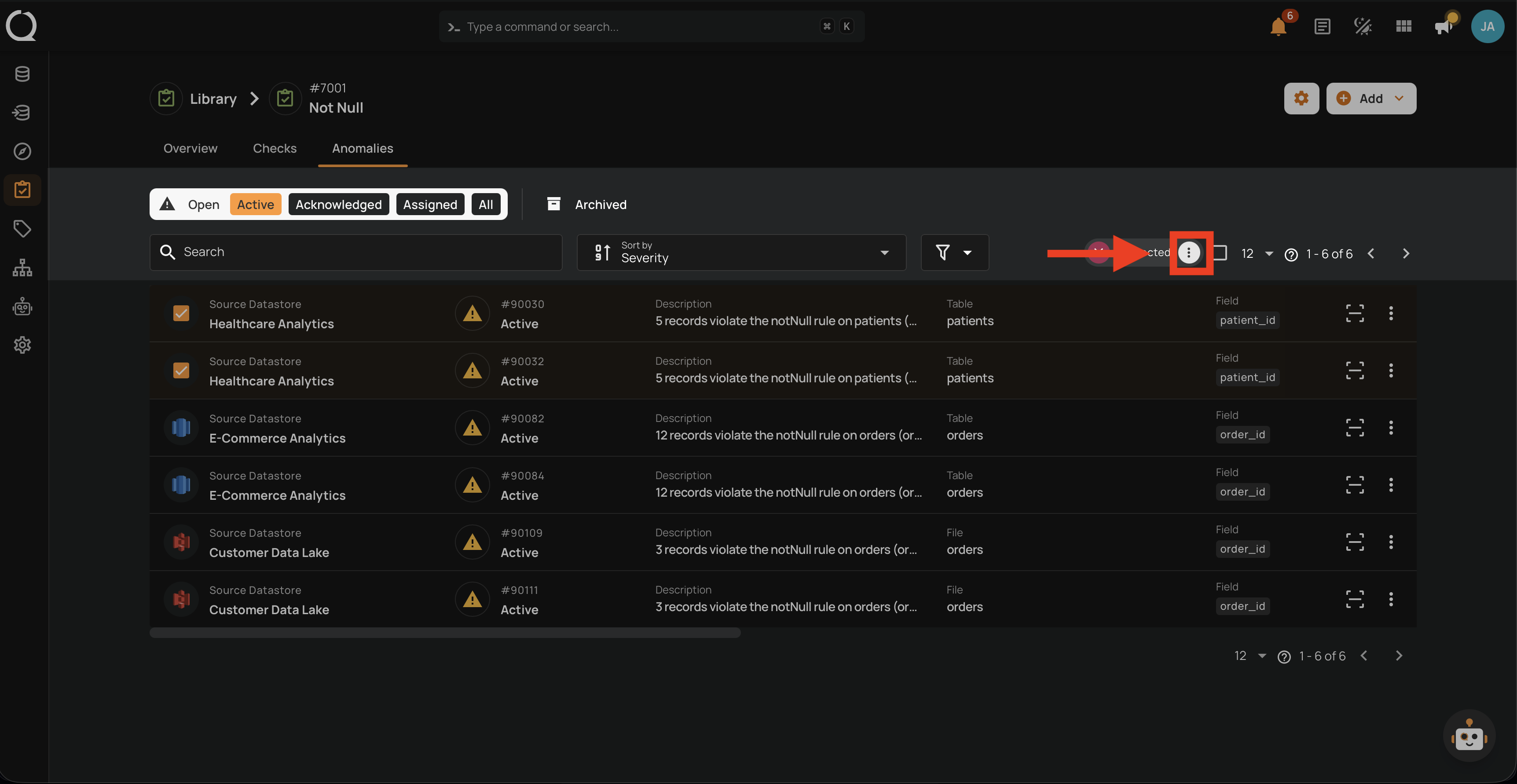
Step 3: Click the Bulk menu button in the selection toolbar.
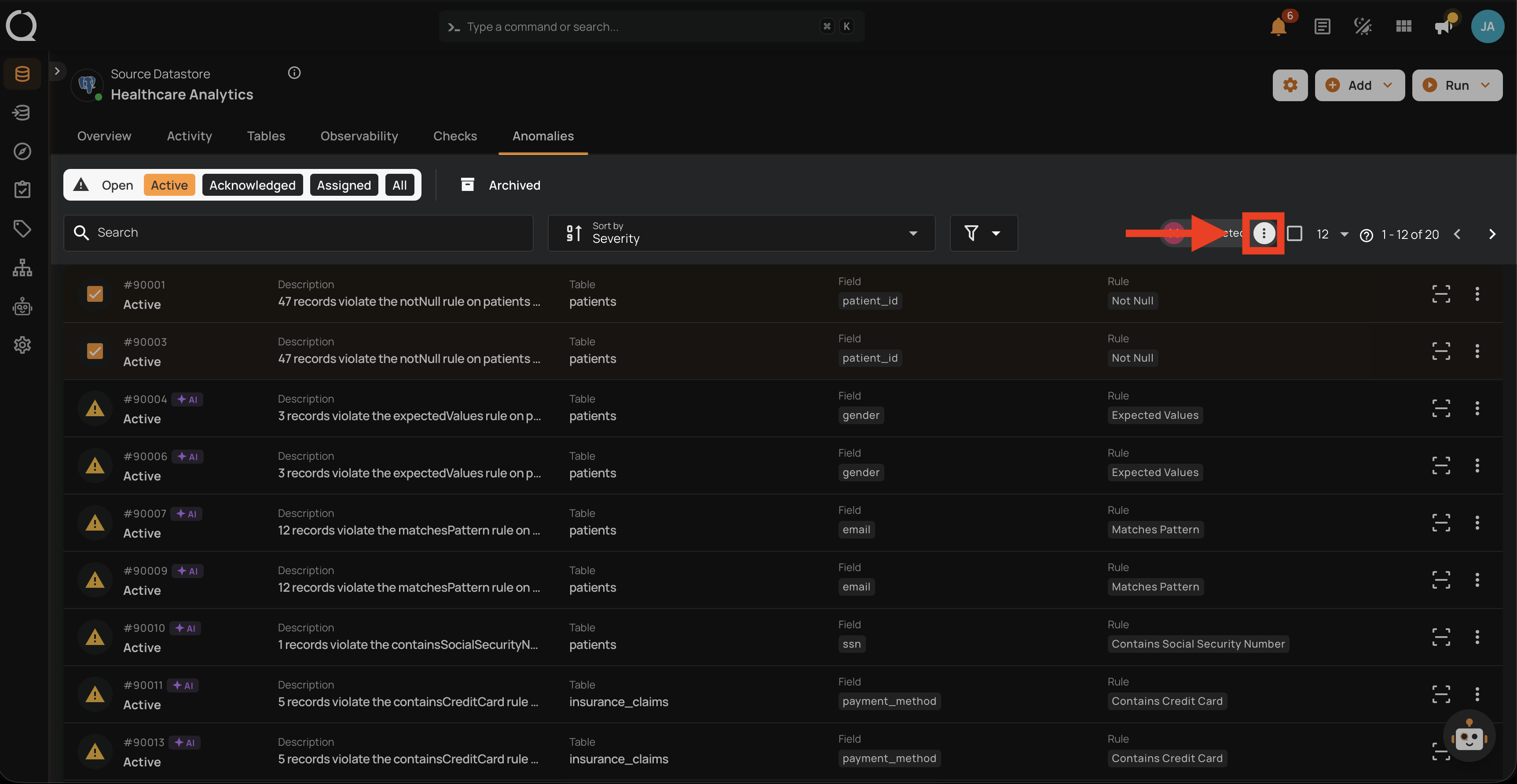
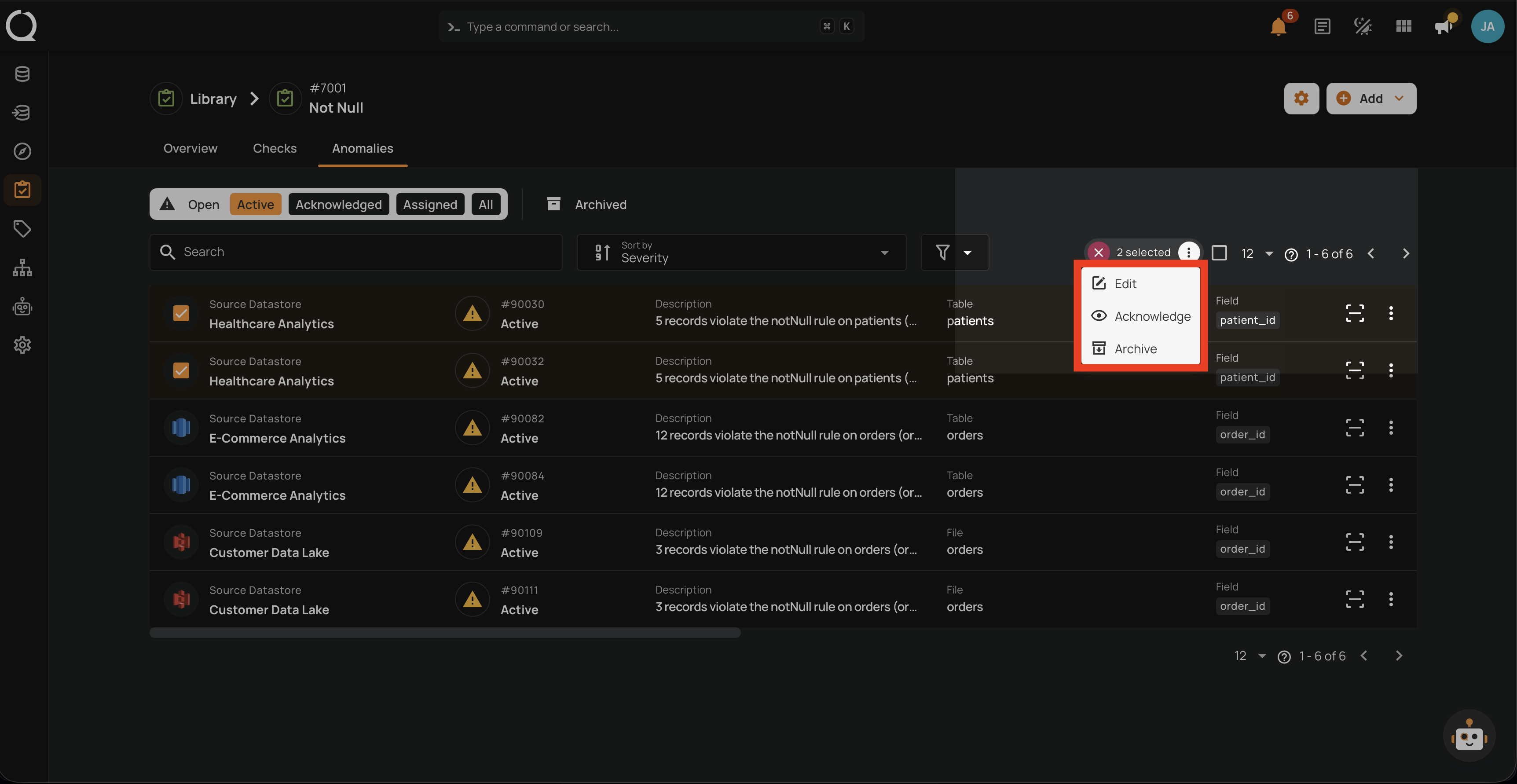
Step 4: A menu opens showing the bulk actions available: Edit, Acknowledge, and Archive.
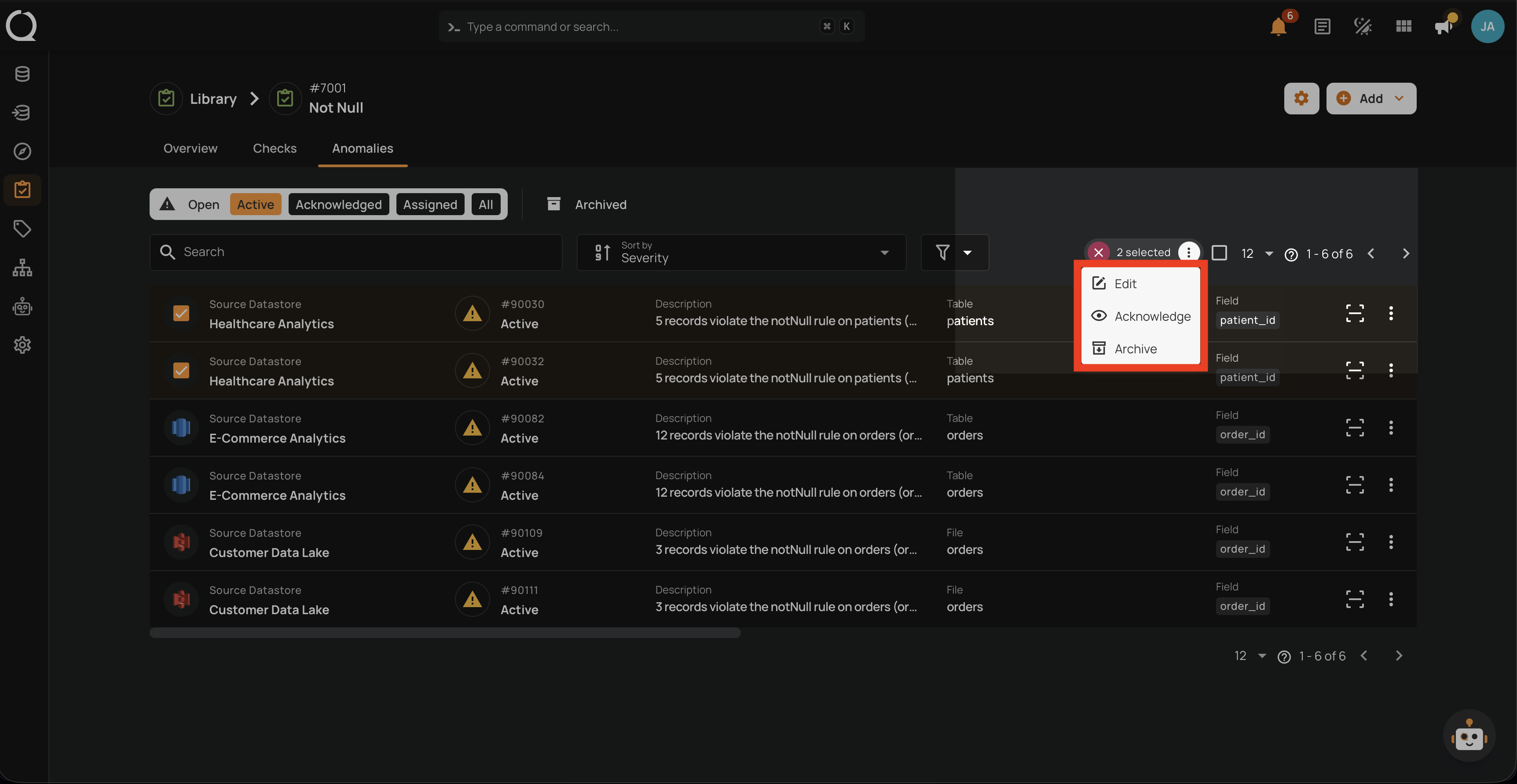
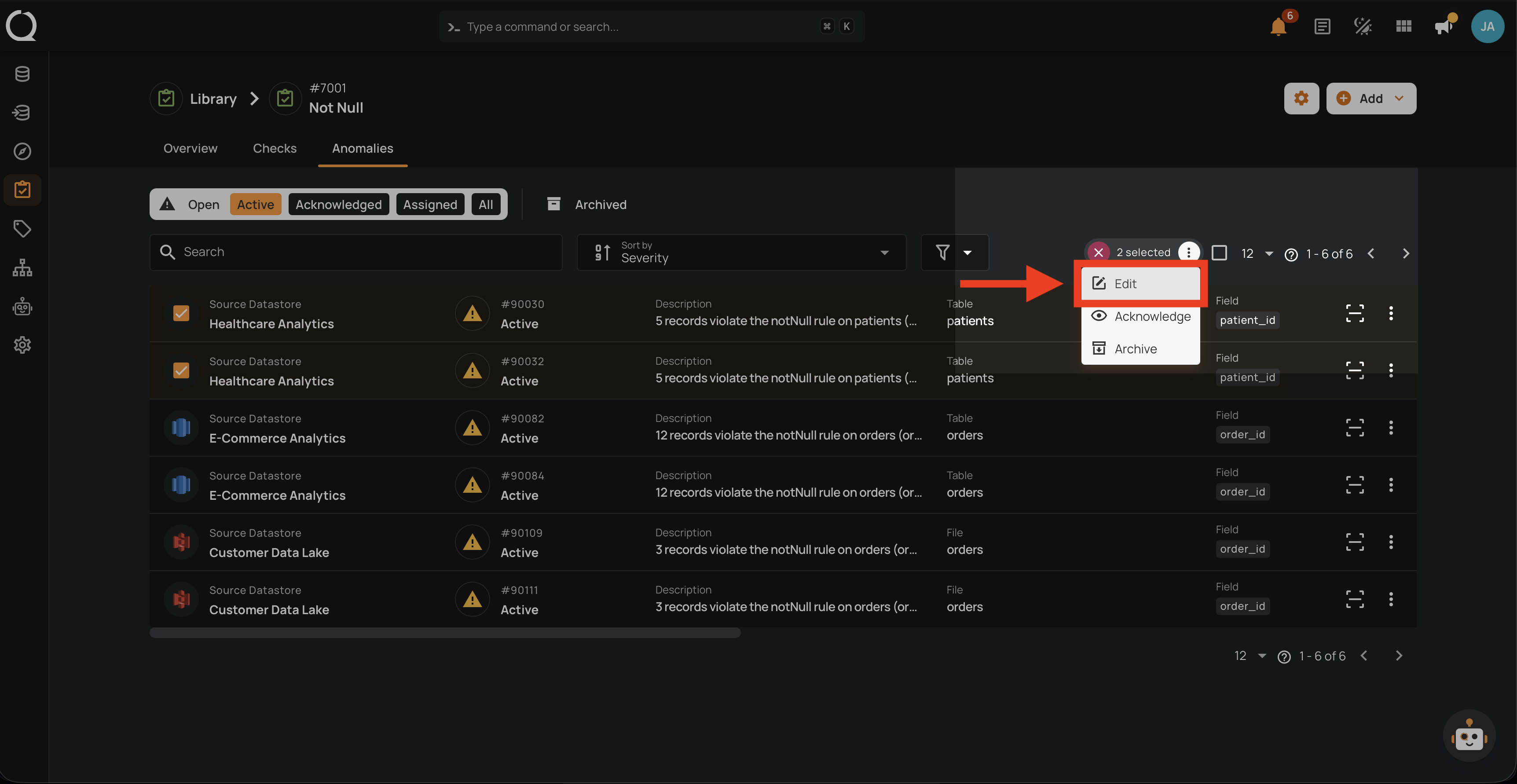
Step 5: Click Edit from the menu.
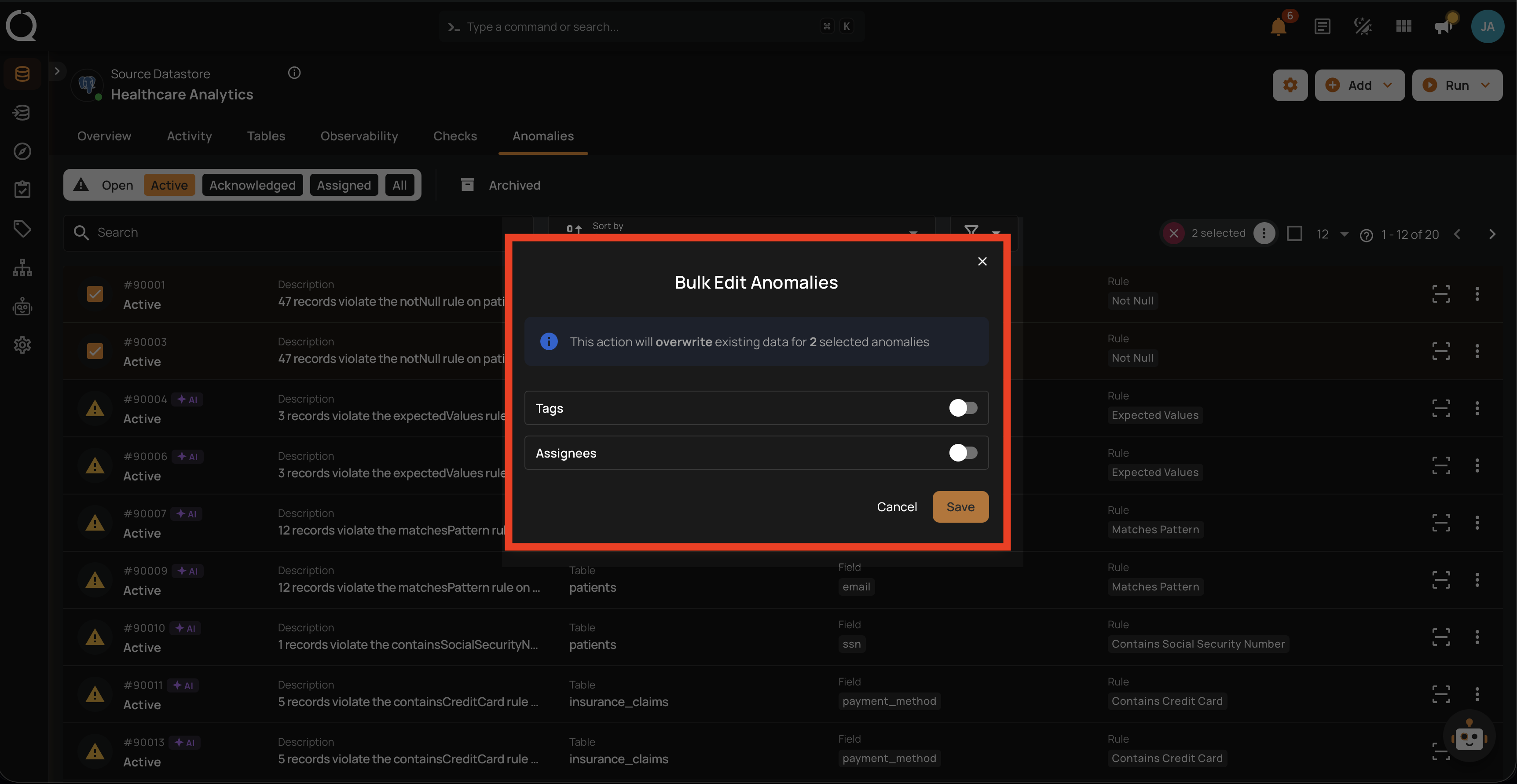
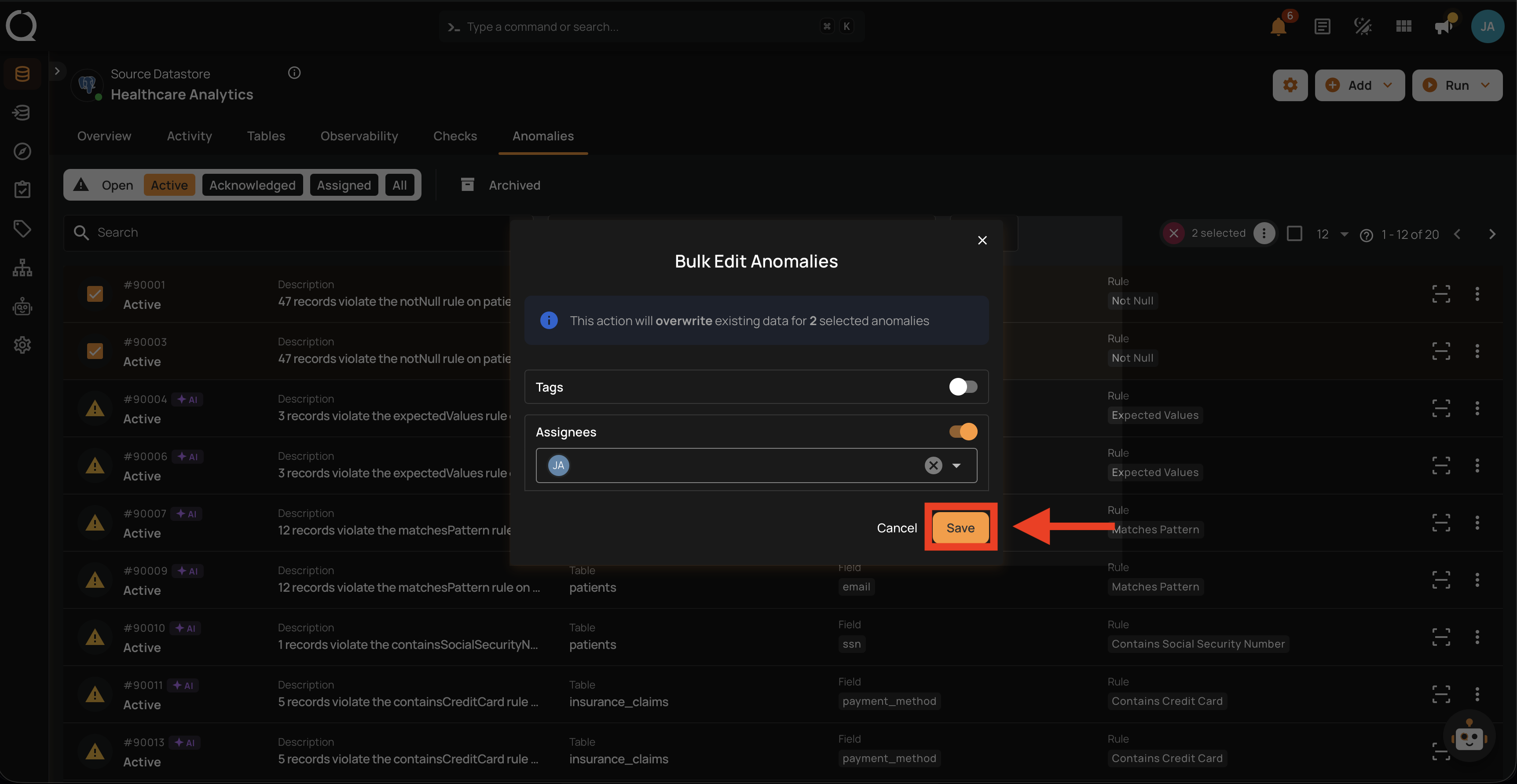
Step 6: The Bulk Edit Anomalies modal opens. It shows an information notice, which reads Toggle the fields to update for followed by the count of selected anomalies, and Tags and Assignees toggles (both off by default).
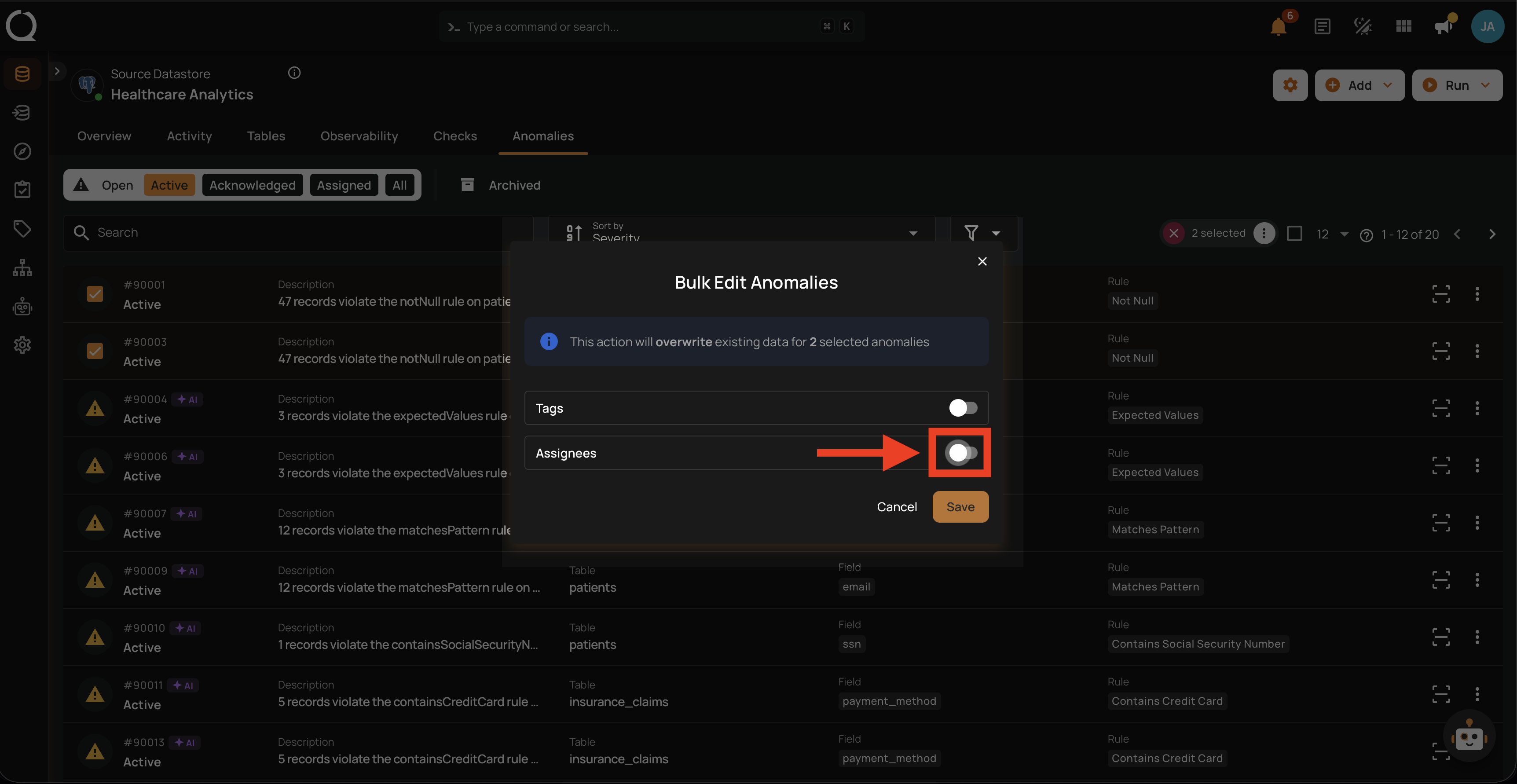
Step 7: Turn on the Assignees toggle. A Select assignees field appears below the toggle, with an Overwrite badge next to it: the assignees you pick replace the current ones.
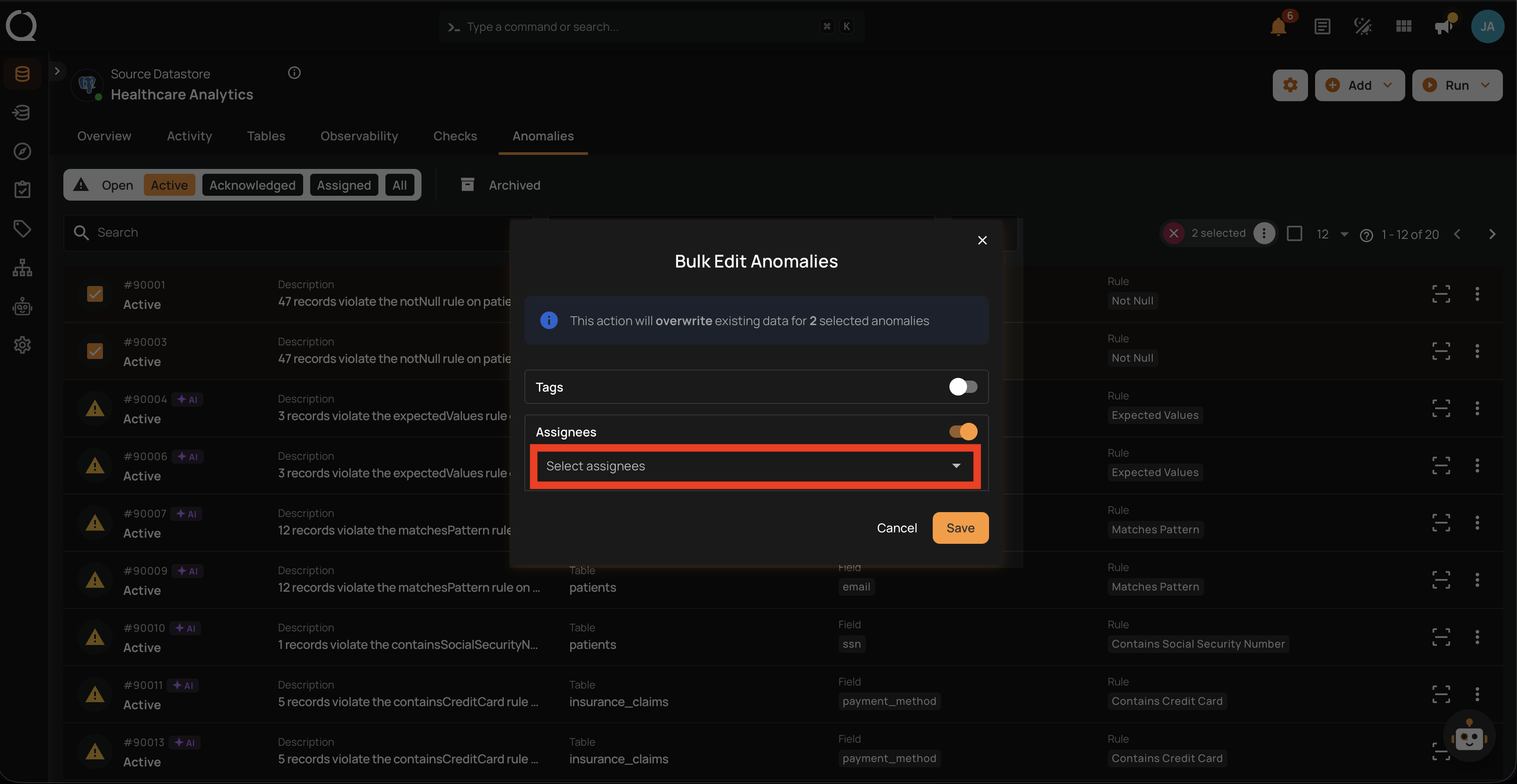
Step 8: Click the Select assignees field to open the user dropdown.
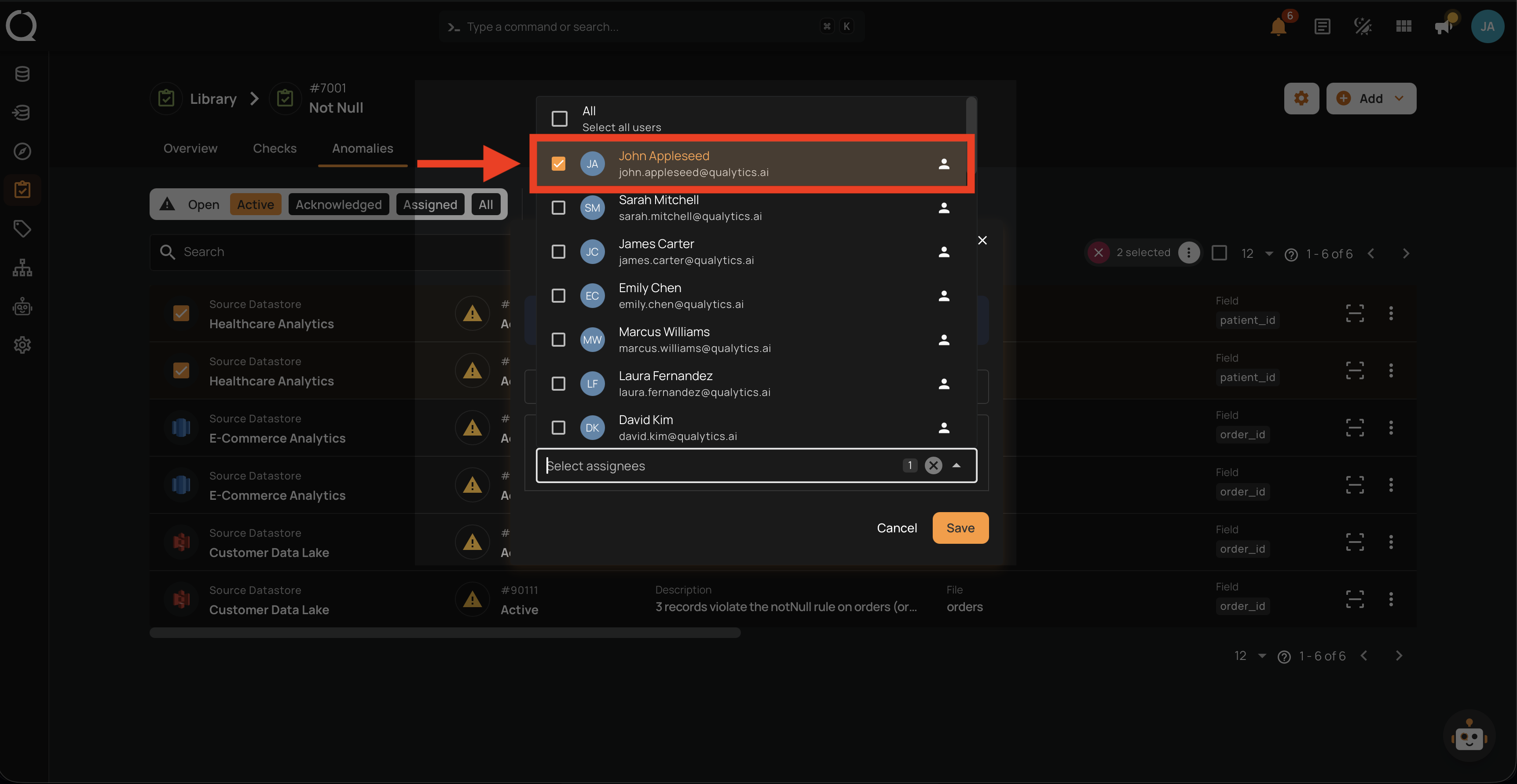
Step 9: The dropdown opens, listing every user with at least the Viewer team permission on the datastore of the selected anomalies, plus an All option that selects all users at once.
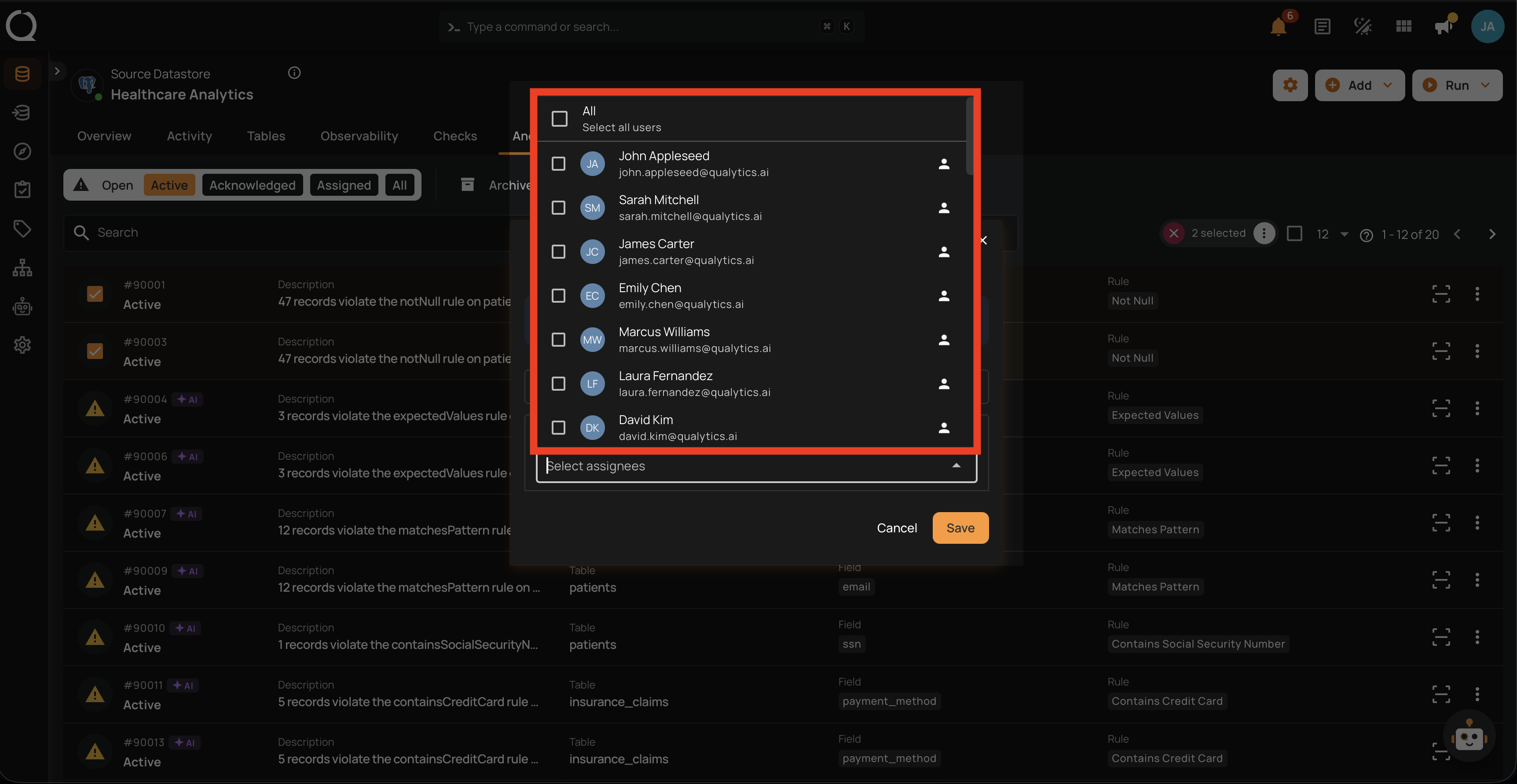
Step 10: Click the checkbox next to each user you want to assign. Selected users appear as chips inside the Select assignees field.
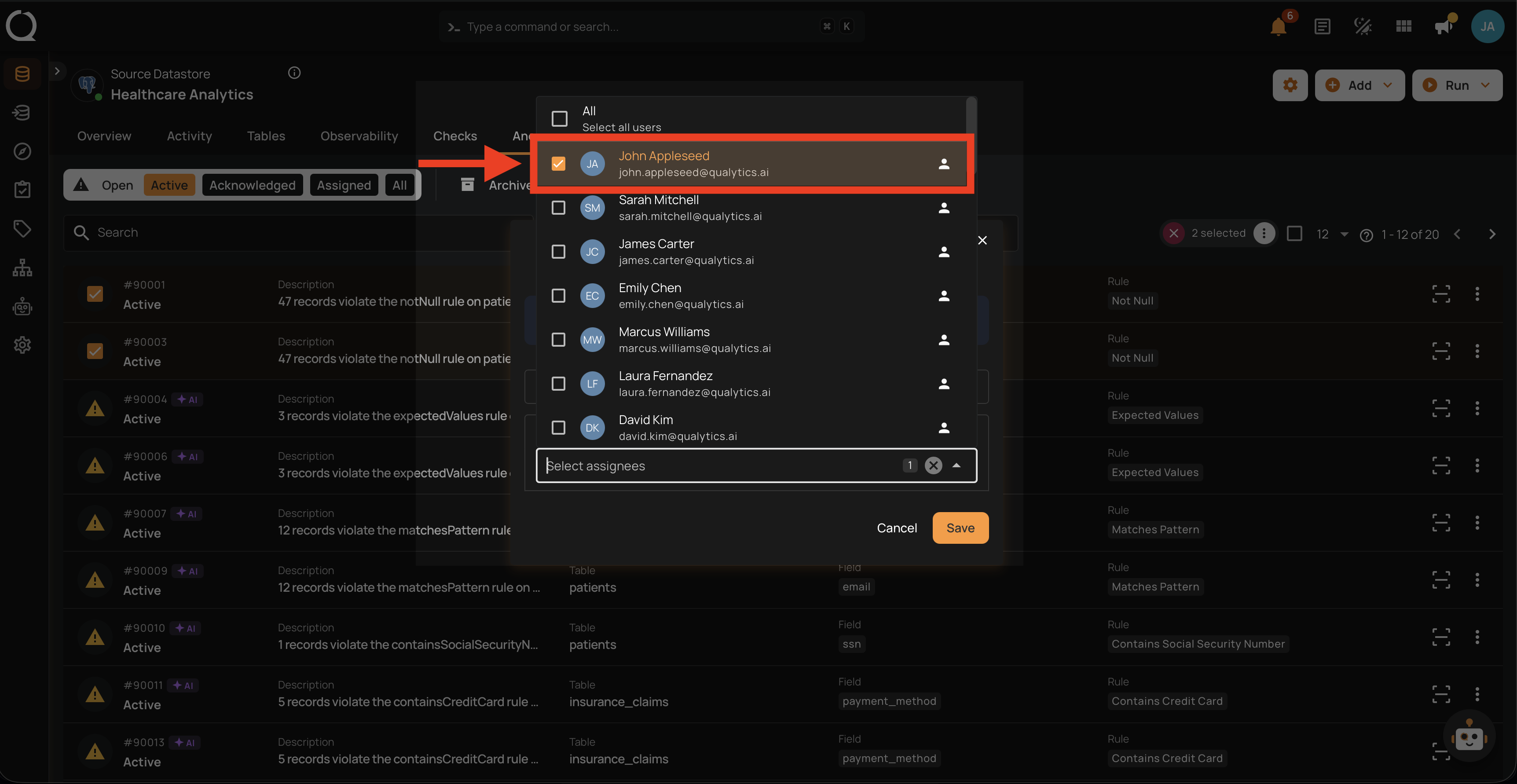
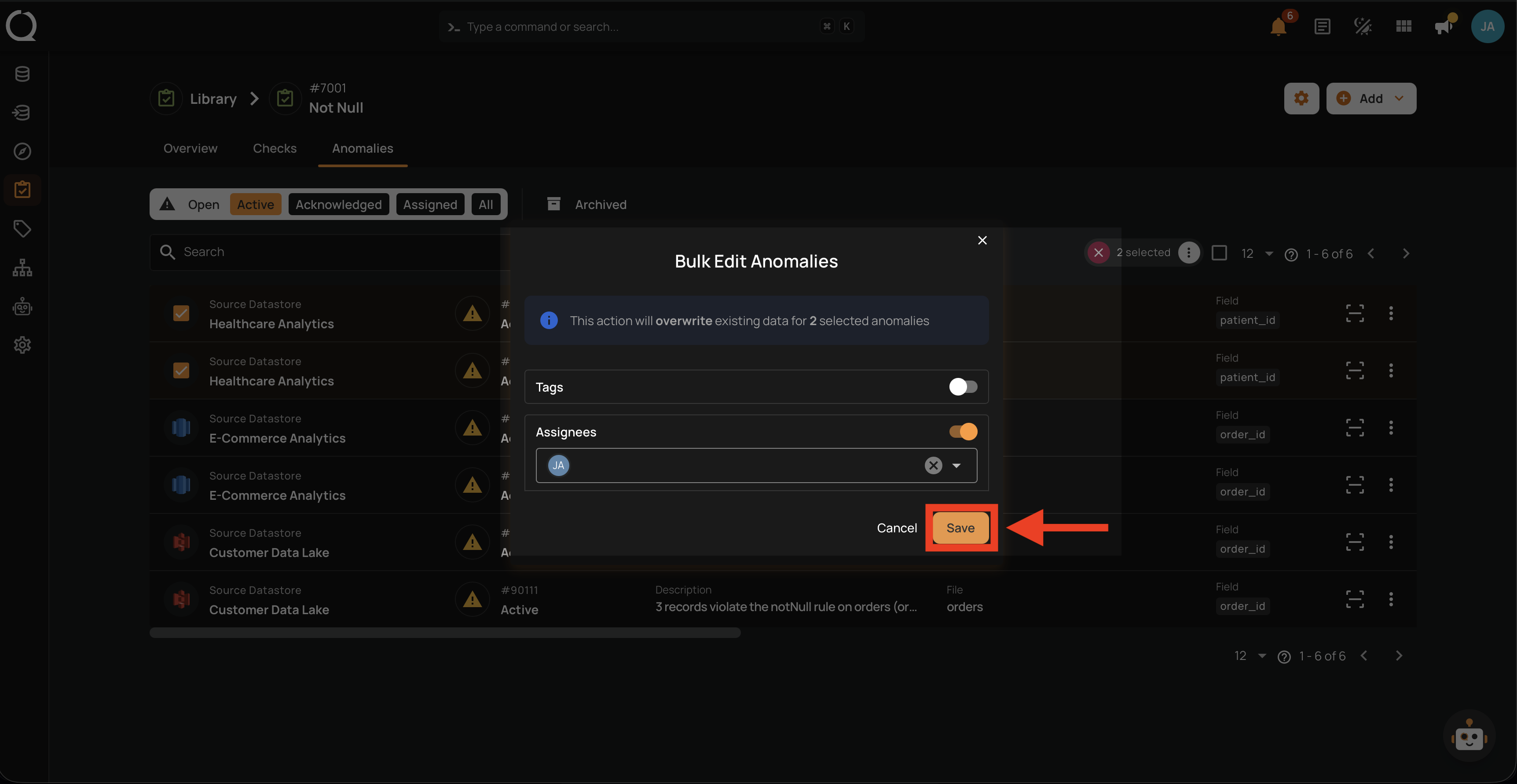
Step 11: Click the Save button to apply the change. Every selected anomaly is updated with the new assignees, and each newly assigned user (except yourself) receives an in-app notification. See Deep Dive · Anomaly Assignees · Notifications.
Step 1: Open the check template and go to its Anomalies tab. You see the list of anomalies generated by that specific check.
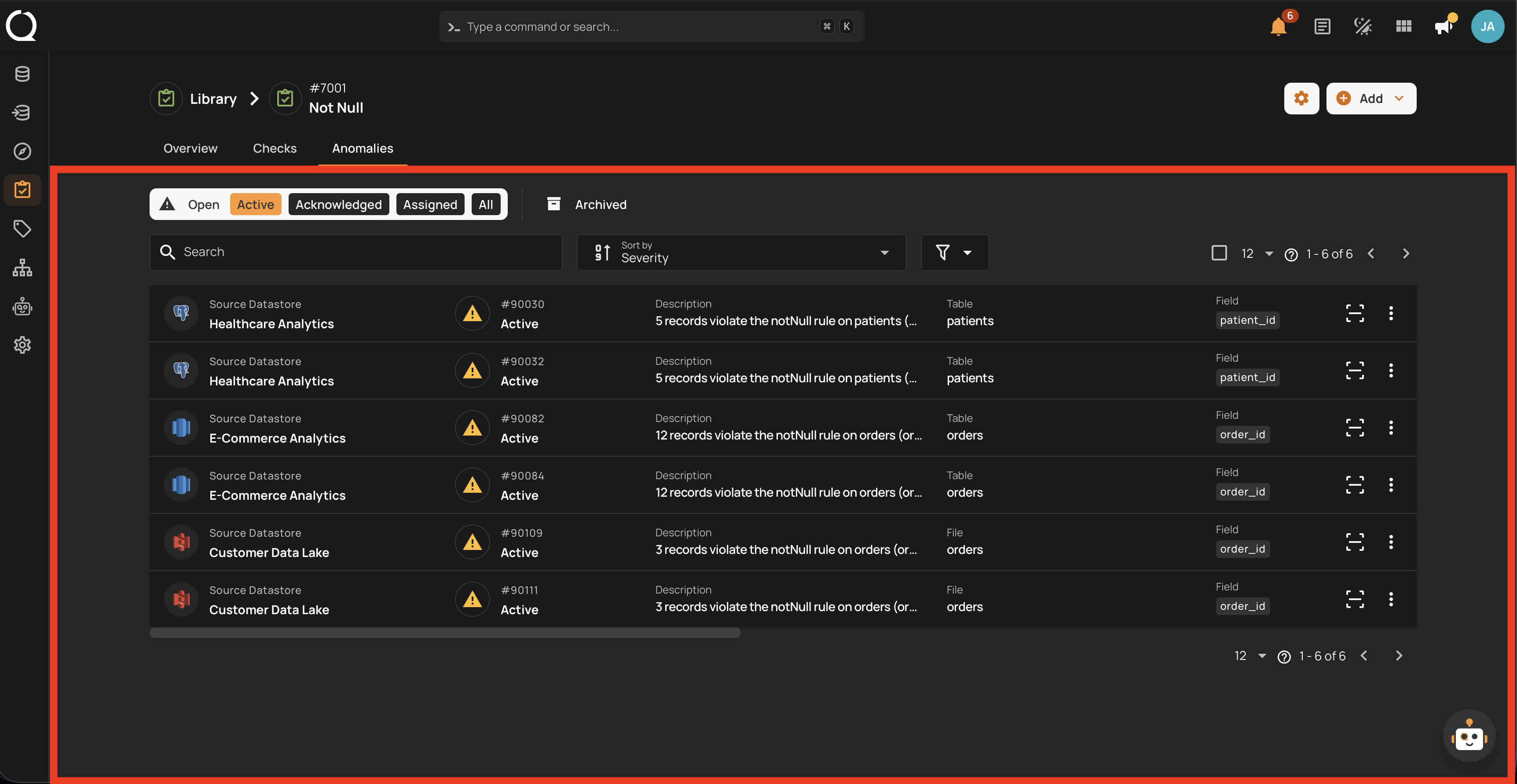
Step 2: Hover over each anomaly you want to include and click the checkbox on the left of the row. The selected rows stay highlighted and the top of the list switches into a selection toolbar showing the count (for example, 2 selected).
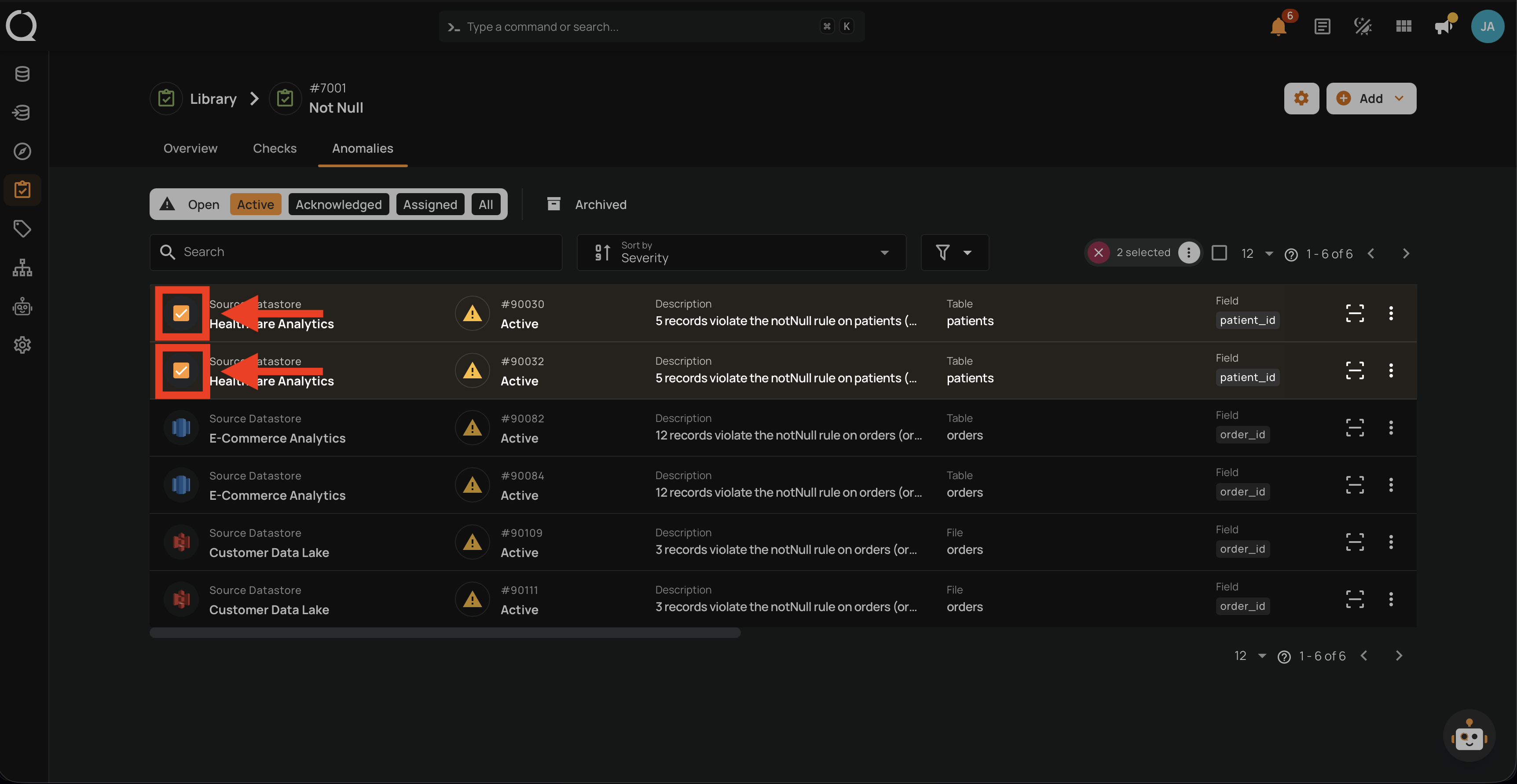
Step 3: Click the Bulk menu button in the selection toolbar.
Step 4: A menu opens showing the bulk actions available: Edit, Acknowledge, and Archive.
Step 5: Click Edit from the menu.
Step 6: The Bulk Edit Anomalies modal opens. It shows an information notice, which reads Toggle the fields to update for followed by the count of selected anomalies, and Tags and Assignees toggles (both off by default).
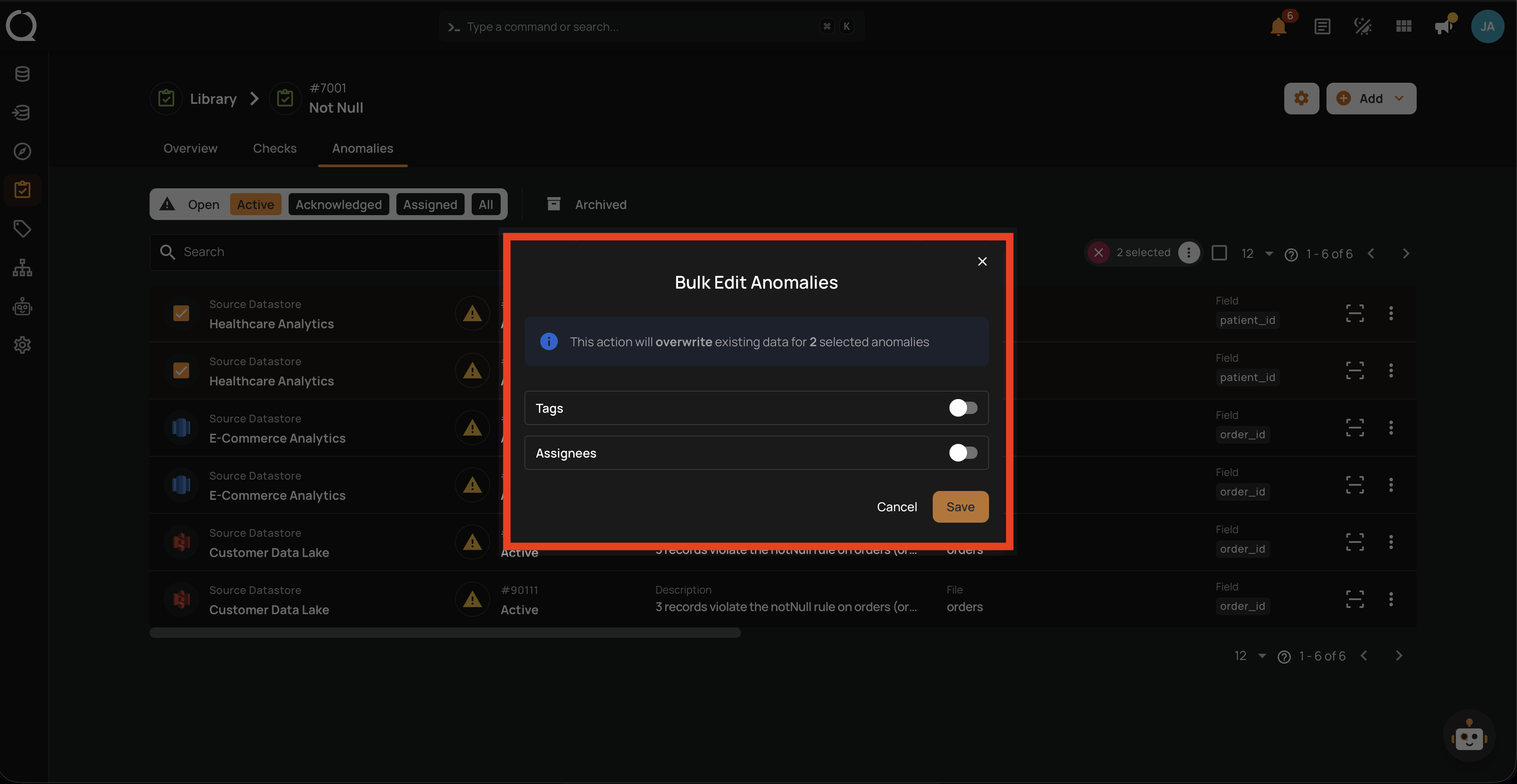
Step 7: Turn on the Assignees toggle. A Select assignees field appears below the toggle, with an Overwrite badge next to it: the assignees you pick replace the current ones.
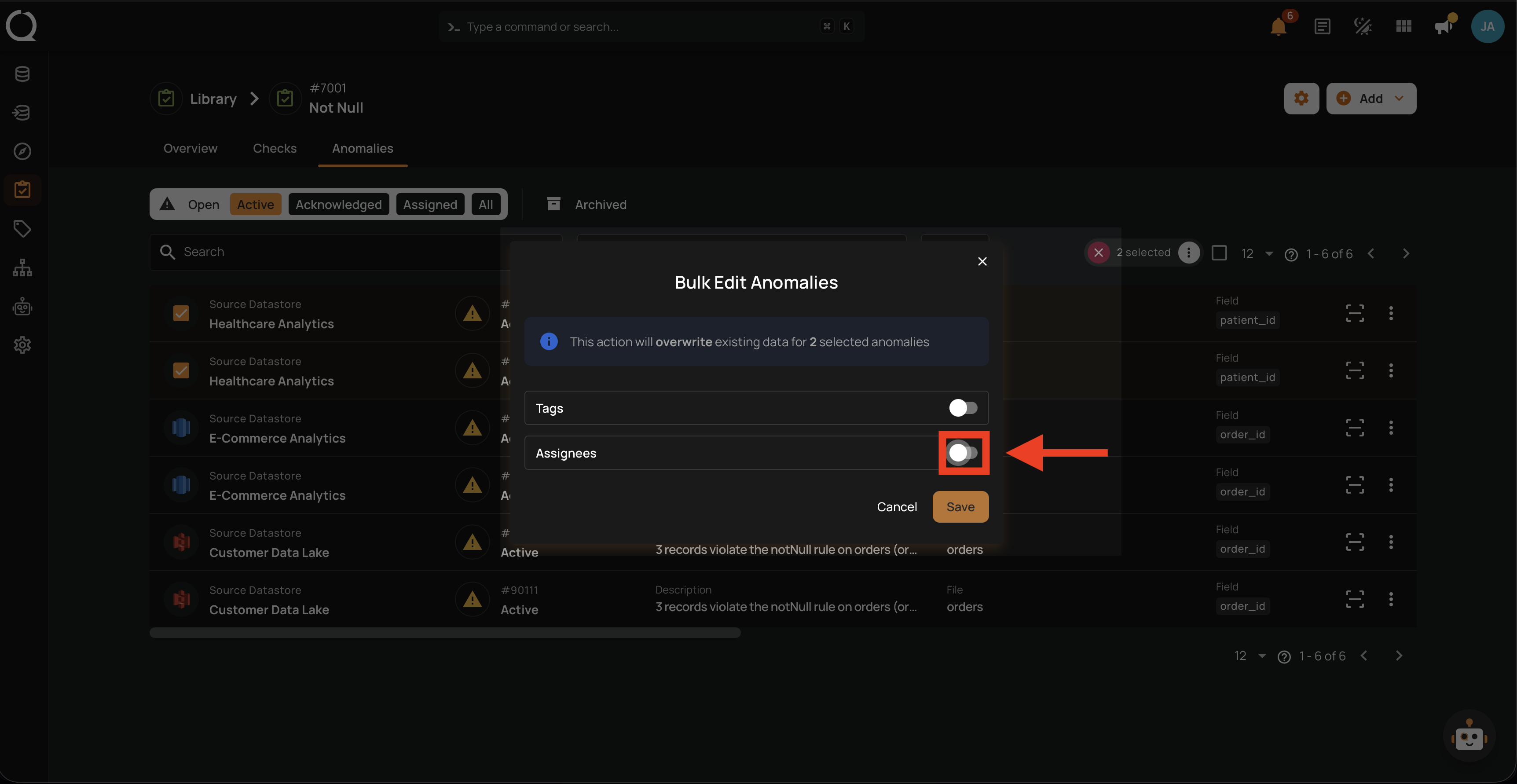
Step 8: Click the Select assignees field to open the user dropdown.
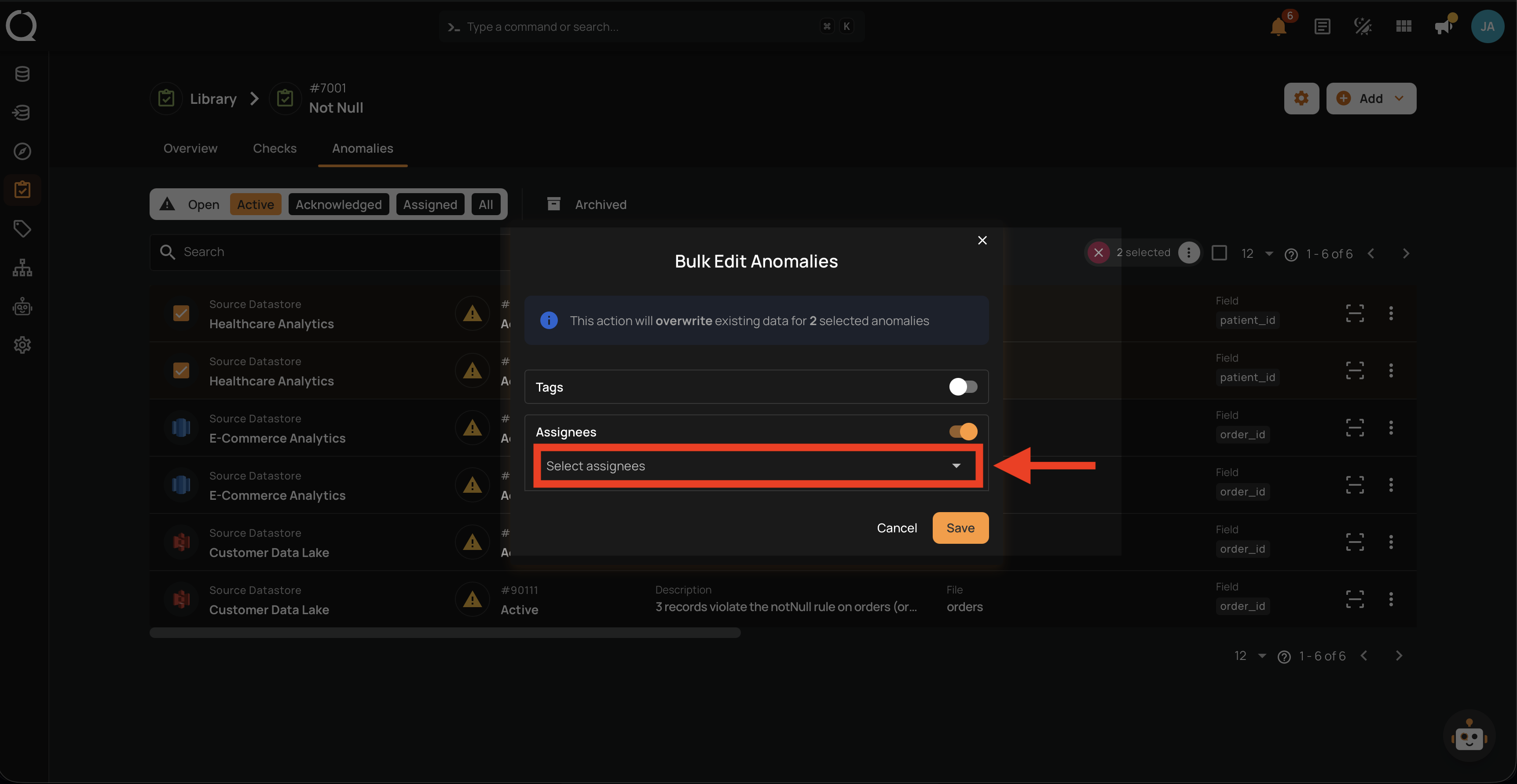
Step 9: The dropdown opens, listing every user with at least the Viewer team permission on the datastore of the selected anomalies, plus an All option that selects all users at once.
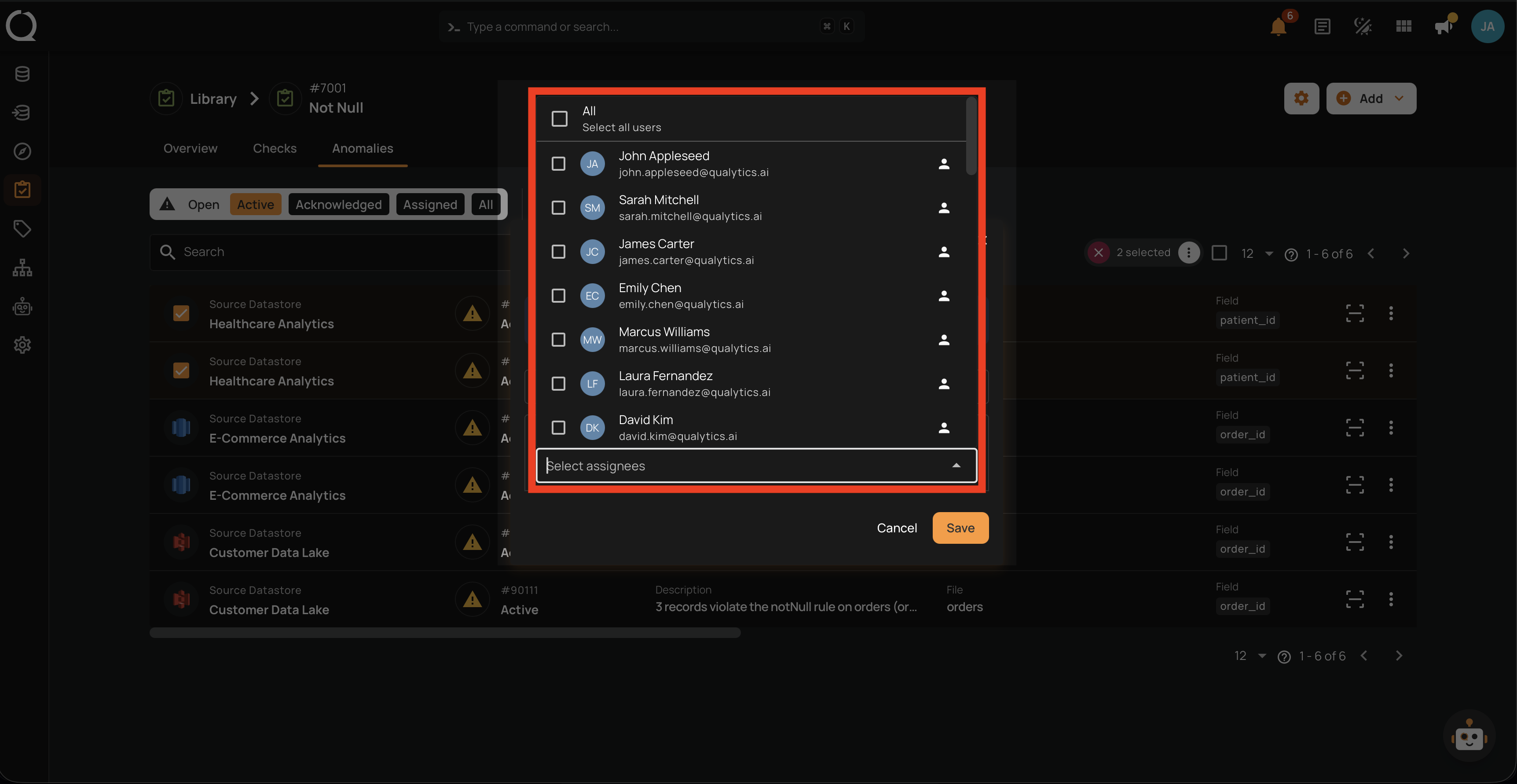
Step 10: Click the checkbox next to each user you want to assign. Selected users appear as chips inside the Select assignees field.
Step 11: Click the Save button to apply the change. Every selected anomaly is updated with the new assignees, and each newly assigned user (except yourself) receives an in-app notification. See Deep Dive · Anomaly Assignees · Notifications.
Bulk edit replaces existing assignees
Bulk edit overwrites the assignees of each selected anomaly with the new set. It does not add to existing assignees. To preserve previous assignees on a specific anomaly, open it individually via Add Anomaly Assignees.
Tip
The Bulk Edit Anomalies modal also exposes a Tags toggle. Turn both toggles on if you want to change assignees and tags in the same operation. See Bulk-Edit Tags.