Filter Activity
The filter bar at the top of the Platform Audit page narrows both the activity log and the summary section (cards plus chart) to a focused subset of activity. This page covers every filter control available on the page.
Permissions
Only users with the Admin user role can access the Audit page. See the Permissions page for the full matrix.
Date and Timeframe
The Date field is the Report Date: the end of the timeframe window. It defaults to today and cannot be set to a future date.
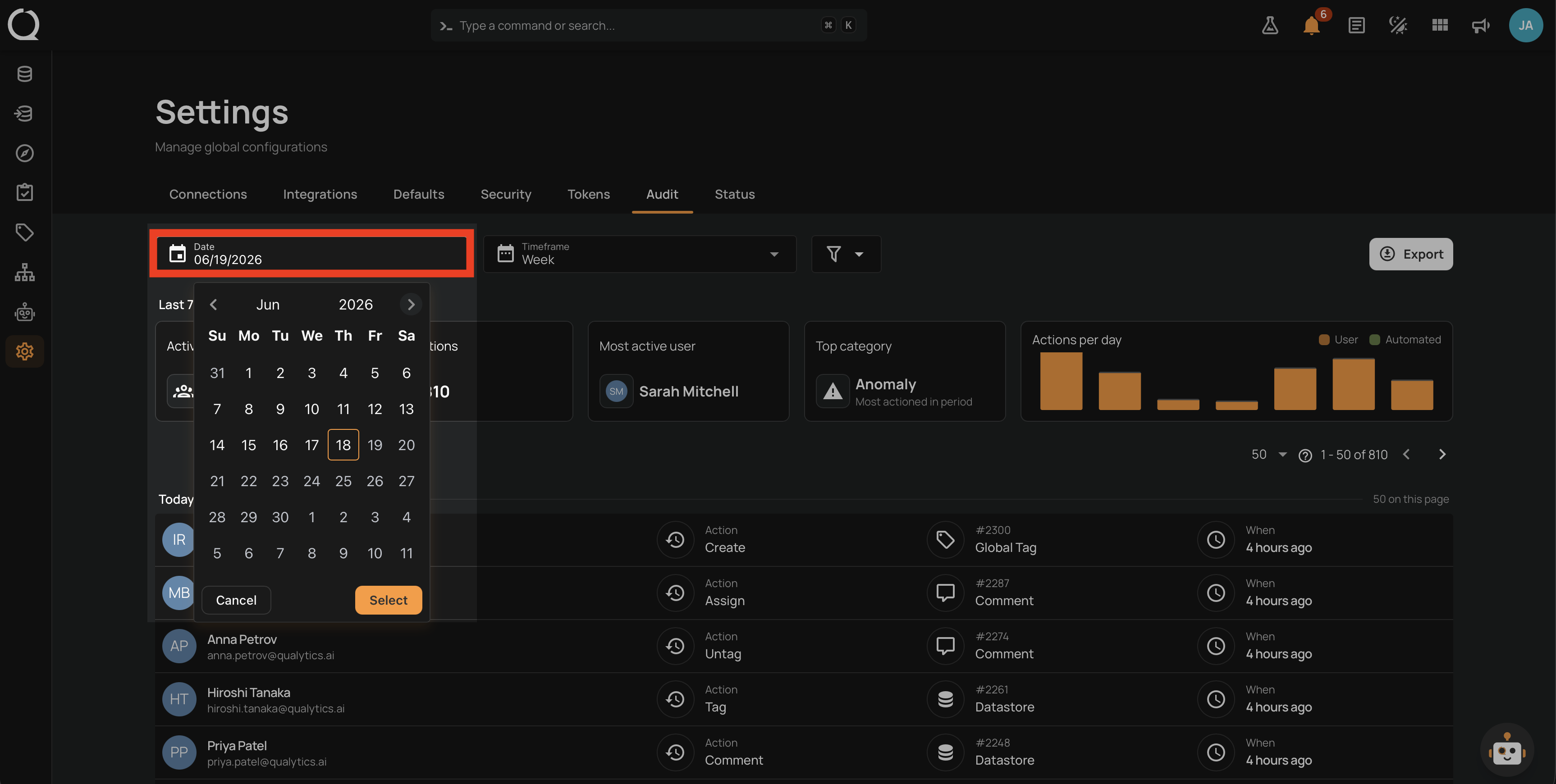
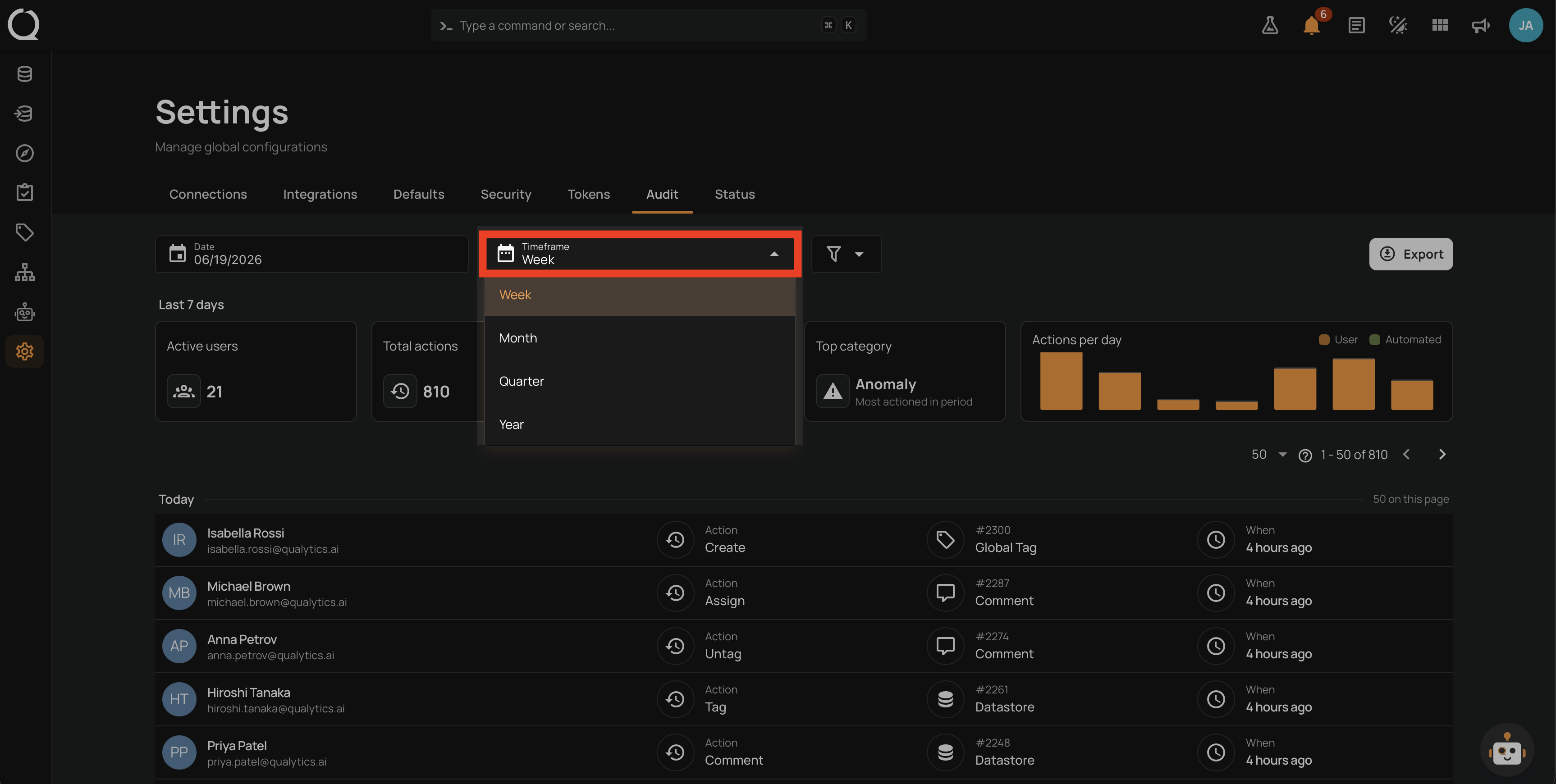
The Timeframe dropdown, together with the Report Date, defines the window of activity the page shows.
| Timeframe | Window |
|---|---|
| Week | The seven days ending on the Report Date. |
| Month | The prior month ending on the Report Date (roughly 30 days). |
| Quarter | The prior three months ending on the Report Date (roughly 90 days). |
| Year | The prior year ending on the Report Date (365 or 366 days on leap years). |
Changing the Date or Timeframe resets pagination
The activity log returns to page 1 whenever the Date or Timeframe changes, because the activity shown has changed.
Filter menu
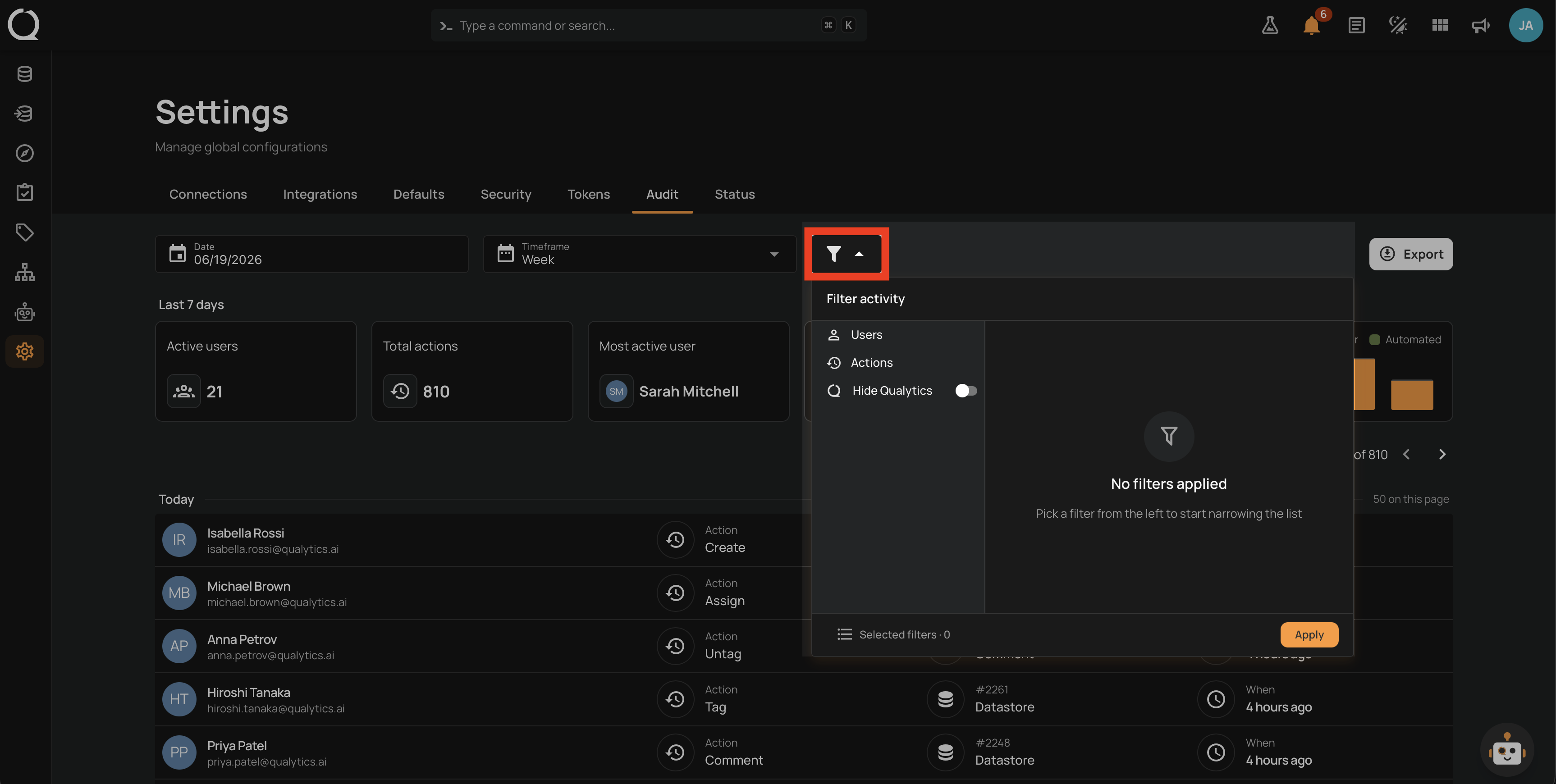
Click the Filter activity button to open the filter menu. The menu contains three filters:
| Filter | Description |
|---|---|
| Users | Multi-select list of users. Use the search box to filter by name, username, or email. Only actions attributed to the selected users are shown. |
| Actions | Multi-select list of action verbs (Create, Update, Delete, and others). Use the search box to find a specific verb. |
| Hide Qualytics | Toggle. When on, removes activity from internal users from both the chart and the log. When off (the default), internal activity is included. |
Click Apply to commit the filters. The chart, summary cards, and log all refresh together with the new population, and pagination resets to page 1.
Clear filters
To clear an individual filter, reopen the menu and deselect the values or toggle off the option. To clear all filters, deselect everything and apply.
Active users always excludes internal users
The Active users summary card always counts unique human actors, regardless of the Hide Qualytics toggle. The toggle controls everything else on the page (the Total actions, Most active user, and Top category cards, the activity chart, and the activity log).