Profile
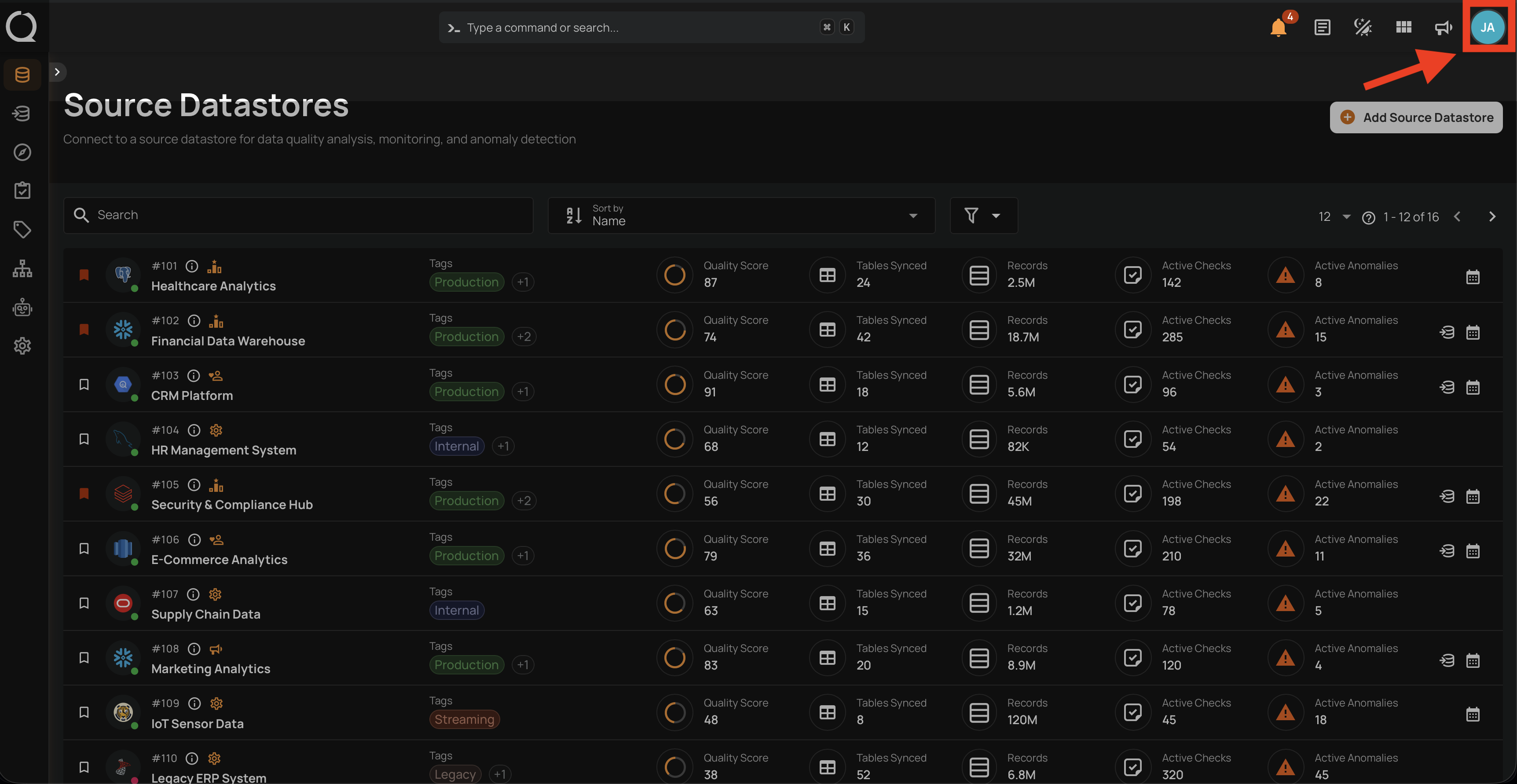
The user profile section in Qualytics provides essential information and settings related to your account. Open it by clicking your avatar in the top-right corner of the toolbar.
Step 1: Click your avatar in the top-right corner of the toolbar.
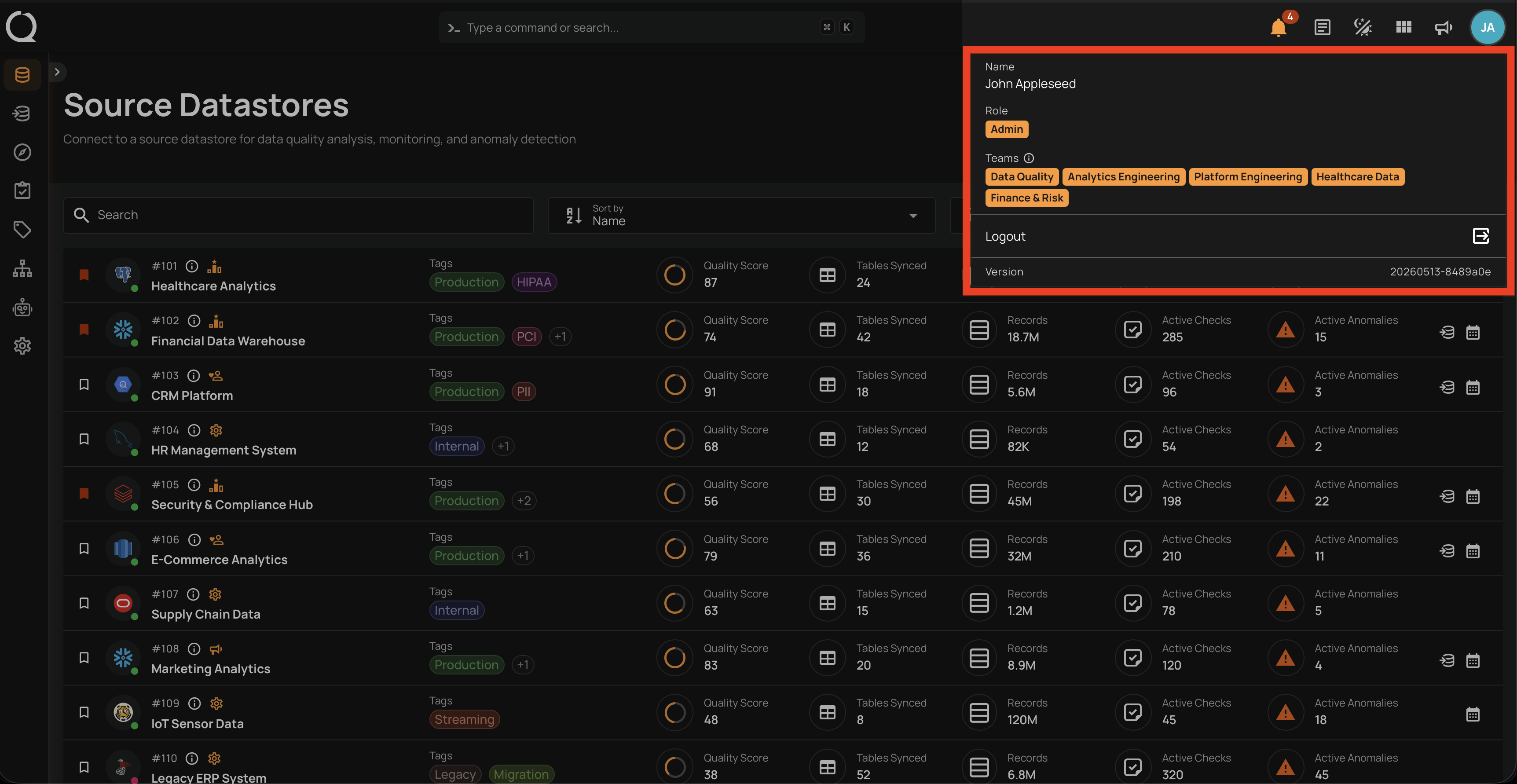
Step 2: The profile menu opens with the following items:
-
Identity: Shows your name if your account has one on file; otherwise shows your email, or a unique identifier as a fallback. This is how Qualytics recognizes you across sessions.
-
Role: Indicates your workspace role — Member, Manager, or Admin — which defines your baseline permissions.
-
Teams: Shows the teams you belong to, helping organize users and manage permissions based on group membership. Clicking a team badge applies Team Restriction Mode immediately and reloads the page, scoping your session to that team only. See Team Restriction Mode for details.
-
Logout: A button that logs you out of your Qualytics account, ending the current session and returning you to the login page.
-
Version: Displays the Qualytics platform version currently running. Useful when troubleshooting or filing a support ticket.