Checks Overview
DO Creating metadata and metric checks
DQ Creating integrity checks
Metadata and metric checks use DO; other rule types use DQ. The rule guide marks the requirement for creating that check. Existing checks remain editable and can run while DO is enabled. See Feature Availability for templates, restores, and module changes.
Checks express what acceptable data looks like and turn that expectation into a result Qualytics can evaluate during a Scan. Each check combines a rule with settings such as fields, filters, coverage, tags, ownership, and notifications. Together, AI Managed and Authored checks create a shared definition of trusted data.
Show me how
The app can walk you through the actions on this page. Press H on a check's page and pick Dry Run a Check, Clone a Check, Promote a Check, or Archive a Check: the walkthrough highlights each step while you do the real work. See The How-tos Scope for every way to start one.
Check Types
In Qualytics, you will come across two types of checks:
AI Managed Checks
AI Managed checks are generated, validated, and maintained from observed data behavior. Most are created during Profile operations; AI Managed Volumetric and Freshness checks can instead use Observability measurement history. These checks provide broad starting coverage, and the applicable oversight setting determines whether new checks become active automatically or remain drafts for review. They are labeled AI Managed in the UI and display a purple AI badge with a four-point star icon.
For more details on AI Managed Checks, please refer to the AI Managed Checks documentation.
Authored Checks
Authored checks are created and governed by your team through the Qualytics platform or API. Use guided rule types and reusable templates for common expectations, or SQL expressions for specialized business logic that cannot be inferred from data patterns alone.
For more details on Authored Checks, please refer to the Authored Checks documentation.
Editing Computed Assets from Checks
Qualytics allows users to edit computed tables and computed fields directly from check interfaces. This feature helps users quickly update computed logic while working on data quality checks without leaving the check context.
What You Can Do
Edit Computed Assets from a Check
From a Check Details screen, users can:
- Edit the computed table used by the check
- Edit the computed field used by the check, when the check's rule targets a single field
The edit action opens the same Edit Computed dialog available from the container page, but directly within the check context. This allows users to quickly adjust logic when a check fails or needs refinement.
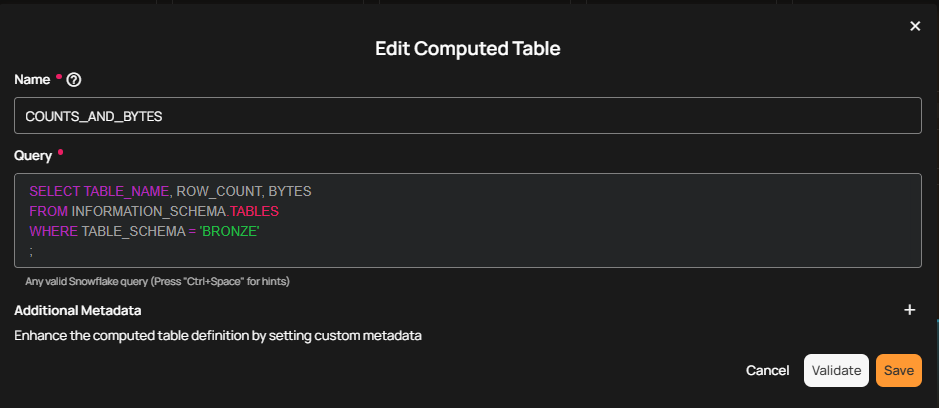
Keyboard Shortcut
E: Edit Computed Asset
When focused on a computed asset within a check:
- Press
Eto open Edit Computed - This opens the Edit Computed Table or Edit Computed Field dialog
Note
On this screen, the “E” keyboard shortcut is used to open Edit Computed.
Dependency Protection
Qualytics automatically protects dependencies when computed assets are edited.
When a Dependency Is Affected
If an edit to a computed table or field would impact an existing check, for example:
- Renaming or removing a field used by the check
- Modifying a query that drops a referenced column
Qualytics will display a warning message before the change is applied.
The warning, titled Fields will be marked as missing, lists each affected field with its number of quality checks and anomalies. It offers Proceed Anyway and a button to go back and review the query or expression (Review Query or Review Expression).
Proceeding with the Change
If you choose Proceed Anyway:
- The removed fields are marked as missing
- Their quality checks and anomalies are preserved, and the checks keep their status
- You stay on the same page
Important Considerations
- There are no strict limitations on editing computed assets
- Changes may impact dependent checks
- Always review dependency warnings before proceeding
- To preserve an existing check, avoid removing or renaming fields it depends on
View & Manage Checks
Checks tab in Qualytics provides users with an interface to view and manage various checks associated with their data. These checks are accessible through two different methods, as discussed below.
Method 1: Datastore-Specific Checks
Step 1: Log in to your Qualytics account and select the datastore from the left menu.
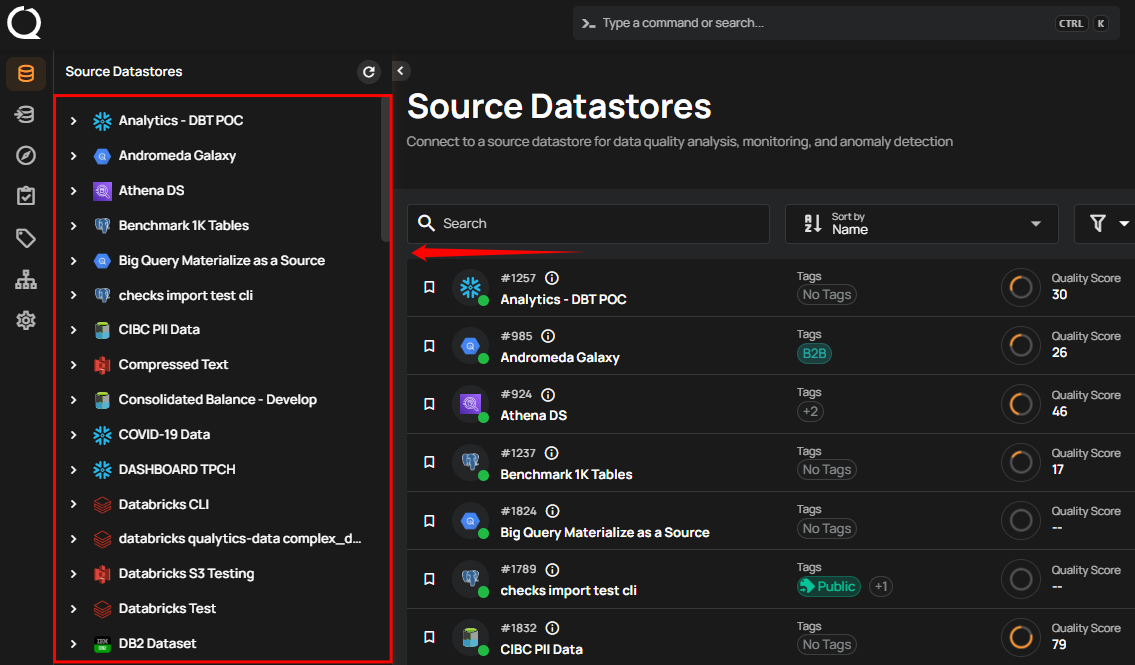
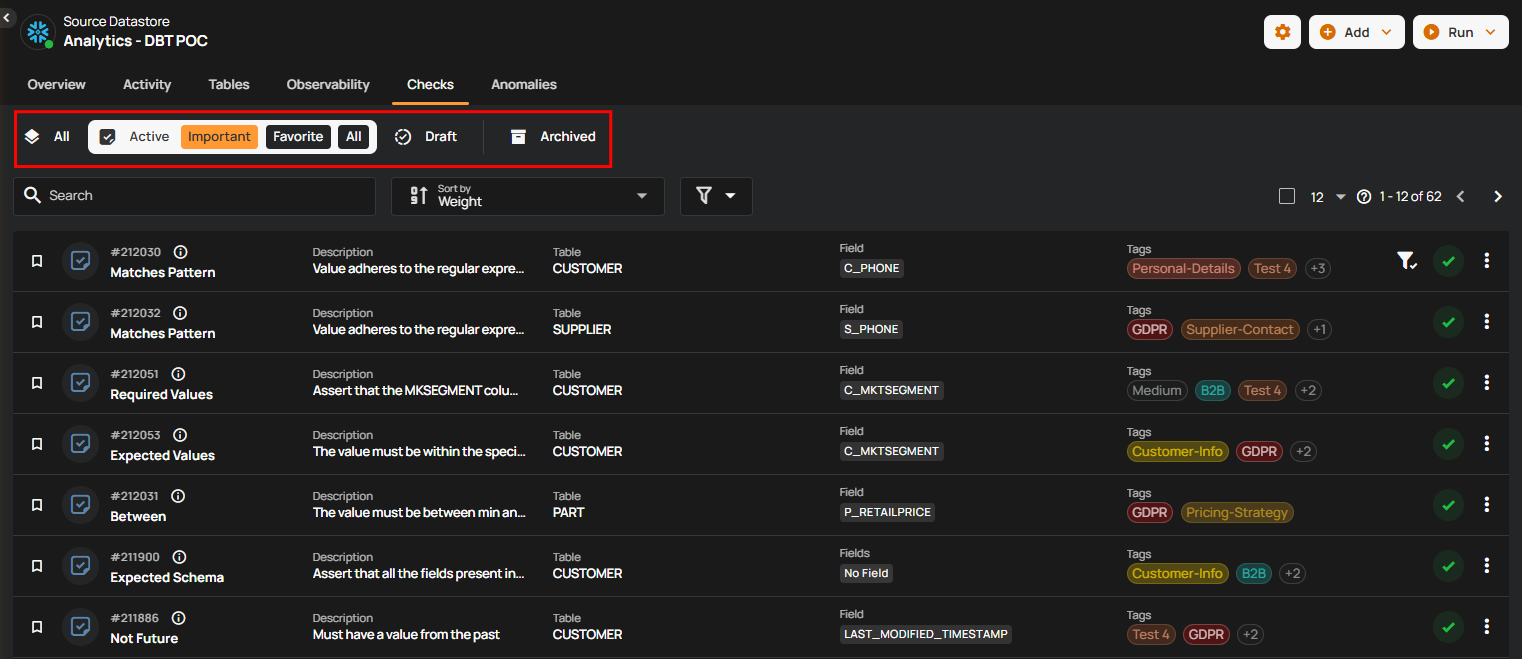
Step 2: Click the "Checks" from the navigation tab.
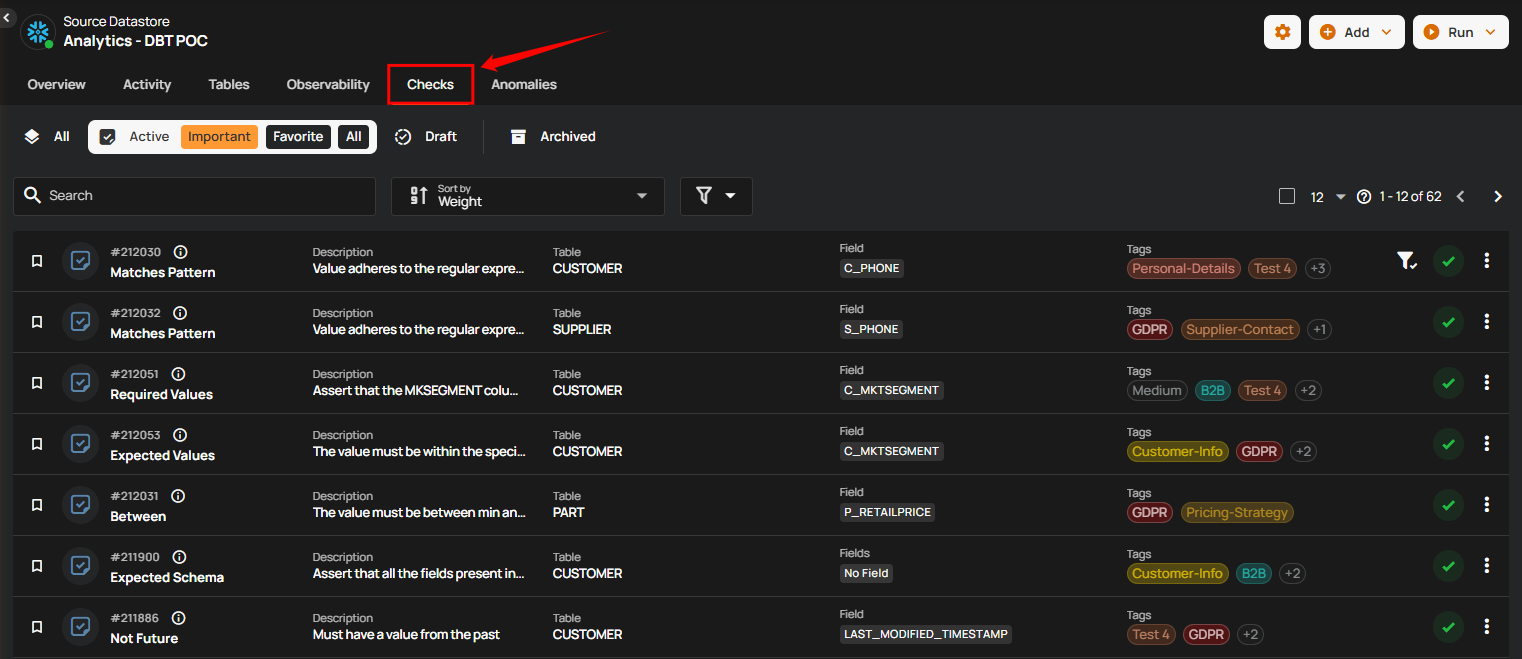
You will see a list of all the checks that have been applied to the selected datastore.
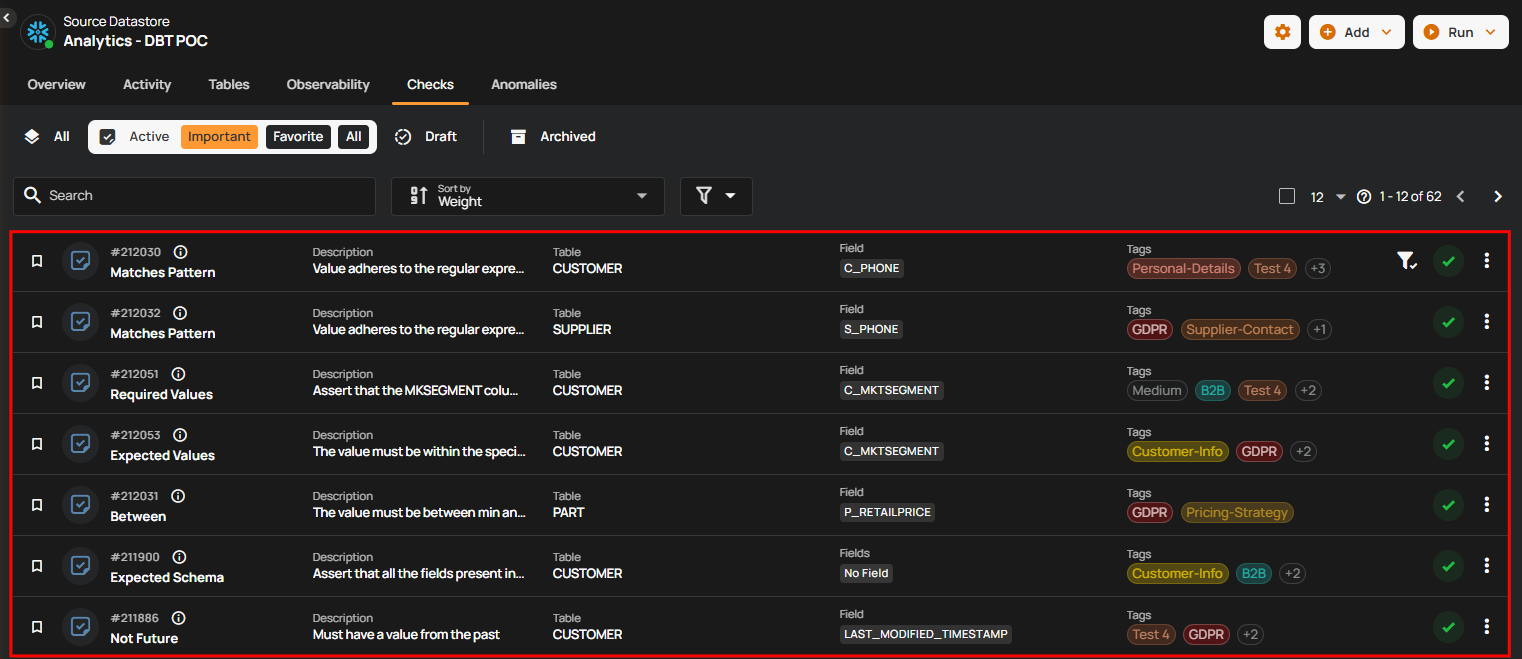
You can switch between different types of checks to view them categorically (such as All, Active, Draft, and Archived).
Method 2: Explore Section
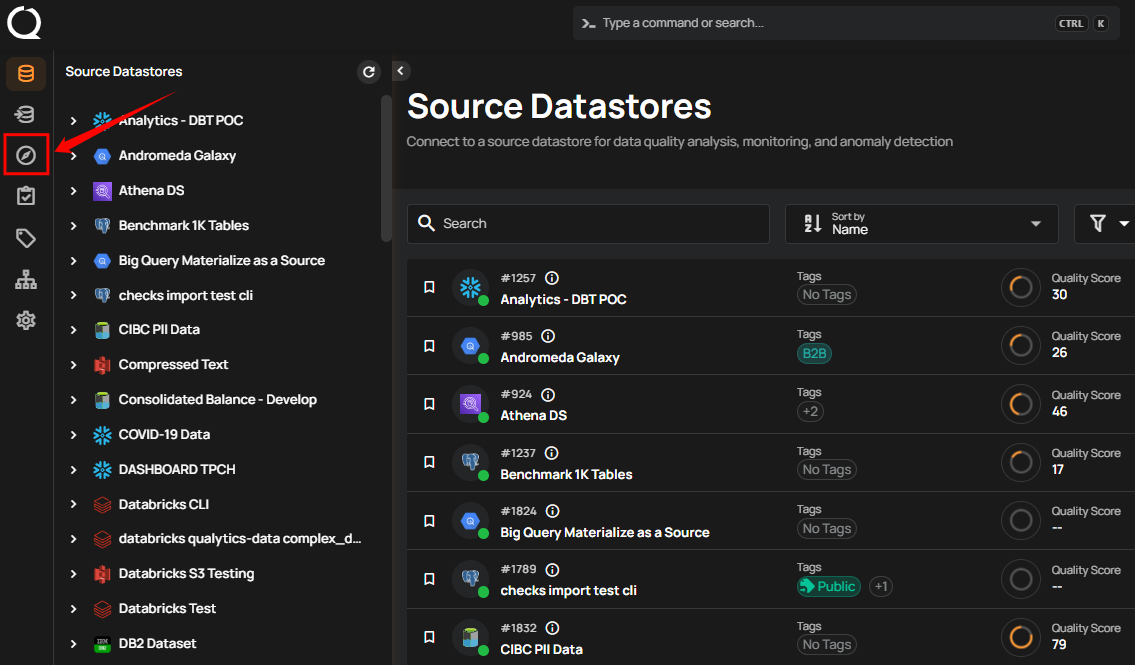
Step 1: Log in to your Qualytics account and click the Explore button on the left side panel of the interface.
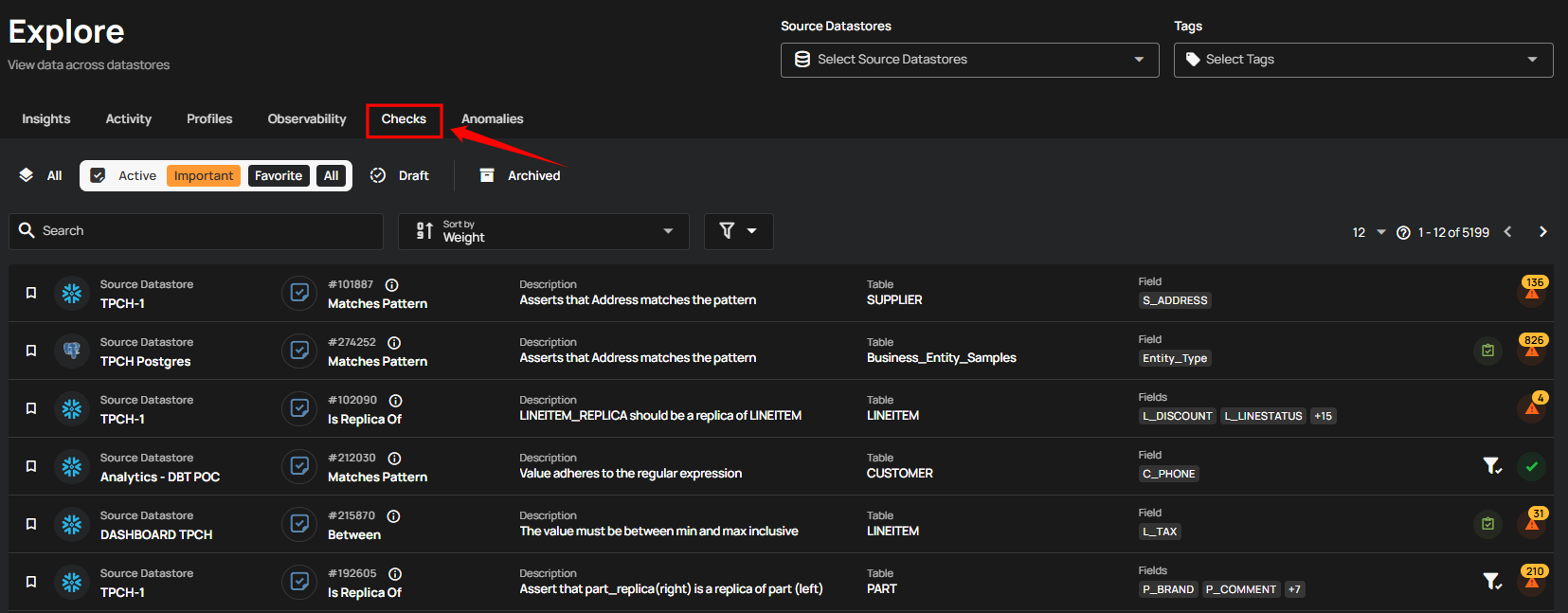
Step 2: Click the "Checks" from the navigation tab.
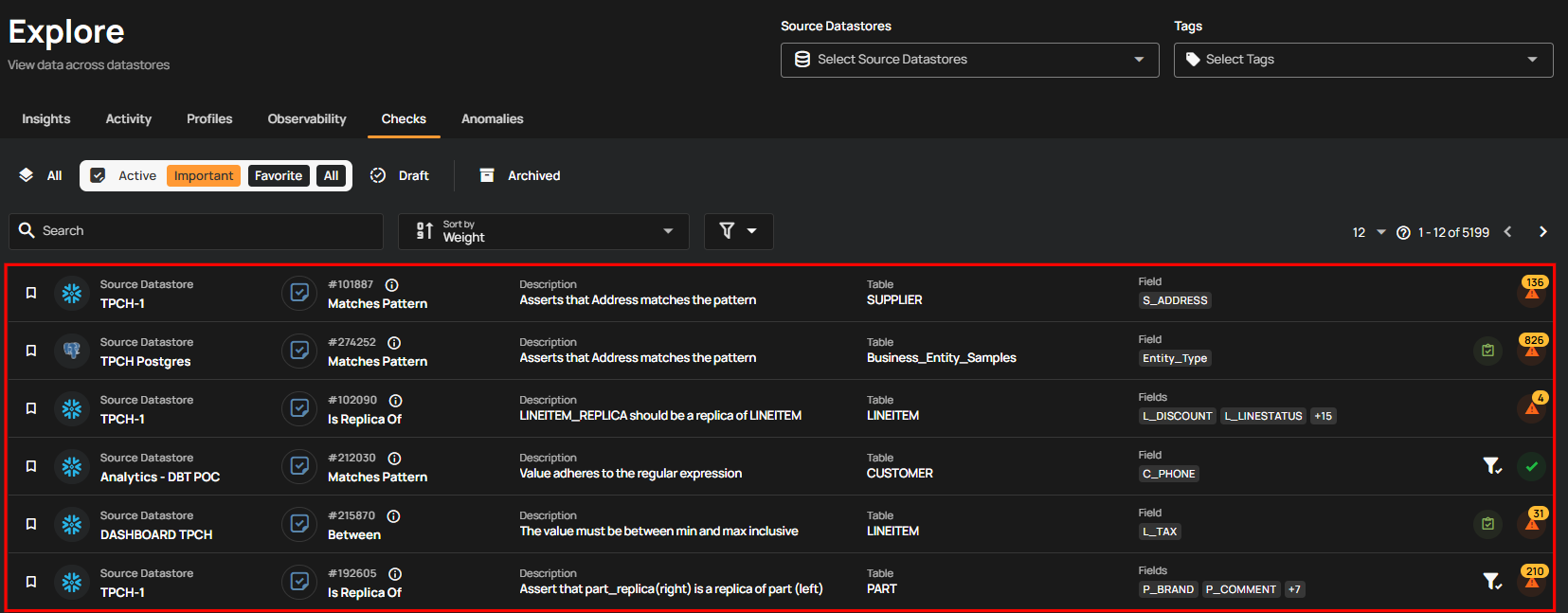
You'll see a list of all the checks that have been applied to various tables and fields across different source datastores.
Check Templates
Check templates provide reusable starting settings for checks that express the same expectation across compatible data.
Templates are managed independently of a specific datastore, container, or field. Applying one creates a check with shared rule settings, but a data steward should still review the target fields, filters, coverage, and business context before activation.
For more details about check templates, please refer to the Check Templates documentation.
Apply Check Template for Quality Checks
Apply a check template to create a check from shared settings without starting from scratch. Confirm that the selected asset is compatible and that the resulting check represents the intended business expectation.
For more details on how to apply check templates for quality checks, please refer to the Apply Check Template for Quality Checks documentation.
Export Check Templates
Export check templates to share or reuse their settings across supported environments. After importing or applying a template, review and validate the resulting check against the target data before relying on it.
For more details about export check templates, please refer to the Export Check Templates documentation.
Manage Checks in Datastore
Within a datastore, you can create, update, clone, archive, restore, or delete checks and organize them by lifecycle state. Use Draft for work that still needs review, Active for checks available to Scan, and Archived for checks removed from active evaluation. Importance, ownership, favorites, tags, and templates help teams organize review and reuse.
For more details on how to manage checks in datastores, please refer to the Manage Checks in Datastore documentation.
Check Rule Types
In Qualytics, a variety of check rule types are provided to maintain data quality and integrity. These rules define specific criteria that data must meet, and checks apply these rules during the validation process.
For more details about check rule types, please refer to the Getting Started with Check Rule Types documentation.
| Rule Type | Description |
|---|---|
| After Date Time | Asserts that the field is a timestamp later than a specific date and time. |
| Aggregation Comparison | Verifies that the specified comparison operator evaluates true when applied to two aggregation expressions. |
| Any Not Null | Asserts that at least one of the fields must not be null. |
| Before Date Time | Asserts that the field is a timestamp earlier than a specific date and time. |
| Between | Asserts that values are equal to or between two numbers. |
| Between Times | Asserts that values are equal to or between two dates or times. |
| Contains Credit Card | Asserts that the values contain a credit card number. |
| Contains Email | Asserts that the values contain email addresses. |
| Contains Social Security Number | Asserts that the values contain social security numbers. |
| Contains Url | Asserts that the values contain valid URLs. |
| Data Diff | Asserts that the dataset created by the targeted field(s) has differences compared to the referred field(s). |
| Distinct Count | Asserts on the approximate count distinct of the given column. |
| Entity Resolution | Asserts that records with similar values across the configured target fields are resolved as the same entity and share a single distinction-field value. |
| Equal To | Asserts that all of the selected fields equal a value. |
| Equal To Field | Asserts that this field is equal to another field. |
| Exists in | Asserts if the rows of a compared table/field of a specific Datastore exists in the selected table/field. |
| Expected Schema | Asserts that all selected fields are present and that all declared data types match expectations. |
| Expected Values | Asserts that values are contained within a list of expected values. |
| Field Count | Asserts that there must be exactly a specified number of fields. |
| Freshness Check | Asserts that a table or file was modified within a Maximum Age. |
| Greater Than Field | Asserts that this field is greater than another field. |
| Is Address | Asserts that the values contain the specified required elements of an address. |
| Is Credit Card | Asserts that the values are credit card numbers. |
| Is Replica Of (is sunsetting) | Asserts that the dataset created by the targeted field(s) is replicated by the referred field(s). |
| Is Type | Asserts that the data is of a specific type. |
| Less Than | Asserts that the field is a number less than (or equal to) a value. |
| Less Than Field | Asserts that this field is less than another field. |
| Matches Pattern | Asserts that a field must match a pattern. |
| Max Length | Asserts that a string has a maximum length. |
| Max Partition Size | Asserts the maximum number of records that should be loaded from each file or table partition. |
| Max Value | Asserts that a field has a maximum value. |
| Metric | Records the value of the selected field during each scan operation and asserts that the value is within a specified range (inclusive). |
| Min Length | Asserts that a string has a minimum length. |
| Min Partition Size | Asserts the minimum number of records that should be loaded from each file or table partition. |
| Min Value | Asserts that a field has a minimum value. |
| Not Exists In | Asserts that values assigned to this field do not exist as values in another field. |
| Not Future | Asserts that the field's value is not in the future. |
| Not Negative | Asserts that this is a non-negative number. |
| Not Null | Asserts that the field's value is not explicitly set to nothing. |
| Positive | Asserts that this is a positive number. |
| Predicted By | Asserts that the actual value of a field falls within an expected predicted range. |
| Satisfies Expression | Evaluates a SQL expression for each record. |
| Required Values | Asserts that all of the defined values must be present at least once within a field. |
| Sum | Asserts that the sum of a field is a specific amount. |
| Time Distribution Size | Asserts that the count of records for each interval of a timestamp is between two numbers. |
| Unique | Asserts that the field's values are unique. When multiple fields are selected, asserts that the combination of values is unique (composite key). |
| Volumetric | Asserts that the row count of a table or file stays within an expected range, or changes by no more than expected since an earlier day. |