Filter Users
Use the filter panel to narrow down the users list by role, team, account type, or activation status. This is useful for auditing access, finding specific groups of users, or reviewing deactivated accounts.
Permissions
Users with the Manager or Admin role can access the Security page and filter users. See the Permissions page for details.
Available Filters
| Filter | Description |
|---|---|
| Role | Show only users with the selected role (Admin, Manager, or Member). Single selection. |
| Team | Show only users who belong to one or more selected teams. Multi-select. |
| Only service users | When enabled, the list shows only Service Users. |
| Show deactivated | When enabled, the list also includes accounts that have been deactivated. |
Apply a Filter
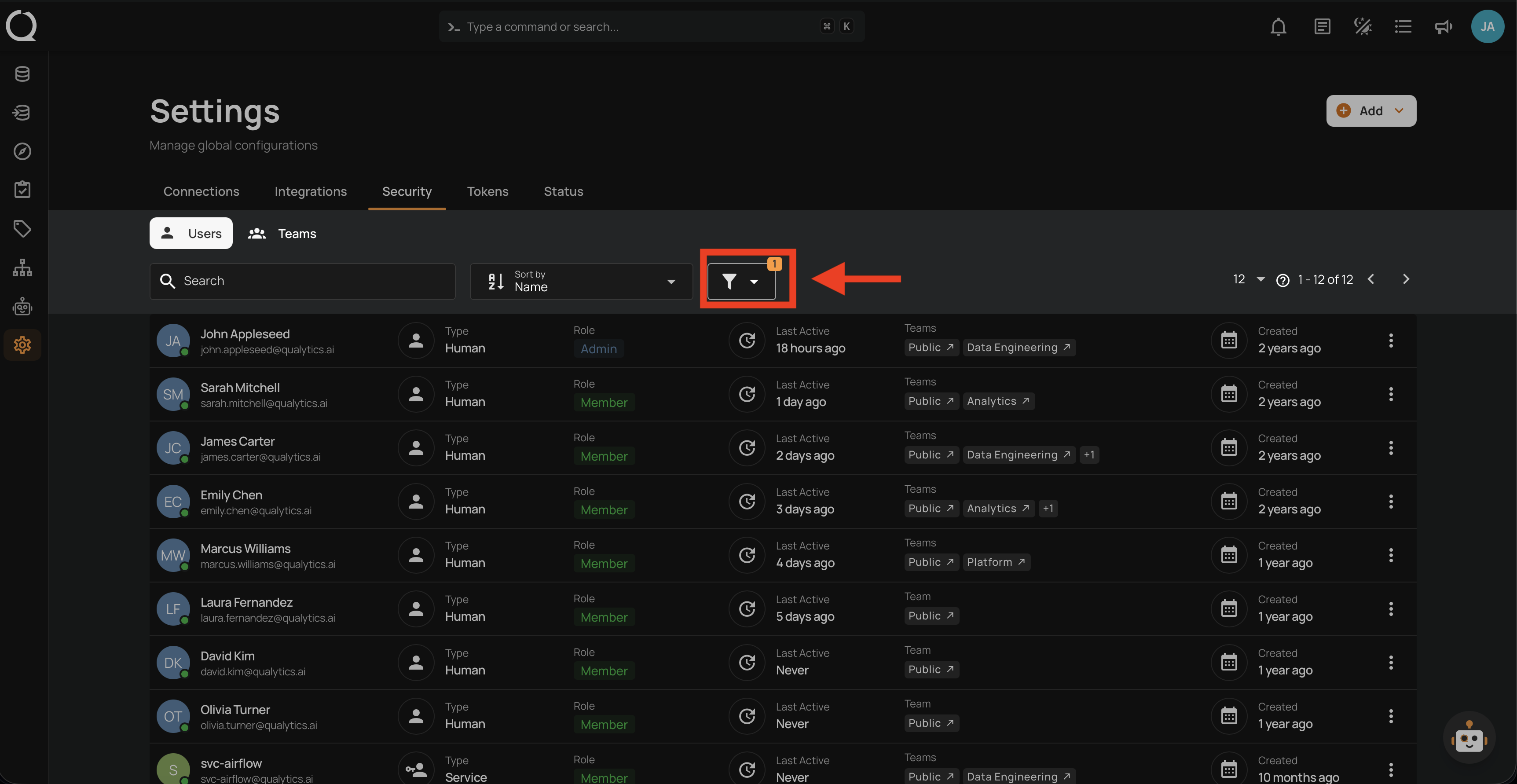
Step 1: Click the filter icon at the top of the users list.
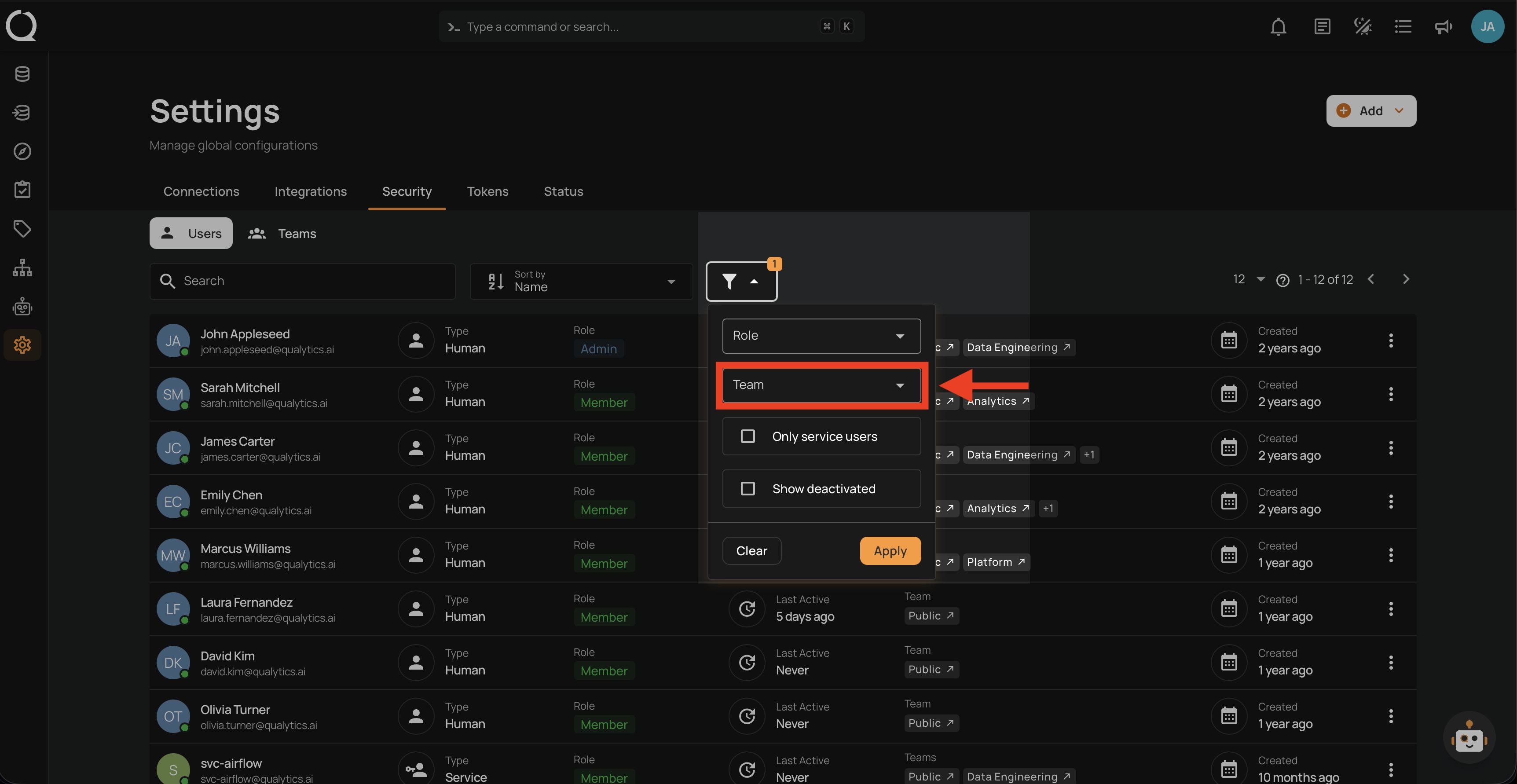
Step 2: In the filter panel, choose the values you want to filter by. You can combine multiple filters at once (e.g., Role + Team).
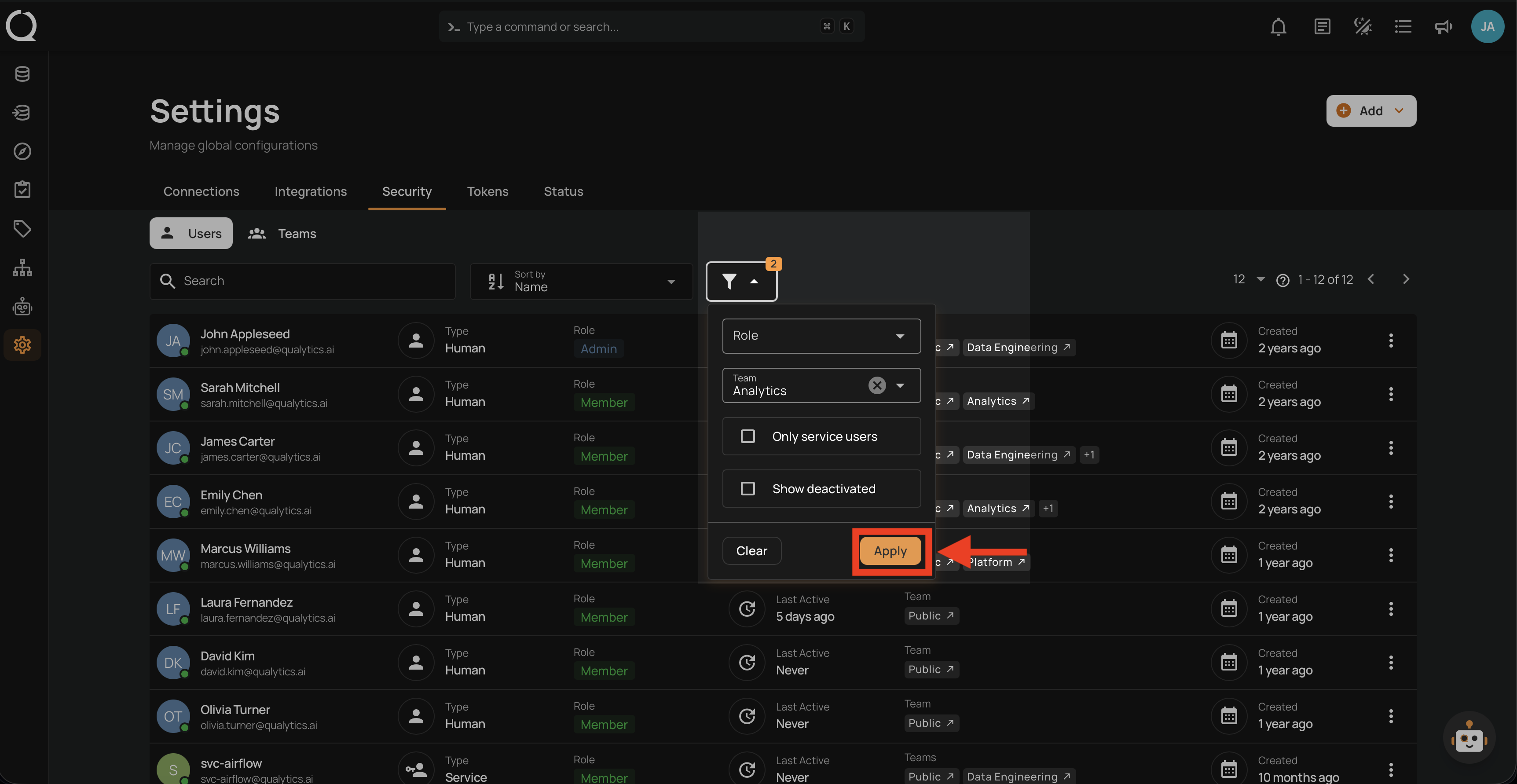
Step 3: Click the Apply button to apply your selection.
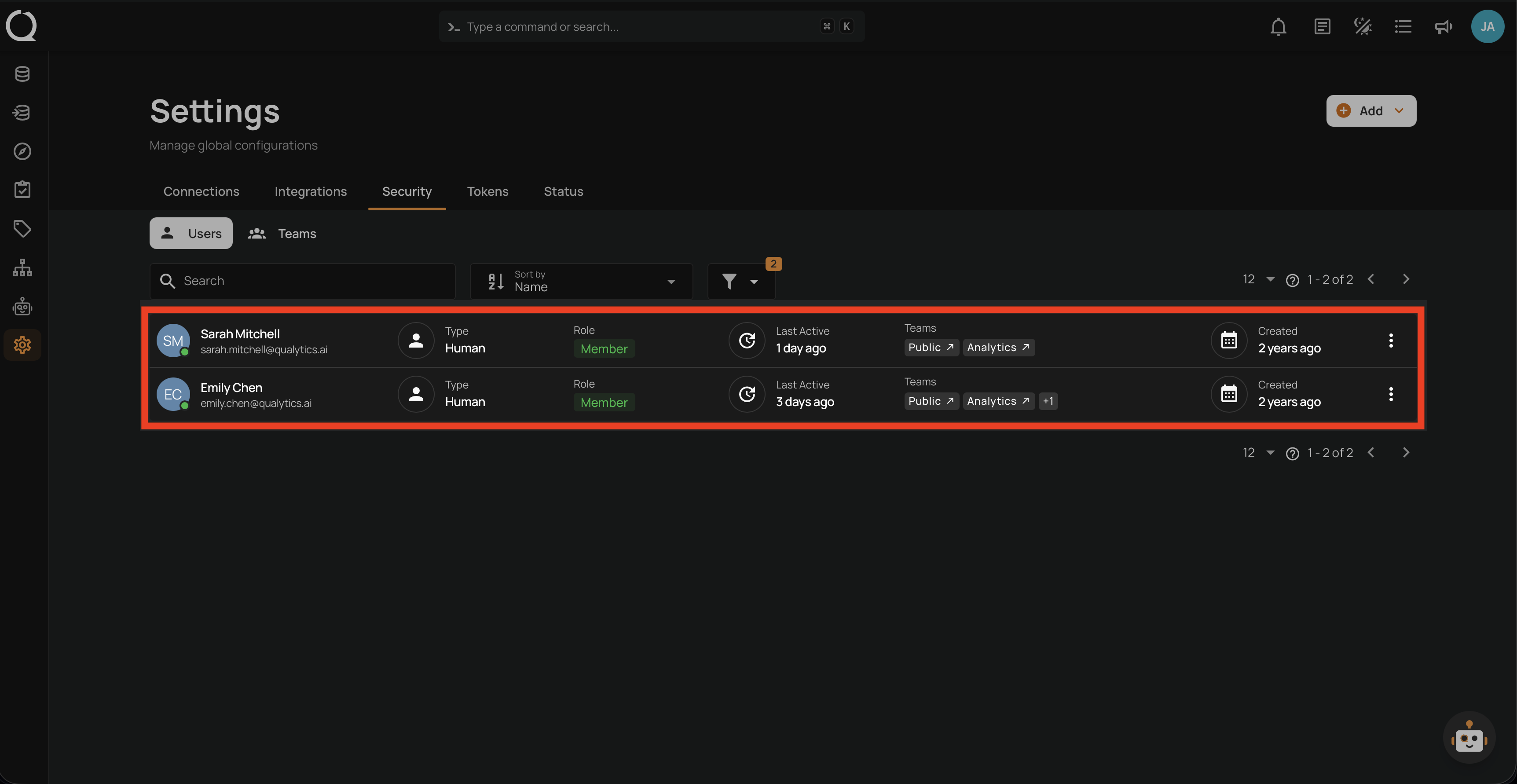
Step 4: The list updates to show only the users matching every active filter.
Tip
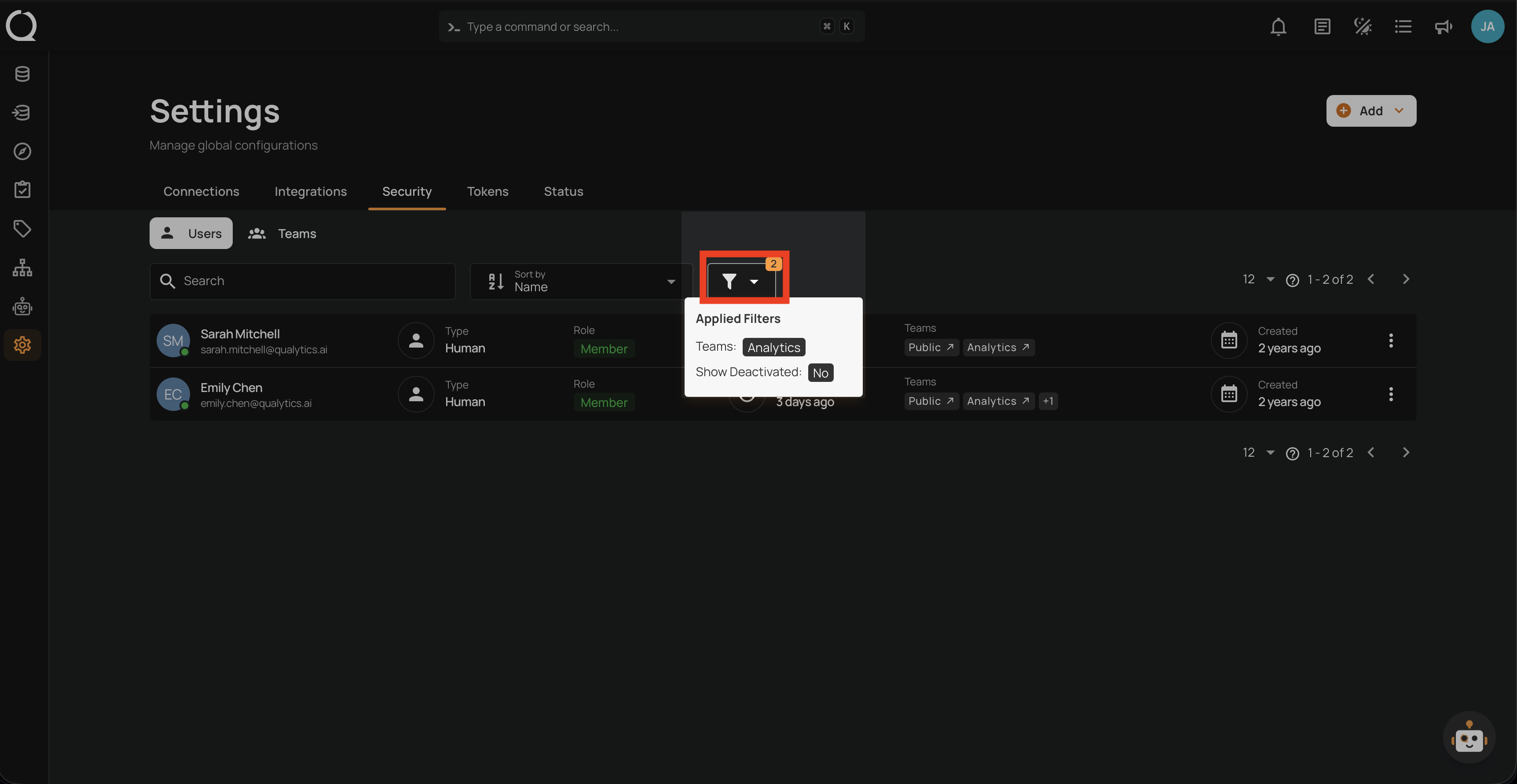
When one or more filters are active, the filter icon switches to a solid state () and a badge shows the number of active filters. Hover over the badge to see exactly which filters are applied.
Clear Filters
To remove a filter, open the filter panel again and use the clear control next to the field, or click Clear at the bottom of the panel to reset all filters at once.