Link an Existing ServiceNow Ticket
Link an existing ServiceNow Incident to an anomaly in Qualytics instead of creating a new ticket.
Prerequisites
The ServiceNow integration must be connected before you can link tickets.
Permissions
Users with the Manager or Admin role and Author team permission on the anomaly's datastore can link ServiceNow tickets. See the Permissions page for details.
Steps
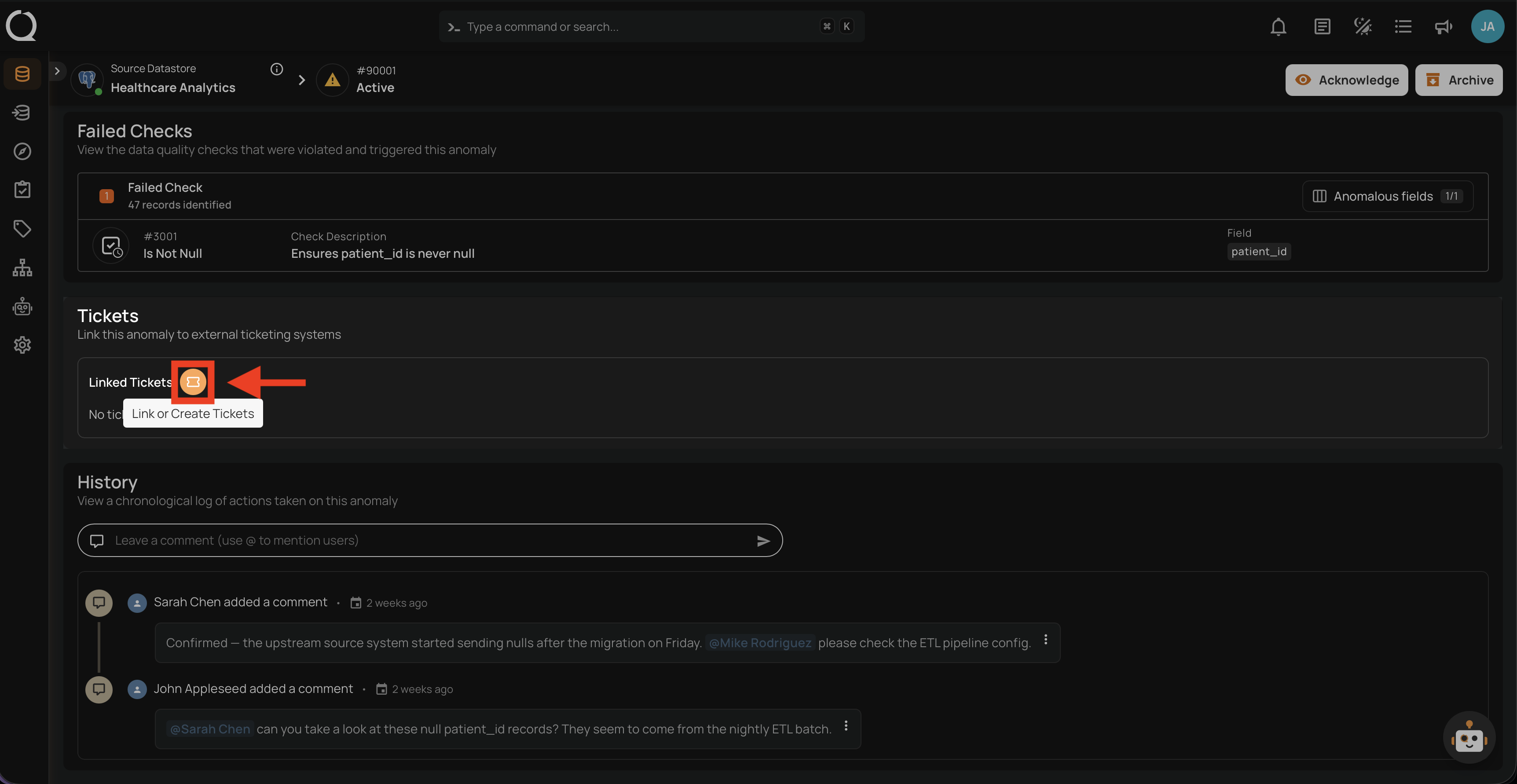
Step 1: Open the anomaly in Qualytics, scroll to the Linked Tickets section, and click the Link or Create Tickets button.
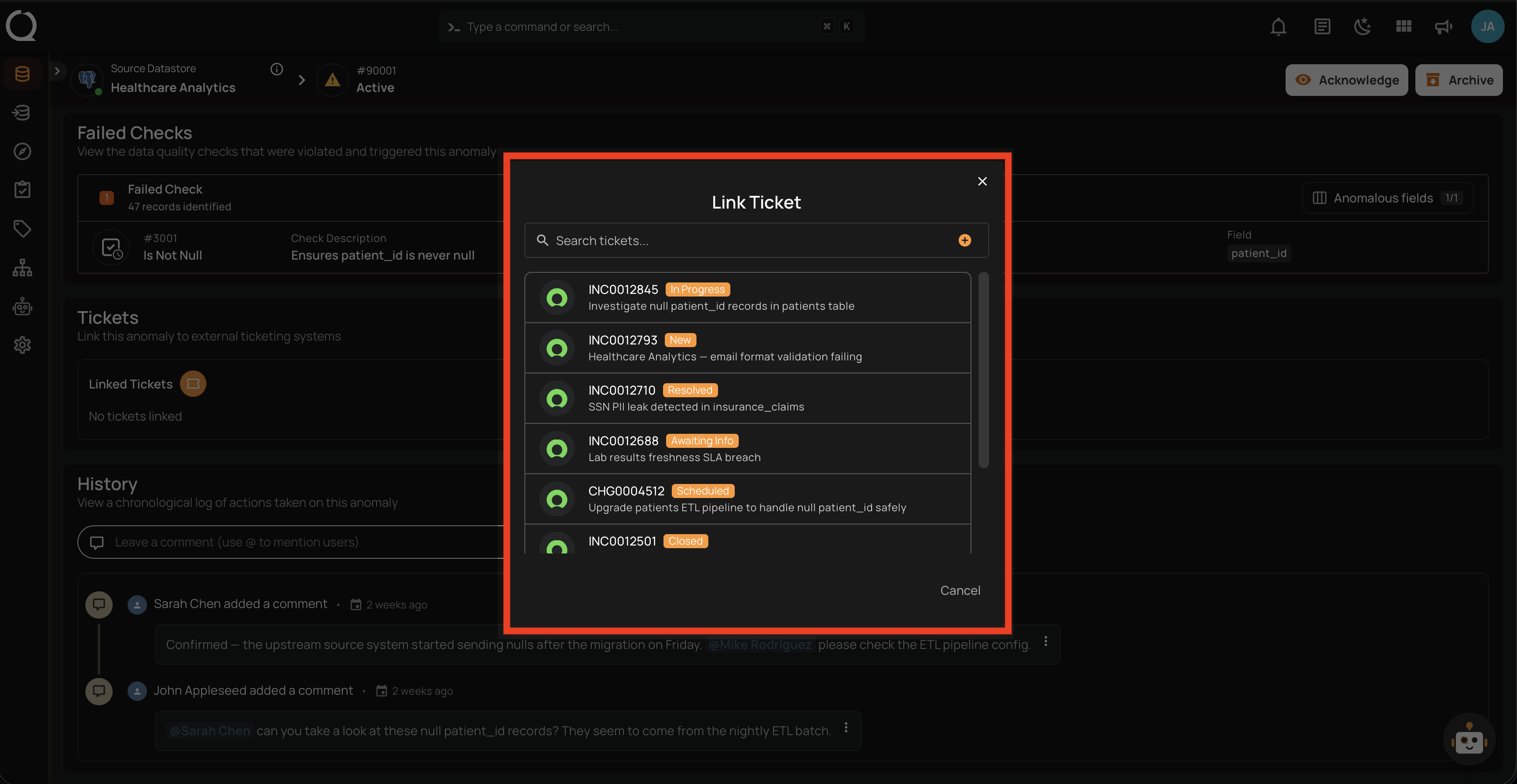
Step 2: The Link Ticket modal opens. Type in the search bar to find existing ServiceNow Incidents by Incident number or short description.
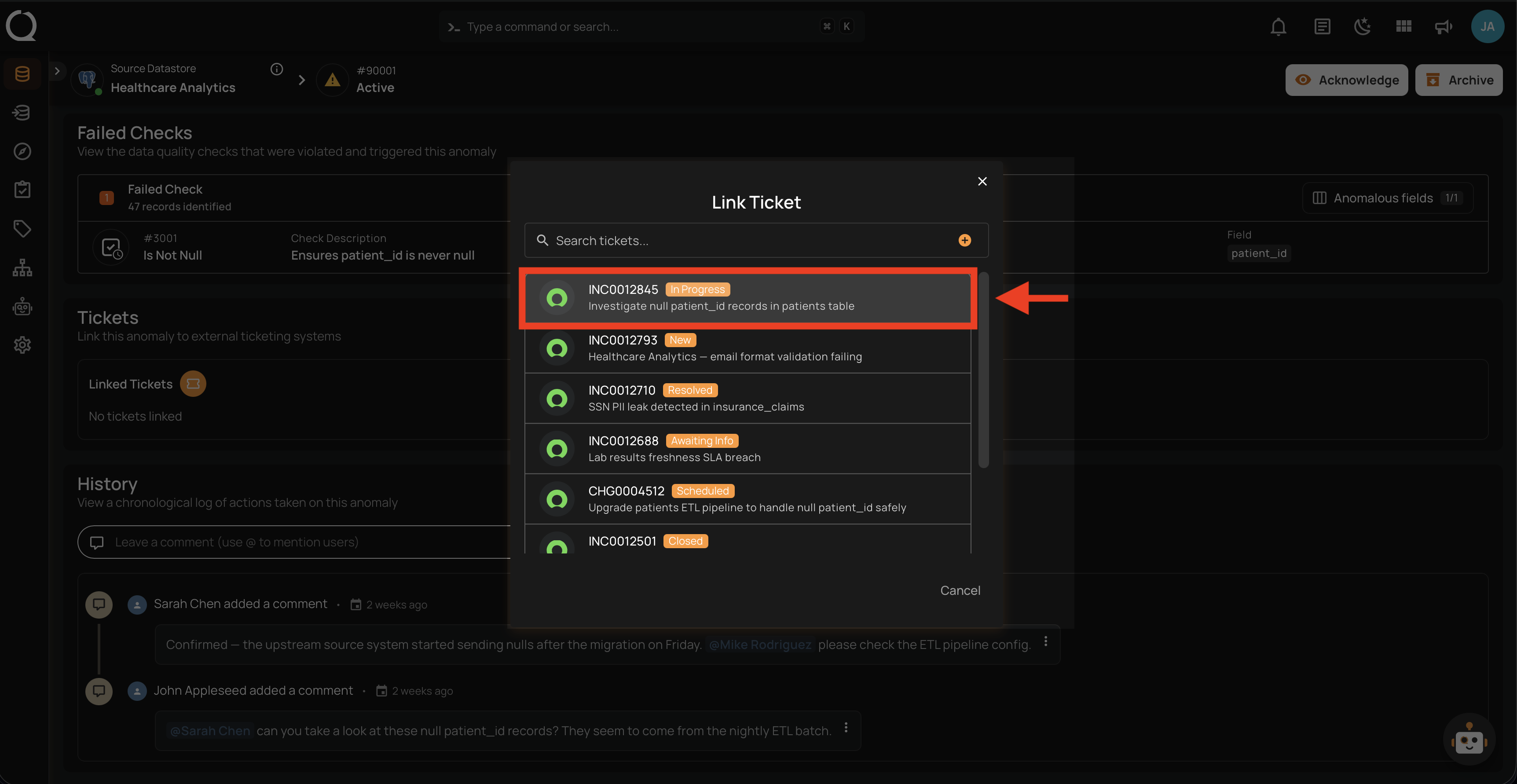
Step 3: Click on the ServiceNow Incident you want to link.
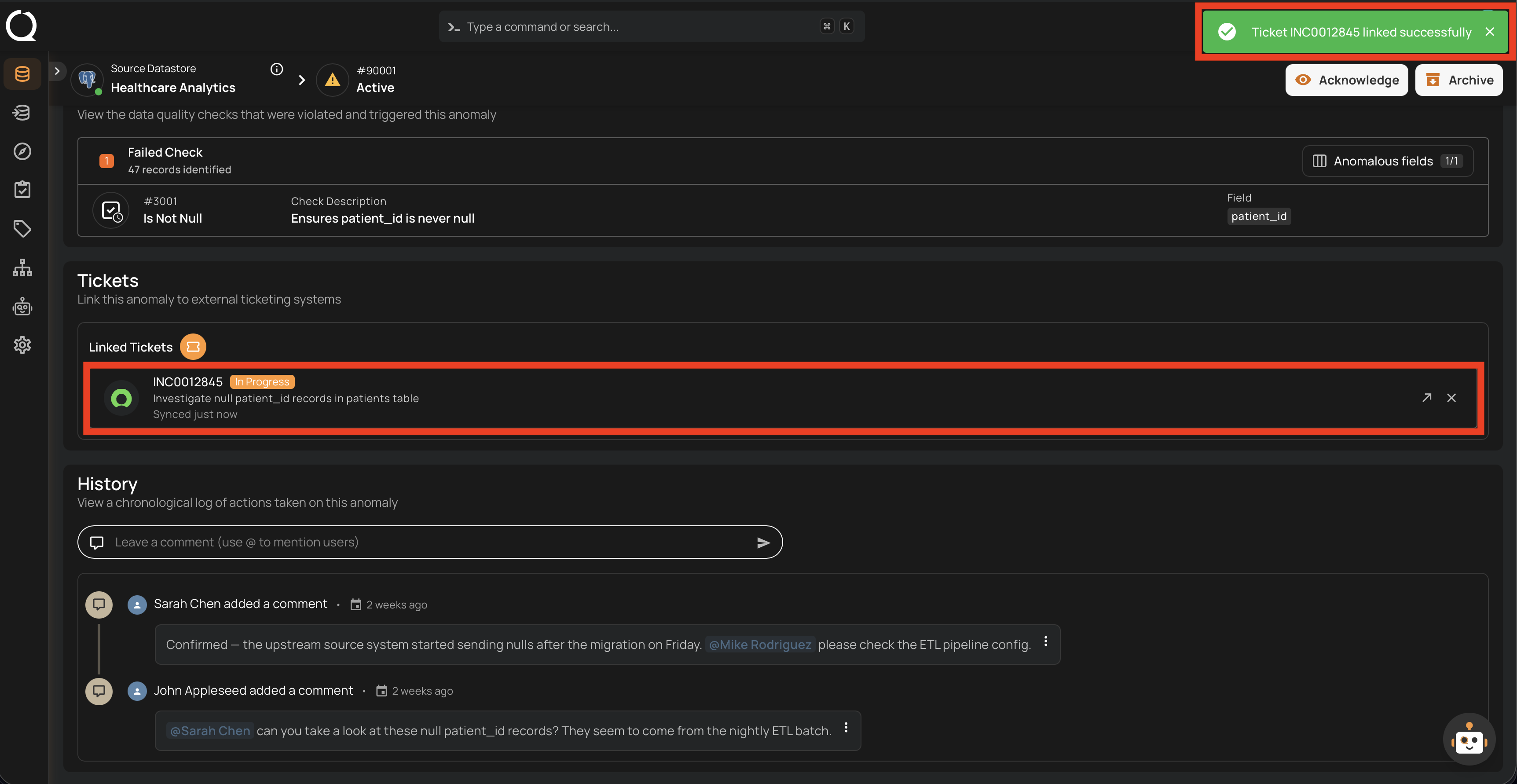
Step 4: A success notification appears, and the Incident is shown in the Linked Tickets section of the anomaly.
When linking an existing ticket:
- A link is established in Qualytics between the anomaly and the incident
- The incident's description is updated — anomaly details are appended to the existing description (existing content is preserved)
- A work note is added to the incident with the linkage information (anomaly ID, status, timestamp)
Tip
Multiple tickets can be linked to a single anomaly. Use this to track related issues across different teams or instances.