Promote Quality Checks
Quality check promotion copies check definitions from a source container to a destination container. The destination can be on the same or a different datastore. This page documents the bulk workflow triggered from the source container's Settings > Promote > Quality Checks menu.
Prerequisites
- The user has Editor team permission on both the source and the destination container.
- The source container has at least one quality check in Active or Draft status. Checks in
ArchivedorDiscardedstatus are automatically excluded from promotion, even when listed explicitly by ID. - The destination container exists and has fields that match the source check's field references by name. Destination fields in
ExcludedorMissingstatus are treated as if they did not exist, so a check with no other matching field is promoted as Draft with a warning when Promote As Draft is on (the default). With it off, that check fails and is not promoted. Activate the destination field first if you want the check to use it.
Where to Trigger
The flow described on this page starts from the source container and operates in bulk. You can also promote a single check straight from its card or list item menu, or from the check's own page. Those shortcuts skip the selection step and open the modal on the destination settings with the check already chosen. To promote a hand-picked group, tick the checks on the list and use Promote in the selection bar. See Where You Can Start a Promote.
What Happens During Promotion
- Matching: For each source check, the platform first looks for a previous promotion to the same destination container (see Entity Matching). If no previous promotion is found, it falls back to overlap matching, looking for a check with the same rule type, fields, properties, and filter.
- Field resolution: Source check fields are matched to destination container fields by name. If none of the check's fields exist on the destination, the check is promoted as Draft with a warning when Promote As Draft is on. With it off, that check fails and is not promoted.
- Comparison: If a match is found, the platform compares the source and destination definitions:
- Identical: The check is skipped (no changes needed).
- Different: The destination check is updated with the source definition.
- No match: A new check is created at the destination.
- Tag assignment: Source check tags are carried over. Any additional tags specified in the promotion are also applied.
- Result recording: A promote result is recorded linking the source check to the destination check, so future re-promotions can find this destination directly.
After Promotion
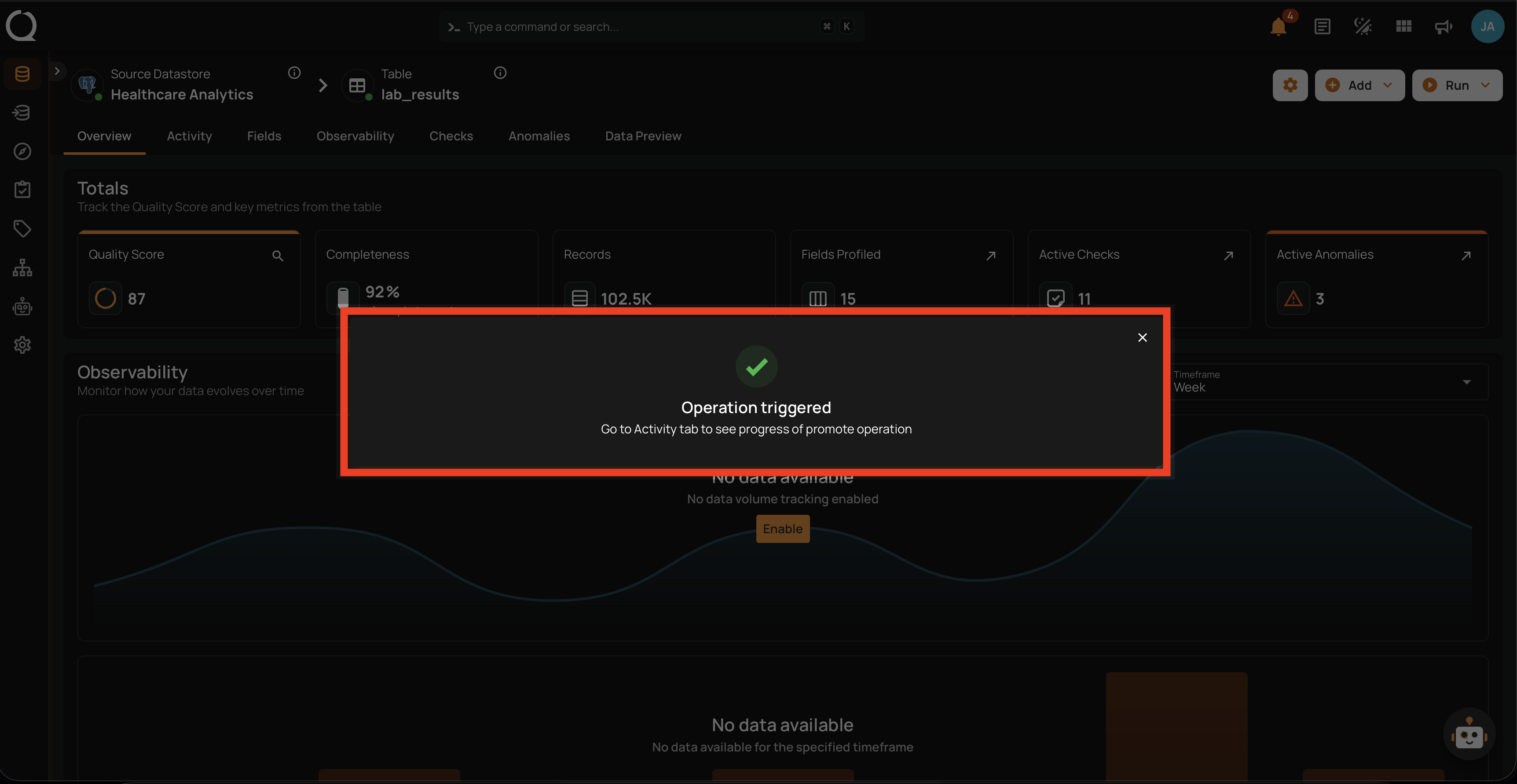
- The operation runs in the background, and the platform takes you to its page as soon as you close the confirmation, so you can follow the progress right away. You can also return to it later from the Activity page.
- Review per-check results to verify each check's outcome: created, updated, skipped, or failed.
- If checks were promoted as Draft, navigate to the destination container to review and activate them.
Fields
Select Checks
The first step of the modal: choose how to pick which quality checks to promote.
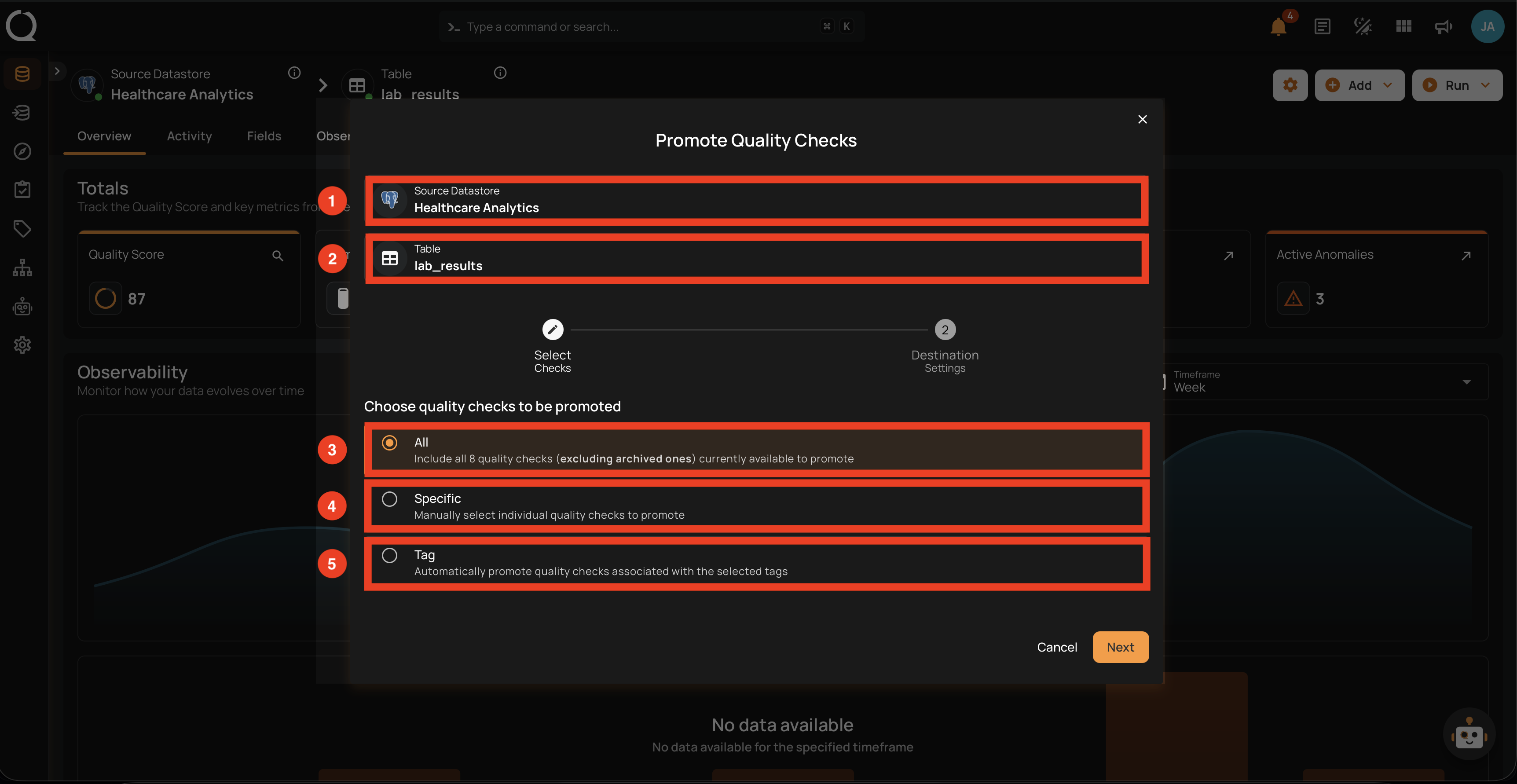
| REF. | FIELD | DESCRIPTION |
|---|---|---|
| 1 | Source Datastore | The datastore the checks are being promoted from (read-only). |
| 2 | Table | The source container the checks are being promoted from (read-only). |
| 3 | All | Include every non-archived quality check on the source container. The total count is displayed. |
| 4 | Specific | Hand-pick individual checks from a paginated list. Search by identifier or description; toggle Include Draft and Include Inferred to refine. |
| 5 | Tag | Include every check associated with one or more selected tags. |
Destination Setup
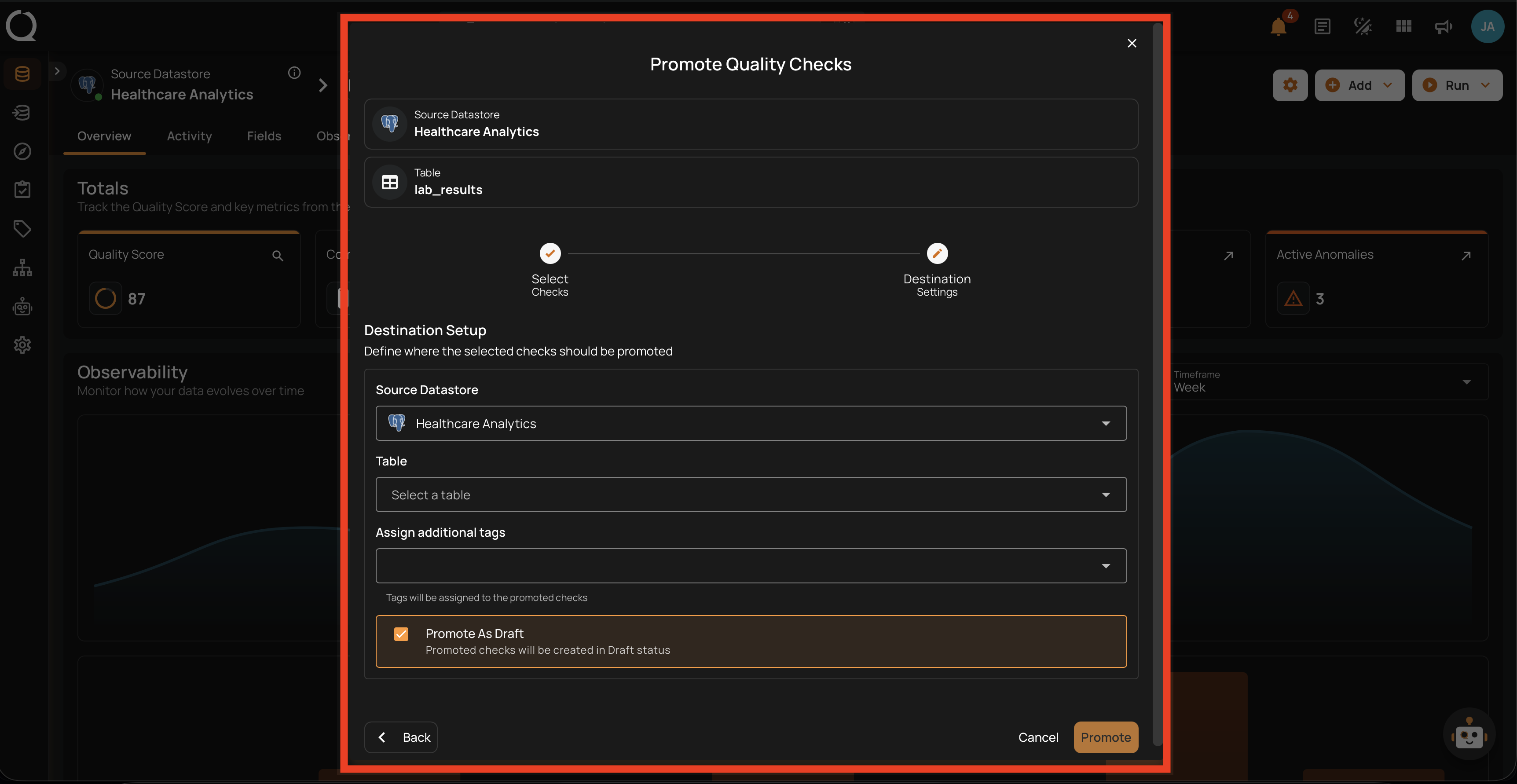
The second step of the modal: configure where the selected checks should be promoted to.
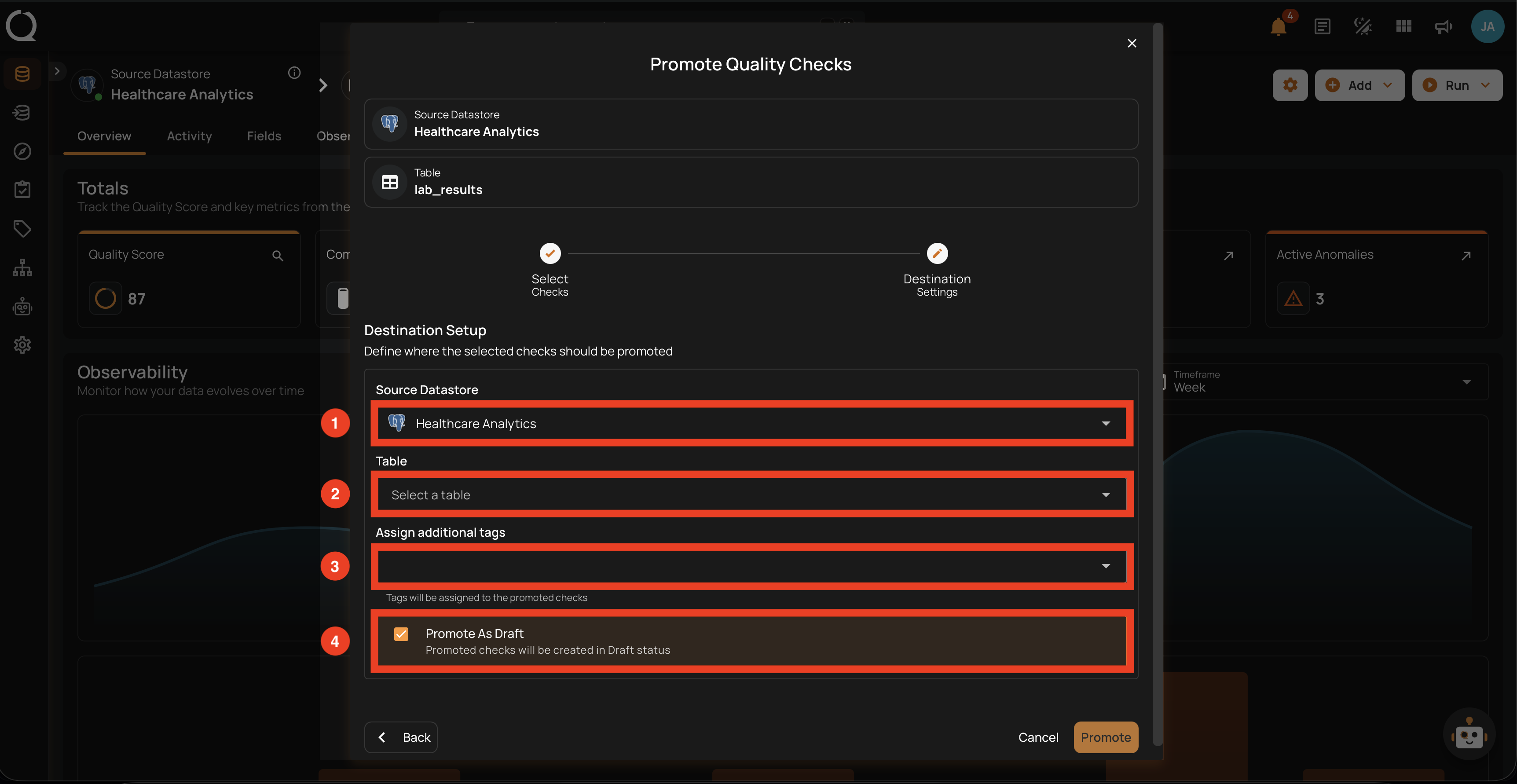
| REF. | FIELD | DESCRIPTION |
|---|---|---|
| 1 | Destination Datastore | The datastore where the promoted checks will land. Any datastore in your deployment is available. |
| 2 | Table | The destination container (table) within the selected datastore. Use the search field to filter by name. |
| 3 | Assign additional tags | Optional tags applied to the promoted checks at the destination, in addition to inherited source tags. |
| 4 | Promote As Draft | When enabled (default), promoted checks are created in Draft status and won't run until manually activated. When disabled, new checks are validated against the destination container in batches of 10. If validation rejects a check, the just-created destination row is deleted and the source check is recorded as failed. |
Steps
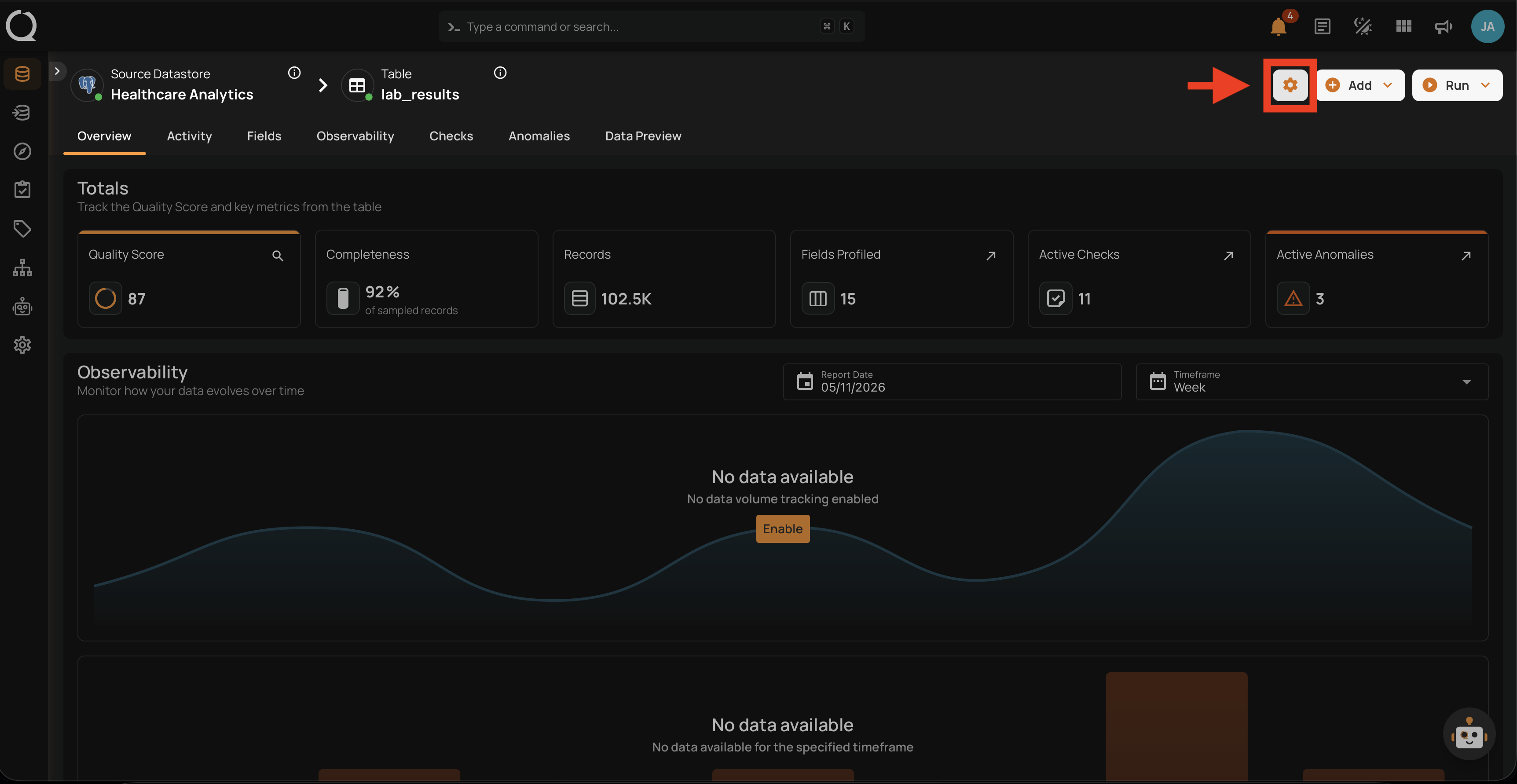
Step 1: Open the source container overview and click the Settings gear icon in the top-right corner.
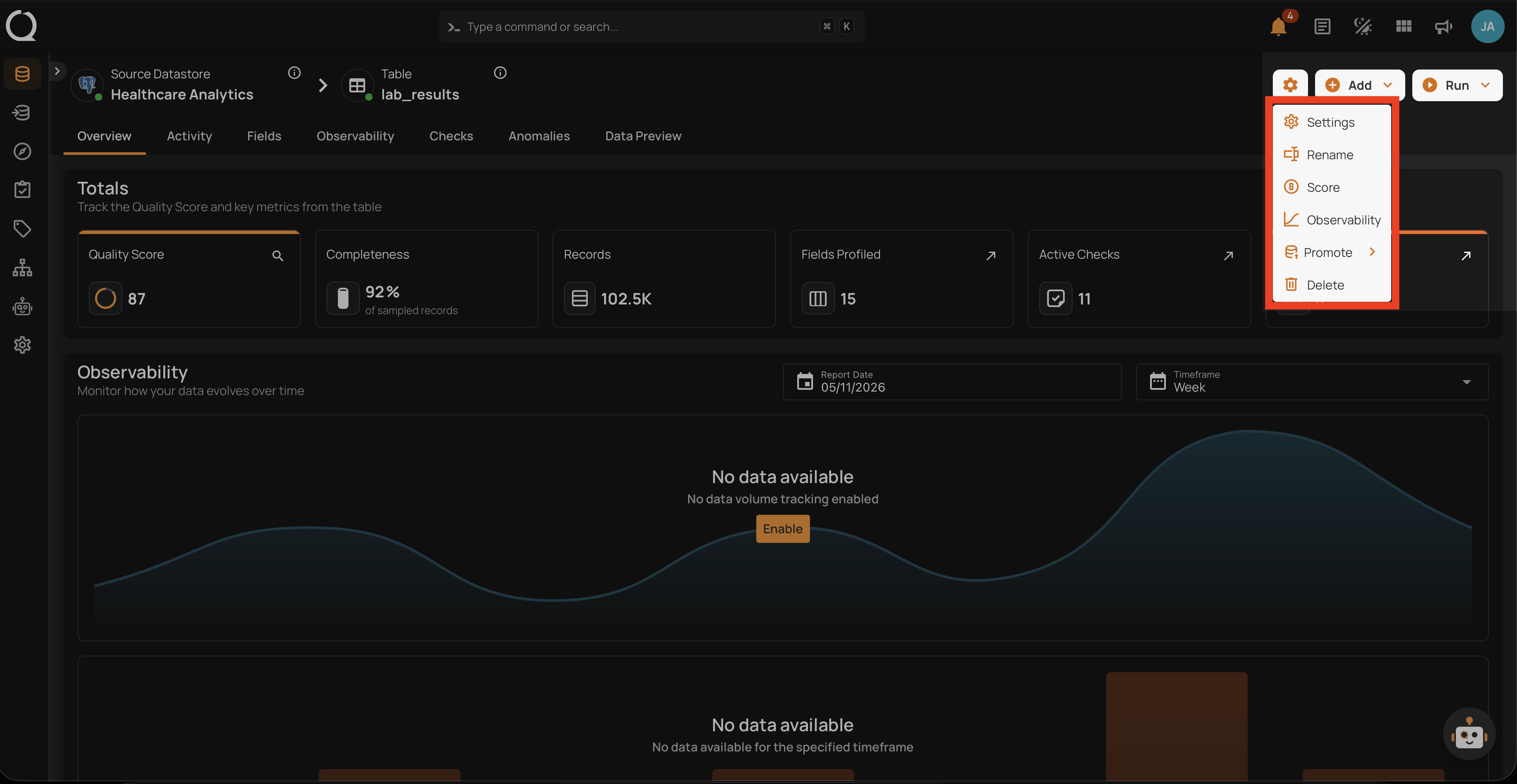
Step 2: The settings menu opens, listing the available actions for the container.
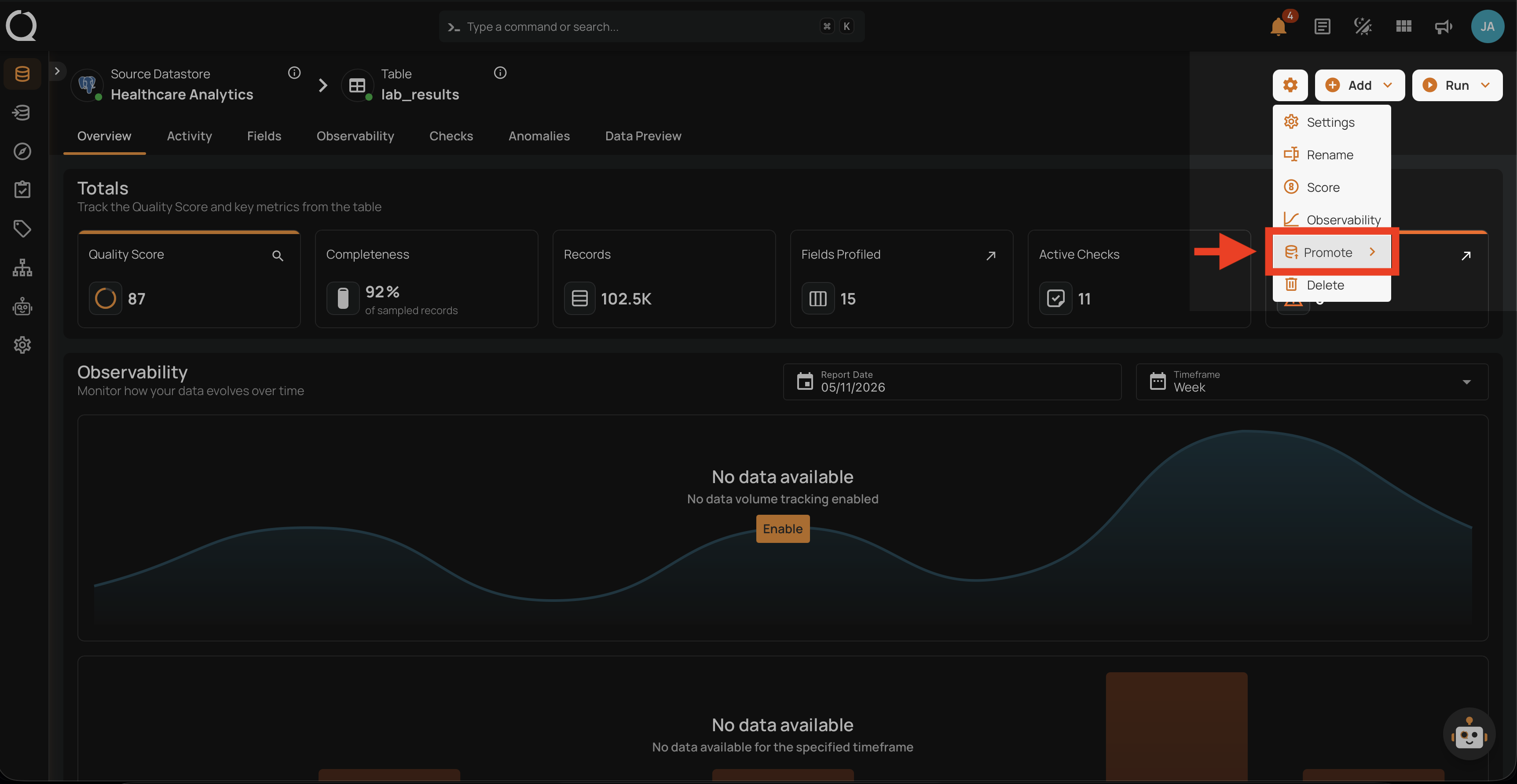
Step 3: Click Promote to reveal the submenu.
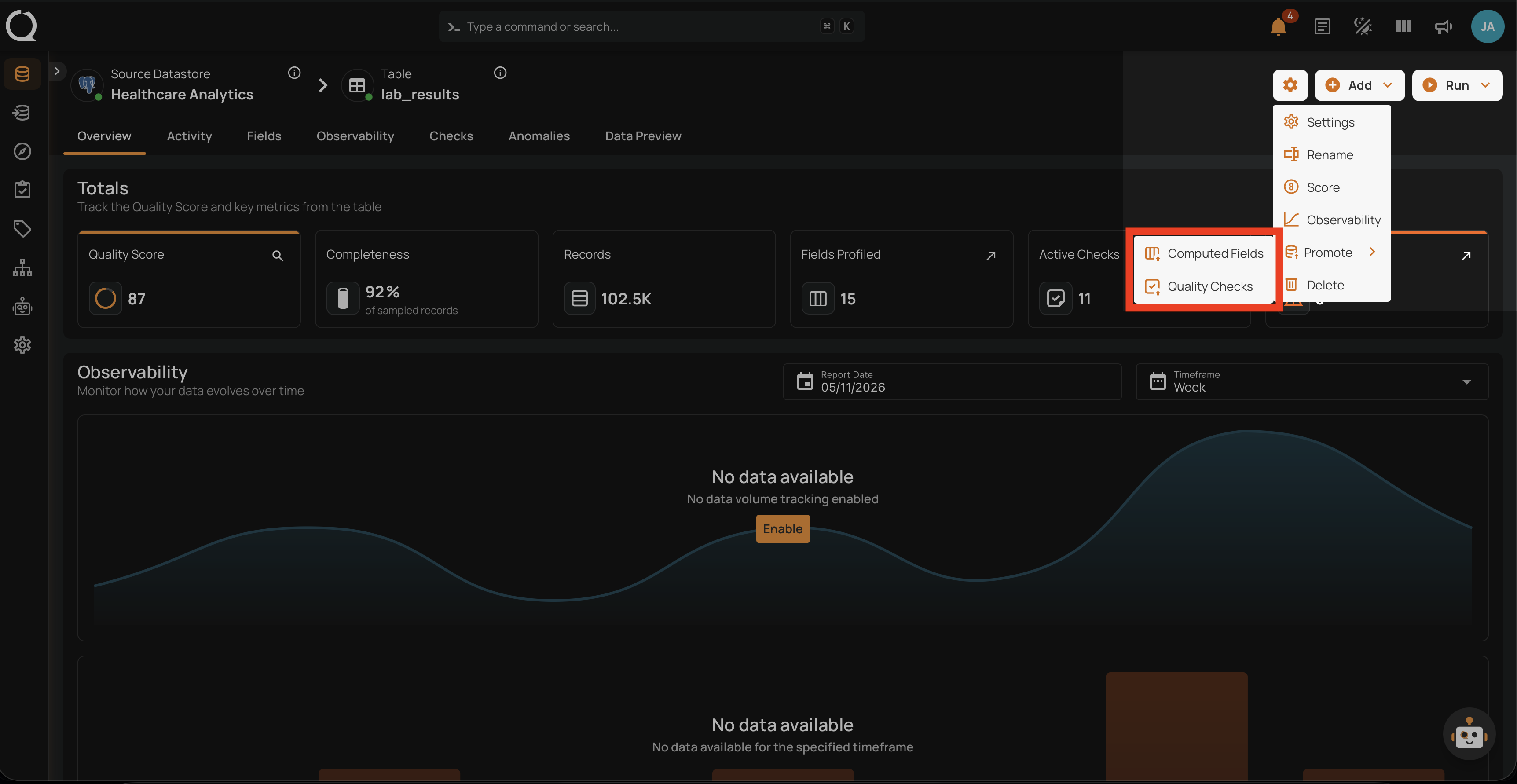
Step 4: The Promote submenu opens, showing the entity types available for promotion.
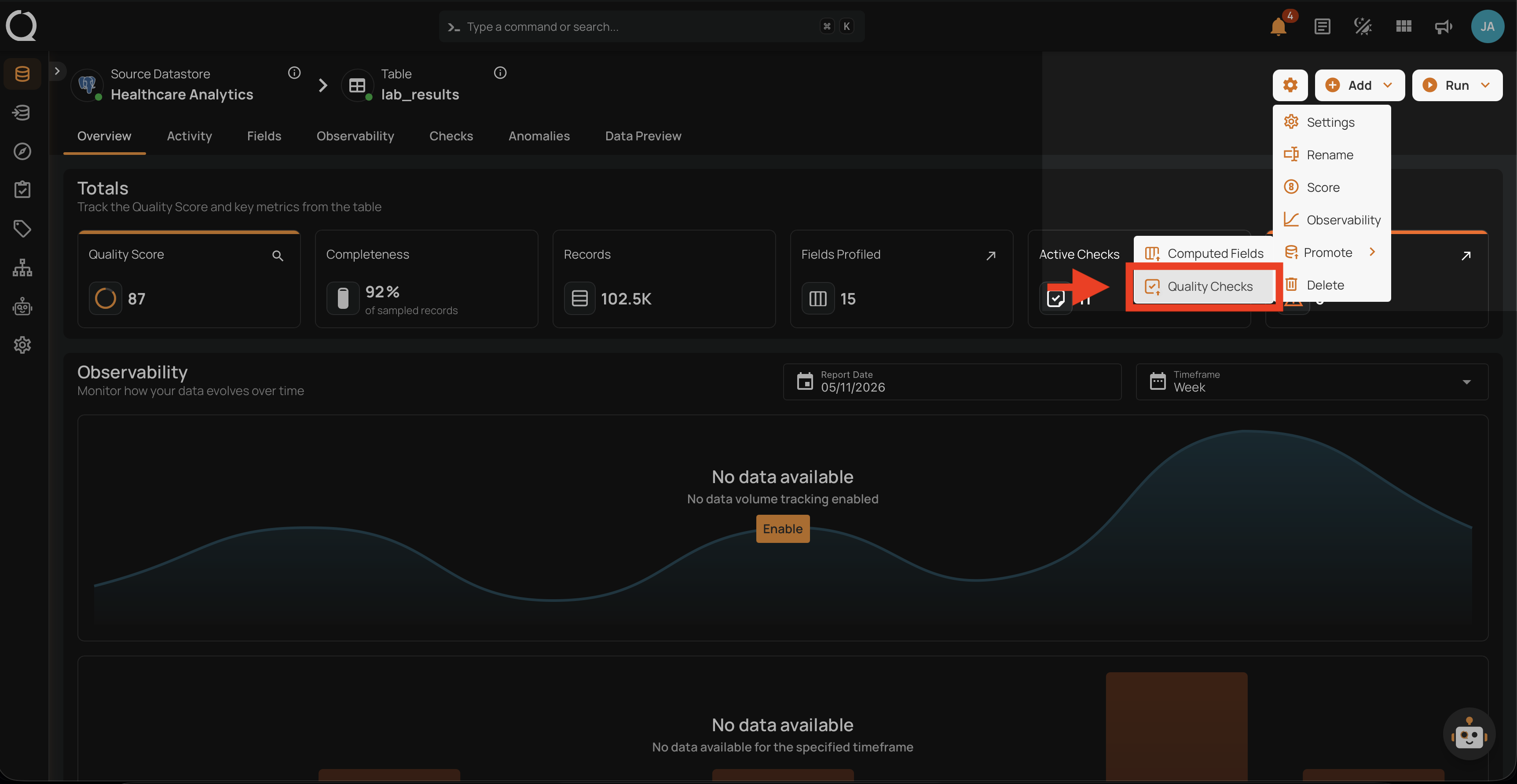
Step 5: Click Quality Checks to open the promotion modal.
Step 6: The Promote Quality Checks modal opens at the Select Checks step.
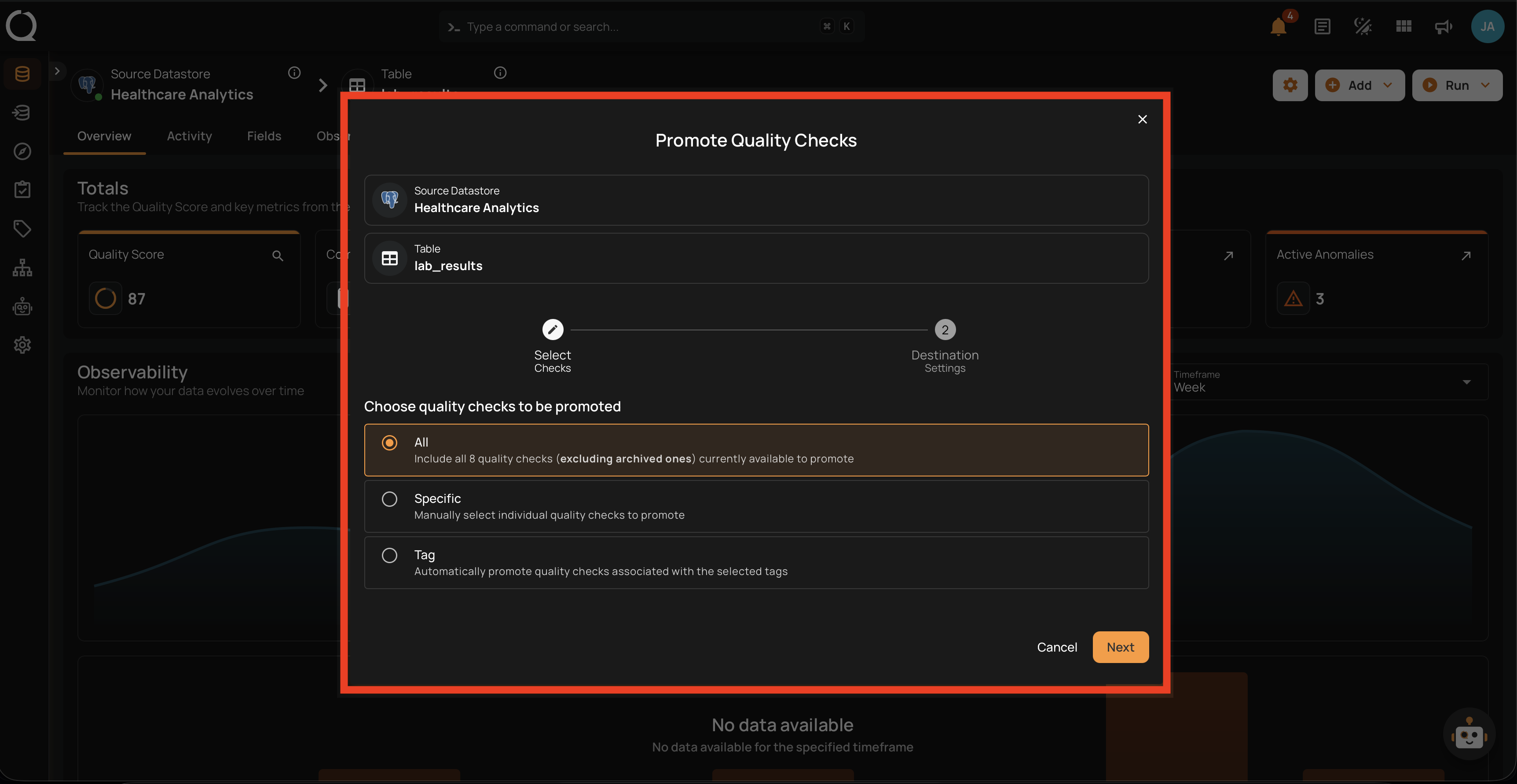
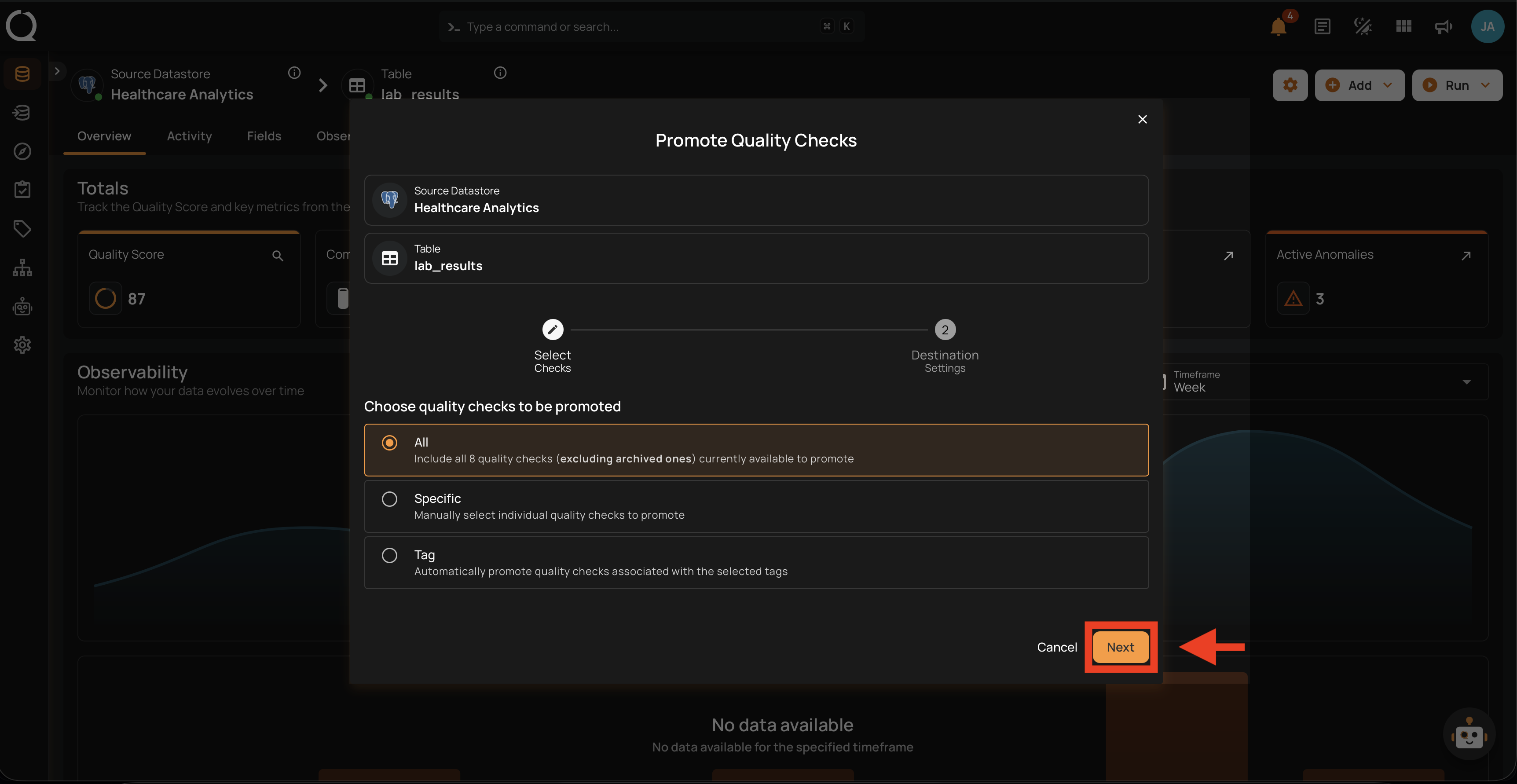
Step 7: Choose All, Specific, or Tag (see Select Checks for the field reference), then click Next to proceed.
Step 8: The second stage of the form opens on the Destination Settings step.
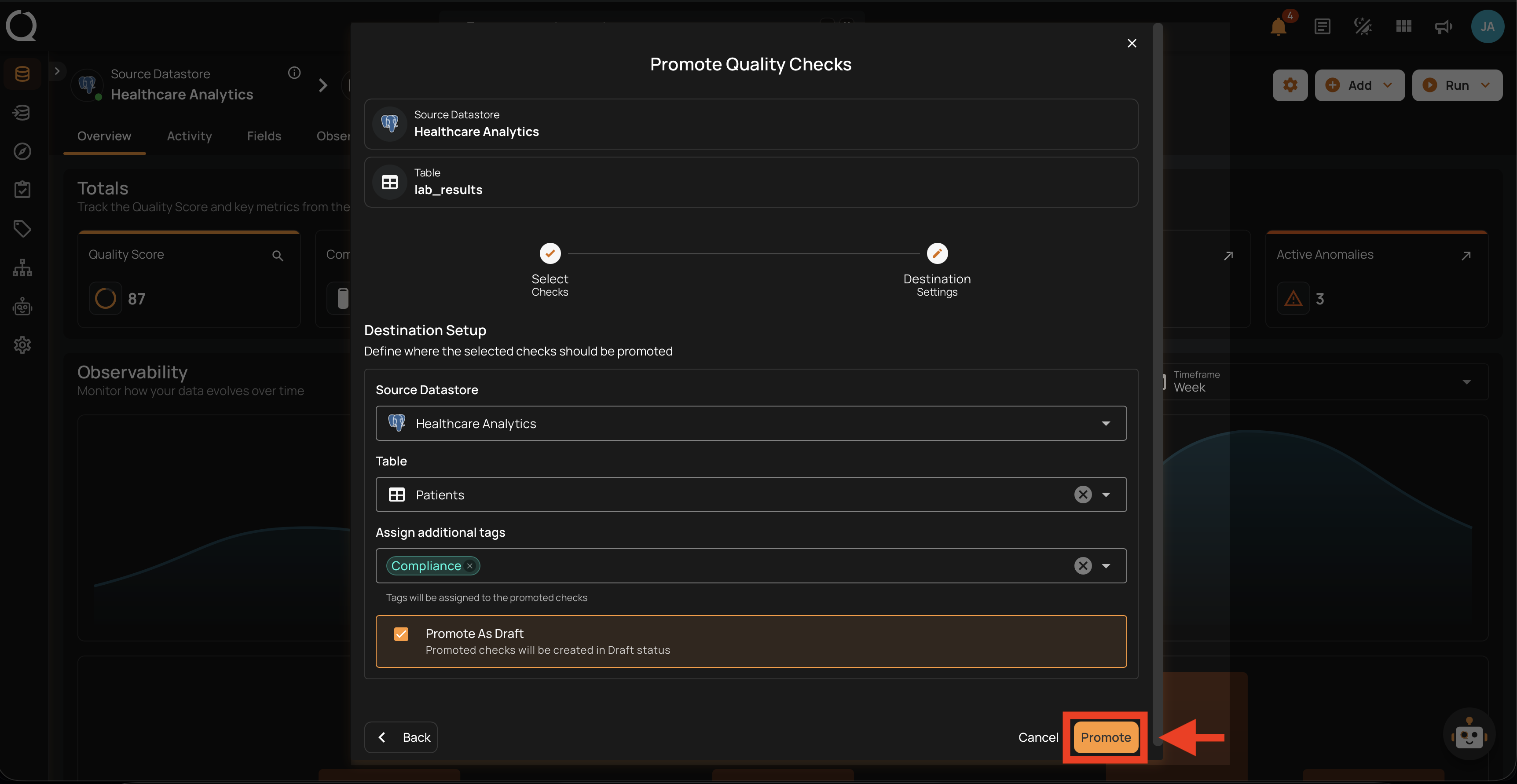
Step 9: Fill in the destination datastore, table, optional tags, and the Promote As Draft toggle (see Destination Setup for the field reference). Click Promote to start the operation.
Step 10: A confirmation appears telling you the operation was triggered and that you will be taken to its page. Close the confirmation and the platform opens the promote operation, where you can watch it run and review per-check results once it completes.