Delete a Filter Preset
Permanently remove a filter preset you no longer need. Members can delete only the presets they created; Manager and Admin can delete any visible preset. See Permissions for details.
Before You Delete a Filter Preset
Deleting a filter preset has the following effects:
| Aspect | What happens |
|---|---|
| Permanence | Deletion is permanent and cannot be undone. |
| Active selection | If you had the preset applied, the selection clears. |
| Shared links | Existing links to the deleted preset stop working. Anyone opening such a link sees the default unfiltered view. |
Deletion is permanent
Once deleted, a filter preset cannot be restored. Make sure no one is actively relying on the preset before deleting it.
Delete the Preset
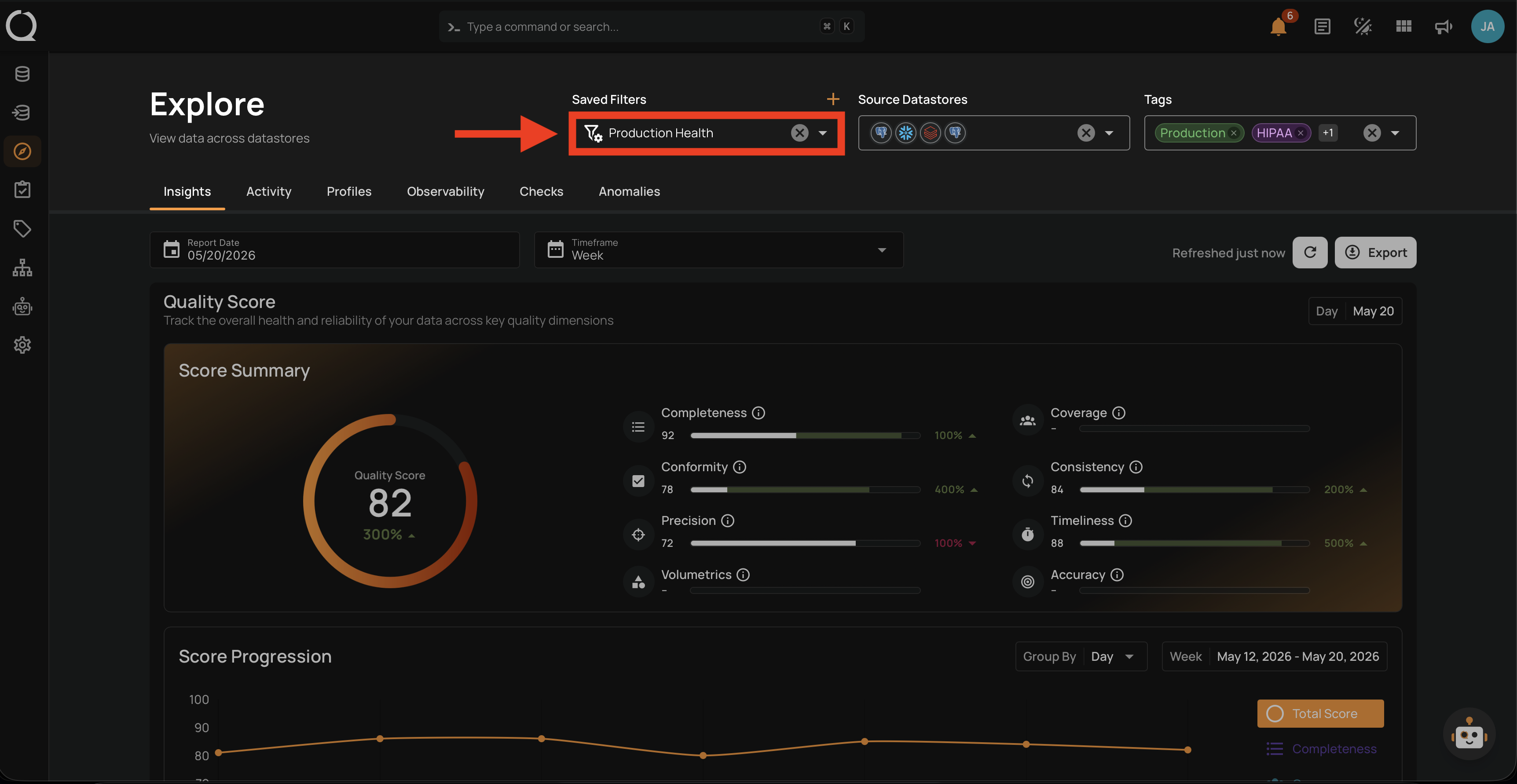
Step 1: Locate the Saved Filters dropdown in the Explore page filter bar.
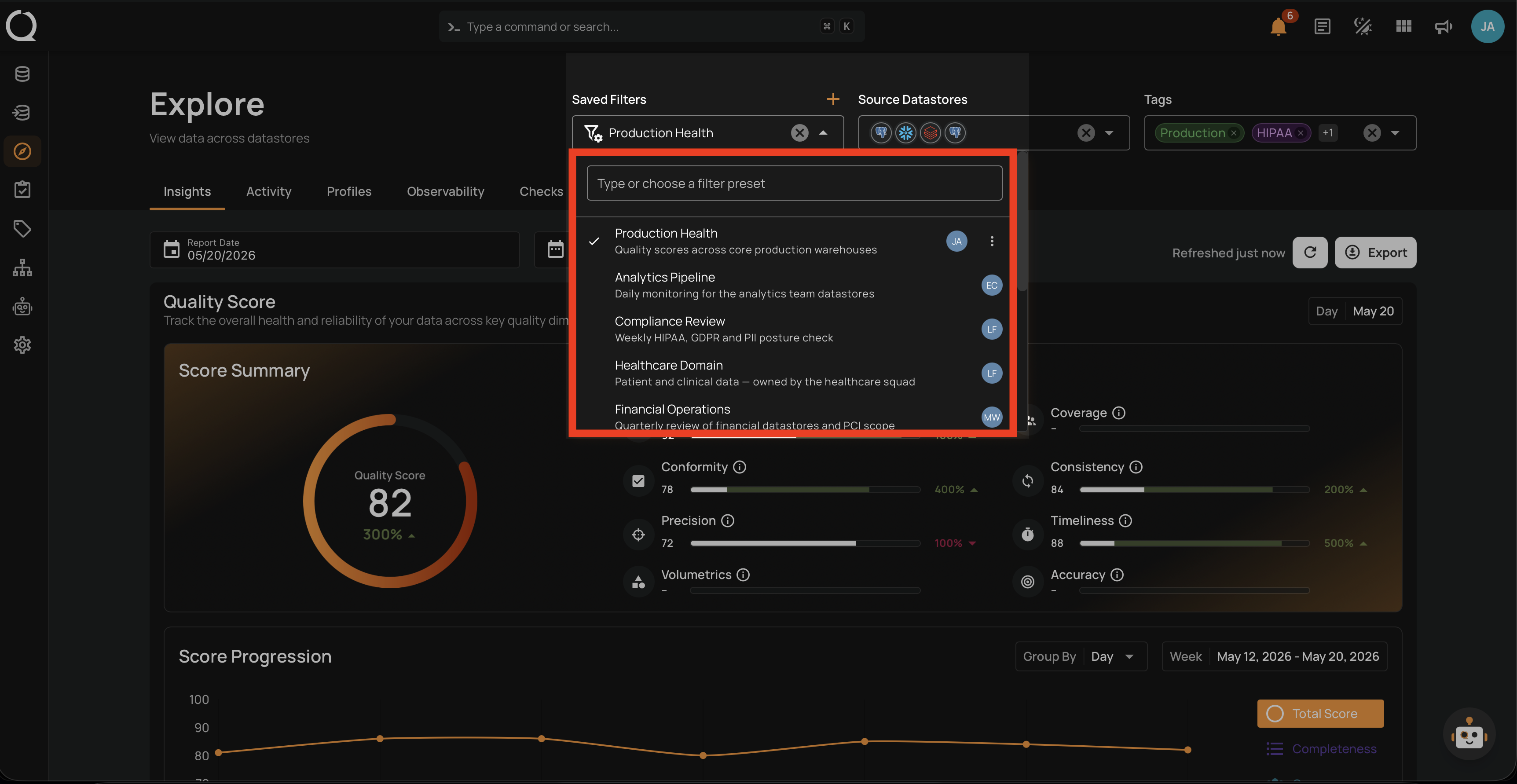
Step 2: Click the Saved Filters dropdown to open it.
Step 3: Hover over the preset you want to delete. The actions menu appears next to its name.
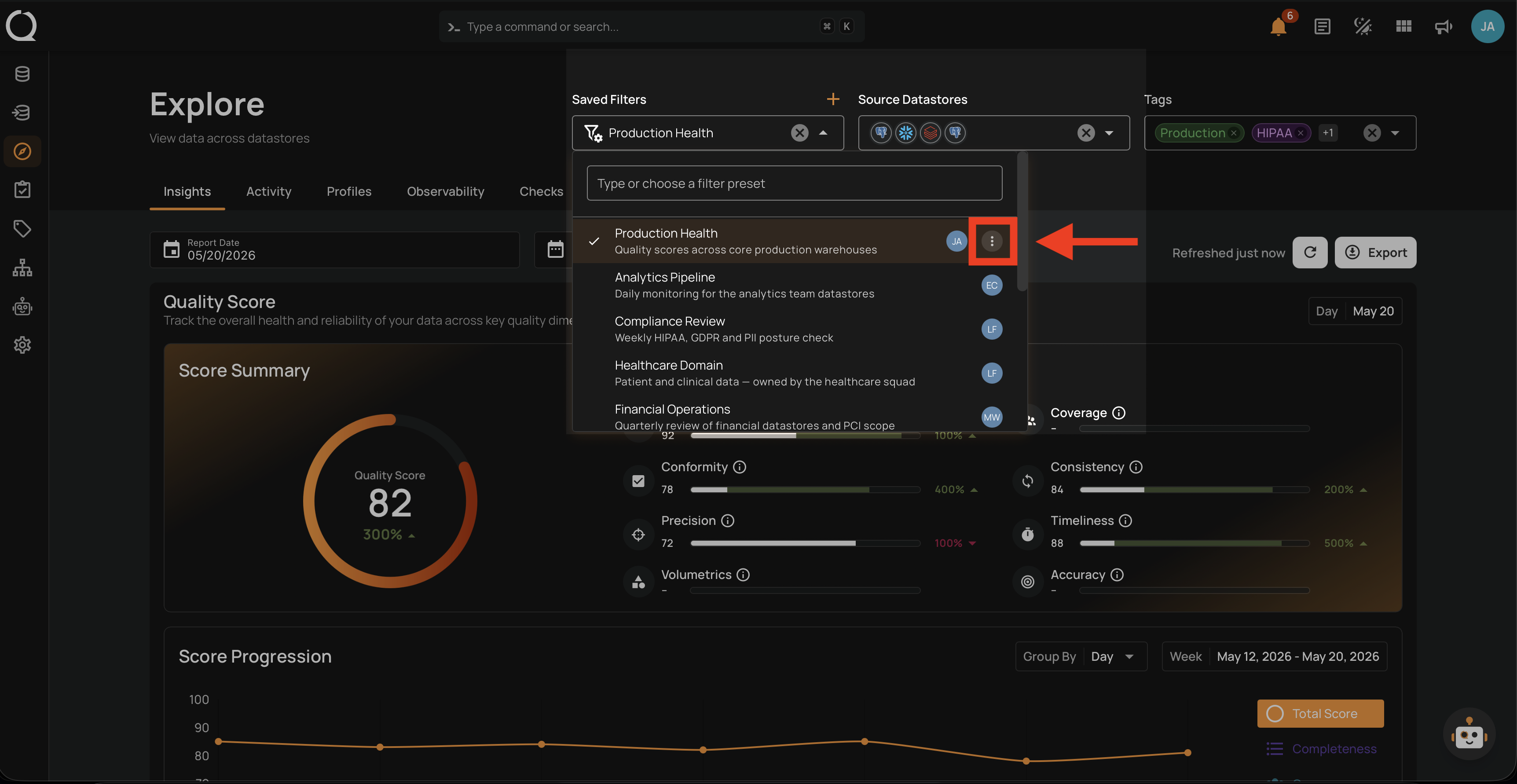
Step 4: Click the actions menu to open it.
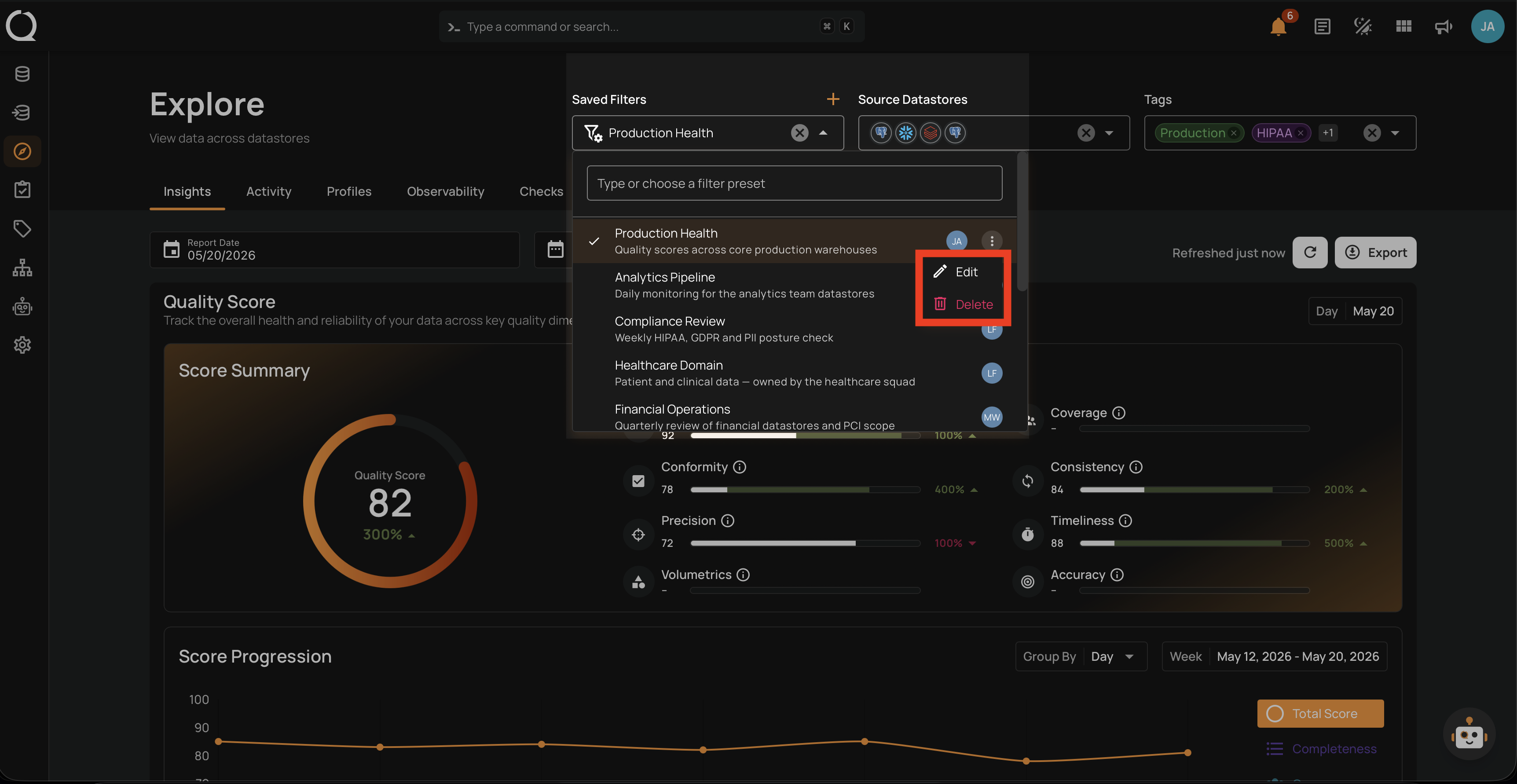
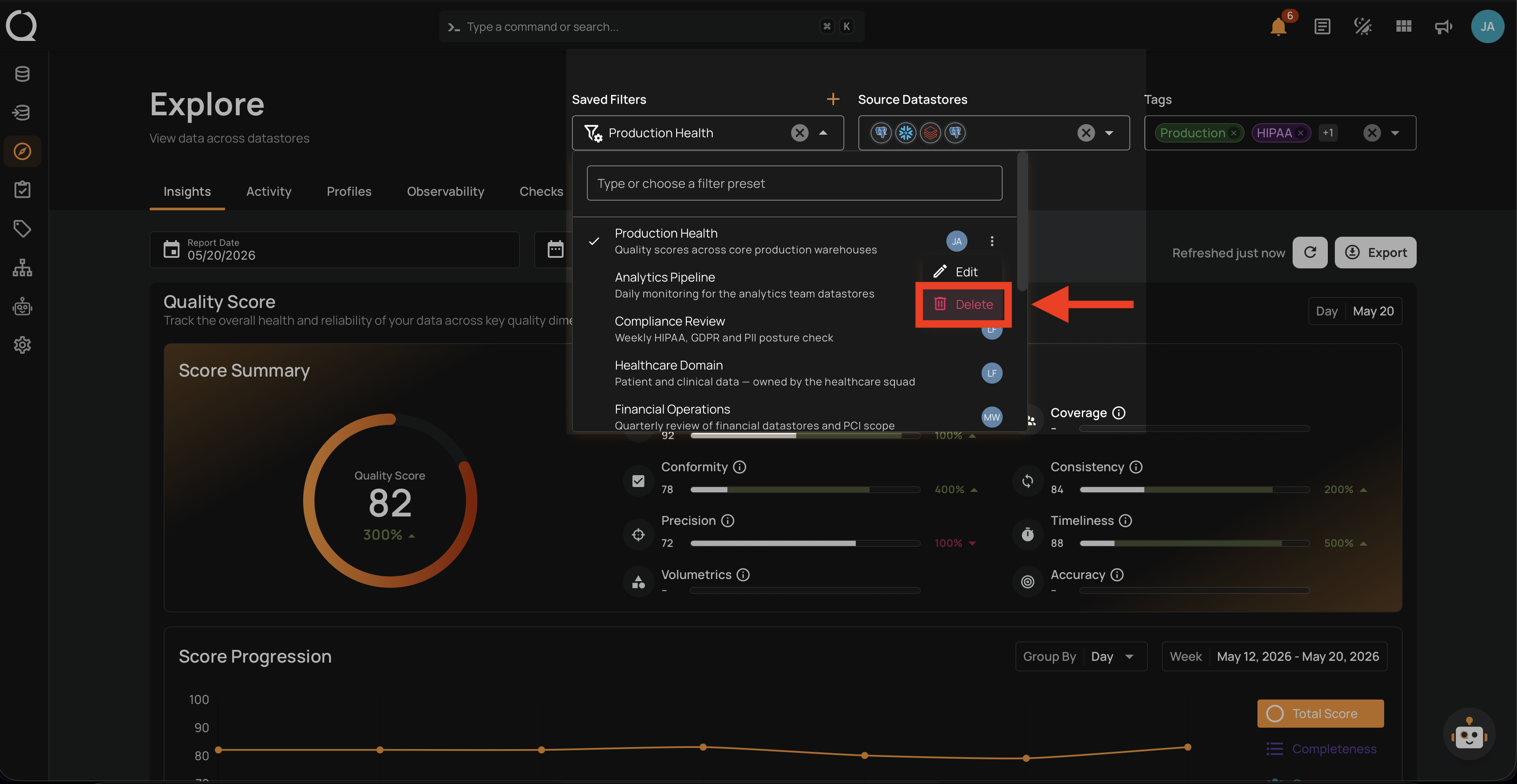
Step 5: Choose Delete .
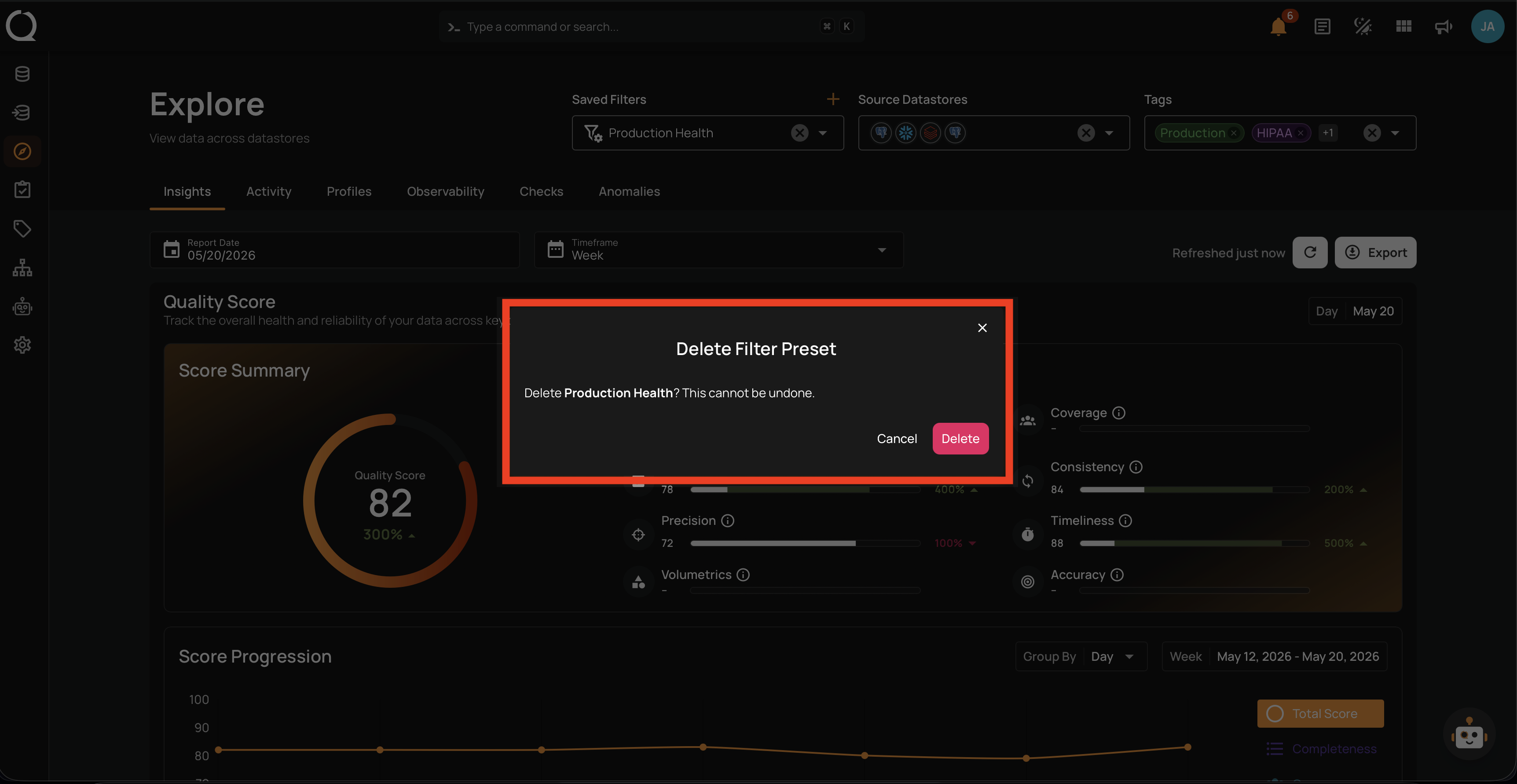
Step 6: The Delete Filter Preset confirmation dialog appears.
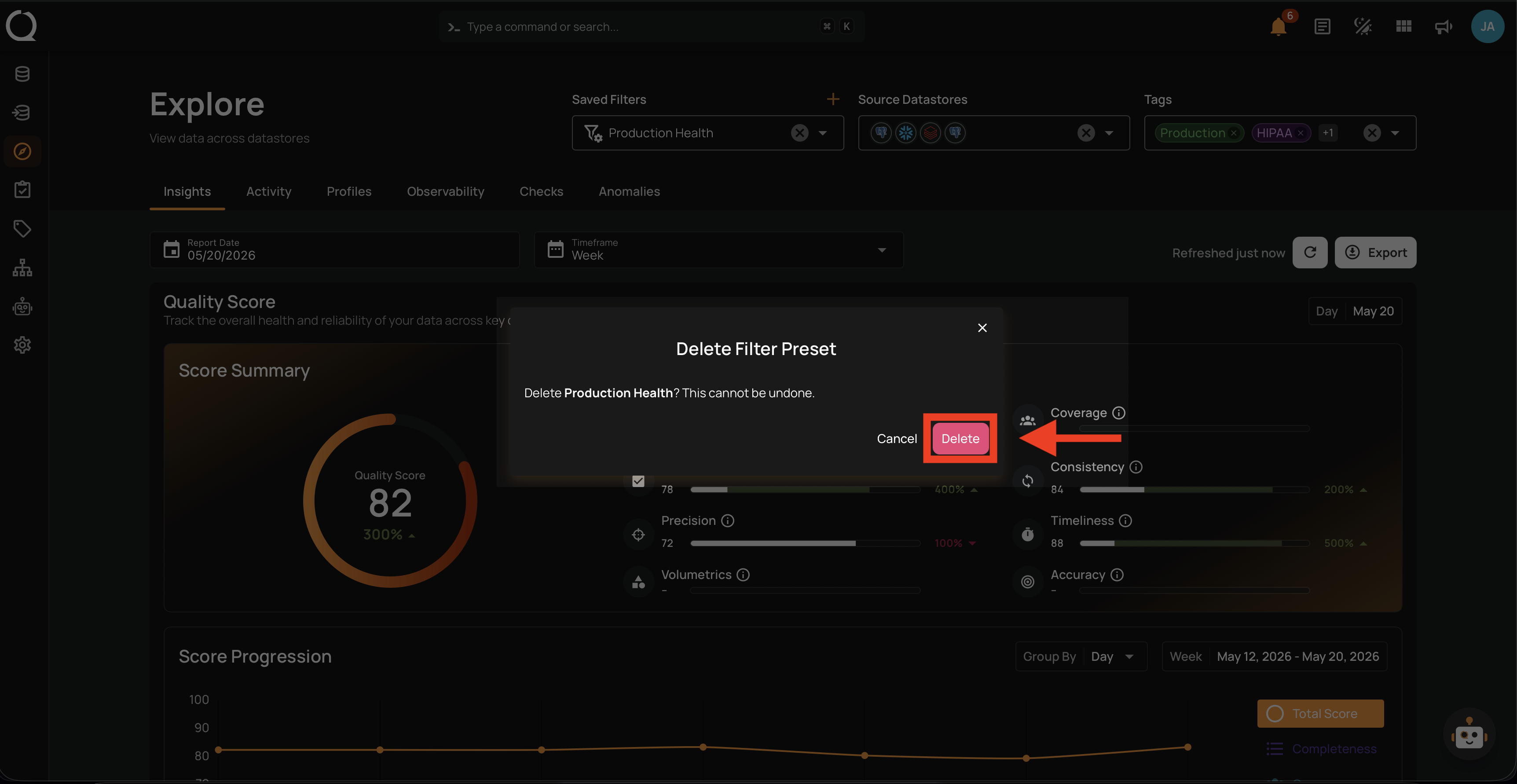
Step 7: Click Delete to confirm.
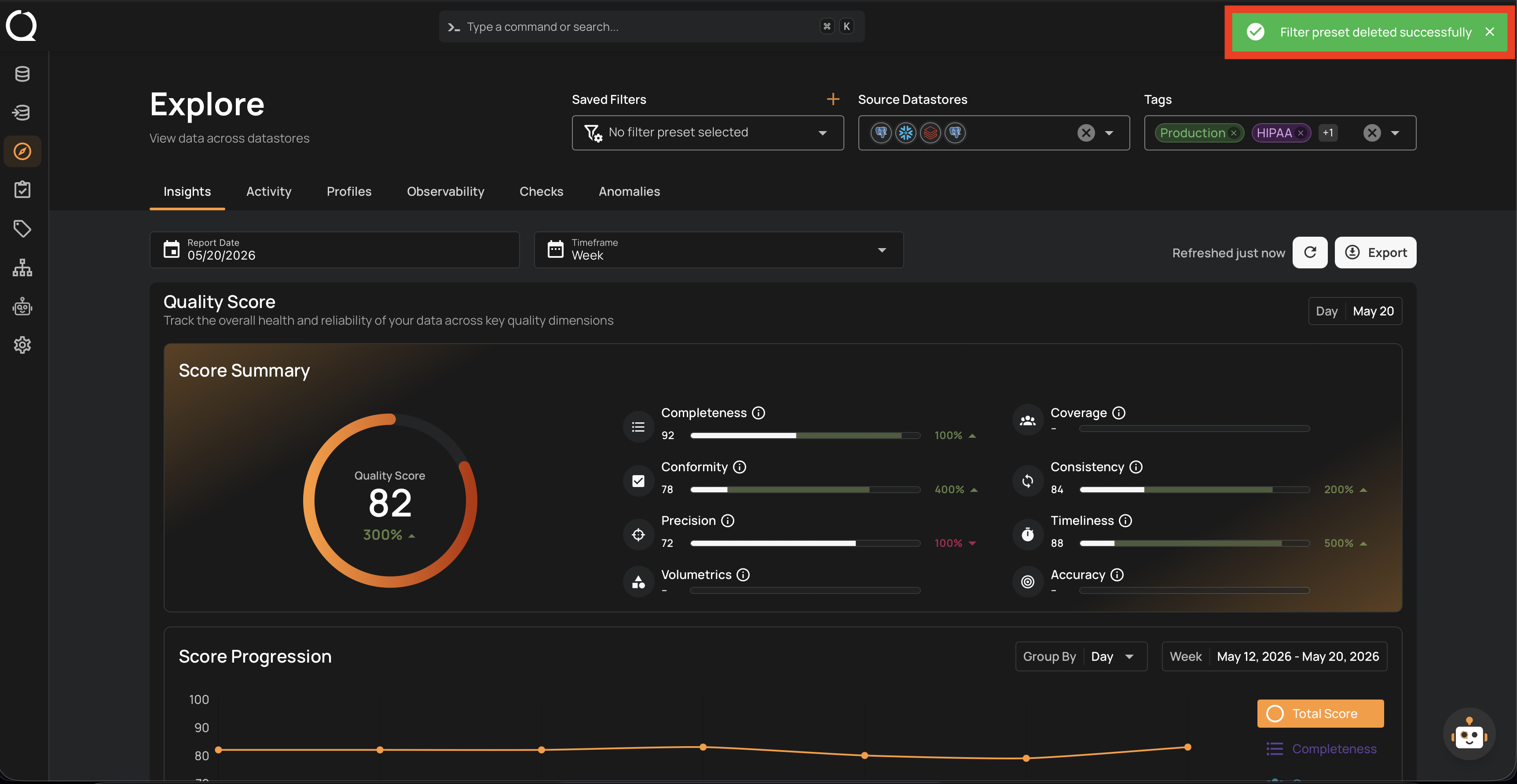
Step 8: A success message appears, and the preset is removed from the Saved Filters dropdown.