Resume a Conversation
You can return to a previous conversation and continue from where you left off. The full conversation history is preserved.
Conversations held inside a check or template dialog
A conversation you have with the assistant inside a quality check or check template dialog belongs to that item once the item is saved, and from then on it is not listed here. You resume it by reopening that item's dialog, where it comes back on its own. A conversation you start while creating a check or template is an ordinary chat until you save, so until then it does appear in this list. See Conversations Inside the Check and Template Dialogs.
Via AgentQ Page
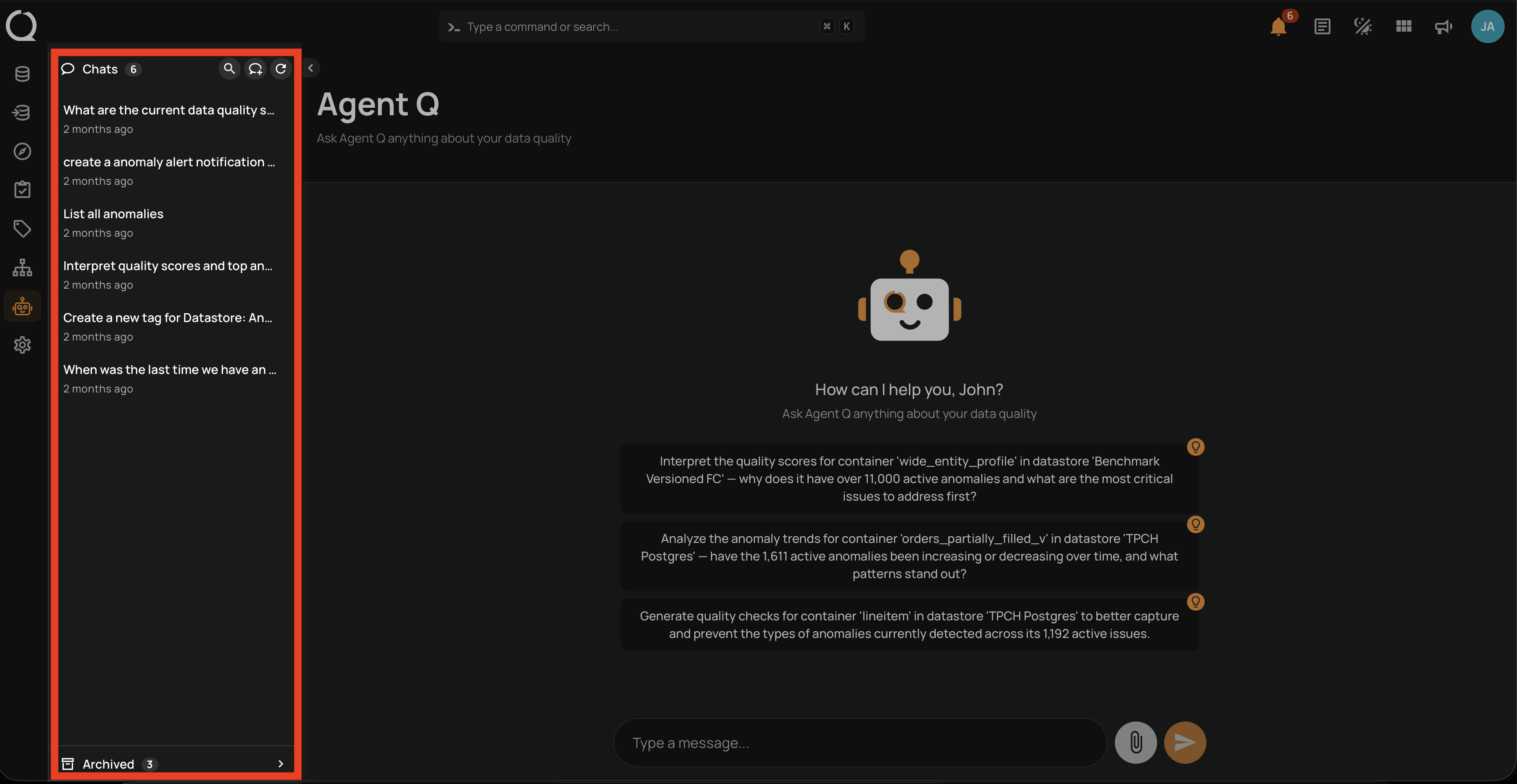
Step 1: Click AgentQ in the left sidebar to open the full-page chat interface. The Chats list in the sidebar shows your active conversations.
Info
If you are looking for a specific conversation, you can use Search Conversations to filter by title or message content.
Step 2: Locate the conversation you want to resume in the list.
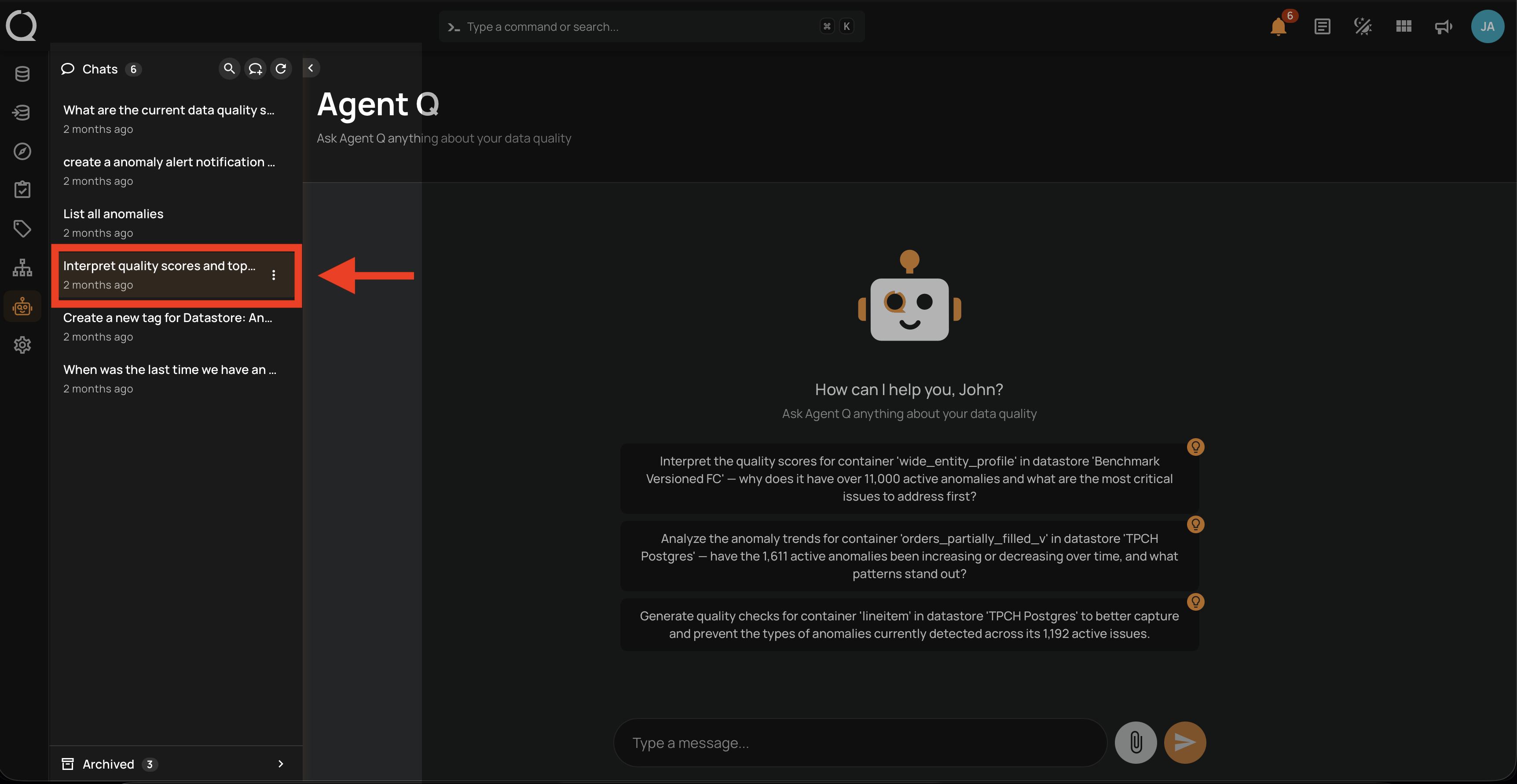
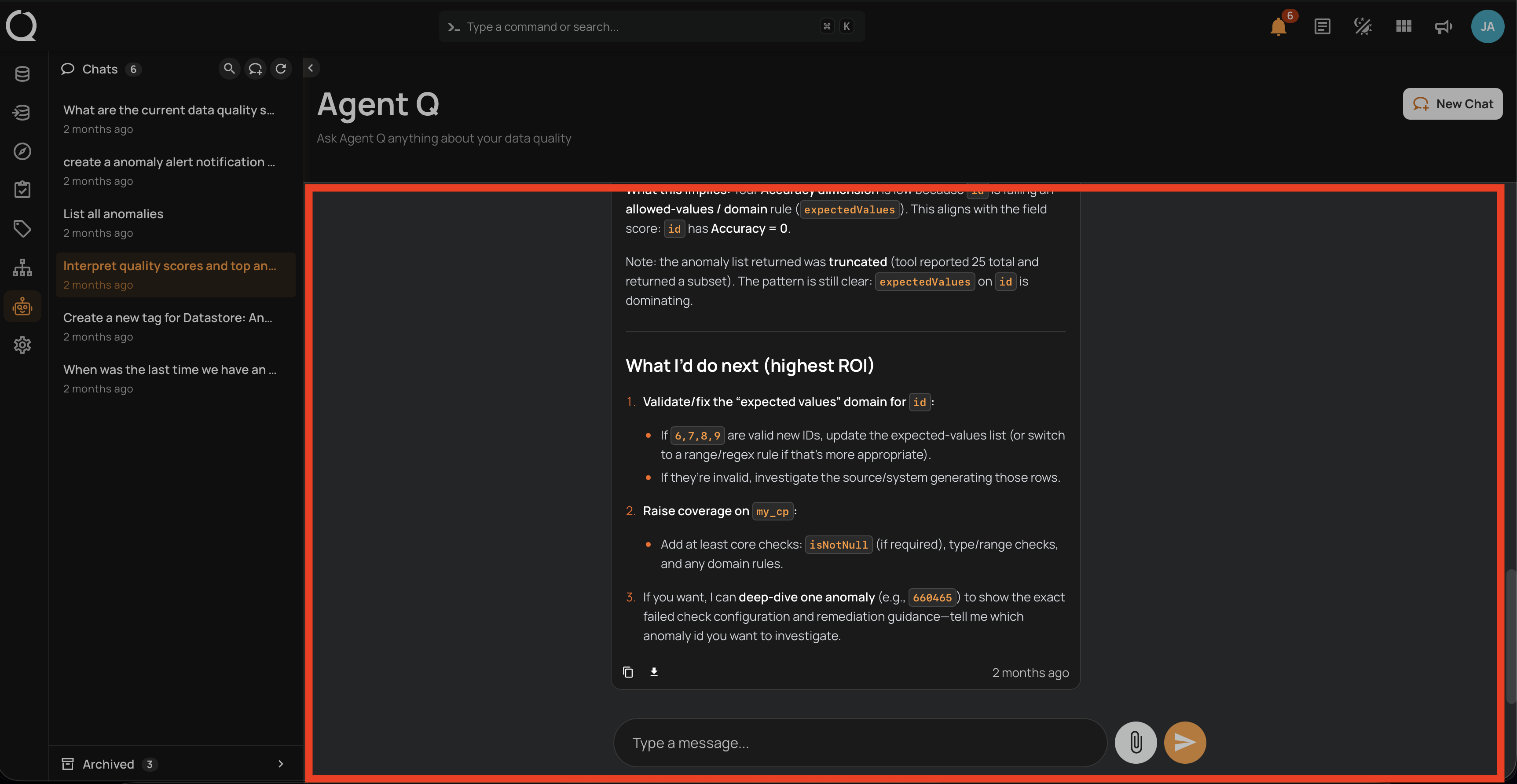
Step 3: Click the conversation to open it. The full message history loads and you can continue the conversation by typing in the input field at the bottom.
Via Floating Chat
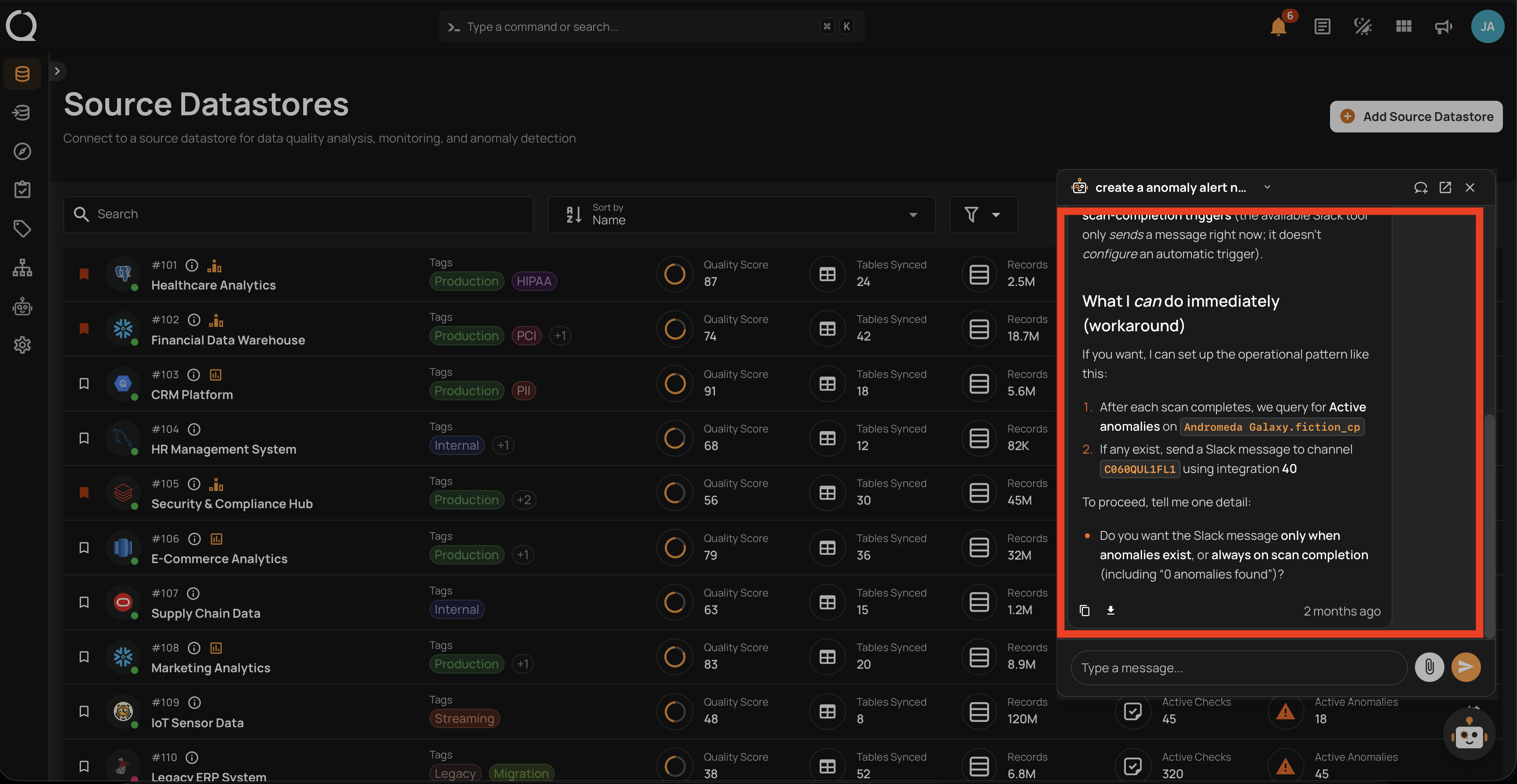
Step 1: Open the floating chat widget by clicking the AgentQ button in the bottom-right corner of any page. Then click the Chat history button in the floating chat header.
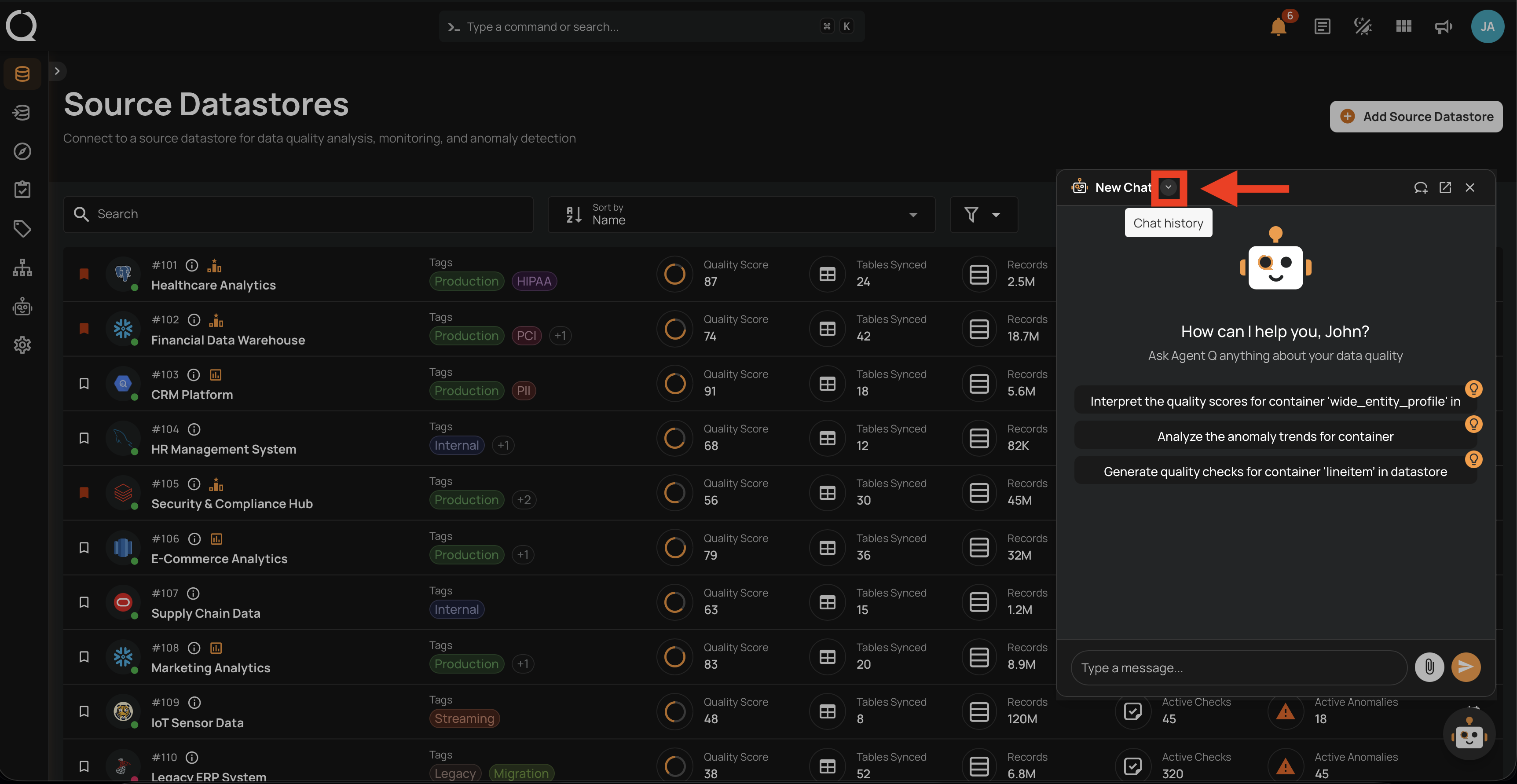
Step 2: A dropdown list of your recent conversations appears. Scroll through the list to find the conversation you want to resume.
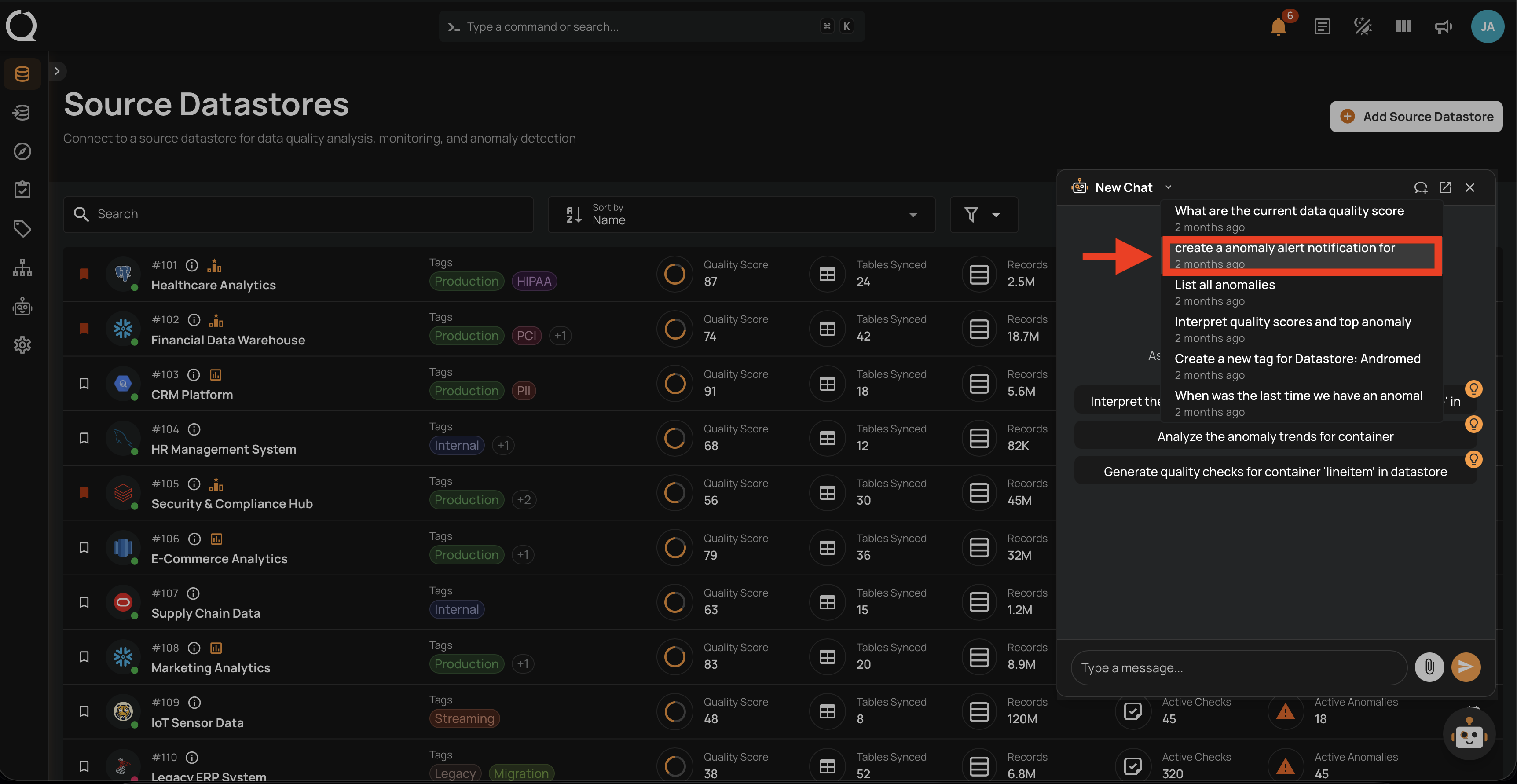
Step 3: Click the conversation to open it. The full message history is displayed and you can continue interacting with AgentQ from where you left off.