Add-ons
The Add-ons option opens a side panel listing optional capabilities that can be enabled for your deployment on top of the base platform. Each add-on can be turned on or off independently, and availability varies by deployment.
To open the panel, click the Add-ons button in the top-right menu.
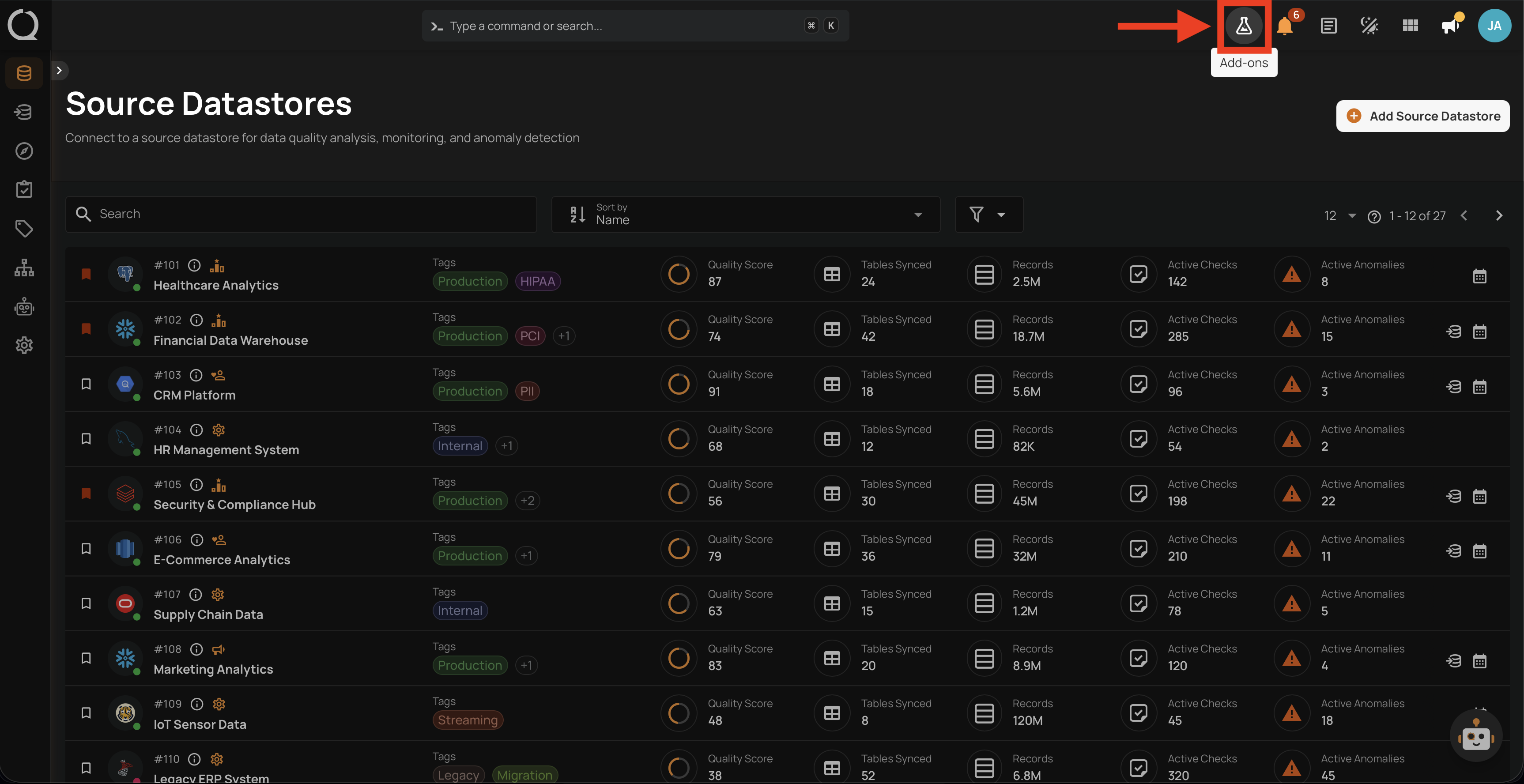
The side panel opens on the right, showing every add-on available for your deployment.
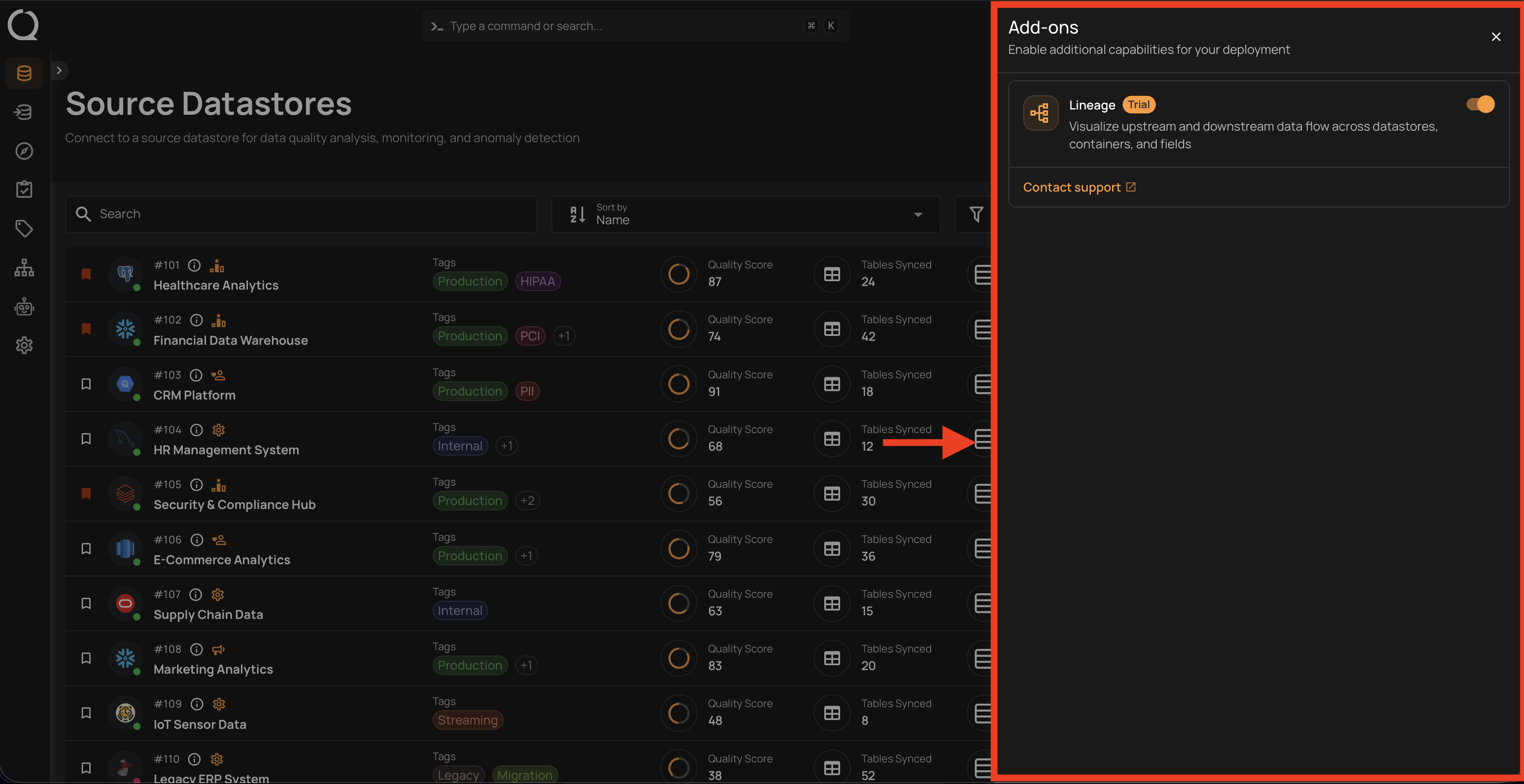
Add-on Card
Each available add-on is displayed as a card with the following elements:
- Icon and name: A quick visual identifier and the add-on label.
- Description: A short summary of what the add-on does and the value it provides.
- Trial badge: Shown when your deployment is currently on a trial of the add-on.
- Toggle: An on/off switch to enable or disable the add-on. Only Admin users can interact with the toggle; other roles see the current state in read-only mode.
- Contact support link: Appears for trial or unavailable add-ons and opens the Qualytics Helpdesk so you can request access or an upgrade.
Availability
Some add-ons show a Trial badge, meaning they are available for a limited period so your team can evaluate them. A Contact support link appears alongside any add-on that is on trial or not yet included in your deployment — use it to reach the Qualytics Helpdesk and ask about extending a trial or getting full access.
If an add-on is not available for your deployment, its toggle is locked and the card appears dimmed.
Permissions
Only users with the Admin role can change the state of an add-on. Members and Managers can open the panel and review which add-ons are enabled, but cannot make changes.
Available Add-ons
The list below tracks every add-on that ships with the Qualytics platform today. Click an add-on name to open its documentation.
| No | Add-on |
|---|---|
| 1. | Lineage |
Additional add-ons will appear in this list as new optional capabilities are released.