Deactivate a User
Use the Deactivate action to revoke a user's access to the system while retaining their account information for future reactivation.
Permissions
Only users with the Admin role can deactivate users. See the Permissions page for details.
Steps
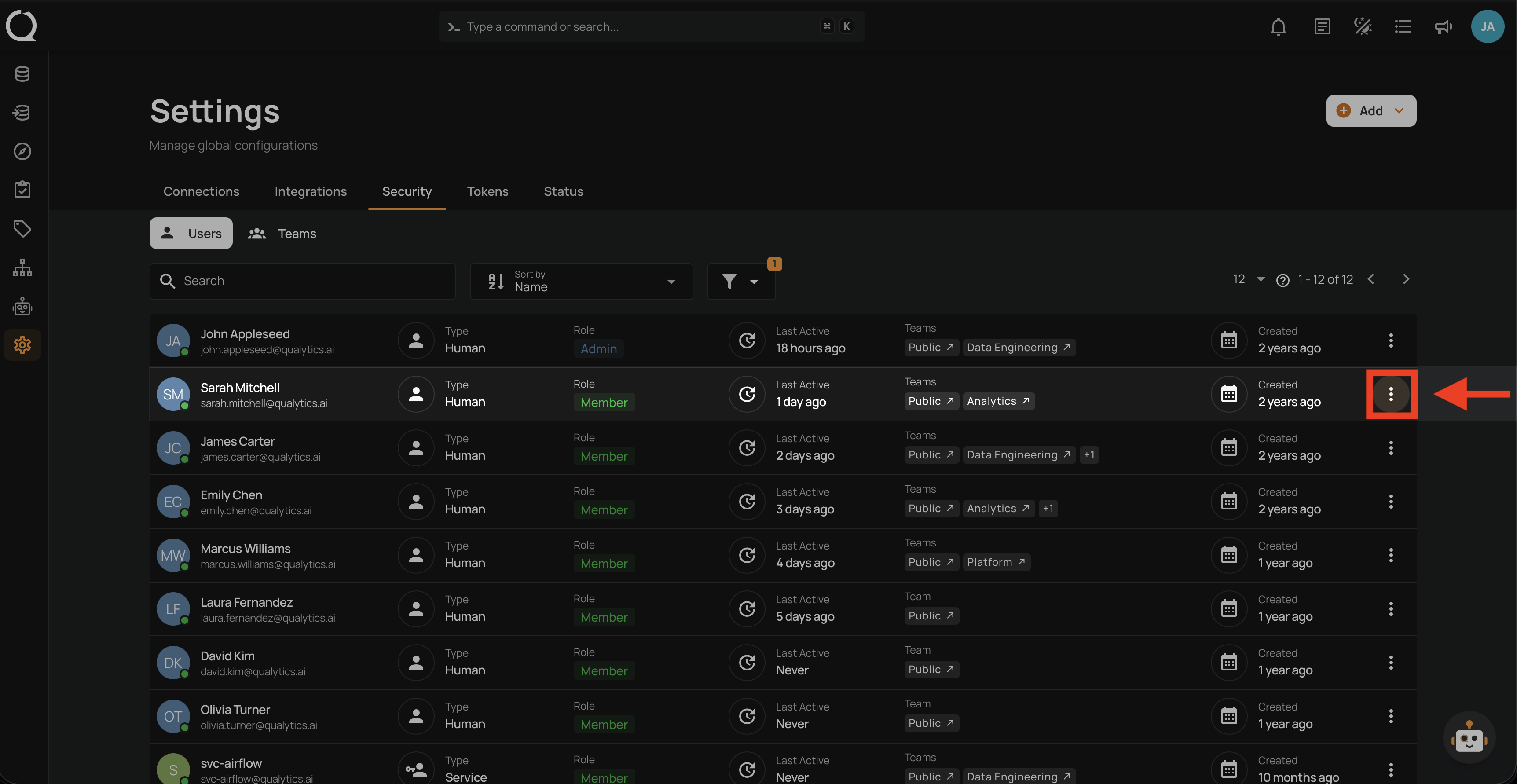
Step 1: Click the vertical ellipsis next to the user you want to deactivate.
Step 2: A dropdown menu appears with the available actions.
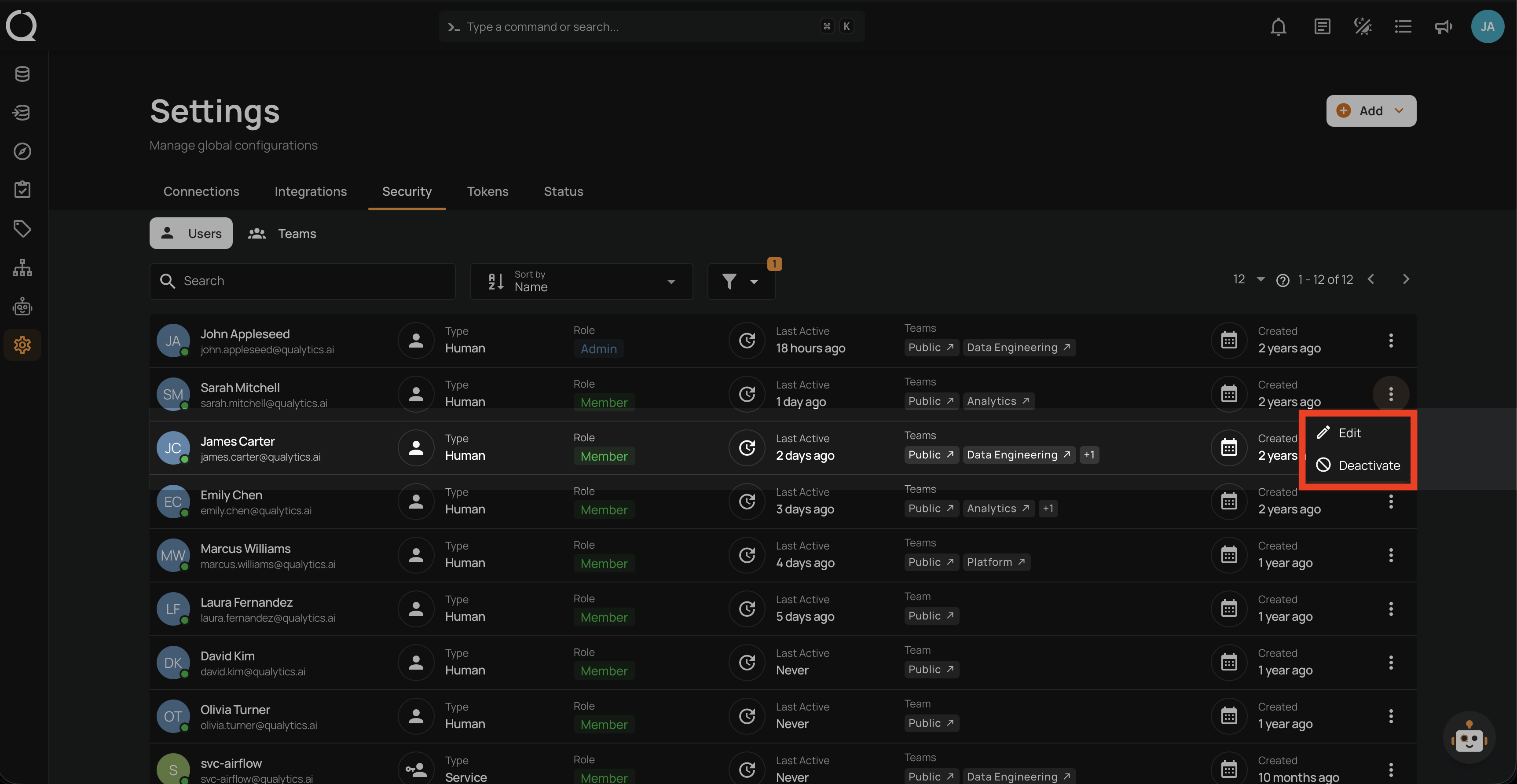
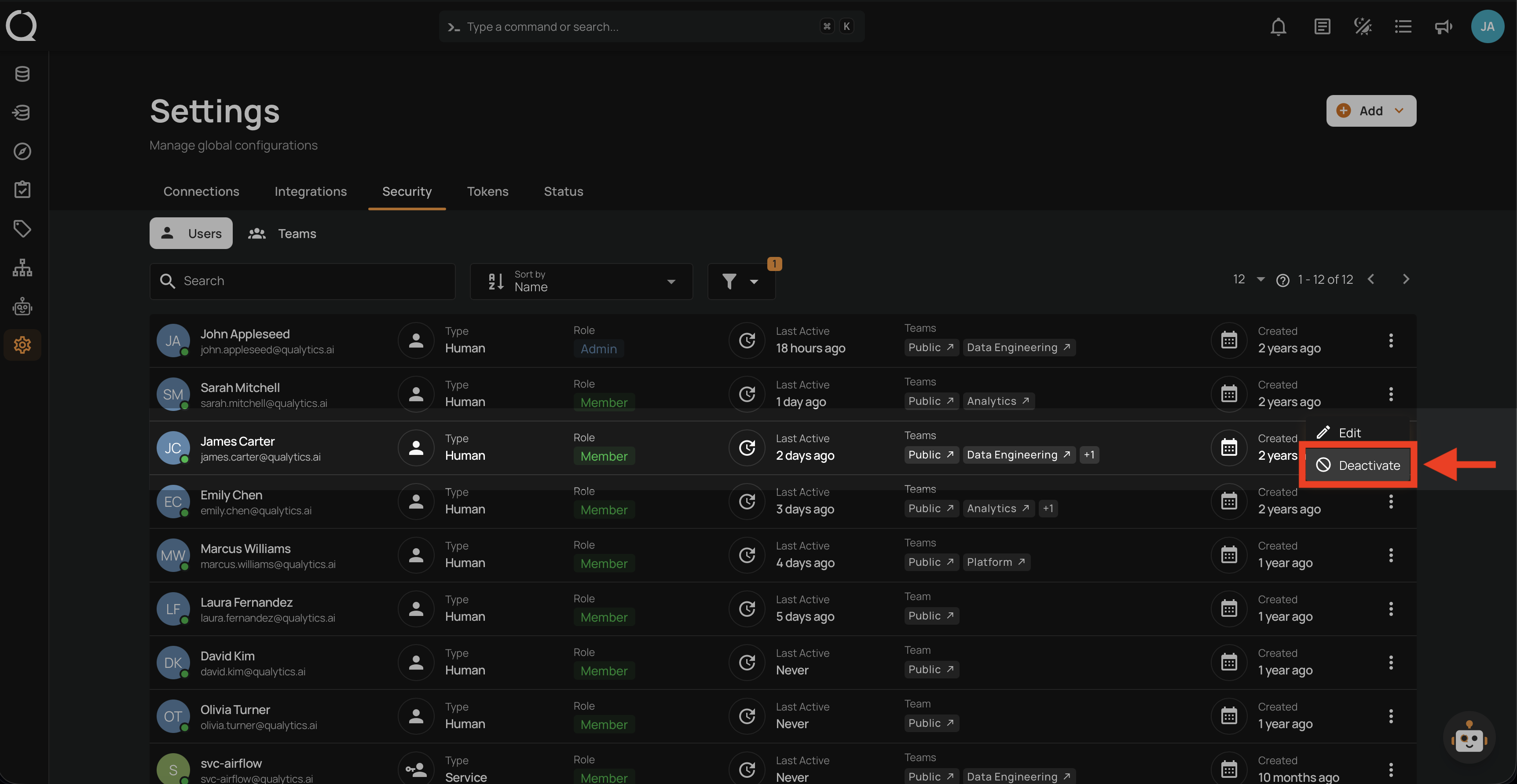
Step 3: Click Deactivate from the dropdown menu.
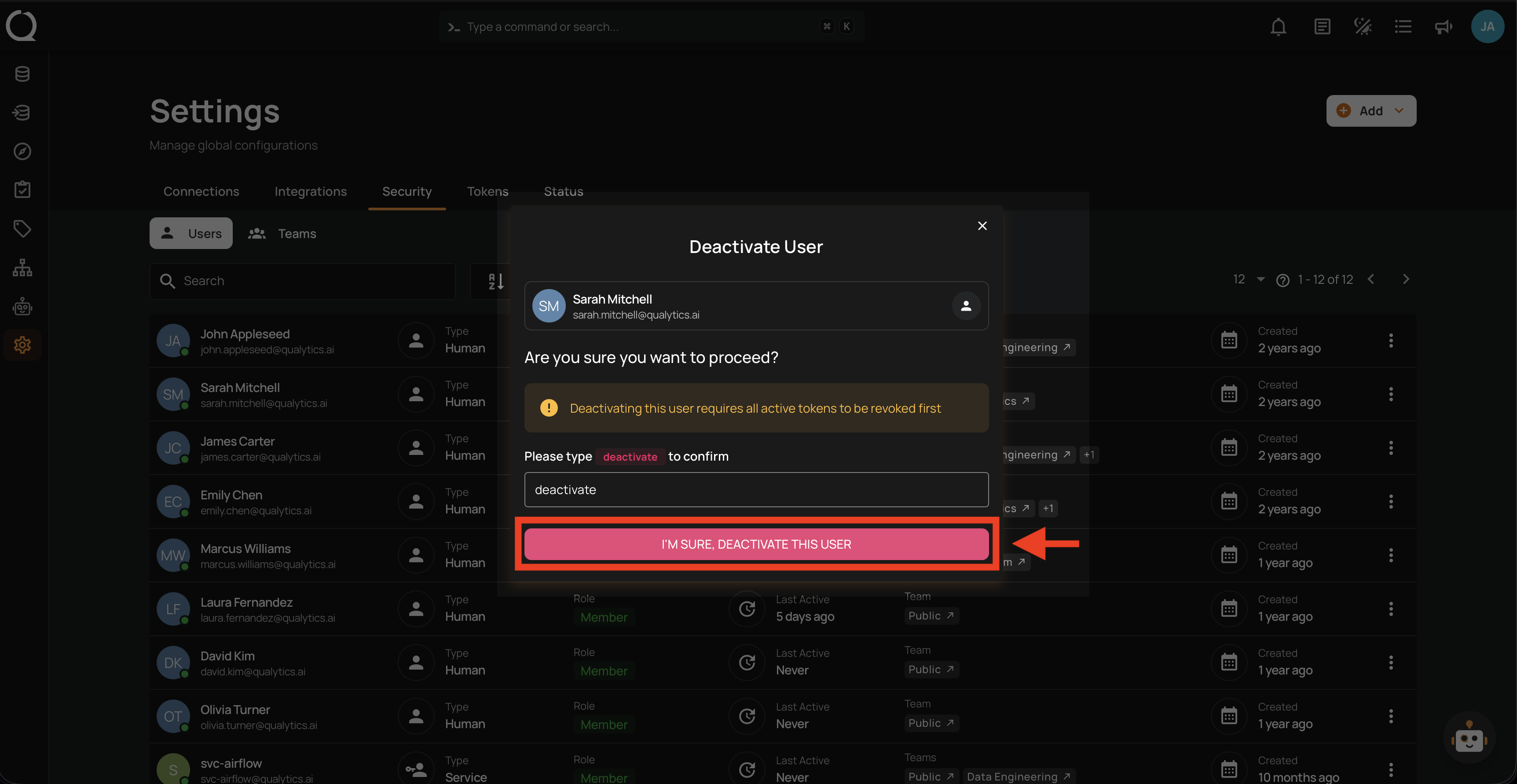
Step 4: A confirmation modal appears. Type deactivate in the confirmation field.
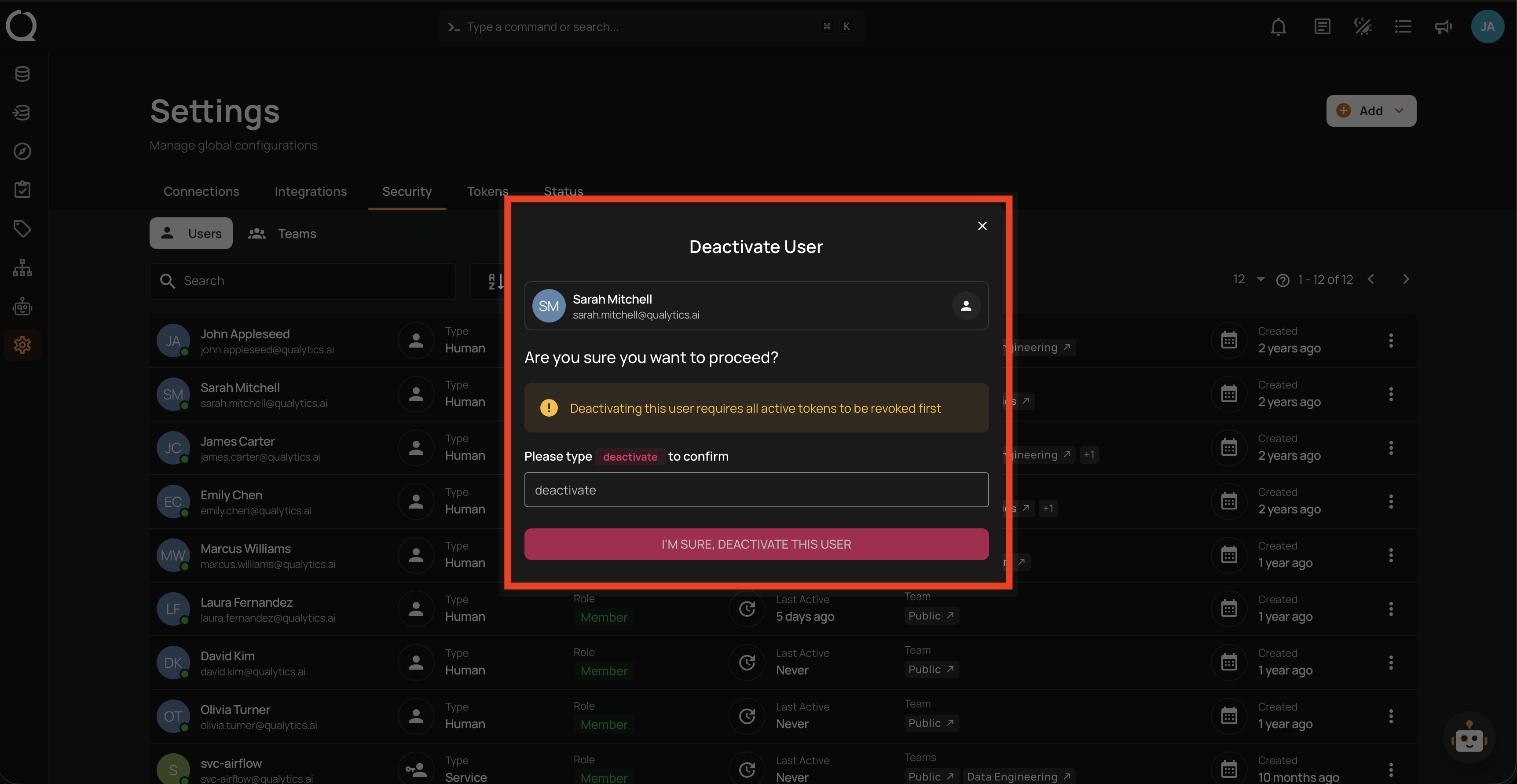
Step 5: Click the I'm sure, deactivate this user button to confirm.
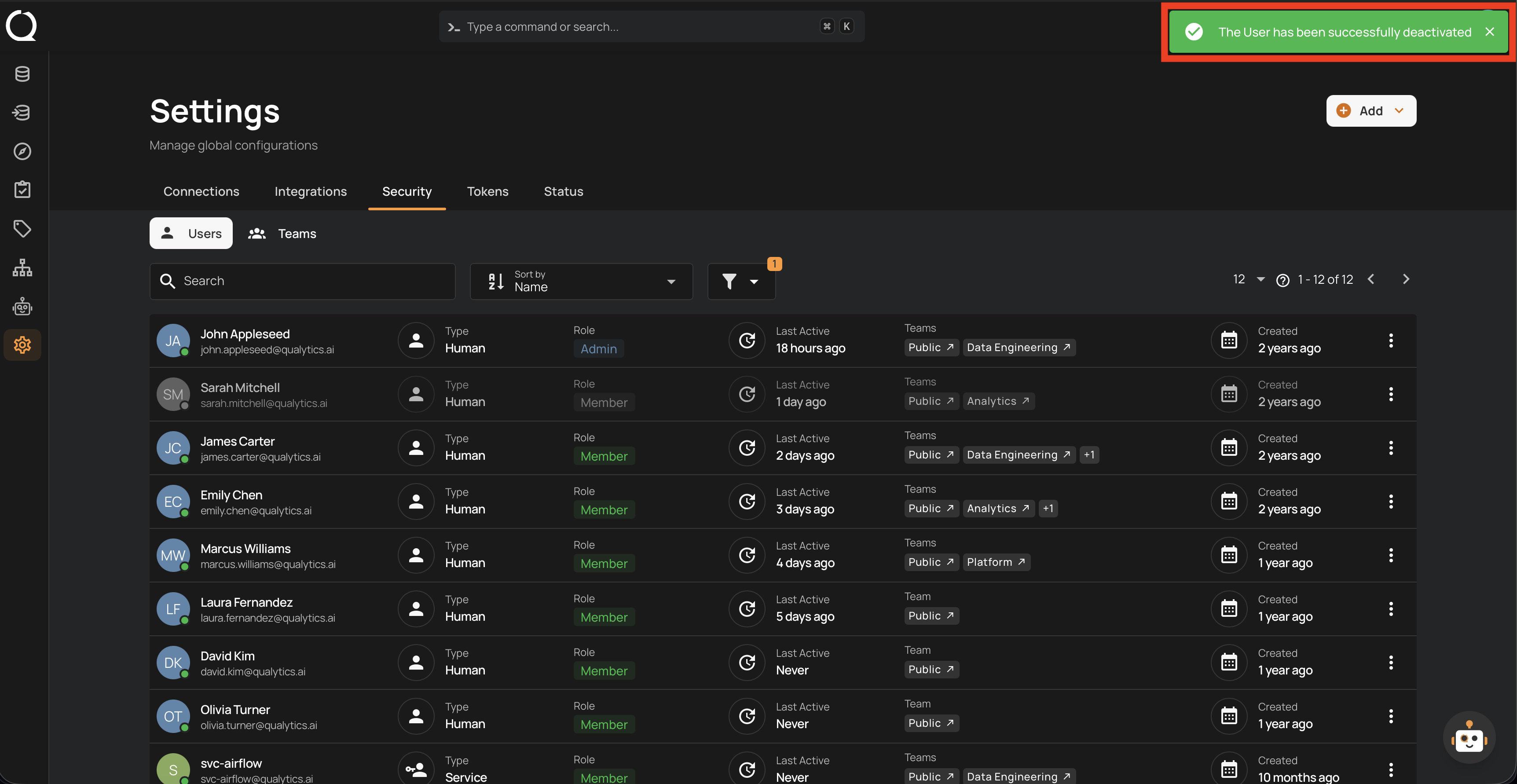
Step 6: A success notification confirms the user has been deactivated.
Tip
To view deactivated users, enable the Show Deactivated filter in the users list. Deactivated users can be reactivated at any time.