 Fabric Analytics
Adding and configuring a Fabric Analytics connection within Qualytics empowers the platform to build a symbolic link with your schema to perform operations like data discovery, visualization, reporting, syncing, profiling, scanning, anomaly surveillance, and more.
This documentation provides a step-by-step guide on how to add Fabric Analytics as a source datastore in Qualytics. It covers the entire process, from initial connection setup to testing and finalizing the configuration.
By following these instructions, enterprises can ensure their Fabric Analytics environment is properly connected with Qualytics, unlocking the platform's potential to help you proactively manage your full data quality lifecycle.

Let's get started 🚀
Fabric Analytics Setup Guide
To connect Fabric Analytics with Qualytics, you need to configure a Service Principal in Microsoft Entra ID (Azure AD) and grant it access to your Fabric workspace. This section walks you through the required prerequisites and credential retrieval process.
Prerequisites
Before configuring the Fabric Analytics datastore in Qualytics, ensure the following requirements are met:
| Requirement | Description |
|---|---|
| Microsoft Entra ID (Azure AD) | Access to your organization's Entra ID tenant to create or manage app registrations. |
| Fabric Workspace | A Fabric workspace with a Lakehouse or Warehouse that you want to connect to. |
| Service Principal | An app registration in Entra ID with a Client ID and Client Secret. |
| Tenant Admin Setting | The Fabric tenant setting "Service principals can use Fabric APIs" must be enabled. |
| Workspace Access | The service principal must be added as a Contributor (or higher) to the target Fabric workspace. |
Step 1: Register an Application in Microsoft Entra ID
1. Log in to the Azure Portal and click on the App registrations (under Microsoft Entra ID).

2. Click on the + New registration to create and register a new application in Microsoft Entra ID.

3. Enter the required details:
| No. | Field | Description |
|---|---|---|
| 1. | Name | Enter a name for the application (e.g., qualytics-fabric). |
| 2. | Supported account types | Select Accounts in this organizational directory only (Single tenant). |
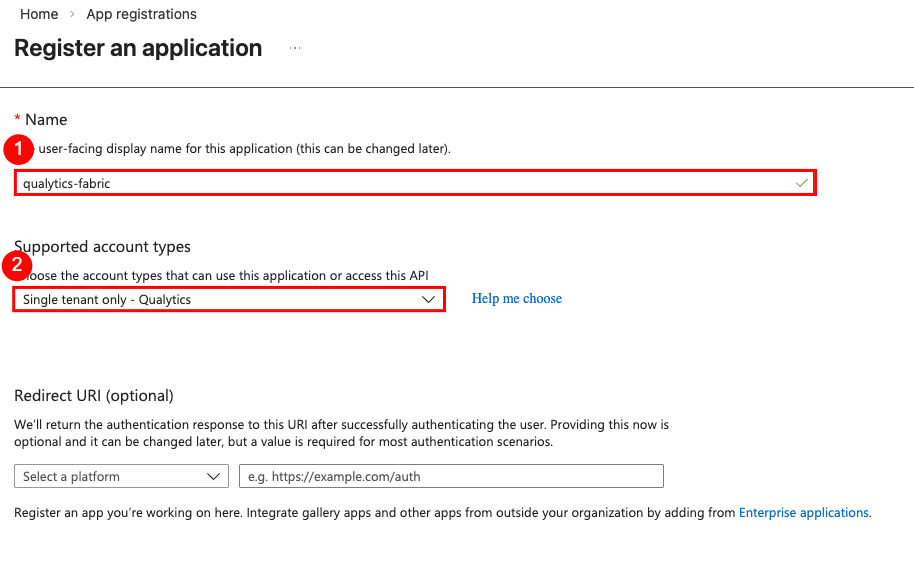
4. Click on the Register button to create the application.
Step 2: Retrieve the Client ID and Tenant ID
1. After registration, you will be taken to the app's Overview page.
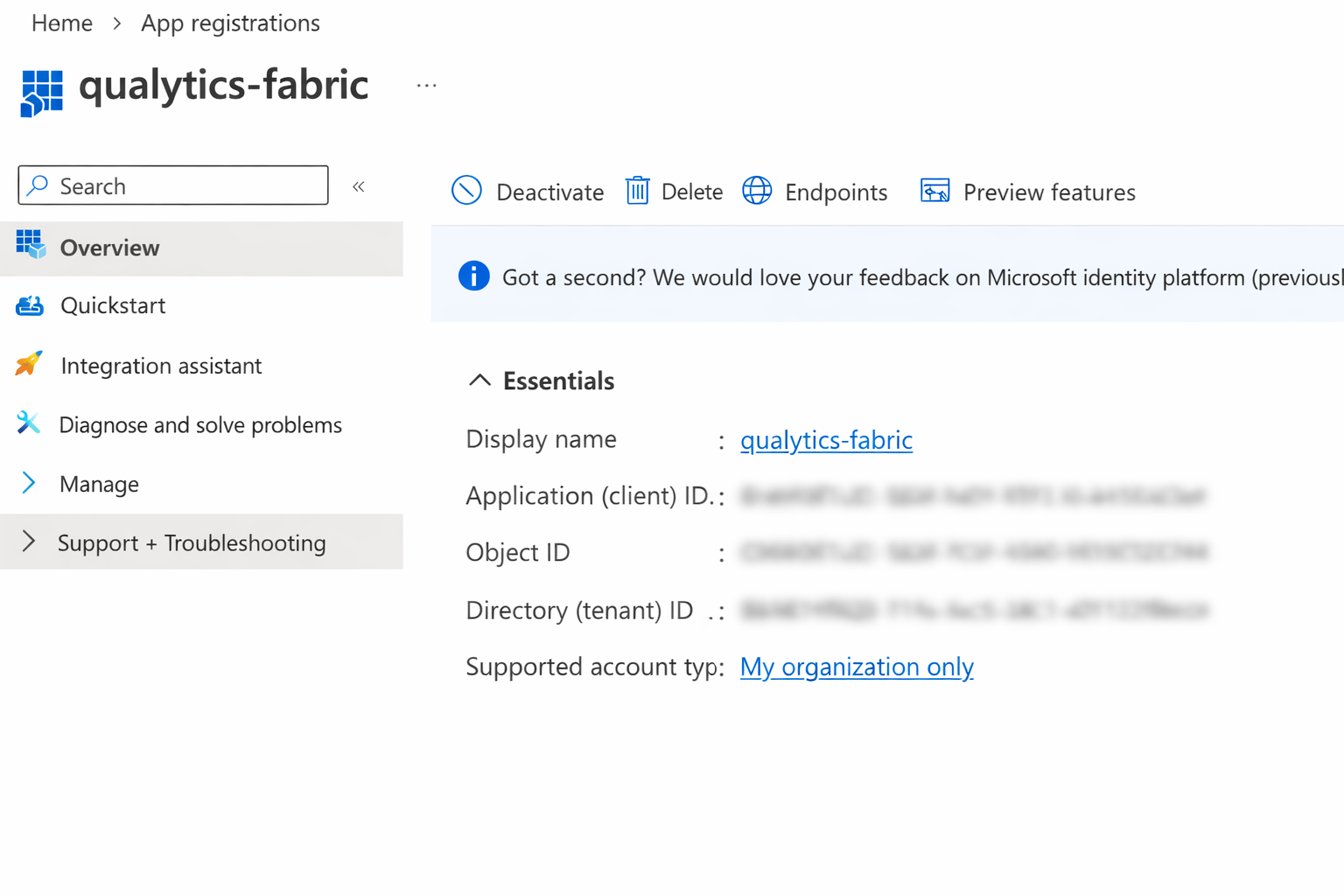
2. Copy the Application (client) ID: this is your Client ID.
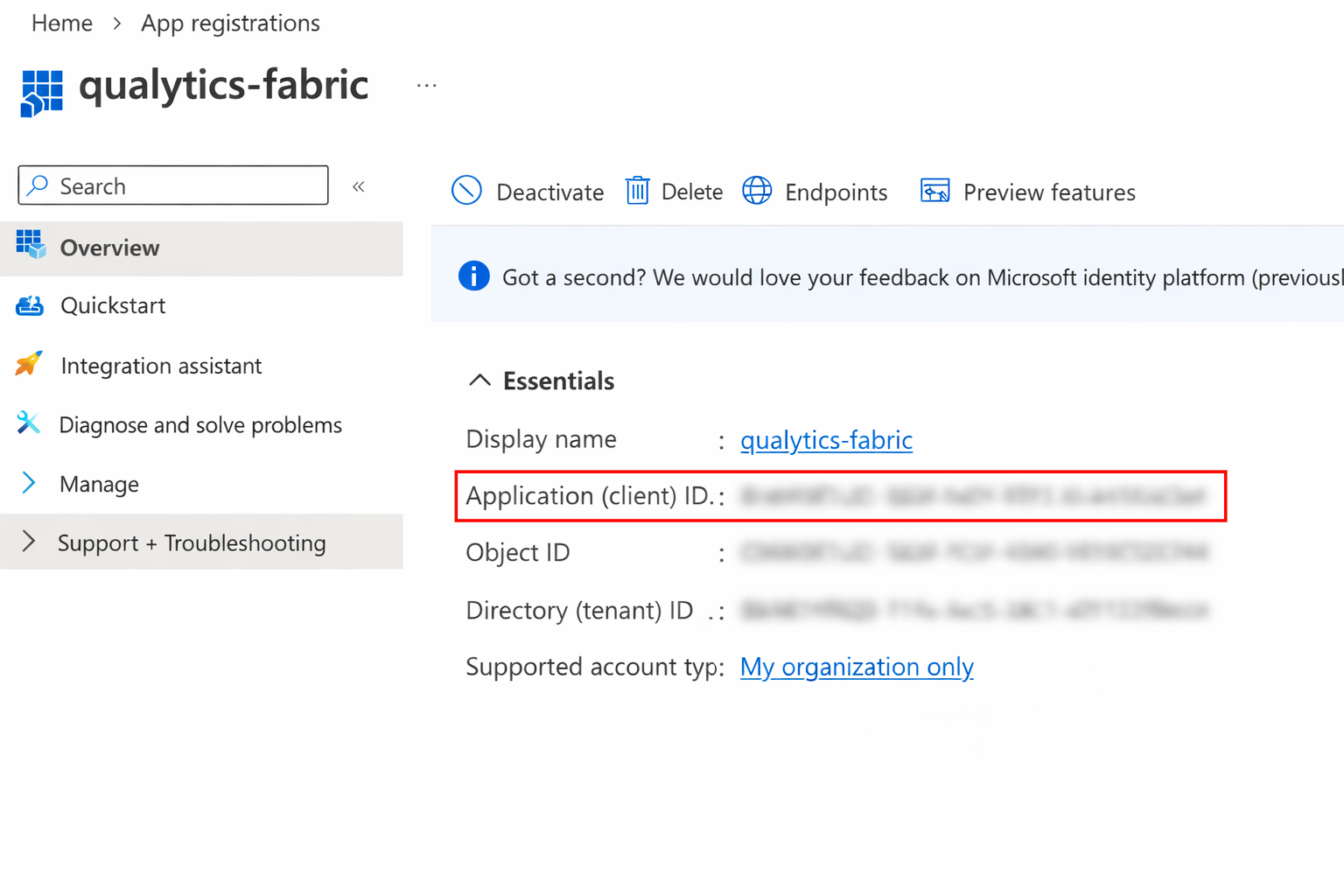
3. Copy the Directory (tenant) ID: this is your Tenant ID.
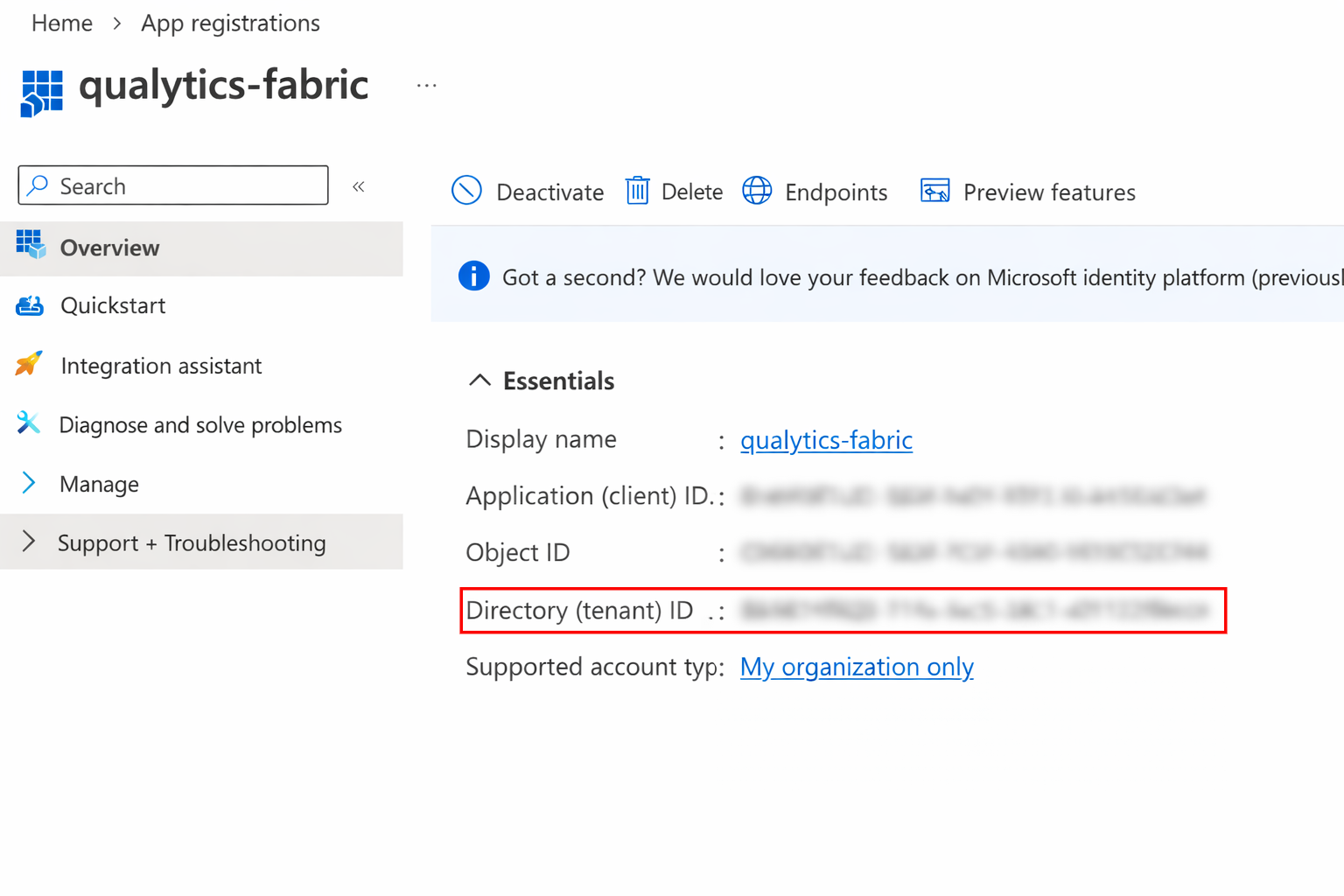
Step 3: Create a Client Secret
1. In the app registration, go to Client secrets and click + New client secret.
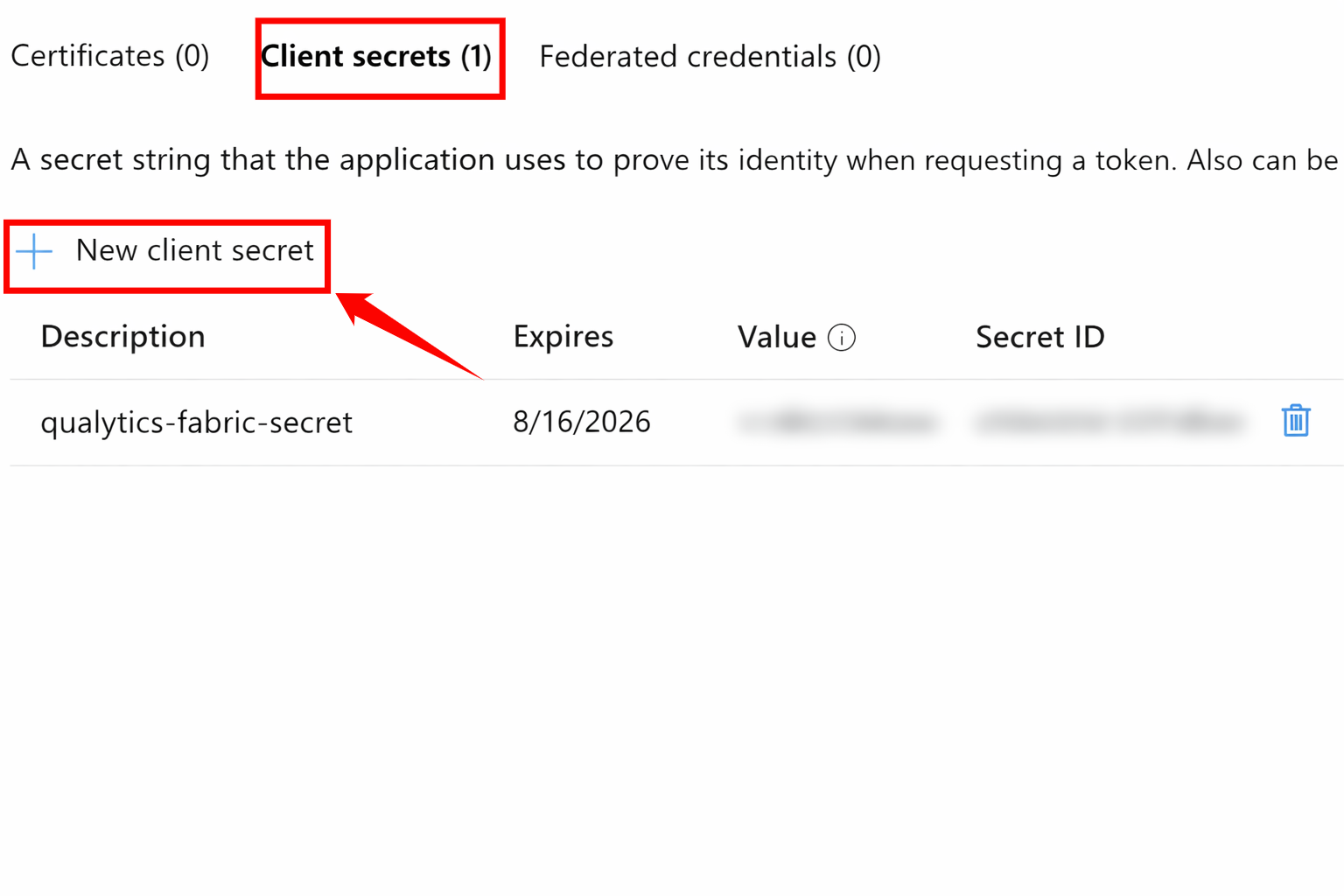
2. After clicking + New client secret, enter a description and choose an expiration period.
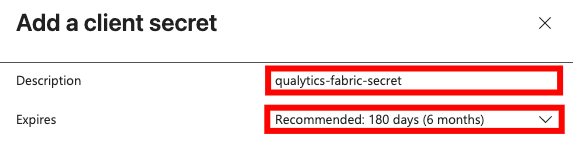
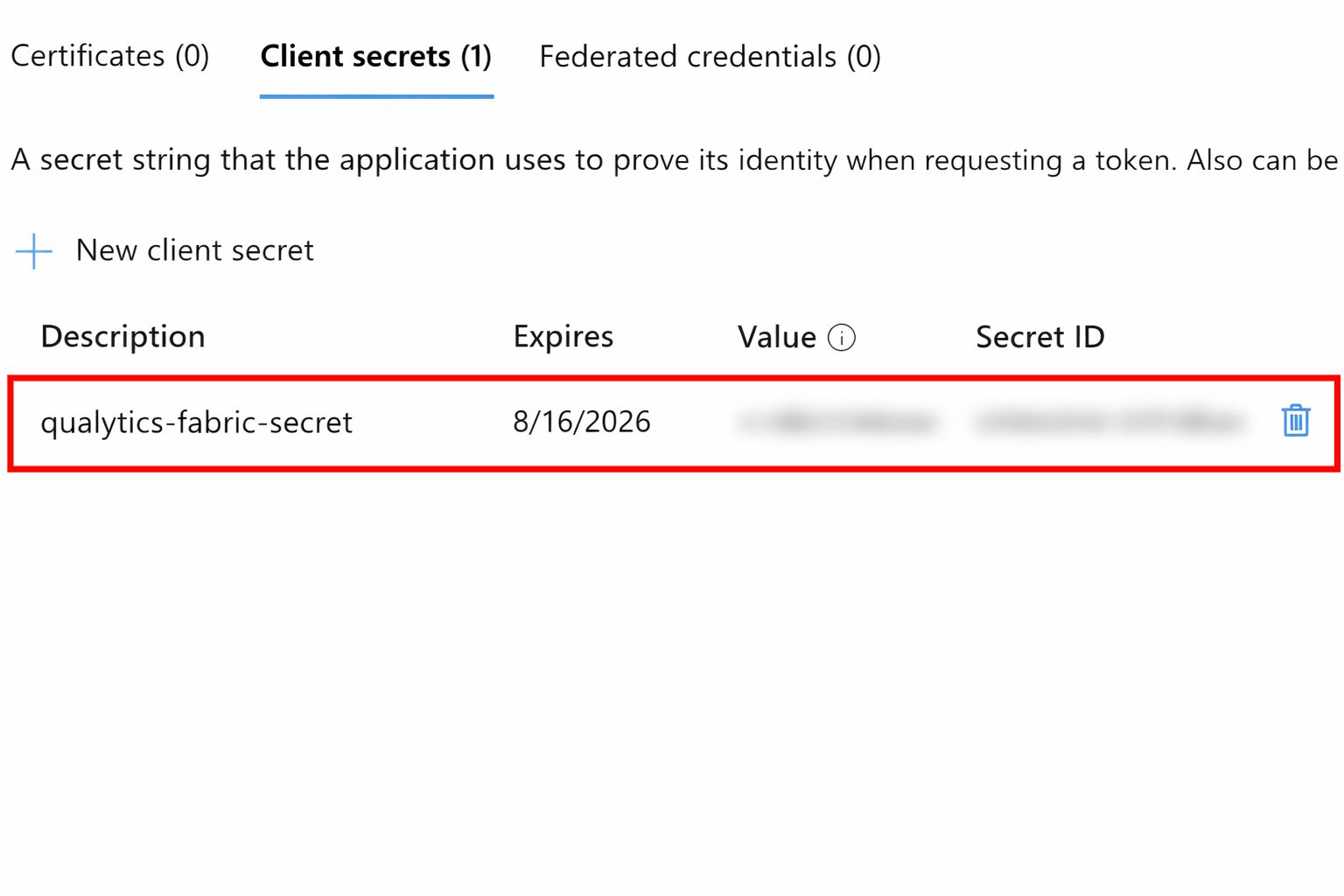
3. Copy the Value of the newly created secret immediately: this is your Client Secret, and it will not be shown again.
Warning
Make sure to copy the Client Secret value immediately after creation. It will not be displayed again once you navigate away from the page.
Step 4: Enable Service Principal Access in Fabric
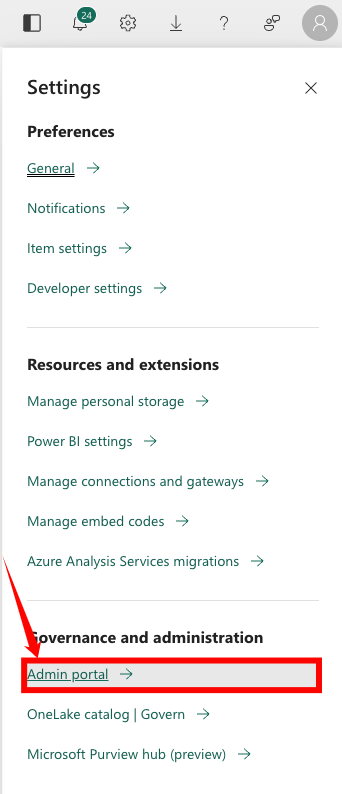
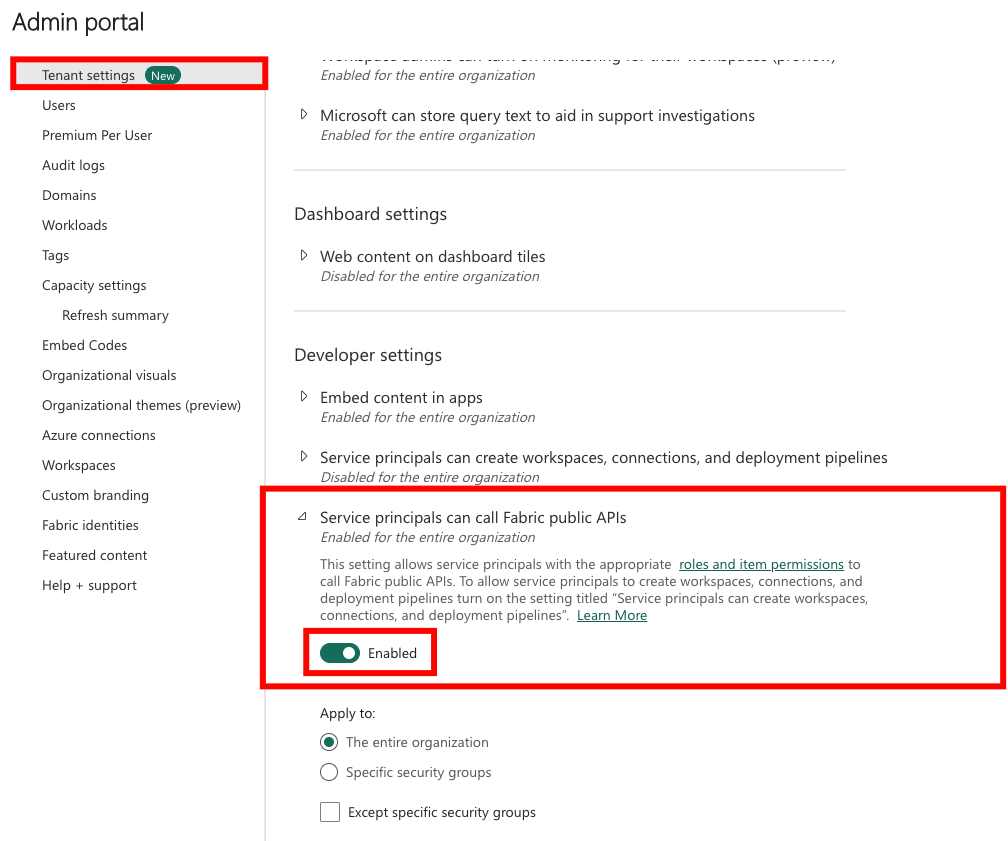
1. Sign in to Microsoft Fabric as a Fabric administrator, go to Settings, and click on the Admin portal.
2. Under Tenant settings, locate Service principals can call Fabric APIs, enable the setting, and specify the security group containing your service principal (or allow the entire organization).
Step 5: Grant Workspace Access to the Service Principal
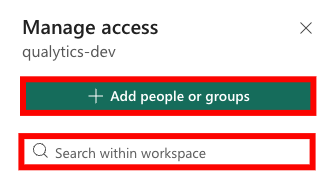
1. In Microsoft Fabric, open your target Workspace and click Manage access.

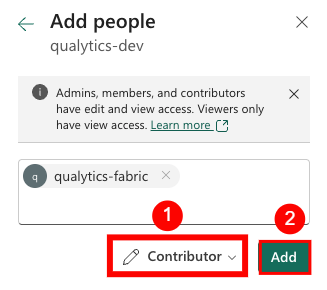
2. Click + Add people or groups, search for your registered application (e.g., qualytics-fabric), and select it.
3. Assign the Contributor role (or higher) and click Add.
Datastore Fabric Analytics Privileges
Qualytics connects to Fabric Analytics through the Microsoft JDBC driver for SQL Server using the SQL analytics endpoint. It queries system views (sys.schemas, sys.database_principals) to discover schemas and uses standard JDBC metadata APIs for tables, columns, and primary keys.
Minimum Fabric Analytics Permissions (Source Datastore)
| Permission | Purpose |
|---|---|
| Contributor role (or higher) on the Fabric workspace | Access the workspace and its Lakehouse/Warehouse resources |
SELECT on target tables/views |
Read data from tables for profiling and scanning |
SELECT ON sys.schemas |
Discover available schemas in the database |
SELECT ON sys.database_principals |
Resolve schema ownership for schema discovery |
| Service principals can use Fabric APIs (tenant setting) | Allow the Service Principal to authenticate via the SQL analytics endpoint |
Note
Qualytics cannot write to Fabric Analytics, so a Fabric Analytics datastore cannot be used as an enrichment datastore. Use an enrichment datastore on another connector instead.
Example: Verifying Service Principal Access
After configuring the Service Principal, you can verify access using the Azure CLI:
# Verify the app registration exists
az ad app show --id <client_id>

# Verify the Service Principal has the Contributor role on the Fabric workspace
az role assignment list --assignee <client_id> --scope <workspace_resource_id>
Tip
You can also verify the connection by using the SQL analytics endpoint directly with a SQL client tool (e.g., Azure Data Studio) before configuring it in Qualytics.
Troubleshooting Common Errors
| Error | Likely Cause | Fix |
|---|---|---|
Login failed for user |
The Service Principal credentials (Client ID, Client Secret, Tenant ID) are incorrect or the Client Secret has expired | Verify the credentials in the Azure Portal app registration and regenerate the Client Secret if needed |
Cannot open database requested by the login |
The Service Principal does not have access to the Fabric workspace | Add the Service Principal as a Contributor (or higher) to the target Fabric workspace |
Service principals are not allowed |
The Fabric tenant setting "Service principals can use Fabric APIs" is disabled | Enable the setting in the Fabric Admin Portal under Tenant settings |
The SELECT permission was denied on object |
The Service Principal lacks SELECT on one or more tables |
Verify the workspace role grants sufficient read access to the Lakehouse/Warehouse |
SQL analytics endpoint is not available |
The SQL analytics endpoint is not enabled for the Lakehouse/Warehouse | Ensure the SQL analytics endpoint is enabled in the Fabric workspace settings |
Detailed Troubleshooting Notes
Authentication Errors
The error Login failed for user indicates that the Service Principal credentials are incorrect or expired.
Common causes:
- Expired Client Secret: the Client Secret has a configurable expiration date. It may have expired since the connection was created.
- Wrong Tenant ID: the Tenant ID does not match the Microsoft Entra ID tenant where the app is registered.
- Wrong Client ID: the Client ID (Application ID) does not match the app registration.
Note
Service Principal Client Secrets have an expiration date configured during creation. Set a reminder to rotate the secret before it expires to avoid connection failures.
Permission Errors
The error The SELECT permission was denied on object or Service principals are not allowed means the Service Principal authenticated successfully but lacks the necessary access.
Common causes:
- Workspace role insufficient: the Service Principal needs at least the Contributor role on the Fabric workspace.
- Tenant setting disabled: the "Service principals can use Fabric APIs" setting is not enabled in the Fabric Admin Portal.
- Security group restriction: the tenant setting is enabled but restricted to a specific security group that does not include the Service Principal.
Connection Errors
The error SQL analytics endpoint is not available or Cannot open database requested by the login indicates a configuration issue.
Common causes:
- SQL endpoint not enabled: the SQL analytics endpoint is not enabled for the Lakehouse or Warehouse.
- Wrong endpoint: the SQL analytics endpoint URL does not match the target Lakehouse/Warehouse.
- Fabric capacity paused: the Fabric capacity is paused, making the SQL endpoint unavailable.
Tip
Start by confirming Service Principal credentials are valid (authentication errors), then verify workspace roles and tenant settings (permission errors), and finally check the SQL analytics endpoint availability (connection errors).
Retrieve the SQL Analytics Endpoint
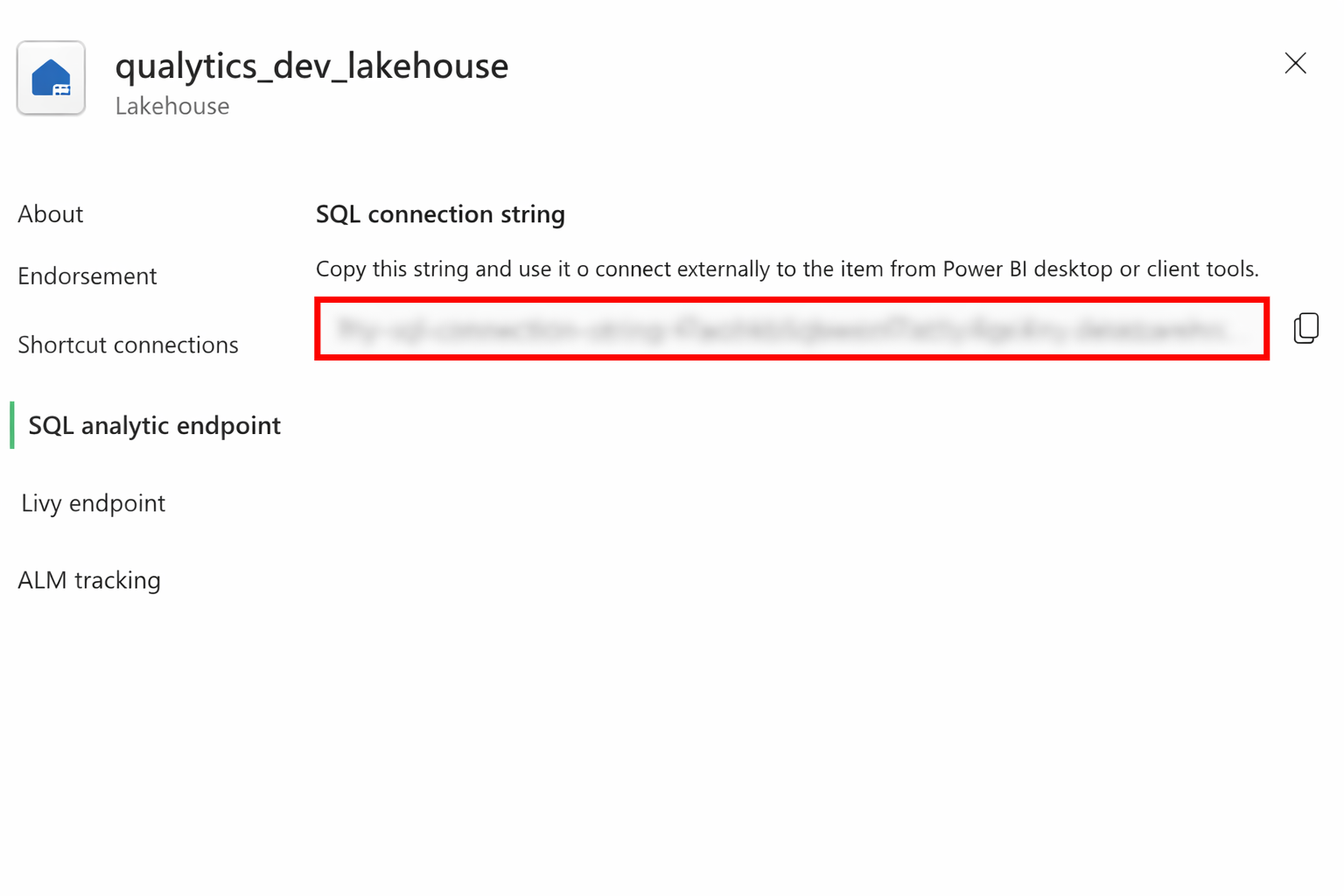
1. Open your Lakehouse or Warehouse in the Fabric workspace and copy the SQL analytics endpoint from the connection string area.
The endpoint format is:
Tip
Refer to the Microsoft Fabric documentation for more information on connectivity and SQL analytics endpoints.
Add the Source Datastore
A source datastore is a storage location Qualytics connects to so it can profile, scan, and monitor data. Adding Fabric Analytics as a source lets Qualytics query your Lakehouse or Warehouse through its SQL analytics endpoint and run quality operations on the tables it discovers.
Before you start, complete the service principal setup in the Fabric Analytics Setup Guide above and have the SQL analytics endpoint at hand.
The destination lives on another connector
Qualytics cannot write to Fabric Analytics, so a Fabric Analytics datastore cannot be used as an enrichment datastore. Create one on a supported connector and link it as this datastore's destination. See Supported Connectors for the list, and Link Enrichment on Datastore Creation for the flow.
Field reference
The Add Datastore page shows the sections below when Fabric Analytics is selected. When reusing an existing connection, the Connection Properties and Secrets Management sections come already filled in and read-only: Qualytics has already validated those credentials, so you fill in only the Location and the General fields. To change a saved connection's credentials, edit the connection through the Manage Connections page; edits there apply to every datastore that reuses the connection.
Connection Properties
These fields define the Fabric endpoint Qualytics connects to and the service principal it connects with. They belong to the connection: when reusing an existing connection, they come already filled in and read-only.
| Field | Required | Type | Description |
|---|---|---|---|
| Connection Name | Text | A label for the saved connection (e.g., acme_fabric_warehouse), so other datastores can reuse it later. |
|
| Host | Text | The SQL analytics endpoint of your Lakehouse or Warehouse (e.g., <workspace-guid>.datawarehouse.fabric.microsoft.com). See Retrieve the SQL Analytics Endpoint. |
|
| Port | Number | The port the endpoint listens on. The form shows 1433 as a hint rather than filling it in, so type it unless your endpoint uses a different port. |
|
| Client ID | Text | The Application (client) ID of the Microsoft Entra ID app registration. See Retrieve the Client ID and Tenant ID. | |
| Client Secret | Text | The secret value generated for that app registration. See Create a Client Secret. | |
| Tenant ID | Text | The Directory (tenant) ID of your Microsoft Entra ID tenant, used for service principal authentication. | |
| Max Parallelization | Number | Caps how many queries Qualytics runs at the same time against a datastore reached through this connection, from 1 to 100. Leave it empty for no explicit limit. The cap applies per datastore, so datastores sharing this connection each get their own allowance. Sits in the collapsed Advanced section of the form. See Max Parallelization. |
Secrets Management
This group is optional: use it only if you want Qualytics to pull credentials from a secrets manager instead of typing them into the form. Turn on HashiCorp Vault to show the fields below. Despite the label, any secrets manager that exposes a compatible REST API works, not only HashiCorp Vault; see HashiCorp Vault. It also belongs to the connection: read-only when reusing an existing connection.
| Field | Required | Type | Description |
|---|---|---|---|
| Login URL | Text | The full URL of the login endpoint (e.g., https://vault.example.com/v1/auth/approle/login). With Vault namespaces, add the namespace after /v1/, as in /v1/<namespace>/auth/approle/login. |
|
| Credentials Payload | Text | A JSON body containing the credentials Vault expects (e.g., {"role_id":"...","secret_id":"..."}). |
|
| Token JSONPath | Text | The JSONPath that extracts the client token from Vault's response. Defaults to $.auth.client_token. |
|
| Secret URL | Text | The full URL of the secret, including https:// and the host (e.g., https://vault.example.com/v1/secret/data/fabric). With Vault namespaces, add the namespace after /v1/. |
|
| Token Header Name | Text | The HTTP header name used to send the token. Defaults to X-Vault-Token. |
|
| Data JSONPath | Text | The JSONPath that extracts the key/value pairs from Vault's response. Use $.data.data for a KV version 2 secret (its API path contains /data/) and $.data for KV version 1 or the database secrets engine. The form pre-fills $.data. |
Note
Once the secrets manager is configured, reference any secret value in the Connection Properties using ${key} (e.g., ${fabric_client_secret}). Qualytics resolves the secret at the moment the connection is opened, so changed keys take effect on the next connection. Write the reference with braces (${key}, never $.key) and match the key name's case. Setup steps, the namespace rule, and a troubleshooting page are on the HashiCorp Vault pages.
Location
Pick the Lakehouse or Warehouse and the schema or schemas Qualytics should read from. You fill these in on both flows.
| Field | Required | Type | Description |
|---|---|---|---|
| Database | Option | The Fabric Lakehouse or Warehouse to read from (e.g., lakehouse). Click the refresh icon to fetch the ones visible to the service principal. |
|
| Schema | Option | One or more schemas inside the selected Lakehouse or Warehouse, commonly dbo. Each schema you pick becomes its own Qualytics datastore. Click the refresh icon to load the available schemas. |
One datastore per schema
Selecting more than one schema creates one source datastore per schema, named from the Name Template. See Multi-Schema Source Datastore Creation for details.
General
Common fields for every source datastore, shown below the Location section. You fill these in on both flows.
| Field | Required | Type | Description |
|---|---|---|---|
| Name Template | Text | Defines the naming pattern for each source datastore being created. Use {{schema}} as a placeholder that gets replaced with the actual schema name (e.g., fabric_{{schema}} becomes fabric_sales). Left empty, the datastore is named from the connection name and the schema. |
|
| Group | Option | Organizes your datastores under a shared group in the navigation tree. Select an existing group or create a new one with the Add New Group toggle. | |
| Teams | Option | Select one or more teams to associate with this source datastore. | |
| Initiate Sync | Checkbox | Automatically sync the datastore to detect containers and fields after creation. |
Below the form, an information banner lists the Public addresses and Private addresses your datastore connections originate from. Allow the ones that match your network setup through your security groups or firewall rules; see How Connections Work for where the addresses come from.
Steps
There are two ways to set up the connection: reuse a connection you already saved (Existing Connection) or create a new one from scratch (New Connection). The tabs below walk through each option; pick the one you want to follow. Each field is described in the Field reference above.
Step 1: Navigate to the Datastores page.
Step 2: Click the Add button at the top-right corner and choose Source .
Step 3: The Add Datastore page opens.
Step 4: Select New Connection next to the Search field.
Step 5: Select Fabric Analytics from the connector grid. Use the search field to filter connectors by name.
Step 6: Fill in the Connection Properties: the Connection Name, the Host, the Port, and the service principal credentials, which are the Client ID, the Client Secret, and the Tenant ID.
Step 7: Optionally, expand Secrets Management to retrieve credentials from a secrets manager.
Step 8: Fill in the Location fields (Database and Schema) and the General fields.
Step 9: Click Test connection. A success message confirms that the connection has been verified.
Info
The Finish and Next buttons stay disabled until the connection test passes on the current values. If you change a connection field after a successful test, test again. If the test fails, see Troubleshooting Common Errors.
Step 10: Click Finish to create the datastore.
Tip
To link a destination so Qualytics can write anomalies and metadata from the first operation, click Next instead of Finish. It has to live on a connector other than Fabric Analytics; see Link Enrichment on Datastore Creation.
Step 11: A success dialog confirms that your datastore has been added. Click Go to your datastore to open its page.
Step 1: Navigate to the Datastores page.
Step 2: Click the Add button at the top-right corner and choose Source .
Step 3: The Add Datastore page opens.
Step 4: Select Existing Connection next to the Search field.
Step 5: Select the saved Fabric Analytics connection from the grid. Use the search field to filter connections by name. The Connection Properties and Secrets Management sections come already filled in and read-only.
Start a new connection from this one
To use the selected connection as a starting point for a brand-new connection instead, click the Duplicate as a new connection button on the selected connection. The form switches to New Connection mode with the connection's settings already filled in for you to adjust.
Step 6: Fill in the Location fields (Database and Schema) and the General fields. These are the only fields left to fill in: Database, Schema, and Teams are the required ones, while Name Template, Group, and Initiate Sync are optional.
Step 7: Click Test connection. A success message confirms that the connection has been verified.
Info
The Finish and Next buttons stay disabled until the connection test passes on the current values. If the test fails, see Troubleshooting Common Errors.
Step 8: Click Finish to create the datastore.
Tip
To link a destination so Qualytics can write anomalies and metadata from the first operation, click Next instead of Finish. It has to live on a connector other than Fabric Analytics; see Link Enrichment on Datastore Creation.
Step 9: A success dialog confirms that your datastore has been added. Click Go to your datastore to open its page.
API Payload Examples
Creating a Source Datastore
This section provides a sample payload for creating a Fabric Analytics datastore. Replace the placeholder values with actual data relevant to your setup.
Permissions
Creating a datastore requires the Manager role.
Endpoint (Post): /api/datastores (post)
{
    "name": "your_datastore_name",
    "teams": ["Public"],
    "database": "fabric_database",
    "schema": "dbo",
    "enrichment_only": false,
    "trigger_sync": true,
    "connection": {
        "name": "your_connection_name",
        "type": "fabric",
        "host": "your-workspace-guid.datawarehouse.fabric.microsoft.com",
        "port": 1433,
        "username": "your_client_id",
        "password": "your_client_secret",
        "parameters": {
            "tenant_id": "your_tenant_id"
        }
    }
}
# Step 1: Create a Connection
qualytics connections create \
    --type fabric \
    --name "your_connection_name" \
    --host ${FABRIC_HOST} \
    --port 1433 \
    --username ${APPLICATION_CLIENT_ID} \
    --password ${CLIENT_SECRET} \
    --parameters '{"tenant_id": "azure-ad-tenant-id"}'

# Step 2: Create a Source Datastore
qualytics datastores create \
    --name "your_datastore_name" \
    --connection-name "your_connection_name" \
    --database your_database \
    --schema dbo