Filter Presets Introduction
What Is a Filter Preset
A filter preset is a named combination of datastores and tags from the Explore page filter bar. Once saved, a preset can be applied in one click, shared via URL, and managed from the Saved Filters dropdown.
Where to Find Filter Presets
Filter presets live in the Saved Filters dropdown at the top of the Explore page filter bar, alongside the Source Datastores and Tags selectors.
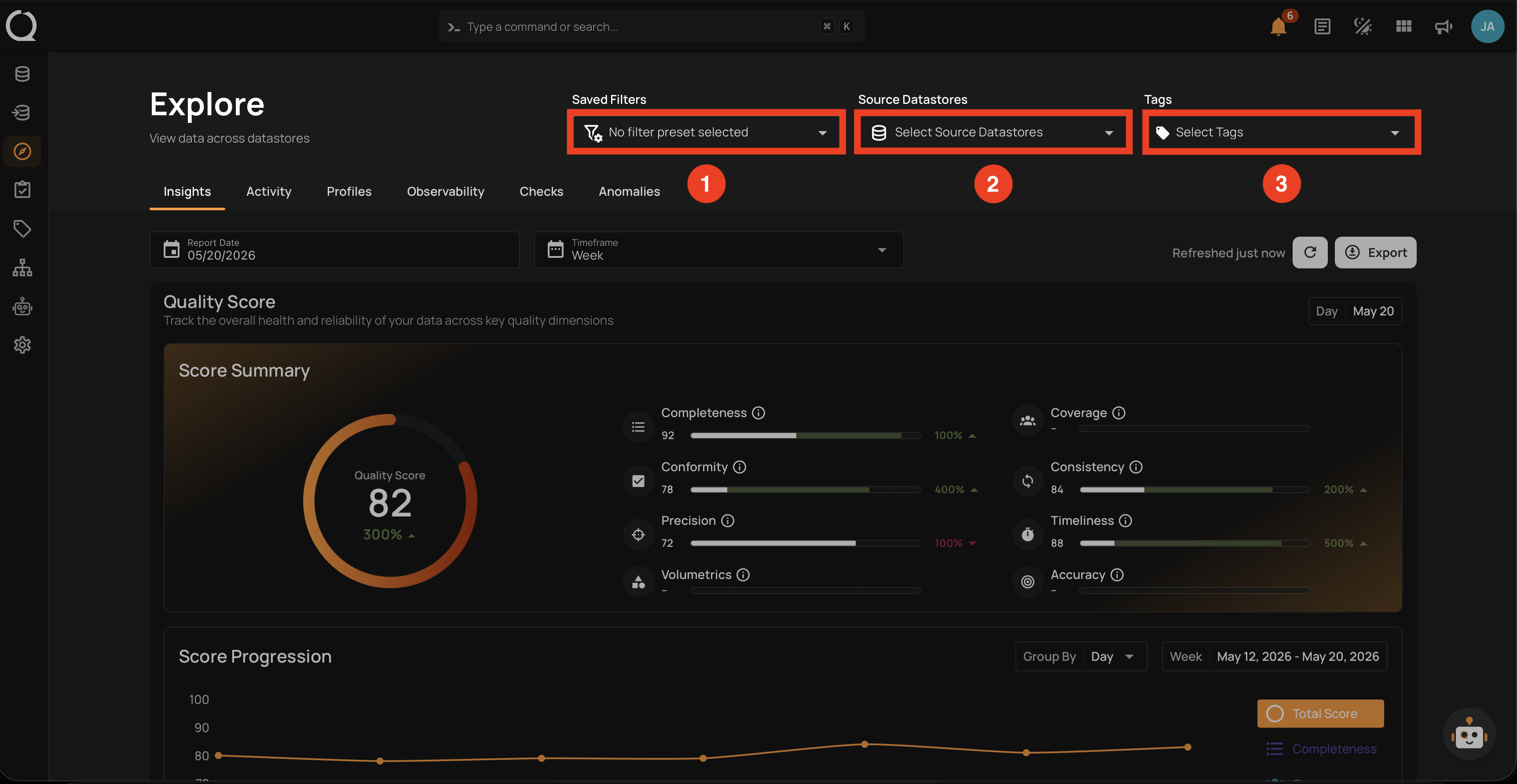
| No | Component | Description |
|---|---|---|
| 1. | Saved Filters | Apply a saved filter preset or save the current Source Datastores and Tags selection as a new preset. |
| 2. | Source Datastores | The datastore filter. Becomes part of a preset when you save one. |
| 3. | Tags | The tag filter. Becomes part of a preset when you save one. |
How Filter Presets Relate to Filter and Sort
The Filter and Sort page documents the Explore filter bar: the Source Datastores and Tags filters that apply across all Explore tabs, plus Report Date and Timeframe controls available on the Insights tab. Filter presets sit on top of that filter bar and let you save the datastores + tags combination as a reusable view.
Use the filter bar to set up the view you want, then save it as a filter preset to apply the same combination again later or share it with someone else.
Impact on the Explore Page
Applying a filter preset sets the Source Datastores and Tags filters across every Explore tab (Insights, Activity, Profiles, Observability, Checks, and Anomalies).
The Insights tab's Report Date and Timeframe are not part of the preset; they keep their current values when a preset is applied.
Why Use Filter Presets
- Save time. Avoid re-selecting the same set of datastores and tags every time you open the Explore page.
- Standardize how your team looks at the data. Anyone in the workspace can create a preset that matches a team's focus, for example a "Critical Production" preset that scopes the view to the most important datastores.
- Share a filtered view via URL. When you apply a preset, the page URL updates so you can copy and share the link to restore the same filtered view for someone else.
- Highlight what needs attention. Combine presets with the Explore tabs (Insights, Activity, Anomalies) to point teams at the assets that matter most, such as the worst-performing datastores or the most urgent anomalies.
Visibility
Filter presets are shared across the workspace, but a preset only appears in your Saved Filters dropdown if you have access to all the datastores it references.
For details on who can edit, rename, or delete a preset, see Permissions.
The Saved Filters Dropdown
The Saved Filters dropdown lists every preset you can access. Use it to find, preview, and apply presets.
The dropdown includes:
- A search box at the top to filter the list as you type.
- A checkmark next to the preset currently applied to the page.
- The creator's avatar next to each preset's name (hover to see who created or last edited it; see Creator and Last Editor below).
- An actions menu on presets you can edit, with Edit and Delete options.
- An Add filter preset link at the bottom that opens the create dialog. It is equivalent to the Save as new preset icon described below; both open the same dialog.
Hover any preset name to see a tooltip with the preset's datastores and tags. If the preset has no datastores, the tooltip shows All in the Datastores row. The Tags row only appears when the preset has at least one tag.
When no presets match the active search, the dropdown shows No filter presets found. When you have no presets at all, it shows No filter presets yet.
Three icons appear next to the Saved Filters label in the filter bar, depending on context:
- Save as new preset — Save the current filter selection as a new preset. Appears only when at least one datastore or tag is applied.
- Reset to saved preset — Revert the filter bar to the saved preset's values. Appears only when a preset is applied and you have changed the filters without saving.
- Update preset — Update the applied preset with the current filter values. Appears only when a preset is applied, you have changed the filters, and you can edit the preset.
Creator and Last Editor
The creator's avatar appears next to each preset's name in the Saved Filters dropdown (presets created before ownership tracking was introduced may not have an avatar). Hover the avatar to see:
- Created by
[Name]: who originally created the preset. - Edited by
[Name][time ago]: who last edited the preset (the name, description, or datastores and tags). This line only appears when the last editor is different from the creator.
This makes it easy to see who owns a preset and when it was last changed.
URL Sharing
When a preset is applied, the page URL is updated with a ?filter=<id> parameter. You can copy and share the URL to restore the same filtered view for someone else.
When someone opens a URL with ?filter=<id>:
- The referenced preset takes priority over any previously selected preset.
- If the viewer cannot access the preset (deleted, or its datastores are outside the viewer's team), the page falls back to the default unfiltered view without showing an error message.
What Happens If a Preset Becomes Unavailable
If the preset currently applied becomes unavailable (for example, another user deletes it, or your team's access to one of its datastores is removed), the page clears the selection. The ?filter= parameter is removed from the URL, and the Explore page returns to the default unfiltered view without showing an error message.
Real-World Examples
- Daily monitoring view. A team lead creates a "Production Health" preset that scopes the Explore page to production datastores and the
criticaltag. Team members apply the preset every morning to focus on what matters. - Compliance review. A Manager creates a "HIPAA Review" preset containing all HIPAA-tagged datastores. Compliance auditors apply the preset before going through each check.
- Incident response. During an incident, the on-call engineer applies a preset that includes the affected datastore and shares the URL with the response team. Everyone opening the link lands on the same filtered view.
- Cross-team handoff. A data engineer hands off a project to the analytics team by saving a preset that scopes the view to the project's datastores and tags. The analytics team applies the preset to see the same filtered view.