Materialize Operation
Materialize Operation captures snapshots of selected containers from a source datastore and exports them to an enrichment datastore for seamless data loading. Users can run it instantly or schedule it at set intervals, ensuring structured data is readily available for analysis and integration.
Materialize Naming Conventions
To keep materialized data organized and compatible across different enrichment datastores, the system applies specific naming conventions. These conventions ensure that the resulting container names remain valid, readable, and free of conflicts.
Default Naming Convention
Used when the container name is safe to use as-is.
<enrichment_prefix>_mat_<container_name>
This naming format is applied when:
- The container name length is 60 characters or less.
- The container name does not contain special characters that may cause invalid table or file names.
Example:
If the enrichment prefix is sales and the container name is orders_2024:
sales_mat_orders_2024
Fallback Naming Convention
If the container name contains characters that may cause issues in downstream systems, the system switches to a safer naming structure by using the container ID instead.
<enrichment_prefix>_materialize_<container_id>
This fallback is used when:
- The container name exceeds 60 characters.
- The container name includes restricted or special characters. (e.g., symbols, glob patterns when moving from DFS to JDBC).
Example:
If the enrichment prefix is sales and the container ID is 1023456:
sales_materialize_1023456
Note
The fallback naming ensures successful loading into the enrichment datastore by preventing invalid or non-compliant table names.
Let’s get started 🚀
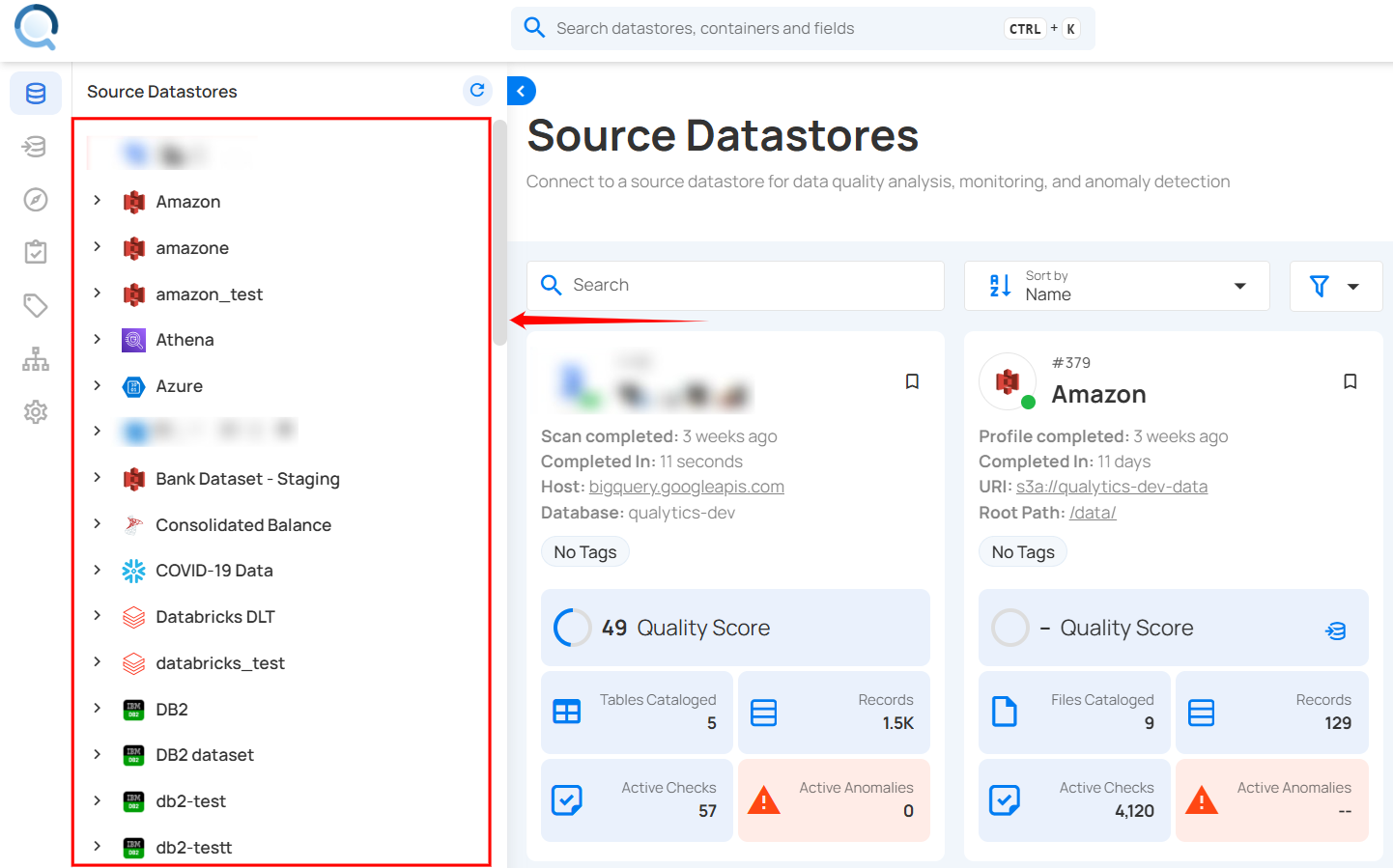
Step 1: Select a source datastore from the side menu to capture and export containers for the Materialize Operation.
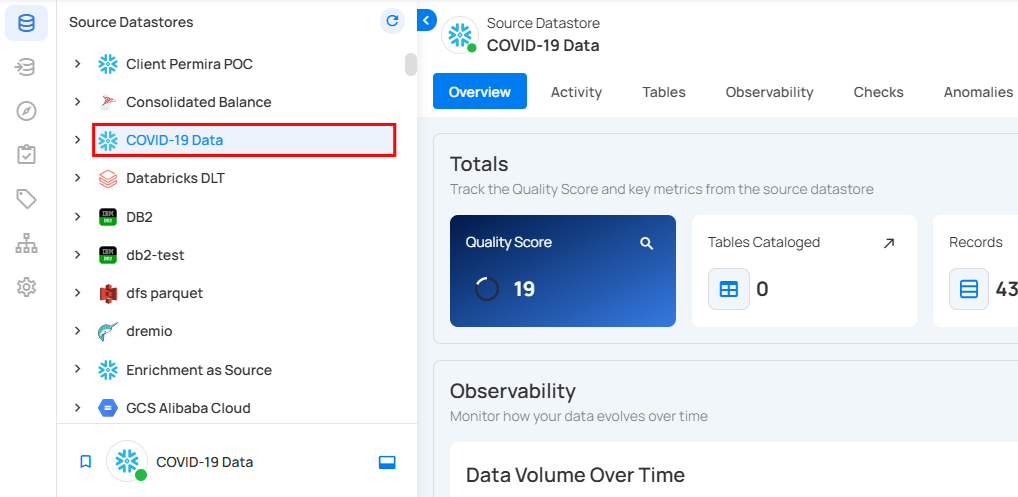
For demonstration purposes, we have selected the “COVID-19 Data” Snowflake source datastore.
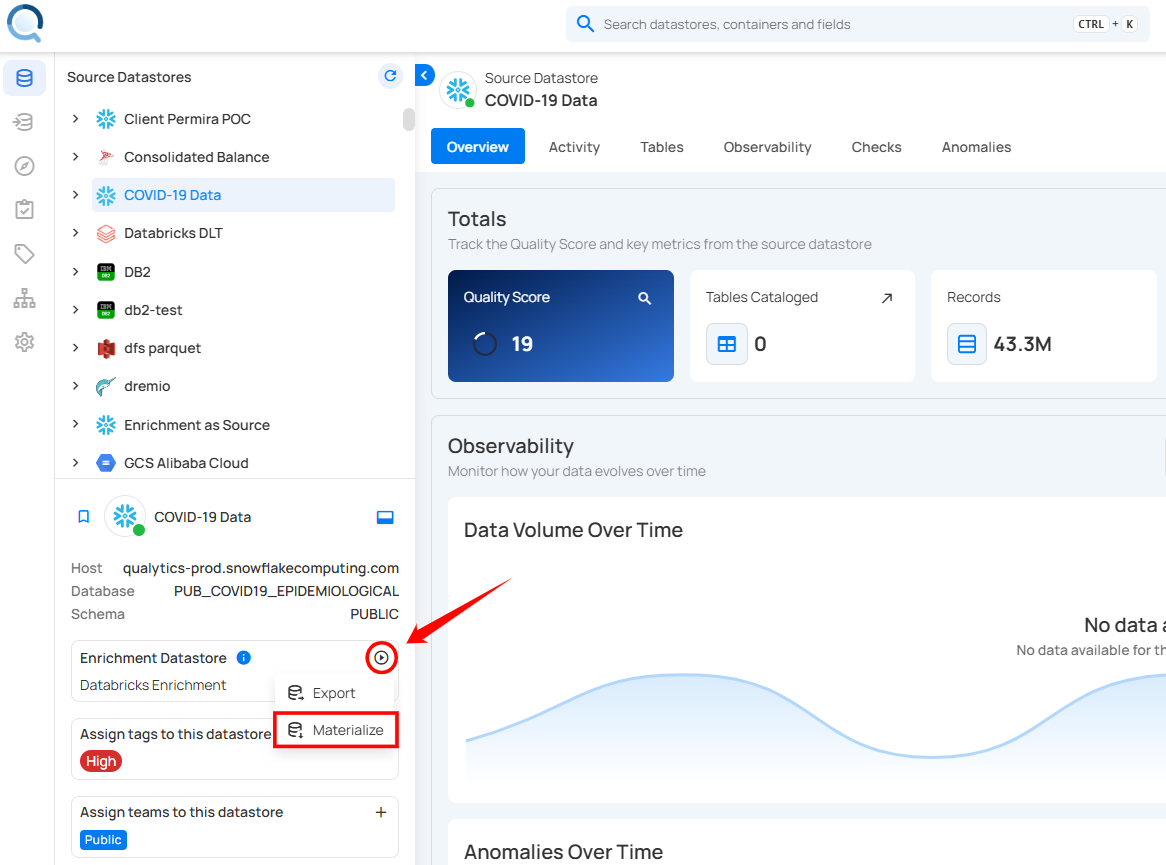
Step 2: After selecting a datastore, a bottom-up menu appears on the right side of the interface. Click Enrichment Operations next to the Enrichment Datastore and select Materialize.
Step 3: After clicking Materialize, a modal window appears, allowing you to configure the data export settings for the Materialize Operation.
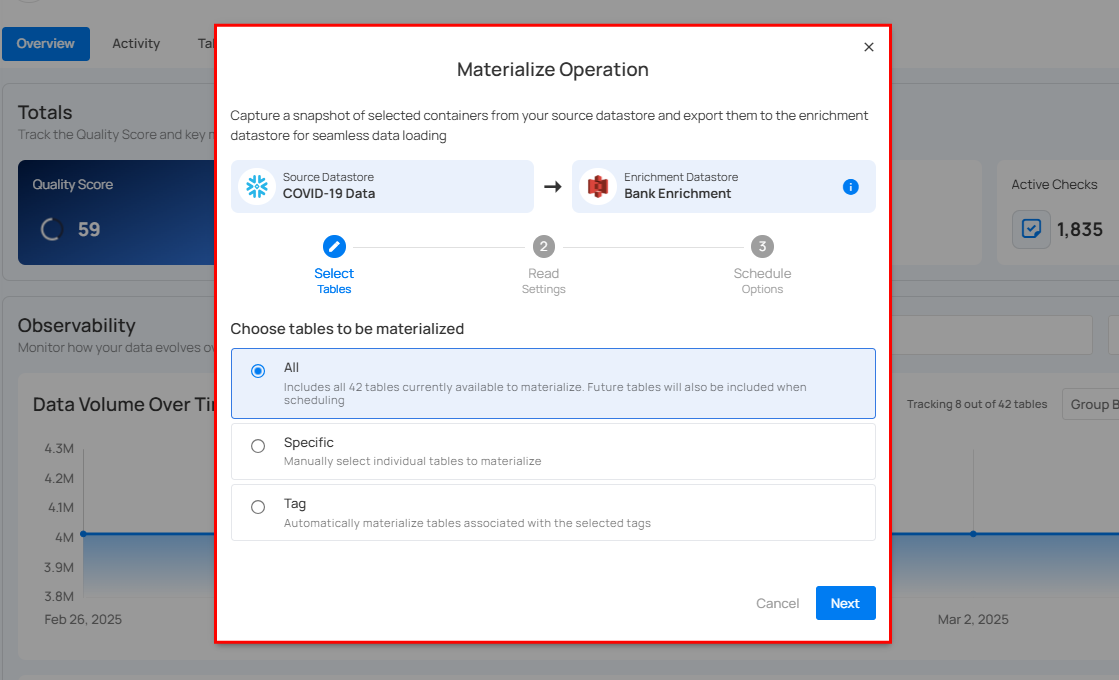
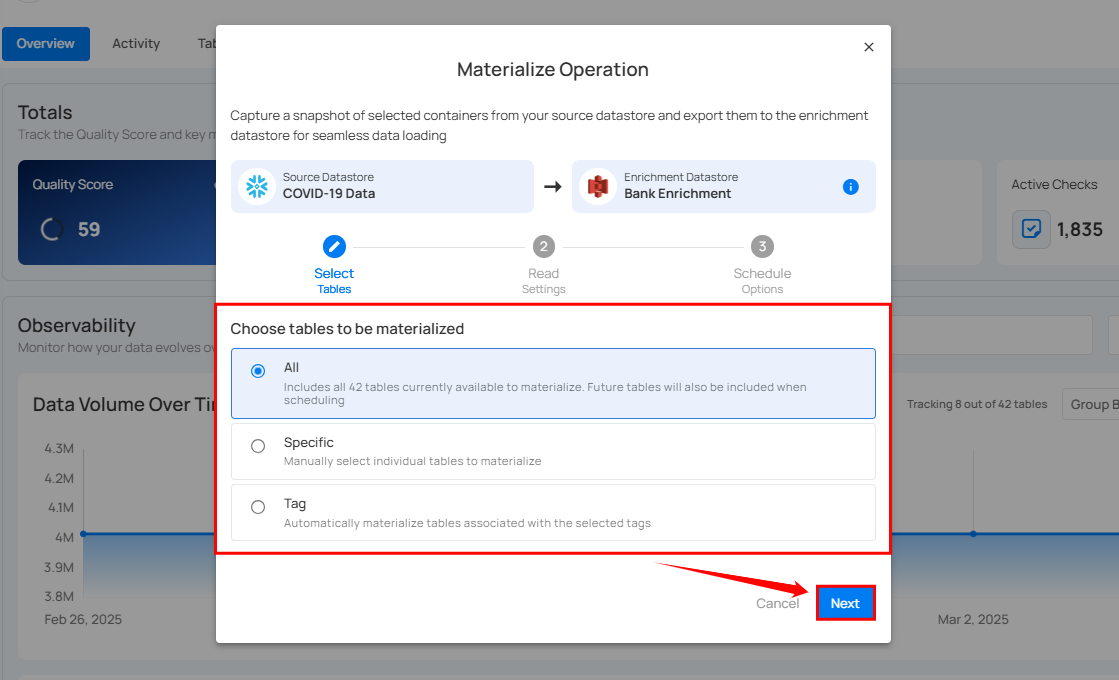
Step 4: Select tables to materialize all tables, specific tables, or tables by tag, then click Next.
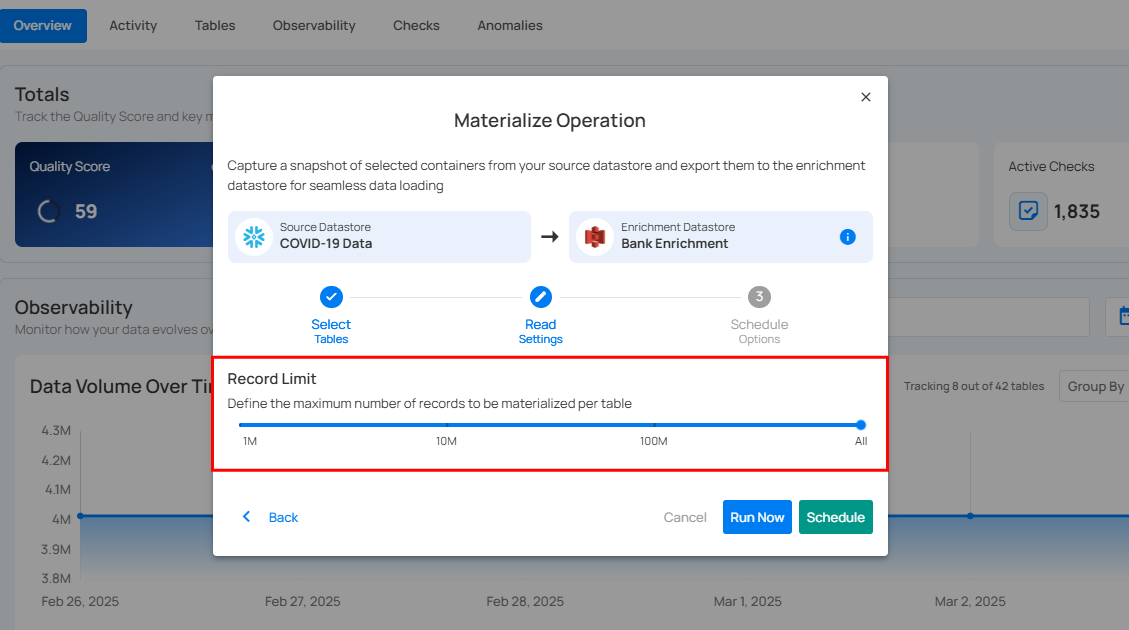
Step 5: Configure Record Limit: Set the maximum number of records to be materialized per table.
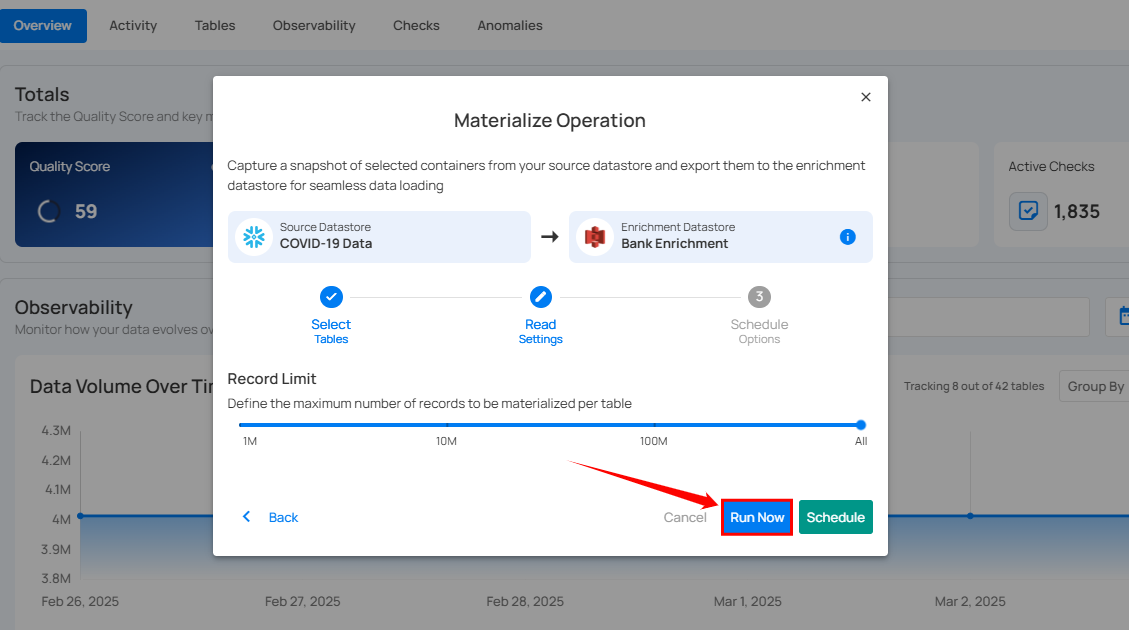
Run Now
Click Run Now to instantly materialize selected containers.
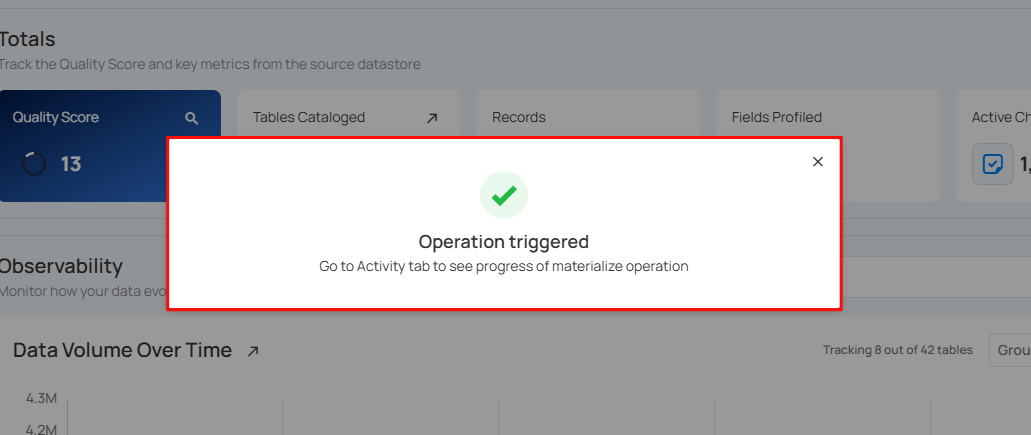
After clicking Run Now, a confirmation message appears stating "Operation Triggered". Go to the Activity tab to see the progress of materialize operation.
Schedule
Timezone-aware scheduling
Schedules can run in any IANA timezone (for example, America/New_York, Europe/Paris, Asia/Tokyo), and Daylight Saving Time transitions are handled automatically. UTC is the default for new and existing schedules. The configured timezone is shown on the schedule card as an abbreviation, such as Schedule (UTC) by default or Schedule (EST) after selecting another timezone.
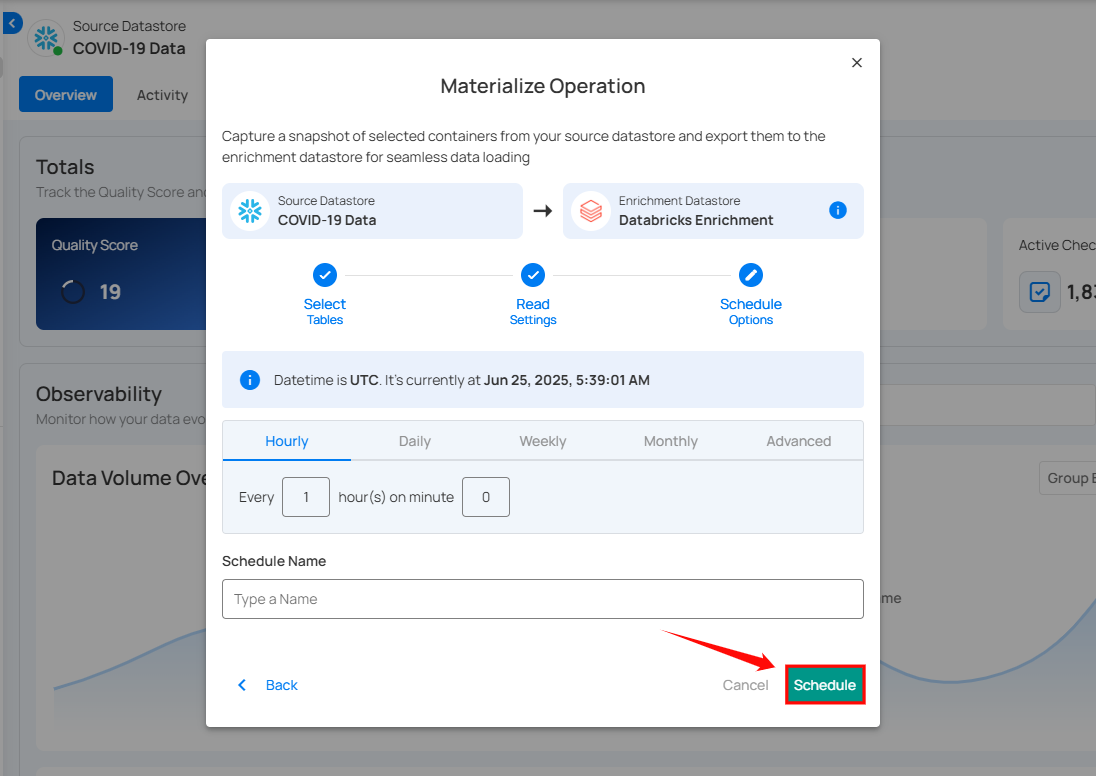
Step 1: Click Schedule to configure scheduling options for the Materialize Operation.
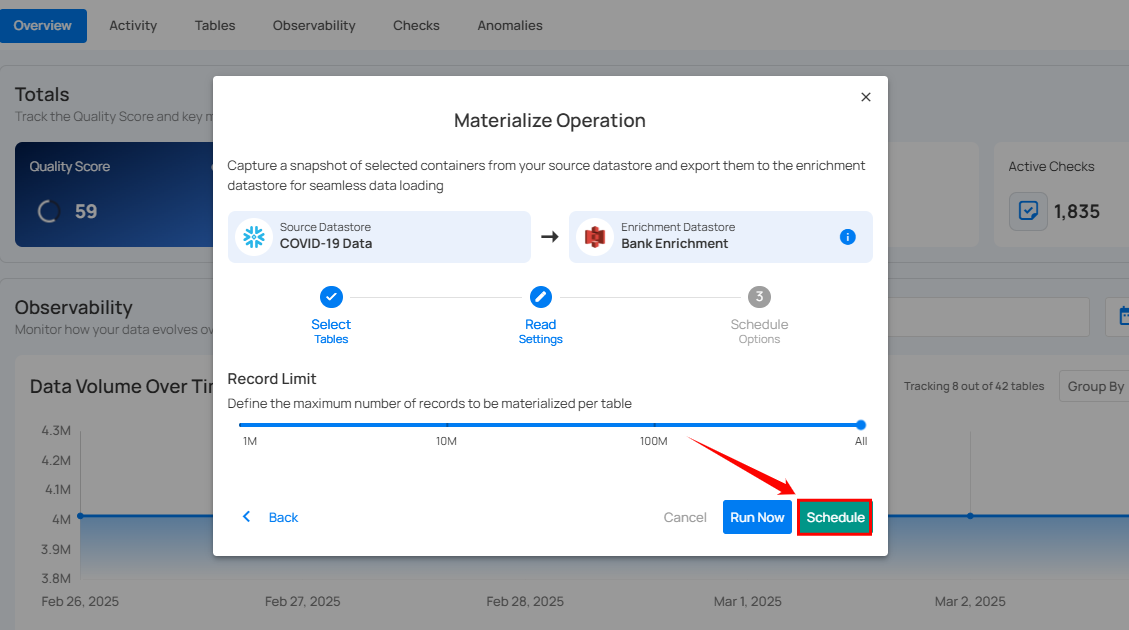
Step 2: Choose the Timezone for this schedule. UTC is selected by default. To run in a different timezone, type to search by city, region, or abbreviation and pick an IANA timezone from the list. The selected timezone applies to every tab below, and the banner above the tabs shows the current time in that timezone.
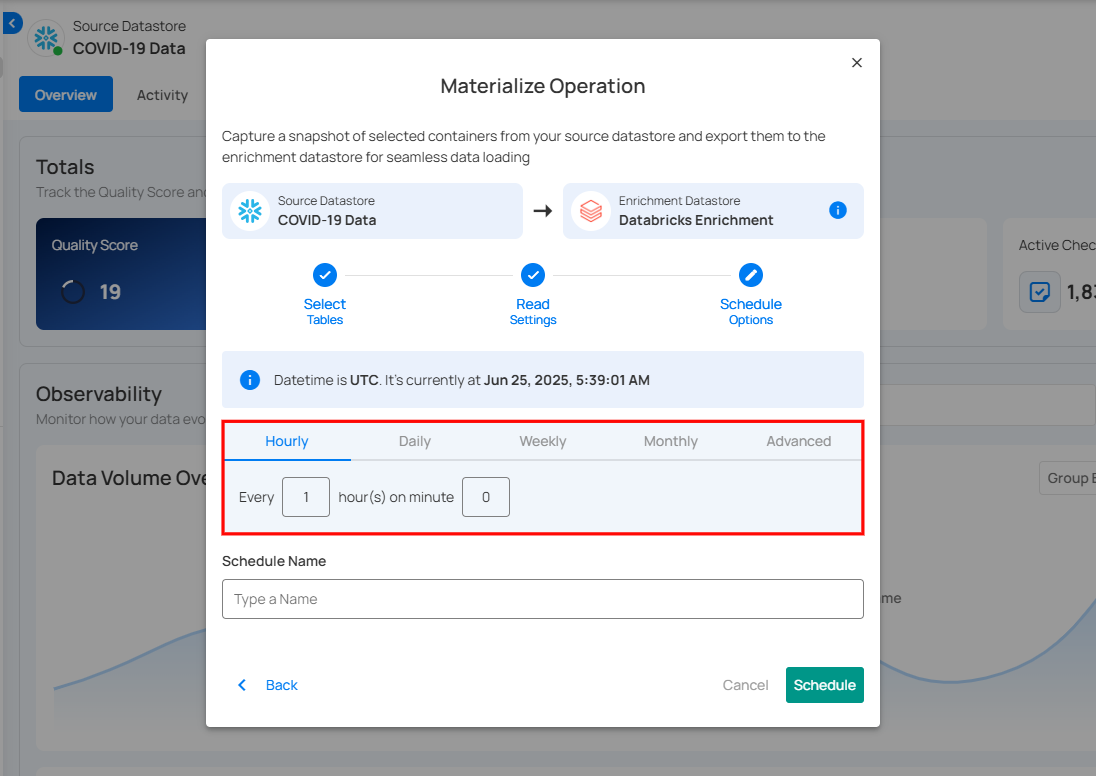
Step 3: Configure the scheduling preferences for the Materialize Operation. Time inputs apply to the timezone selected in Step 2.
-
Hourly: Runs every set number of hours at a specified minute. (e.g., Every 1 hour at 00 minutes).
-
Daily: Runs once per day at a specific time. (e.g., Every day at 00:00 in the selected timezone).
-
Weekly: Runs on selected weekdays at a set time. (e.g., Every Sunday and Friday at 00:00 in the selected timezone).
-
Monthly: Runs on a specific day of the month at a set time. (e.g., 1st day of every month at 00:00 in the selected timezone).
-
Advanced: Use Cron expressions for custom scheduling (e.g.,
0 12 * * 1-5runs at 12 PM, Monday to Friday). The Custom Cron Schedule field label shows the abbreviation for the currently selected timezone (for example,Custom Cron Schedule (UTC)orCustom Cron Schedule (EST)).
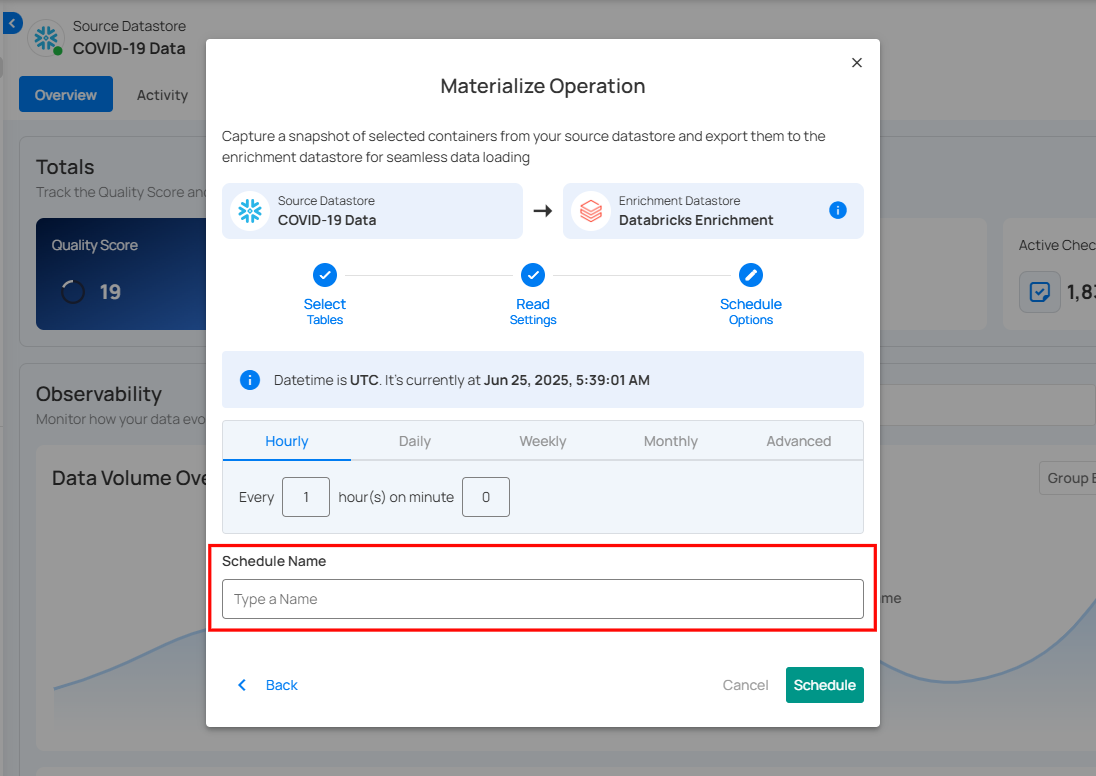
Step 4: Define the Schedule Name to identify the scheduled Materialize Operation when it runs.
Step 5: Click Schedule to finalize and schedule the Materialize Operation.
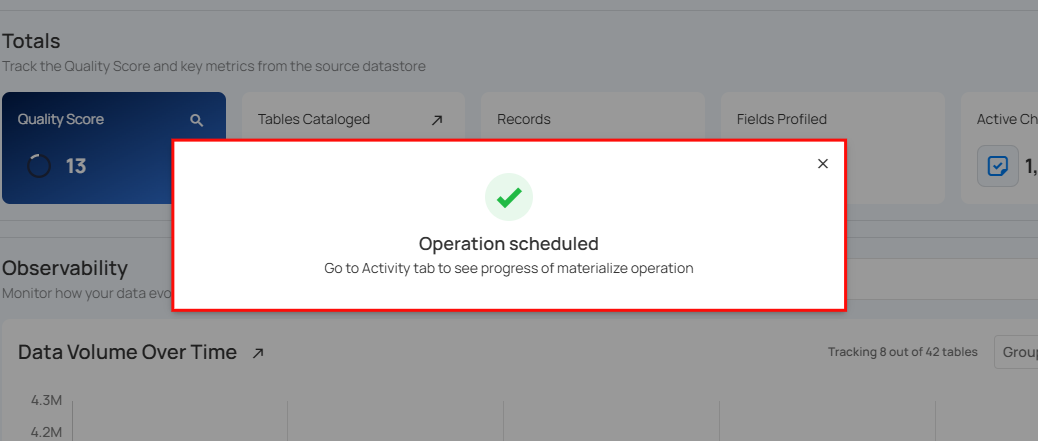
After clicking Schedule, a confirmation message appears stating "Operation Scheduled". Go to the Activity tab to see the progress of materialize operation.
Daylight Saving Time
When you pick a timezone that observes DST (such as America/New_York or Europe/London), the schedule automatically shifts with each transition. A job set to run at 9:00 AM in America/New_York runs at 9:00 AM local time year-round, regardless of whether the zone is in EST or EDT at the time. No reconfiguration is required.
Field Masking and Materialize
If your datastore contains masked fields, masking is applied to the source data before it is written to the enrichment datastore during a Materialize operation.
Source record values for masked fields are obfuscated in every container snapshot written to the enrichment datastore. This applies to all containers included in the materialize run.
- To obtain revealed data in materialized snapshots, enable the Reveal Masked Values toggle when triggering the Materialize operation, or pass
include_masked=truevia the API.
Note
Masking is applied by Qualytics before writing each container to the enrichment datastore. The enrichment datastore always receives already-masked data for any fields designated as sensitive.
Review Materialized Data
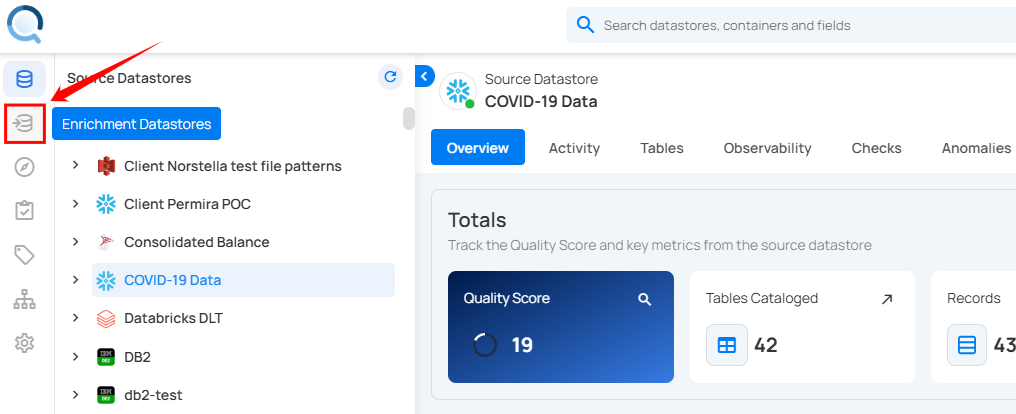
Step 1: Once the selected containers are materialized, go to Enrichment Datastores from the left menu.
Step 2: In the Enrichment Datastores section, select the datastore where you materialized the snapshot. The materialized containers will now be visible.
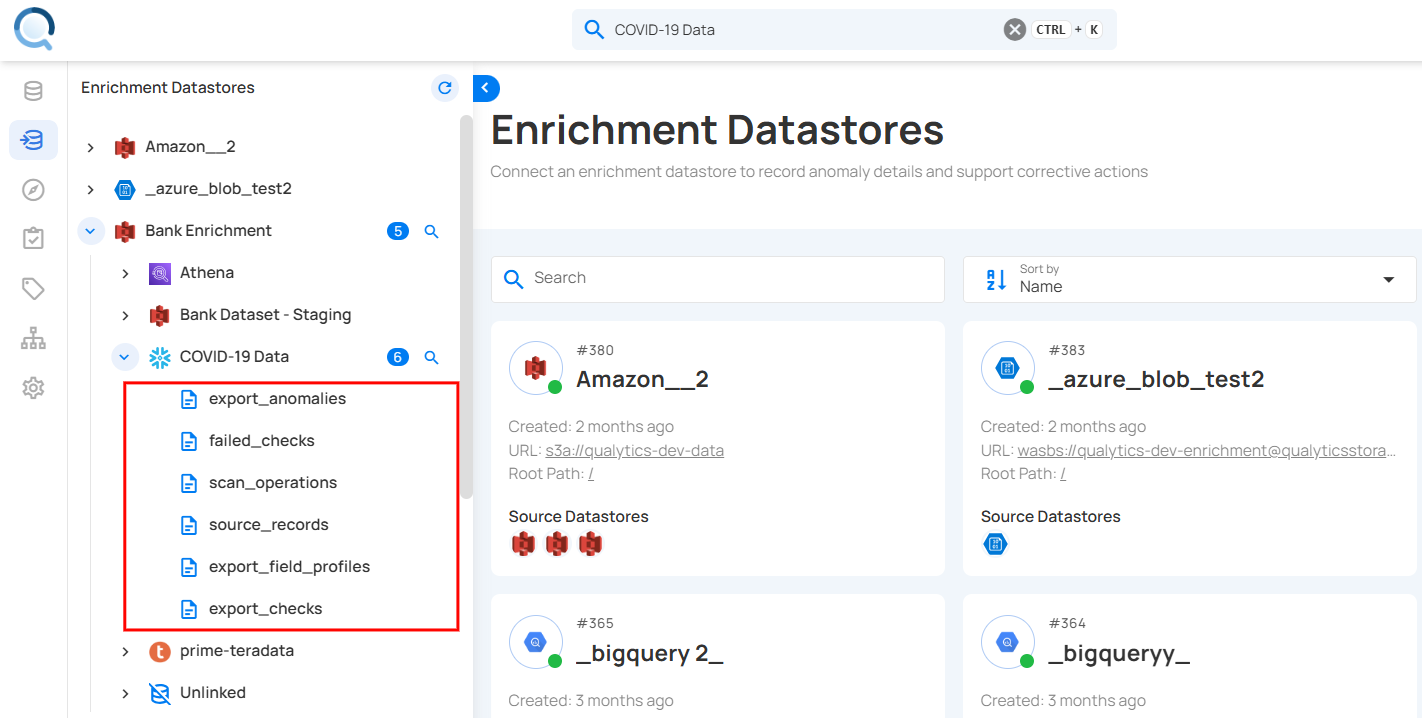
Step 3: Click on the materialized files to review the snapshot. For demonstration, we have selected the "materialized_field_profiles" file.
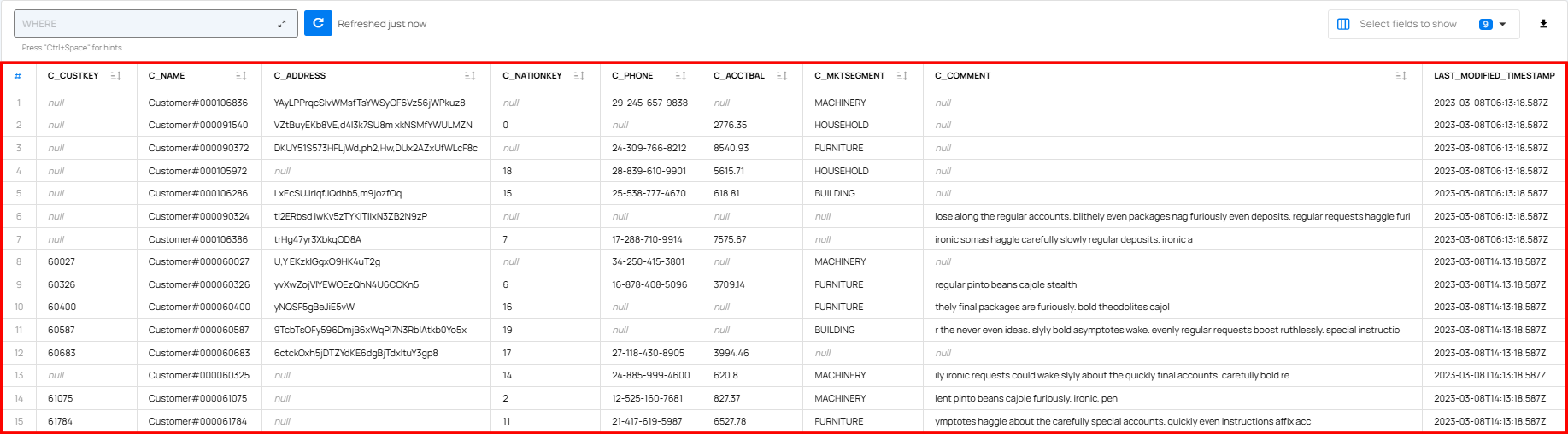
The materialized data is displayed in a table format, showing key details about the selected containers. It typically includes columns indicating data structure, completeness, and uniqueness. You can use this data for analysis, validation, and integration.