Scan Settings
This is Step 4 of 5 in the Scan Operation modal. You configure how anomalies are handled across scans and set the per-check limits that apply to the run.
The entire Scan Settings panel renders in two visual variants based on the Read Strategy picked in Step 3. Switch the tab below to see the variant matching your scan. Picking a tab changes both the Anomaly Options screenshot and the Advanced Options screenshot together.
Anomaly Options
With Full selected, the Anomaly Options block shows three options:
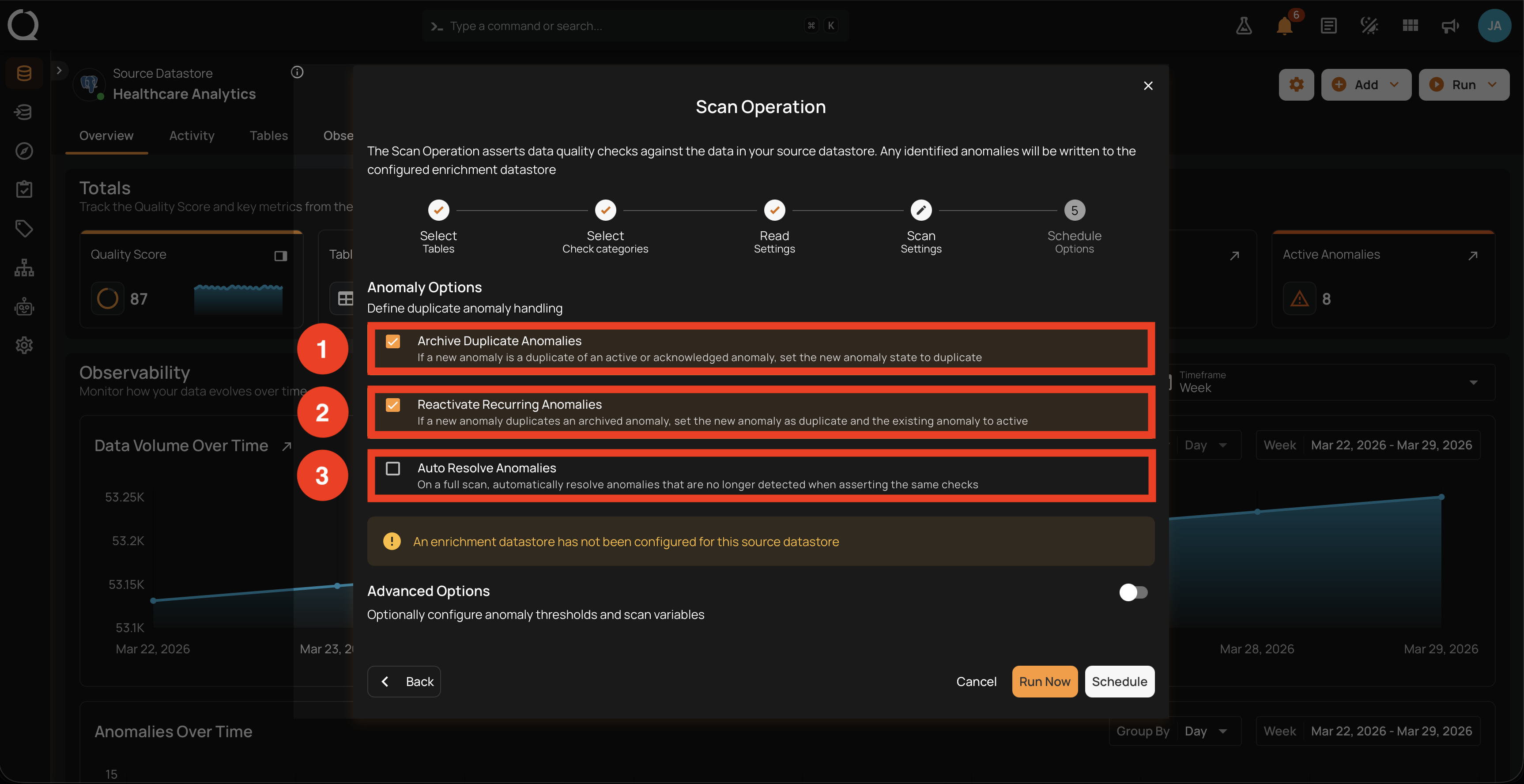
1. Archive Duplicate Anomalies. When a new anomaly is a duplicate of an Active or Acknowledged anomaly, the new anomaly's state is set to Duplicate. This keeps the open anomaly queue focused on truly new findings and prevents the same issue from being counted multiple times across scans.
2. Reactivate Recurring Anomalies. When a new anomaly is a duplicate of an archived anomaly, the new anomaly's state is set to Duplicate and the original archived anomaly is reactivated to Active. Anomalies archived as Duplicate are never reactivated. This preserves history when the same issue resurfaces after being archived. The match uses the anomaly fingerprints Qualytics keeps, so it works without an enrichment destination. When one is configured, a Fingerprint column is also written to it.
3. Auto Resolve Anomalies. When the Full scan completes successfully, previously open anomalies (Active or Acknowledged) are automatically resolved if the same checks run again and no longer detect the issue. The resolving scan is recorded in each auto-resolved anomaly's history. Enabled by default for Full scans. For the full eligibility rules, see Auto-Resolve on Full Scans.
Advanced Options
Toggle the Advanced Options switch below the Anomaly Options block to expand it. Additional fields appear: Maximum Record Anomalies per Check, Maximum Source Examples per Anomaly, Persist Source Records for Audit, and Scan Variables. The Anomaly Options block above remains visible.
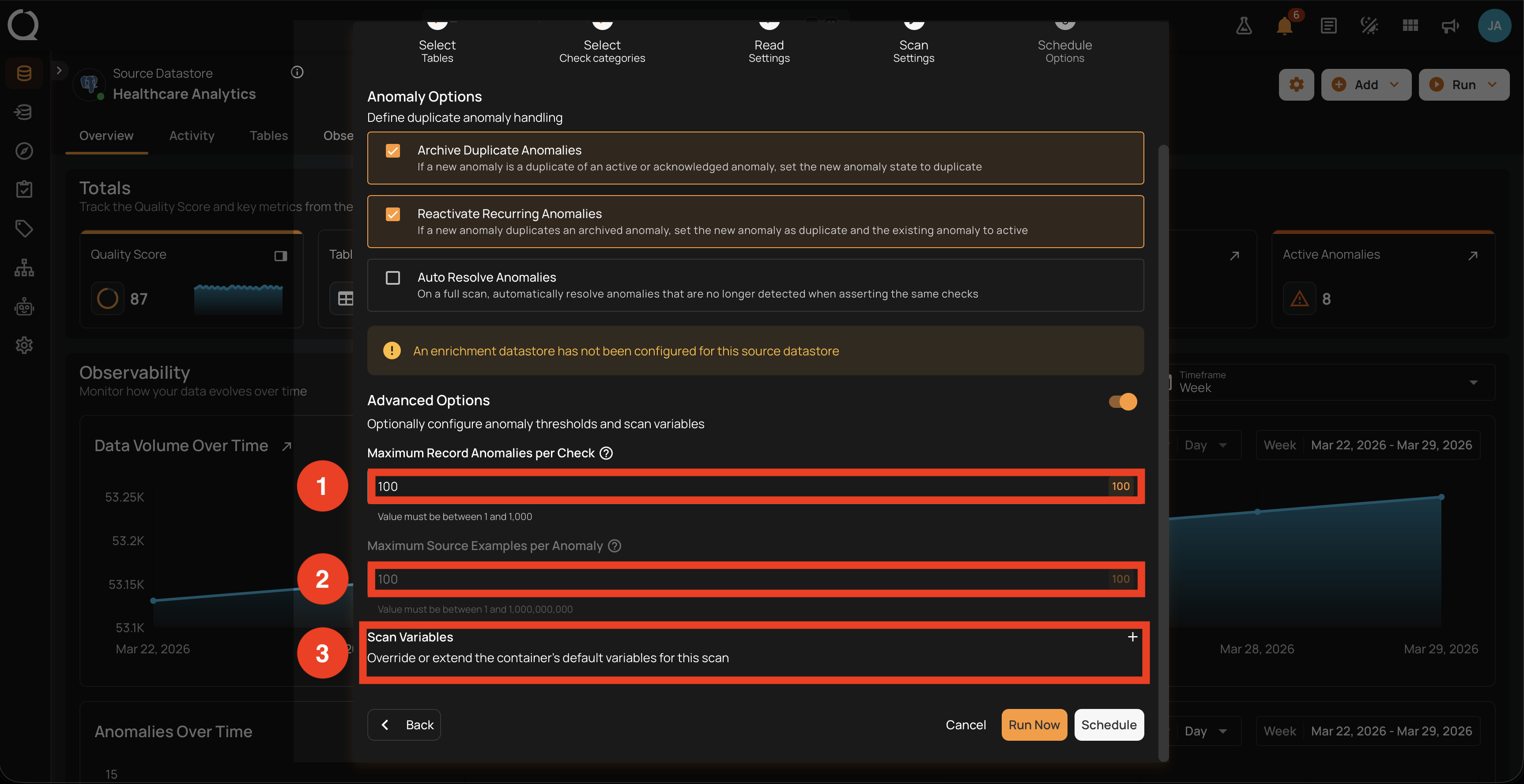
1. Maximum Record Anomalies per Check. Sets the maximum number of individual record anomalies a single check can emit before remaining violations are merged into a single rolled-up shape anomaly that preserves the total violation count. Useful for keeping the open anomaly queue manageable when a check is expected to produce many findings on a single run.
This setting does not limit how many violations Qualytics finds. All violations are still detected; the setting only changes how results are presented: either as individual record anomalies, or as one rolled-up shape anomaly that preserves the count.
The default is 10. The maximum is 1,000: values above 1,000 are silently capped to 1,000.
2. Maximum Source Examples per Anomaly. Caps how many source records are stored in the Enrichment Destination for each detected anomaly. The captured records are the only rows you can view or download later from the anomaly details. Available presets are 10, 100, 1,000, and 10,000. If you need more records, increase this value before running the scan; changes made afterward do not affect the captured set.
Disabled when the datastore has no enrichment destination
Maximum Source Examples is greyed out (non-interactive) when the source datastore has no enrichment destination configured. The modal also displays an info alert above the Anomaly Options block reading "An enrichment destination has not been configured for this source datastore". To enable the field, associate an enrichment destination with the source datastore from its settings page, then reopen the Scan modal. Persist Source Records for Audit also requires an enrichment destination. Maximum Record Anomalies per Check and Scan Variables remain editable.
3. Persist Source Records for Audit. When turned on, the scan writes every record it loads, for each container it loads, into a new output in the enrichment datastore named <enrichment_prefix>_source_records_audit_<container_id>_<operation_id>. Use it when an audit requires the source data as it existed at scan time. Off by default. The snapshot is not limited by Maximum Source Examples per Anomaly or any other anomaly limit: it holds exactly what the scan loaded, bounded by the Read Settings. Each scan creates new outputs, so they accumulate. Values are stored unmasked, including fields masked on the source container, so restrict access to the enrichment datastore before turning it on. For the full behavior, see Persist Source Records for Audit.
4. Scan Variables. Override or extend the container's default variables for this scan. Useful for checks that reference variables in double curly braces ({{ variable_name }}). For the full syntax and casting rules, see Use Runtime Variables.
With Incremental selected, Auto Resolve Anomalies is hidden. The Anomaly Options block shows only two options:
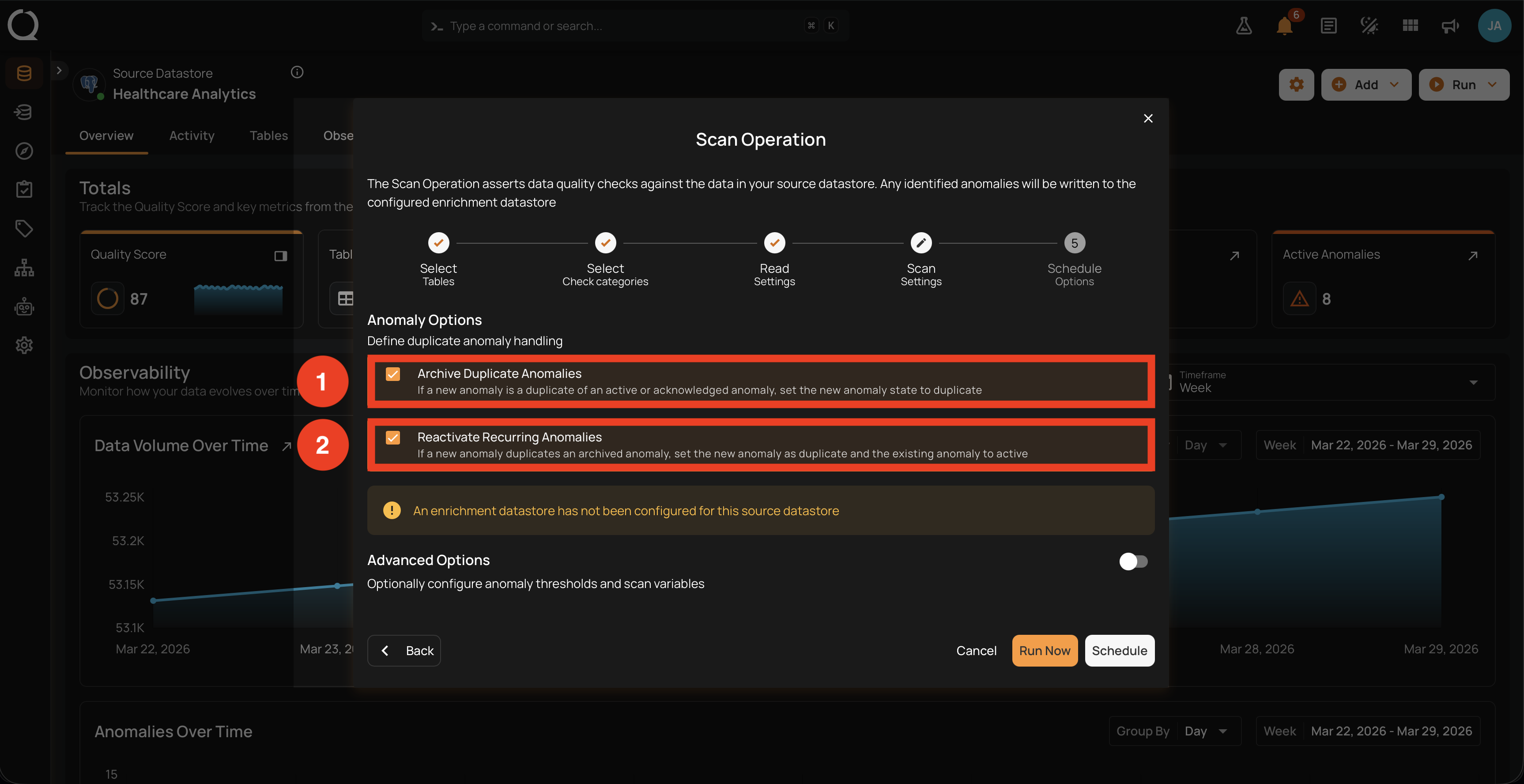
1. Archive Duplicate Anomalies. When a new anomaly is a duplicate of an Active or Acknowledged anomaly, the new anomaly's state is set to Duplicate. This keeps the open anomaly queue focused on truly new findings and prevents the same issue from being counted multiple times across scans.
2. Reactivate Recurring Anomalies. When a new anomaly is a duplicate of an archived anomaly, the new anomaly's state is set to Duplicate and the original archived anomaly is reactivated to Active. Anomalies archived as Duplicate are never reactivated. This preserves history when the same issue resurfaces after being archived. The match uses the anomaly fingerprints Qualytics keeps, so it works without an enrichment destination. When one is configured, a Fingerprint column is also written to it.
Auto Resolve is hidden because it only applies to Full scans. The platform needs to read every record to confirm a previously flagged anomaly no longer reproduces, which Incremental scans do not do by design. See Auto-Resolve on Full Scans.
Advanced Options
Toggle the Advanced Options switch below the Anomaly Options block to expand it. Additional fields appear: Maximum Record Anomalies per Check, Maximum Source Examples per Anomaly, Persist Source Records for Audit, and Scan Variables. The Anomaly Options block above remains visible (without Auto Resolve).
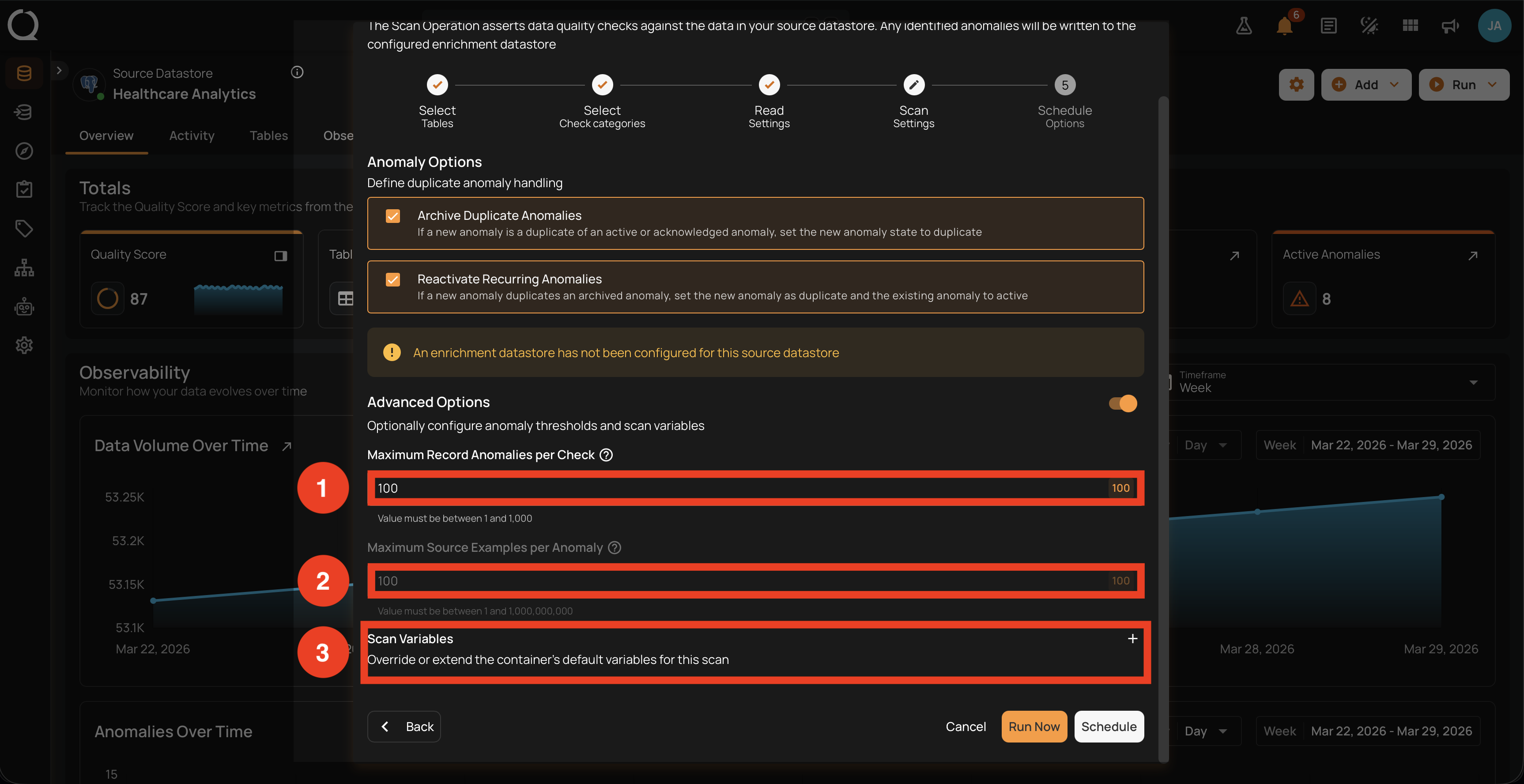
1. Maximum Record Anomalies per Check. Sets the maximum number of individual record anomalies a single check can emit before remaining violations are merged into a single rolled-up shape anomaly that preserves the total violation count. Useful for keeping the open anomaly queue manageable when a check is expected to produce many findings on a single run.
This setting does not limit how many violations Qualytics finds. All violations are still detected; the setting only changes how results are presented: either as individual record anomalies, or as one rolled-up shape anomaly that preserves the count.
The default is 10. The maximum is 1,000: values above 1,000 are silently capped to 1,000.
2. Maximum Source Examples per Anomaly. Caps how many source records are stored in the Enrichment Destination for each detected anomaly. The captured records are the only rows you can view or download later from the anomaly details. Available presets are 10, 100, 1,000, and 10,000. If you need more records, increase this value before running the scan; changes made afterward do not affect the captured set.
Disabled when the datastore has no enrichment destination
Maximum Source Examples is greyed out (non-interactive) when the source datastore has no enrichment destination configured. The modal also displays an info alert above the Anomaly Options block reading "An enrichment destination has not been configured for this source datastore". To enable the field, associate an enrichment destination with the source datastore from its settings page, then reopen the Scan modal. Persist Source Records for Audit also requires an enrichment destination. Maximum Record Anomalies per Check and Scan Variables remain editable.
3. Persist Source Records for Audit. When turned on, the scan writes every record it loads, for each container it loads, into a new output in the enrichment datastore named <enrichment_prefix>_source_records_audit_<container_id>_<operation_id>. Use it when an audit requires the source data as it existed at scan time. Off by default. The snapshot is not limited by Maximum Source Examples per Anomaly or any other anomaly limit: it holds exactly what the scan loaded, bounded by the Read Settings. Each scan creates new outputs, so they accumulate. Values are stored unmasked, including fields masked on the source container, so restrict access to the enrichment datastore before turning it on. For the full behavior, see Persist Source Records for Audit.
4. Scan Variables. Override or extend the container's default variables for this scan. Useful for checks that reference variables in double curly braces ({{ variable_name }}). For the full syntax and casting rules, see Use Runtime Variables.
Common configurations
A quick reference for choosing values across both Advanced fields:
| Use case | Maximum Record Anomalies per Check | Maximum Source Examples per Anomaly |
|---|---|---|
| Demo or proof-of-value | 1 | 1,000 |
| Production (most customers) | 10 (default) | 1,000 to 10,000 |
| Full enrichment pipeline | 1 | Sized by downstream consumer |
For a conceptual reference of every Scan Setting and the field-masking behavior, see Scan Settings (deep dive).
Start the scan
You can now either start the scan immediately or schedule it for a future run.
- Click the Run Now button to perform the scan operation immediately.
- Click the Schedule button to configure a recurring run. See Schedule Options.
After the scan finishes, follow the Run on the Activity tab to read the operation summary.
Examples
Government tax agency: default production setup: A tax collection agency processes 40M filings per fiscal year across returns_individual, returns_corporate, and withholdings. Their nightly Full scan keeps all three Anomaly Options on (Archive Duplicate, Reactivate Recurring, Auto Resolve), with Maximum Source Examples at 10. The agency's review team works from a clean Active queue every morning because duplicates archive themselves and resolved anomalies clear automatically.
Real estate marketplace: higher source examples for debugging a new check: A real estate platform rolls out a new check that listings.price_per_sqm should be between p5 and p95 of the city's distribution. To inspect the outliers during the first week, they raise Maximum Source Examples per Anomaly to 1,000 before running the scan. The data team uses the broader sample to refine the percentile bounds, then lowers the setting back to 10 once the check is stable.
University: Auto Resolve disabled for FERPA compliance: A university maintains student_grades and enrollments, both subject to FERPA review. Every anomaly flagged on these tables must be acknowledged manually by the Registrar's office before its status changes. The data team turns Auto Resolve Anomalies off on the scan that targets these containers, so no anomaly is closed automatically.
Apparel retail chain: relying on the rollup default for known legacy issues: A clothing retailer keeps a legacy historical_skus table (frozen but kept for reporting) that contains around 90K rows with a known formatting issue. Without the rollup, the nightly scan would flood the queue with 90K individual record anomalies. The team keeps Maximum Record Anomalies per Check at 10 (the default): the scan emits 10 representative record anomalies for the check and consolidates the remainder into a single rolled-up shape anomaly that preserves the full 90K violation count, keeping the open anomaly list manageable.
Where to go next
-
Schedule Options
Set up a recurring run, or skip this step and use Run Now.
-
Select Tables
Choose the containers to scan: All, Specific, or by Tag.
-
Select Check Categories
Choose Metadata, Data Integrity, or both.
-
Read Settings
Pick Incremental or Full, set an optional starting threshold, and the record limit.