Skip to content

Getting Started with Computed Files

Hub in progress

This page is the Getting Started landing for Computed Files. It will be expanded into a full hub (Deep Dive, How-tos, API, FAQ, Troubleshooting) following the same pattern as the Computed Join hub.

Use Computed Files when you want to perform the following operations on your selected source datastore:

  • Data Preparation and Transformation: Efficiently clean and restructure raw data stored in a DFS.
  • Column-Level Transformations: Utilize Spark SQL functions to manipulate and clean individual columns.
  • Filtering Data: Extract specific data subsets within a DFS container using Spark SQL's WHERE clause.

Note

Computed Files can only reference base files from the datastore. They cannot reference other Computed Files or be used as inputs to Computed Joins.

Add Computed Files

Step 1: Log in to your Qualytics account and select a DFS-type source datastore from the side menu on which you would like to add a computed file.

select-datastore

Step 2: After clicking on your preferred source datastore, you will be redirected to the source datastore operations page. From this page, click on the Add button and select the Computed File option from the dropdown menu.

select-computed-file

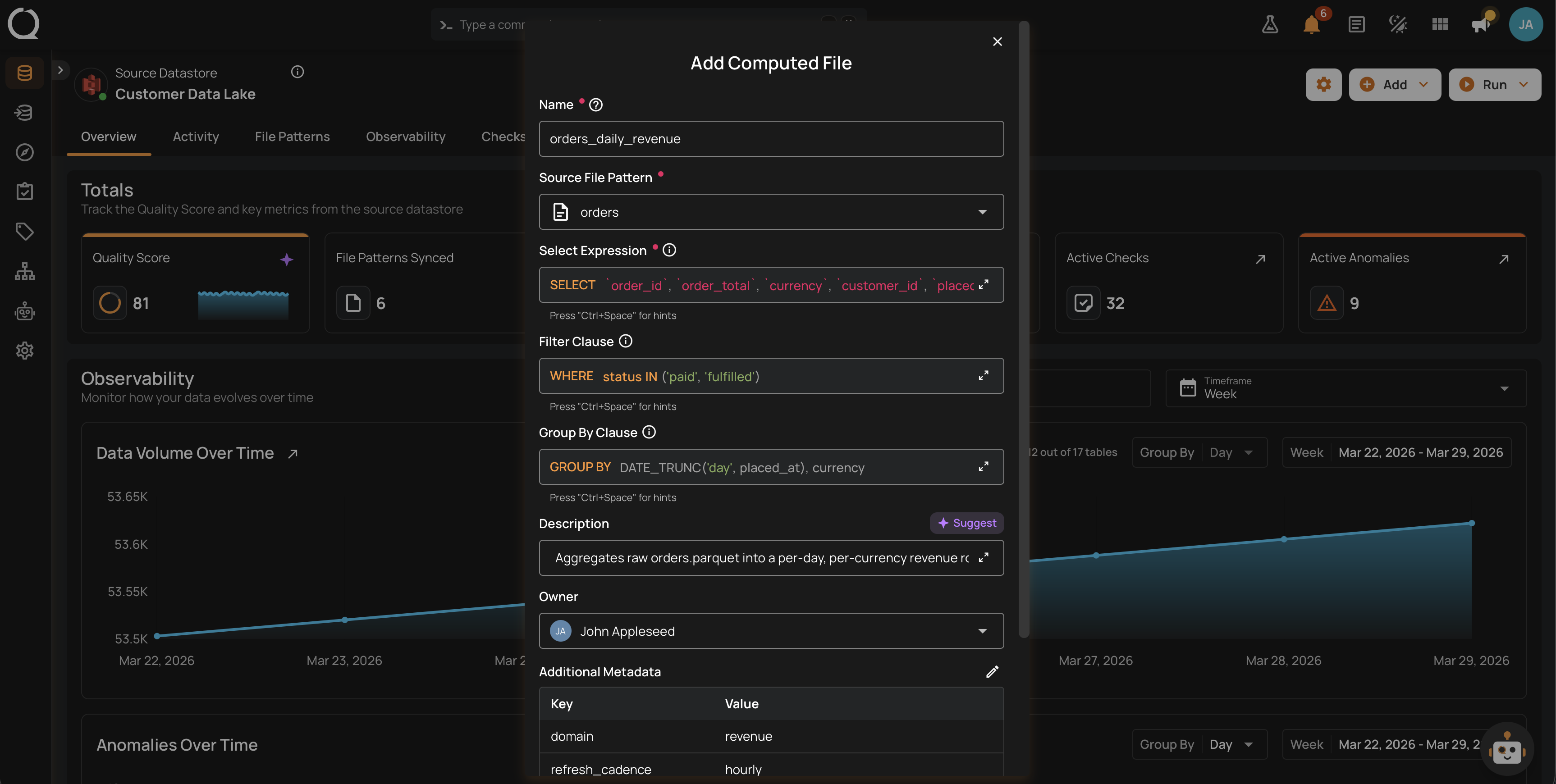
Step 3: A modal window will appear prompting you to enter a name for your computed file, select a source file pattern, choose the expression, and optionally define a filter clause and add additional metadata.

REF. FIELDS ACTION
1 Name (Required) Enter a name for your computed file. The name should be descriptive and meaningful to help you easily identify the file later (e.g., add a meaningful name like Customer_Order_Statistics).
2 Source File Pattern (Required) Select a source file pattern from the dropdown menu to match files that have a similar naming convention.
3 Select Expression (Required) Select the expression to define the data you want to include in the computed file.
4 Filter Clause (Optional) Add a WHERE clause to filter the data that meets certain conditions.
5 Group By Clause (Optional) Groups records based on specified columns. Required when aggregation functions are used. Must be valid Spark SQL syntax.
6 Additional Metadata (Optional) Enhance the computed file definition by setting custom metadata. Click the plus icon (+) next to this section to open the metadata input form, where you can add key-value pairs.

add-compute-file

Step 4: Click on the Validate button to quickly check your query or expression before saving.

validate

Step 5: Once validation is successful, click on the Save button to add the computed file to your selected source datastore.

click-add-file

After clicking the Save button, a success notification appears on the screen showing the action was completed successfully.

Limitations

Referencing Other Computed Files

A computed file cannot directly reference another computed file in its expression. This is similar to how computed tables work: the computed file is defined within Qualytics but is not created as an actual file or dataset in your DFS datastore that can be queried by name.

Workarounds

If you need to combine data from multiple sources:

Option 1: Combine Logic in a Single Computed File

If your transformations can be expressed as a single query, use the Select Expression and Filter Clause to perform all necessary operations on the source file pattern directly.

Option 2: Materialize Intermediate Results

If you need to chain transformations:

  1. Create the intermediate result as an actual file in your DFS (using your data pipeline tools).
  2. Catalog that file in Qualytics.
  3. Use the cataloged file as the source for your computed file.

Using Computed Files in Computed Joins

Computed Files can be used as the left side, the right side, or both sides of a Computed Join, alongside base tables, views, DFS files, and Computed Tables. The only restriction is that another Computed Join cannot be used as a join input. For the full list of supported inputs, see Computed Join Supported Inputs.

Computed Files vs Computed Tables

Computed Files and Computed Tables both let you generate transformed datasets, but they differ in how the output is stored, processed, and consumed:

Feature Computed File (DFS) Computed Table (JDBC)
Source data DFS source datastores JDBC source datastores
Query language Spark SQL SQL (database-specific functions)
Supported operations Column transforms, where clauses (no joins), Spark SQL functions Joins, where clauses, and database functions

Note

Computed tables and files function like regular tables. You can profile them, create checks, and detect anomalies.

  • Updating a computed file's select or where clause triggers a profiling operation.
  • Updating a computed table's query triggers a profiling operation.
  • When you create a computed table or file, a basic profile of up to 1000 records is automatically generated.

For Computed Tables, see Getting Started with Computed Tables.

Editing from Checks

Computed tables and files can also be edited directly from check interfaces. This lets you quickly update computed logic when resolving check failures.

Note

Learn more about editing computed assets from checks.

View Assigned Teams

Hover over the information icon to view the teams assigned to this computed asset.

team