Edit a Datastore Group
This guide walks you through the steps to edit an existing datastore group - including renaming it or changing its icon.
Note
You need the Manager role to edit datastore groups. See the Permissions page for details.
Steps
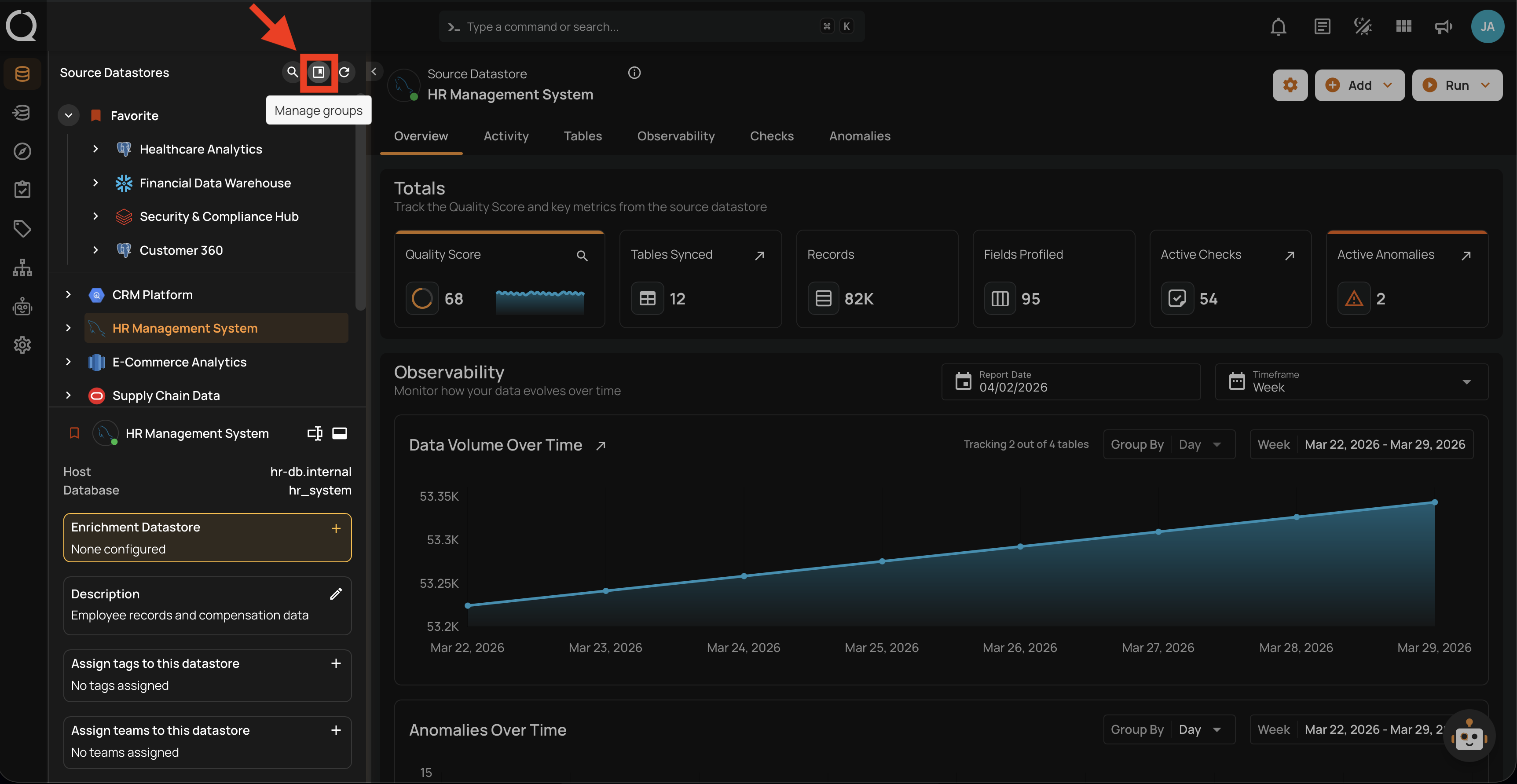
Step 1: In the tree view header (top-left area of the sidebar), click the Manage groups button.
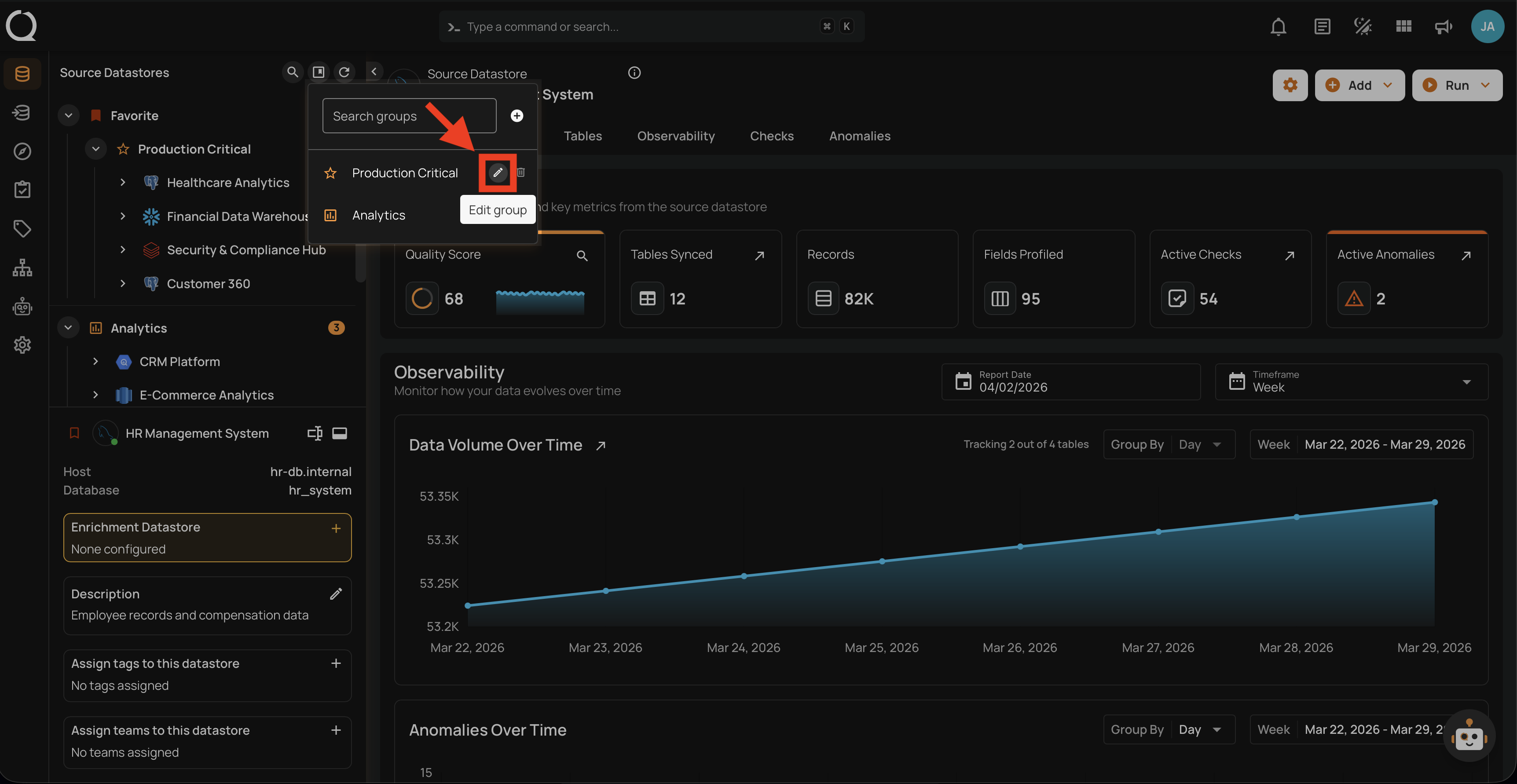
Step 2: In the Manage Groups panel, use the search field to find the group you want to edit, then click the Edit group button next to it.
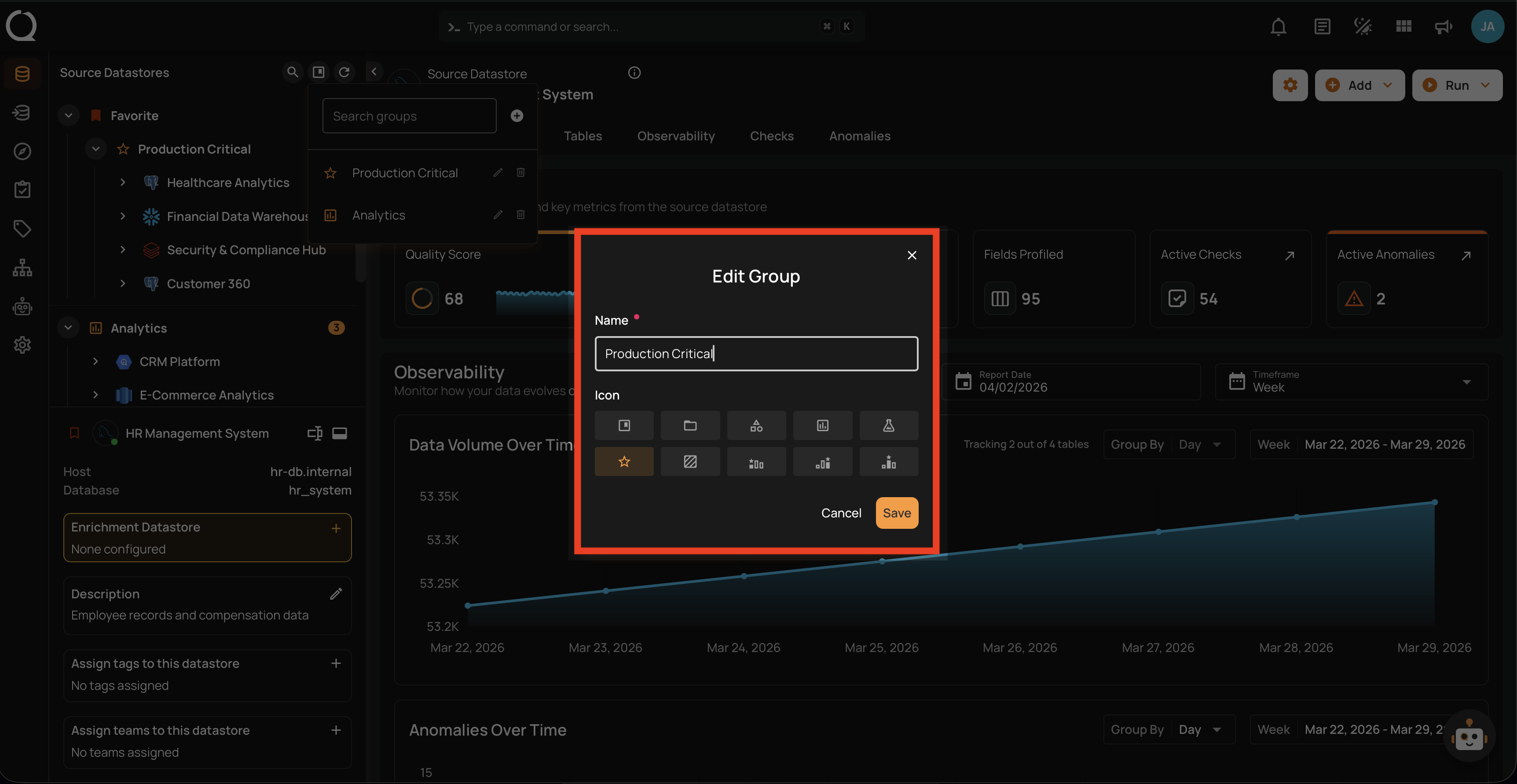
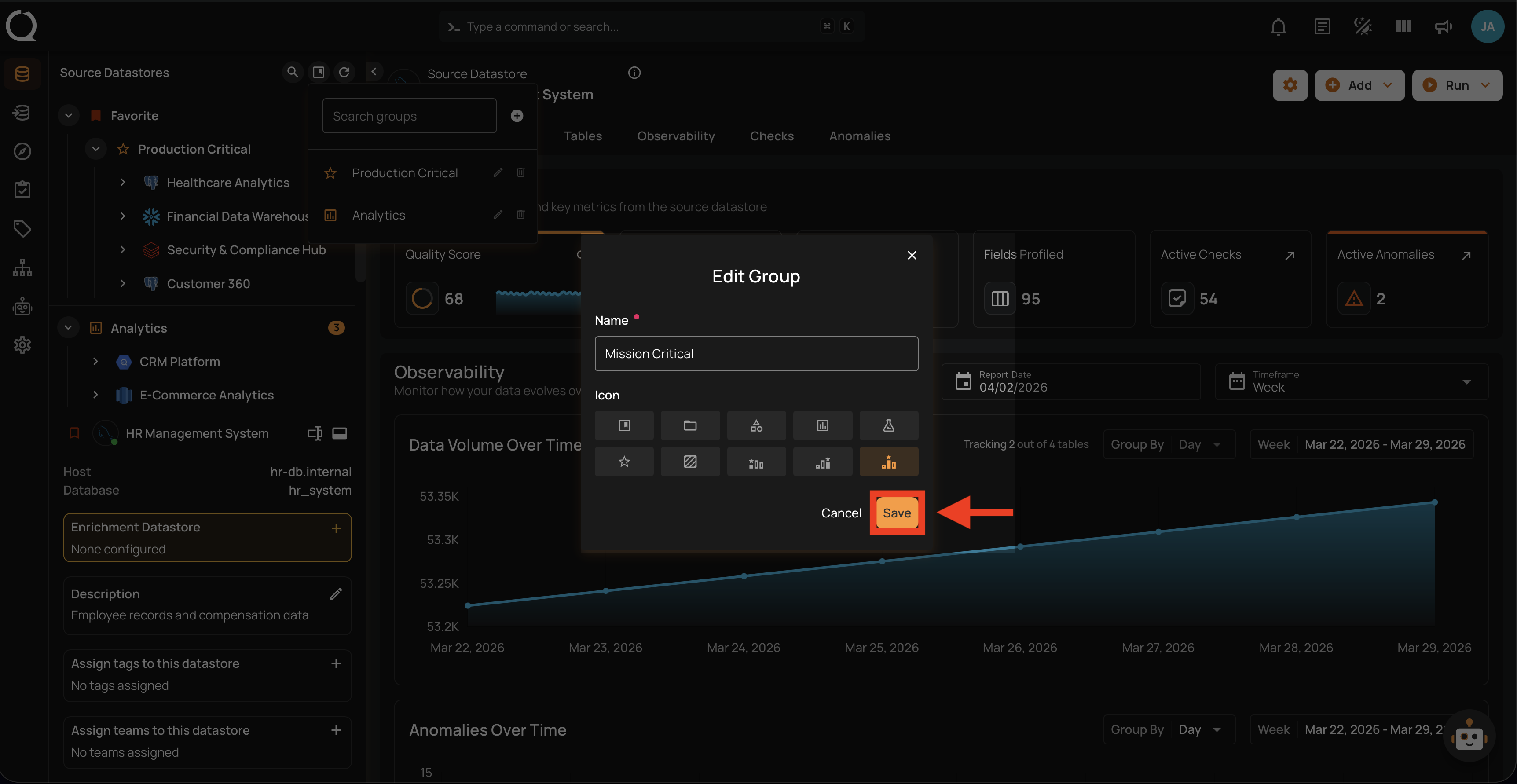
Step 3: The Edit Group dialog will appear with the group's current name and icon.
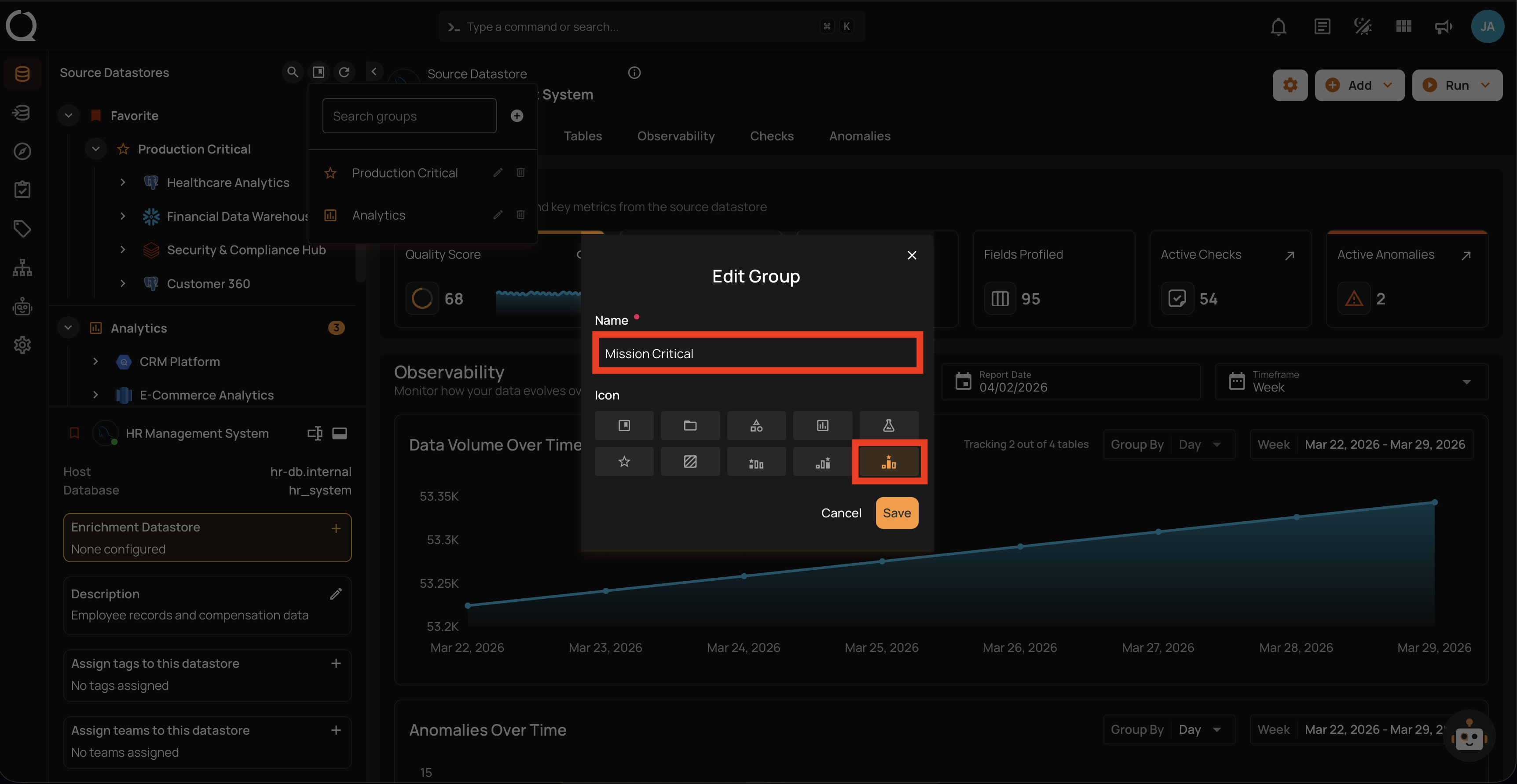
Step 4: Update the name, icon, or both as needed. In this example, the group is renamed from Production Critical to Mission Critical and the icon is changed to Podium Bronze .
Note
Group names must be unique (case-insensitive), between 2 and 30 characters, and include at least one letter. Allowed characters: letters, digits, spaces, underscores, hyphens, and periods. For the full list of available icons, see the Create a Group page.
Info
When updating groups through the API, names can be up to 100 characters. The group form on this page keeps names to 30 characters so they fit inline in the group list and tree view.
Step 5: Click the Save button to apply the changes.
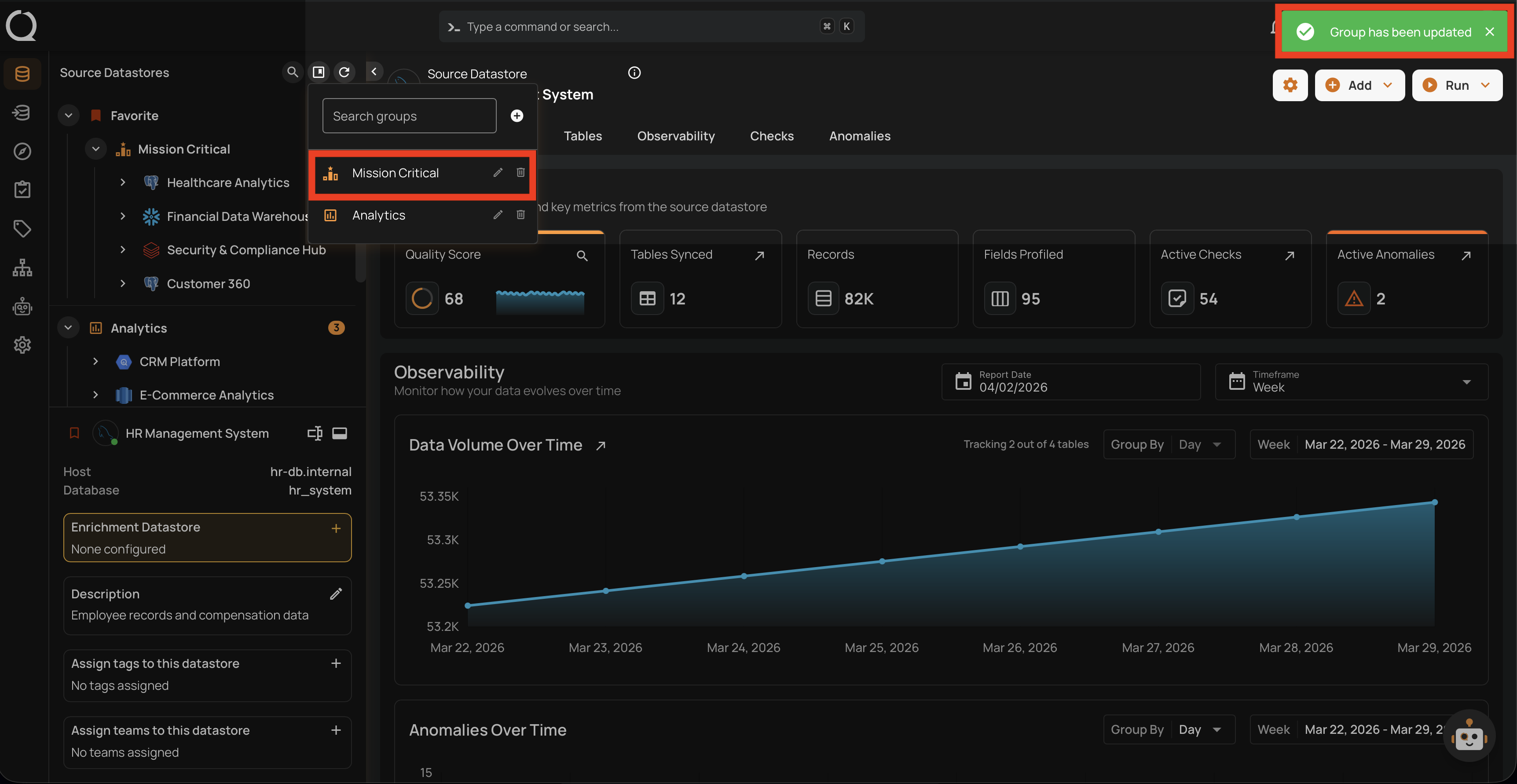
Step 6: A success message will confirm that the group has been updated. The updated name and icon are immediately reflected in the Manage Groups panel, the tree view, and all datastores that belong to the group.
API and Automation Impact
If you rename a group, any scripts or API calls that reference the group by its name will need to be updated. The group ID remains unchanged after renaming.
Tip
You can click Cancel or close the dialog at any time to discard your changes - no modifications will be saved.