Schedule Options
This is Step 5 of 5 in the Scan Operation modal. Use the Schedule option to run scans automatically on a recurring basis. Schedules are created from the Scan form using one of four preset frequencies (Hourly, Daily, Weekly, Monthly) or a custom cron expression.
Timezone-aware scheduling
Schedules can run in any IANA timezone (for example, America/New_York, Europe/Paris, Asia/Tokyo), and Daylight Saving Time transitions are handled automatically. UTC is the default for new and existing schedules. The configured timezone is shown on the schedule card as an abbreviation, such as Schedule (UTC) by default or Schedule (EST) after selecting another timezone.
Deactivating a schedule keeps its cron expression
When you deactivate a schedule, its cron expression is kept. Reactivating it later resumes the same schedule without setting it up again.
If a schedule was deactivated before May 7, 2026 and doesn't run after you reactivate it, re-enter its cron expression once to restore it. Schedules deactivated on or after that date keep working normally.
Open the Schedule form
Click the Schedule button at the bottom of the Scan Settings step (Step 4) to open the Schedule form. The form has three configurable fields, highlighted in the screenshot below.
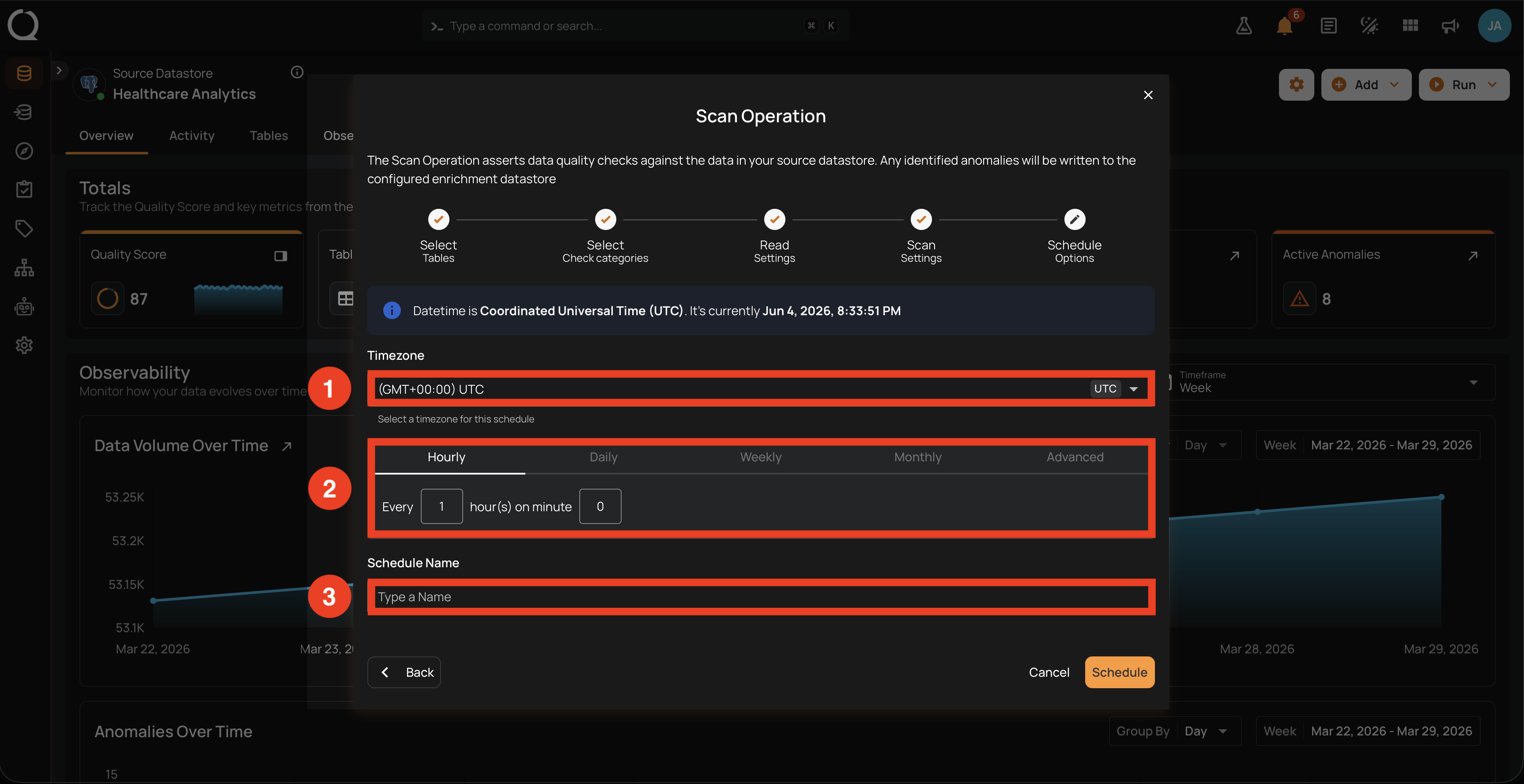
1. Timezone. Pick the IANA timezone for this schedule. UTC is selected by default. To run in a different timezone, type to search by city, region, or abbreviation, and pick from the list. The selected timezone applies to every frequency tab below; the banner above the tabs shows the current time in that timezone.
2. Frequency tabs. Pick the cadence. The form has five tabs (Hourly, Daily, Weekly, Monthly, Advanced); switch the tab to configure the one you want. See the tabs below.
3. Schedule Name. Give the schedule a descriptive name to identify it later in the Activity tab. The name is required.
Once all three fields are set, click the Schedule button at the bottom of the form to save the schedule. The new schedule appears in the Activity tab under the Schedule sub-section.
Configure the frequency
Switch the tab below to see how each frequency option is configured.
Schedule the scan to run every N hours at a specified minute. Define the frequency in hours and the exact minute within the hour the scan should start.
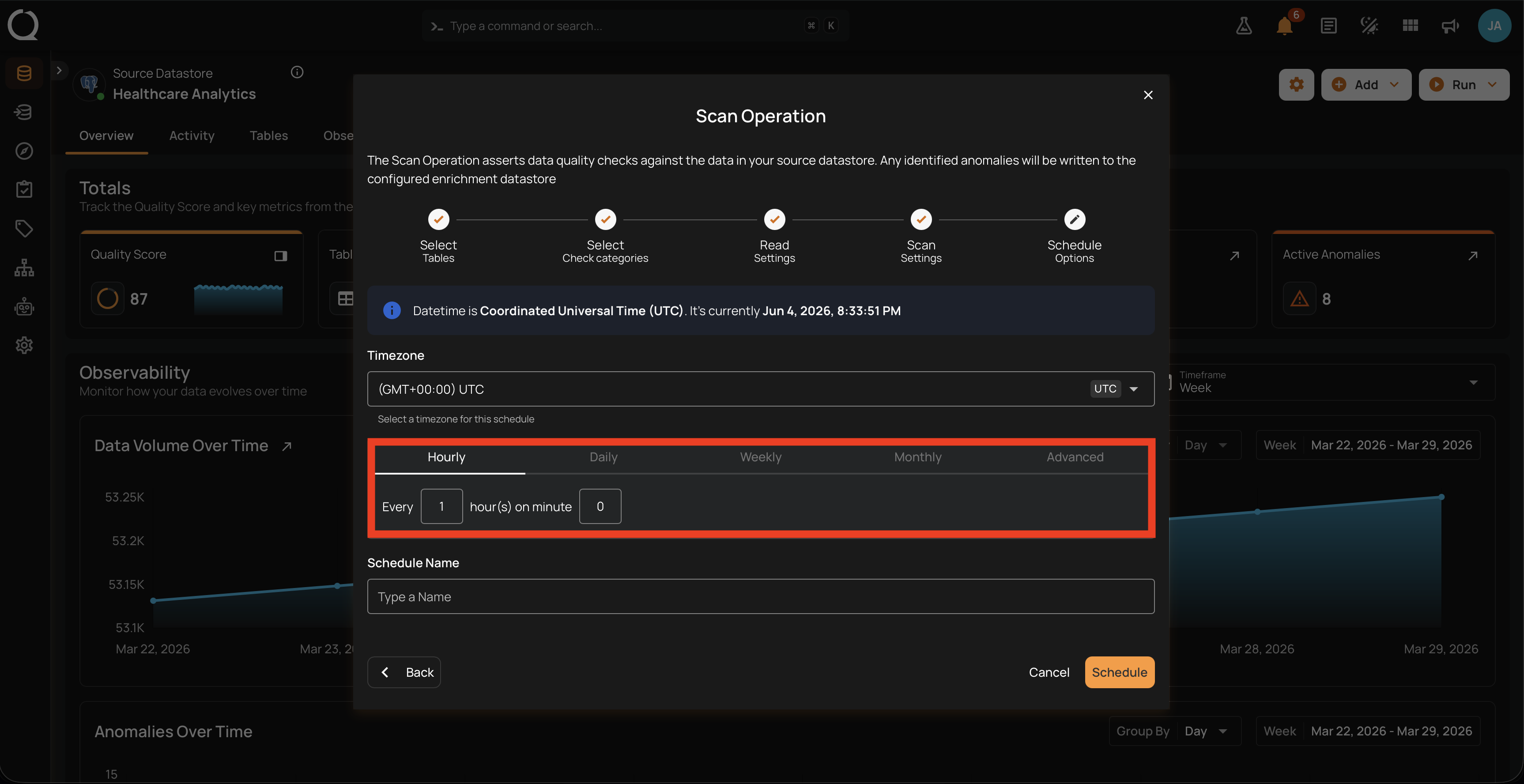
Example: Set to Every 1 hour(s) on minute 0 so the scan fires every hour at the top of the hour (01:00, 02:00, 03:00, …).
When to use: Near real-time monitoring during ingestion windows, backfills, or incident-response situations where data quality drift must be caught within an hour.
Schedule the scan to run once every N days at a specific time. You specify the number of days between scans and the exact time of day in the selected timezone.
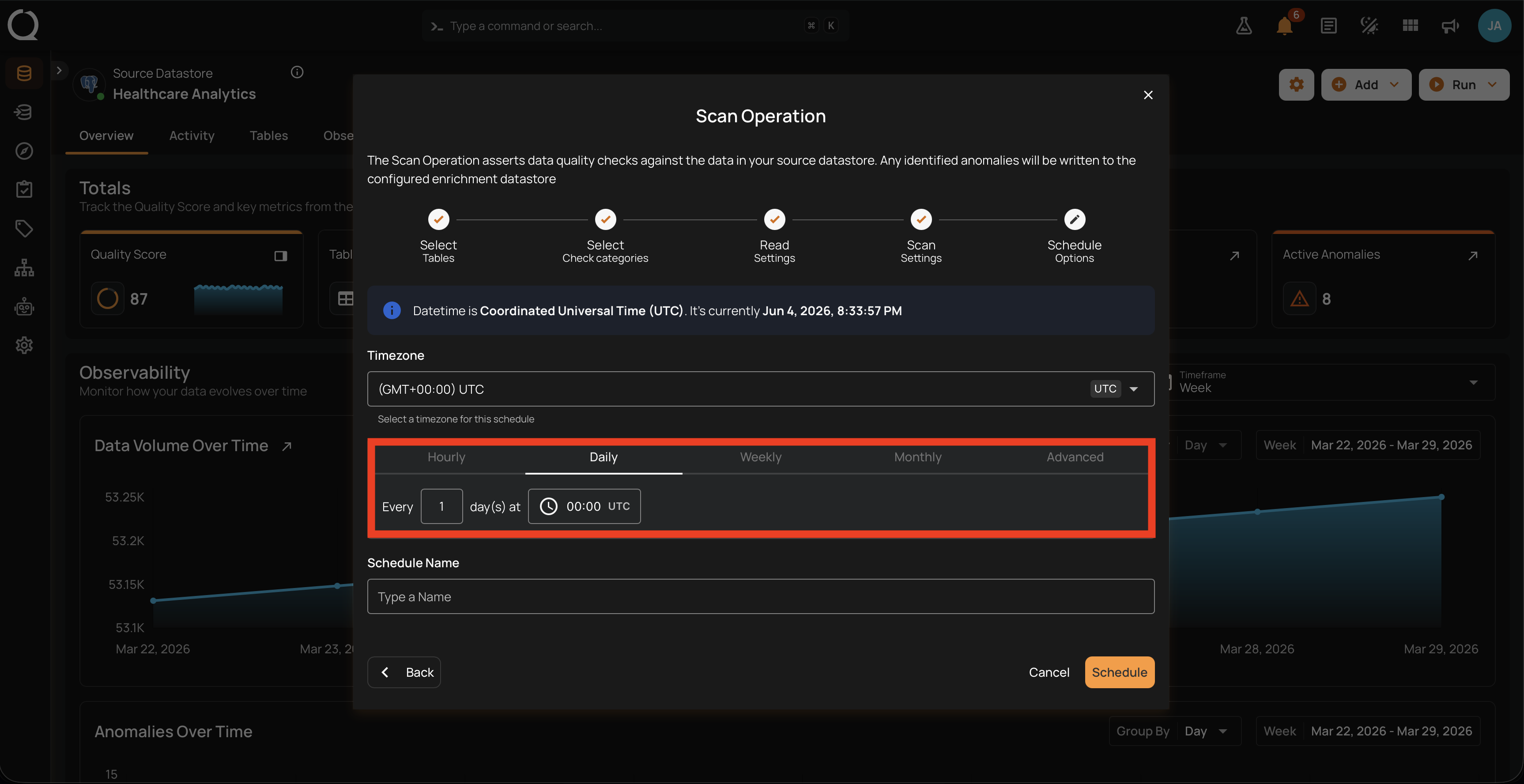
Example: Set to Every 1 day(s) at 00:00 with the timezone left at UTC so the scan runs every day at midnight UTC.
When to use: Standard nightly comprehensive scans across the whole datastore. Pairs well with Full read strategy and Auto Resolve so anomalies that no longer reproduce are cleared automatically each night.
Schedule the scan to run on specific days of the week at a set time. Select the days of the week and the exact time of day in the selected timezone.
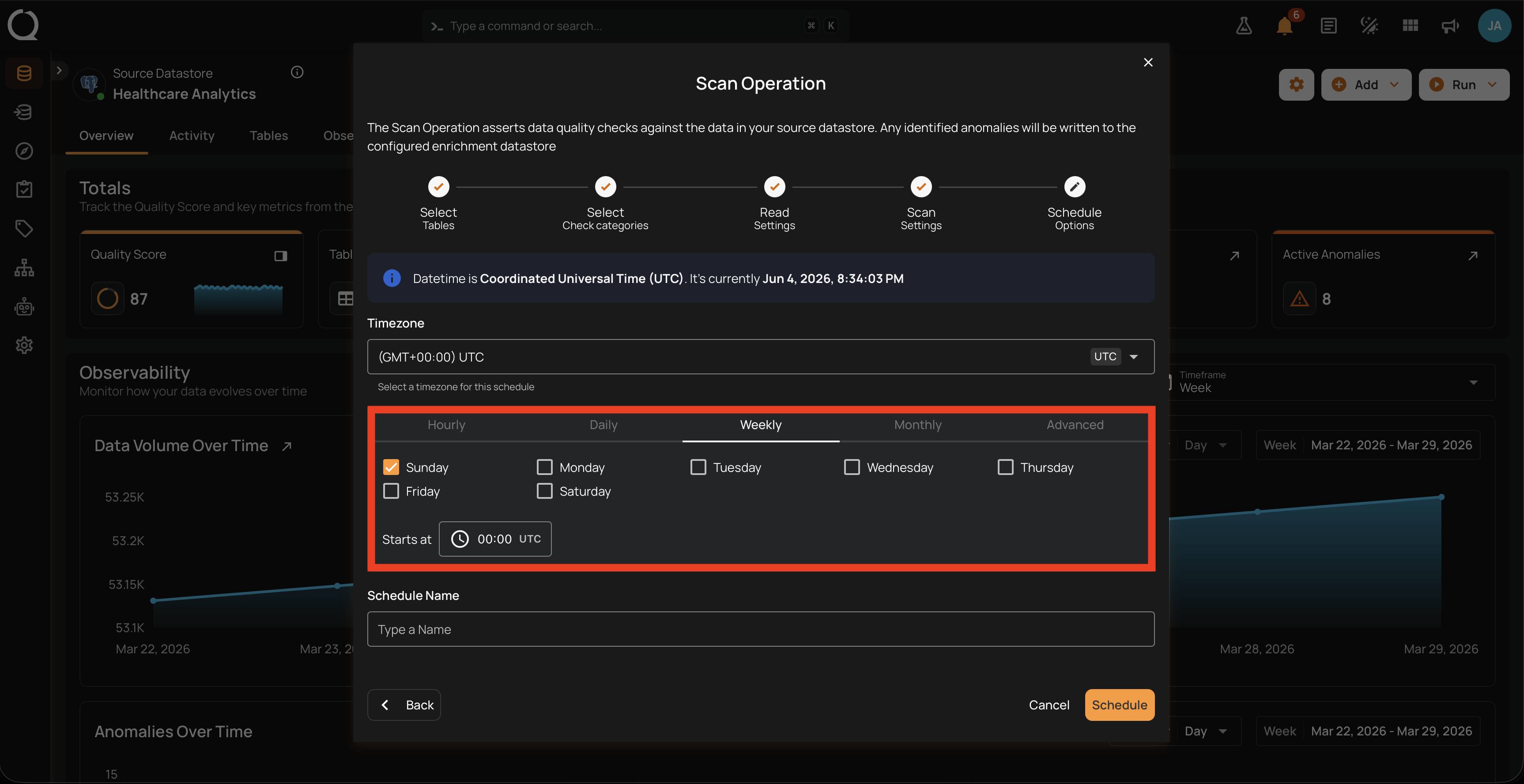
Example: Configure to run on Sunday and Friday at 00:00 with the timezone set to UTC so the scan executes at midnight UTC on those two days.
When to use: Deeper end-of-week or weekend scans that complement a lighter daily cadence, or business-specific schedules tied to weekly reporting cycles.
Schedule the scan to run once a month on a specific day at a set time. You specify the day of the month and the time of day in the selected timezone.
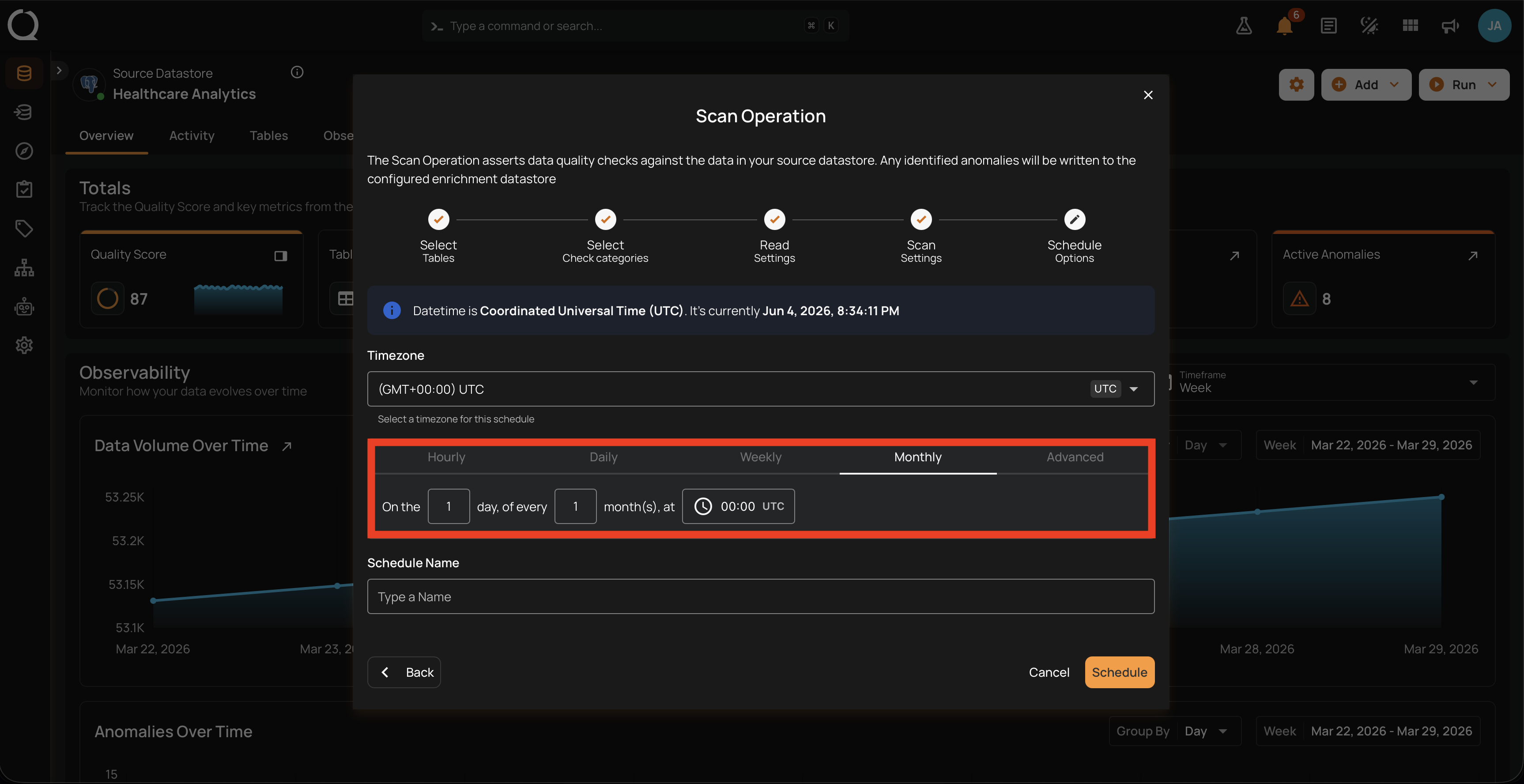
Example: Set to On the 1st day of every 1 month(s) at 00:00 with the timezone set to UTC so the scan runs on the first day of each month at midnight UTC.
When to use: Archives or slowly changing reference data that only need periodic validation, such as monthly regulatory filings or quarterly reporting tables.
The Advanced tab lets you set up more complex and custom schedules using cron expressions. Useful for defining specific times and intervals with precision that the four presets do not cover.
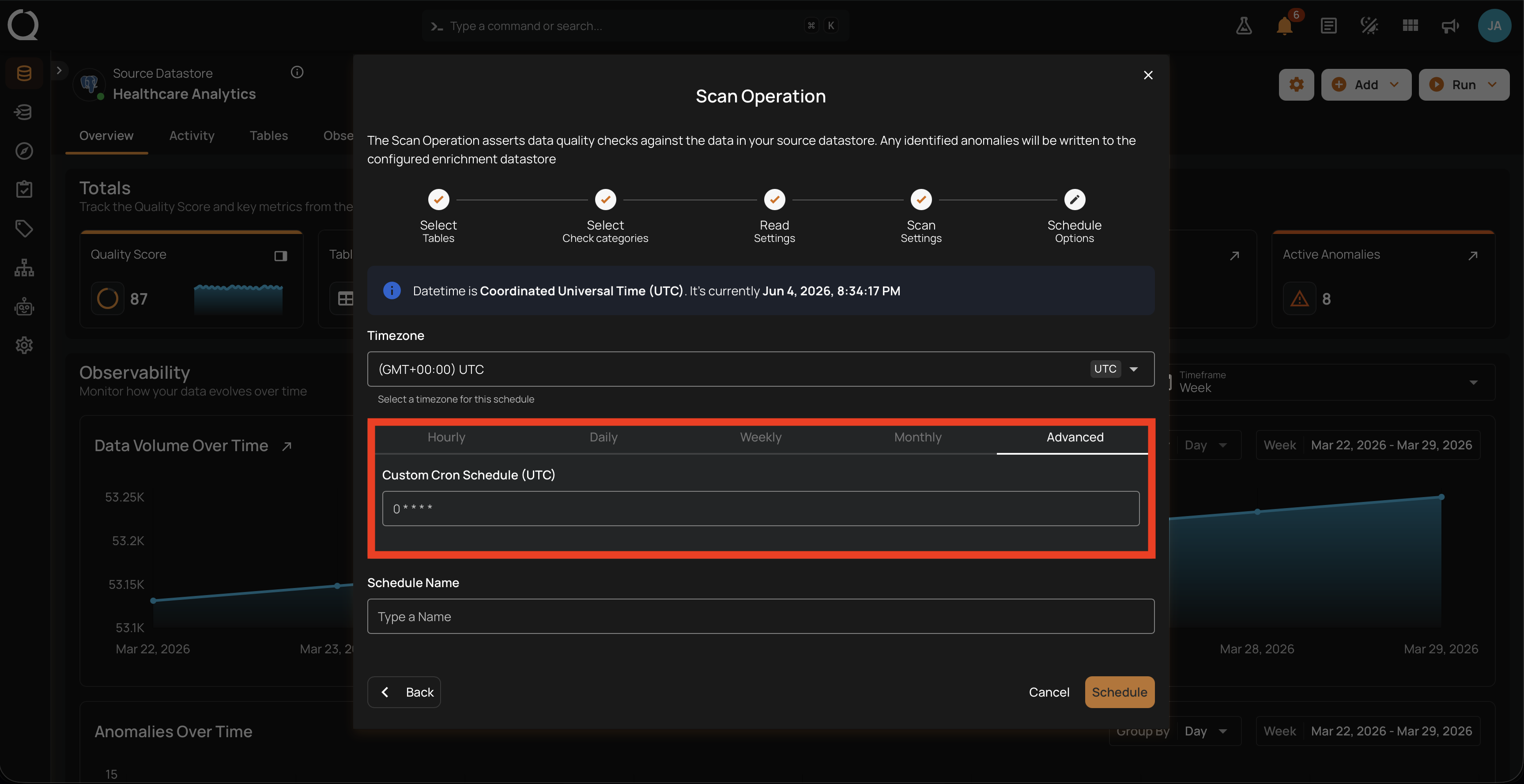
Cron expressions use five fields:
- Minute (0 - 59)
- Hour (0 - 23)
- Day of the month (1 - 31)
- Month (1 - 12)
- Day of the week (0 - 6) (Sunday to Saturday)
Each field can be defined using specific values, ranges, or special characters to create the desired schedule.
Example: The expression 0 0 * * * schedules the scan operation to run at midnight (00:00) every day:
0(Minute): the 0th minute0(Hour): the 0th hour (midnight)*(Day of the month): every day*(Month): every month*(Day of the week): every day of the week
Other examples:
0 12 * * 1-5runs at 12:00 PM Monday to Friday.30 14 1 * *runs at 2:30 PM on the first day of every month.0 22 * * 6runs at 10:00 PM every Saturday.
To define a custom schedule, enter the cron expression in the Custom Cron Schedule field. The field label shows the abbreviation for the currently selected timezone (for example, Custom Cron Schedule (UTC) or Custom Cron Schedule (EST)), and the cron fields are interpreted in that timezone.
Daylight Saving Time
When you pick a timezone that observes DST (such as America/New_York or Europe/London), the schedule automatically shifts with each transition. A job set to run at 9:00 AM in America/New_York runs at 9:00 AM local time year-round, regardless of whether the zone is in EST or EDT at the time. No reconfiguration is required.
Notification on completion
You will receive a notification when the scan operation is completed.
Auto Resolve Anomalies on scheduled scans
Scheduled scans use the same Auto Resolve Anomalies behavior as ad-hoc scans. The setting is configured from Scan Settings (Step 4) and only applies when the schedule's read strategy is Full. See Scan Settings for the toggle and Auto-Resolve on Full Scans for the behavior.
Examples
Pharmaceutical R&D: nightly UTC: A pharmaceutical R&D platform runs clinical-trial scans every night at 00:00 UTC across subjects, lab_results, and adverse_events. They pick Daily with timezone left at UTC. Researchers in the US, EU, and Singapore all see the same scan results synced to a common timestamp, with no per-region offset to reconcile.
Stock exchange: business-hours Mon-Fri: A regional stock exchange wants trade_executions and order_book_snapshots validated before the analytics desk arrives. They pick Advanced and enter 0 9 * * 1-5 with timezone America/New_York. The scan fires at 9:00 AM local time every business day, and the schedule shifts automatically across DST transitions without re-configuration.
Cybersecurity SaaS: hourly during incident response: During an active threat investigation, a cybersecurity provider needs near real-time validation of detected_events and alerts_triaged. They pick Hourly with frequency Every 1 hour(s) on minute 0 and pair with Incremental in Step 3. The scan validates only events from the last hour, alerting the on-call SOC analyst within minutes of any quality drift in the threat feed.
Airline operations: twice daily before flight ops: An airline scans flight_manifests and crew_assignments twice a day, before each shift starts. They pick Advanced with 0 6,18 * * * and timezone Europe/Amsterdam, then set the Schedule Name to flight-ops-am-pm so the dispatchers can find it in the Activity tab. The 06:00 run catches issues for the morning rotation; the 18:00 run covers the evening rotation.
Regulatory body: monthly archive validation: A financial regulator scans regulatory_filings_archive once a month on the 1st at 02:00 in their reporting timezone (Europe/London). The archive only changes at month-end when the previous month's filings are sealed, so a monthly cadence is sufficient and avoids the cost of daily scans against a table that does not change between cycles.
Where to go next
-
Select Tables
Choose the containers to scan: All, Specific, or by Tag.
-
Select Check Categories
Choose Metadata, Data Integrity, or both.
-
Read Settings
Pick Incremental or Full, set an optional starting threshold, and the record limit.
-
Scan Settings
Anomaly Options (including Auto Resolve), record-anomaly limits, and source examples.