Remove Tags
Use this flow when you want to take one or more tags off the Tags list of an anomaly, for example when a tag was applied by mistake or the categorization no longer reflects the issue. To apply new tags instead, see Add Tags. To replace or add to the tags of many anomalies at once, see Bulk-Edit Tags. For the platform-level tag catalog, see Tags. For programmatic access, see the Anomalies API.
Info
Removing tags from an anomaly requires the Author team permission (or higher) on the anomaly's datastore. Archived anomalies cannot have their tags changed. Restore the anomaly first.
Current assignees (except yourself) are notified about the change as part of the same update event. See Deep Dive · Anomaly Assignees · Notifications.
Tags removed here are only unlinked from this anomaly. They remain in the platform-level catalog. To delete a tag from the catalog itself, see Tags.
Tip
To replace the current tags with a different set across many anomalies at once, use Bulk-Edit Tags with Overwrite selected. Bulk edit cannot take a single tag off while keeping the rest.
You can remove tags from two places, and the flow is identical because both views use the same tag picker. Pick the tab that matches where you start from.
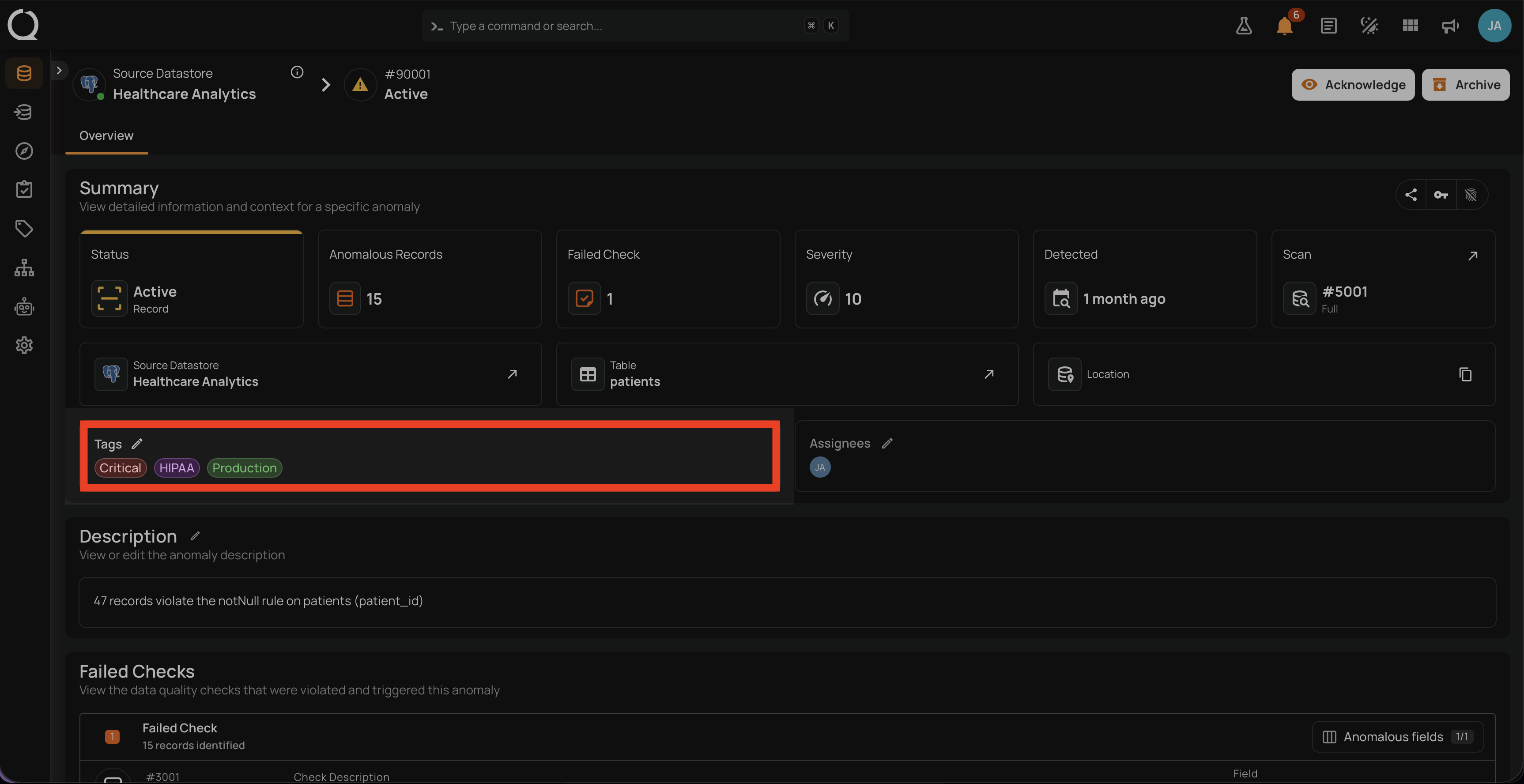
Step 1: Open the anomaly from the per-datastore Anomalies tab. In the Summary section, locate the Tags field, which lists the tags currently applied as chips.
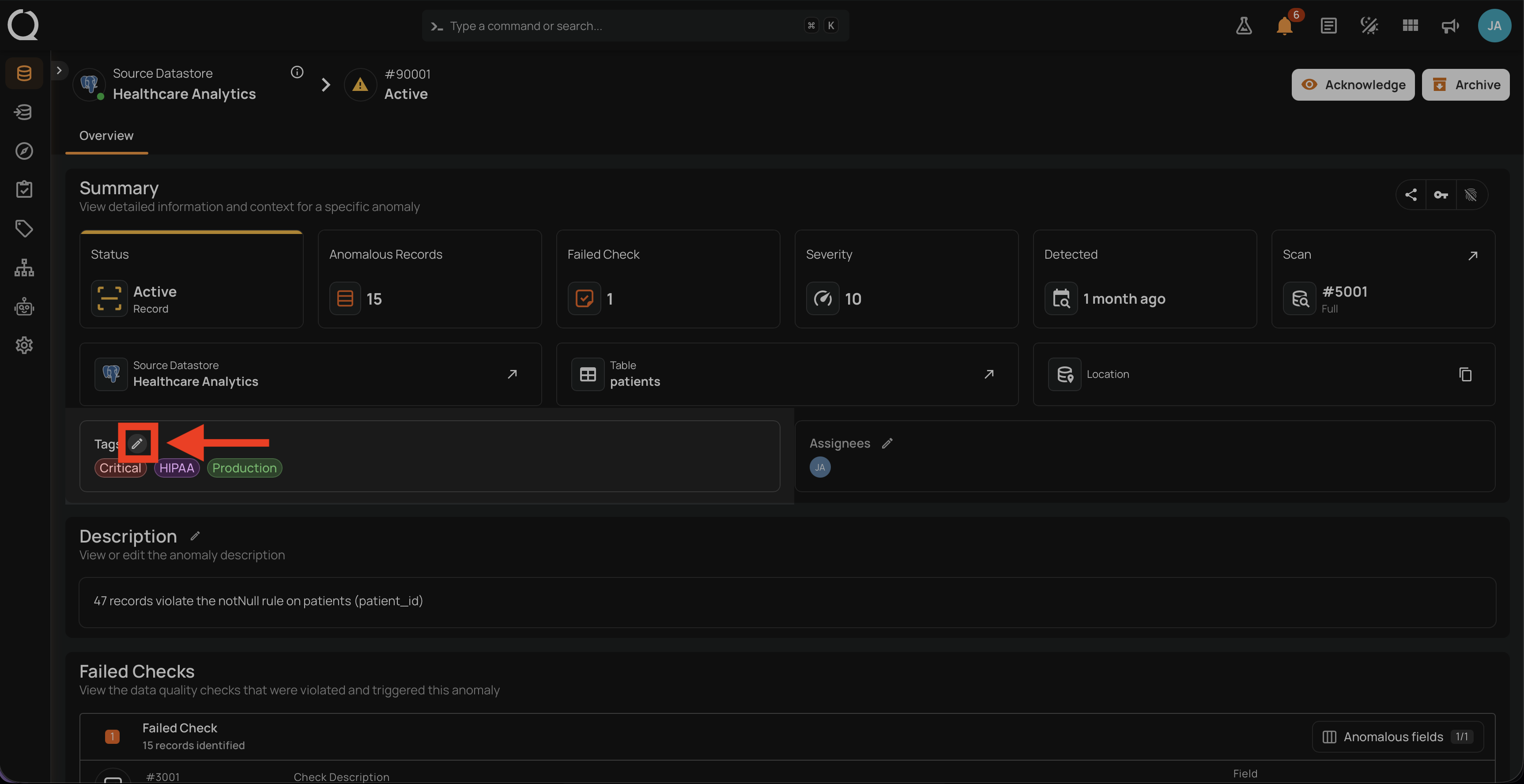
Step 2: Click the Edit button next to the Tags label to open the tag picker.
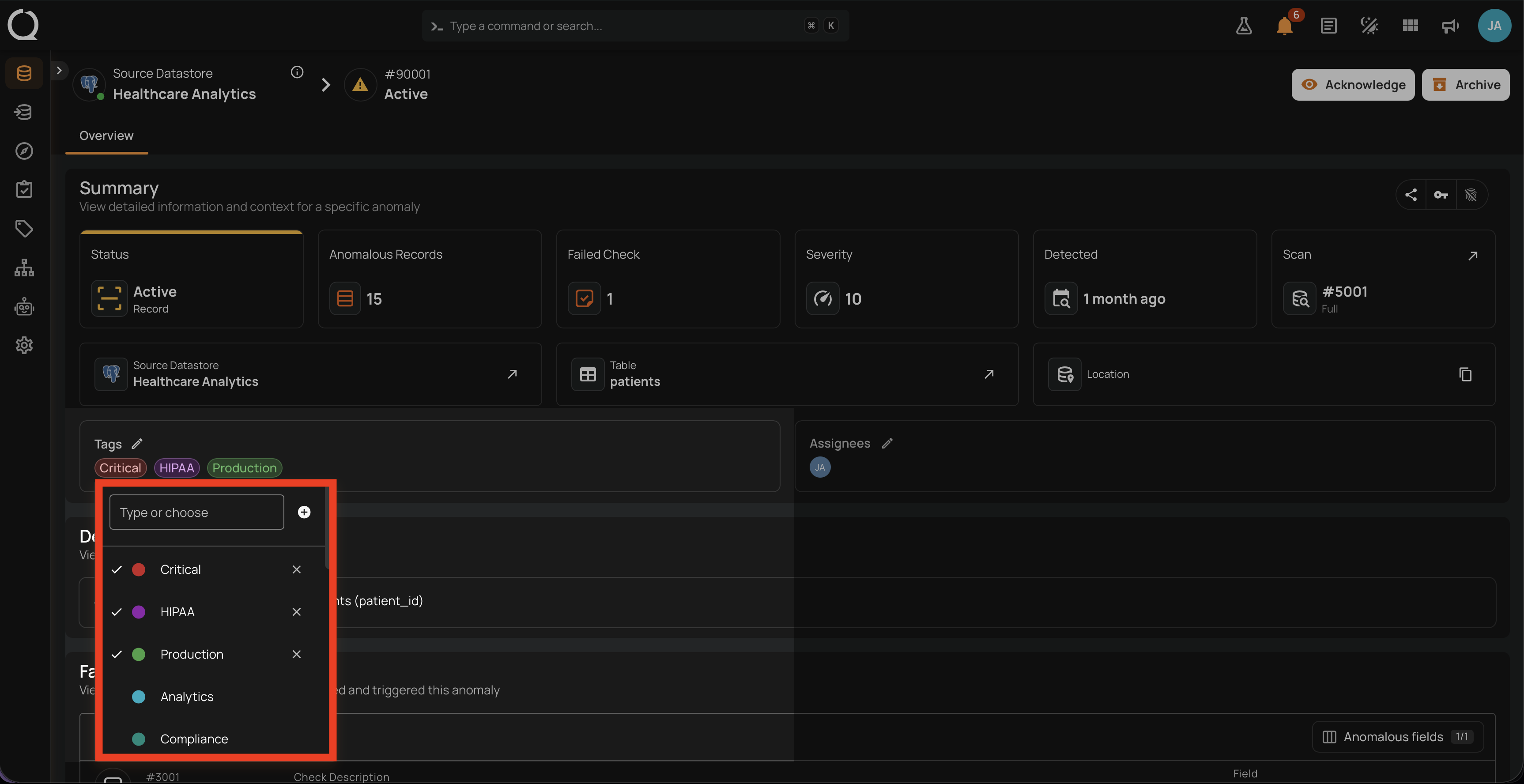
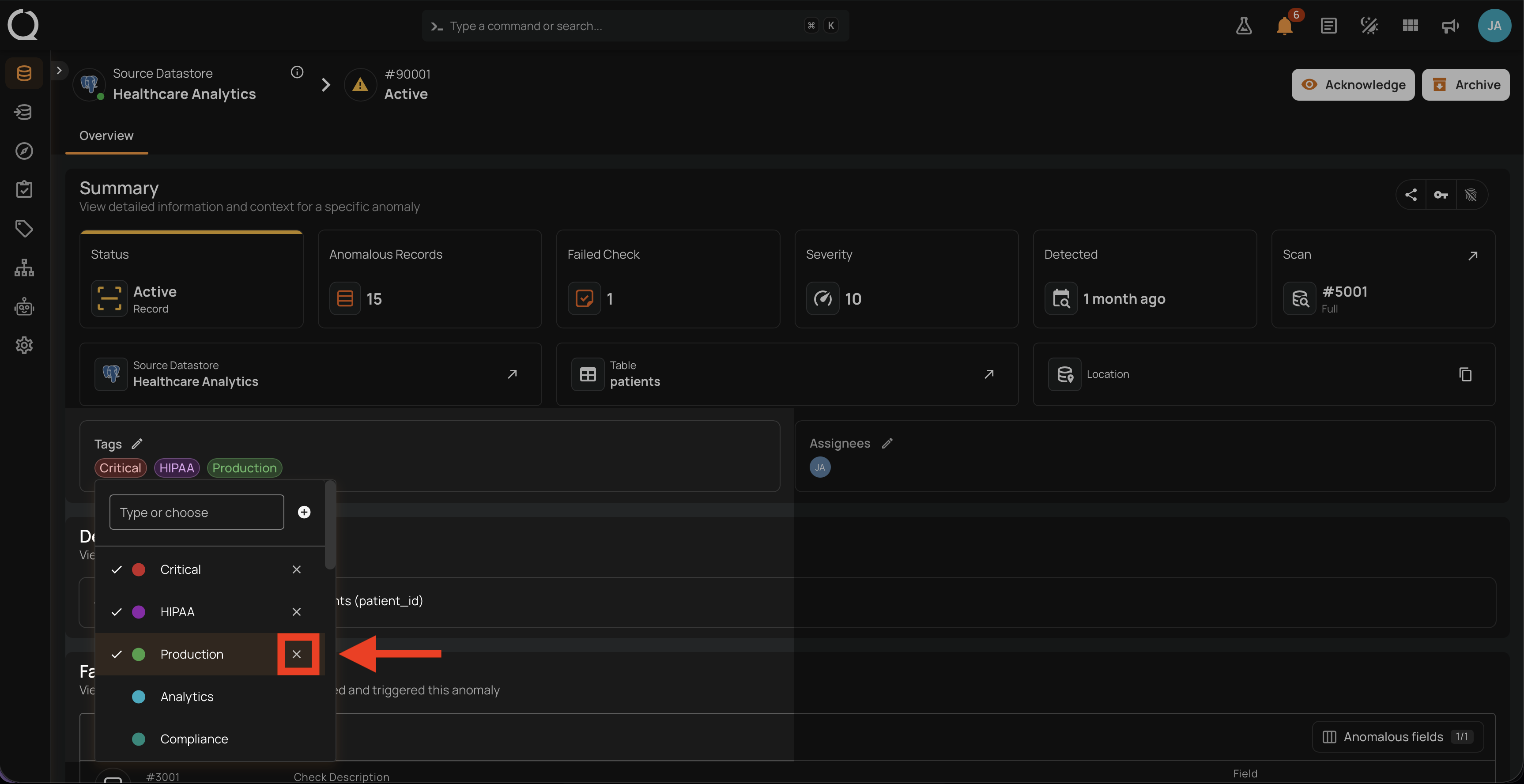
Step 3: The tag picker opens. Currently applied tags appear marked with a check icon at the top of the list, and a icon shows on the right of each marked row.
Step 4: For each tag you want to remove from the anomaly, click the icon next to its name.
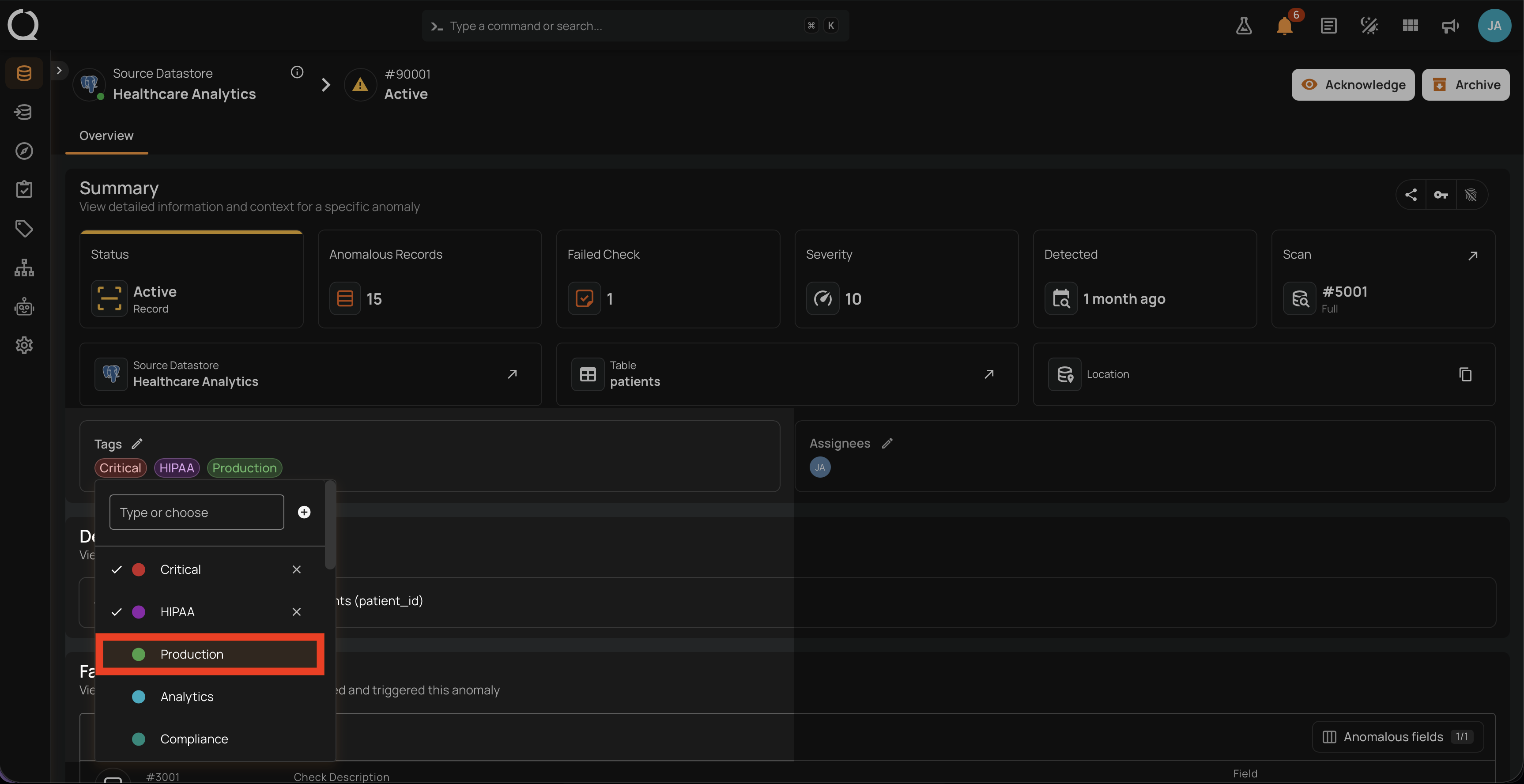
Step 5: The removed tags are no longer marked: the check icon and the icon disappear, confirming they are no longer applied.
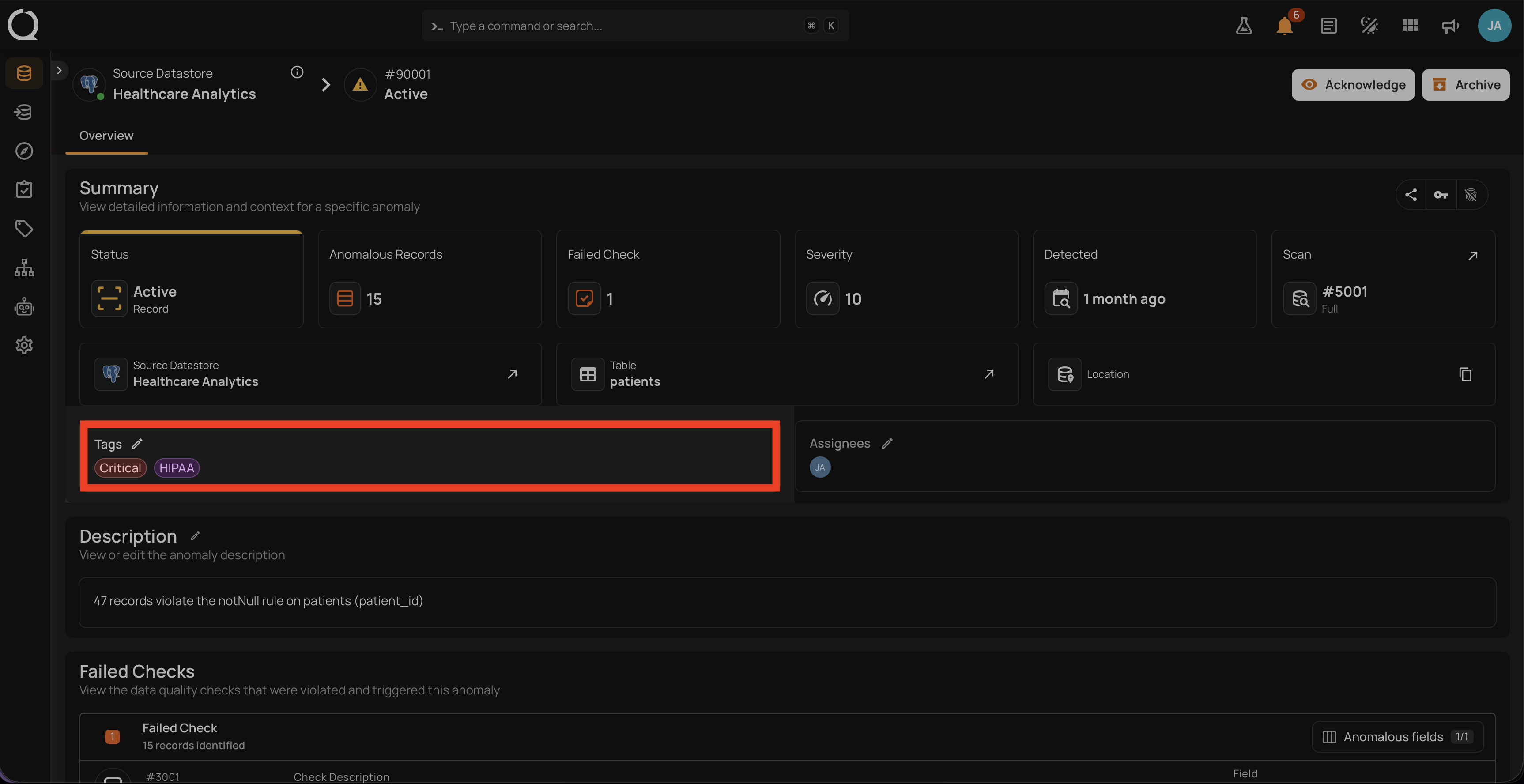
Step 6: Click anywhere outside the picker to close it. The Tags field updates: it shows the remaining chips, or No tags when every tag has been removed. The change is recorded in the Timeline section.
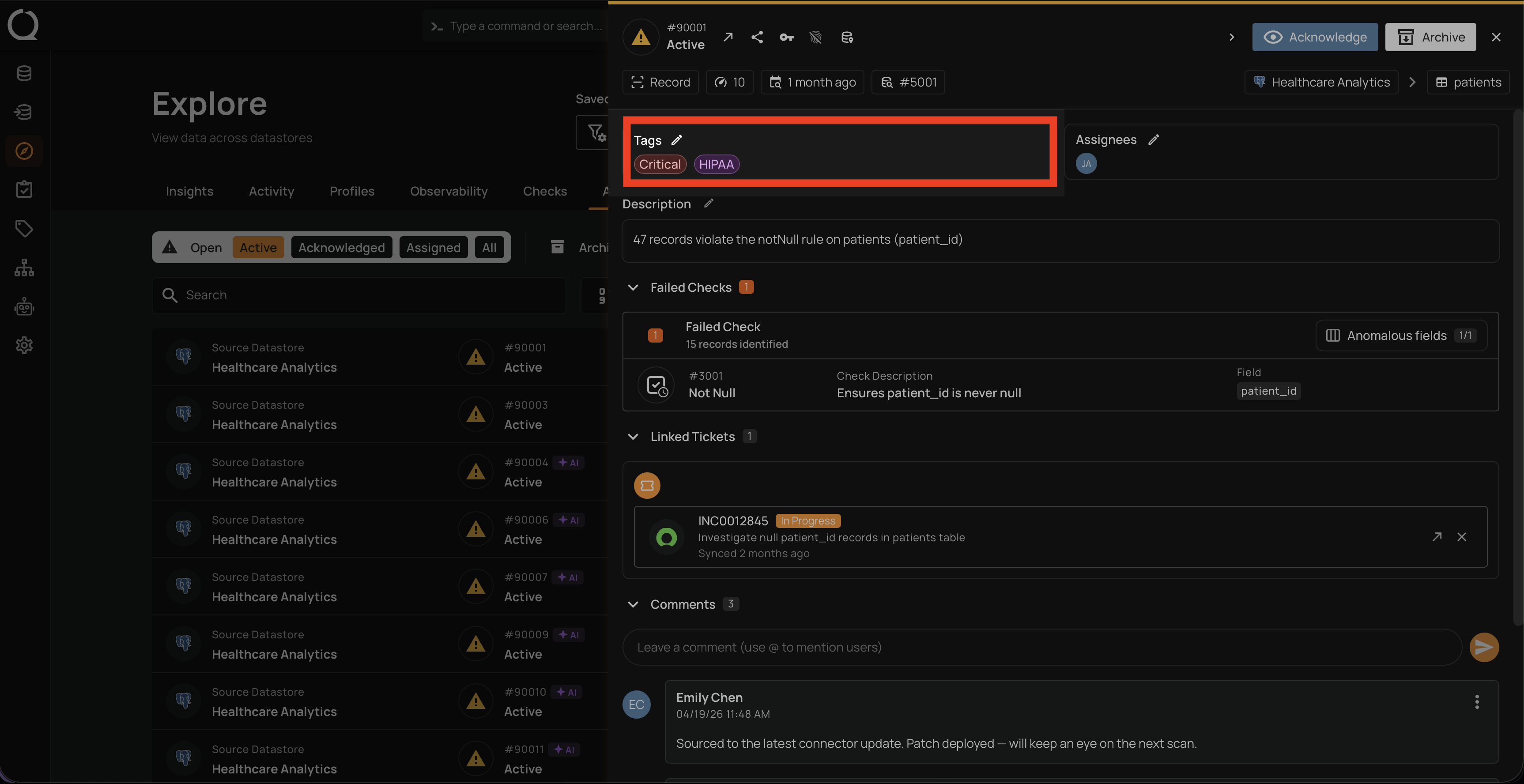
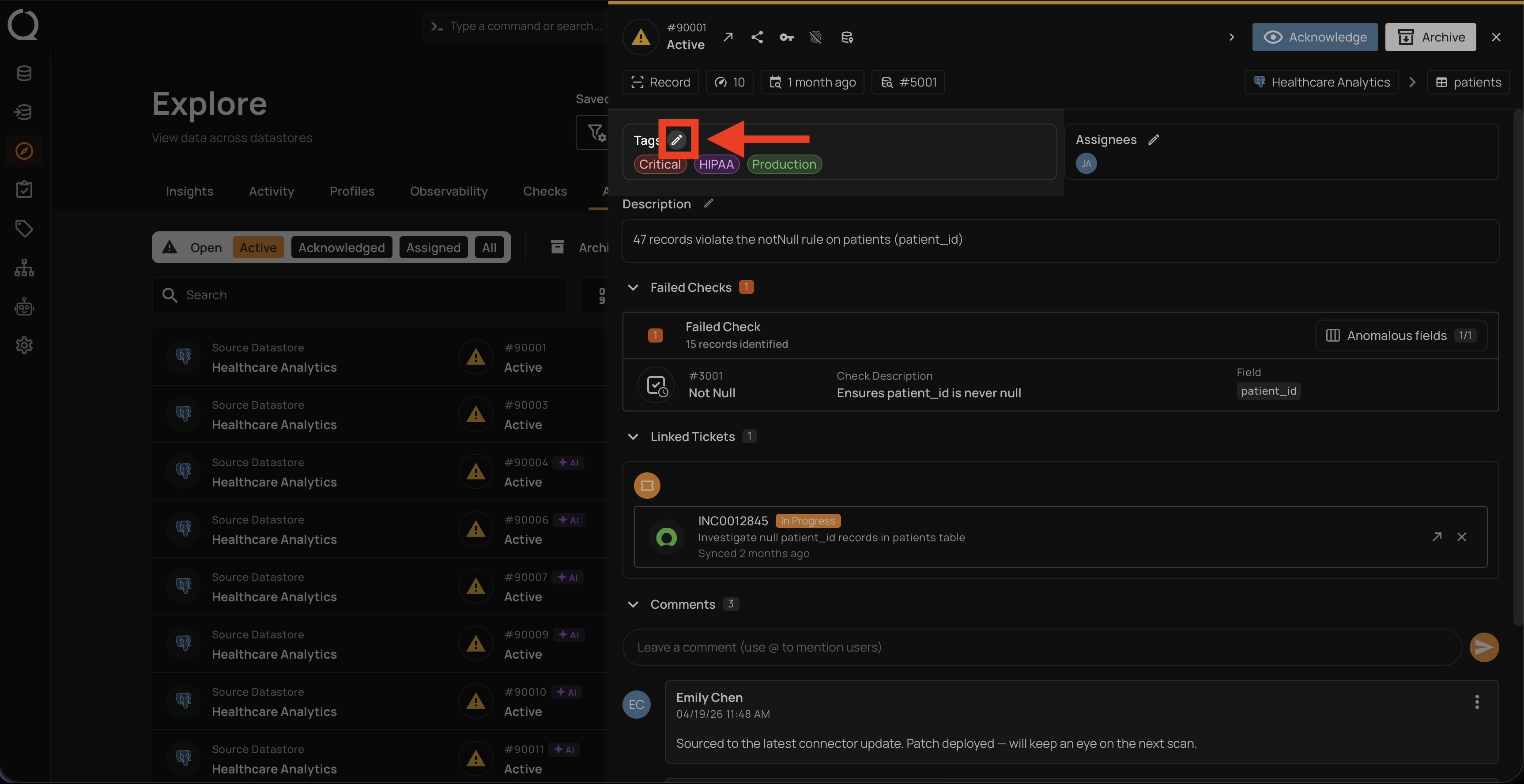
Step 1: Open the anomaly from Explore > Anomalies. In the right-side details panel, locate the Tags field, which lists the tags currently applied as chips.
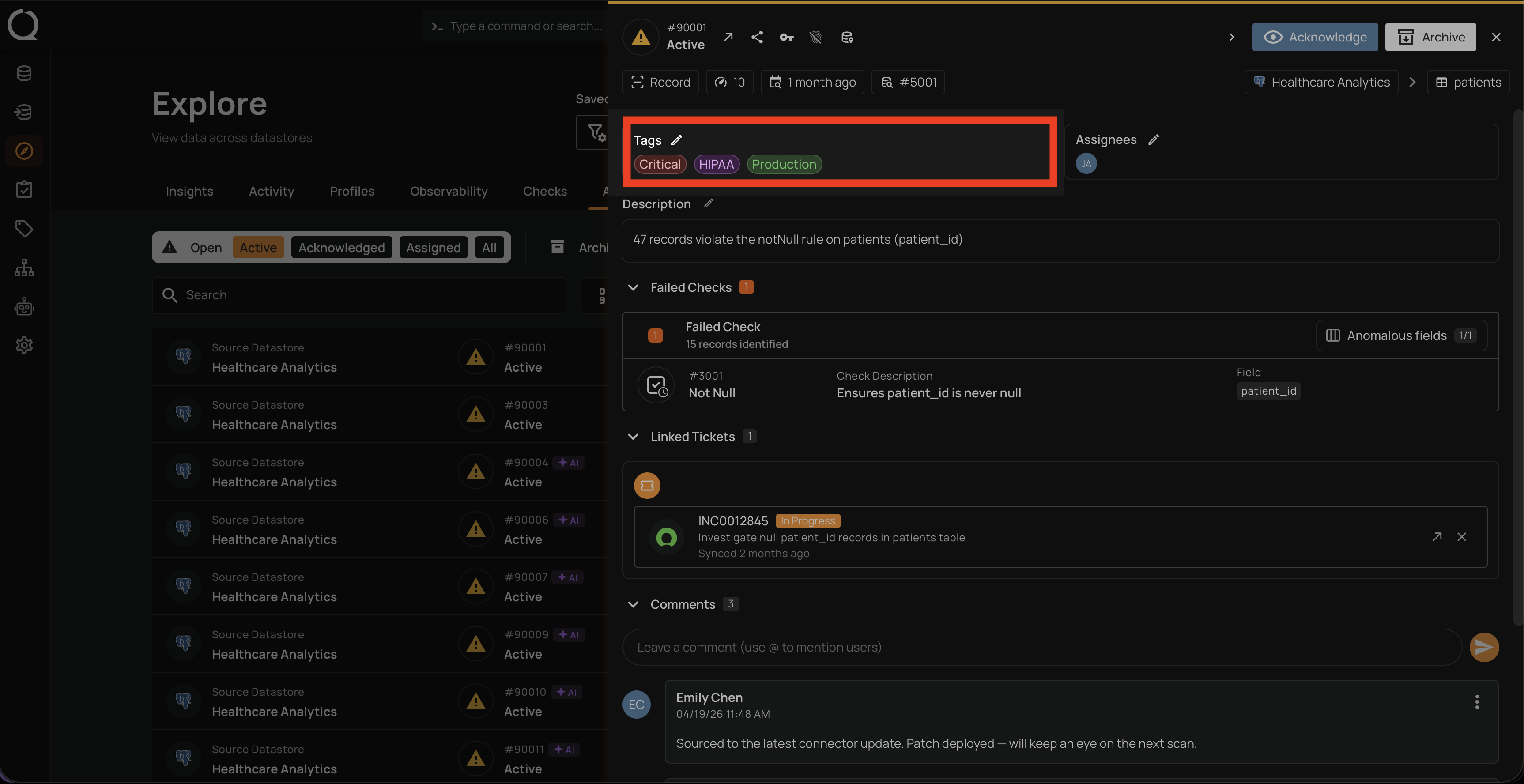
Step 2: Click the Edit button next to the Tags label to open the tag picker.
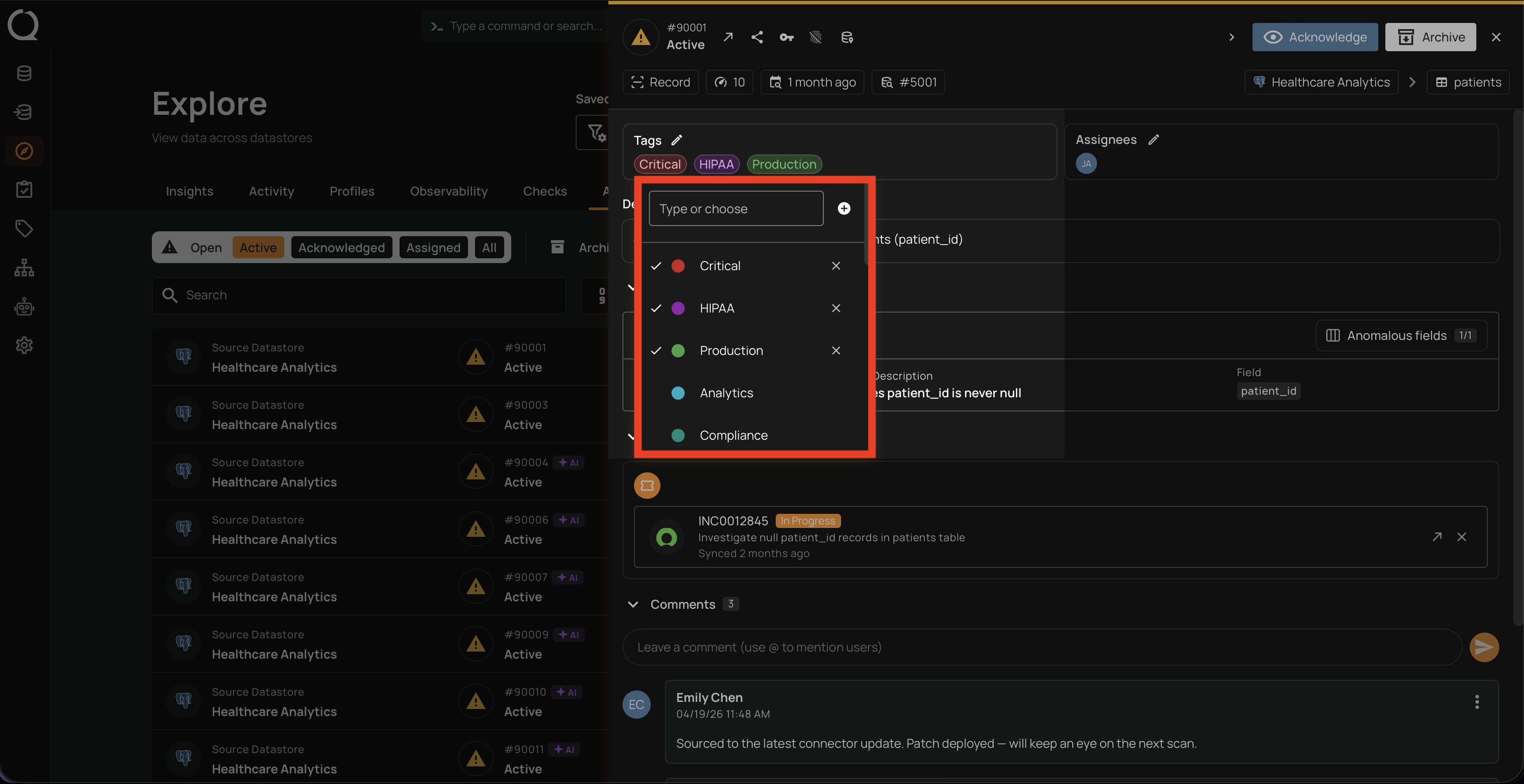
Step 3: The tag picker opens. Currently applied tags appear marked with a check icon at the top of the list, and a icon shows on the right of each marked row.
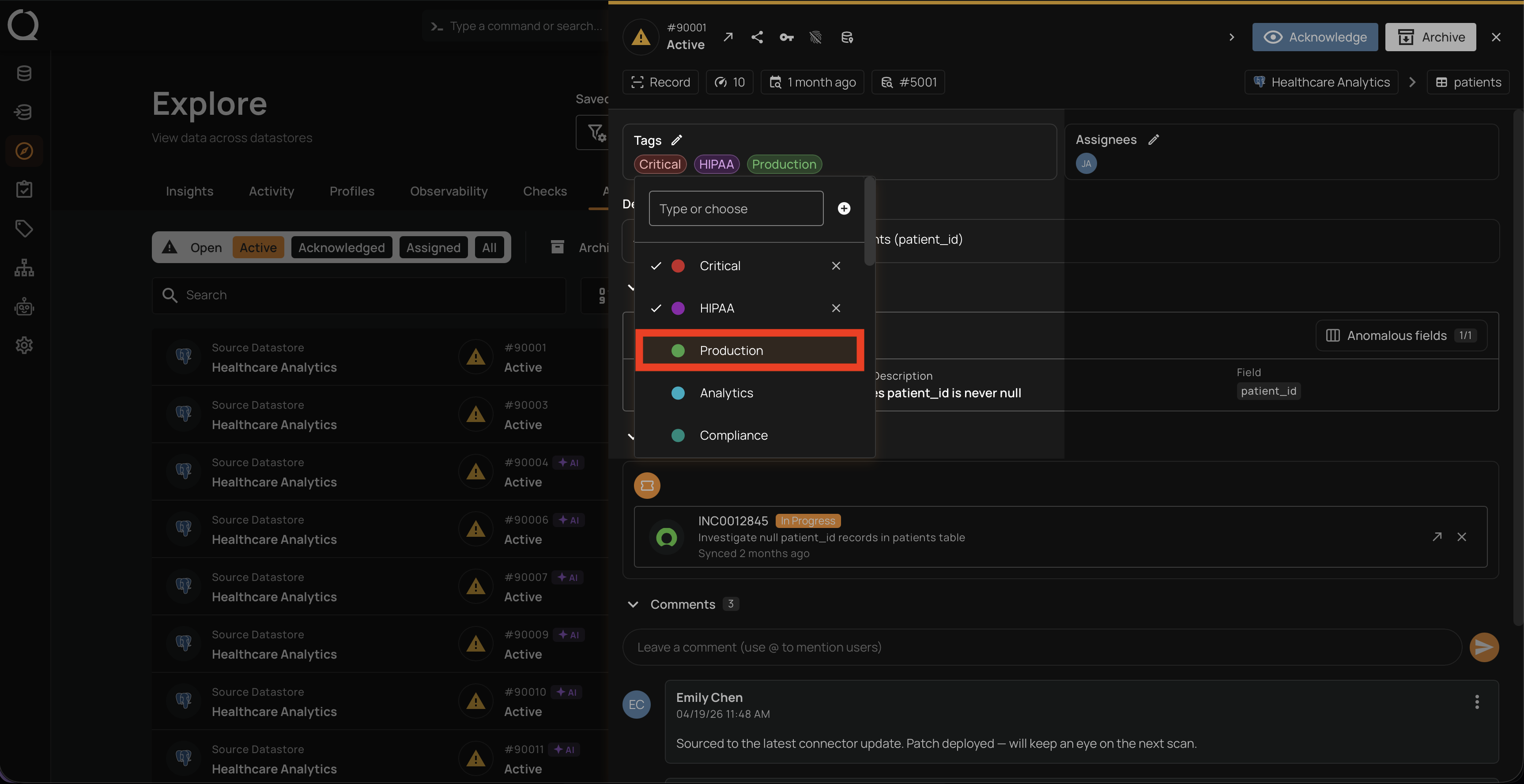
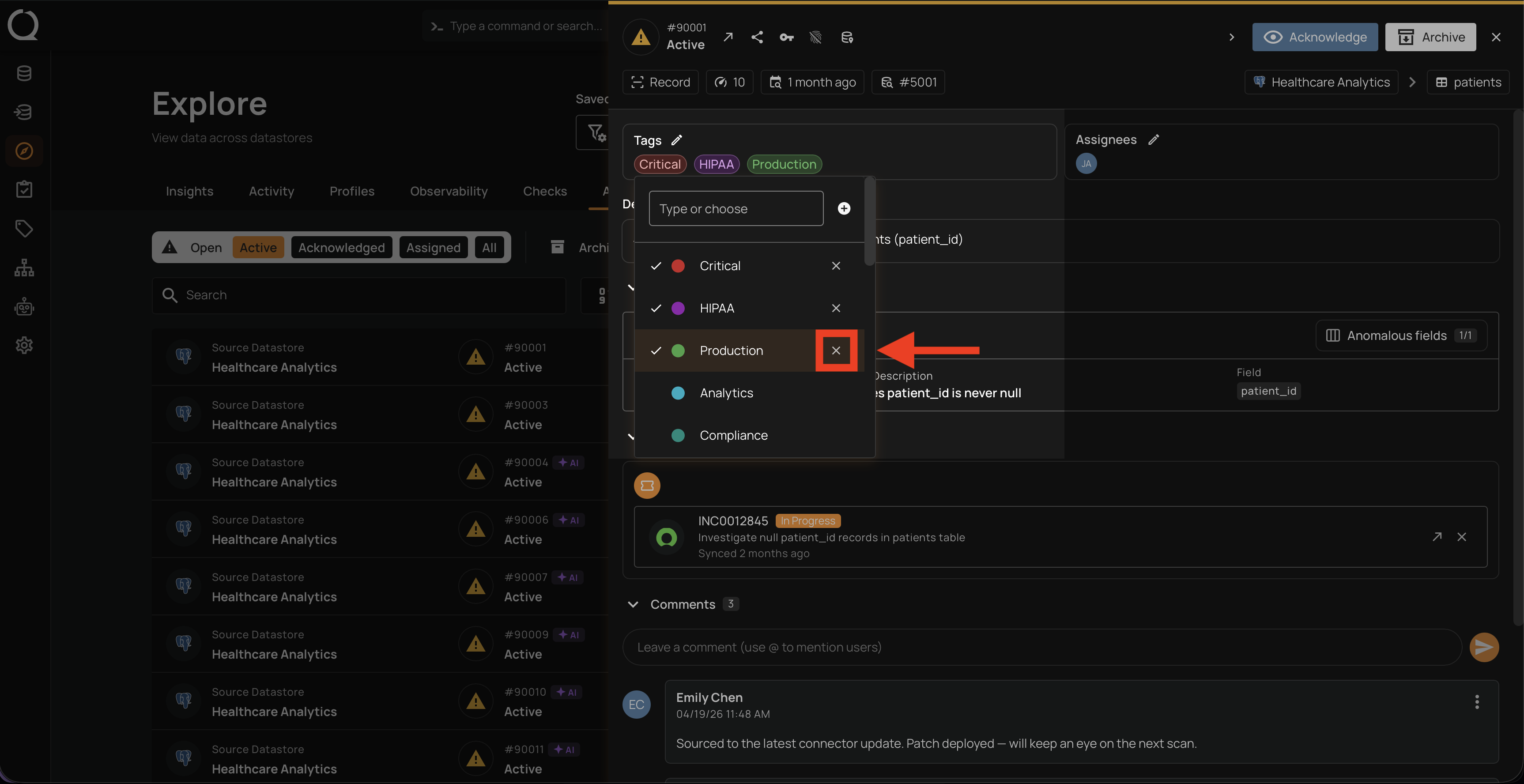
Step 4: For each tag you want to remove from the anomaly, click the icon next to its name.
Step 5: The removed tags are no longer marked: the check icon and the icon disappear, confirming they are no longer applied.
Step 6: Click anywhere outside the picker to close it. The Tags field updates: it shows the remaining chips, or No tags when every tag has been removed. The change is recorded in the Timeline section.