Edit an AI Managed Check
The AI Managed Check Details modal is where you change anything Qualytics will let you change on a check Qualytics AI created. Some edits are organizational and the check stays AI Managed — Profile keeps refreshing it. Others change how the check evaluates the data and convert the check to Authored the moment you save, after which Profile no longer touches it.
What you can edit, at a glance
The modal exposes 12 editable fields across six sections. Whether saving converts the check to Authored depends only on which field you change — not on the section it sits in.
Edits that keep the check AI Managed
These are organizational. Profile keeps managing the rule on future runs.
| Section in the modal | Field | What it controls |
|---|---|---|
| Header | Status (Active / Draft) | Whether the check is evaluated by future Scans (Active) or paused (Draft). |
| Target → Advanced | Custom Anomaly Description | Whether to use a source-record field as the anomaly message instead of the system-generated one. |
| Target → Advanced | Anomaly Message Field | Which source-record field to use as the anomaly message — only visible when the Custom Anomaly Description toggle is on. |
| Ownership | Owner | The user responsible for the check. |
| Ownership | Anomaly Assignee | The user automatically assigned to anomalies the check produces. |
| Metadata | Description | The plain-language description shown in the Summary section. |
| Metadata | Tags | Tags applied to the check for filtering and organization. |
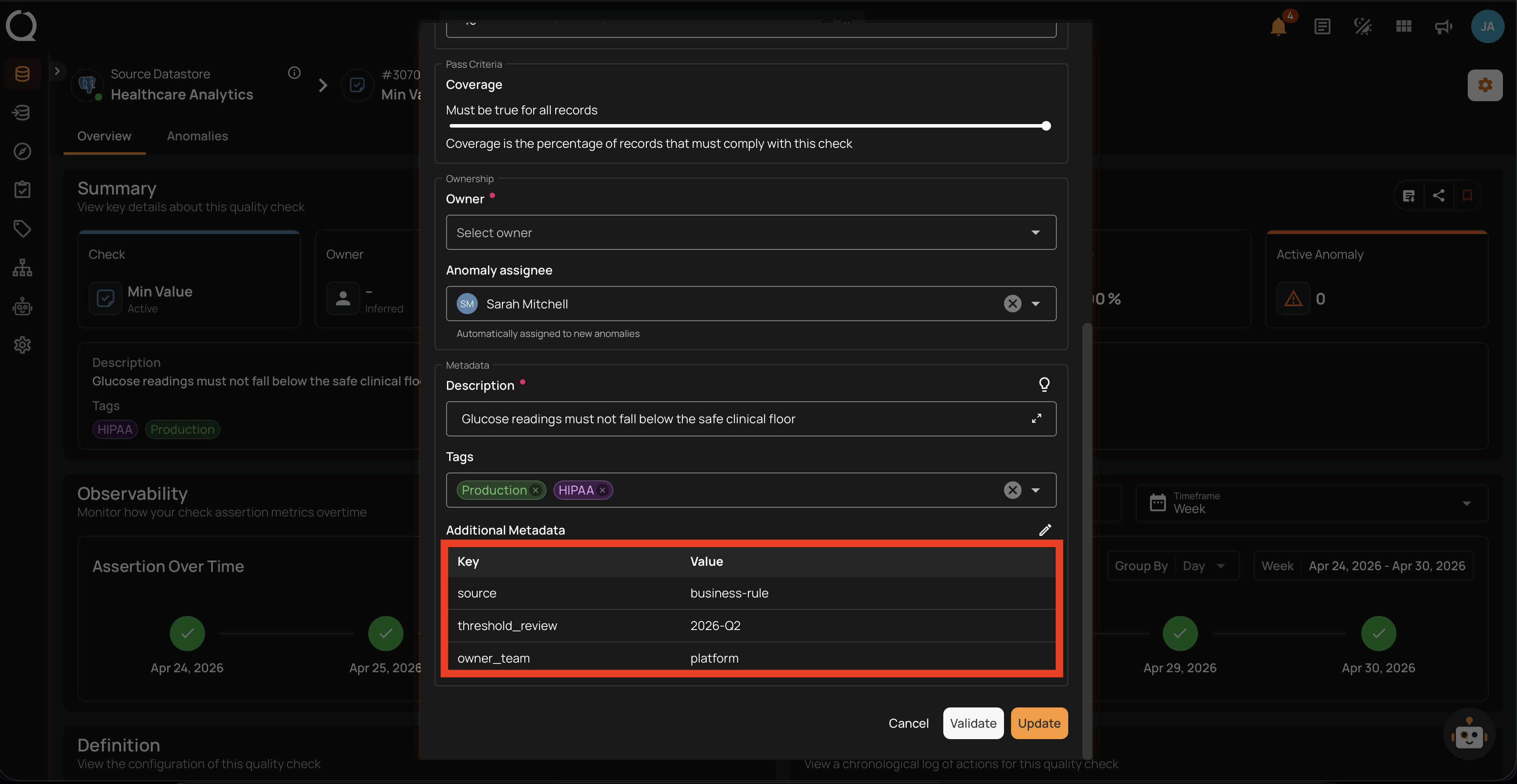
| Metadata | Additional Metadata | Custom key-value pairs (links to your catalog, tickets, governance records). |
Edits that convert the check to Authored
Saving any of these removes the AI badge and the AI Managed label the moment you click Update, so the check is shown as Authored. It also transfers ownership to you (if Qualytics owned it), and removes the check from automatic Profile management. See Introduction for the full conversion rules.
| Section in the modal | Field | What it controls |
|---|---|---|
| Target | Field | The columns the rule applies to. |
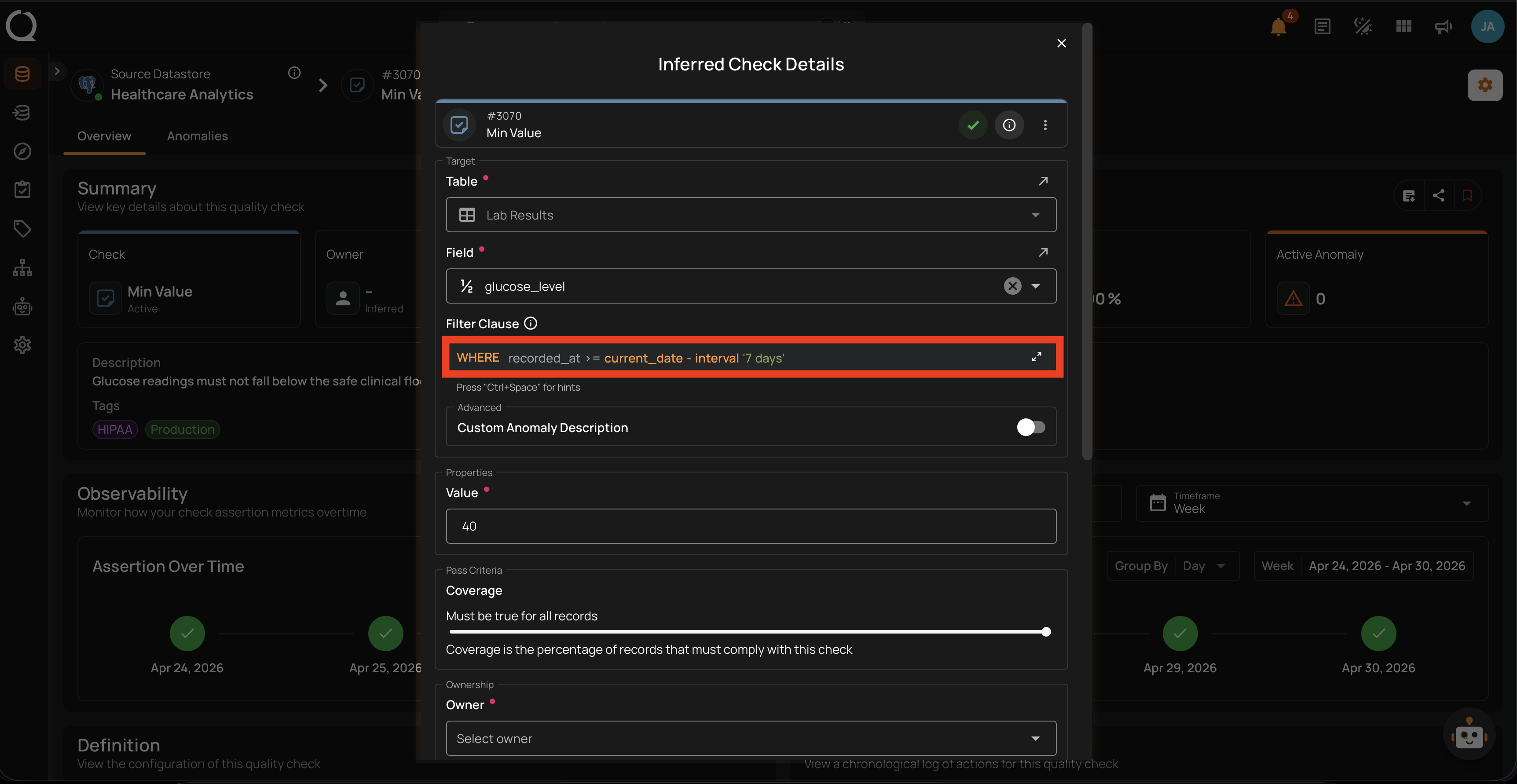
| Target | Filter Clause | A SQL WHERE expression that limits the rows the check evaluates. |
| Properties | Rule properties | The values that define how the rule evaluates the data — for example, the threshold on a Min Value check, the regex on a Matches Pattern check, or the accepted values on Expected Values. |
| Pass Criteria | Coverage | The percentage of records that must satisfy the rule for the check to pass. |
What's read-only on every check
The Table the check runs against, the Importance, Last Asserted, Active Anomaly count, AI badge, and all timestamps are system-managed. They cannot be changed from this modal or from any other UI surface.
Before You Start
Open the AI Managed Check Details modal from either place:
- On a datastore's Checks list, open the check's Settings menu and select Edit . Clicking the check card itself opens the check overview page, not the modal.
- On the check overview page, open the check actions menu in the header and select Edit .
On the Explore Checks list, which spans every datastore, clicking the check card opens the modal directly.
You'll need at least the Drafter team permission for organizational edits, or Author for evaluation edits. The exact rule depends on the field and the check's current status — see Permissions for the full breakdown.
Organizational Edits — Keep the Check AI Managed
None of the edits below change how the check evaluates data, so the AI badge stays in place and Profile keeps refreshing the rule on the next run.
Status (Active / Draft)
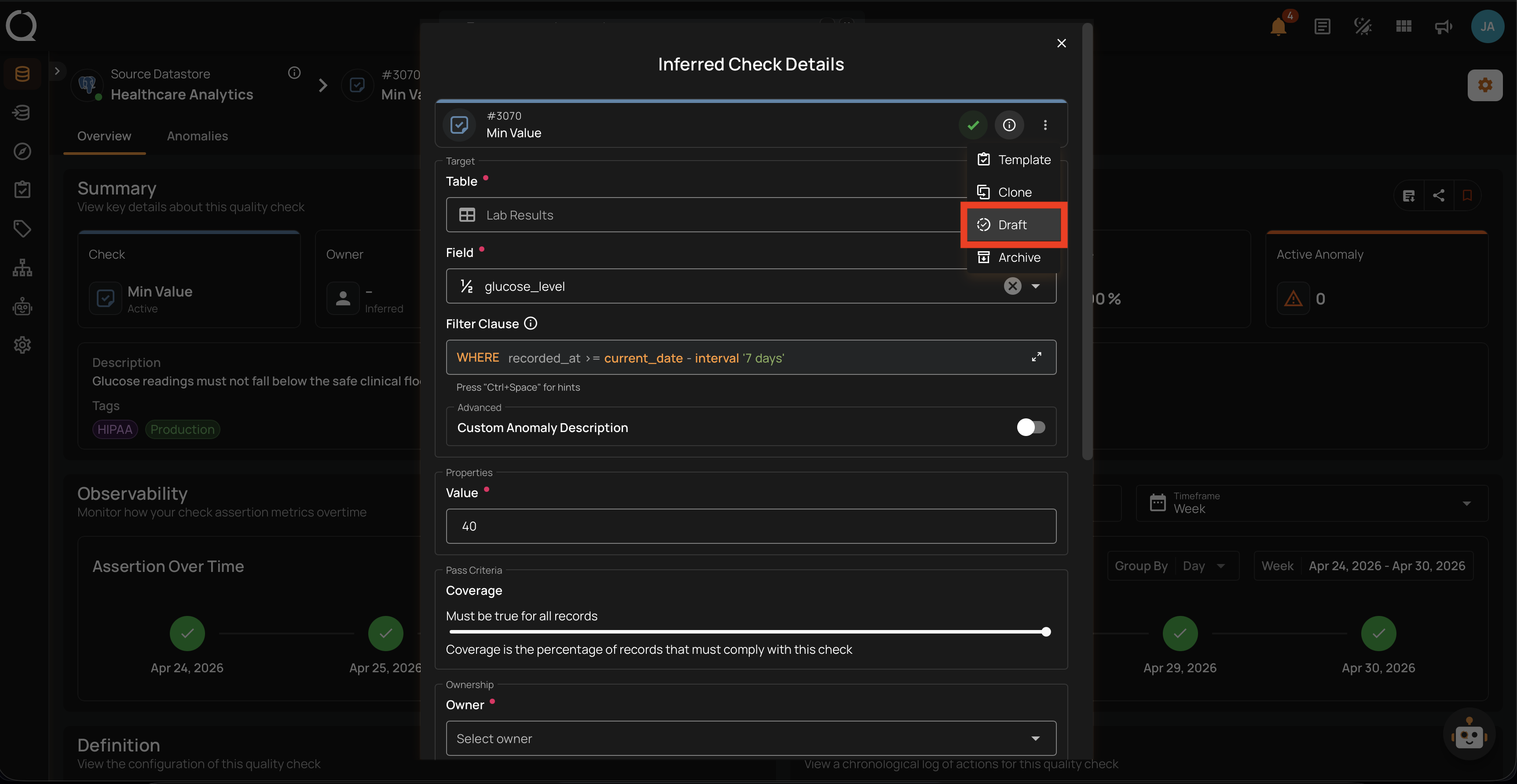
Open the ⋮ menu at the top of the modal and select Draft to pause evaluation. To bring a Draft check back into the active set, open the dropdown on the Update button at the bottom of the modal and choose Activate. The same ⋮ menu also offers Template (save the check as a Check Template), Clone, and Archive. Active means the next Scan will evaluate the rule and produce anomalies; Draft pauses evaluation. The status change is purely operational — it does not convert the check.
Custom Anomaly Description
Toggle Custom Anomaly Description under Advanced to use one of the record's own fields as the anomaly message instead of the default system-generated one. Once enabled, pick the field from the dropdown that appears.
Ownership
Owner
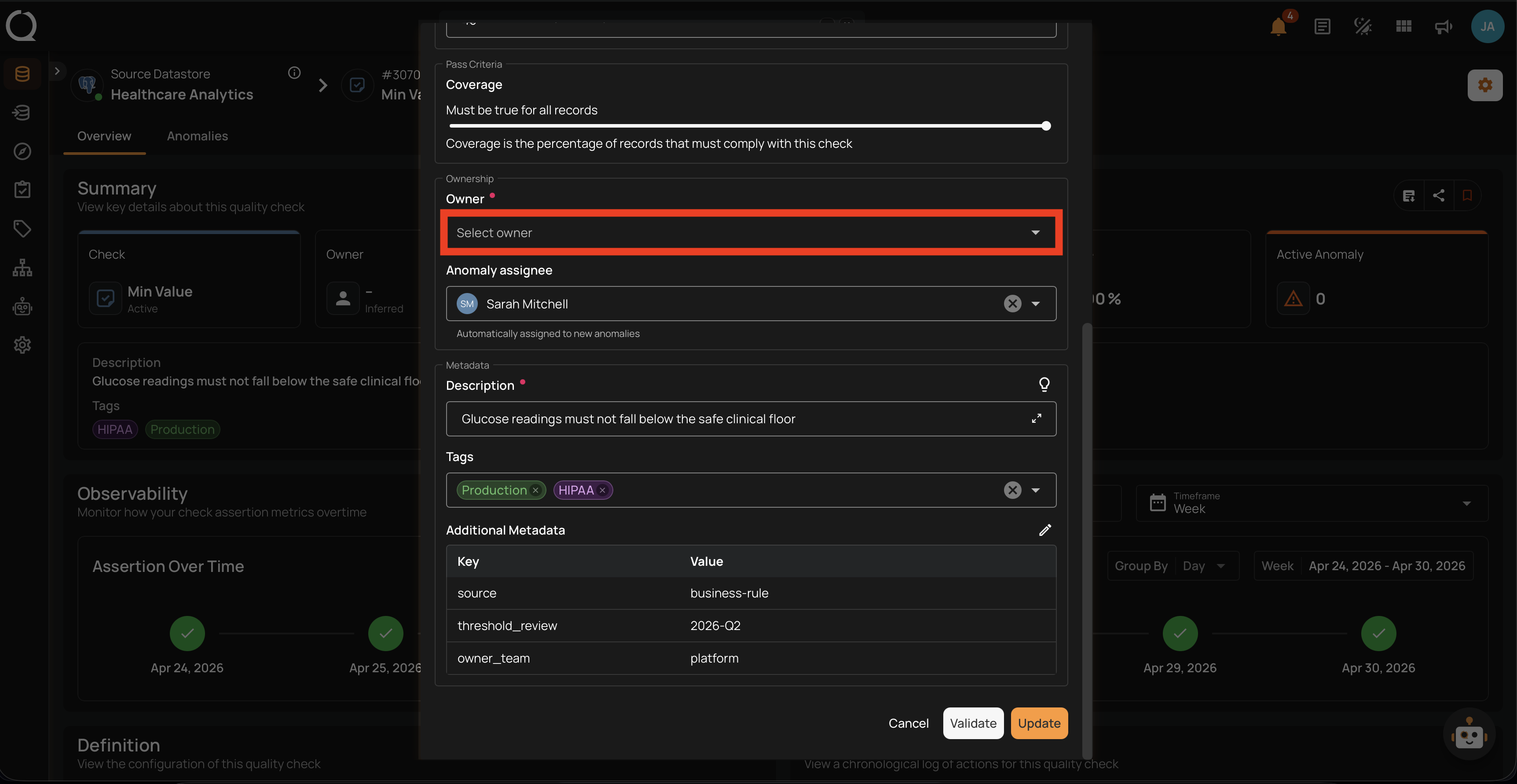
Use Owner to assign a user as the human responsible for the check. While the check is owned by Qualytics, this field shows Qualytics and the Owner badge in the Summary section reads AI Managed.
Owner transfers automatically on evaluation edits
On a Qualytics-owned AI Managed check, ownership is transferred to you automatically when you make an evaluation edit (Properties, Coverage, Filter Clause, or Field). You don't need to set the Owner manually before editing.
Anomaly Assignee
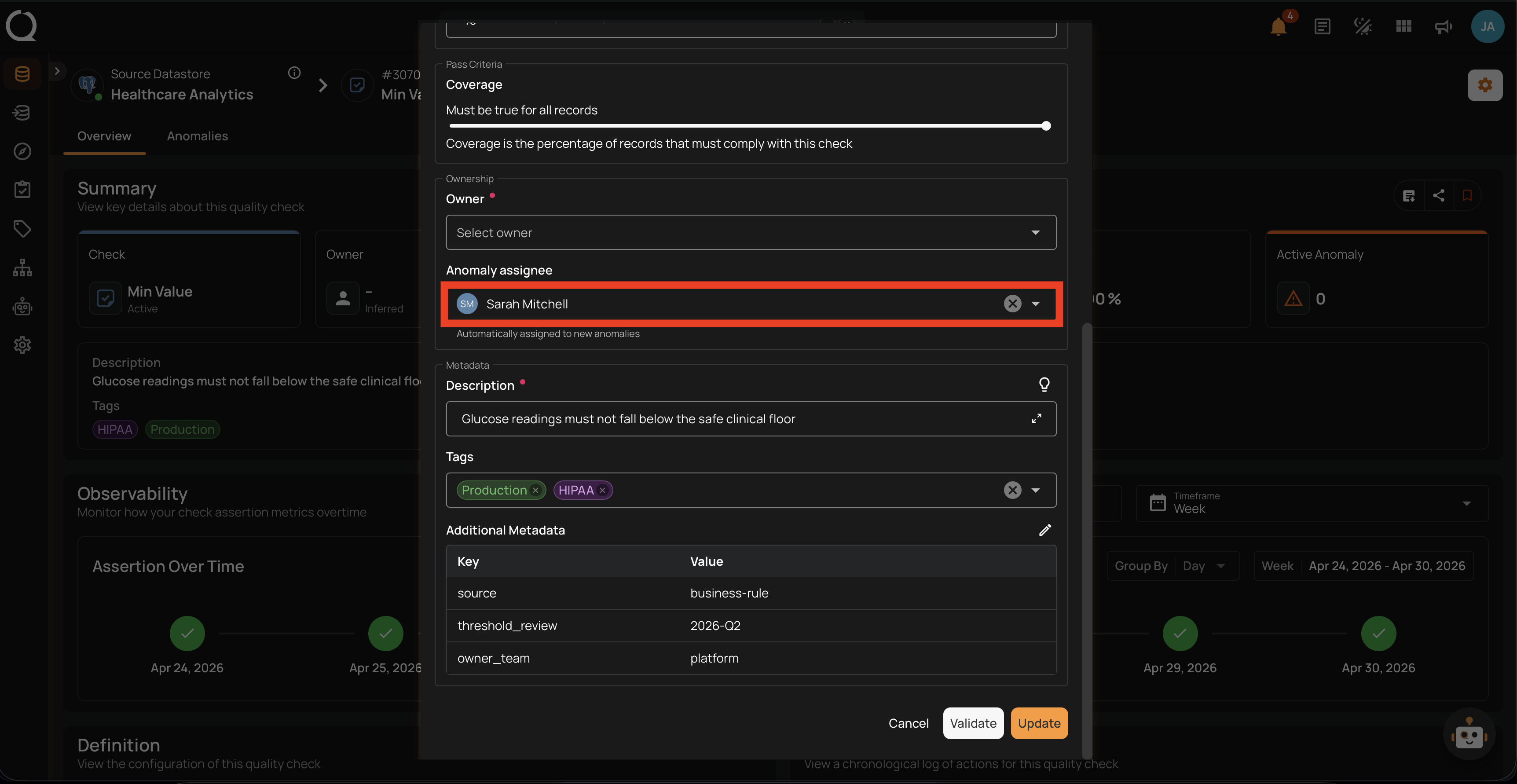
Set Anomaly Assignee to the user who should review anomalies produced by the check. New anomalies are automatically assigned to that user.
Metadata
Description
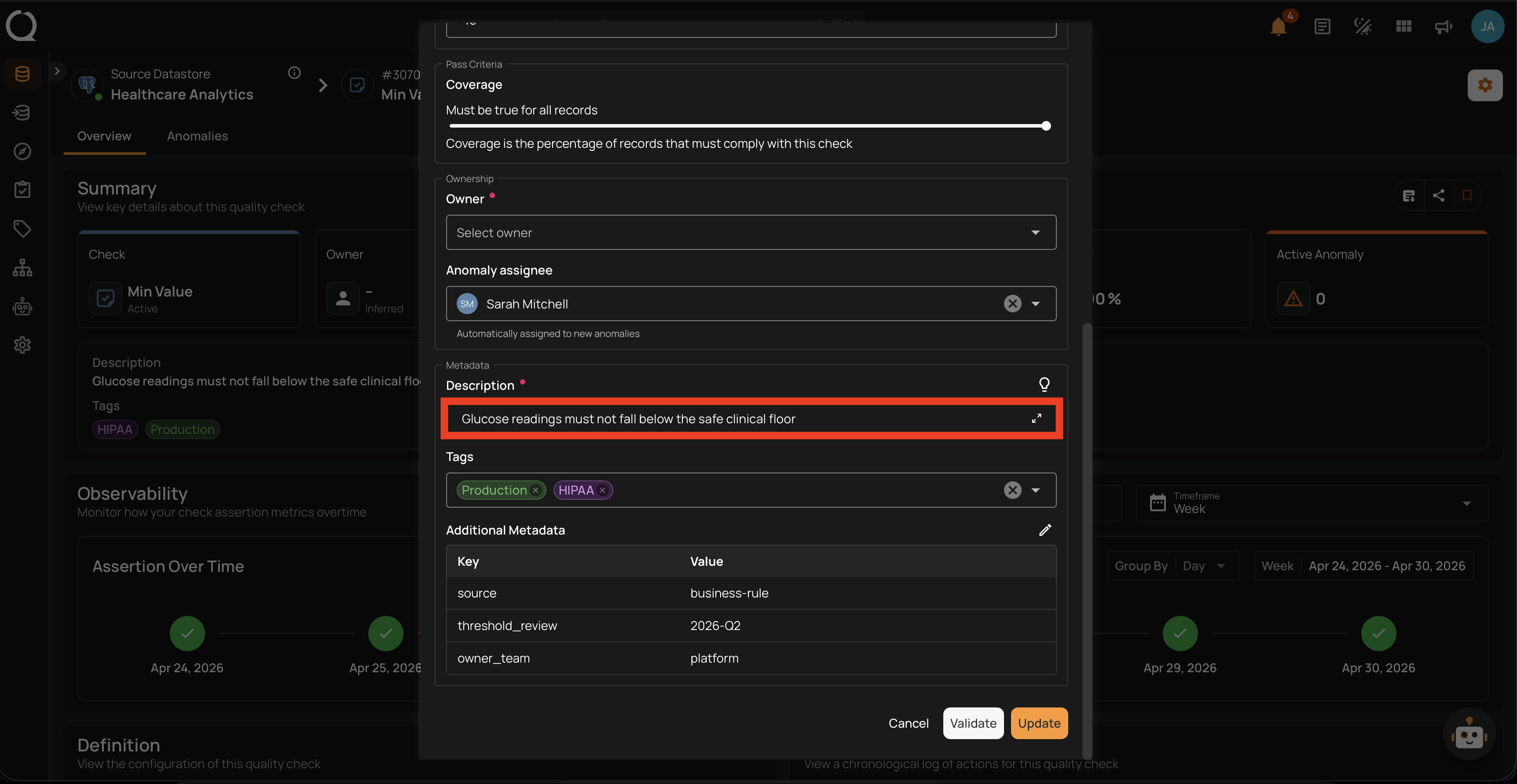
Click into the Description field and type a clear explanation of what the check does and why it matters. If you want a starting point, use the control next to the field. With an AI integration configured, it is Suggest : click it, then choose Use this or Replace draft in the suggestion preview. Without one, a lightbulb icon appears instead and fills the field with a standard, rule-based description for the selected rule type.
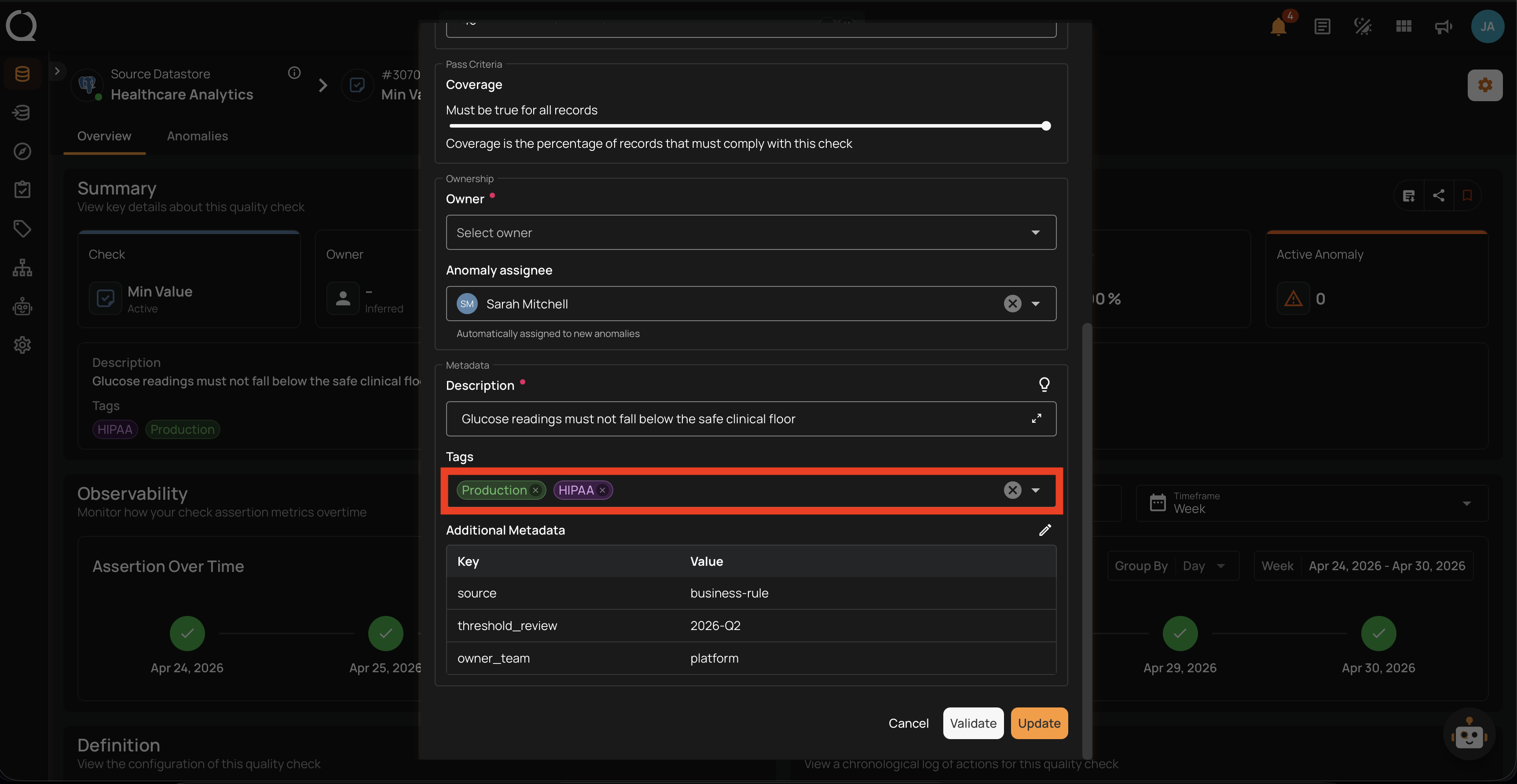
Tags
Use Tags to categorize the check by environment, business domain, compliance scope, or any custom group your team uses. Tags help filter checks across the datastore (for example, surfacing only the HIPAA checks).
Additional Metadata
Use Additional Metadata to attach custom key-value pairs to the check — typically links to your data catalog, ticketing system, or governance records. Click the plus icon to open the editor (it becomes a pencil once entries exist), add or update entries, and confirm to save.
Evaluation Edits — Convert the Check to Authored
Saving any change in this section converts the check from AI Managed to Authored, transfers ownership to you (if Qualytics owned it), and stops Profile from touching the check on future runs.
Target
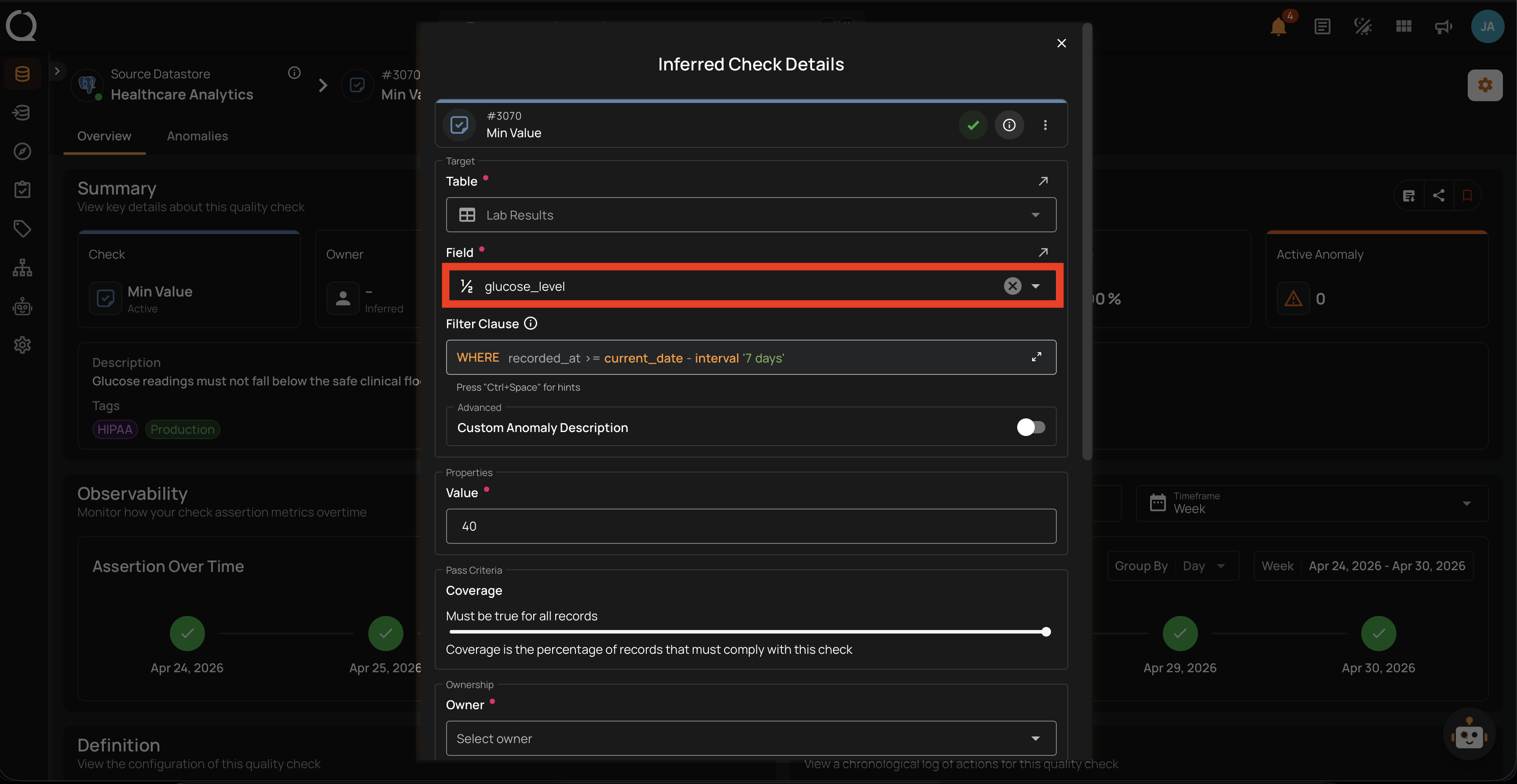
Field
Use the Field input to add, remove, or replace the columns the rule applies to. For checks that run on a single field (most rule types), this is a single-select; for composite rule types like Unique on multiple fields, the input is a multi-select with chips.
Filter Clause
Use Filter Clause to limit the rows the check evaluates with a SQL WHERE expression — for example, country_code = 'US' to scope the rule to US records only. Press Ctrl+Space in the input for hints.
Properties
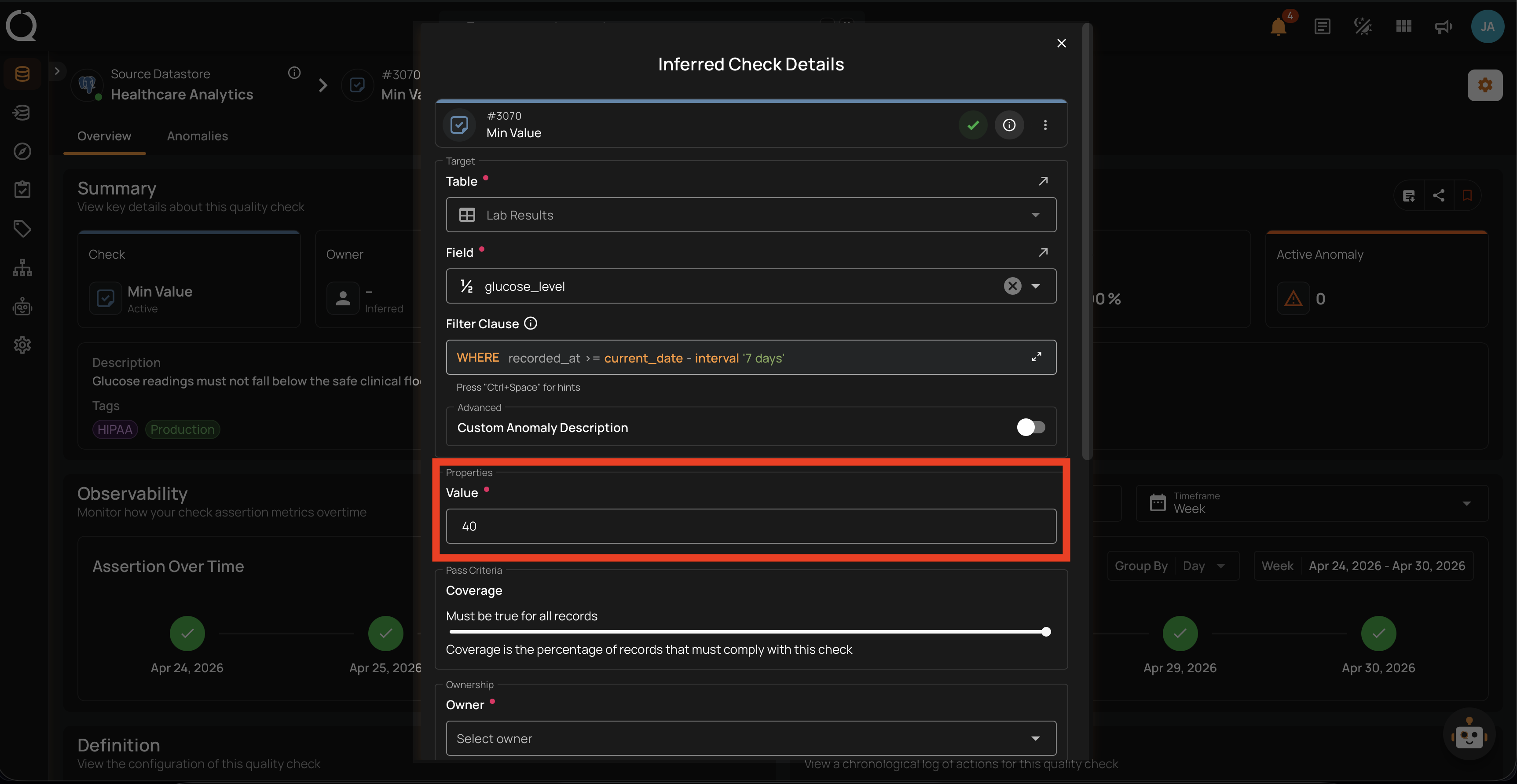
The Properties section is the rule-specific configuration. The exact fields shown here depend on the rule type Qualytics AI chose for the check, so a Min Value check has a single numeric input while a Matches Pattern check has a regular expression input. Editing any value in this section converts the check to Authored.
The table below maps every Property field a user might see to the rule types that show it.
| Field shown in the Properties section | Input | Rule types where it appears |
|---|---|---|
| Value (numeric) | Number | Min Value, Max Value, Greater Than, Less Than, Min Length, Max Length, Field Count |
| Value (string) | Text | Is Type |
| Min Value + Max Value | Two numbers | Between, Sum |
| Min Value | Number | Distinct Count |
| Pattern | Regular expression (with SQL syntax highlighting) | Matches Pattern |
| List | Tag-style list of accepted values | Expected Values, Required Values |
| Datetime | Date / time picker (ISO 8601) | After Date Time, Before Date Time |
| Min Time + Max Time | Two date / time pickers | Between Times |
| Field | Reference to another field on the same container | Greater Than Field, Less Than Field, Equal To Field |
| Maximum Age | Unit + duration | Freshness |
| Comparison + Measurement Period Days + Min Value + Max Value (or Min Percentage + Max Percentage) | Comparator + numbers / percentages | Volumetric |
| Expression | Spark SQL expression editor | Satisfies Expression |
| Fields + ID Field Names + Comparison Type | Multi-field selectors + enum + array | Data Diff, Is Replica Of |
| Ref Datastore + Ref Container (plus optional Ref Expression / Ref Filter) | Datastore and container pickers + Spark SQL | Exists In, Not Exists In |
| Window Size | Number | Time Distribution Size |
| Min Size / Max Size | Number | Min Partition Size / Max Partition Size |
Rules with no Properties
Some rule types are fully defined by the field and filter alone — they do not have any input in the Properties section. These include: Not Null, Unique, Not Empty, Positive, Not Negative, Not Future, Contains Email, Contains SSN, Contains Credit Card, Contains URL, Is Credit Card, Is Address, and Any Not Null. Expected Schema is not one of them: its Properties section holds the expected Fields with their types and the Allow other fields toggle.
Pass Criteria
Coverage
Use Coverage to lower the percentage of records that must satisfy the rule. AI Managed checks start at 100%; lowering it (for example, to 99.5%) is a deliberate change worth keeping, which is why the conversion to Authored is built in.
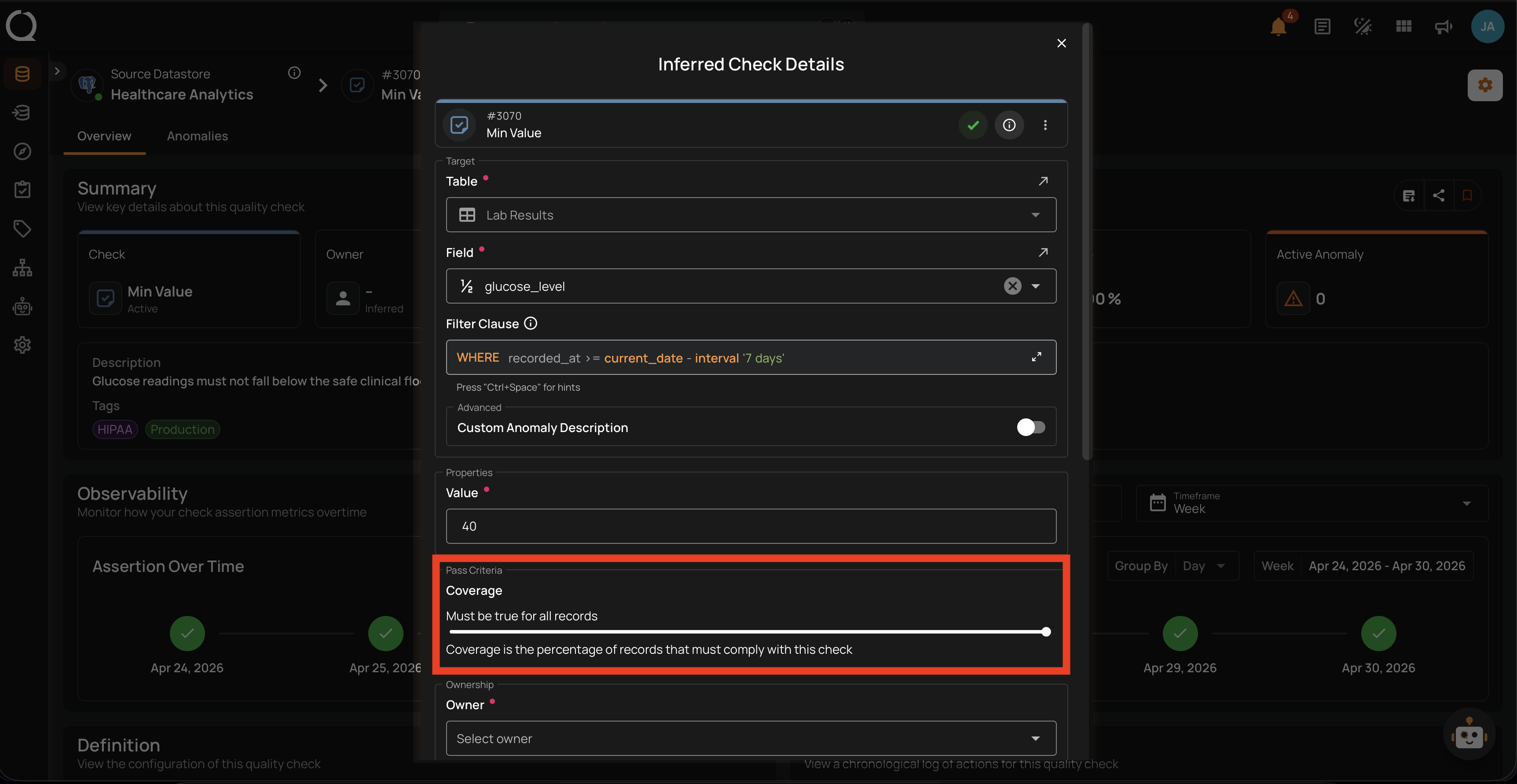
Coverage is the only field in the Pass Criteria section.
The conversion is silent and one-way
There is no confirmation dialog. The moment you click Update, the AI Managed label disappears from the Summary section, the check is shown as Authored, and Profile stops refreshing the check. If you change your mind, the only way to get an AI Managed check back is to delete this one and run a new Profile. Qualytics AI will recreate an AI Managed version of the rule if the data still supports it.
Validate Your Changes
Before saving, run a quick validation to make sure the rule still works as expected.
Click Validate at the bottom of the modal. It runs the check against the data without saving. If everything is well-formed, a green Validation Successful message appears.
Try a Dry Run too
For a more detailed preview that lists exactly which records would fail the check, use Dry Run. It is not offered in the edit modal: save your changes, then open the check overview page and pick Dry Run from the check actions menu in the header. Dry Run returns sample anomalies and source records, which is helpful when tuning a rule.