Restart Dataplane
The Restart Dataplane action sends a graceful shutdown signal to the dataplane, which triggers an immediate restart. This can help resolve processing issues or refresh the analytics engine after configuration changes.
Permissions
Only users with the Admin role can restart the dataplane. For a full breakdown of status-related permissions, see the Permissions page.
What Happens During a Restart
Before confirming, it is important to understand the impact:
Immediate failures
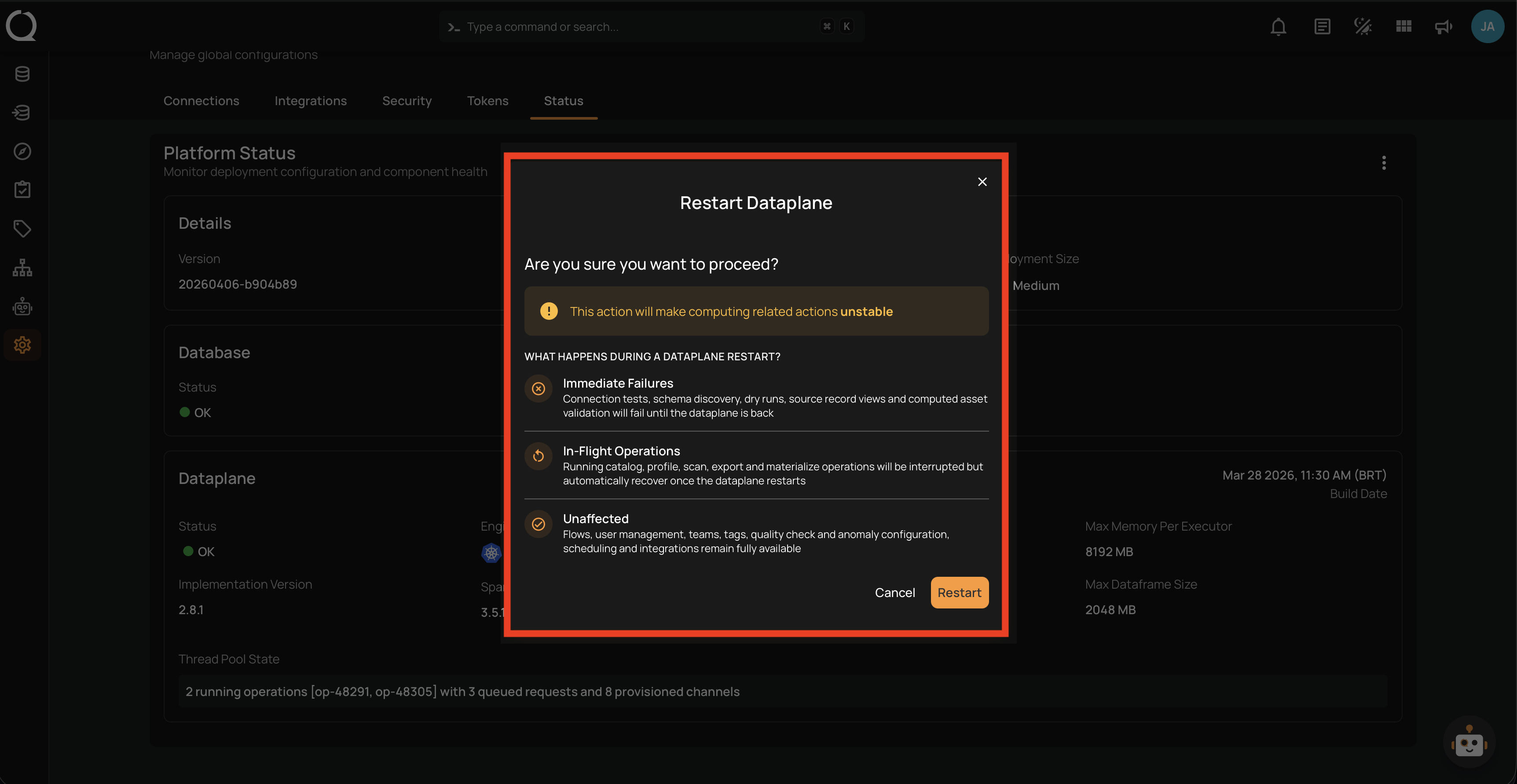
Connection tests, schema discovery, dry runs, source record views, and computed asset validation will fail until the dataplane is back.
In-flight operations
Running Sync, Profile, Scan, External Scan, Export, and Materialize operations will be interrupted but are automatically re-enqueued and resume once the dataplane restarts.
Unaffected
Flows, user management, teams, tags, quality check and anomaly configuration, scheduling, and integrations remain available.
Steps
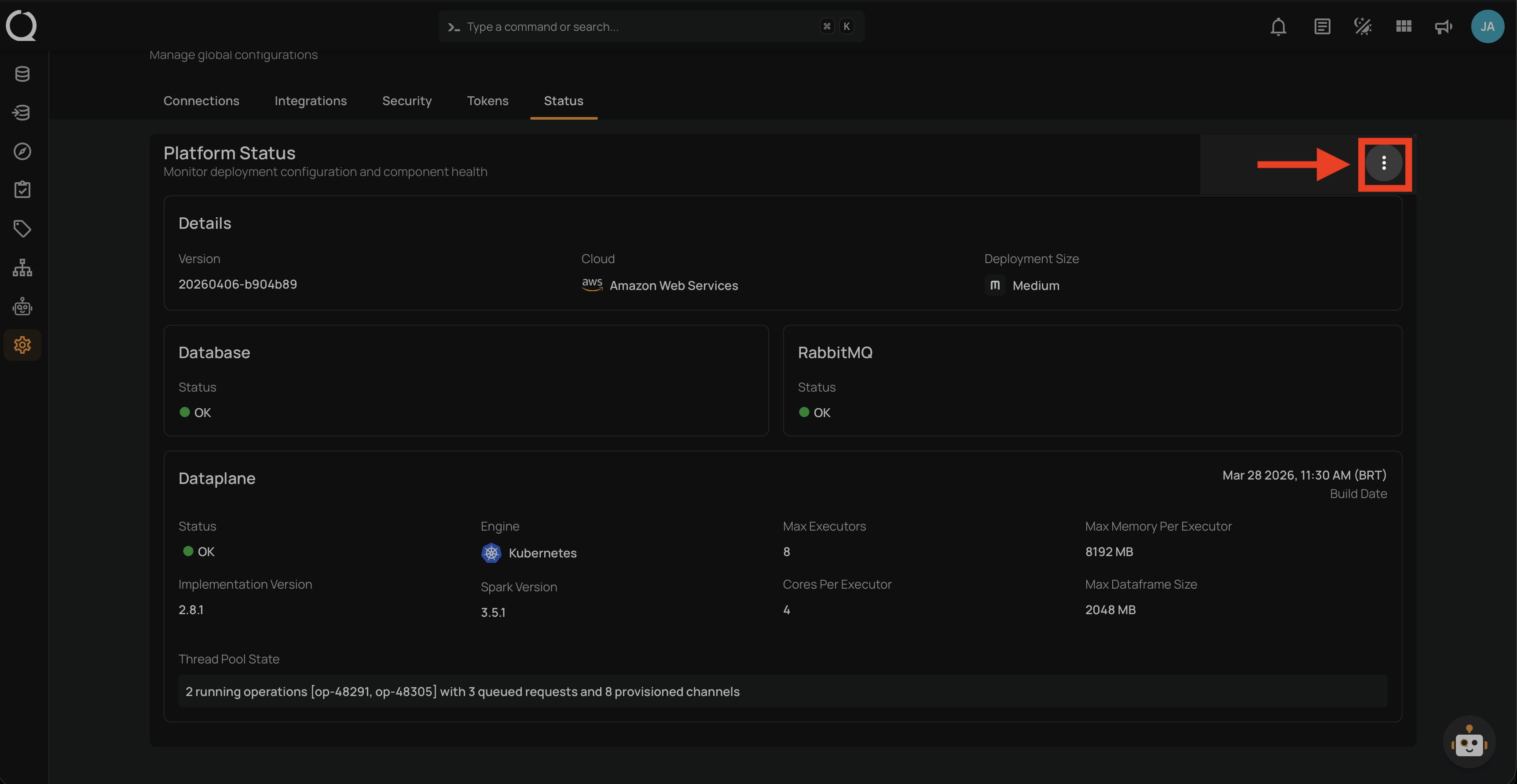
Step 1: Click the vertical ellipsis button at the top-right corner of the Platform Status section.
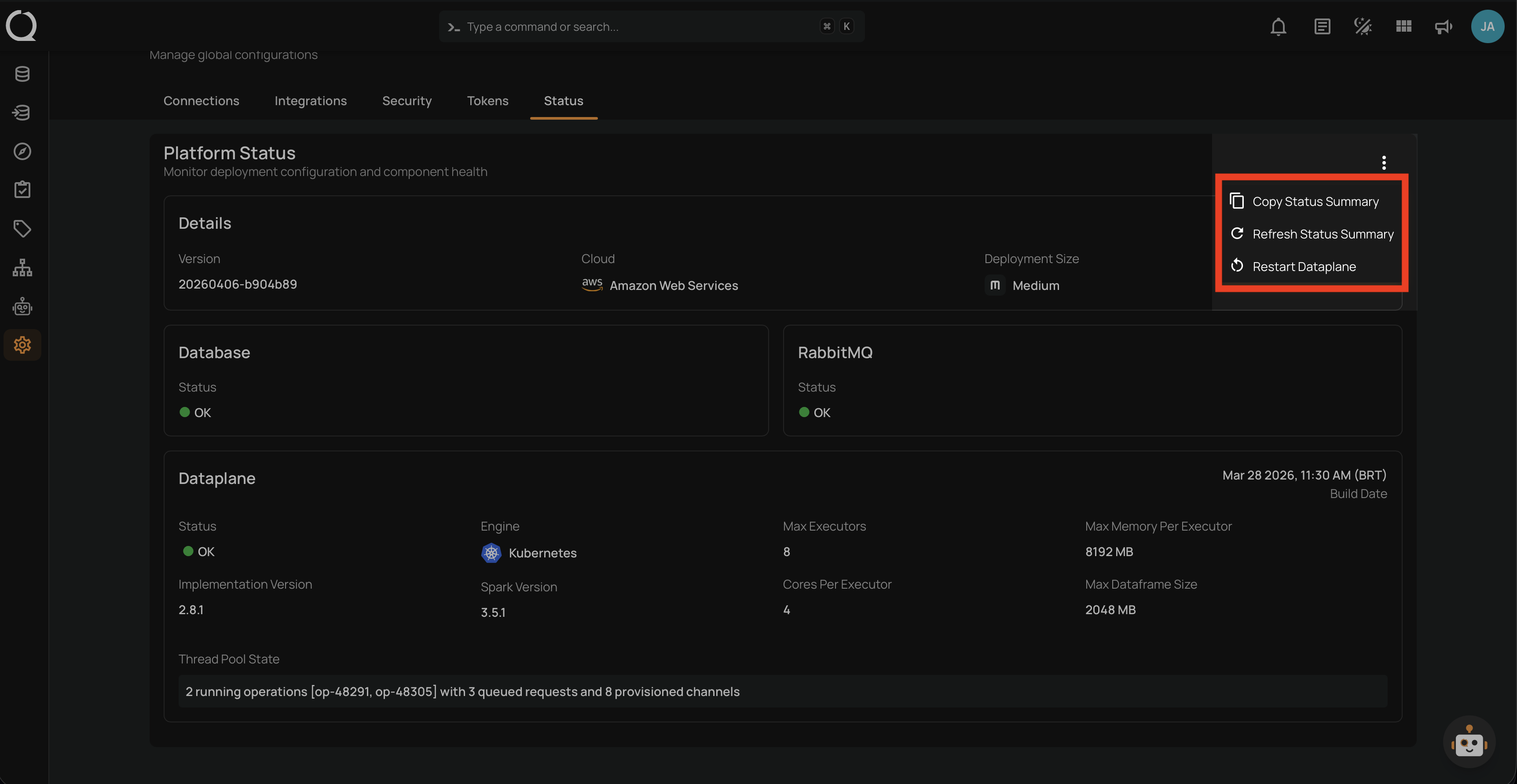
Step 2: A dropdown menu appears with the available actions.
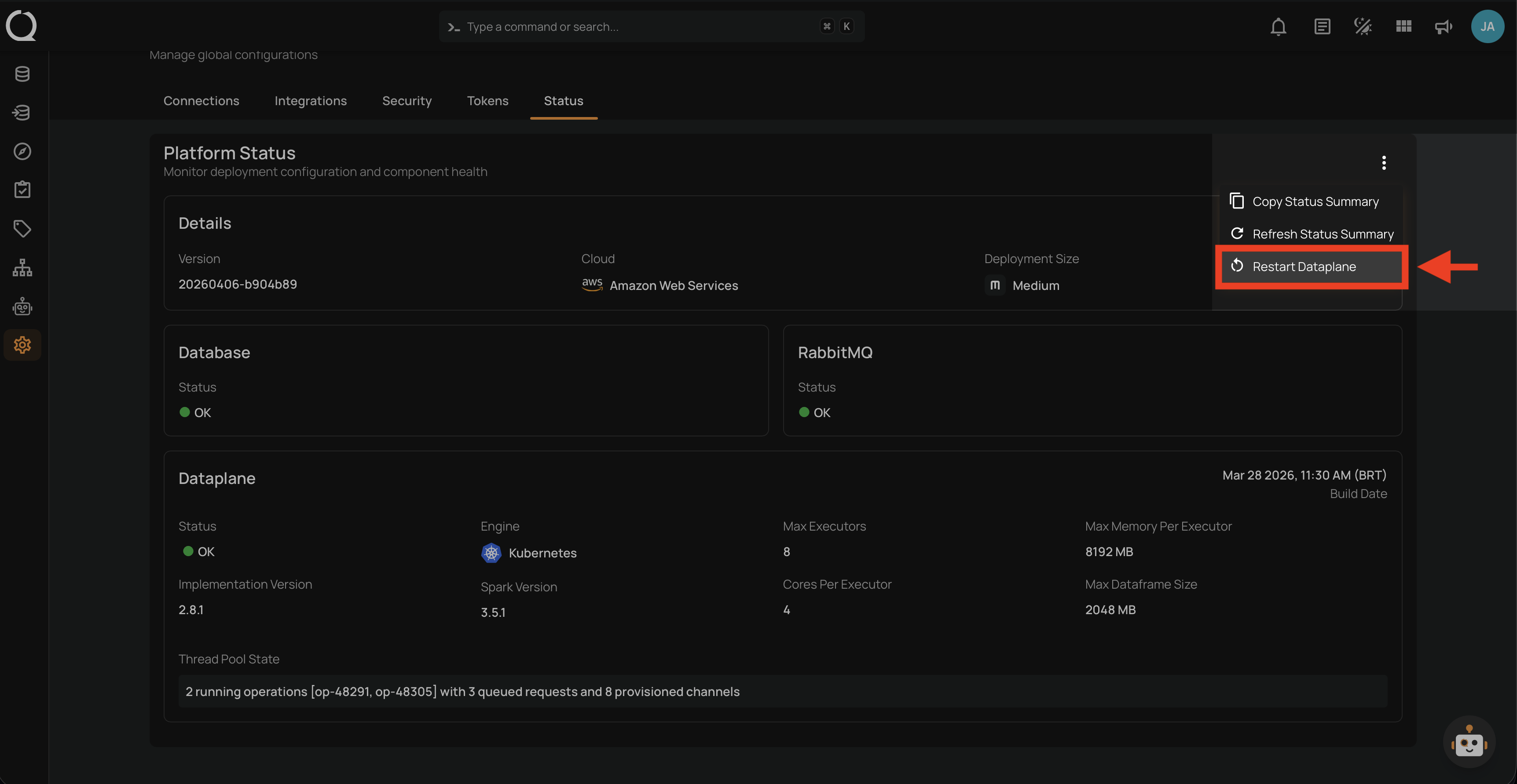
Step 3: Select Restart Dataplane from the dropdown menu.
Step 4: A confirmation modal appears with the restart impact warning. Click Restart to confirm.
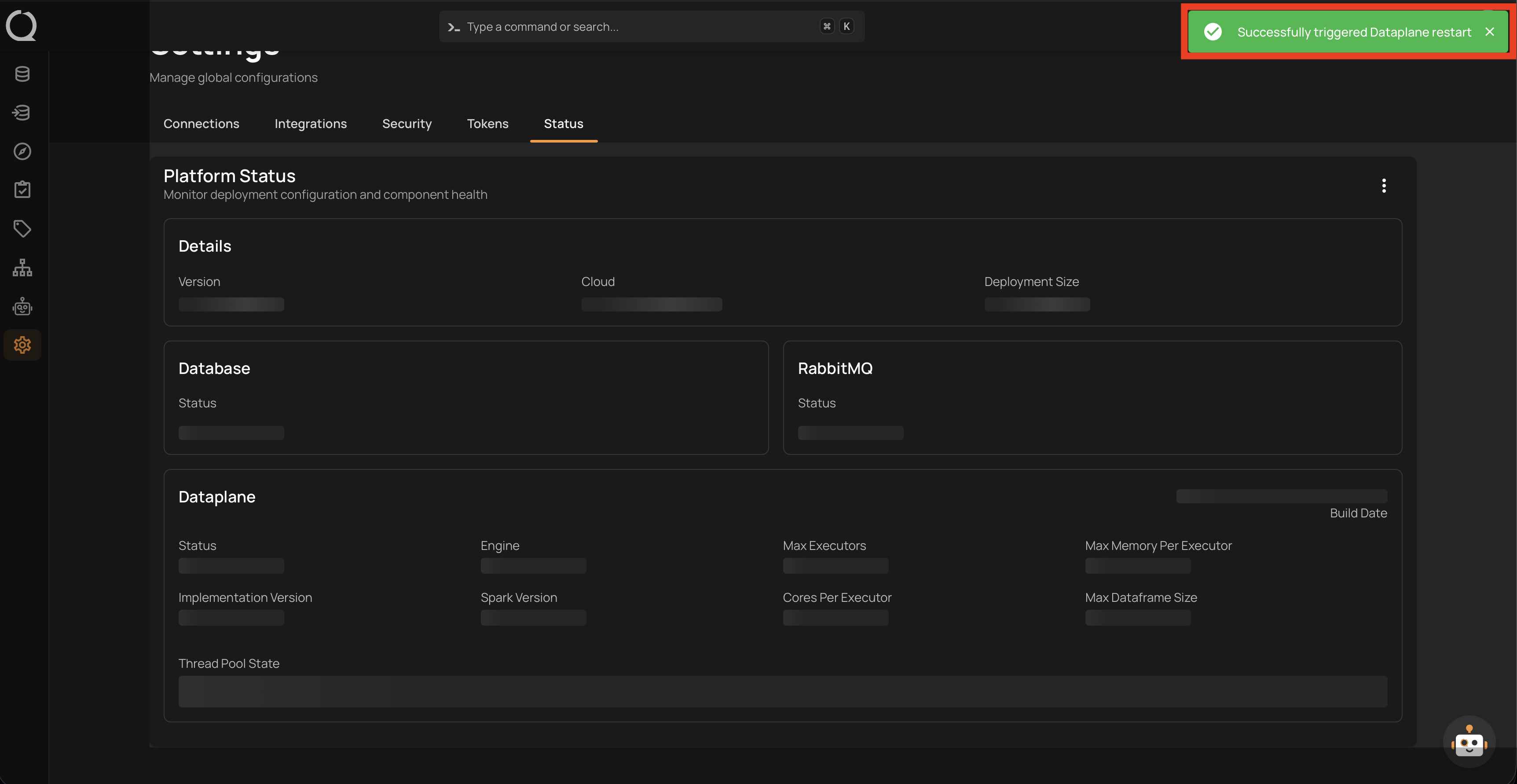
Step 5: A success notification appears confirming "Successfully triggered Dataplane restart". The page displays loading indicators while the dataplane restarts.
Note
After restarting, the dataplane may show as UNHEALTHY while it restarts. Use the Refresh Status Summary action or wait for the page to update automatically.