Apply a Filter Preset
Apply a saved filter preset to update the Explore page filter bar with its datastore and tag combination.
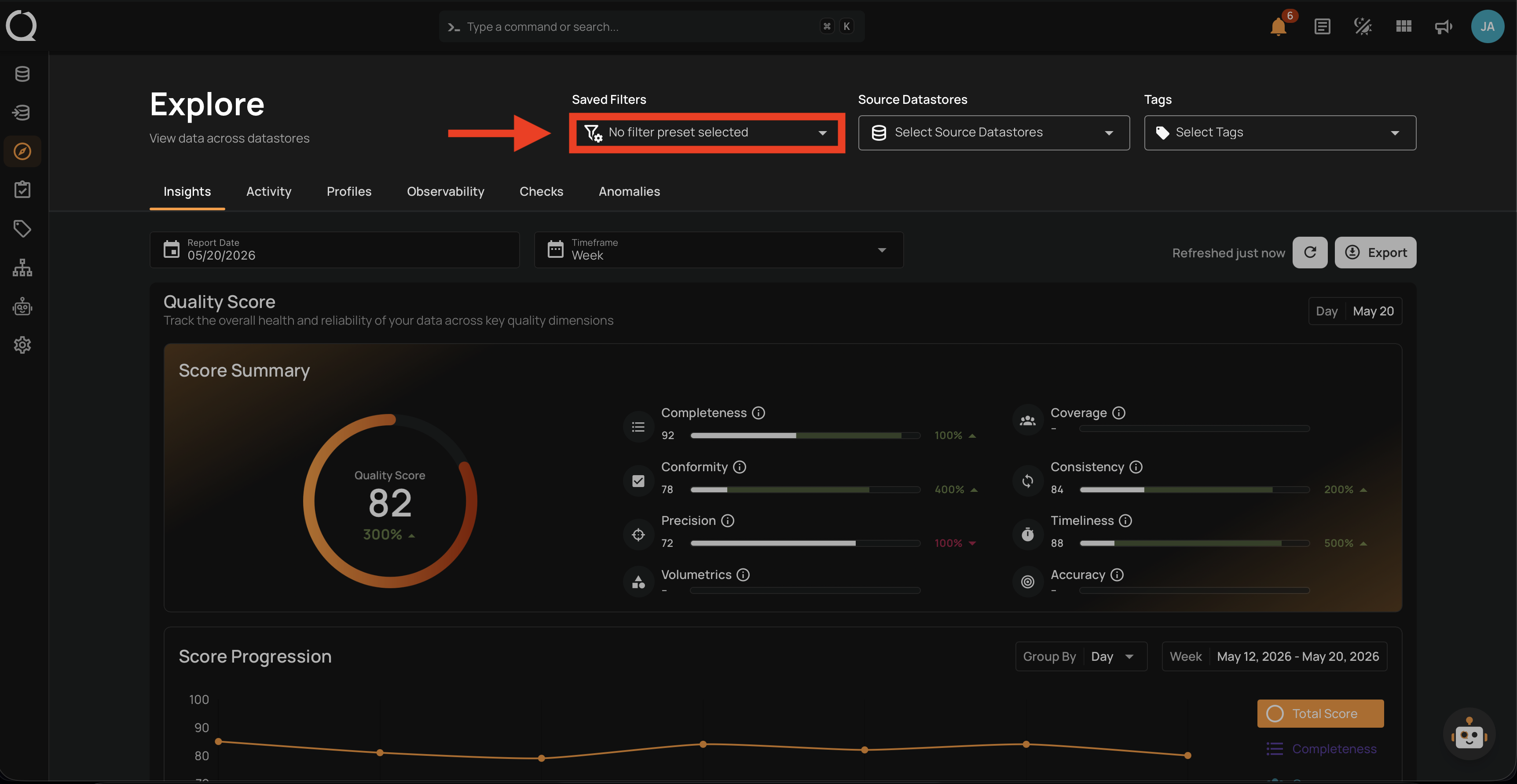
Step 1: Locate the Saved Filters dropdown in the Explore page filter bar.
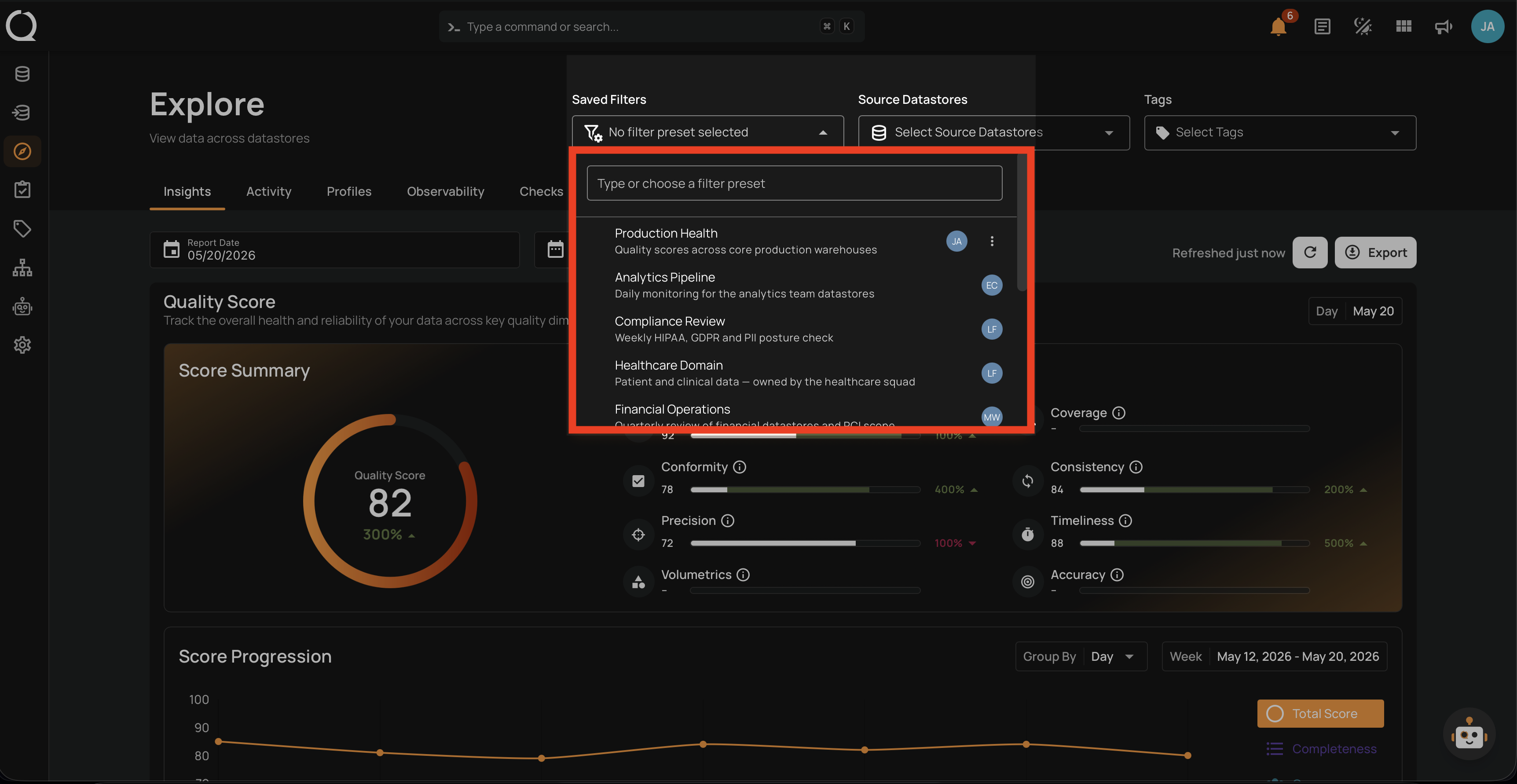
Step 2: Click the Saved Filters dropdown to open it. It shows the list of accessible presets with a search box at the top.
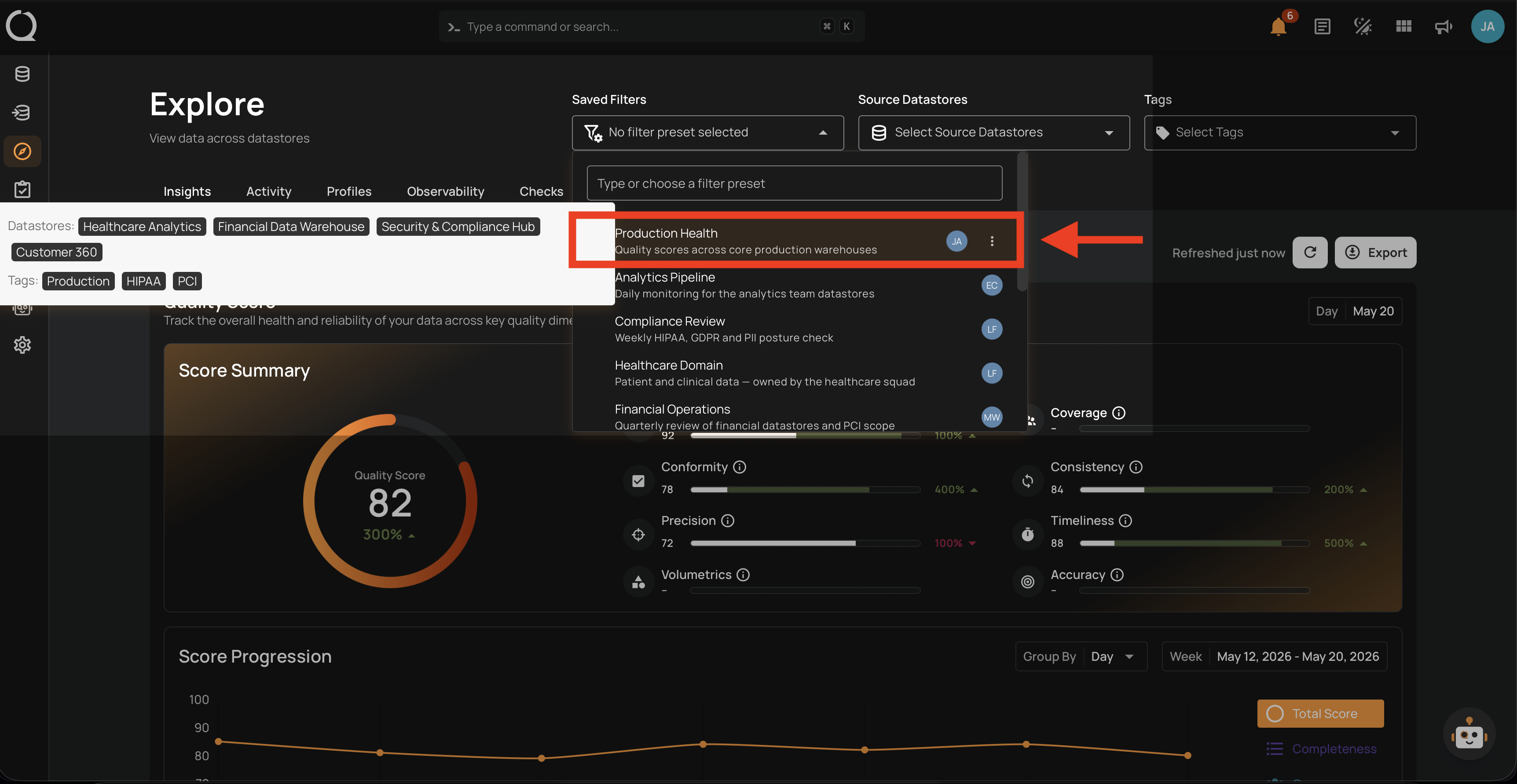
Step 3: Click the preset you want to apply.
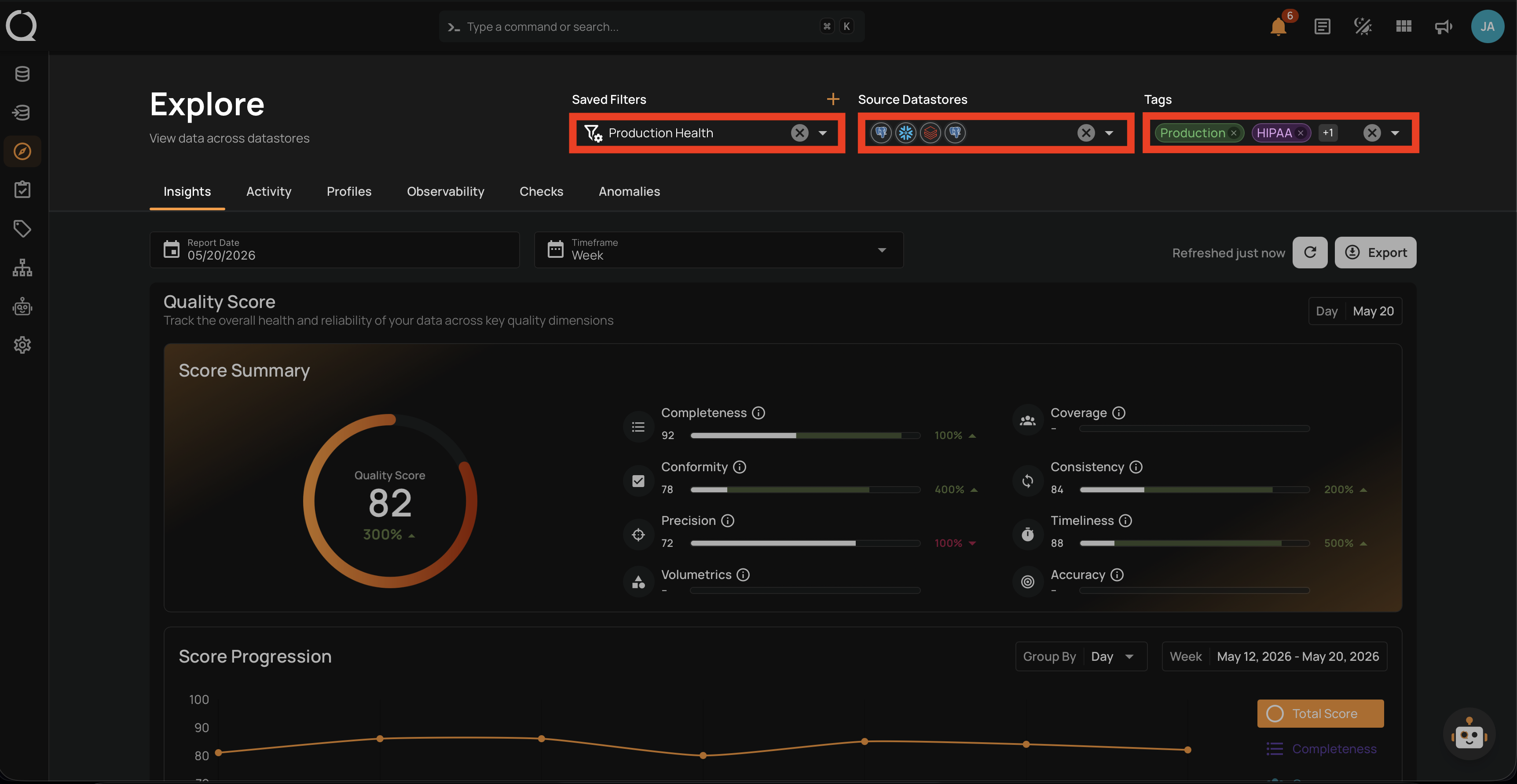
Step 4: The filter bar updates with the preset's saved datastores and tags, and the Explore tabs refresh. The page URL also updates so you can copy and share the link to restore the same filtered view for someone else.
Shared links
When someone opens a link to an applied preset, that preset takes priority over any previously selected one. If the viewer cannot access the preset (deleted, or its datastores are outside the viewer's team), the page falls back to the default unfiltered view without showing an error message.