Update a Filter Preset
Update a filter preset's name, description, or saved filter selection. All three changes depend on the same permission: Members can update only the presets they created; Manager and Admin can update any visible preset. See Permissions for details.
Update the Name or Description
Step 1: Locate the Saved Filters dropdown in the Explore page filter bar.
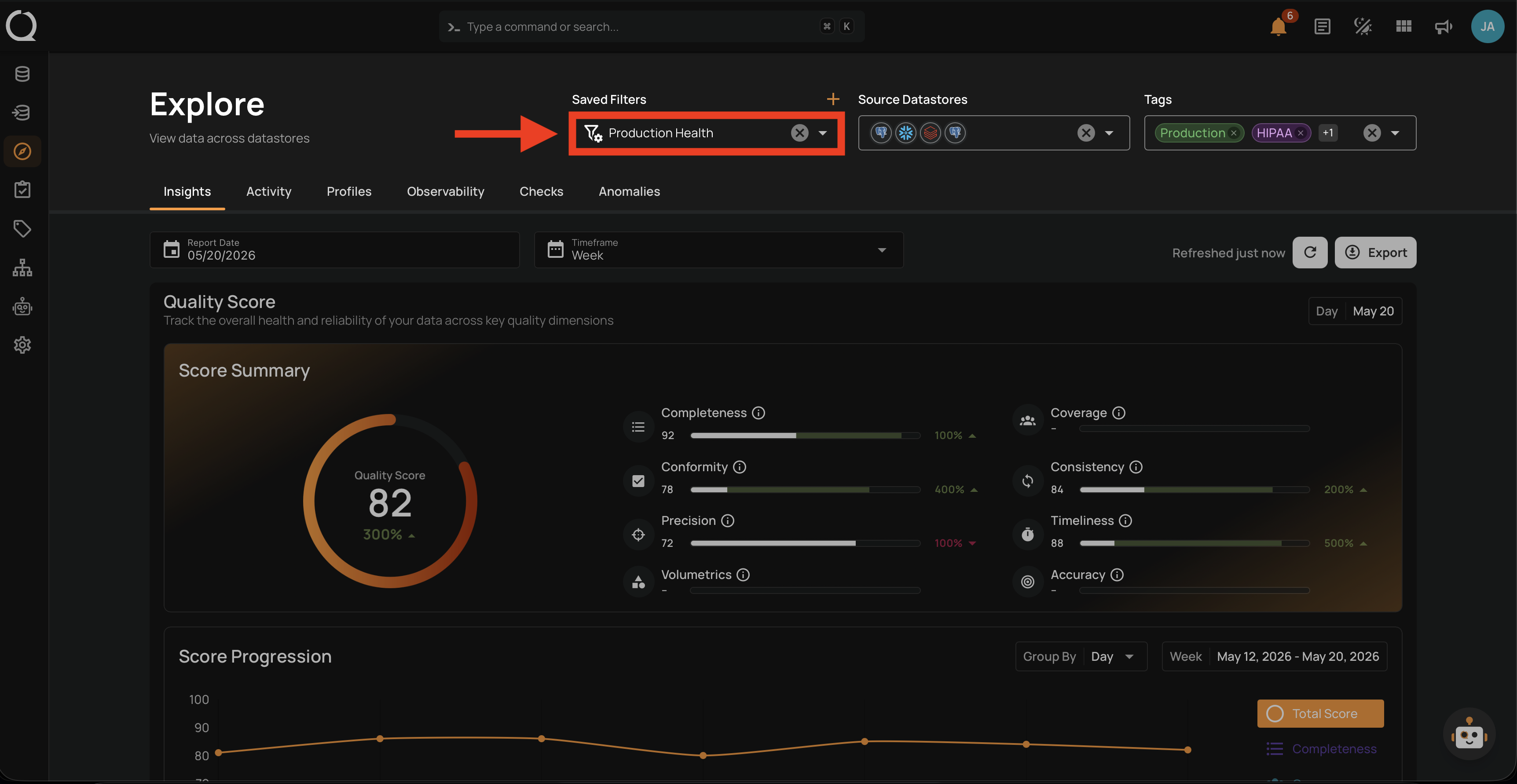
Step 2: Click the Saved Filters dropdown to open it.
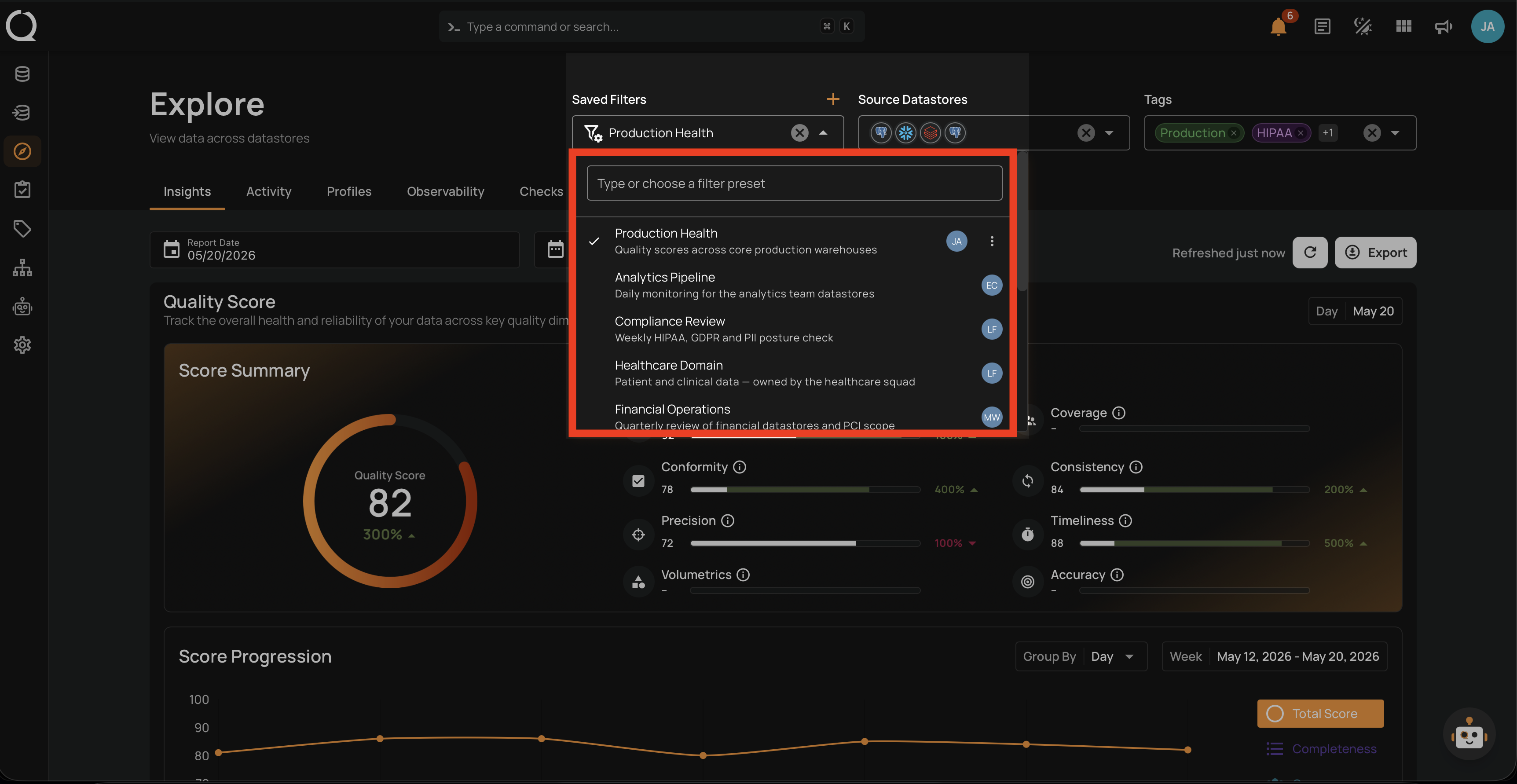
Step 3: Hover over the preset you want to edit. The actions menu appears next to its name.
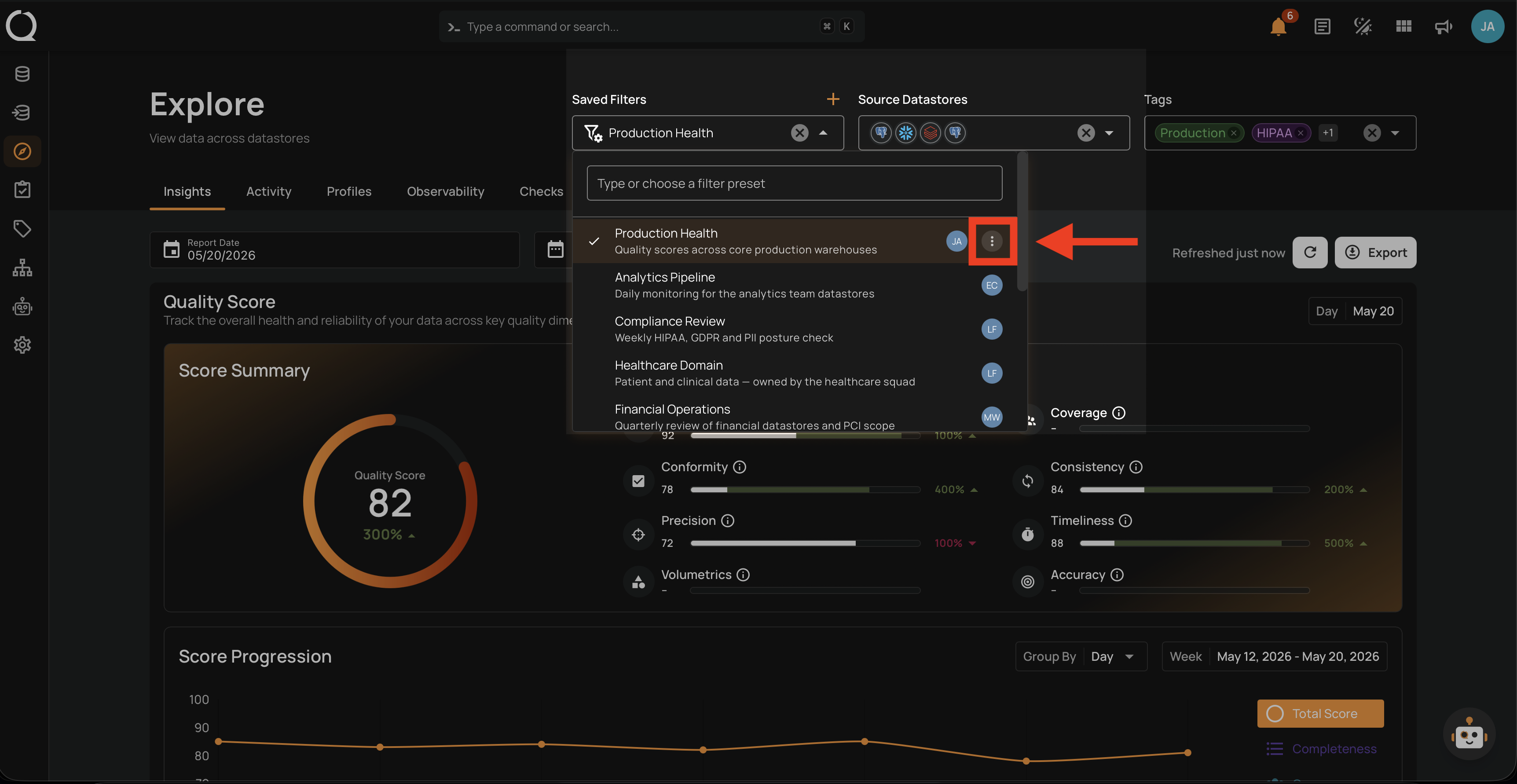
Step 4: Click the actions menu to open it.
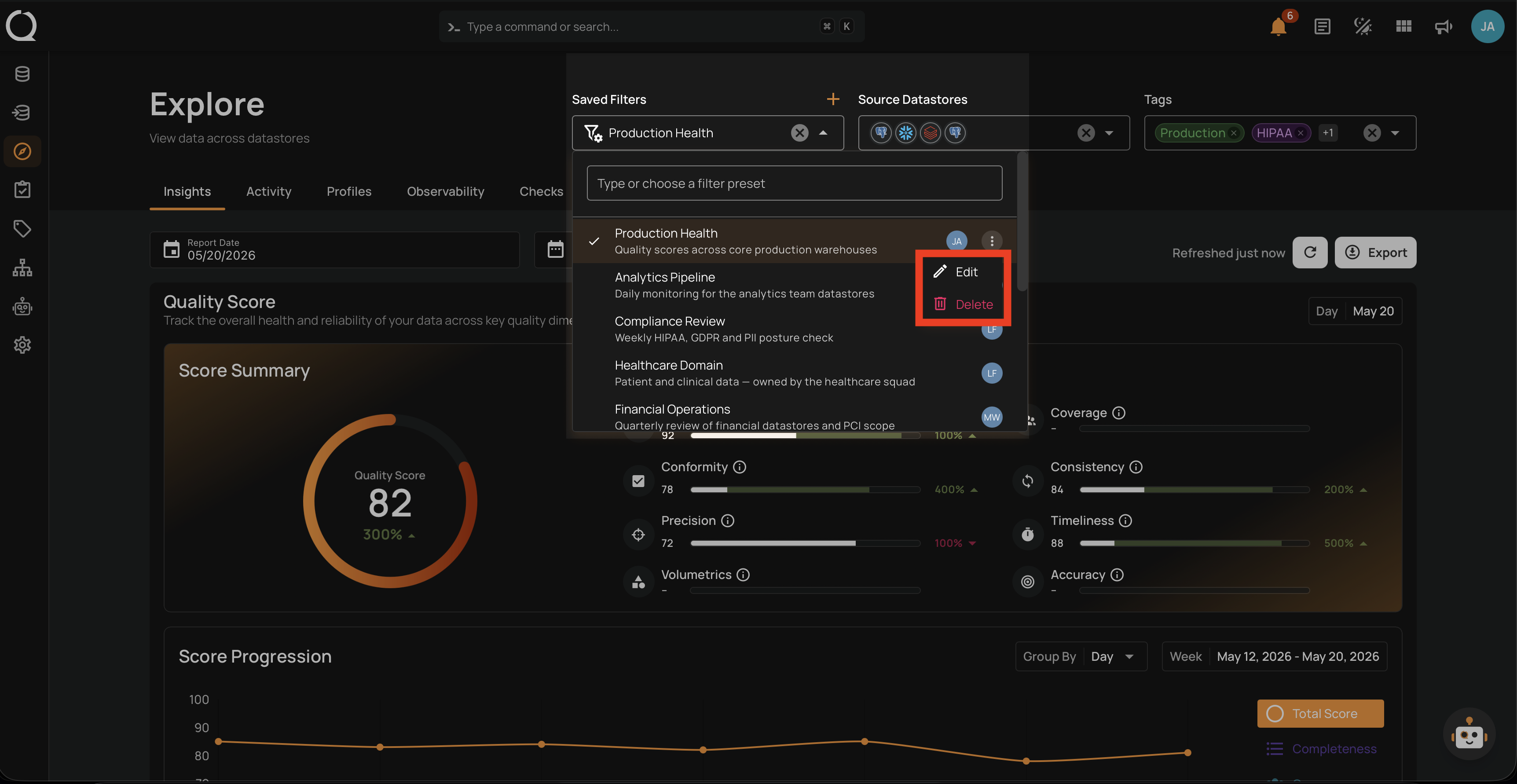
Step 5: Choose Edit .
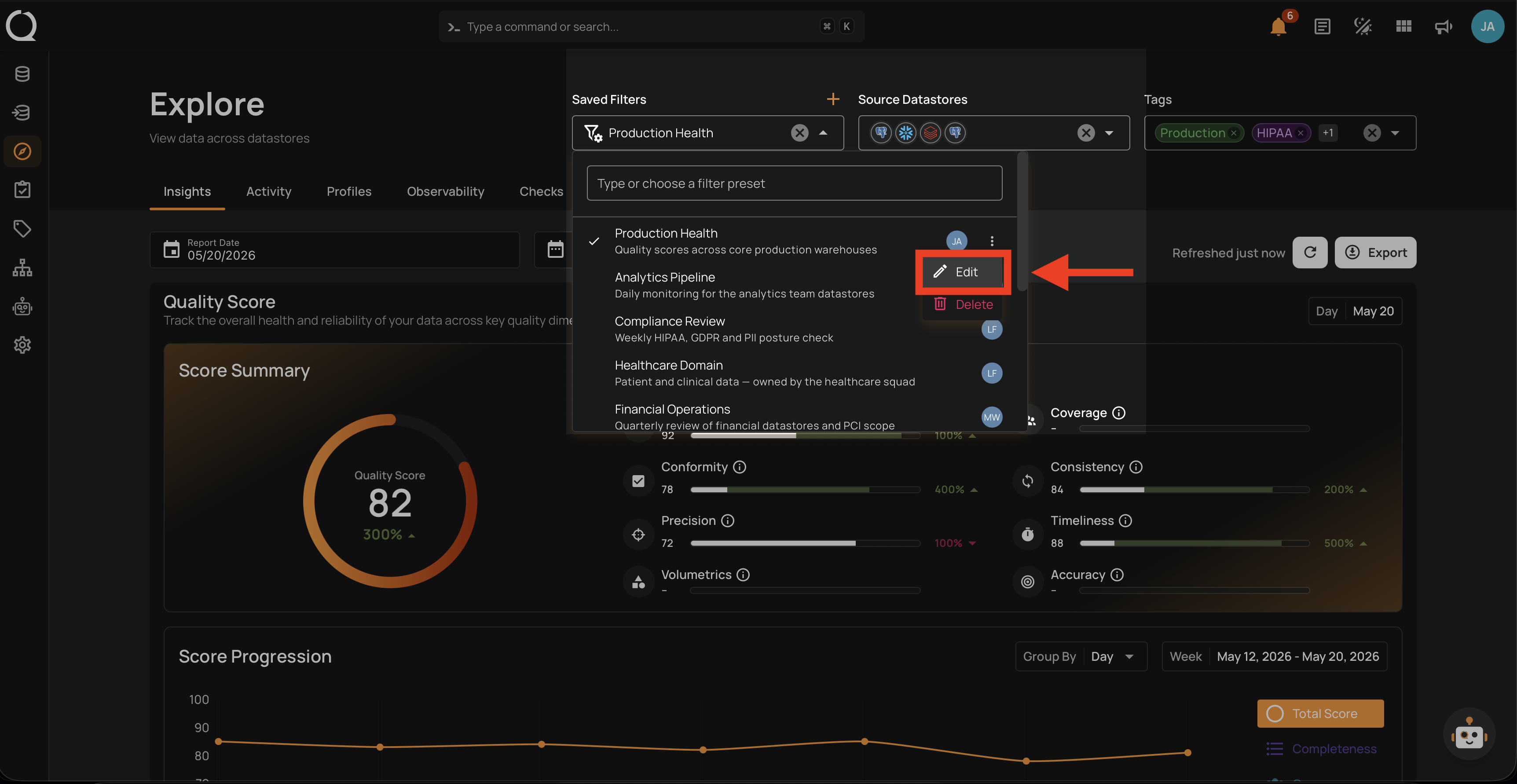
Step 6: The Edit Filter Preset dialog opens with the current Name and Description.
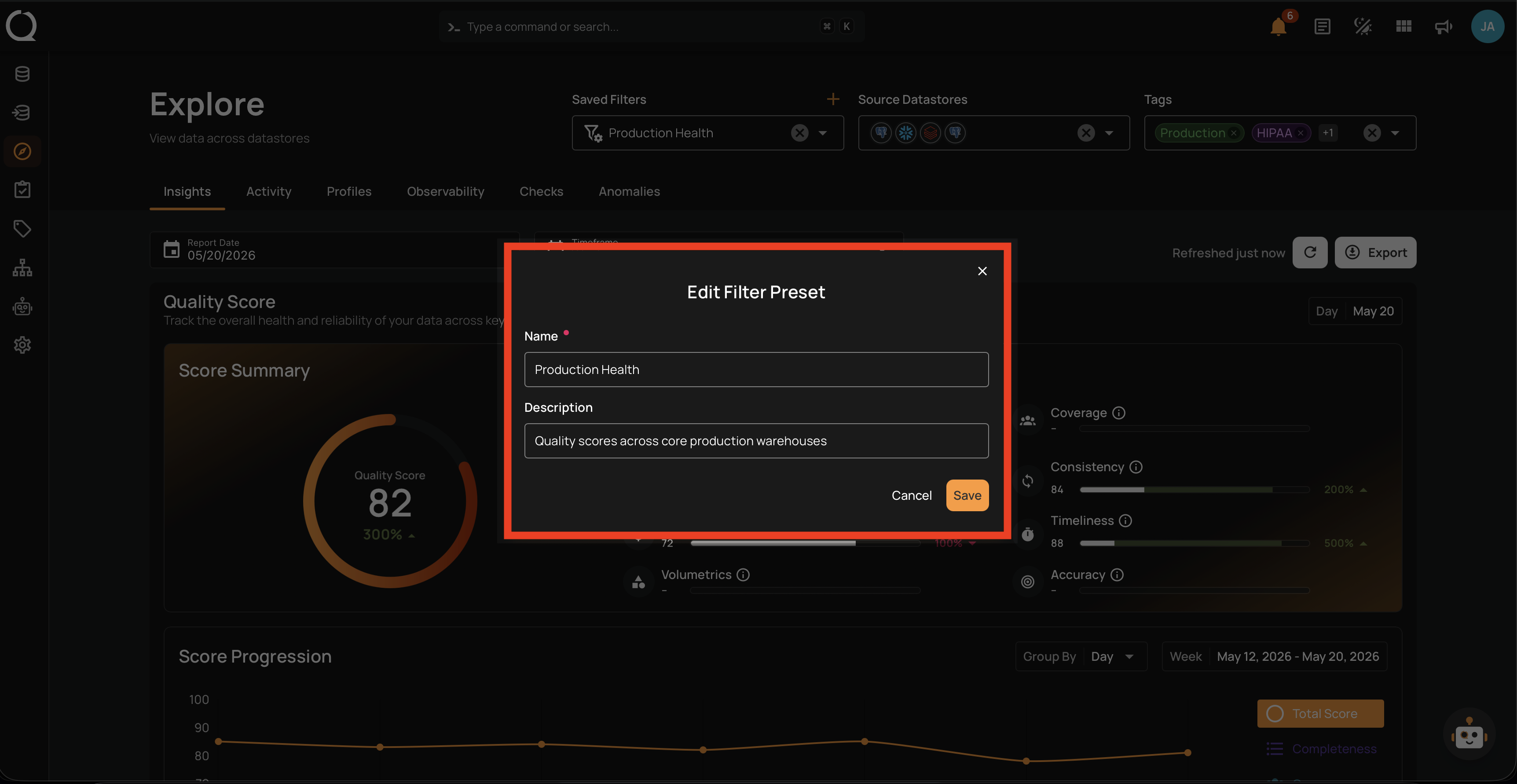
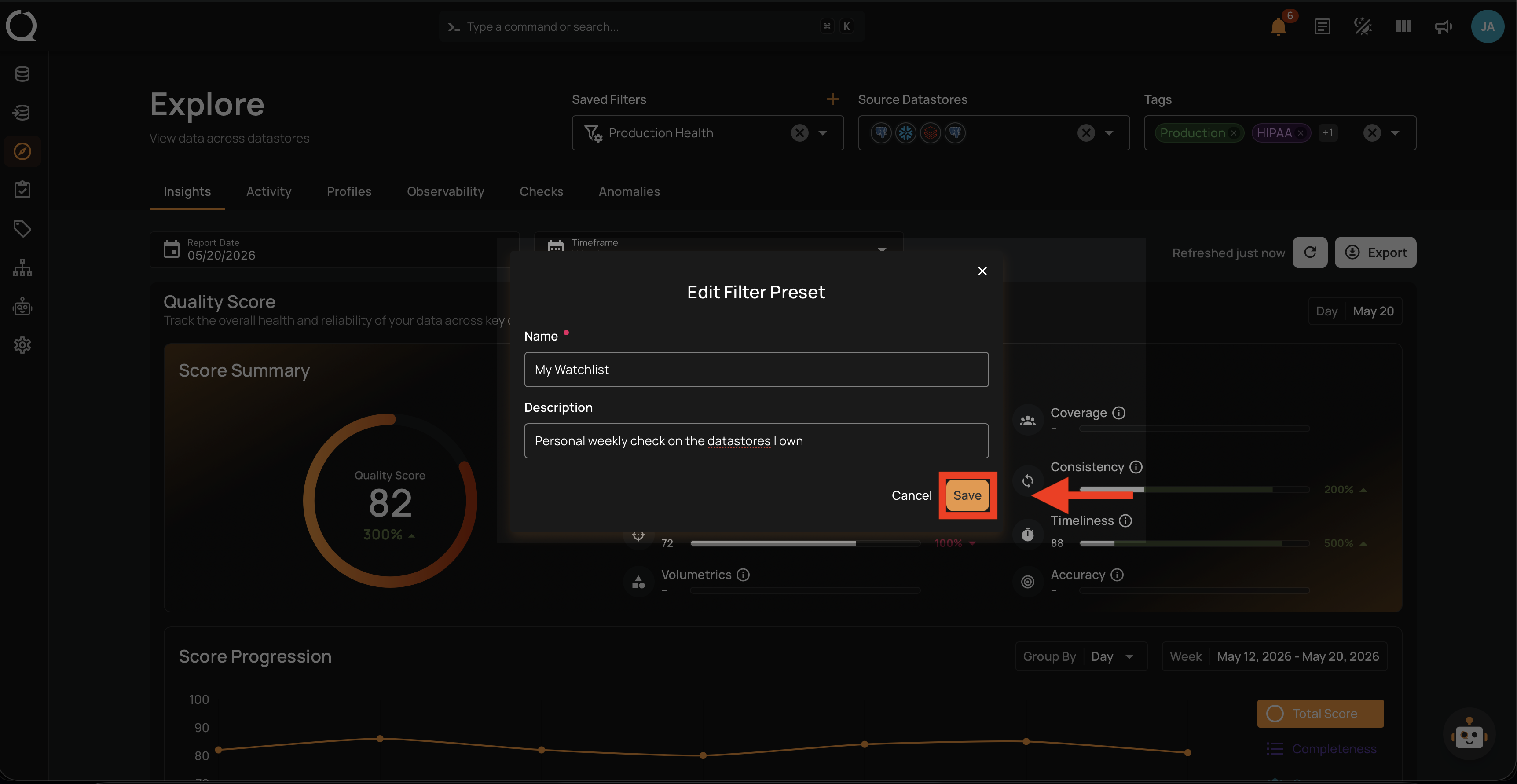
Step 7: Update the Name or Description and click Save.
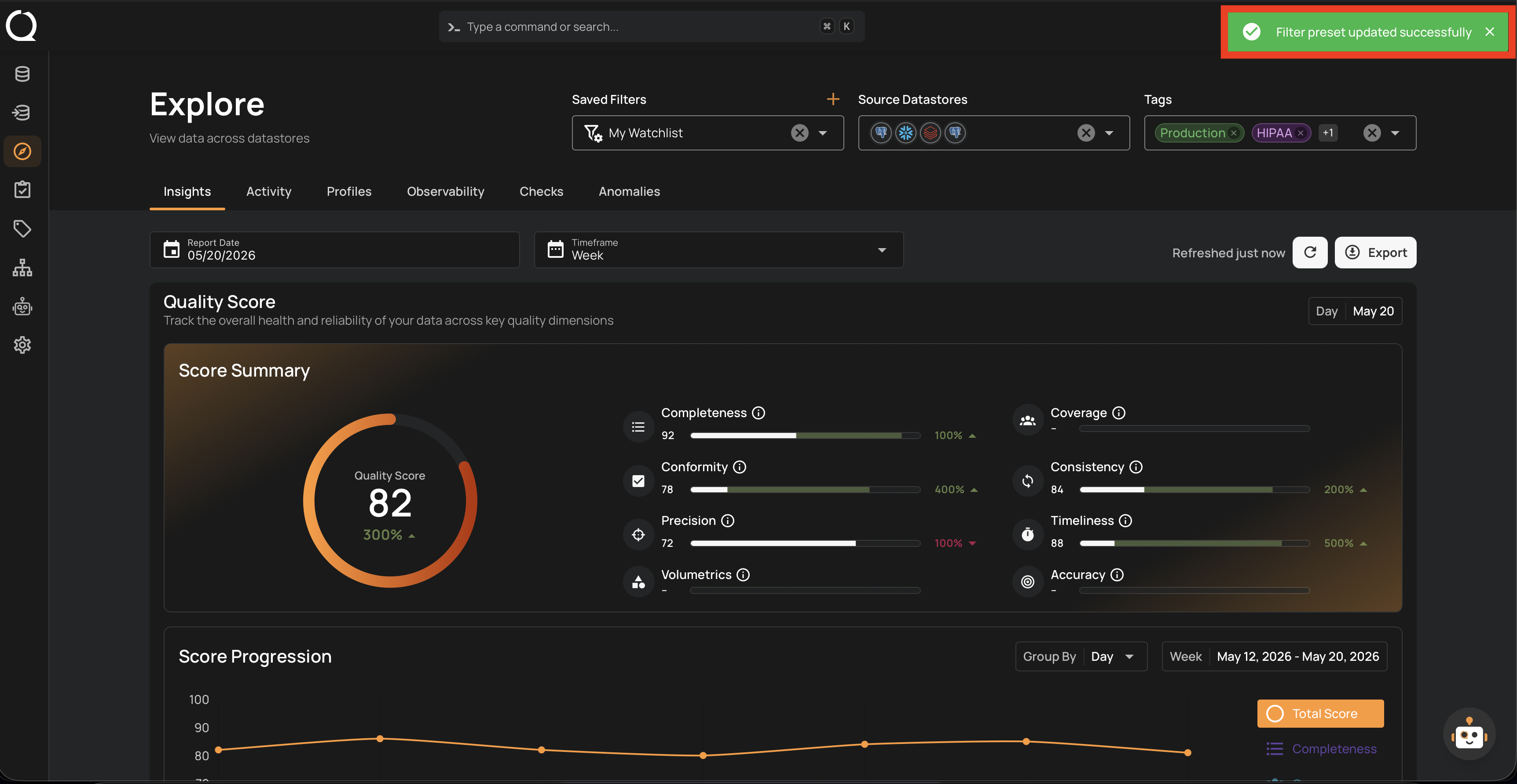
Step 8: A success message appears, and the Saved Filters dropdown updates to show the new name.
Actions menu visibility
The actions menu only appears on presets you have permission to modify. If the menu does not appear on a preset, you cannot edit or delete that preset.
Update the Saved Filter Selection
When a preset is applied and you change the datastore or tag selection in the filter bar, two controls appear next to the Saved Filters label:
| Control | Behavior | When visible |
|---|---|---|
| Update preset | Updates the selected preset with the current filter selection. | Only if you have permission to edit the preset. |
| Reset to saved preset | Discards your changes and re-applies the preset's saved filters. | Always visible while there are unsaved changes. No edit permission required. |
If you do not have permission to edit a preset, the Update preset control is hidden. You can still apply local filter changes for your own view, or use Reset to saved preset to revert them.
Update the preset with current filter changes
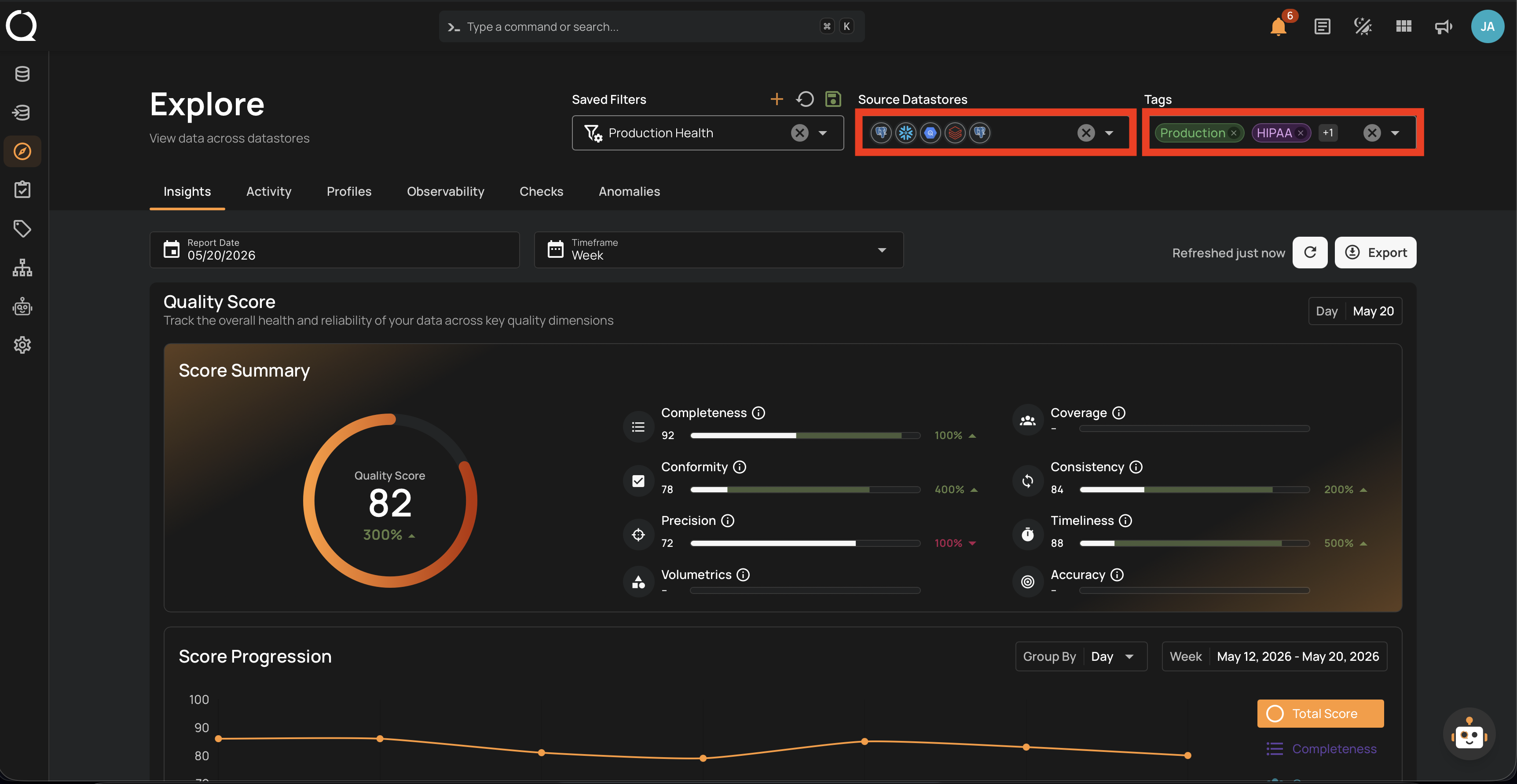
Step 1: Change the datastore or tag selection in the filter bar. The Update preset and Reset to saved preset icons appear next to Saved Filters.
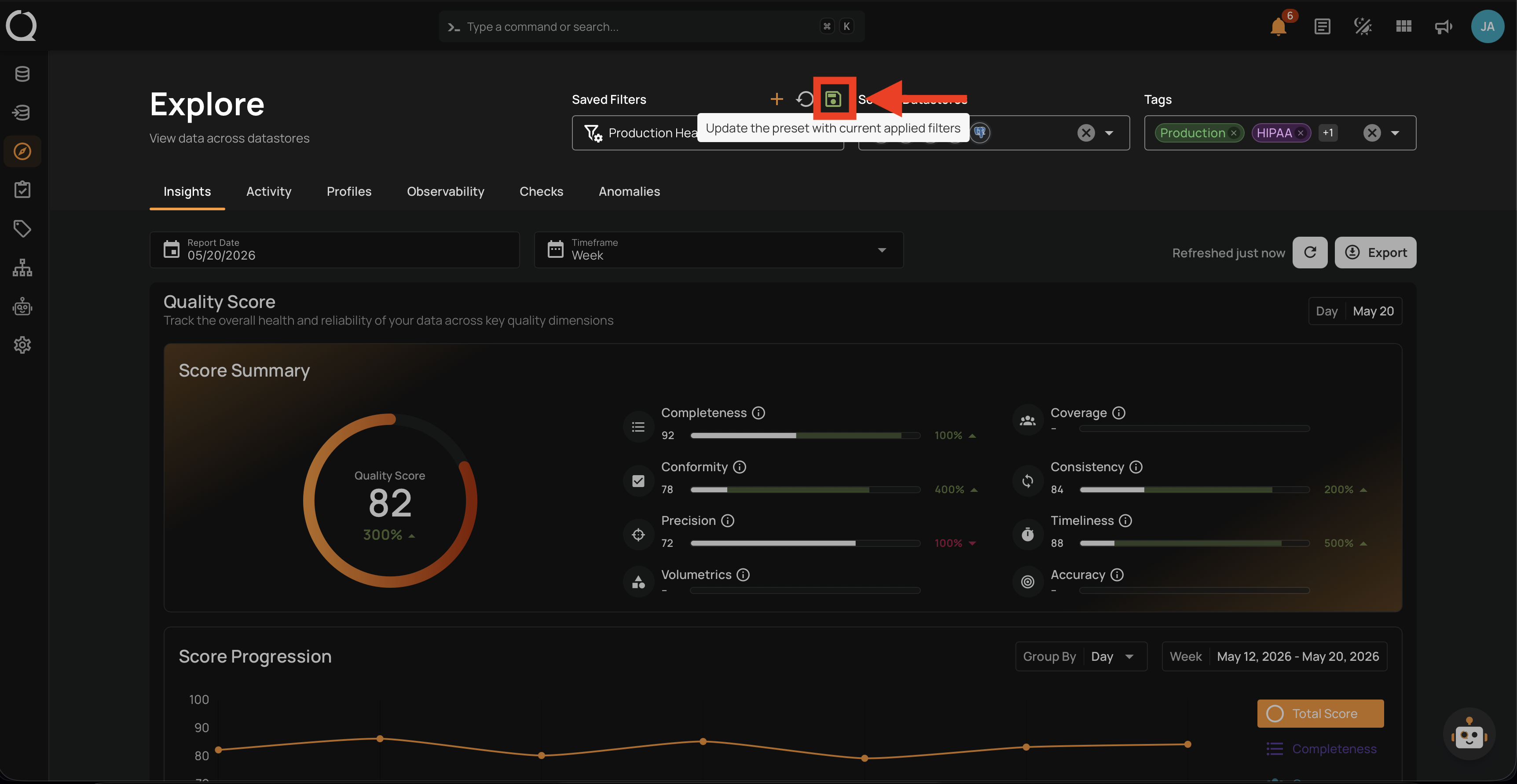
Step 2: Click the Update preset icon next to Saved Filters.
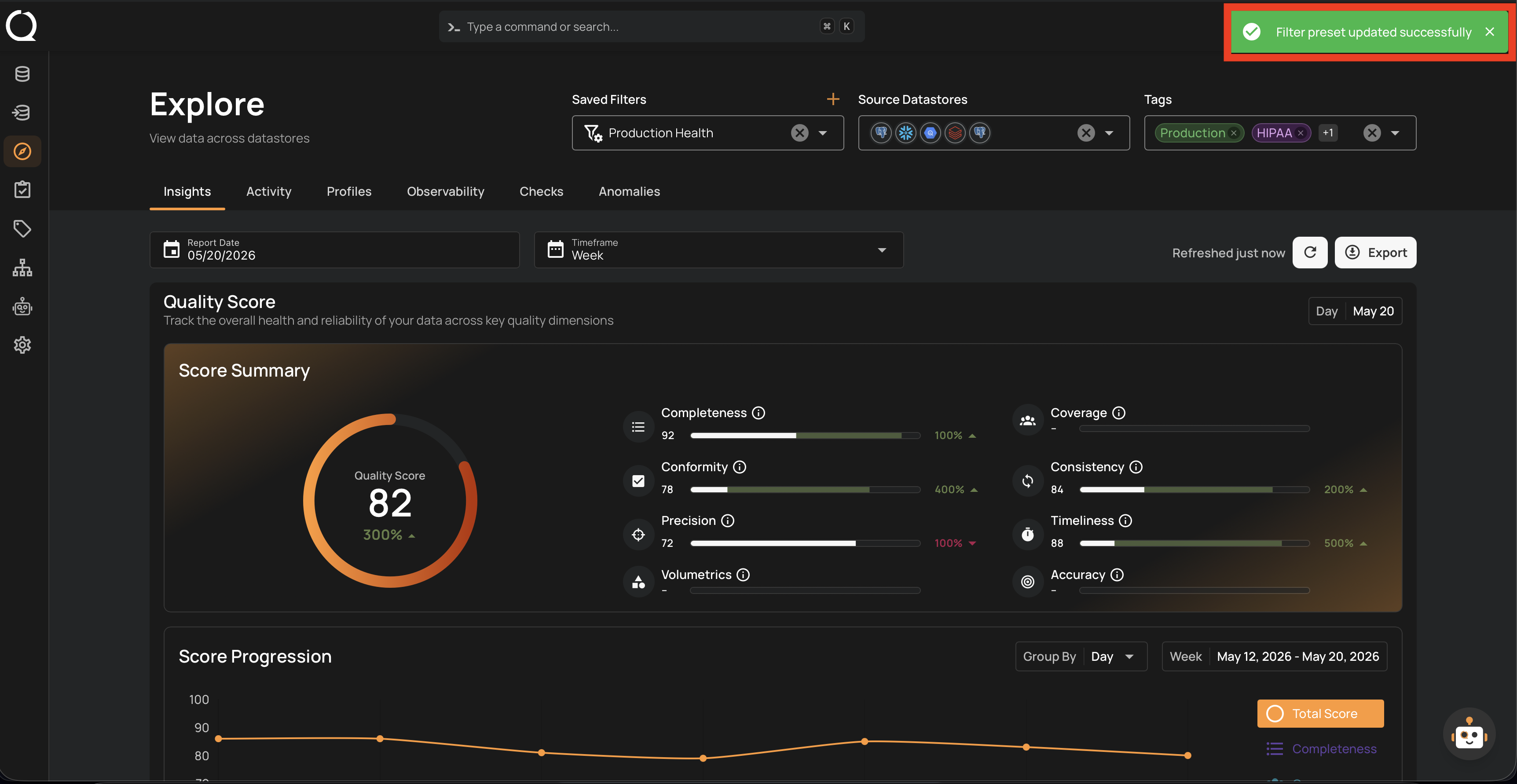
Step 3: A success message appears, and the preset is updated with the new filter selection.
Reset to the saved filter selection
Step 1: Click the Reset to saved preset icon next to Saved Filters.
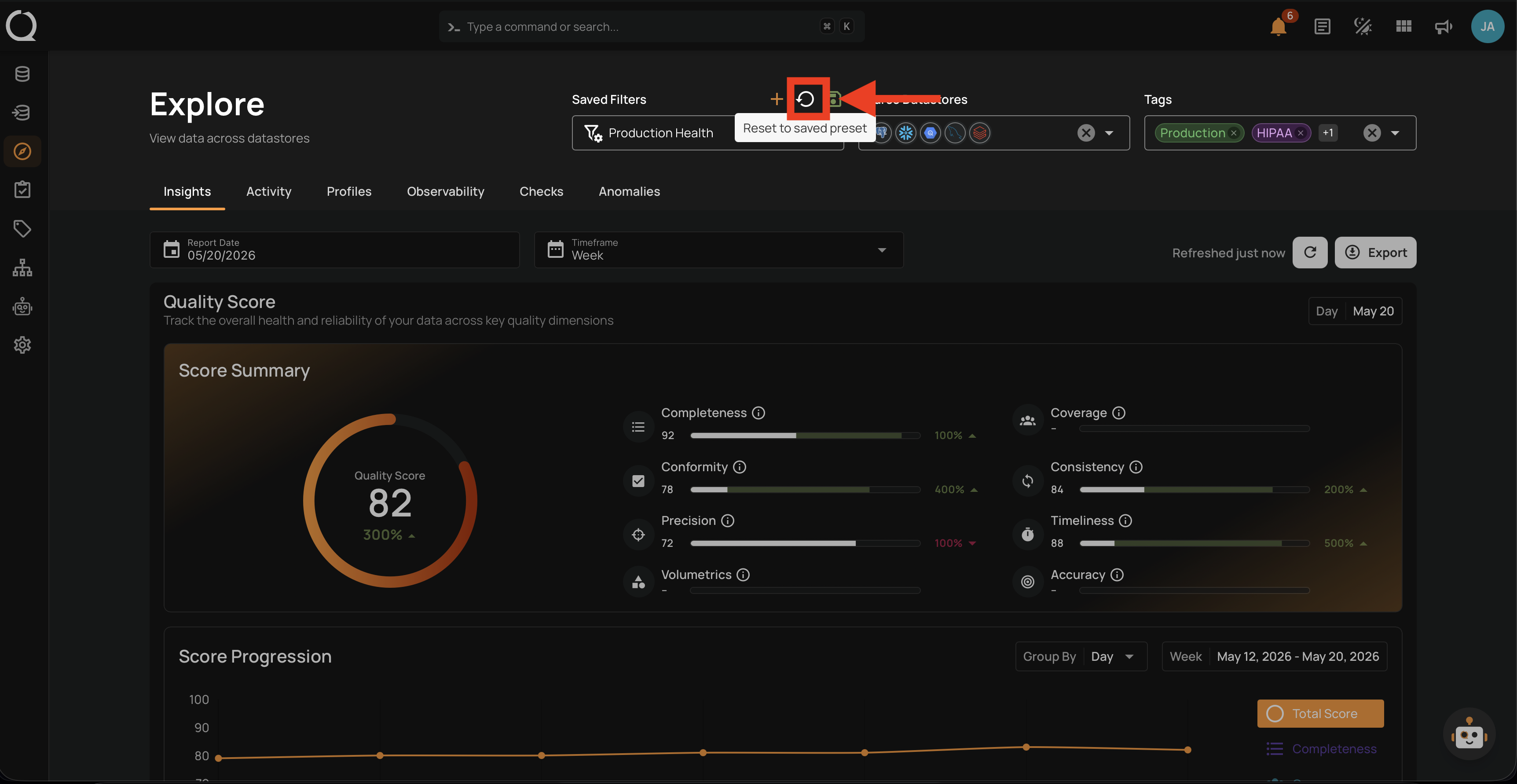
Step 2: The filter bar reverts to the preset's saved combination.