Unlink a ServiceNow Ticket
Remove the link between an anomaly in Qualytics and a ServiceNow incident. This only removes the association in Qualytics — the ServiceNow incident itself is not deleted or modified.
Permissions
Unlinking a ticket requires the Manager or Admin role, plus Author permission on the anomaly's datastore team. See the Permissions page for details.
Before You Unlink
Removing this link affects only the association in Qualytics — the ServiceNow incident itself is not modified. Specifically:
| Action | Effect |
|---|---|
| Link record in Qualytics | Deleted |
| ServiceNow incident | Unchanged — the incident stays in ServiceNow |
| Future sync events | No longer propagated to the unlinked incident |
| Anomaly status | Unchanged |
Note
Work notes and status updates previously synced to the ServiceNow incident (from earlier acknowledges, archives, or comments in Qualytics) remain in ServiceNow as part of the incident history. They are not removed when the link is unlinked.
Steps
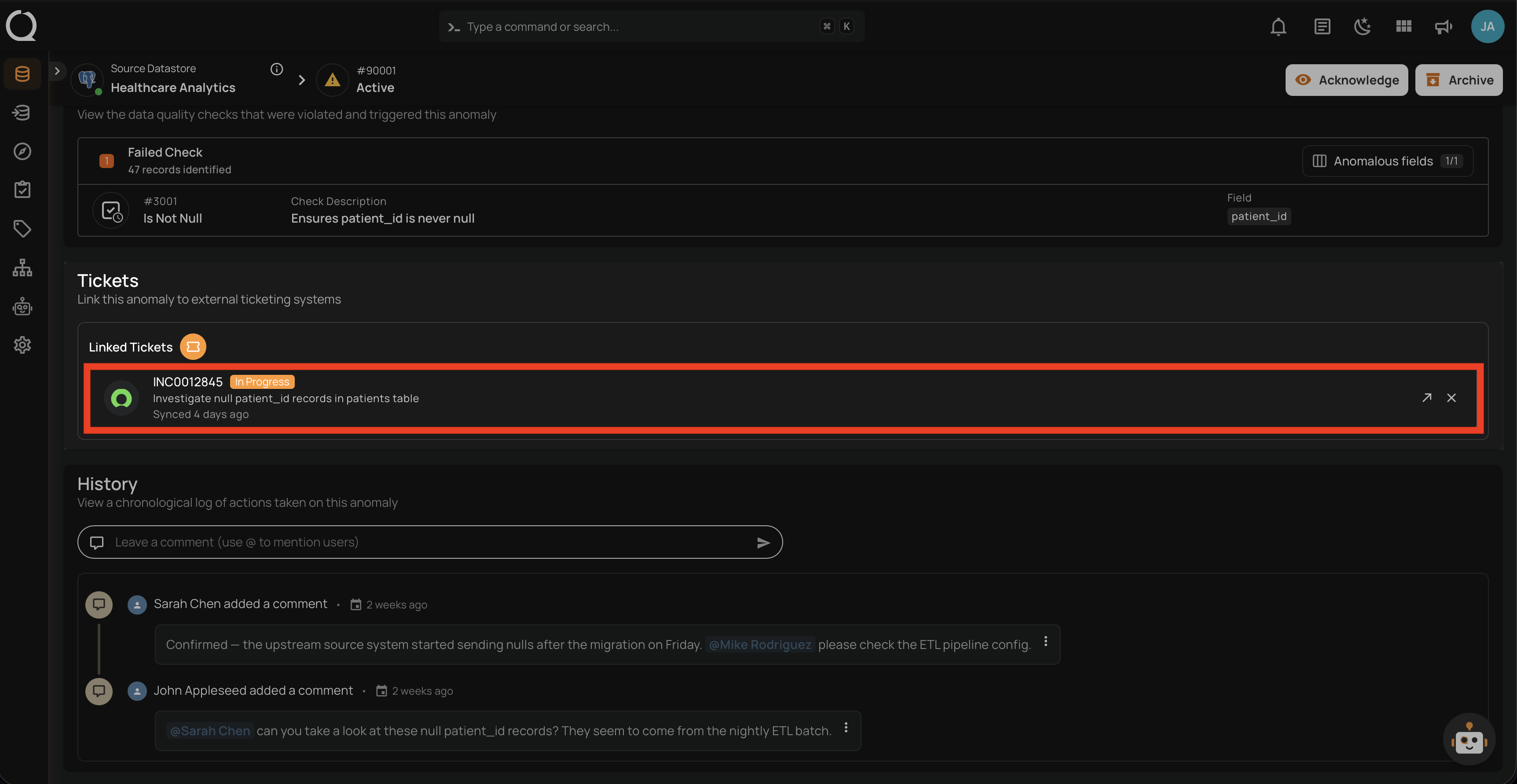
Step 1: Open the anomaly in Qualytics and scroll to the Linked Tickets section. Locate the ServiceNow incident you want to unlink.
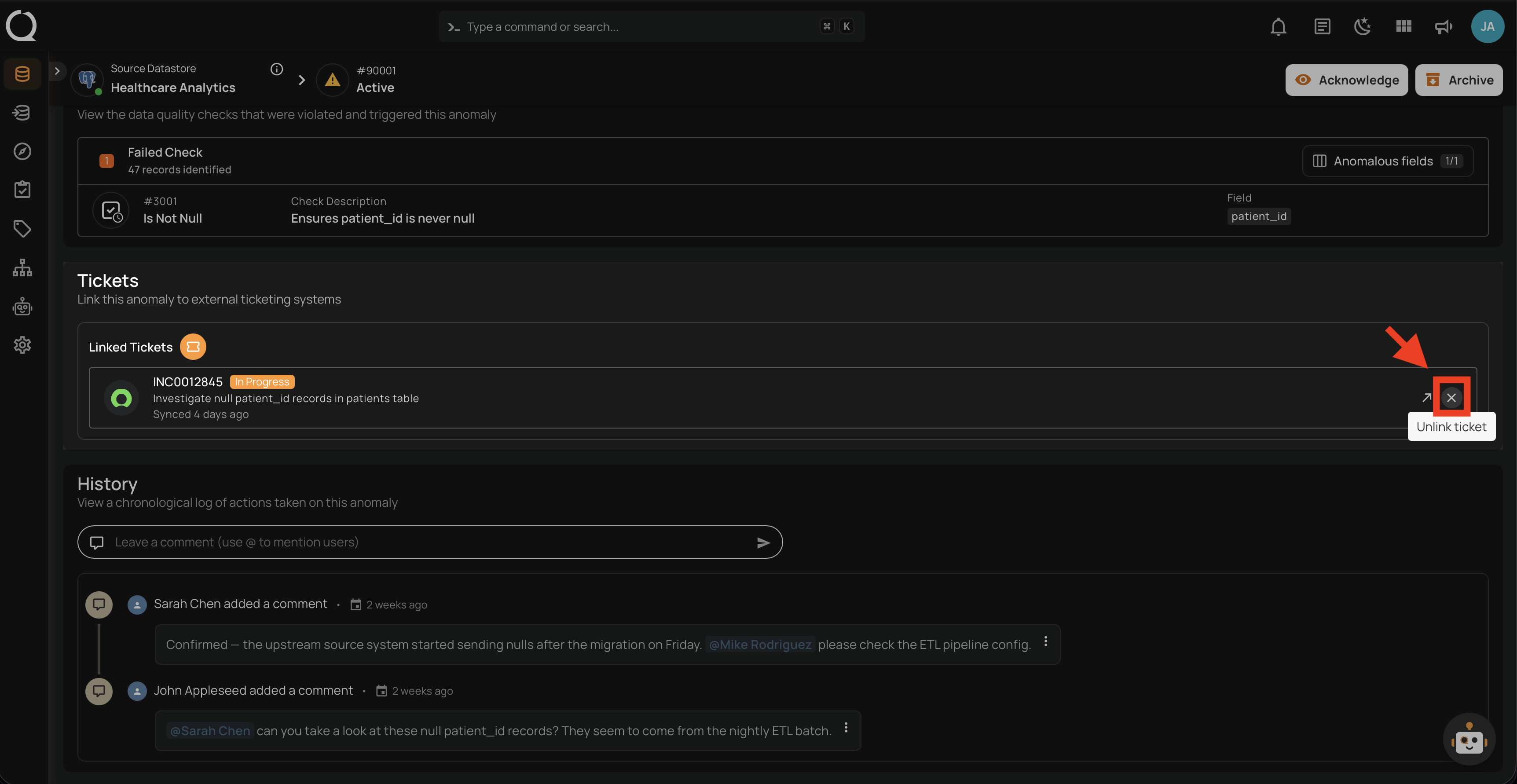
Step 2: Hover over the ticket row and click the Unlink ticket button on the right side.
No Confirmation
Unlinking happens immediately — there is no confirmation prompt. If you unlink by mistake, you can link the ticket again.
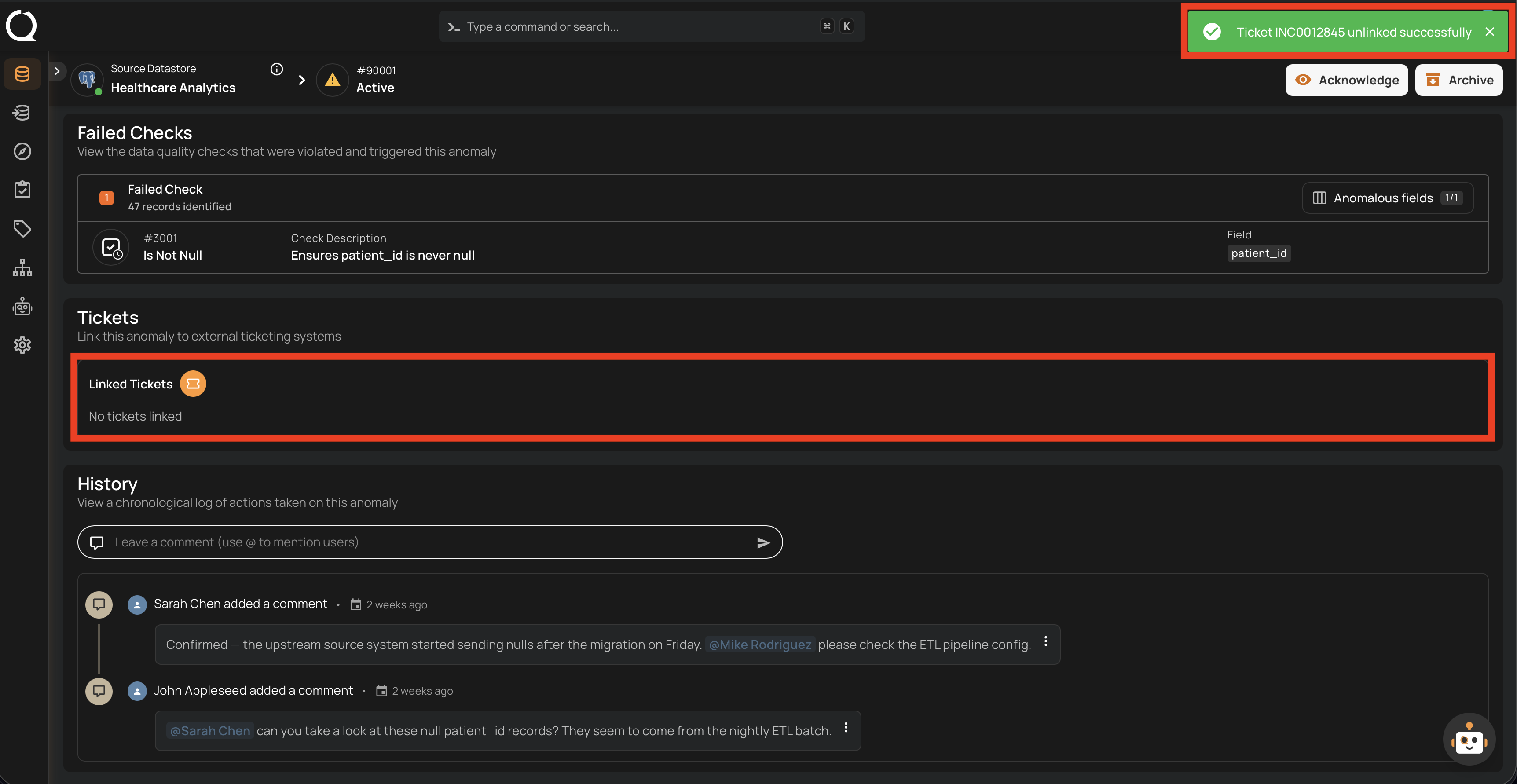
Step 3: A success notification appears, and the Linked Tickets section shows No tickets linked (or the remaining tickets if there were others).