ServiceNow Tips & Tricks
Understand how linked ServiceNow incidents appear in Qualytics, how status syncs work, and make the most of the integration.
Linked Tickets Section
Once linked, tickets appear in the Linked Tickets section of the anomaly.
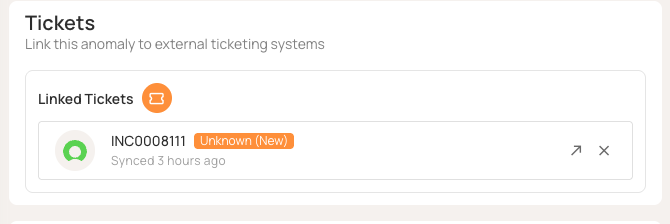
Each entry shows:
- Incident number (e.g.,
INC0008111) — clickable to expand details - Status — ServiceNow incident status as of the last sync
- Synced X ago — relative time of the most recent update Qualytics pushed to ServiceNow
- A View button to open the ticket directly in ServiceNow
Syncing Status and Comments
When anomaly status changes in Qualytics:
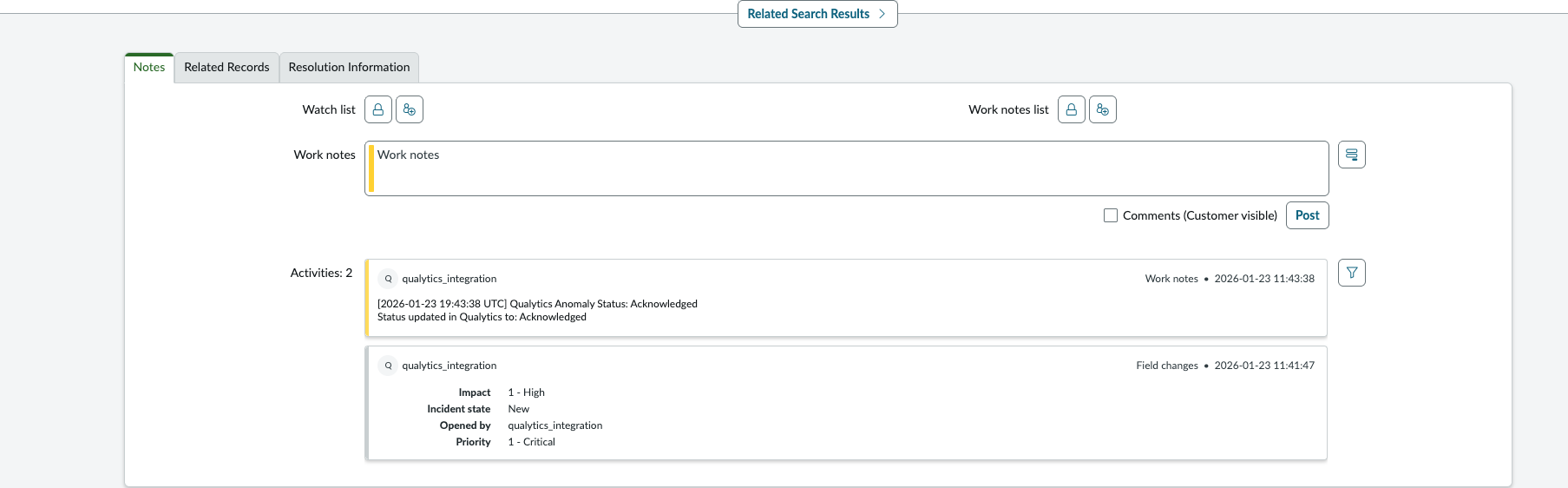
- Adds a timestamped work note to the linked ServiceNow incident
Example: Acknowledging an anomaly in Qualytics:
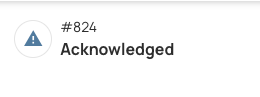
The status change is reflected in ServiceNow as a work note:
Note
Status changes add work notes but do not change the incident's state. This preserves your ServiceNow workflow control.
Tip
Multiple tickets can be linked to a single anomaly. Use this to track related issues across different teams or instances.