Personal Tokens List Columns
The Personal Tokens list displays each token across several columns, each providing quick insight into the token's state and usage. This page explains what each column shows and how to interact with it — from left to right.
Permissions
Any user with at least the Member role can view their own Personal Tokens. See the Permissions page for details.
Info
For a detailed explanation of token states, expiration behavior, and usage tracking, see the How It Works page.
Token
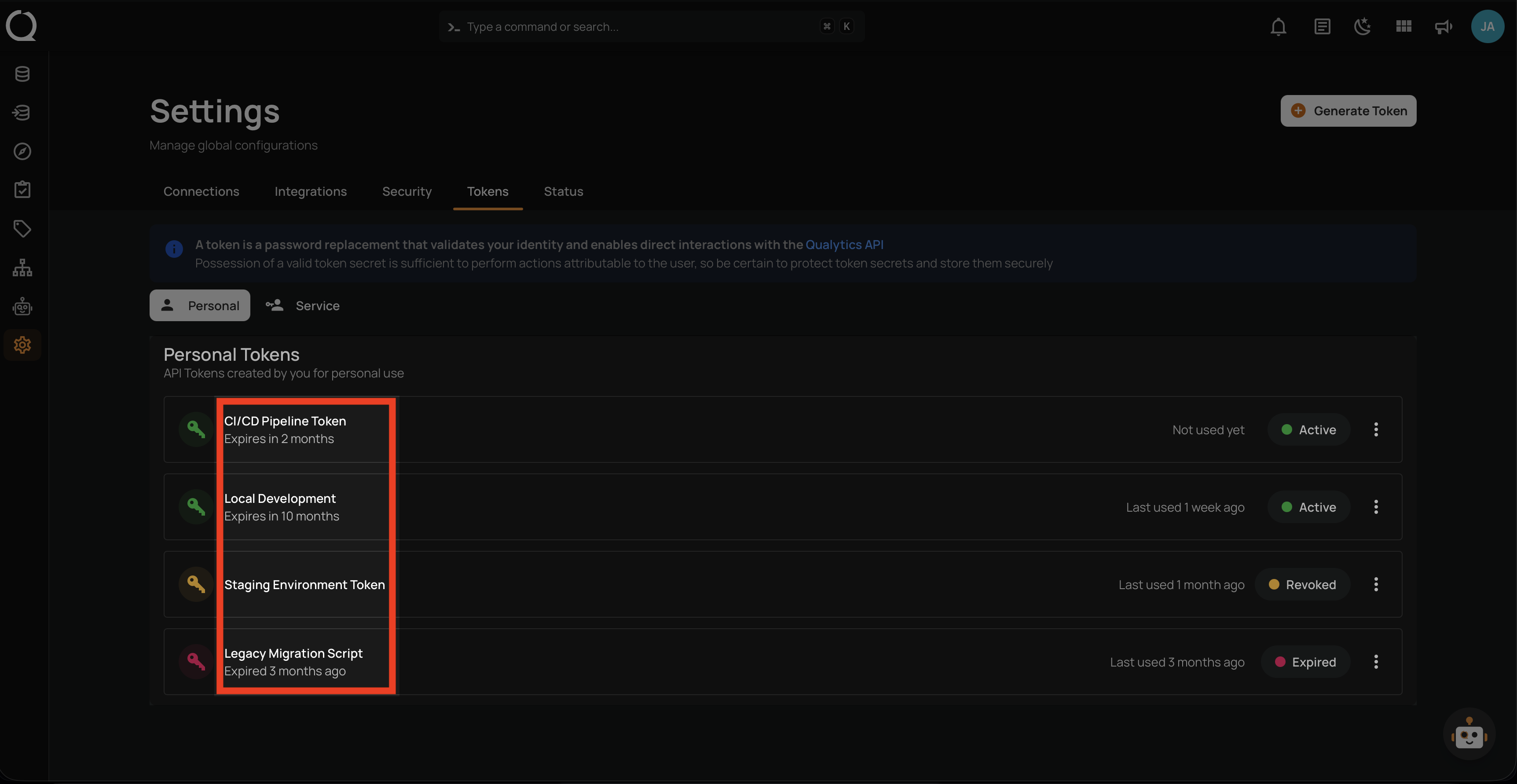
The Token column groups three visual elements: a status indicator (key icon), the token name, and the expiration. It provides the primary identification and state of each token at a glance.
Key Icon
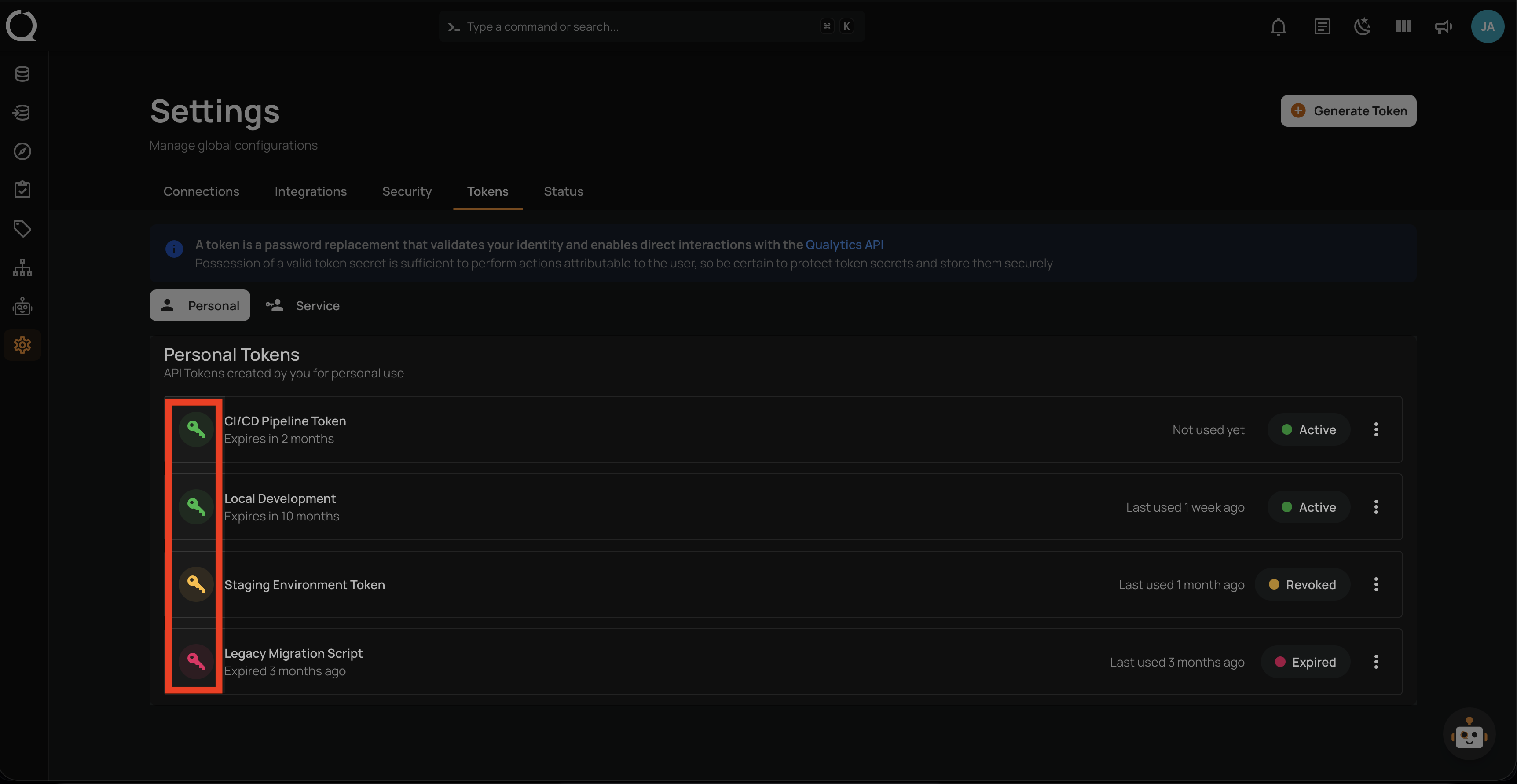
A key icon with a colored background indicates the token's current state:
| Color | State | Meaning |
|---|---|---|
| Green | Active | Valid token, can authenticate API requests. |
| Amber | Revoked | Token was deactivated manually and no longer authenticates. |
| Red | Expired | Token's expiration date has passed; API requests are rejected. |
Name
The token name is the user-defined label assigned when the token was generated. Names must be unique per user and help identify each token's purpose (e.g., CI/CD Pipeline Token, Local Development).
Expiration
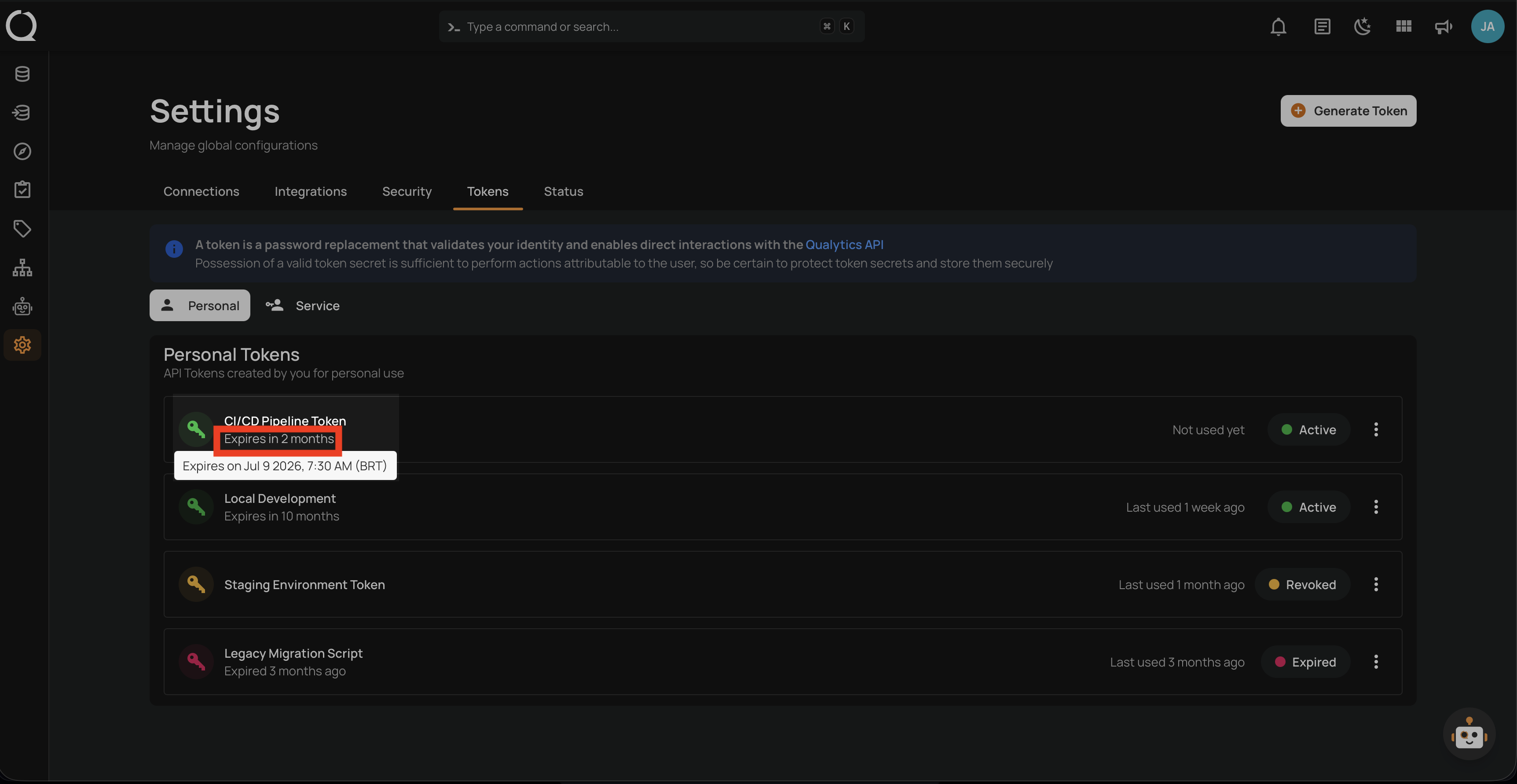
Below the name, the expiration shows how long until the token becomes invalid, displayed as relative time (e.g., "Expires in 2 months"). Hover over the timestamp to see the exact date and time in your local timezone.
Never Expiring
Tokens created with the Never expiration option display Never in this column. These tokens remain valid until explicitly revoked.
Already Expired
Tokens past their expiration date display Expired {relative time} ago (e.g., "Expired 3 months ago"). The tooltip still shows the original expiration date for audit reference.
Last Used
The Last Used column shows when the token was most recently used for an API request, displayed as relative time.
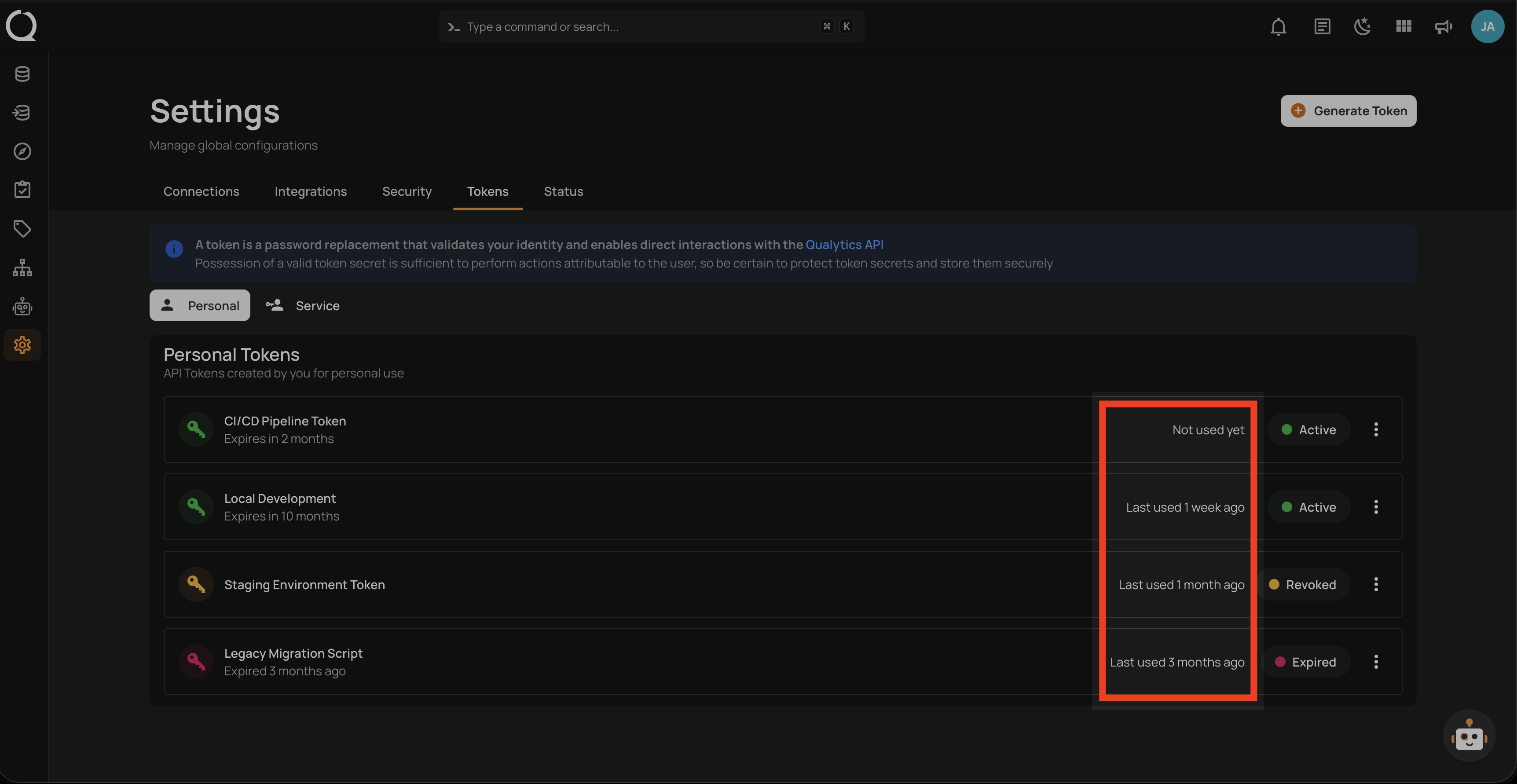
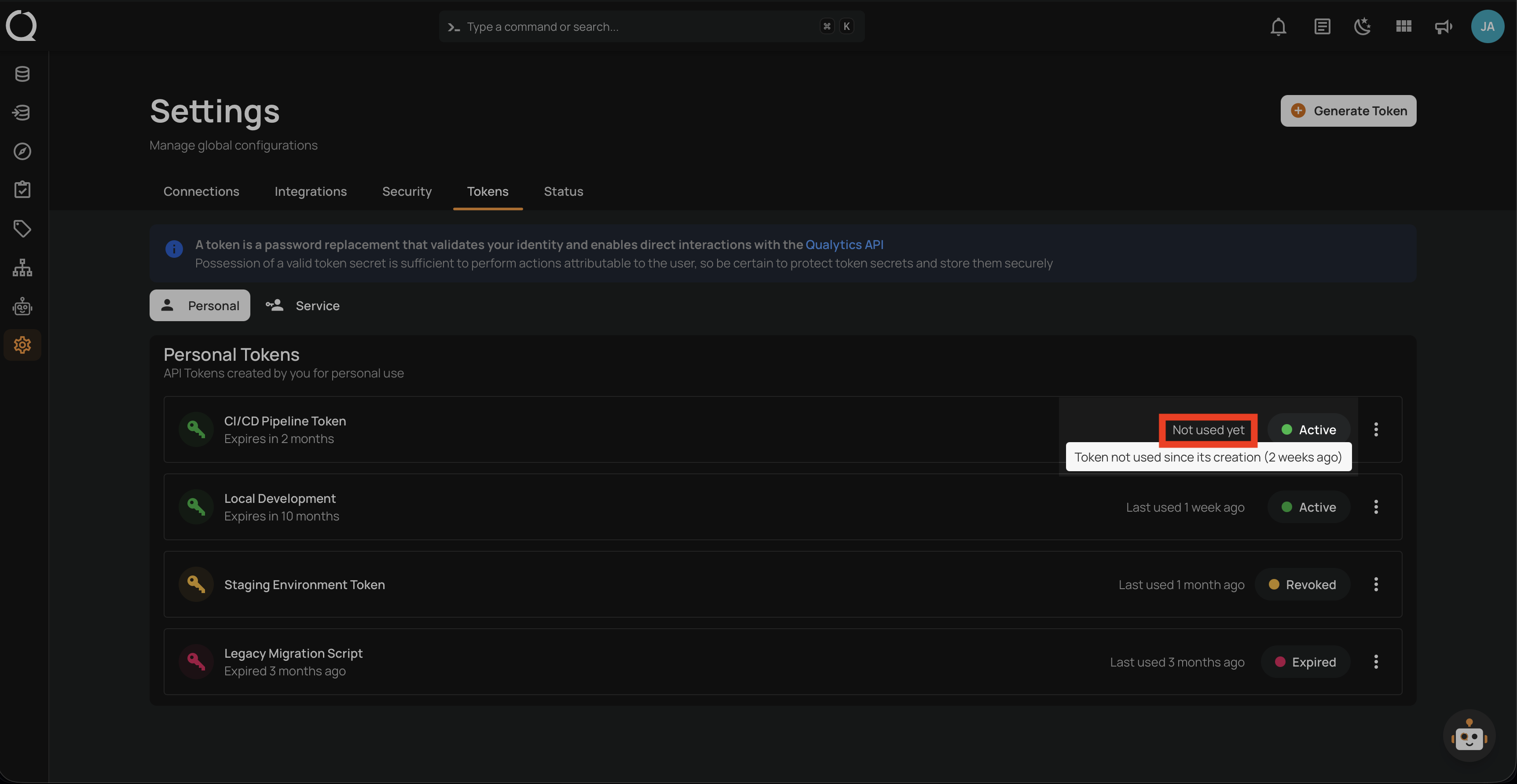
Hover over the timestamp to see the exact date and time in your local timezone.
The column covers four scenarios:
- Last Used — An active token in use displays the relative time since the last API request (e.g., "Last used 1 day ago").
- Not Used Yet — The token has been generated but has not been used for any API request. The tooltip shows the creation date instead.
- Revoked with Last Used — Revoked tokens retain their last used timestamp, helping you audit when they were last active before revocation.
- Expired with Last Used — Expired tokens also retain the last used timestamp, useful for verifying whether the token was in active use before expiration.
Tip
Tokens that show Not used yet for an extended period may no longer be needed. Consider revoking them to maintain security.
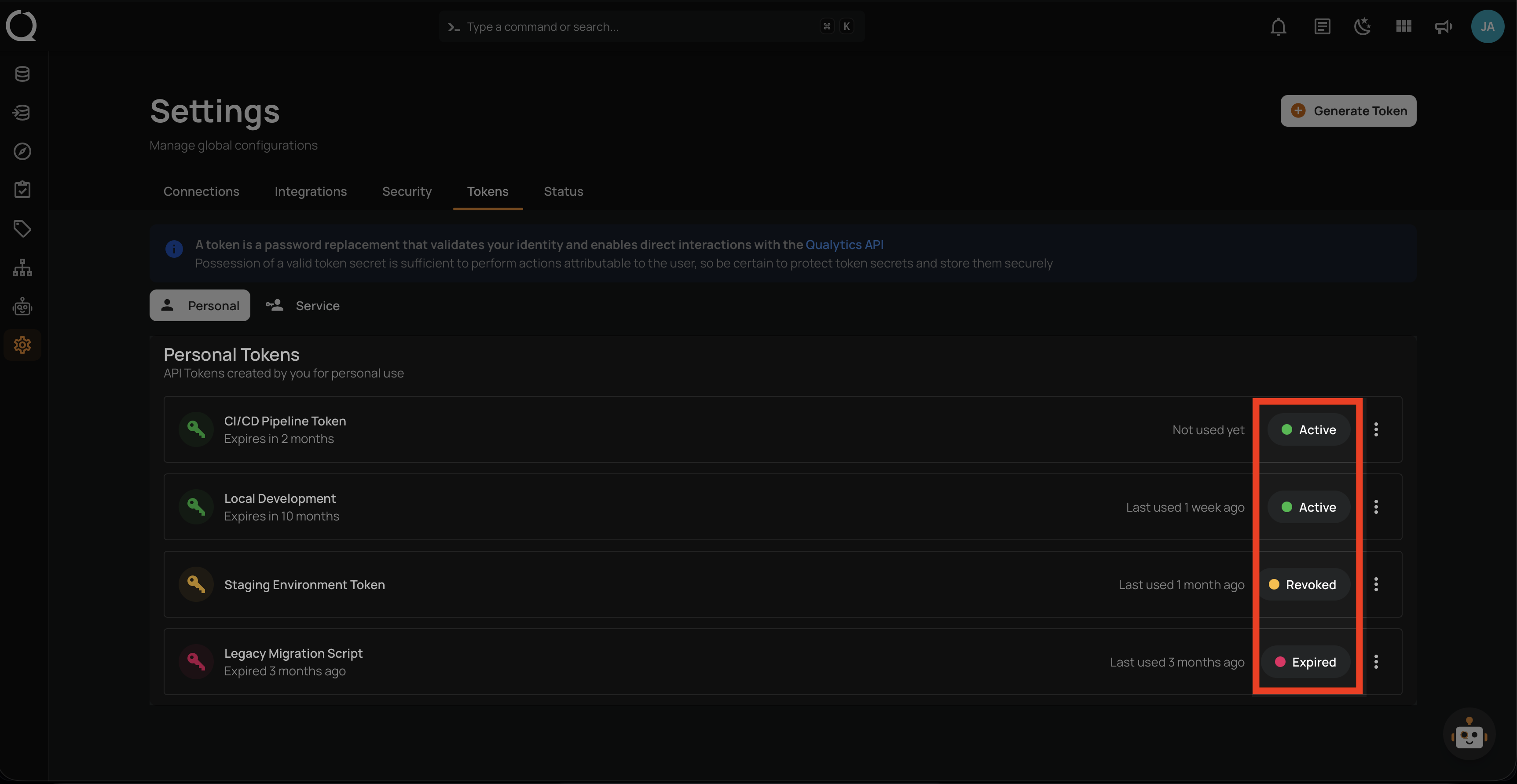
Status Badge
The rightmost column shows a colored badge indicating the token's state:
- Active (green) — The token is valid and can authenticate API requests.
- Revoked (amber) — The token has been deactivated and no longer authenticates.
- Expired (red) — The token's expiration date has passed; API requests are rejected.