View Query Diff
This page walks through opening the changes dialog from the Timeline section on a Computed Join's Overview tab. For the concept behind change tracking (what is captured, how the diff is computed, single-pane fallback), see Query Diff.
Permissions
Any user with at least the Reporter team permission on the parent datastore can view the Timeline section and open the changes dialog. See Computed Join Permissions for the full matrix.
Steps
Step 1: Open the Computed Join. The Overview tab is selected by default.
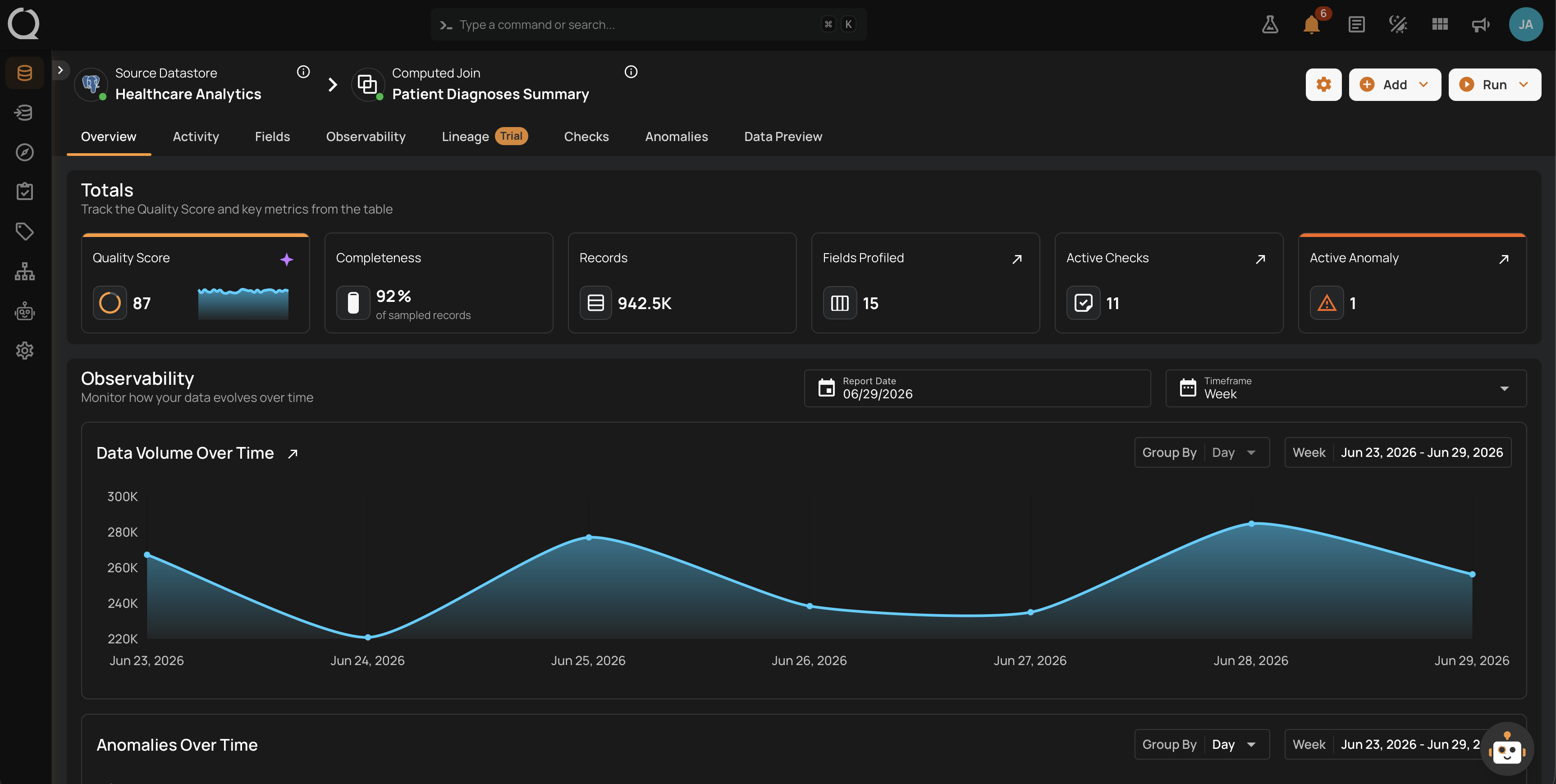
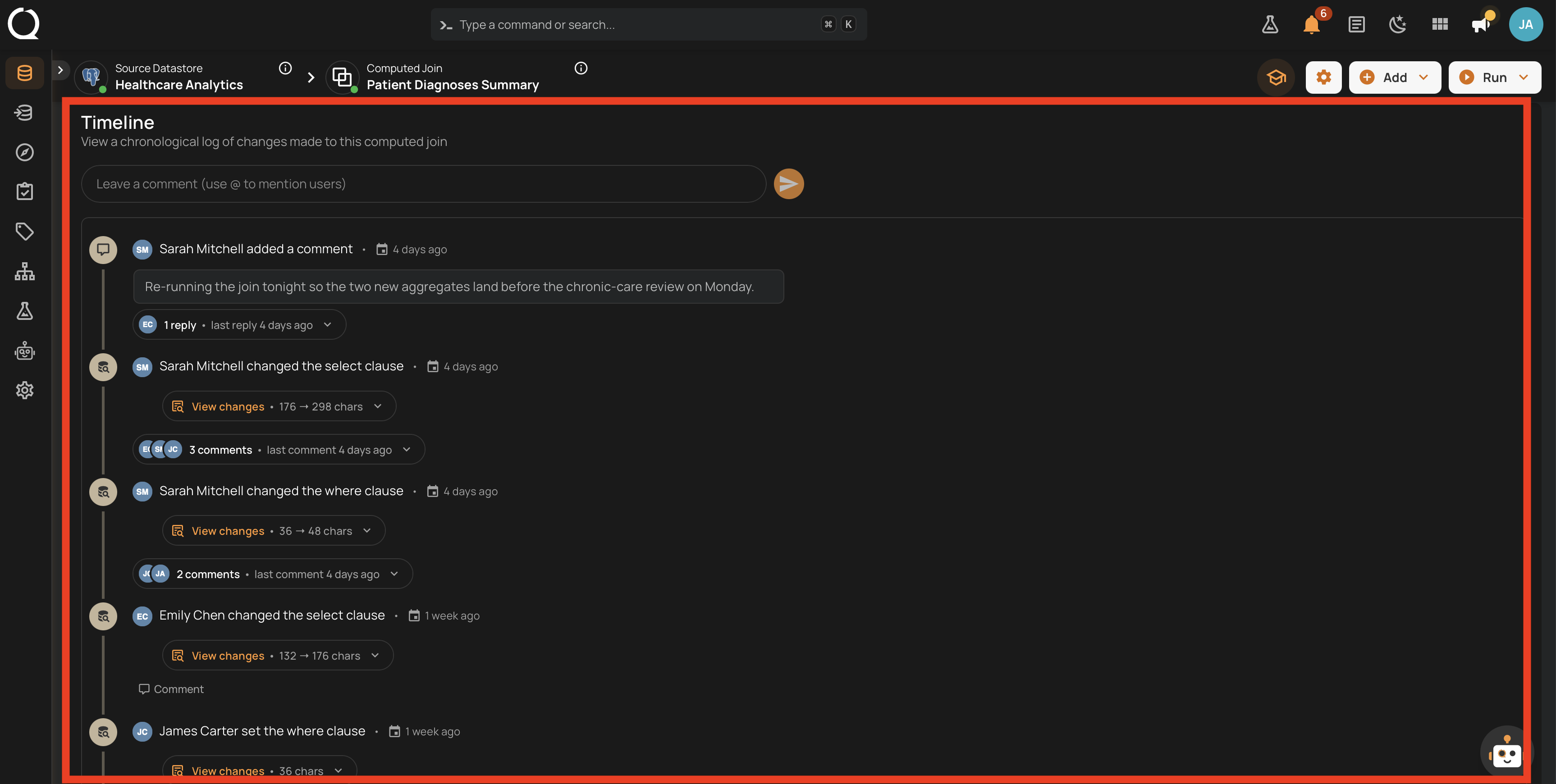
Step 2: Scroll to the Timeline section on the Overview tab. The Timeline mixes the revisions of the Computed Join with the comments your team has left on it.
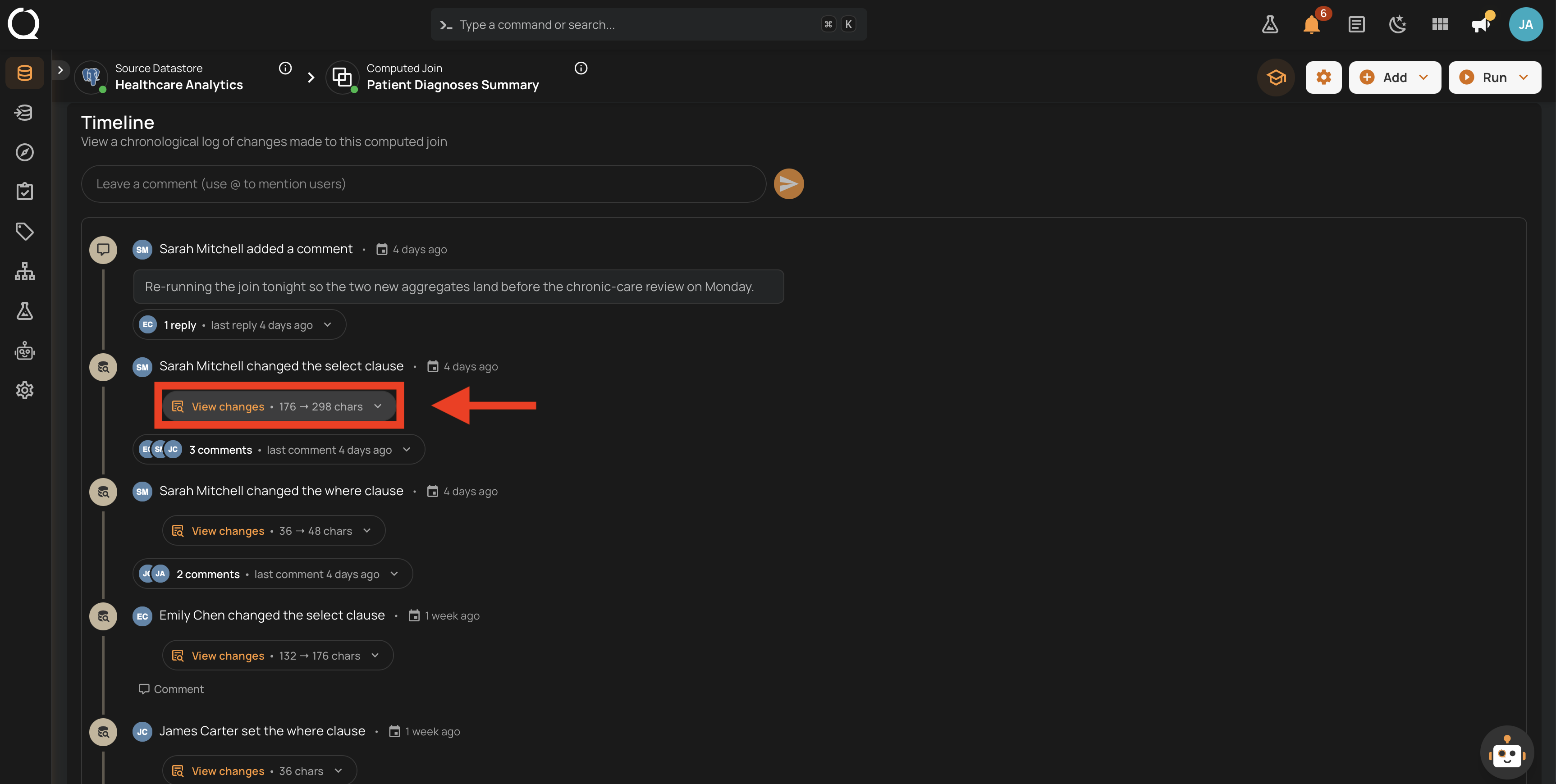
Step 3: Locate a revision that changed a tracked SQL field and click the View changes control below it. The control reports the size of the change (for example, 176 → 298 chars). In pairwise mode the tracked fields are the Select Clause, Where Clause, and Group By Clause; in SQL mode it is the Query.
Step 4: Review the comparison dialog:
- The From pane shows the previous value, with removed lines highlighted.
- The To pane shows the new value, with added lines highlighted.
- Both panes are aligned line for line and share a single scrollbar, so the same region stays in view on both sides, and identical stretches are collapsed so the differences come first.
- Each pane header has a copy button for lifting that version out of the dialog.
- The first time a value is recorded there is nothing to compare against, so a single pane headed Initial appears instead of the two.
- The footer shows Updated by {user} followed by the timestamp of the change.
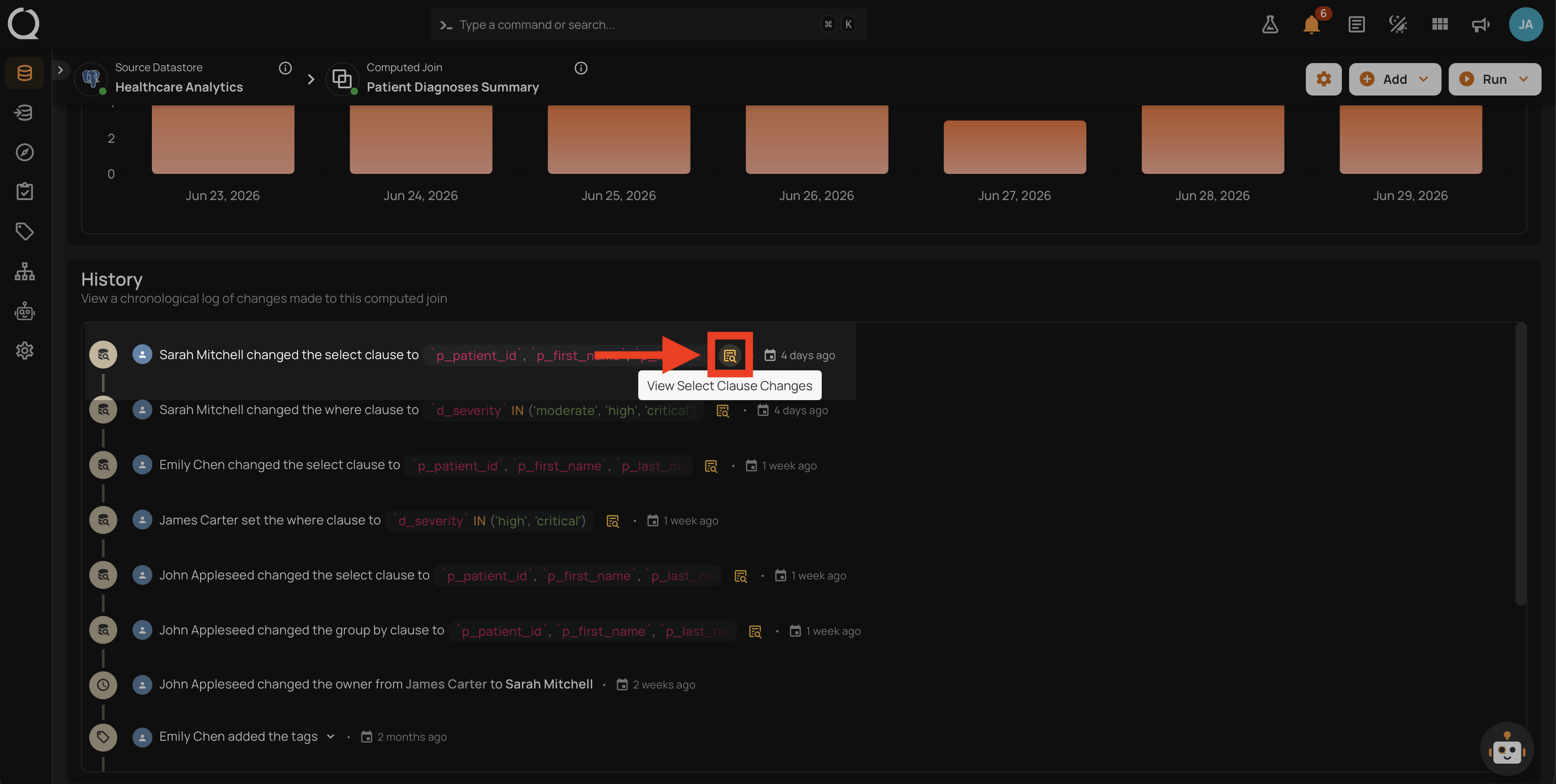
For the full list of tracked fields, what is captured as plain text on the Timeline, the diff behavior, and the single-pane fallback for first-time-set clauses, see Query Diff.