Delete a Computed File
Delete a Computed File from a DFS source datastore.
Related
- Add a Computed File to create a new one.
- Edit a Computed File if you only need to change the definition or description.
Before You Delete
Deleting a Computed File is a hard delete. There is no archive step and no undo. Understand what goes with it before you confirm:
| What happens to... | Effect |
|---|---|
| The Computed File itself | Deleted from the datastore. |
| Quality checks scoped to this container | Removed together with the container. |
| Archived checks in other containers that reference this container | Permanently deleted. They normally do not block the delete. |
| Anomalies raised against this container | Removed together with the container. |
| Profile history for this container | Removed together with the container. |
| Scan history for this container | Removed together with the container. |
| Base file patterns referenced in the definition | Not affected. Only the metadata inside Qualytics is removed. |
Irreversible
Once a Computed File is deleted, it cannot be recovered. If you want to keep the Spark SQL definition for reference before deleting the container, copy it out of the Edit modal first.
When Delete Is Blocked
Deletion is blocked with 409 Conflict when quality checks in other containers reference this Computed File through a configured reference container. The following rule types can trigger the block:
existsInnotExistsIndataDiffaggregationComparisonisReplicaOf(sunsetting; usedataDifffor new checks)
The error response lists the specific quality-check IDs that block the delete. Delete or repoint those checks first, then retry. Archived checks normally do not block the delete, and an archived check that references this container is permanently deleted together with the container. If an archived check is still listed in the 409 error, delete it first. See Lifecycle for the full delete-cascade rules.
Who Can Delete
| Team permission | Can delete? |
|---|---|
| Editor | |
| Author (owner) | |
| Any other team permission |
Steps
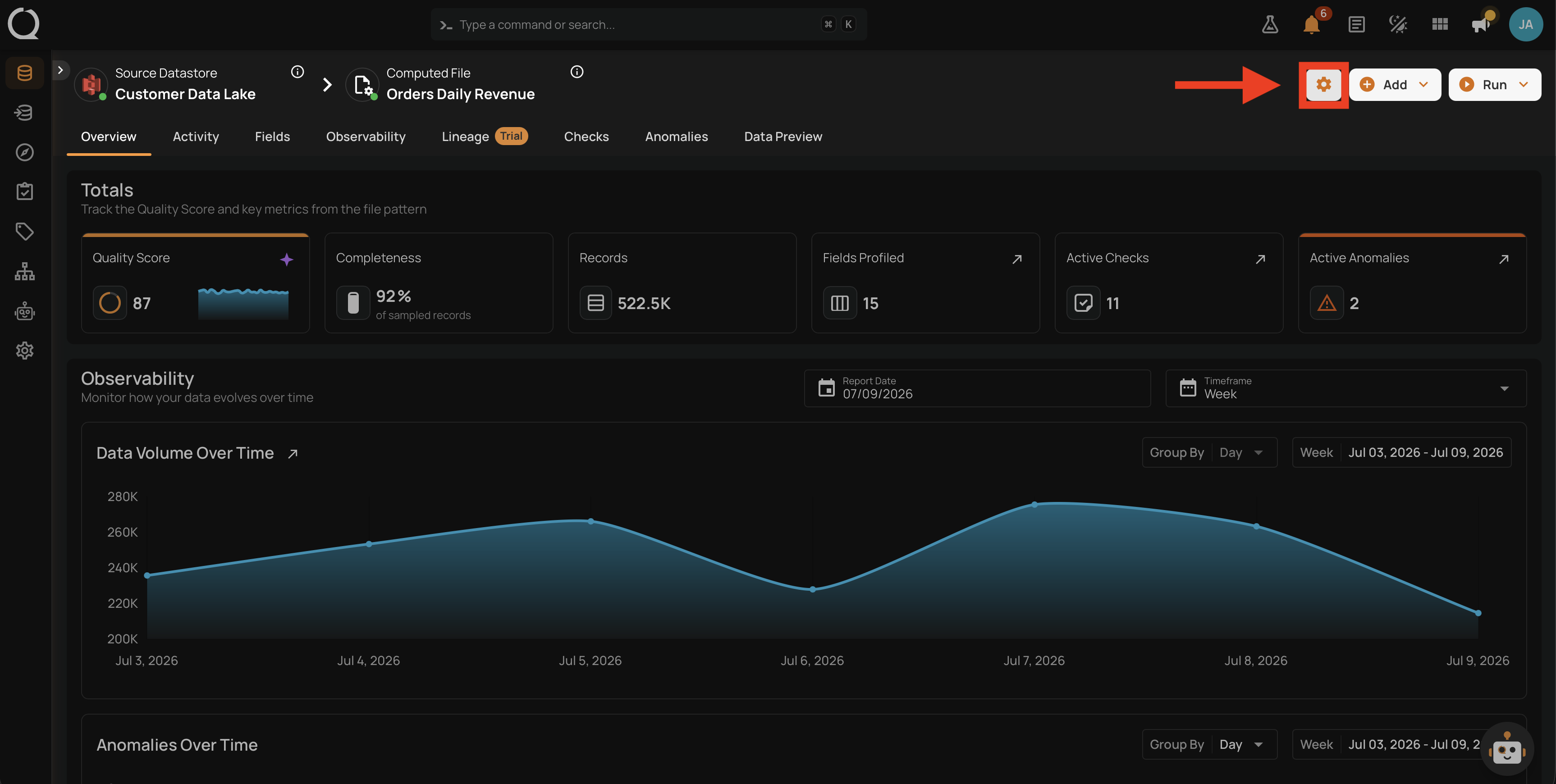
Step 1: Locate the Computed File in the datastore's containers list and open its Bulk menu .
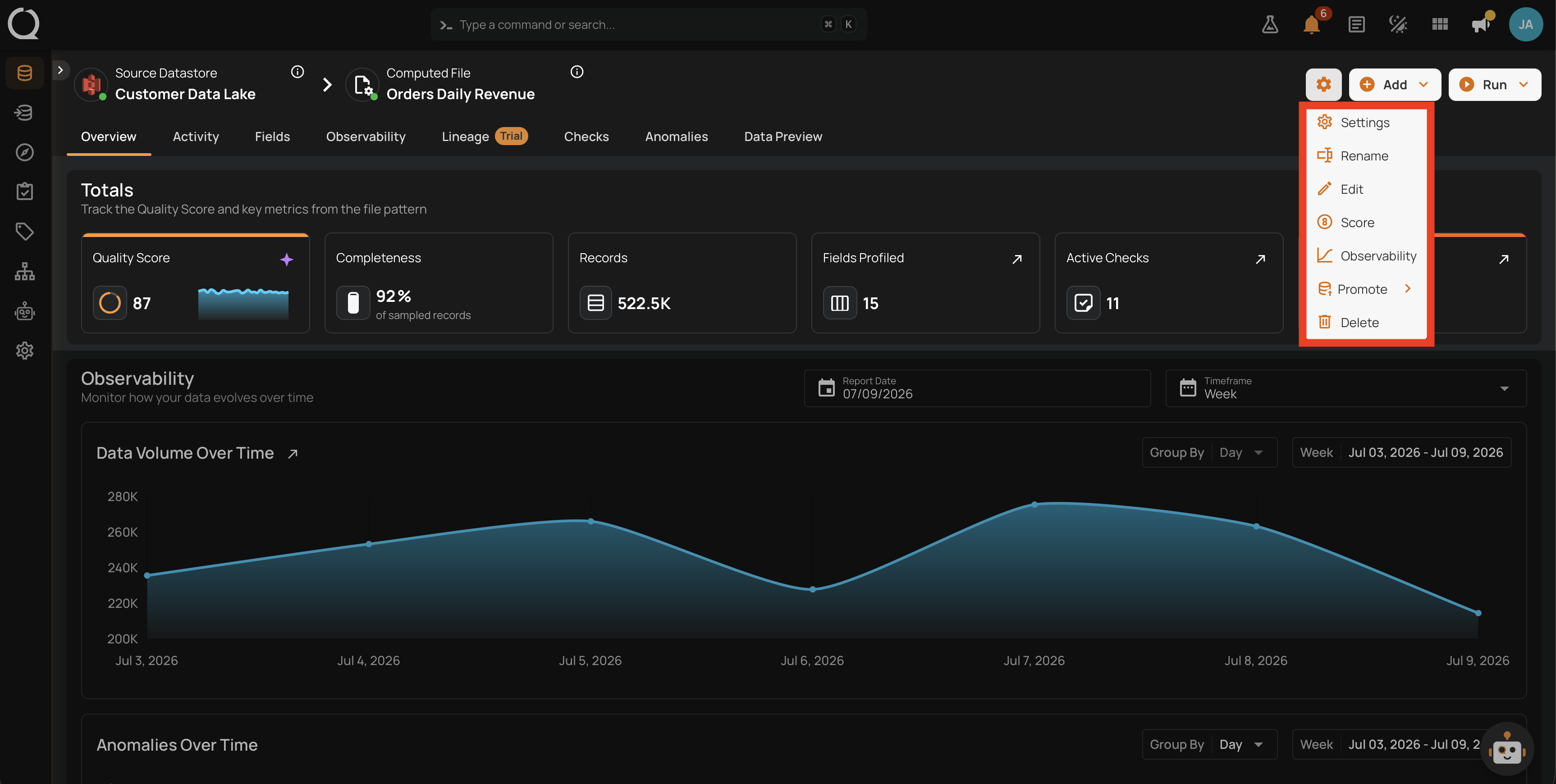
Step 2: A dropdown appears with the actions available for that Computed File.
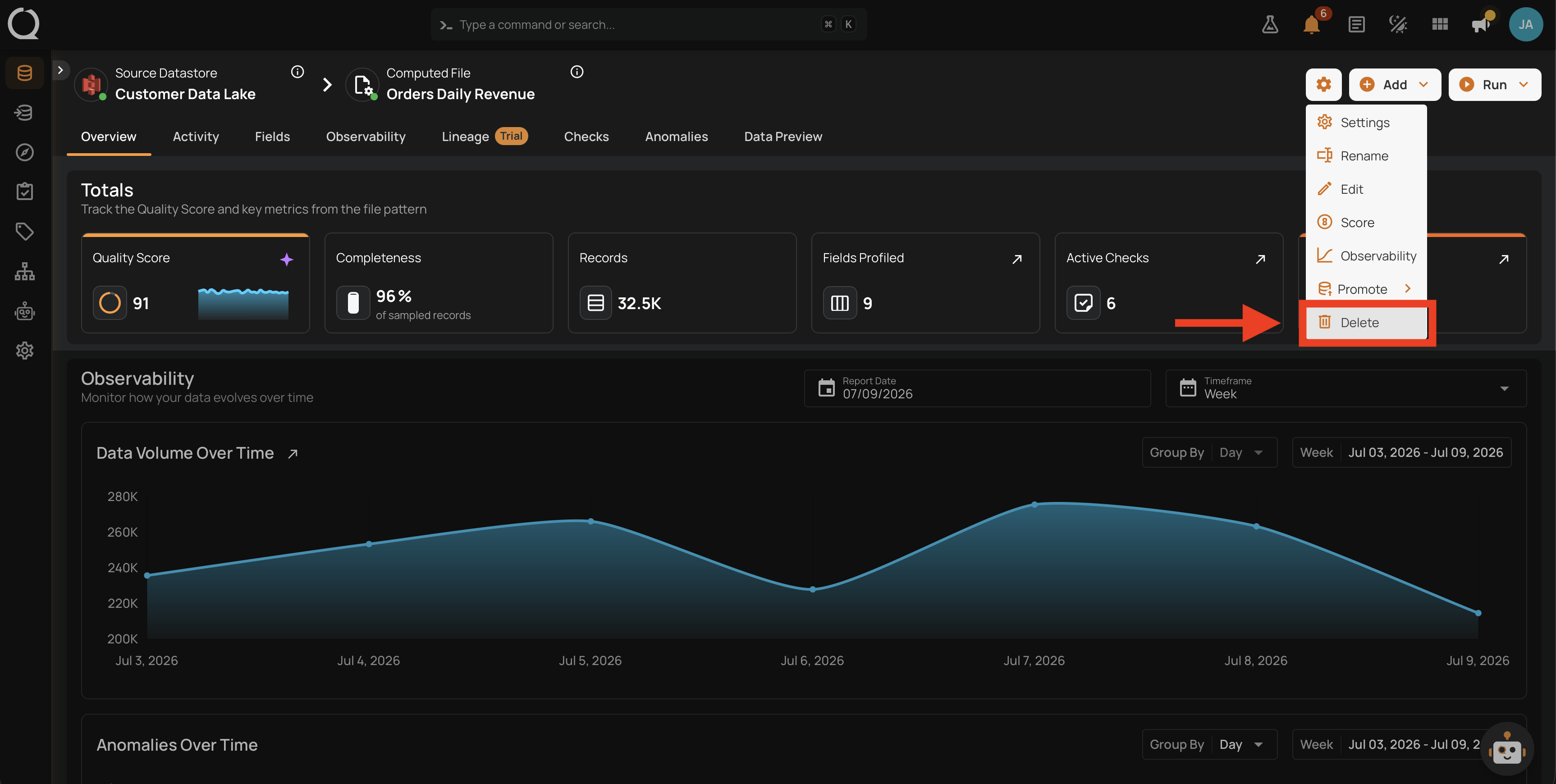
Step 3: Select Delete .
Step 4: A confirmation dialog appears listing what will be removed.
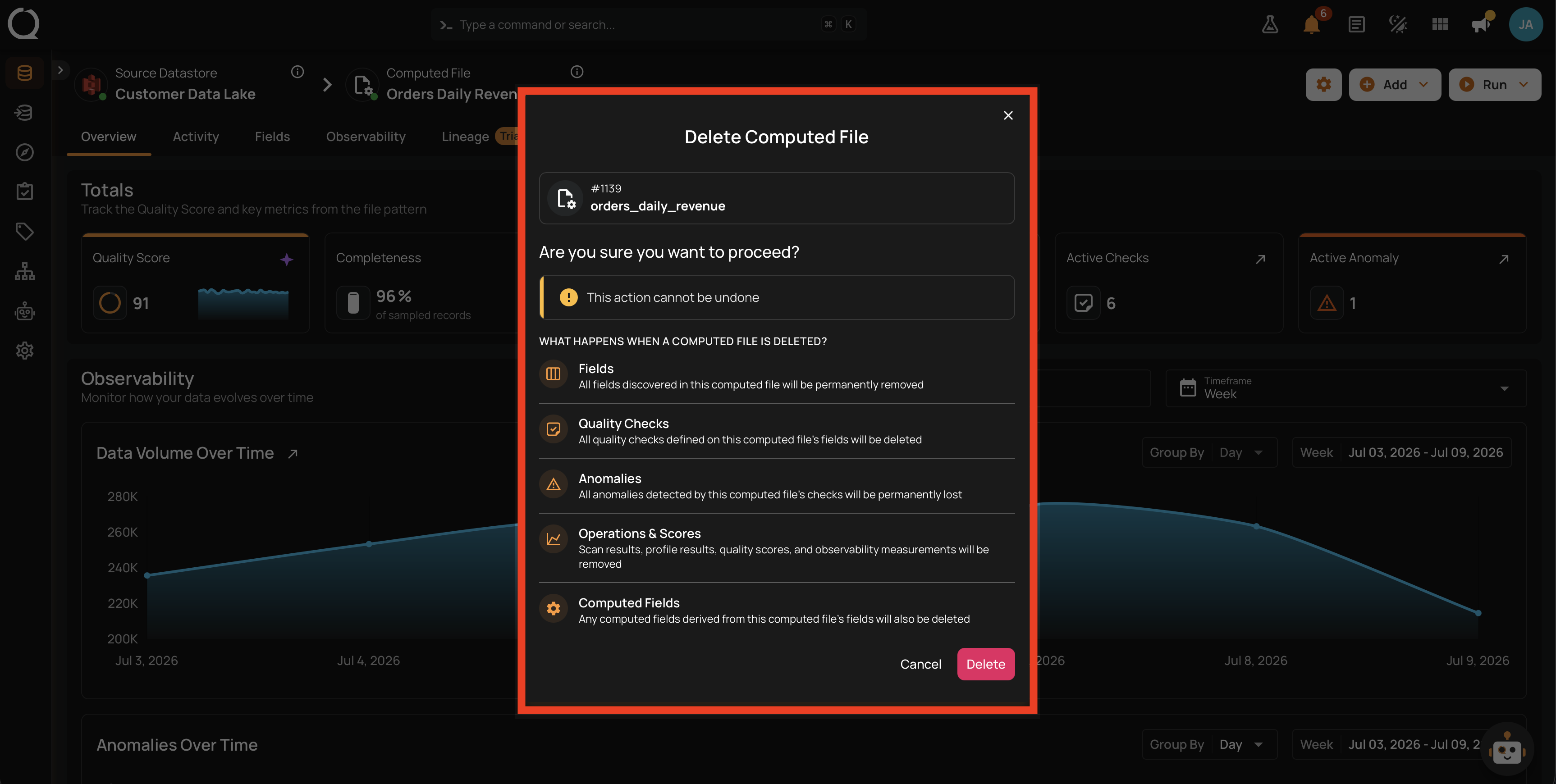
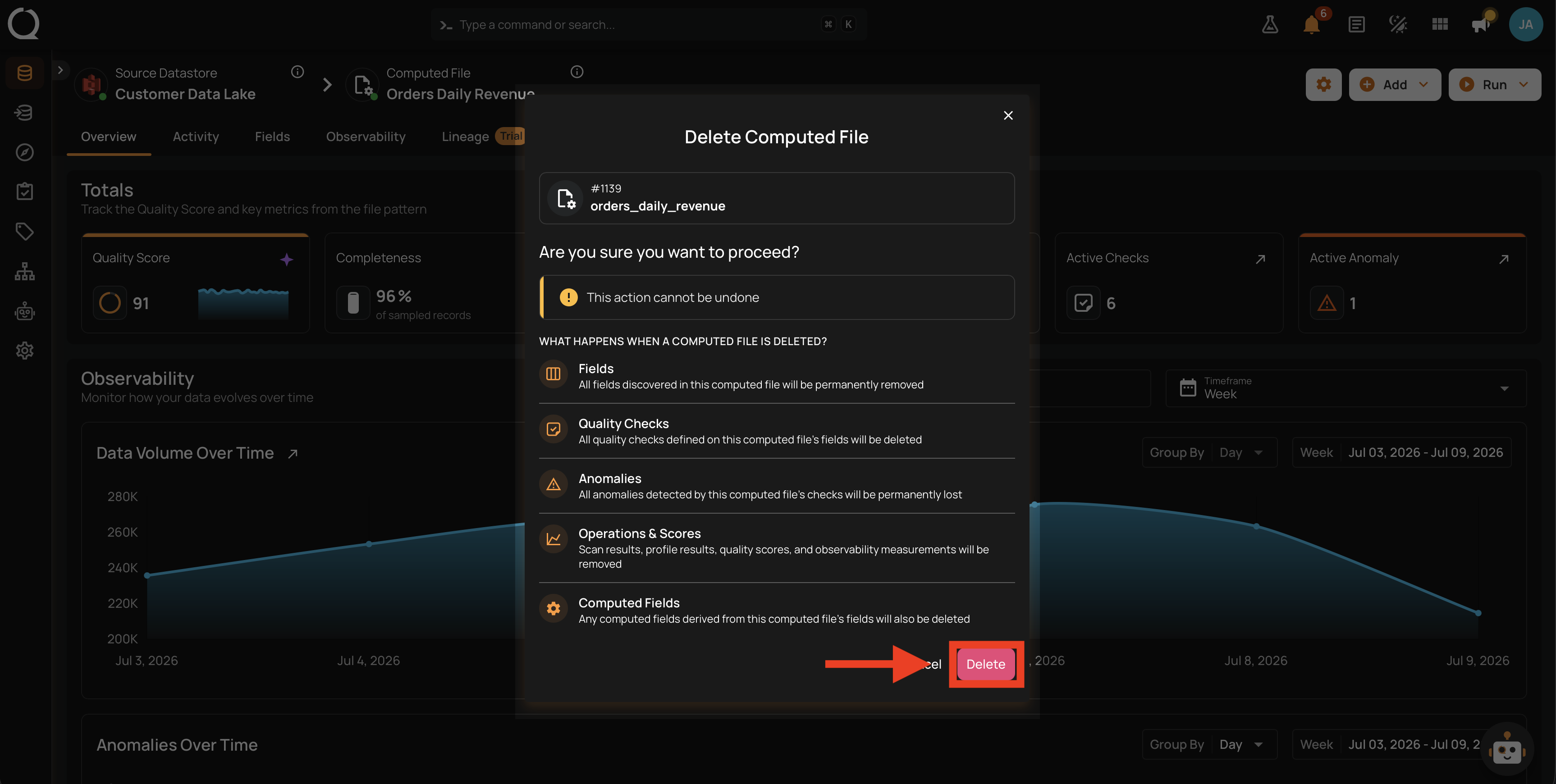
Step 5: Read the summary and confirm. The container is removed immediately, together with its quality checks, anomalies, profile history, and scan history.
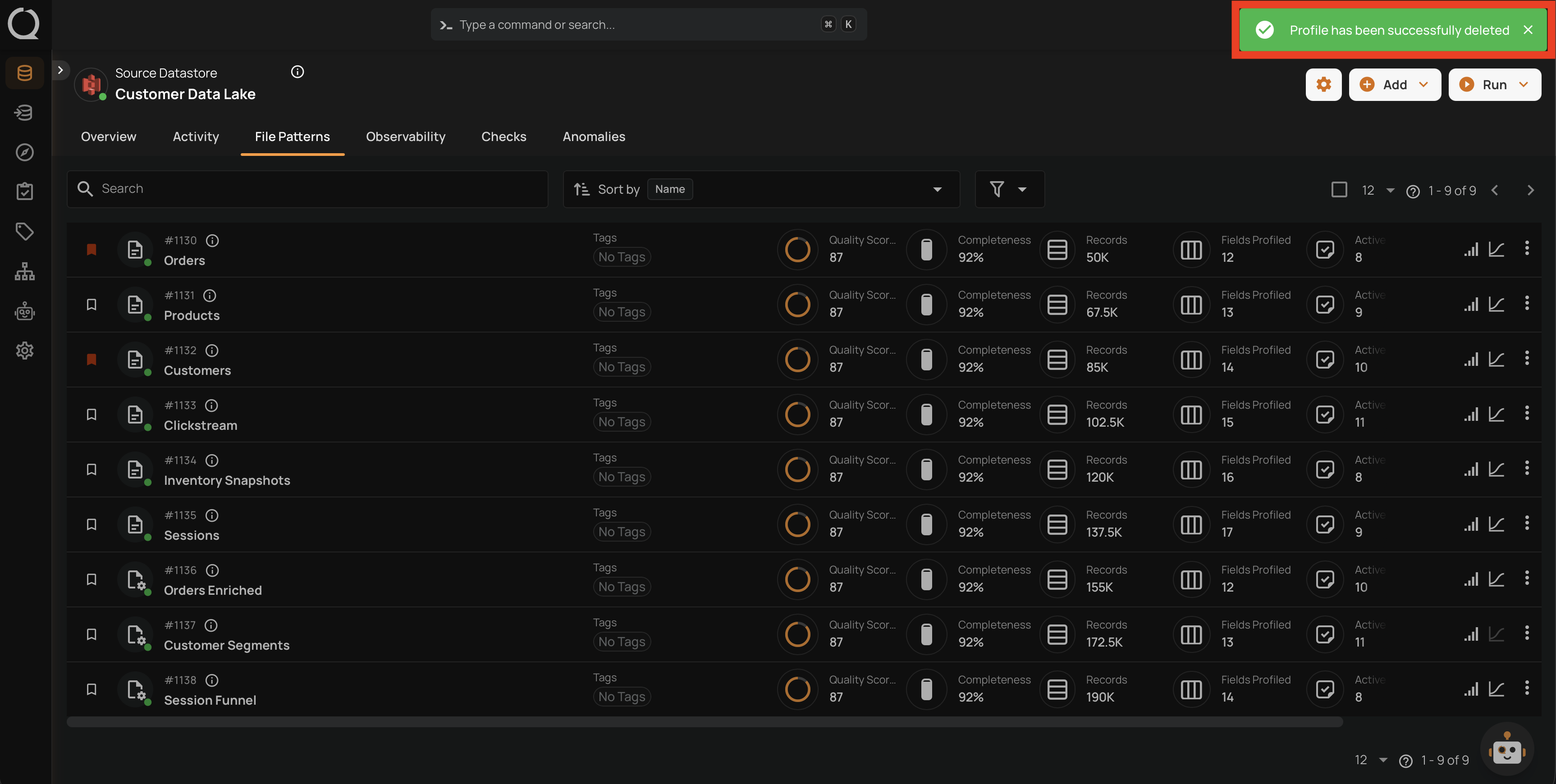
Step 6: A success message confirms the deletion and the Computed File no longer appears under the datastore.