Action Node Overview
Action nodes are the final node of a flow. They execute the work that follows a trigger, and each flow can chain multiple actions (operations, notifications, ticketing, and more) to run in sequence and automate downstream tasks.
The example below shows an Action node placed after a Trigger, with several actions configured to run in sequence.
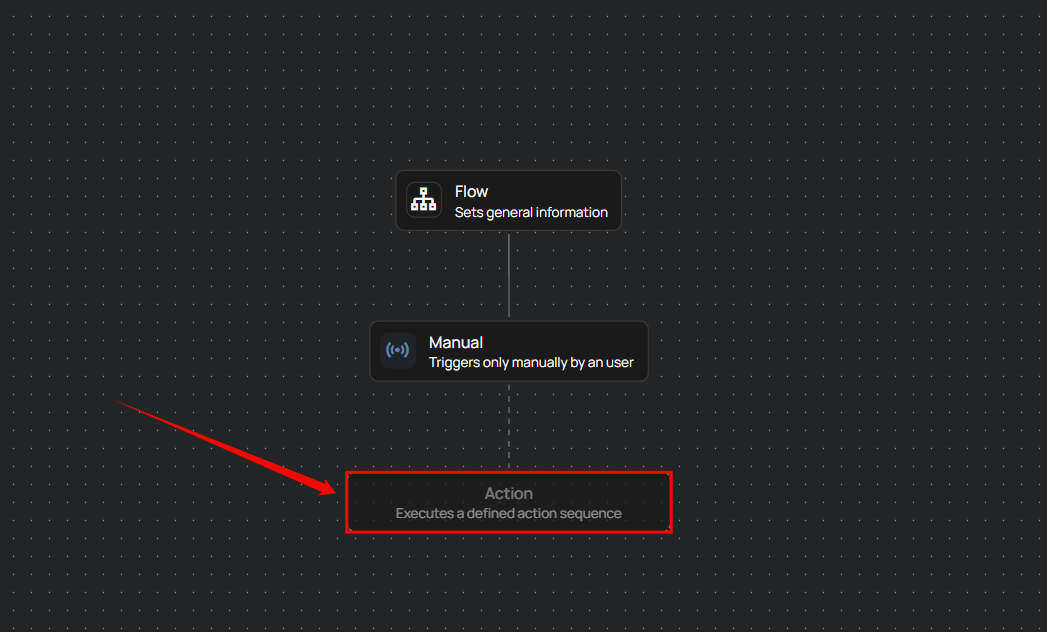
Selecting an Action node opens a panel on the right-hand side displaying the List of Actions, which groups the categories available for the flow. Most categories are visible immediately, and scrolling the panel reveals Ticketing.
Info
Inline summaries are shown within action nodes, displaying key details depending on the action type. For example, datastore names for operations, Slack or Teams channels for notifications, and webhook URLs for HTTP actions. This provides quick clarity during flow configuration.
List of Actions
The panel groups actions into five categories. The first four appear at the top of the panel.
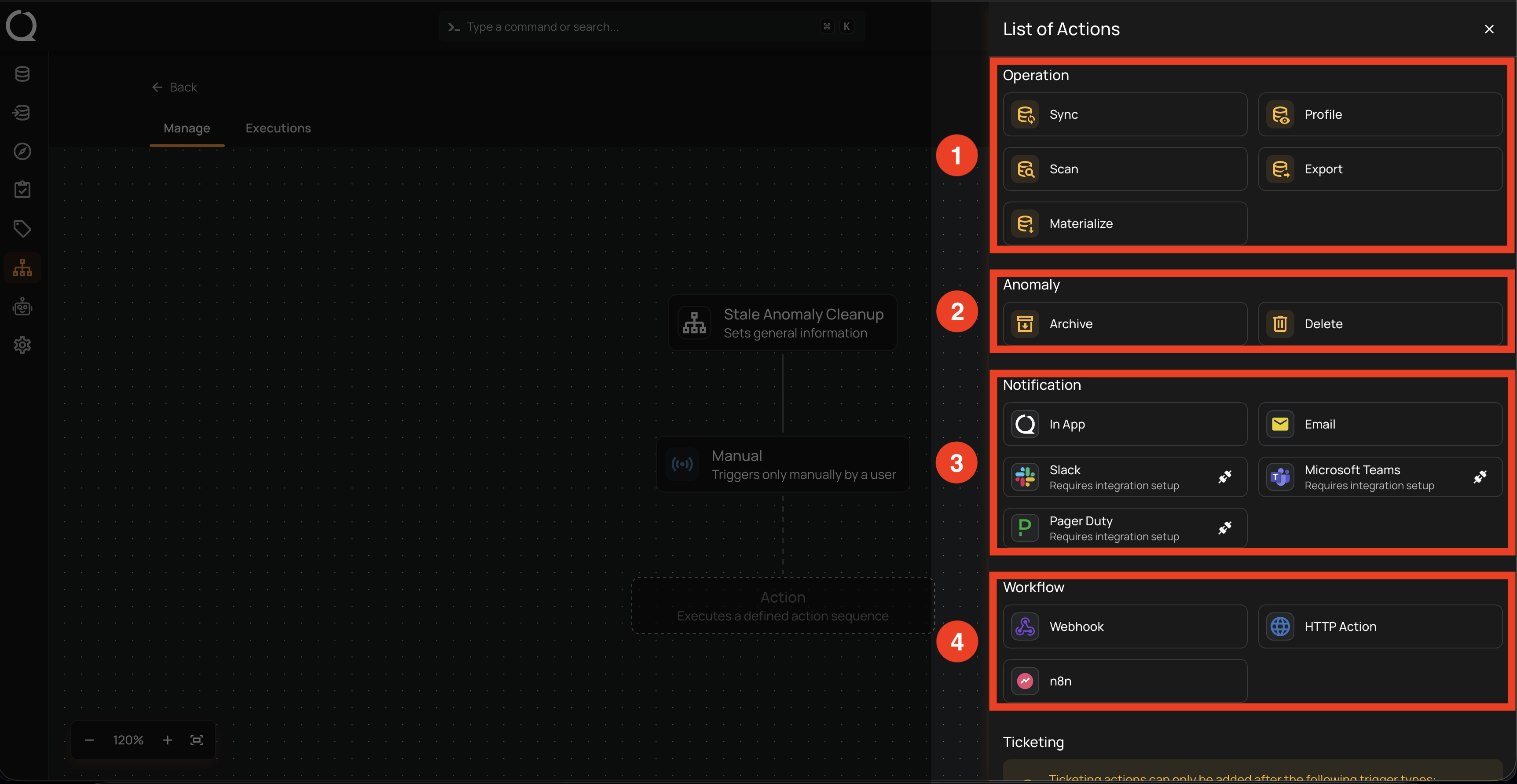
| REF. | CATEGORY | DESCRIPTION |
|---|---|---|
| 1 | Operation | Run datastore-level operations automatically when the trigger fires. |
| 2 | Anomaly | Apply lifecycle changes to anomalies returned by the trigger — for example, cleaning up inactive or resolved findings. |
| 3 | Notification | Send alerts to people or channels so the right audience hears about the event. |
| 4 | Workflow | Hand off the event to an external system through outbound integrations and trigger downstream automation outside Qualytics. |
Further down in the panel is the Ticketing category.
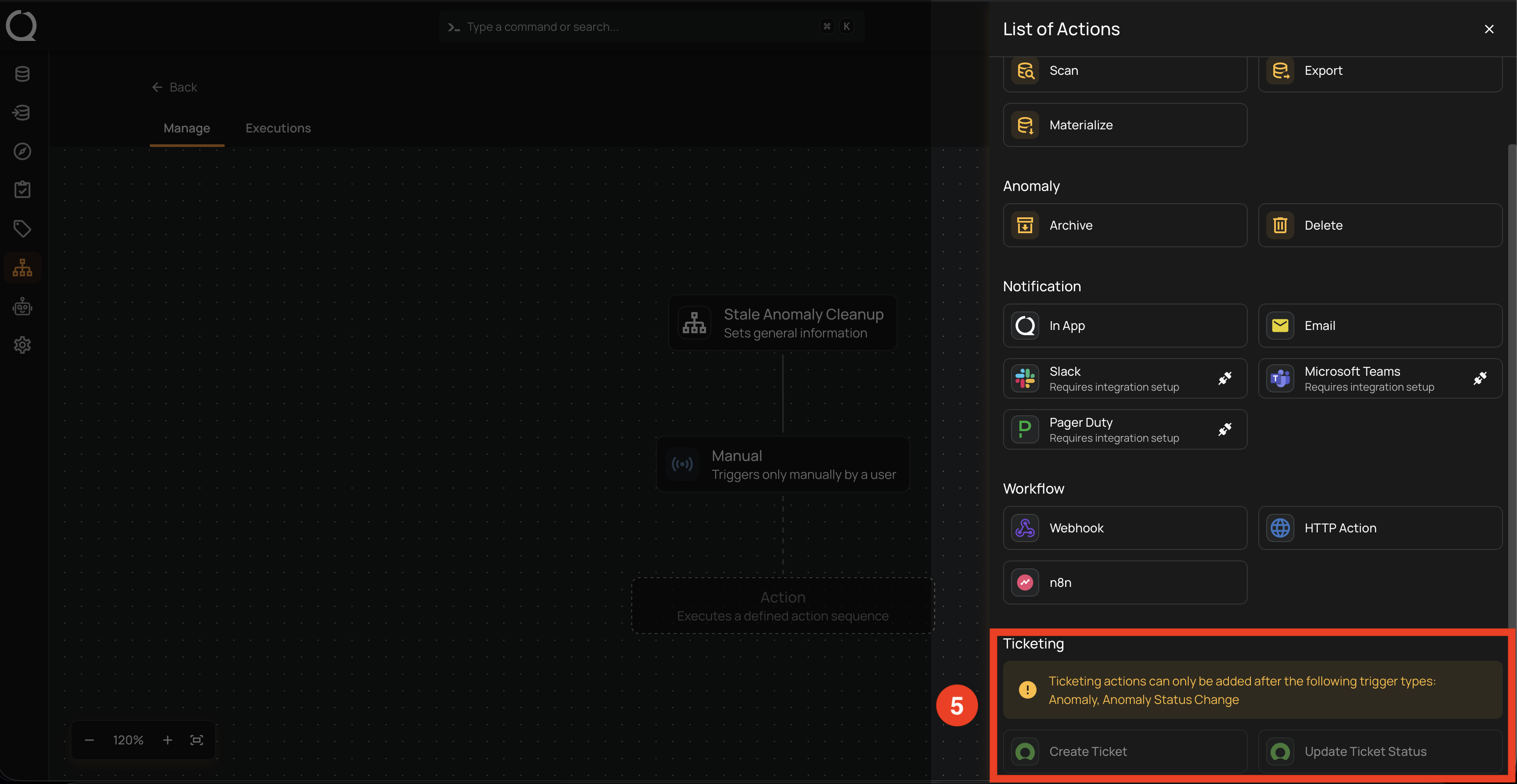
| REF. | CATEGORY | DESCRIPTION |
|---|---|---|
| 5 | Ticketing | Create or update tickets in your issue tracker so anomaly context flows directly into the team's existing triage workflow. |
Warning
The Ticketing category is only selectable when the flow's trigger is Anomaly or Anomaly Status Change. With any other trigger type, the category still appears in the panel but is disabled.
Warning
Notification and Workflow actions cannot be followed by any other action. When the previous Action node belongs to one of these categories, every category in the panel is disabled and no further actions can be chained.
Info
A single flow can include up to 10 Operation actions. Once that limit is reached, the Operation category is disabled in the panel until one of the existing Operation actions is removed. The other categories are not subject to this cap.
Explore Actions
-
Operations
Trigger Sync, Profile, Scan, Export, or Materialize operations as part of a flow.
-
Anomaly
Automate cleanup of inactive anomalies with Archive or Delete actions.
-
Notifications
Send alerts via In-App, Email, Slack, Microsoft Teams, or PagerDuty.
-
Workflow
Connect external systems with Webhook, HTTP Action, or n8n integrations.
-
Ticketing
Create or update tickets in your issue tracker when anomalies are detected.