Schedule Export Operation
Screenshots pending refresh
Screenshots on this page were captured against the previous Export Operation UI. They will be refreshed once the new UI lands. Step labels and field names remain accurate.
Timezone-aware scheduling
Schedules can run in any IANA timezone (for example, America/New_York, Europe/Paris, Asia/Tokyo), and Daylight Saving Time transitions are handled automatically. UTC is the default for new and existing schedules. The configured timezone is shown on the schedule card as an abbreviation, such as Schedule (UTC) by default or Schedule (EST) after selecting another timezone.
Deactivating a schedule keeps its cron expression
When you deactivate a schedule, its cron expression is kept. Reactivating it later resumes the same schedule without setting it up again.
If a schedule was deactivated before May 7, 2026 and doesn't run after you reactivate it, re-enter its cron expression once to restore it. Schedules deactivated on or after that date keep working normally.
Step 1: Click Schedule to configure scheduling options for the Export Operation.
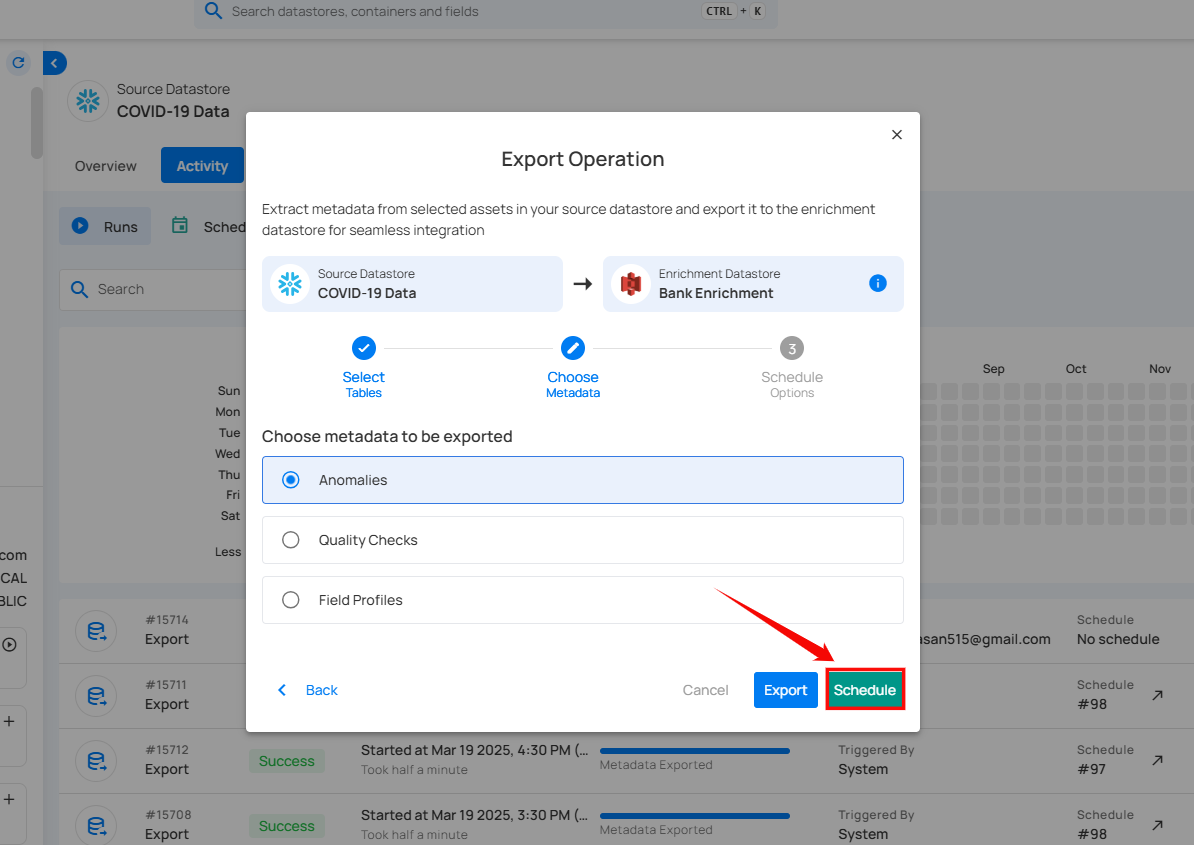
Step 2: Choose the Timezone for this schedule. UTC is selected by default. To run in a different timezone, type to search by city, region, or abbreviation and pick an IANA timezone from the list. The selected timezone applies to every tab below, and the banner above the tabs shows the current time in that timezone.
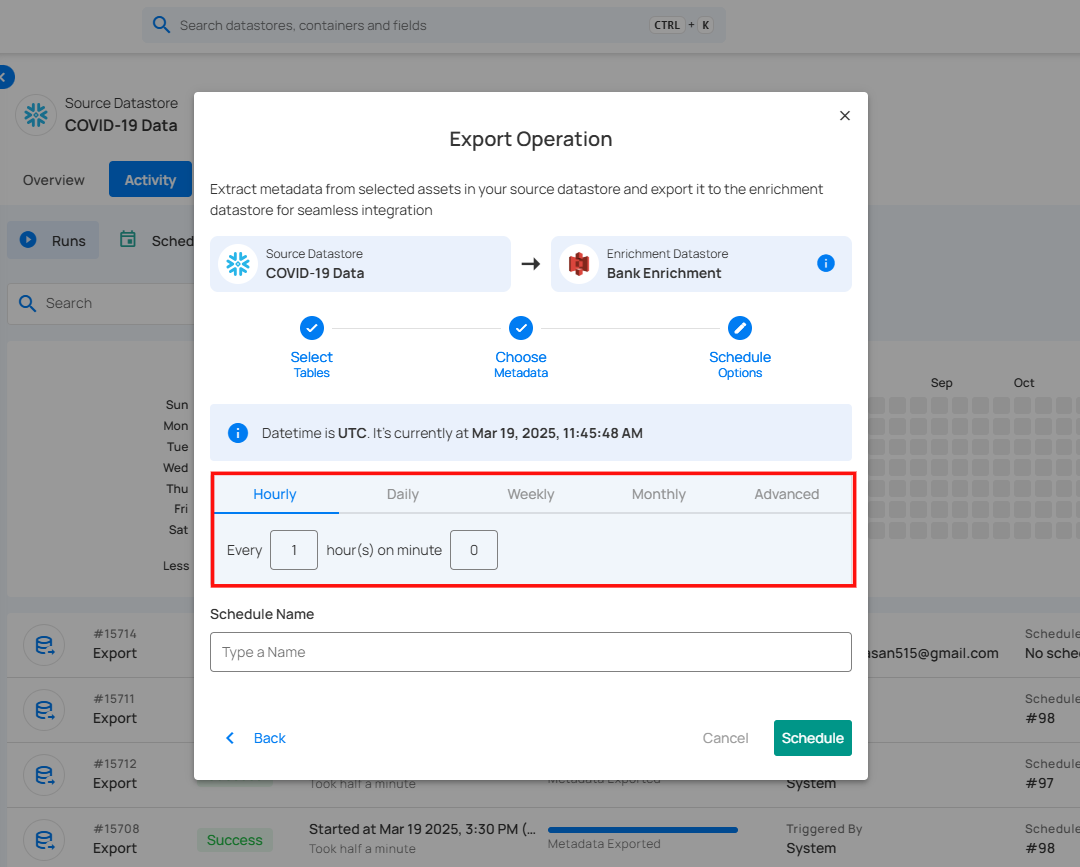
Step 3: Configure the scheduling preferences for the Export Operation. Time inputs apply to the timezone selected in Step 2.
-
Hourly: Runs every set number of hours at a specified minute. (e.g., Every 1 hour at 00 minutes).
-
Daily: Runs once per day at a specific time. (e.g., Every day at 00:00 in the selected timezone).
-
Weekly: Runs on selected weekdays at a set time. (e.g., Every Sunday and Friday at 00:00 in the selected timezone).
-
Monthly: Runs on a specific day of the month at a set time. (e.g., 1st day of every month at 00:00 in the selected timezone).
-
Advanced: Use Cron expressions for custom scheduling (e.g.,
0 12 * * 1-5runs at 12 PM, Monday to Friday). The Custom Cron Schedule field label shows the abbreviation for the currently selected timezone (for example,Custom Cron Schedule (UTC)orCustom Cron Schedule (EST)).
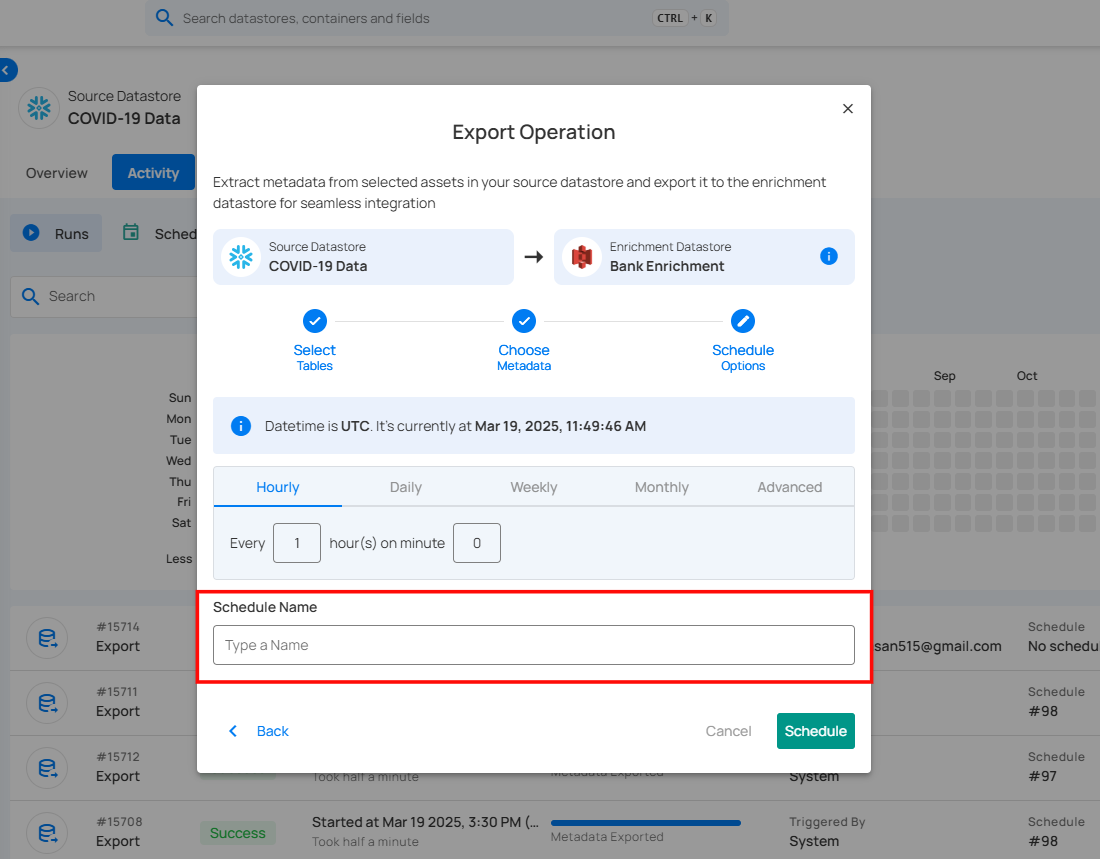
Step 4: Define the Schedule Name to identify the scheduled Export Operation when it runs.
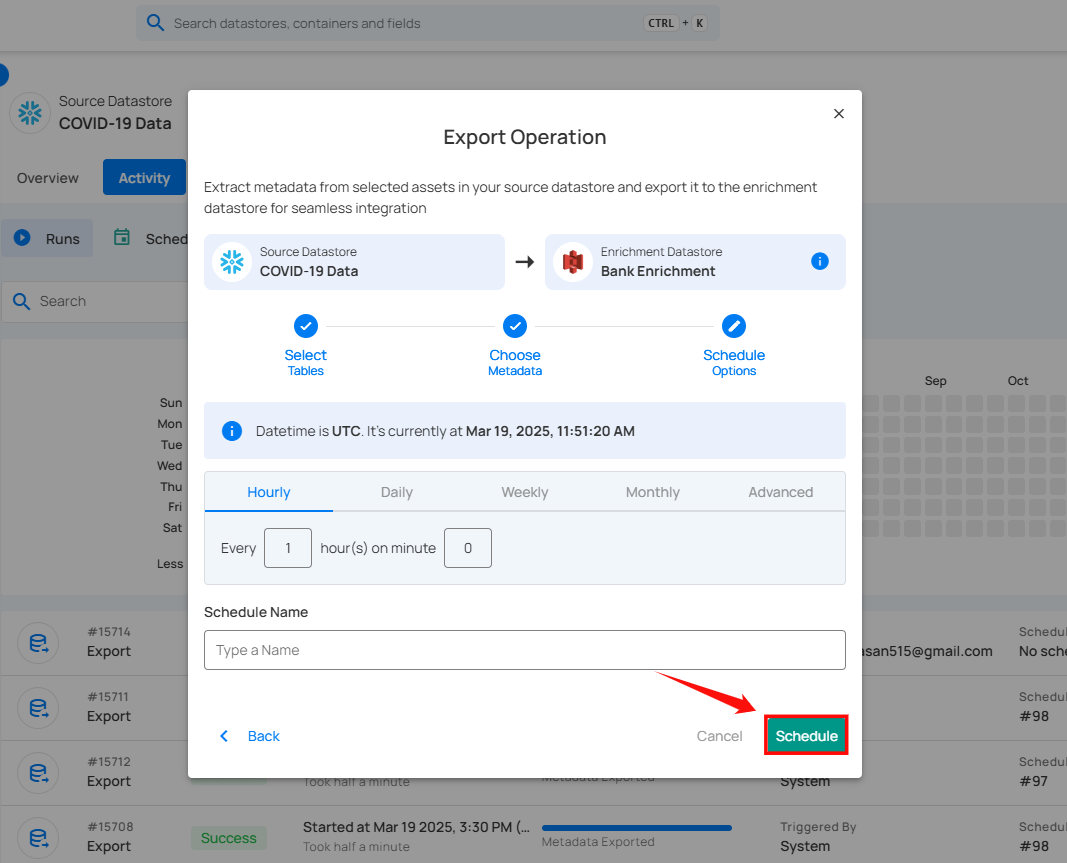
Step 5: Click Schedule to finalize and schedule the Export Operation.
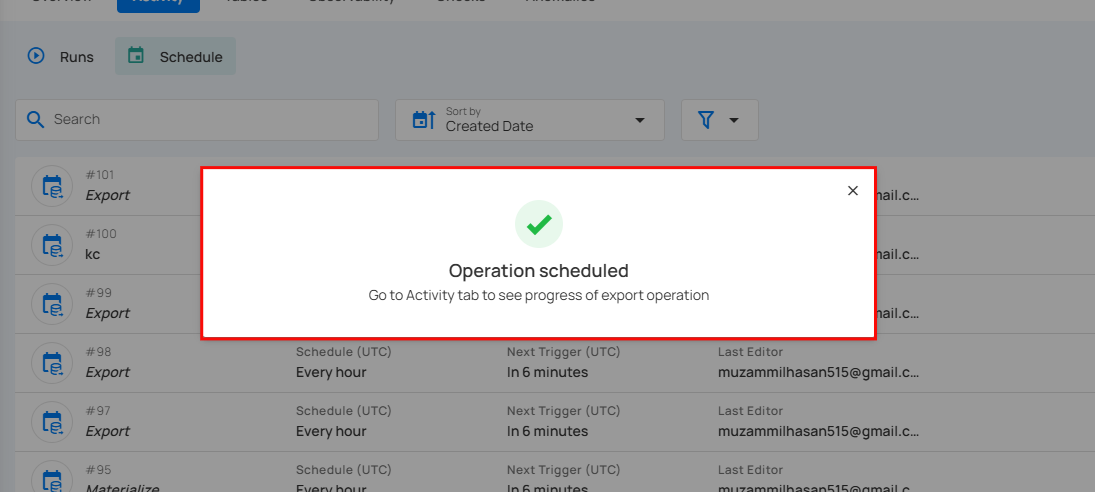
After clicking Schedule, a confirmation message appears stating "Operation scheduled". Go to the Activity tab to see the progress of the export operation.
Daylight Saving Time
When you pick a timezone that observes DST (such as America/New_York or Europe/London), the schedule automatically shifts with each transition. A job set to run at 9:00 AM in America/New_York runs at 9:00 AM local time year-round, regardless of whether the zone is in EST or EDT at the time. No reconfiguration is required.