Configure Observability Defaults
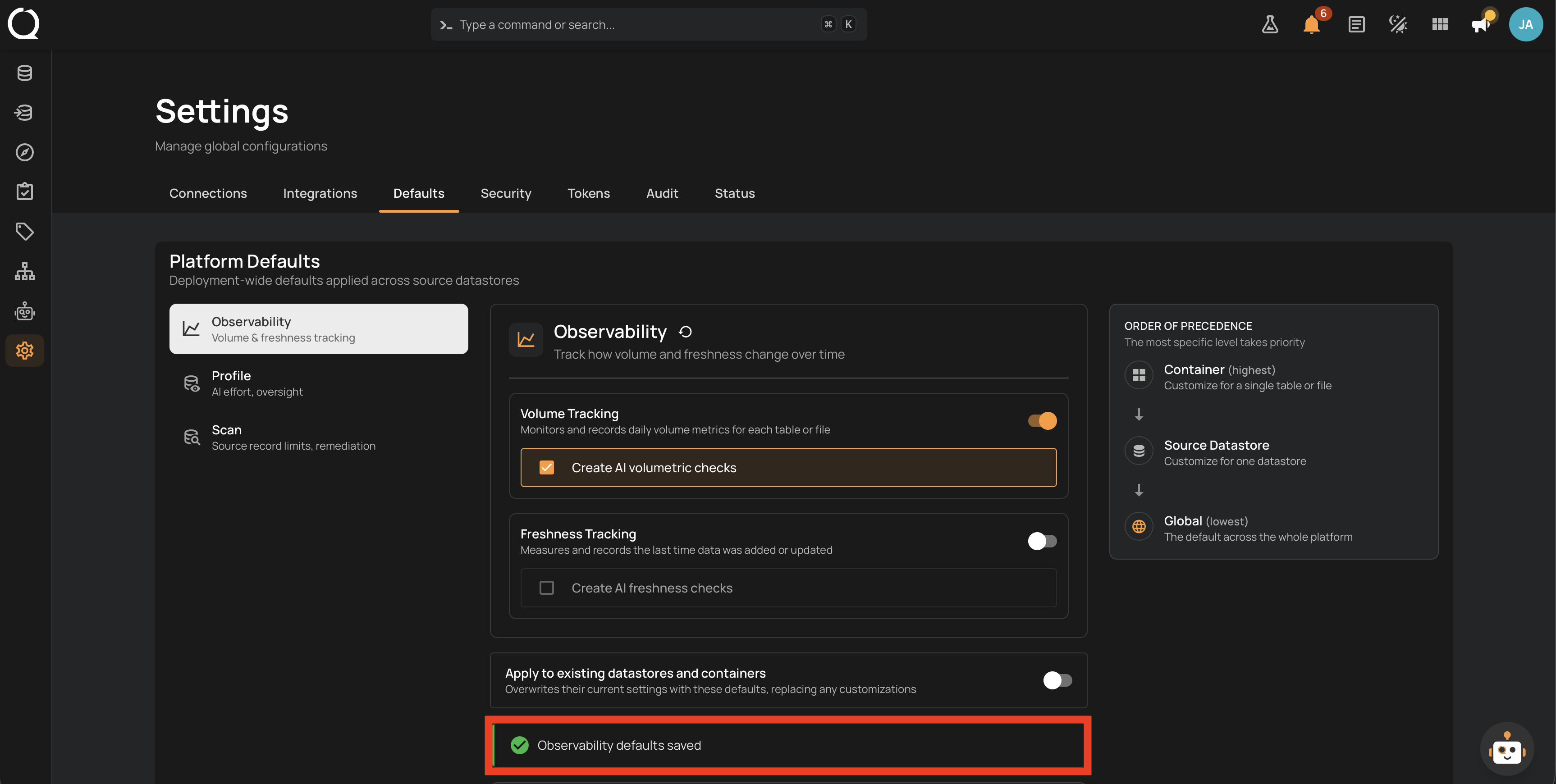
Set the workspace-wide defaults for volume tracking, freshness tracking, and whether AI observability checks are generated automatically. New datastores and containers inherit these values on creation, and you can optionally push them to existing datastores and containers at save time.
These defaults and their propagation apply only to source datastores. Enrichment datastores are excluded.
Permission Required
You need the Admin user role to edit Platform Defaults. See the Permissions page for details.
Fields
The Observability panel exposes the following fields:
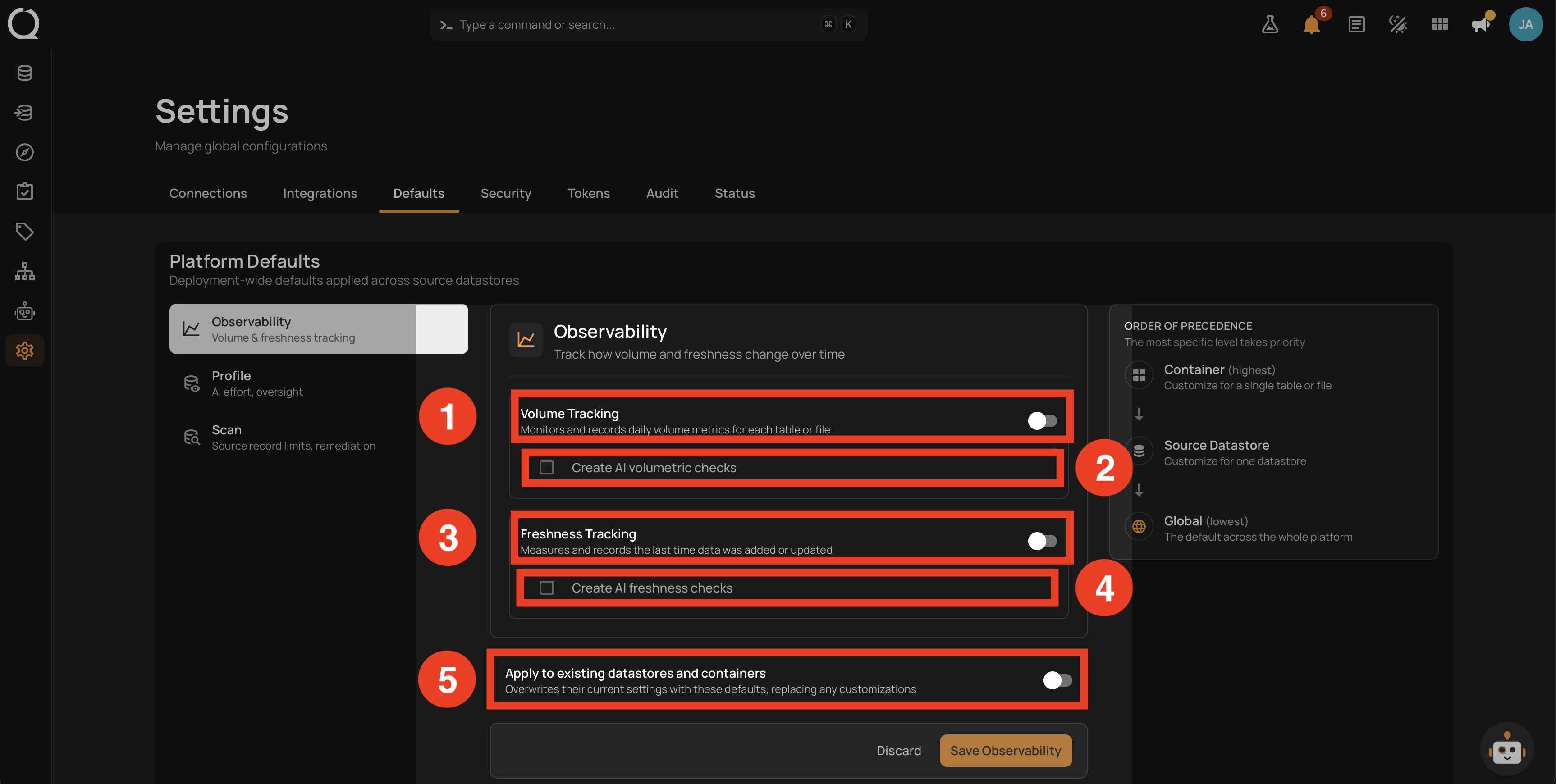
| No. | Field | Description |
|---|---|---|
| 1 | Volume Tracking | Turns on daily recording of volume metrics for each table or file. Default off. |
| 2 | Create AI volumetric checks | When on, an AI-generated volumetric check is created automatically for each tracked container. Disabled when Volume Tracking is off. |
| 3 | Freshness Tracking | Turns on daily recording of the last time data was added or updated. Default off. |
| 4 | Create AI freshness checks | When on, an AI-generated freshness check is created automatically for each tracked container. Disabled when Freshness Tracking is off. |
| 5 | Apply to existing datastores and containers | Opt-in toggle that overwrites the current values on every existing source datastore and non-deleted container when you save. Off by default; resets to off after each save. |
Cascade rule
Enabling Create AI volumetric checks automatically enables Volume Tracking if it was off. Disabling Volume Tracking automatically disables Create AI volumetric checks. The same coupling applies to the freshness pair. See How It Works for details.
Steps
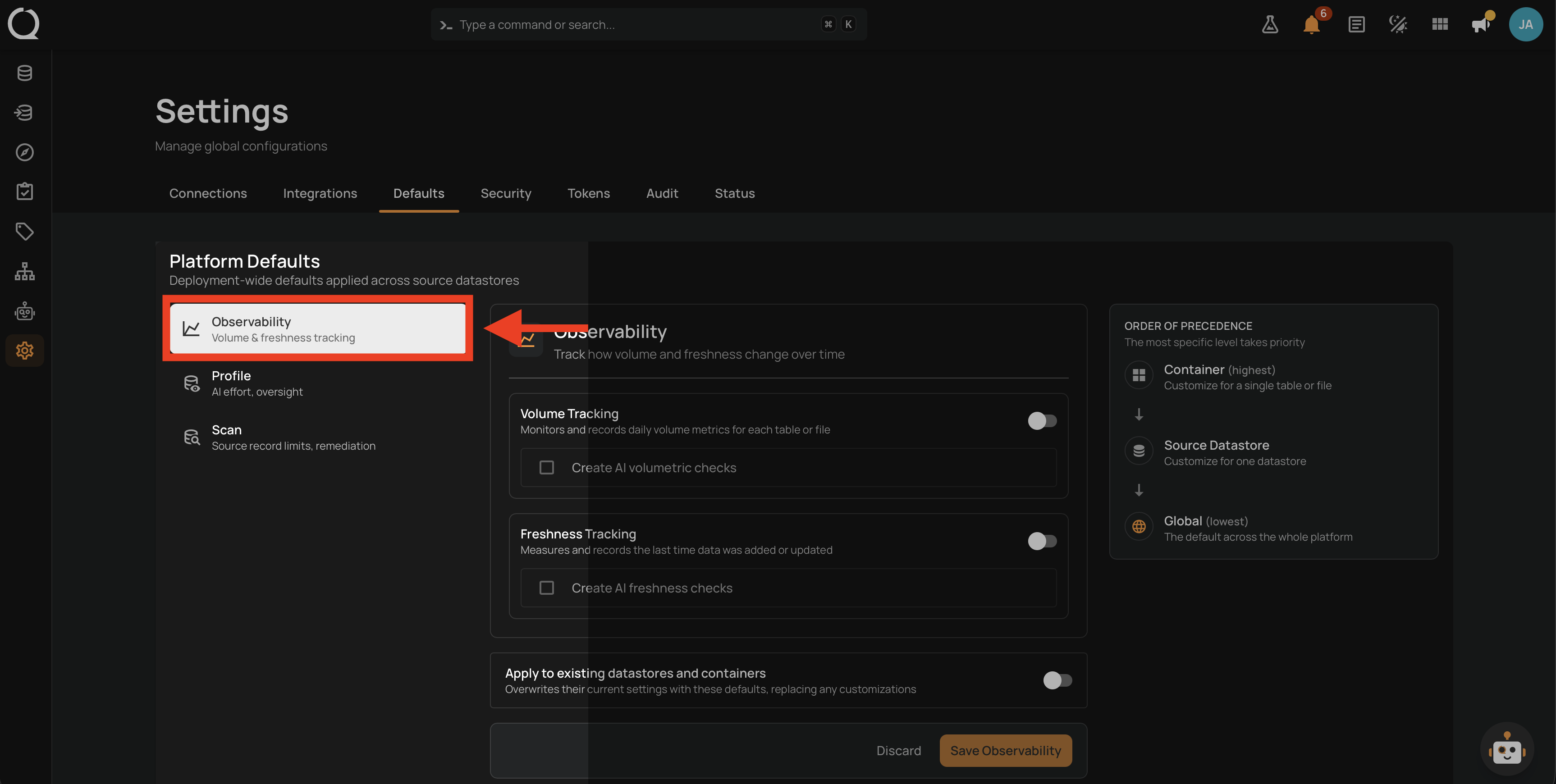
Step 1: Open Settings from the left sidebar, click the Defaults tab, and click Observability in the left rail. The current Observability defaults load on the right.
Step 2: Adjust the toggles to the values you want. If you also want the new defaults to replace the current values on every existing source datastore and container, turn on Apply to existing datastores and containers.
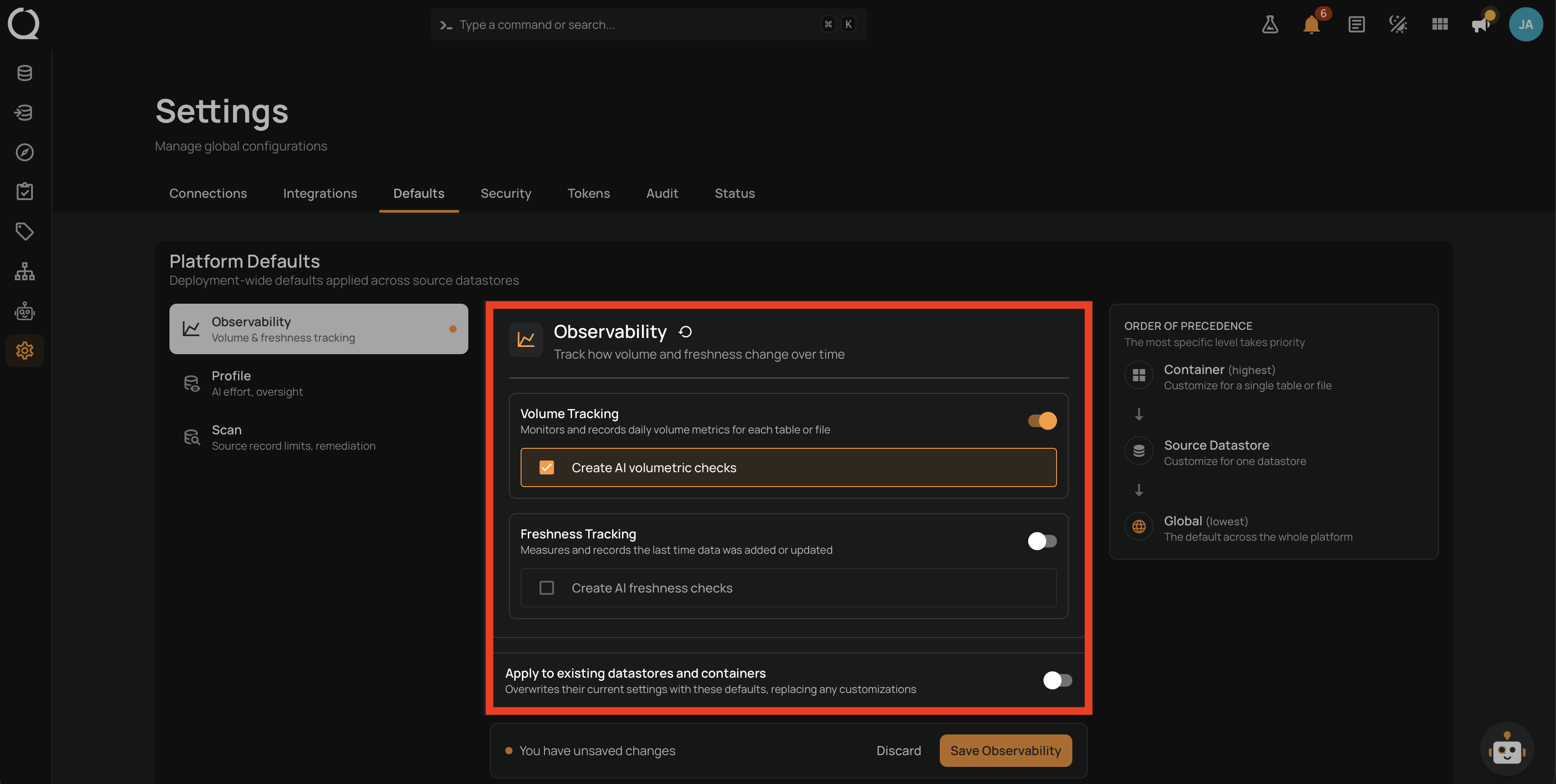
Propagation overwrites customizations
When the Apply-to-existing toggle is on, propagation replaces the current values on every existing source datastore and container in your workspace. Per-datastore and per-container customizations are wiped and replaced with the newly saved defaults.
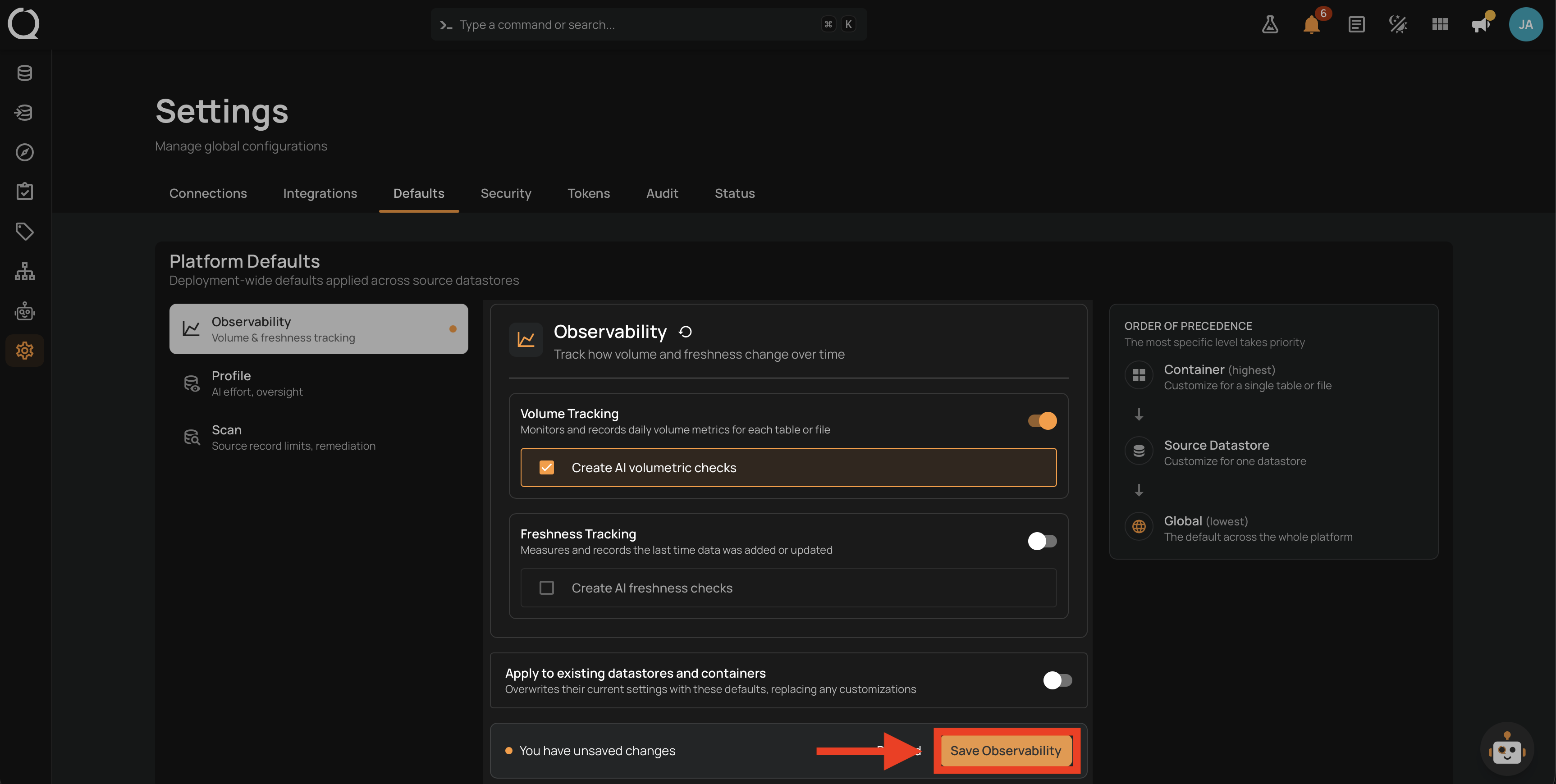
Step 3: Click Save Observability to apply the changes.
Step 4: A confirmation banner appears at the top of the panel. When propagation was on, the banner reports how many datastores and containers were updated. When propagation was off, it confirms that the defaults were saved.
Related
See How It Works for the precedence chain and the propagation behavior.