Generate Service Token
Use the Generate Token action to create a new Service Token for a Service User. Service Tokens enable automated systems to authenticate with the Qualytics API.
Permissions
Only users with the Admin role can generate Service Tokens. See the Permissions page for details.
Warning
Tokens are shown only once at creation time. Make sure to copy or download the token before closing the modal. It cannot be retrieved later.
Fields
The token form contains the following fields:
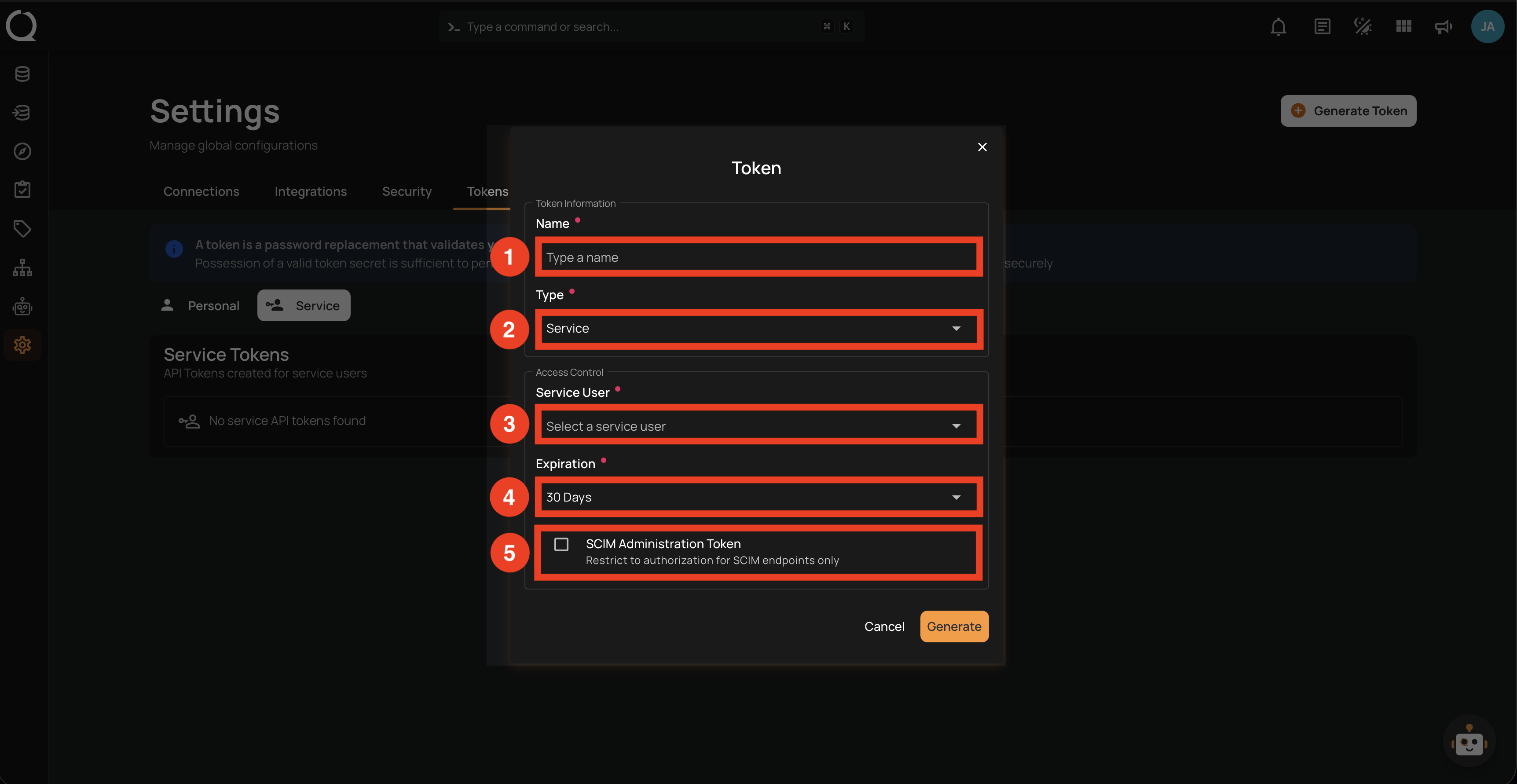
| REF. | FIELD | DESCRIPTION |
|---|---|---|
| 1 | Name | A descriptive label for the token (e.g., Airflow Service User). Must be unique per Service User. |
| 2 | Type | The token type (Personal or Service). Select Service to create a Service Token. |
| 3 | Service User | Select the Service User that the token will be tied to. Hover the icon next to the field title for a short explanation of what a Service User is. If the account does not exist yet, you can create it without leaving the form, see Create a Service User from the Form. |
| 4 | Expiration | The token's lifespan: 30 days, 60 days, 90 days, 1 year, or Never. |
| 5 | SCIM Administration Token | When enabled, the token is restricted to SCIM endpoints (/scim/v2/*) for automated user provisioning and identity management. See How It Works for details on SCIM. |
Create a Service User from the Form
A token always belongs to a Service User, but you don't need to create the account beforehand. Click the Add service user icon inside the Service User field, next to the dropdown arrow. The icon is there whether or not any Service User exists, and the dropdown closes as the form opens. Users without permission to create Service Users do not see it.
When you open the dropdown, it shows No service users yet if no Service User exists, or No service users found if your search matches none.
The Create Service User form opens on top of the token form, with only the account fields. Click Finish to create the account, or Cancel or the icon to go back. Clicking outside the form does not close it, so a stray click cannot discard what you typed.
After you click Finish:
- The token form stays open and keeps everything you already filled in (name, expiration, SCIM).
- The new account is selected in the Service User field.
- Accounts created this way are pinned to the top of the dropdown, newest first, and marked with a icon. The pins last until you close the token form. The next time you open it, the list returns to its usual order.
Note
Creating Service Users from the token form requires the Admin role, the same as creating them from Settings → Access → Users. The Service User field still has to be filled before you click Generate.
Steps
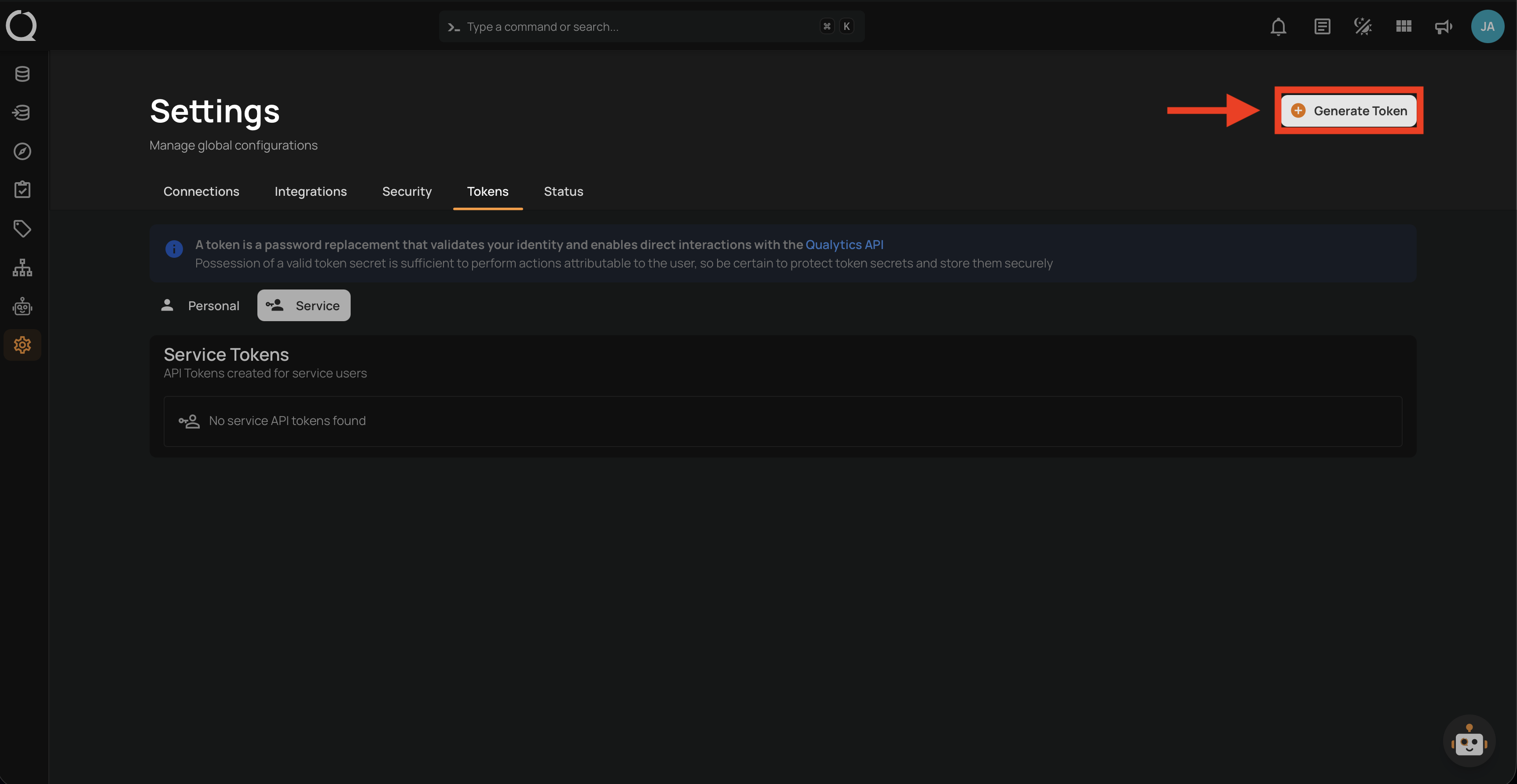
Step 1: Click the Generate Token button located in the top right corner of the Settings page.
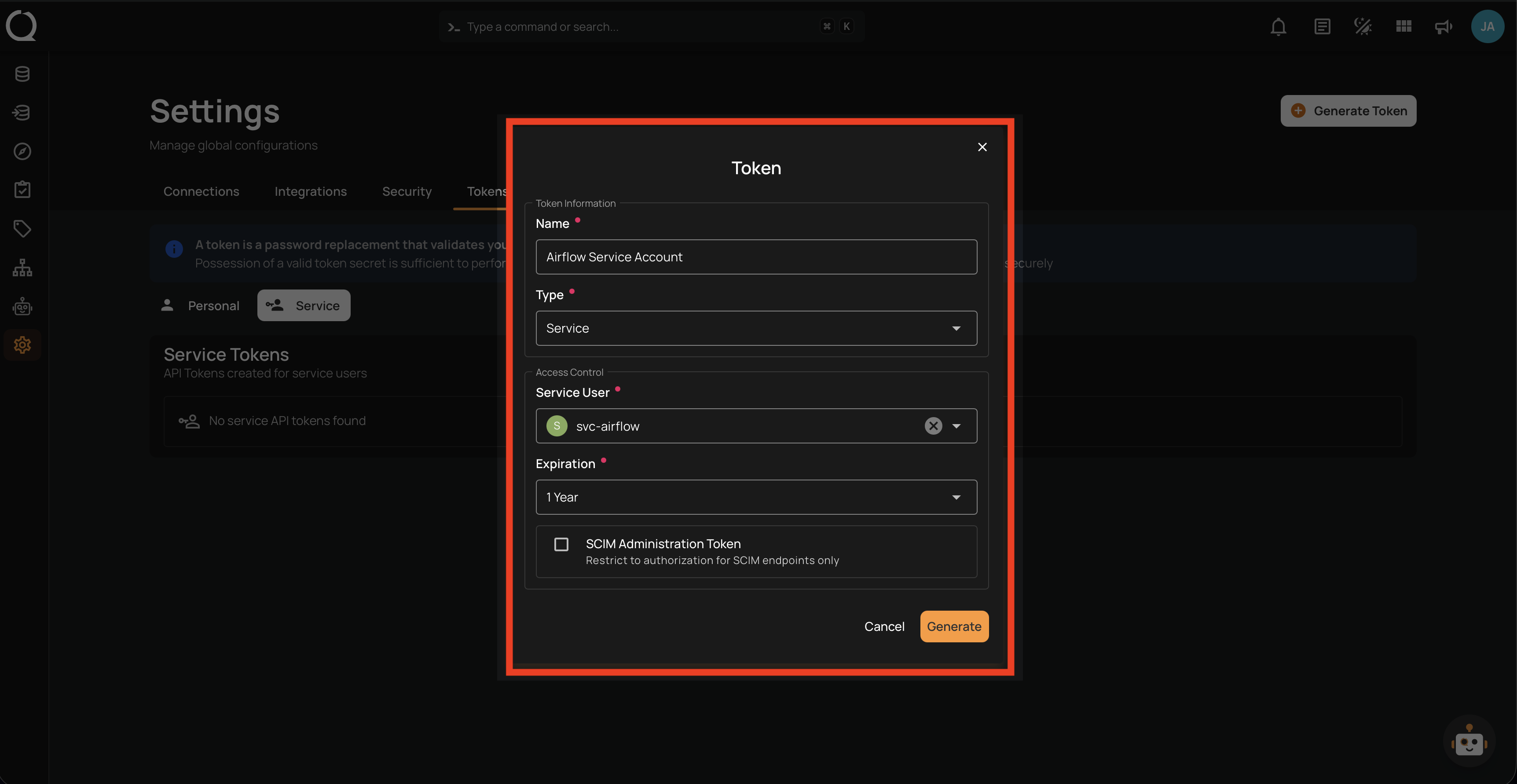
Step 2: Fill in the fields and review your selections.
Note
Avoid selecting Never as the expiration for production tokens. See Best Practices for recommended expiration periods per environment.
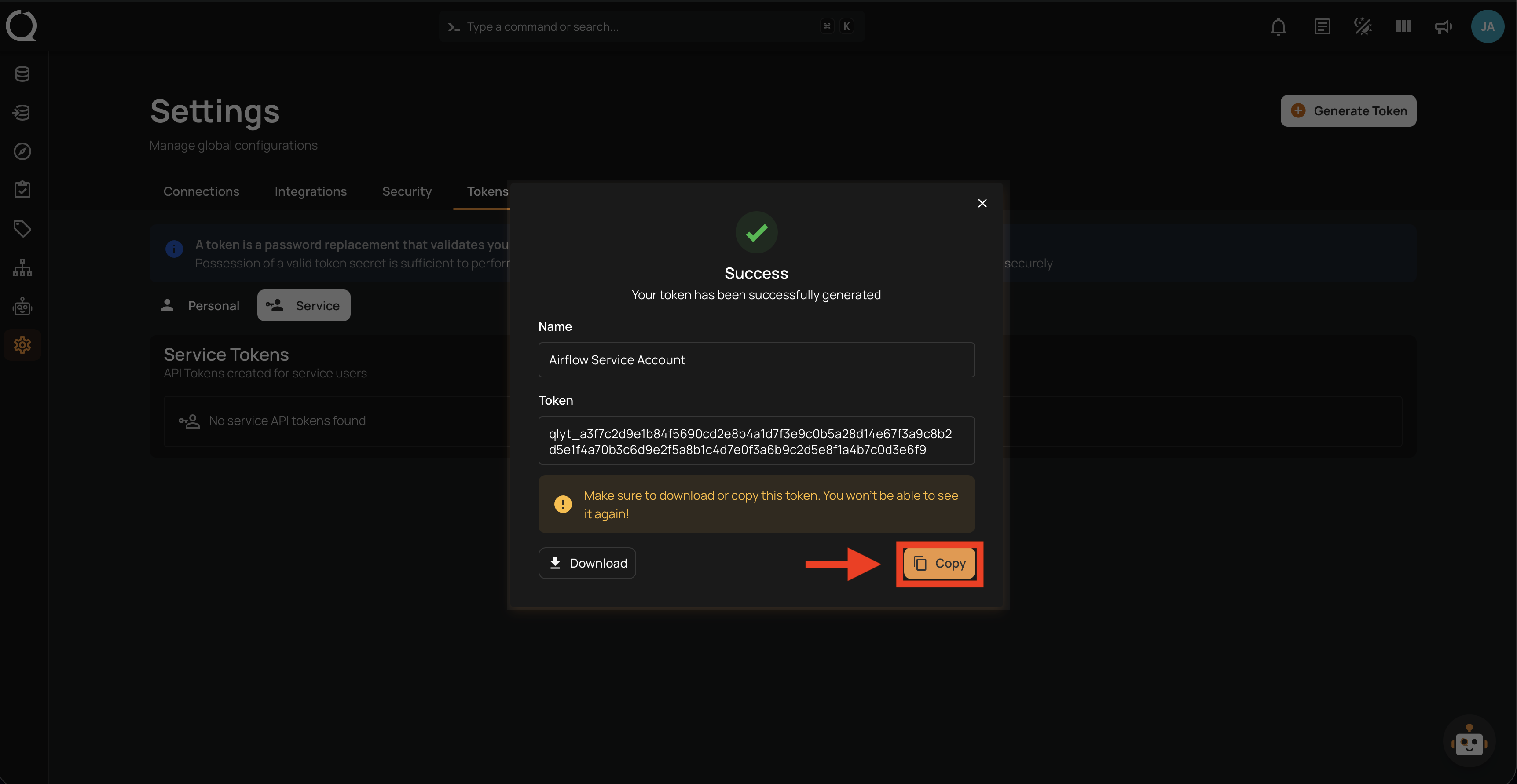
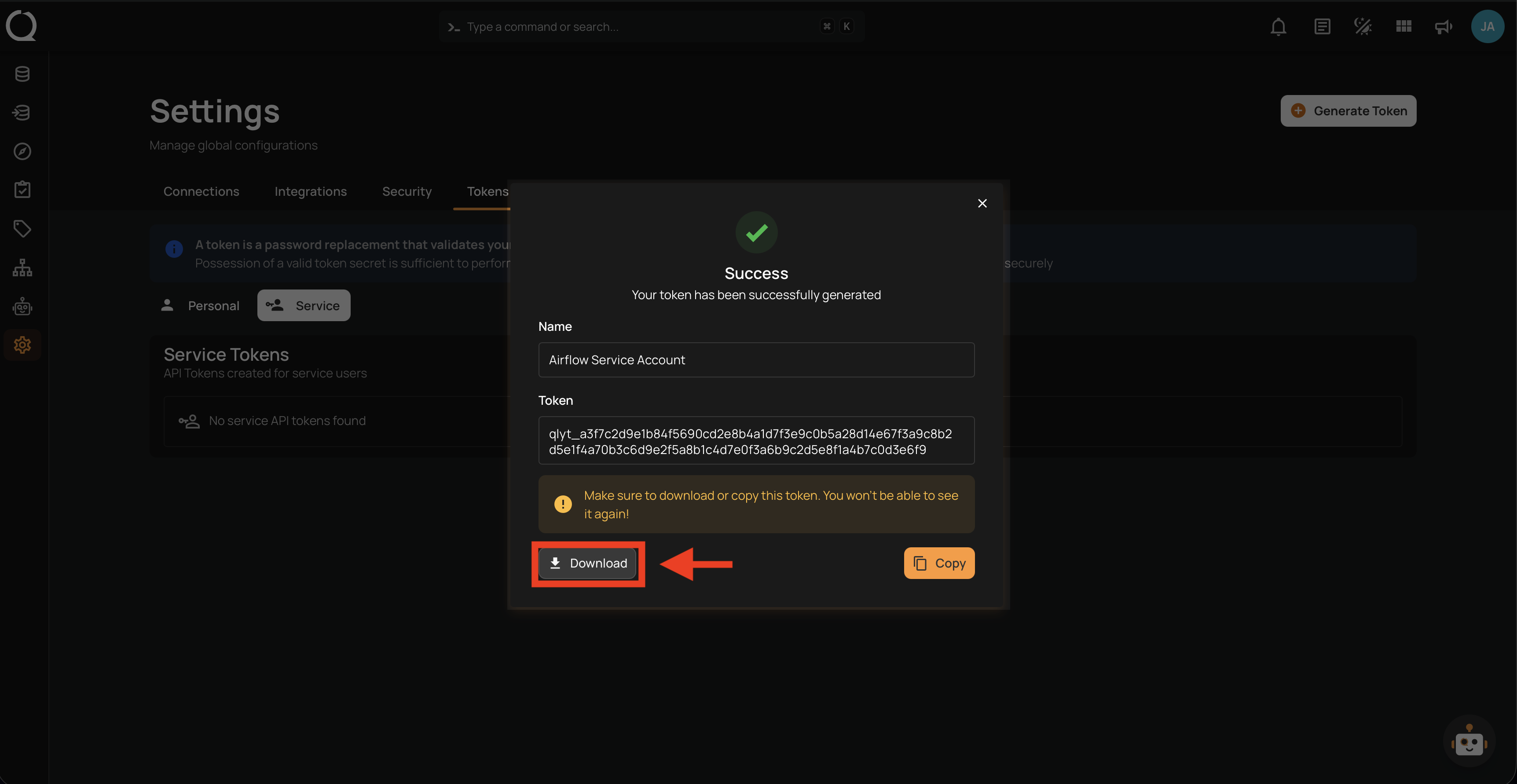
Step 3: Click the Generate button to create the token. The modal switches to a success view displaying the generated token.
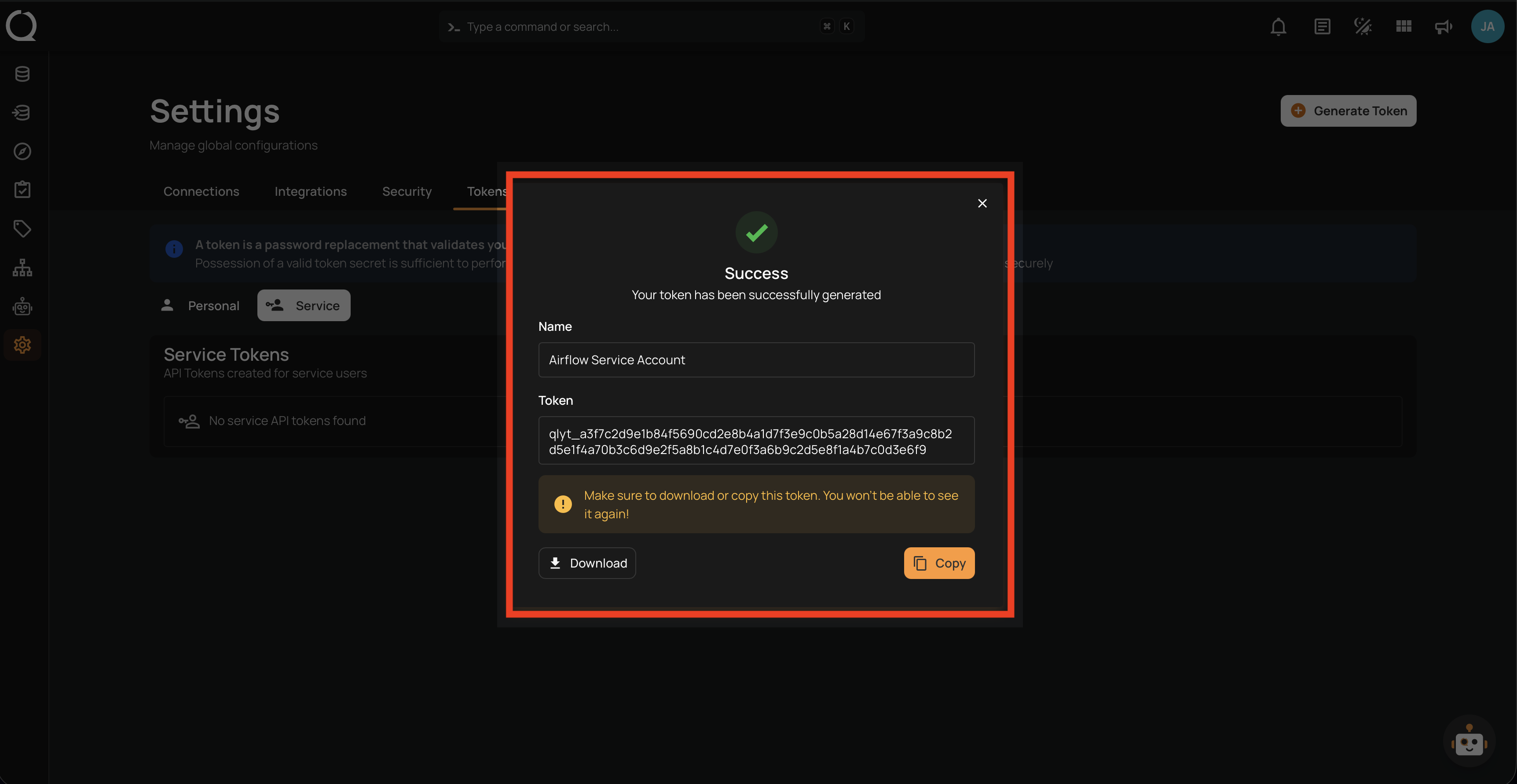
Step 4: Save the token using one of the two options:
Click the Copy button to copy the token to your clipboard.
Click the Download button to save the token as a .txt file. The filename follows the pattern <token-name>-token.txt (e.g., airflow-service-user-token.txt).
Step 5: Close the modal. The new token appears in the Service Tokens list with Active status.