Team Restriction Mode
Team Restriction Mode lets you scope your view to a single team, so the platform behaves as if you were a regular member of that team only. Admins who turn it on also see their role downgraded to Manager for the duration of the restriction.
This is useful for three scenarios:
- Demonstrating role-based access control - show stakeholders exactly what a team member sees, without creating a separate test account.
- Diagnosing permission issues - reproduce what a teammate experiences when they report missing data or actions caused by team-level scoping.
- Focusing your work on one team - when you belong to many teams, narrow your view to just one to reduce noise and concentrate on that team's datastores.
How It Works
When a restriction is active, the platform applies the following rules to your session:
- Teams - only the selected team is considered. Memberships in other teams are ignored.
- Permissions - derived from your role in the selected team only, not from the combined permissions of every team you belong to.
- Admin role - if you are an Admin, your effective role becomes Manager. This means you become subject to team permissions like any other Manager and lose access to admin-only actions until the restriction is cleared.
- Persistence - the restriction is stored locally in your browser and stays in effect across page refreshes and navigation. It is tied to your browser, not to your account, so signing in on another device starts unrestricted.
Permissions
Team Restriction Mode is available to any user who belongs to two or more teams - there is no separate permission to enable it.
- Admins who enable it see their effective role downgraded to Manager for the duration of the restriction. Admin-only actions and global access are paused until the restriction is cleared.
- The Internal automation role is never subject to the restriction. API traffic outside this browser session (CLI, personal access tokens, MCP) is also unaffected.
Scope of the restriction
Team Restriction Mode does not require any team permission (Reporter, Viewer, Drafter, Author, Editor). It is a session-level control, not an action governed by the team permission matrix. See Team Permissions for what each team permission allows.
Apply and Clear a Team Restriction
You must belong to at least two teams to use this feature. The full lifecycle - applying a restriction and clearing it again - takes six steps.
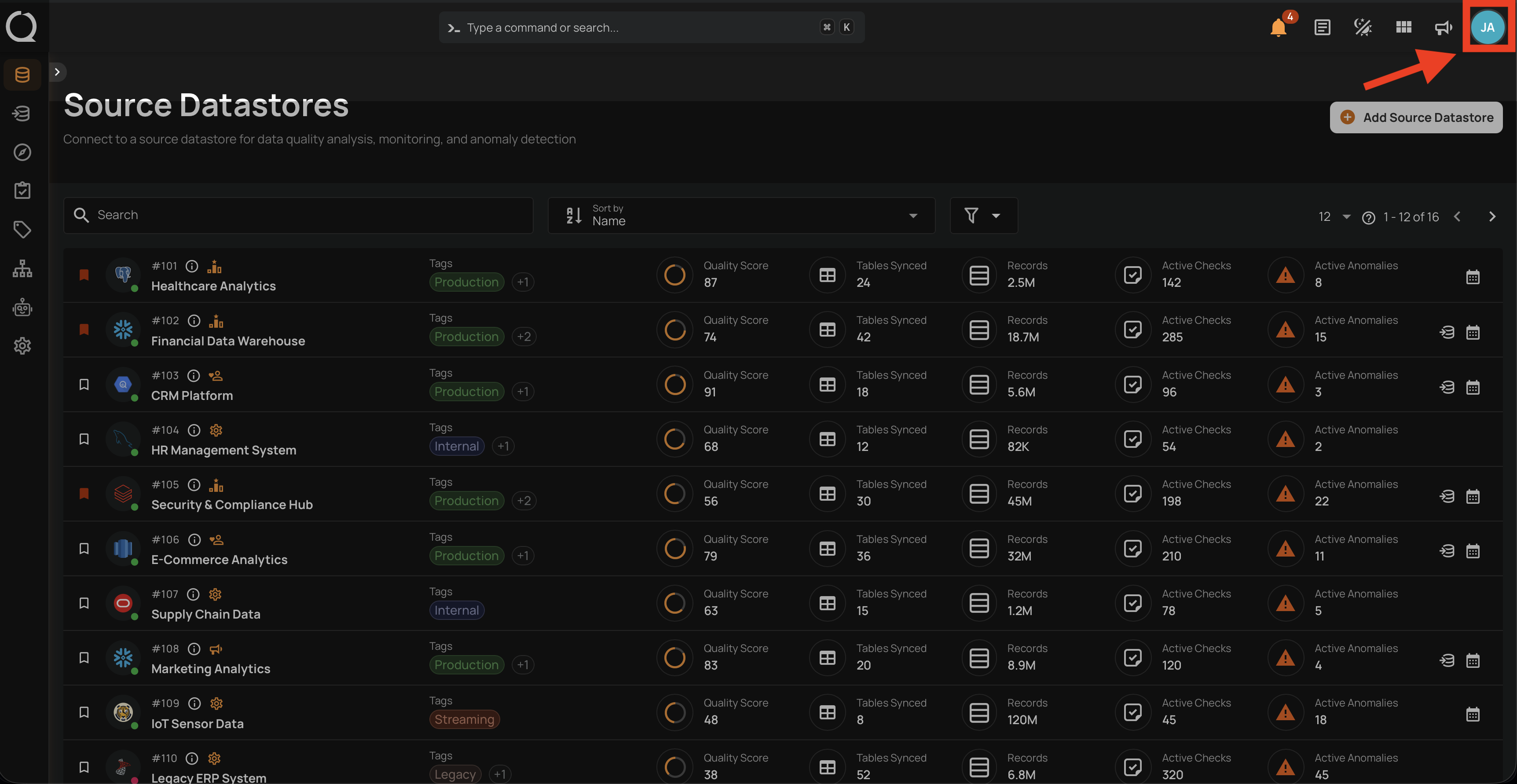
Step 1: Click your avatar in the top-right corner of the toolbar.
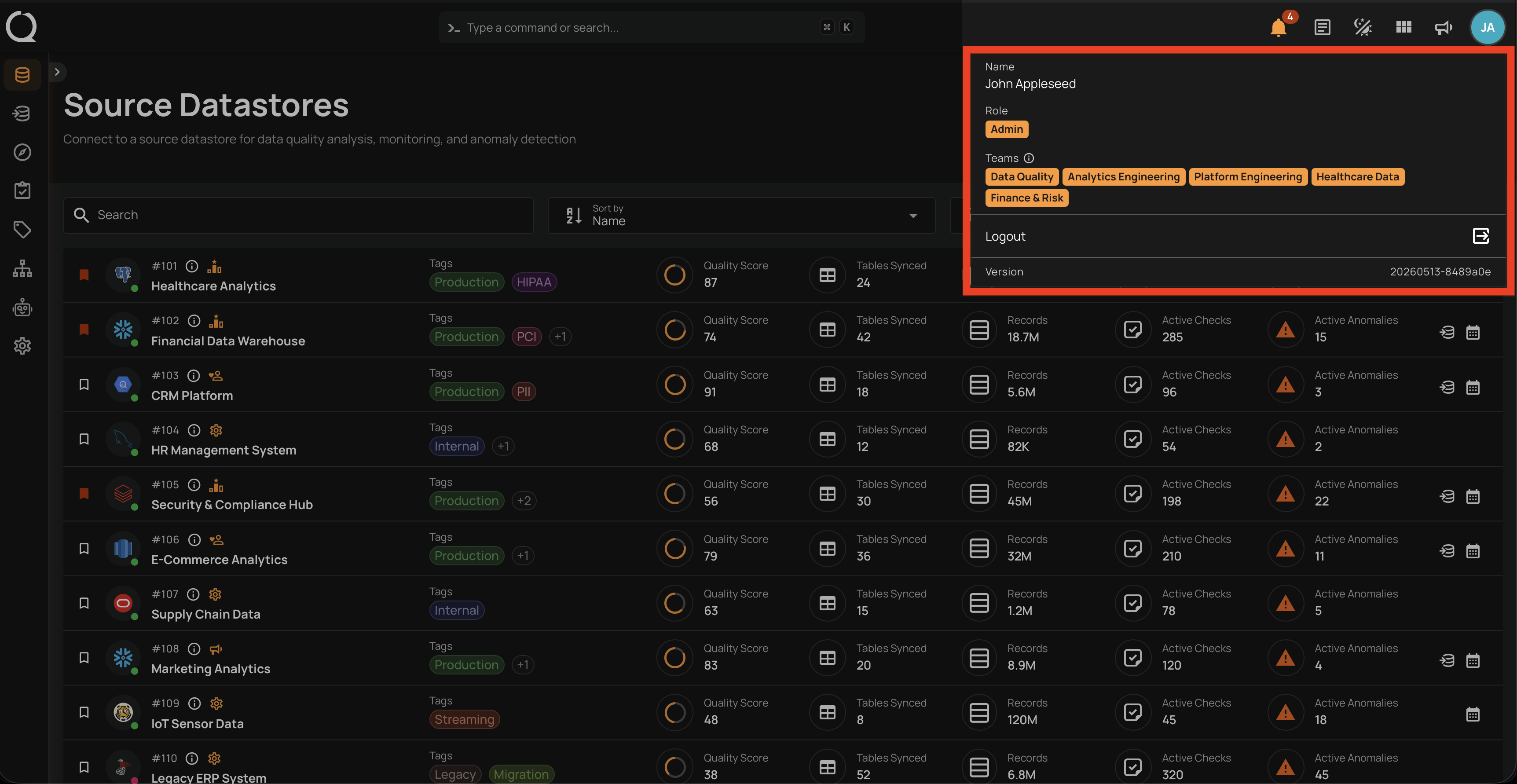
Step 2: The profile menu opens, listing your identity, role, teams, logout, and version.
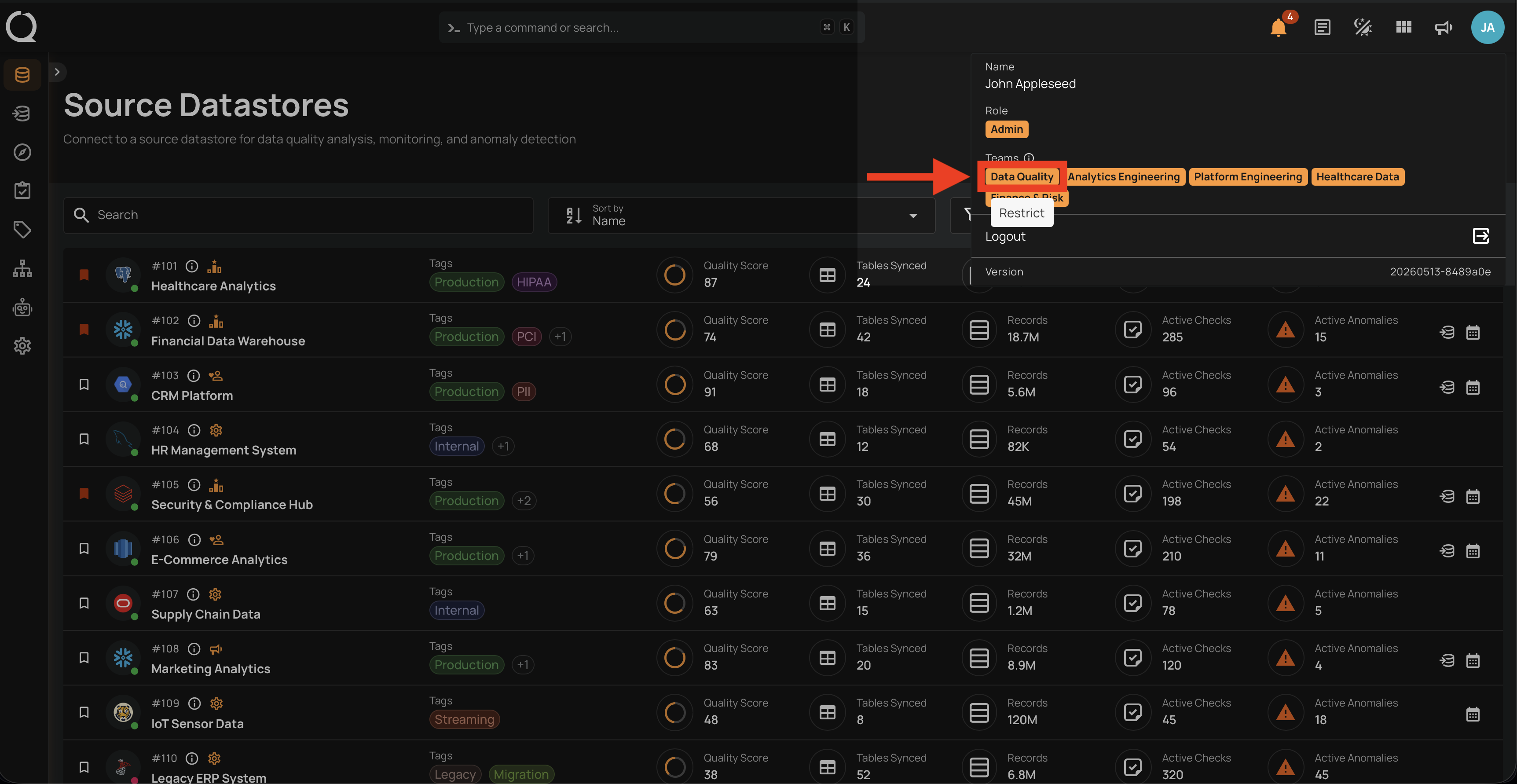
Step 3: In the Teams section, click the badge of the team you want to restrict your view to.
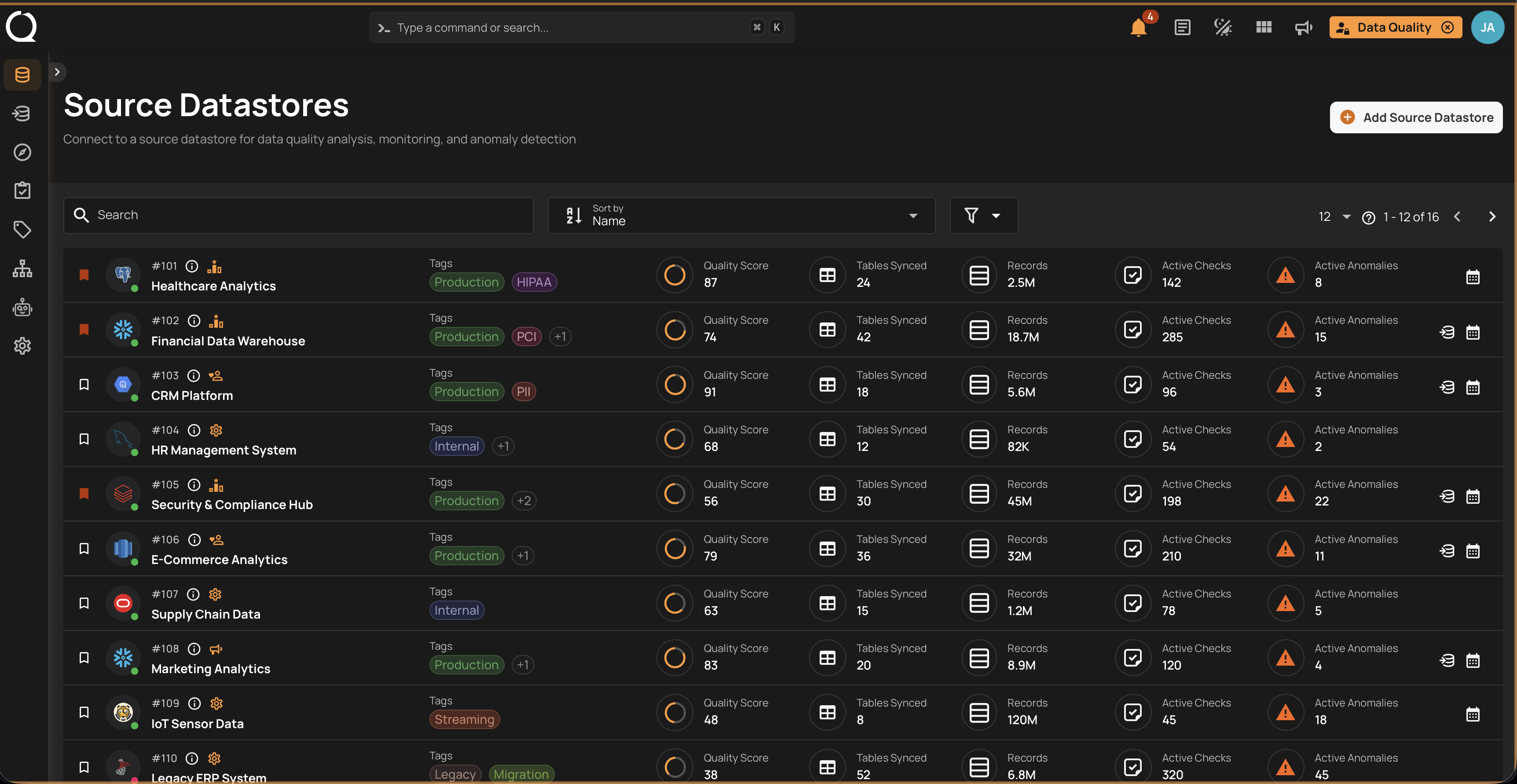
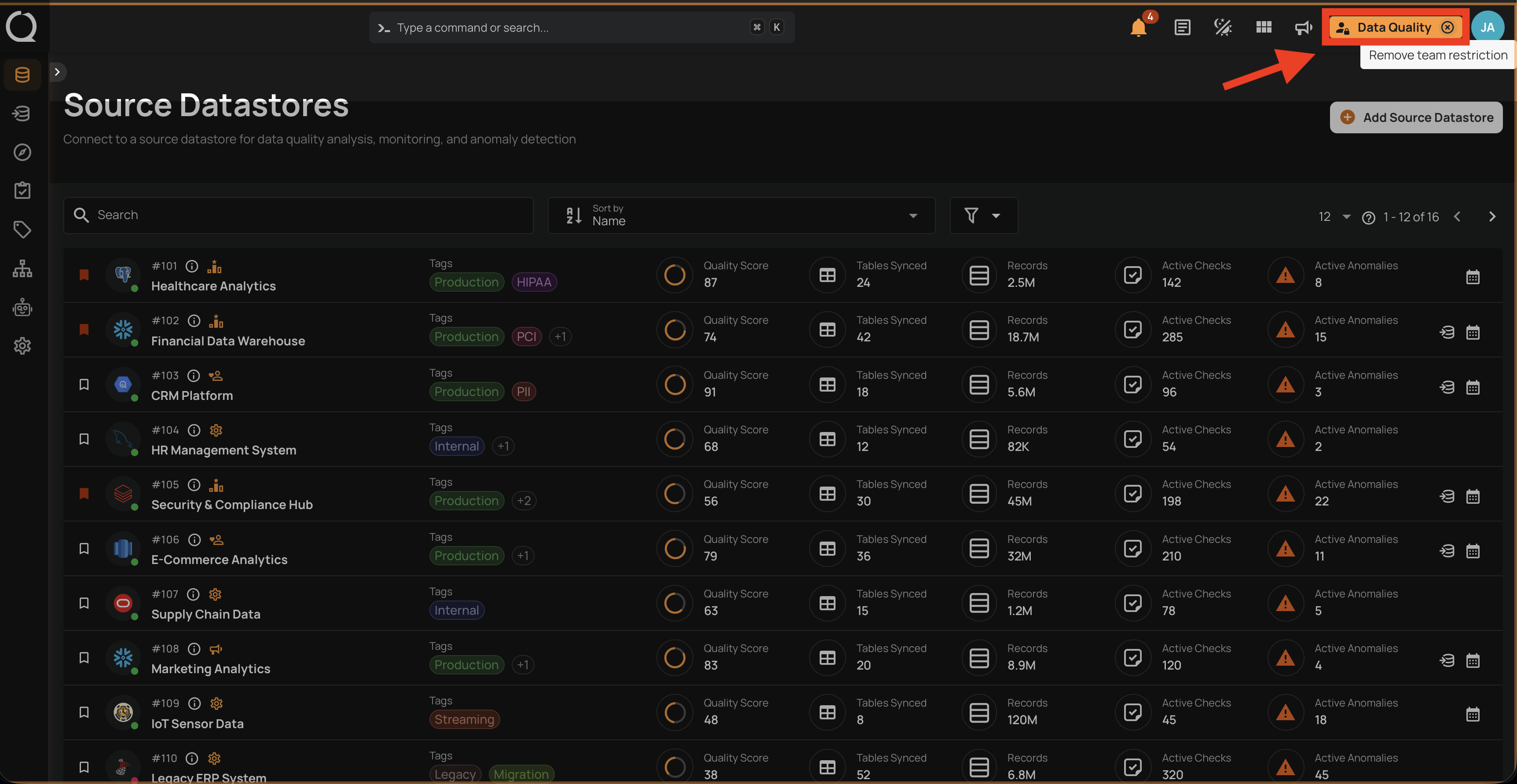
Step 4: Qualytics re-evaluates your permissions and refreshes the current view with the restriction applied. The toolbar shows a yellow team-restriction badge with a Lock icon and the team name. If you are an Admin, the profile menu now shows a faded Admin badge alongside a Manager badge, indicating that your role is temporarily Manager while the restriction is active.
Step 5: When you're ready to return to your full session, click the Remove team restriction button on the team badge in the toolbar.
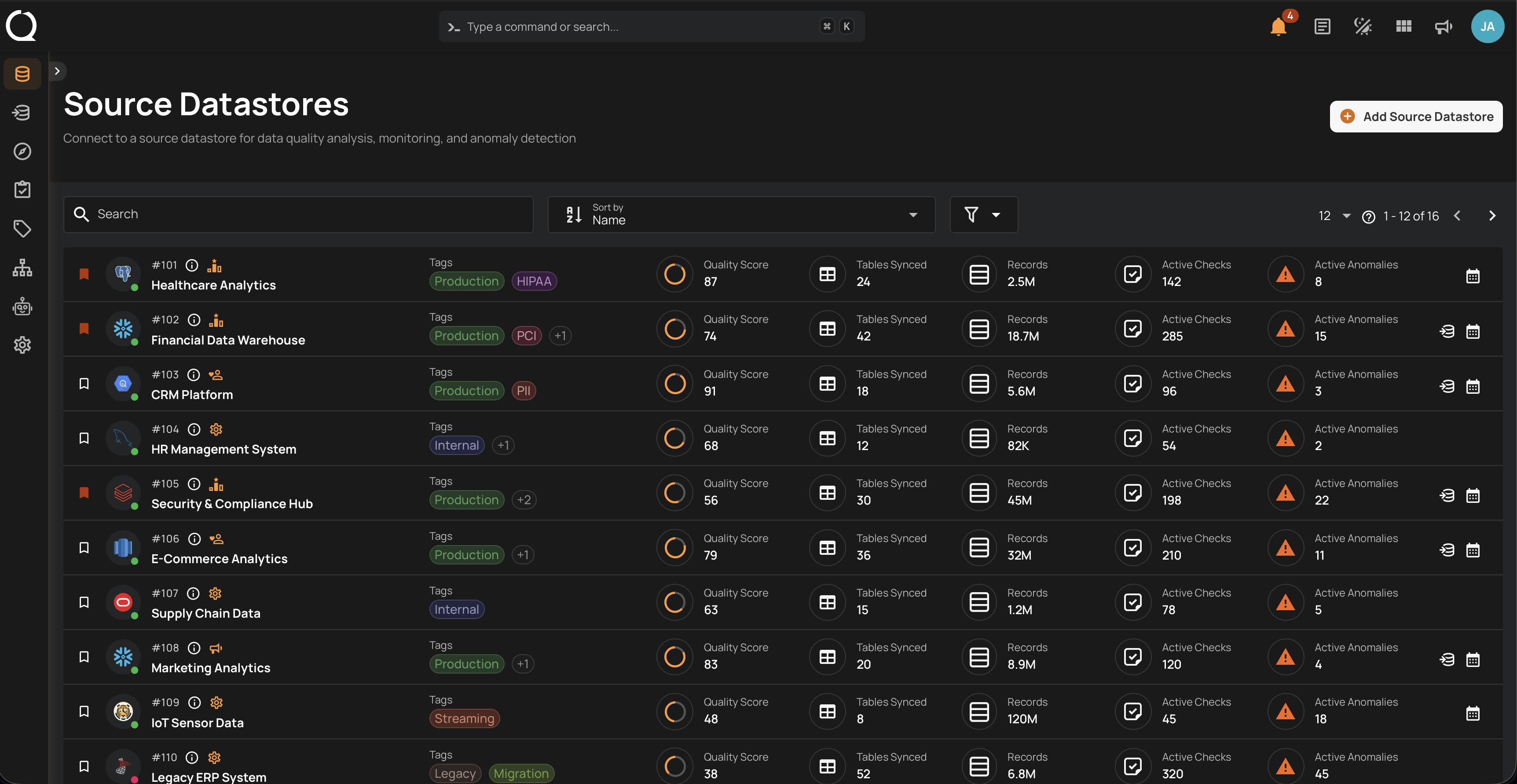
Step 6: Qualytics re-evaluates your permissions and refreshes the current view. Your full session is restored, including all team memberships and your original role.
Switch to a Different Team
To swap from one restricted team to another without clearing first, repeat Steps 1–3 and pick a different team badge. The restriction switches immediately to the new team without an intermediate unrestricted state.
Behavior When Access Changes
When you apply, switch, or clear a restriction, Qualytics re-evaluates which data you can see and refreshes the current view. If you happen to be on a page whose datastore is not accessible under the new scope, Qualytics redirects you to a page you can access and shows a notification explaining that you don't have permission for the previous page.
This behavior is intentional and prevents the UI from showing partial or stale data after the scope changes.
Empty State on a Team With No Datastores
If the team you restrict to has no datastores linked to it, the Datastores list and the sidebar datastore tree both show a No accessible datastores found message instead of the usual "Add Datastore" card. This is not a bug: the platform only surfaces datastores that belong to the selected team, and there is nothing to list. The yellow View restricted to <team> team badge in the toolbar is your visual cue that the empty state comes from the restriction, not from an empty workspace. To leave this state, clear the restriction (Step 5) or switch to a team that has datastores linked to it (see the Switch to a Different Team tip).
Limitations
- The restriction is browser-local. It does not follow you to another device or another browser profile.
- Clearing your browser storage clears the restriction.
- The restriction only affects this browser session. Programmatic API calls outside the browser - such as the Qualytics CLI, personal access tokens used in scripts, or MCP tools - do not send the restriction header and are unaffected. Your underlying role, team memberships, and audit records are also not changed.
- Team Restriction Mode scopes by team membership only. It does not simulate a different team-level permission (Reporter, Viewer, Drafter, Author, Editor) within the same team - your team permissions stay as they are.
- If you are removed from the restricted team in another session, requests will fail with a "not a member" error until you clear the restriction (remove it via the toolbar button, or clear browser storage).
Related
- Team Permissions - the permission matrix that defines what each team role can do.
- Profile - overview of the profile menu where the Teams section lives.