Edit Check
There are two methods for editing checks: you can either edit specific checks or edit multiple checks in bulk.
Note
When editing multiple checks in bulk, only the Filter Clause, Tags, Additional Metadata, Owner, and Anomaly Assignee can be modified.
Method I. Edit Specific Check
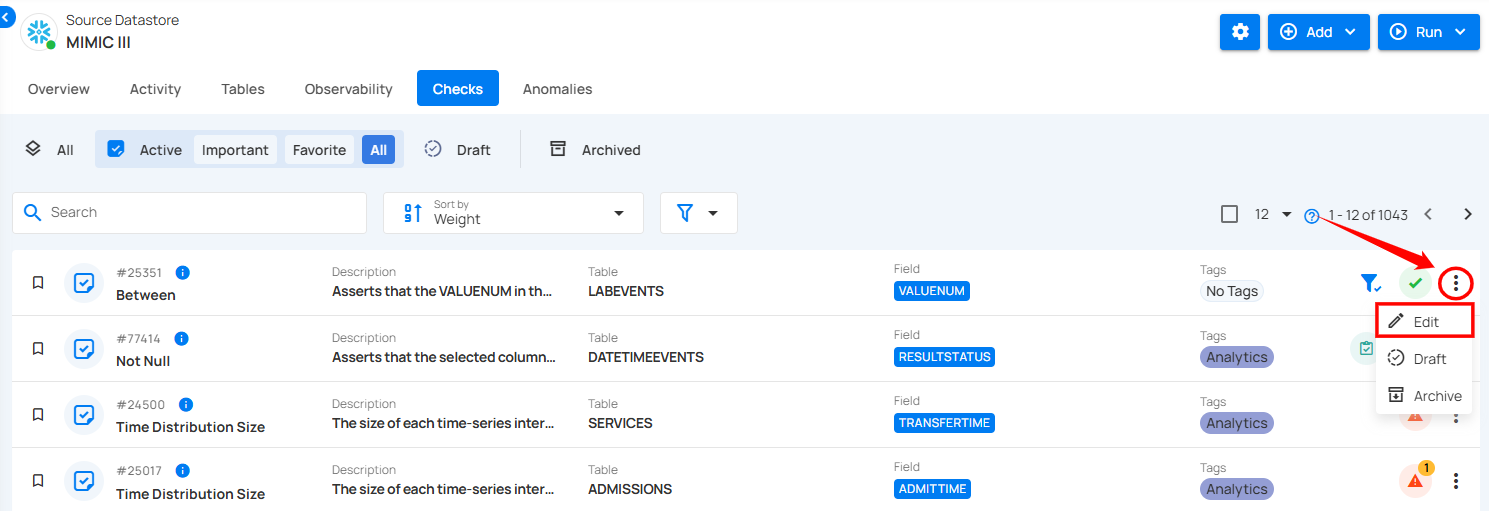
Step 1: Click the vertical ellipsis (⋮) next to the check you want to edit whether it is an active or draft check, and select "Edit" from the dropdown menu.
For demonstration purposes, we have selected the "Greater Than Field" check.
A modal window will appear with the check details.
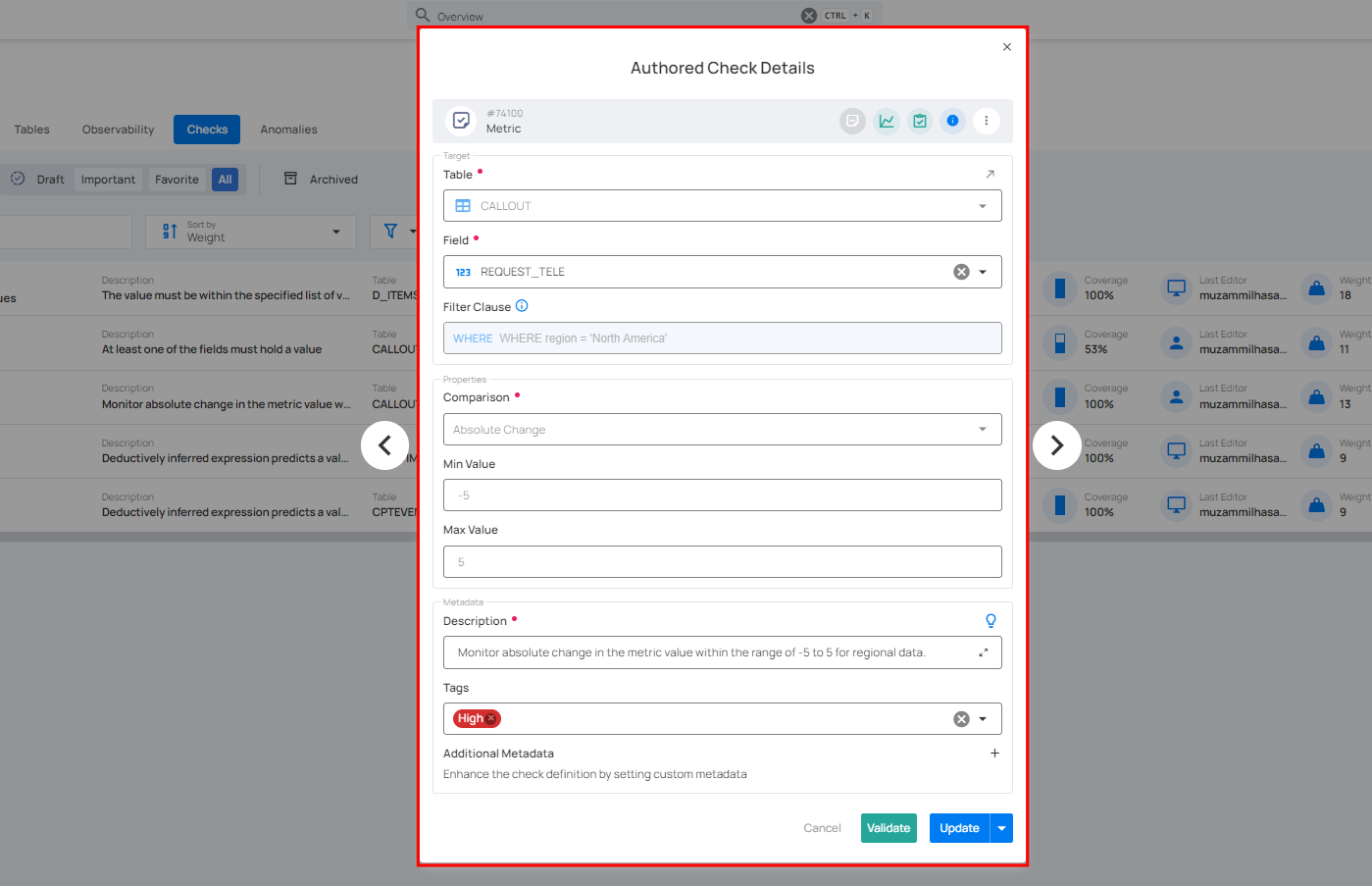
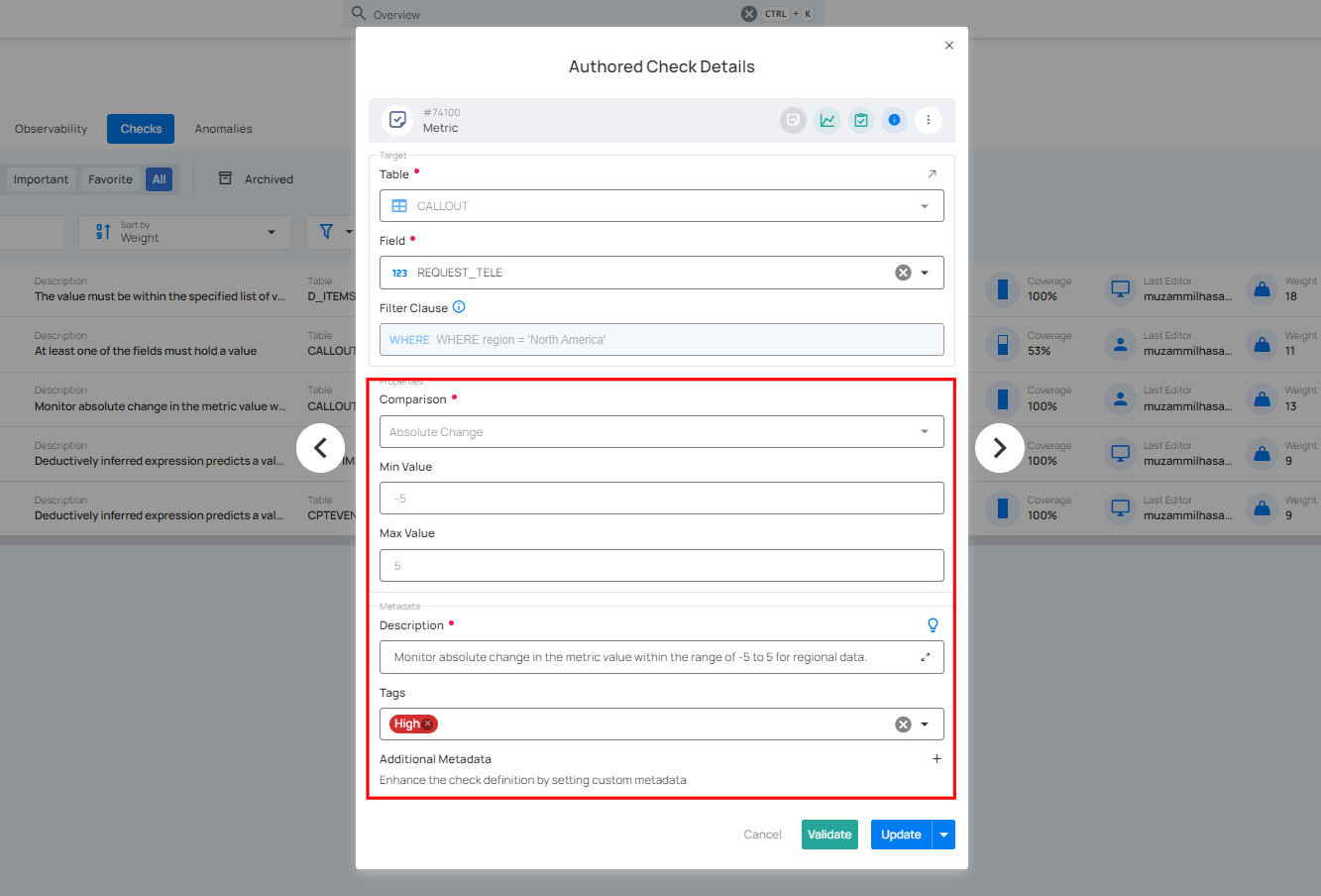
Step 2: Modify the check details as needed based on your requirements.
Step 3: Once you have edited the check details, click the "Validate" button. This will perform a validation operation on the check without saving it. The validation allows you to verify that the logic and parameters defined for the check are correct.
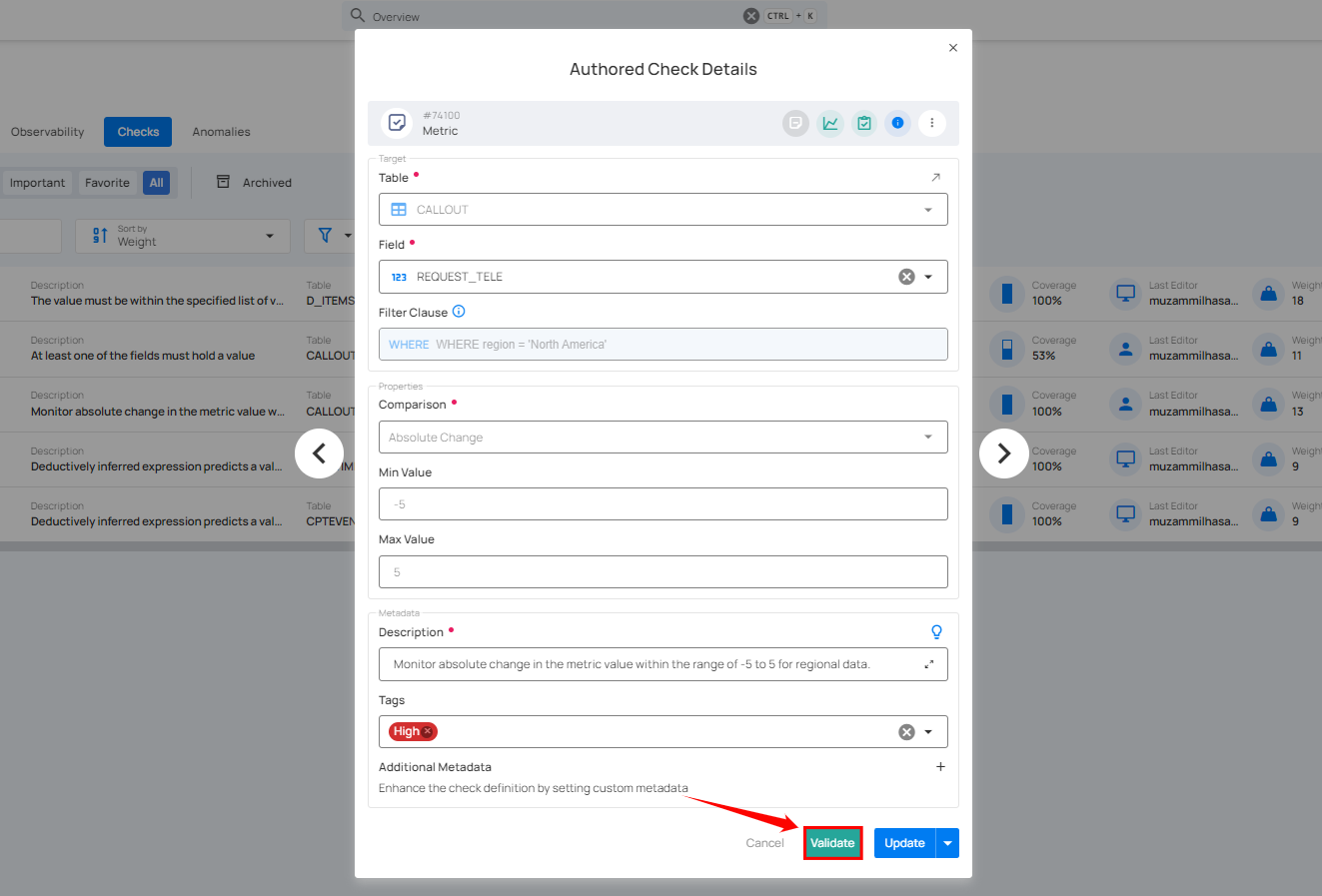
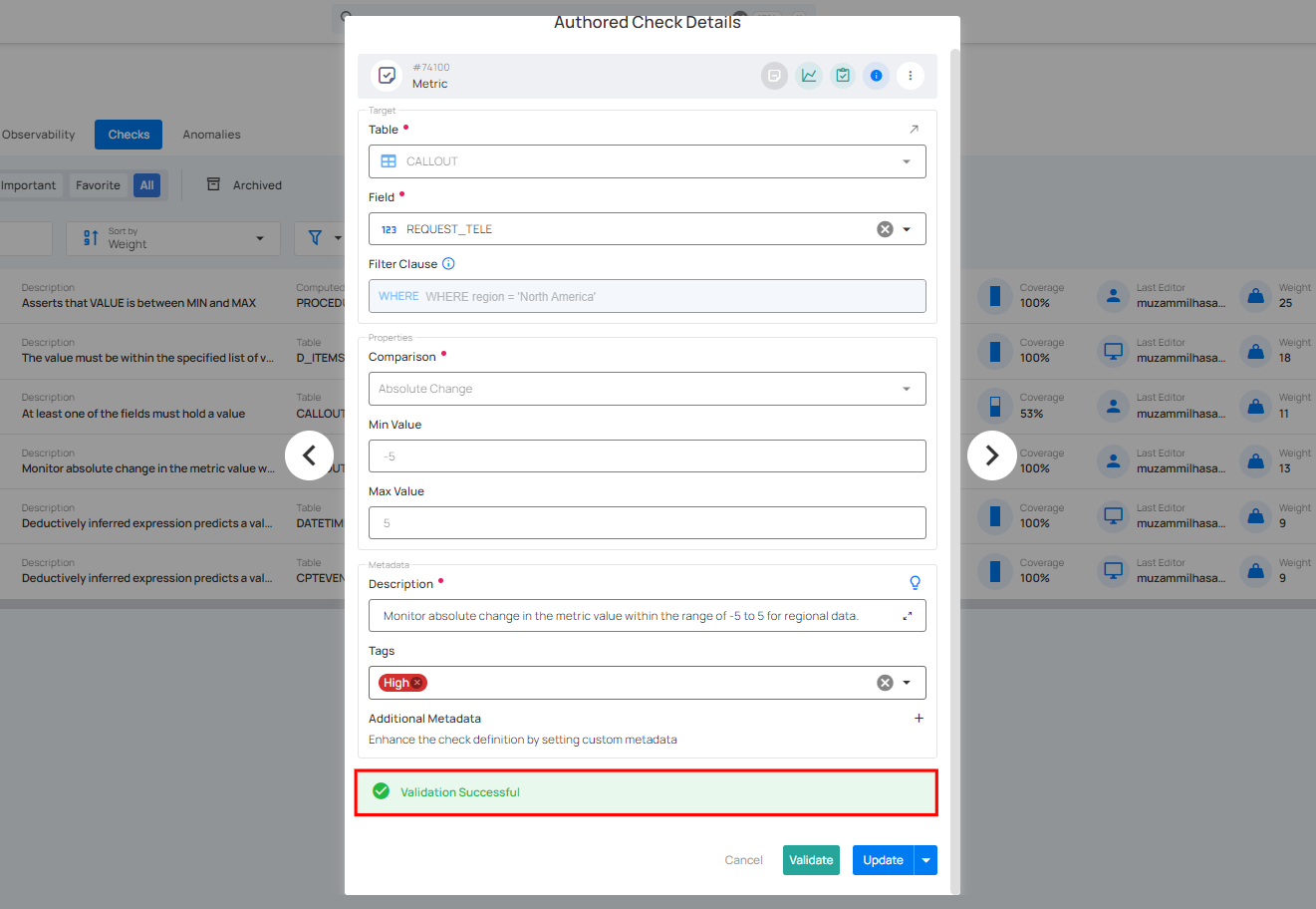
If the validation is successful, a green message saying "Validation Successful" will appear.
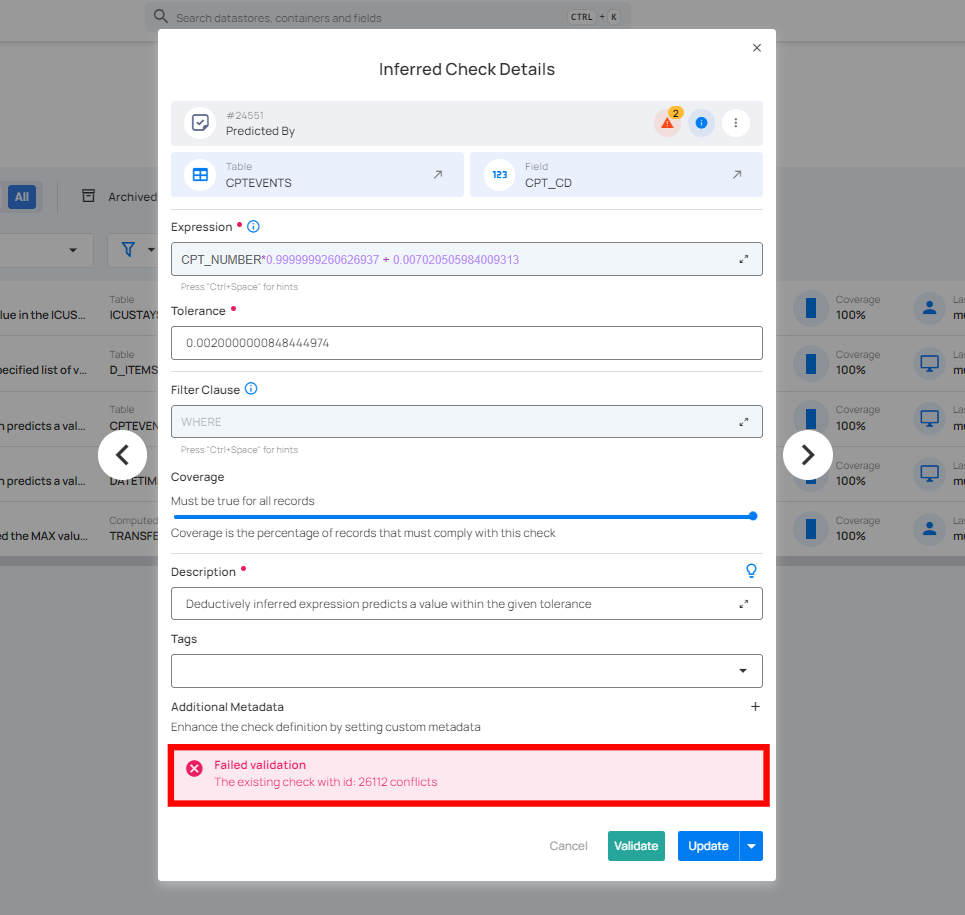
If the validation fails, a red message saying "Failed Validation" will appear. This typically occurs when the check logic or parameters do not match the data properly.
Step 4: Once you have a successful validation, click the "Update" button. The system will update the changes you've made to the check, including changes to the fields, filter clause, coverage, description, tags, or metadata.
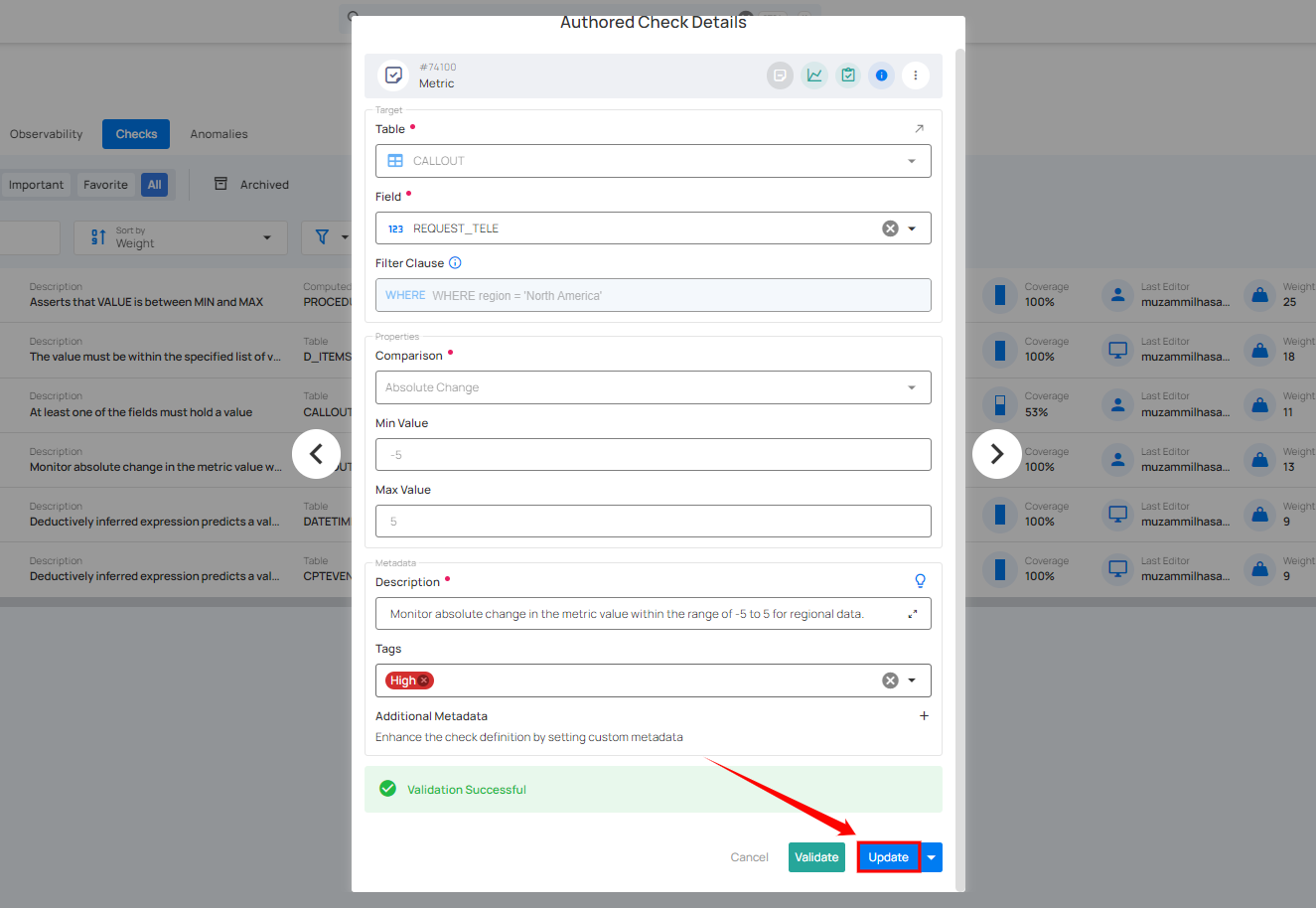
After clicking the "Update" button, your check is successfully updated, and a success message will appear on the screen.
Method II. Edit Checks in Bulk
You can easily apply changes to multiple checks at once, saving time by editing several checks simultaneously without having to modify each one individually.
Step 1: Hover over the checks (whether Active or Draft) and click the checkbox to select multiple checks.
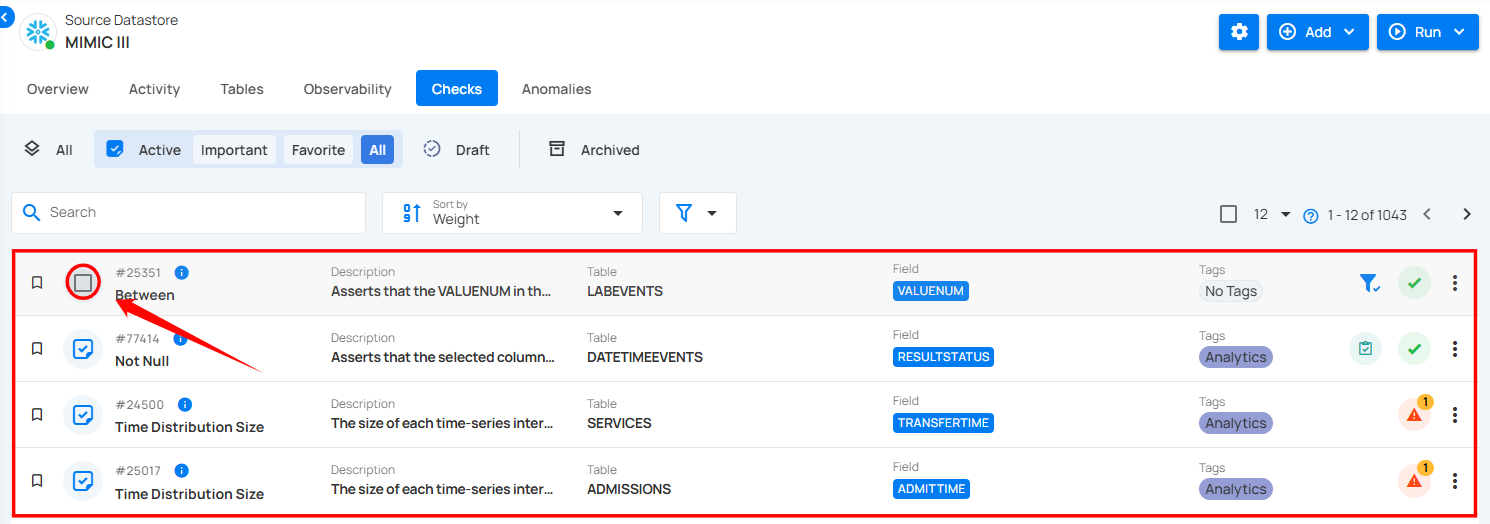
When multiple checks are selected, an action toolbar appears, displaying the total number of selected checks along with a vertical ellipsis for additional bulk action options.
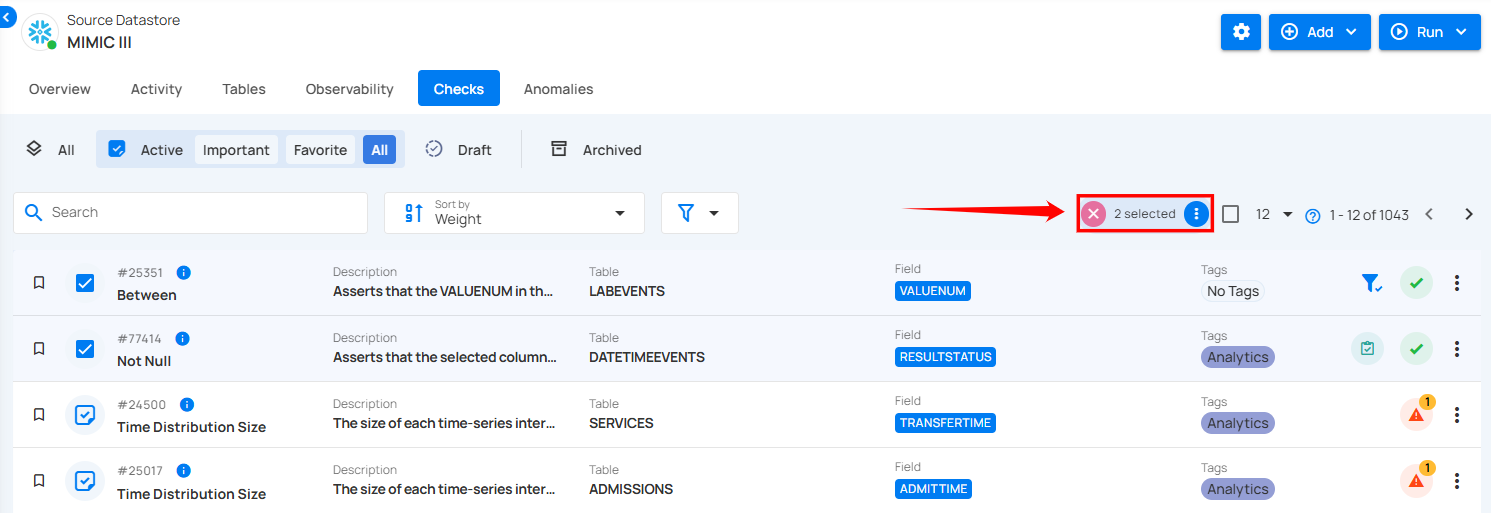
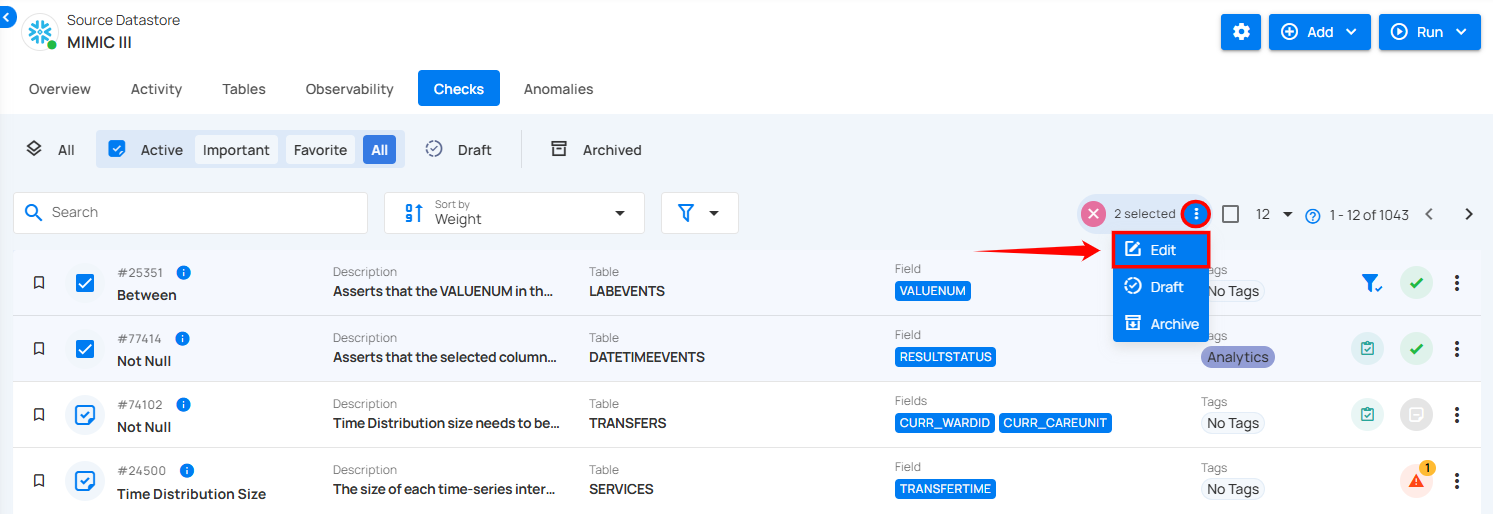
Step 2: Click the vertical ellipsis (⋮) and select "Edit" from the dropdown menu to make changes to the selected checks.
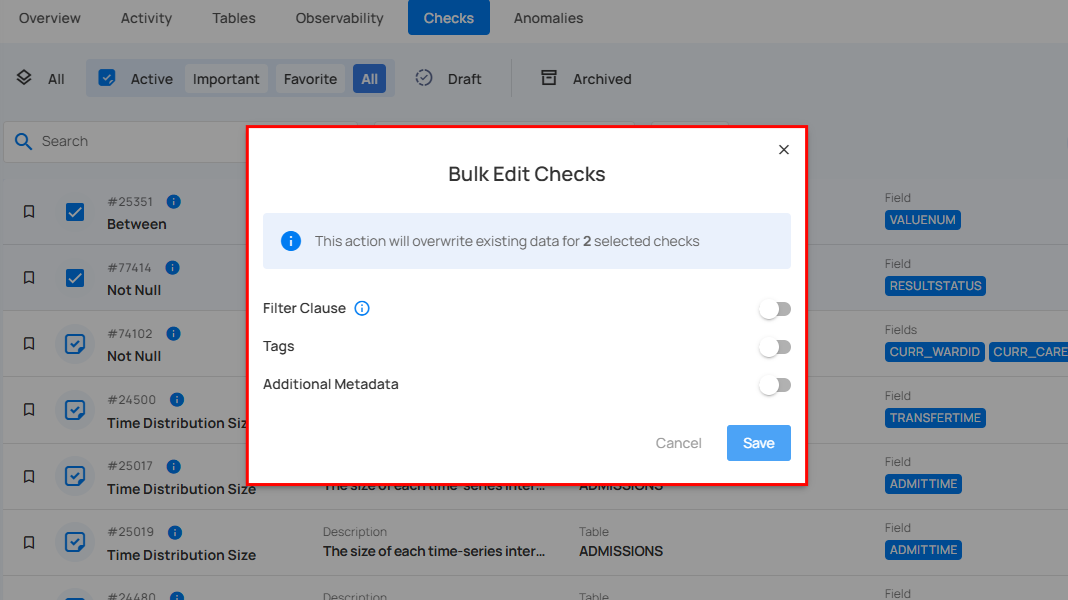
Step 3: A modal window titled "Bulk Edit Checks" will appear. Here you can only modify the Filter Clause, Tags, Additional Metadata, Owner, and Anomaly Assignee of the selected checks.
Step 4: Toggle on the options (Filter Clause, Tags, Additional Metadata, Owner, or Anomaly Assignee) that you want to modify for the selected checks, and make the necessary changes. Each toggled option shows how it is applied:
- Filter Clause, Owner, and Anomaly Assignee show an Overwrite badge: the new value replaces the current one on every selected check.
- Tags and Additional Metadata show an Overwrite / Add selector. Overwrite (the default) replaces the current values with yours. Add keeps the current values and adds yours: tags already on a check are not duplicated, and a metadata entry with the same key takes your new value.
The notice at the top of the dialog updates to list which options are overwritten and which are added to.
Rule types without a filter clause
Some rule types do not accept a filter clause. A Filter Clause set in the bulk edit is rejected for those checks with Check type '<rule type>' does not support a filter clause. A check saved before its rule type stopped accepting a filter or a coverage value can still hold one; bulk editing that check, for any option, removes the unsupported filter or coverage instead of failing.
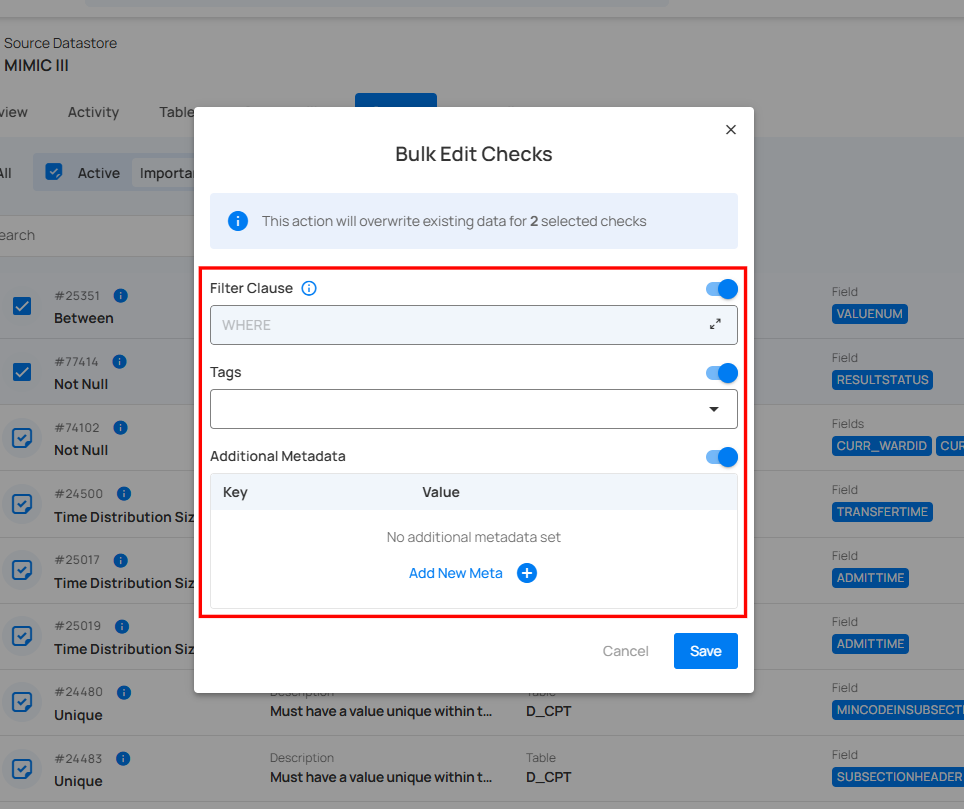
Step 5: Once you have made the changes, click the "Save" button.
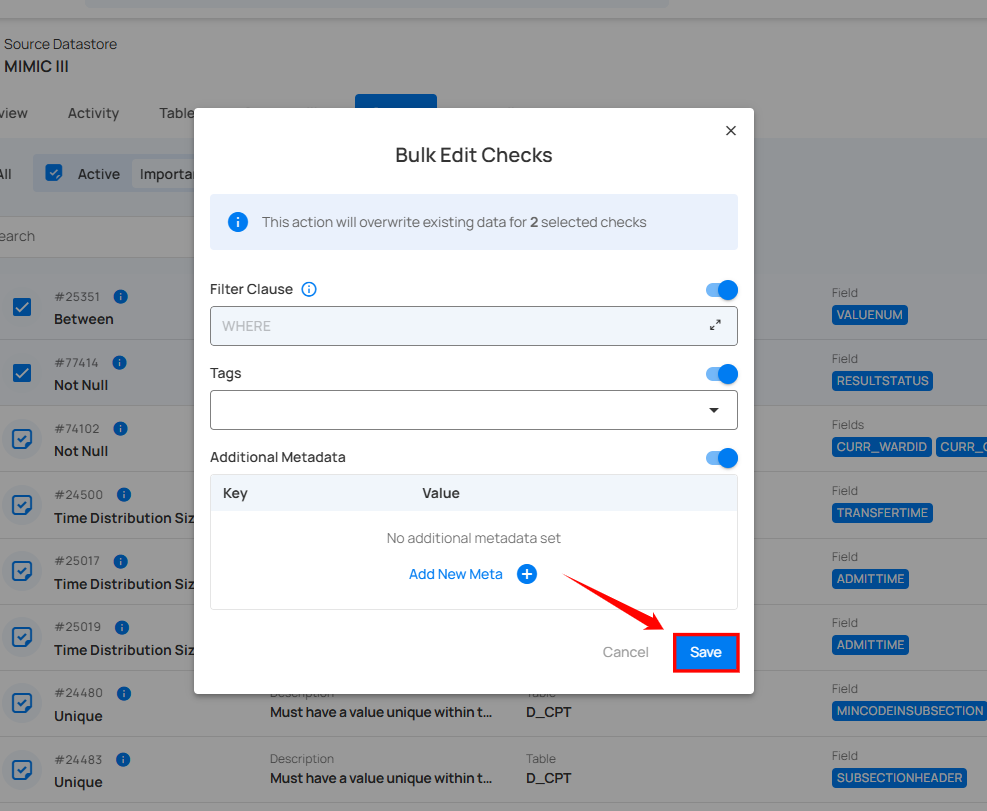
After clicking the "Save" button, your selected checks will be updated with the new changes, and a success message will appear on the screen.