App Navigation
The left sidebar of the app displays the primary navigation menu, which allows users to quickly access various functionalities of the Qualytics platform. The menu items include:
Datastores (Default View)
Lists every datastore connected to Qualytics in one tree, whether it holds your data or receives what Qualytics writes. It also provides the option to:
-
Add a new datastore.
-
Search existing datastores.
-
Sort datastores based on the name, records, checks, etc.
-
Narrow the tree with the All, Source, and Enrichment chips. Source shows the datastores that hold your data; Enrichment shows the enrichment datastores that can receive Qualytics outputs.
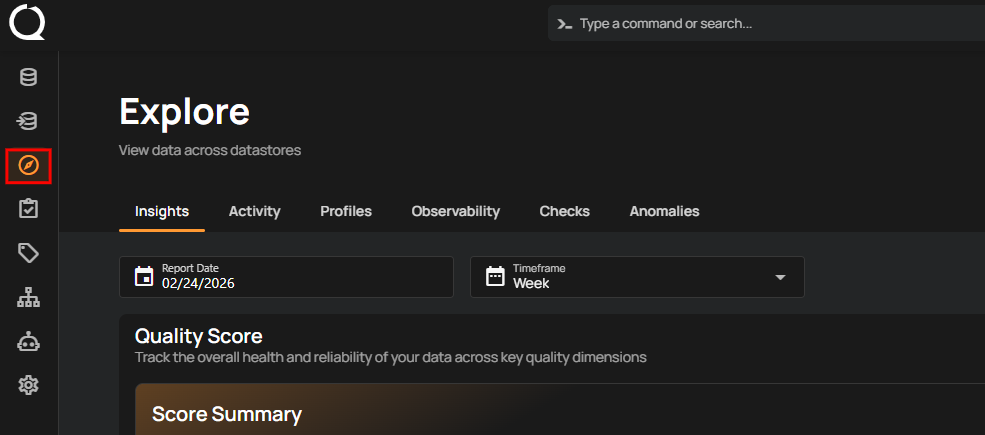
Explore
The Explore section in Qualytics enables effective data management and analysis through several key sections:
-
Insights: Offers an overview of anomaly detection and data monitoring, allowing users to filter by source datastores, tags, and dates. It displays profile data, applied checks, quality scores, records scanned, and more. Moreover, you can export the insight reports in PDF format.
-
Activity: Provides a detailed view of operations (sync, profile, and scan) across source datastores with a heatmap to visualize daily activities and detected anomalies.
-
Profiles: Unifies all containers, including tables, views, computed tables, computed files, and fields, with search, sort, and filter functionalities.
-
Observability: Observability gives users an easy way to track changes in data volume over time. It introduces two types of checks: Volumetric and Metric.
-
Checks: Shows all applied checks, both AI Managed and Authored, across source datastores to monitor and manage data quality rules. AI Managed checks display a purple AI badge.
-
Anomalies: Lists all detected anomalies across source datastores for quick identification and resolution of issues.
Library
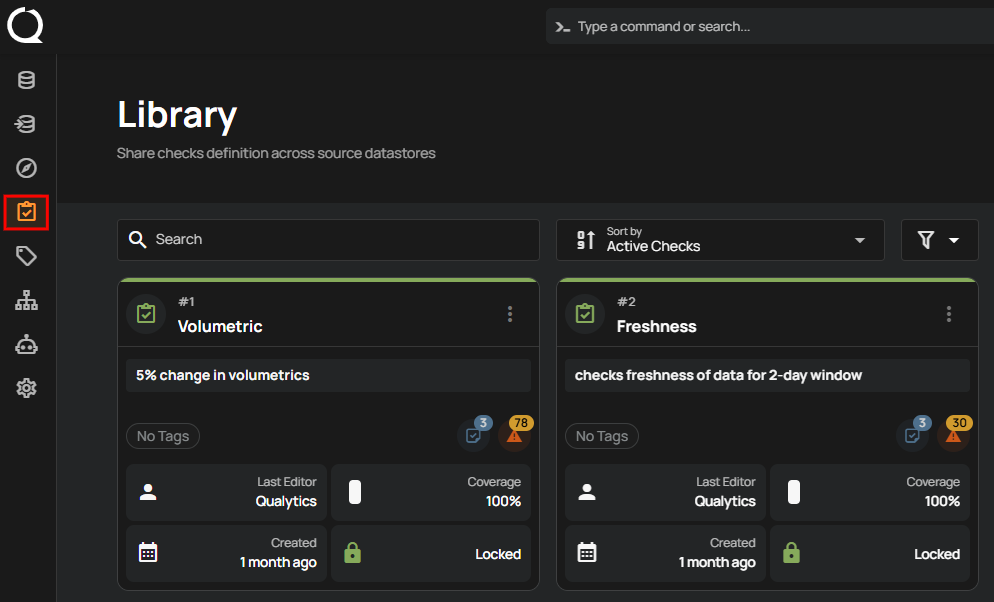
The library section allows for managing check templates and editing applied checks in source datastores with two main functionalities:
-
Add Check Templates: Easily add new templates to apply standardized checks across datastores.
-
Export Check Templates: Export template metadata to an enrichment datastore.
Tip
You can also search, sort, and filter checks across the source datastores.
Tags
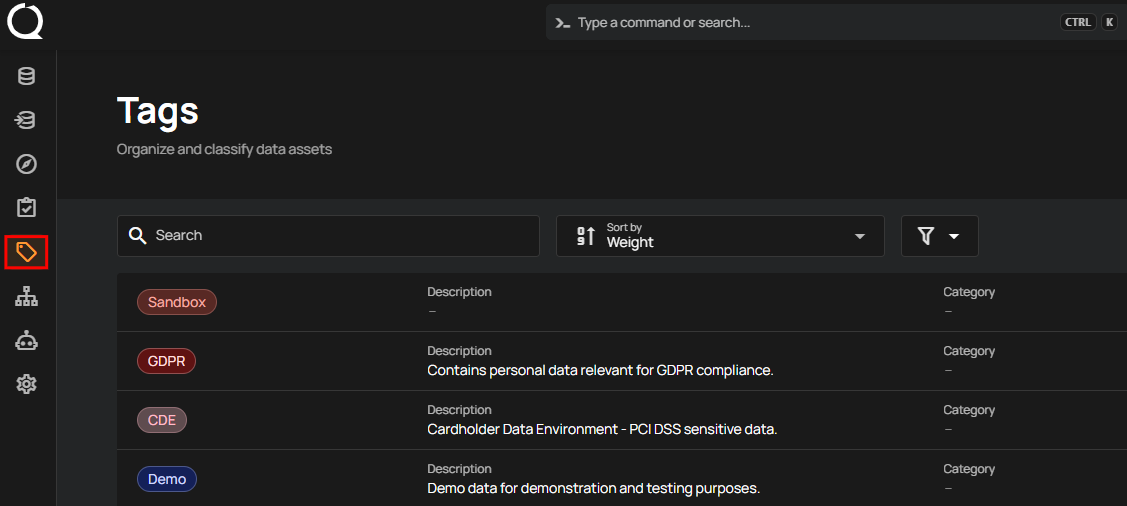
Tags help users organize and prioritize data assets by categorizing them. They can be applied to Datastores, Profiles, Fields, Checks, and Anomalies, improving data management and workflows.
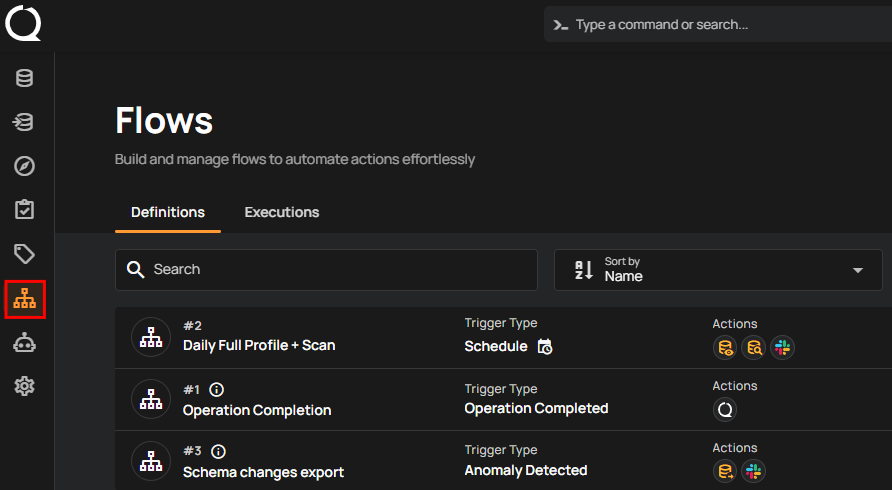
Flows
Qualytics allows users to set up flows, enabling them to create pipelines by chaining actions and configuring how they are triggered. Triggers can be set based on predefined events and filters, providing a flexible and efficient way to automate processes. These actions can include notifications or operations, allowing users to notify various channels or execute tasks based on specific operations.
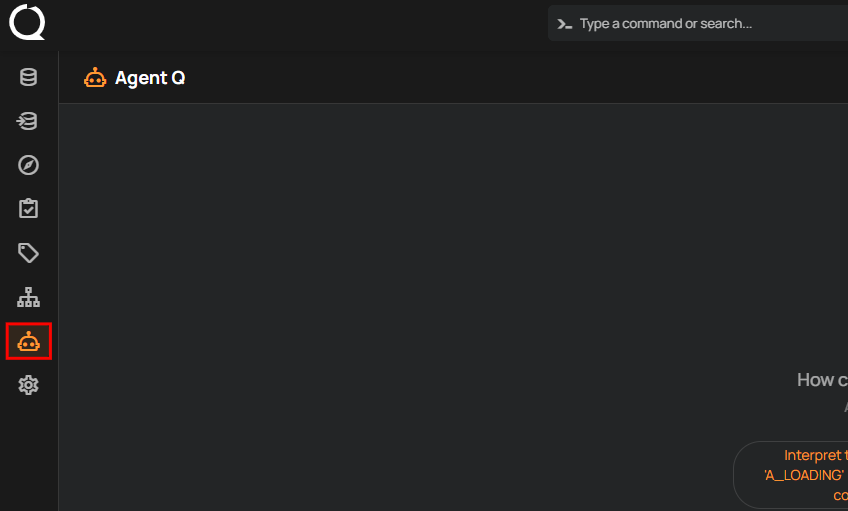
AgentQ (AI Assistant)
AgentQ is Qualytics' built-in AI assistant powered by the Model Context Protocol (MCP). It enables users to manage data quality workflows through natural language conversations directly within the platform. AgentQ can explore datastores, validate queries, create computed assets, manage quality checks, and investigate anomalies. It provides real-time visibility into each action performed, making complex data quality tasks faster and easier to execute.
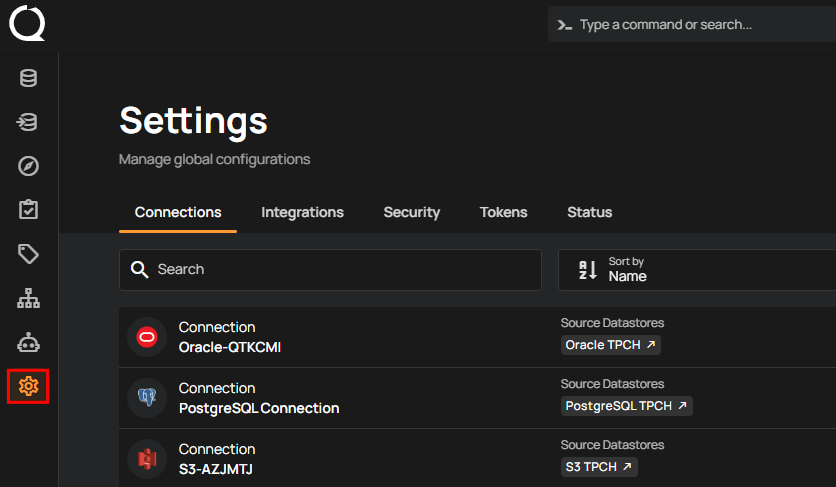
Global Settings
Manage global configurations with the following options:
-
Connection: Manage datastore sources (add, edit, delete).
-
Integration: Configure parameters for integrating external tools.
-
Access: Manage users, teams, roles, and how people sign in.
-
Tokens: Create tokens for secure API interactions.
-
Status: Monitor and restart the Qualytics deployment.