Unlink ServiceNow Connection
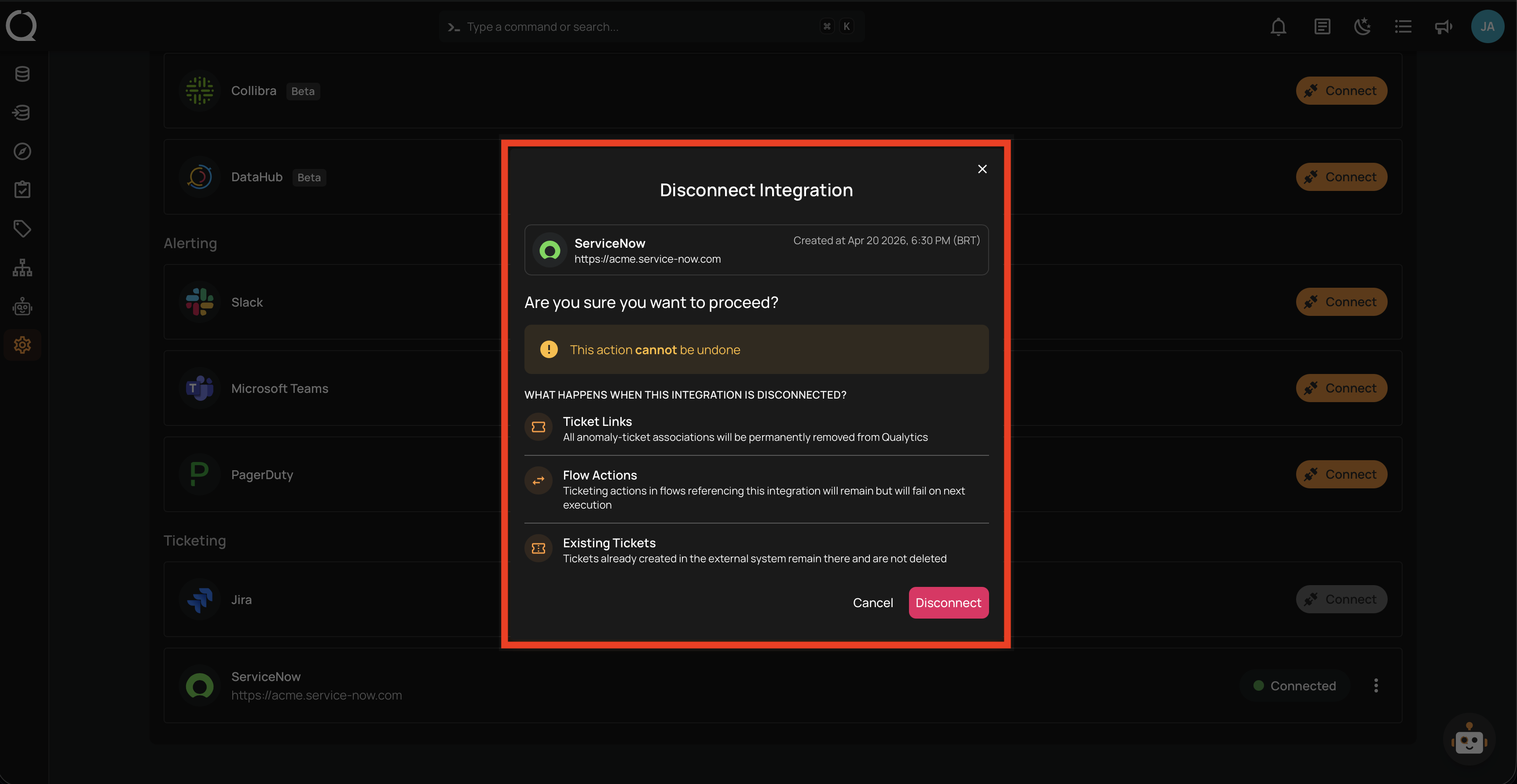
Disconnecting the ServiceNow integration removes the connection from Qualytics. All anomaly-ticket associations are permanently removed, and Flow actions referencing this integration will fail on next execution. Incidents already created in ServiceNow are not deleted.
Permissions
Users with the Manager or Admin role can unlink the ServiceNow integration. See the Permissions page for details.
Before You Disconnect
Disconnecting has the following effects:
| Impact | Effect |
|---|---|
| Ticket Links | All anomaly-incident associations are permanently removed from Qualytics. |
| Flow Actions | Ticketing actions in flows referencing this integration will remain but will fail on next execution. |
| Existing Incidents | Incidents already created in ServiceNow remain there and are not deleted. |
This action cannot be undone
Disconnecting removes all existing anomaly-incident links in Qualytics. Reconnecting later creates a new integration — the previous links are not restored.
Steps
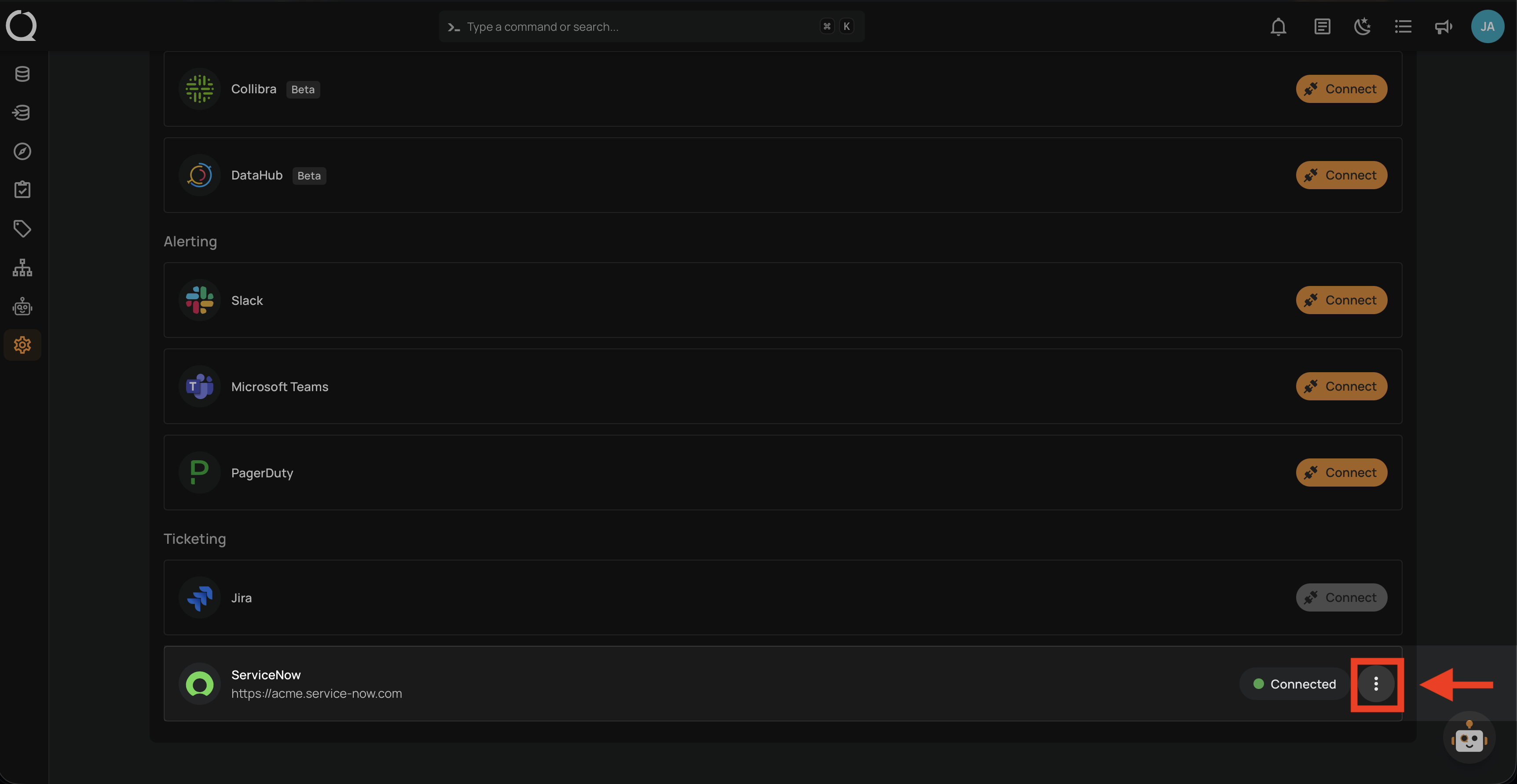
Step 1: Find the ServiceNow integration row (showing Connected) and click the vertical ellipsis next to the status.
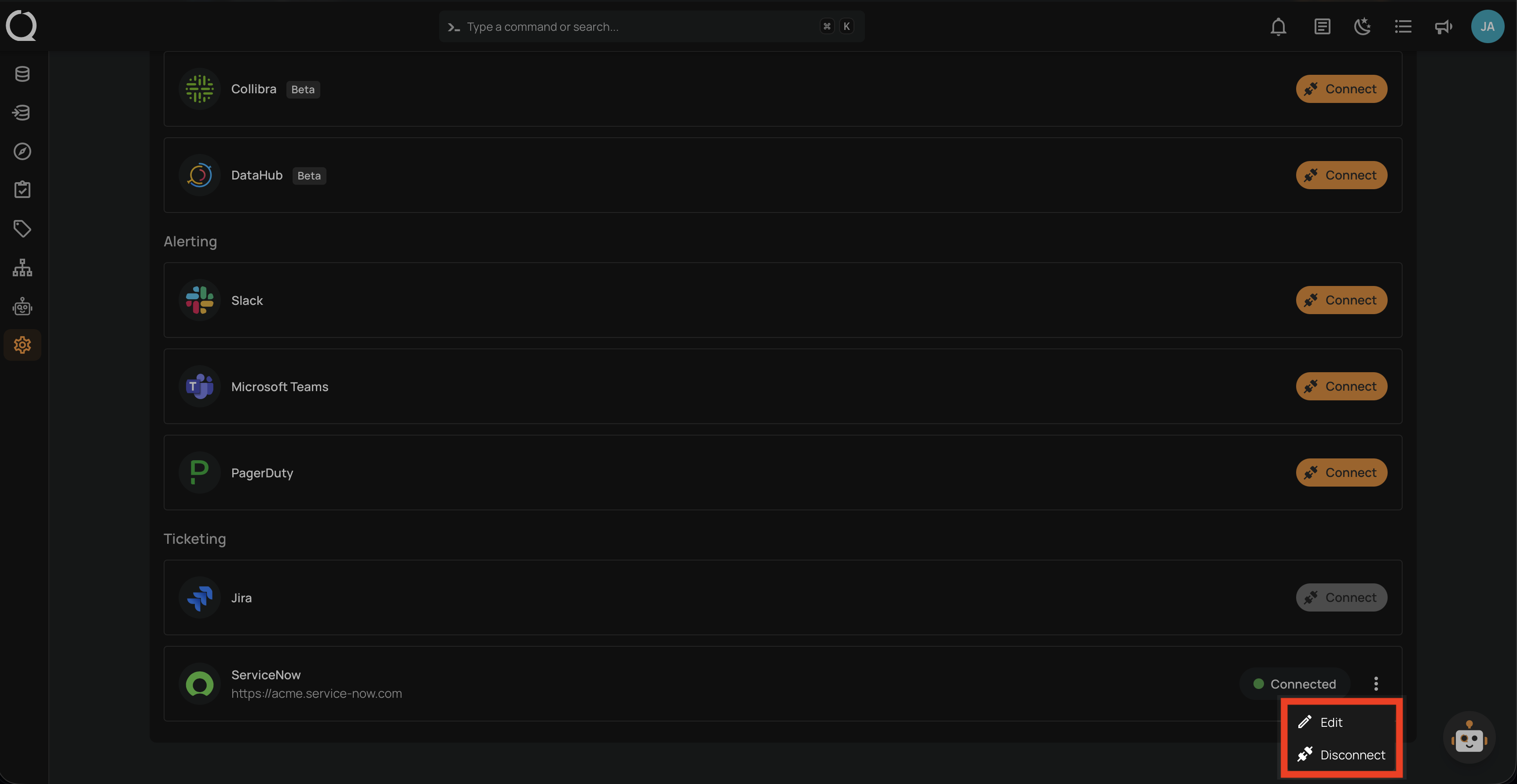
Step 2: A dropdown menu appears with the available actions.
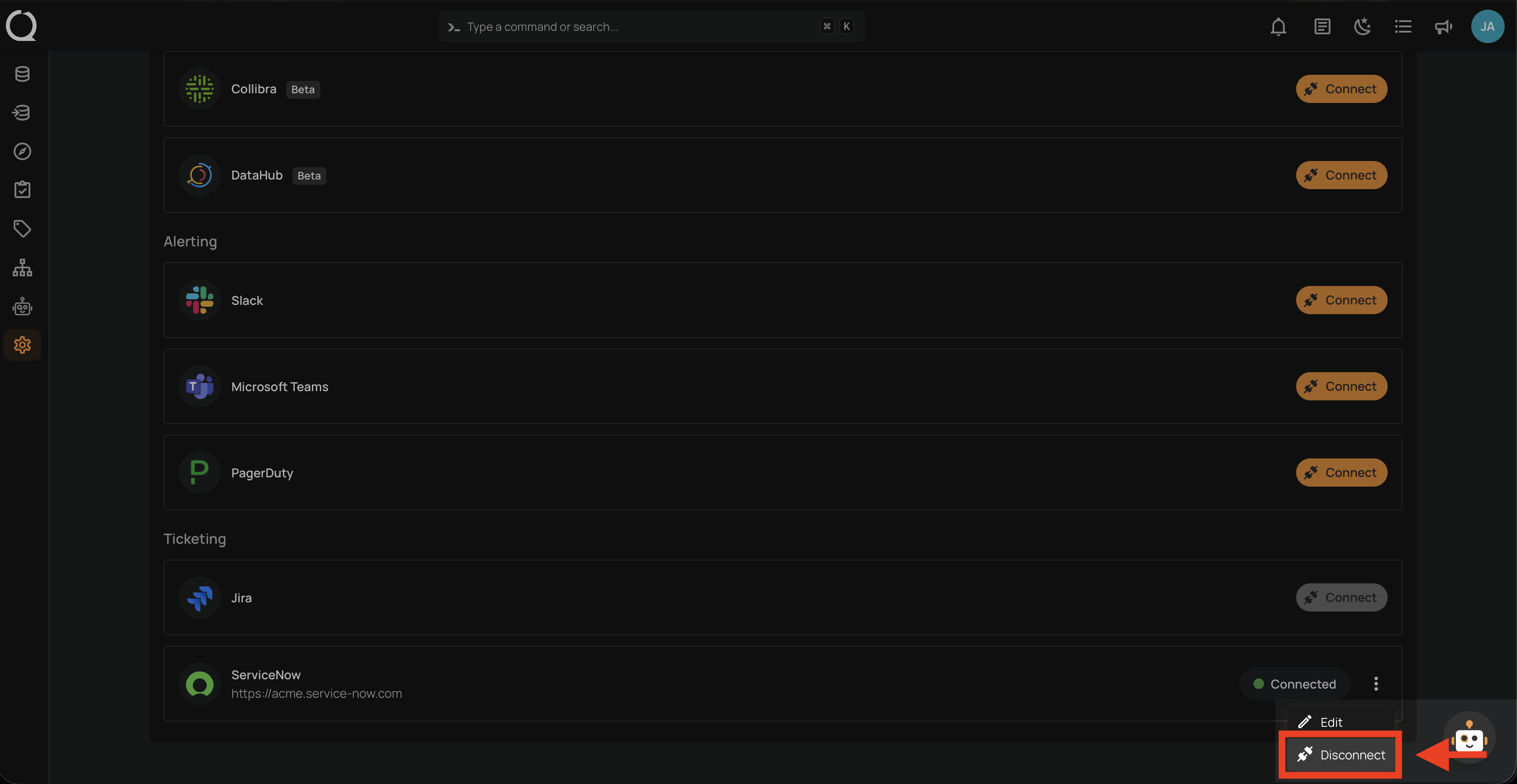
Step 3: Click Disconnect to disconnect the integration.
Step 4: The Disconnect Integration confirmation modal opens, summarizing what will happen.
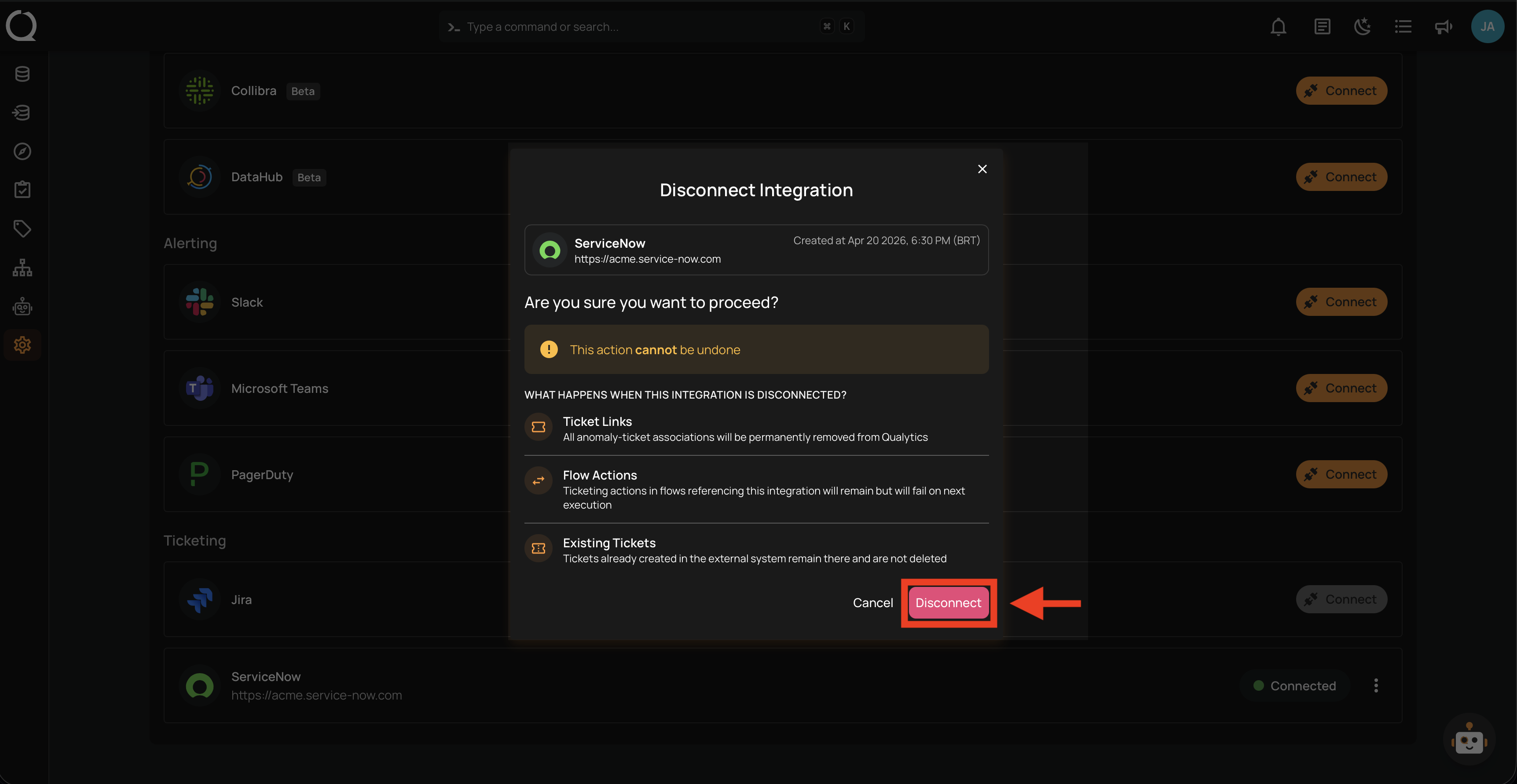
Step 5: Click the Disconnect button to confirm.
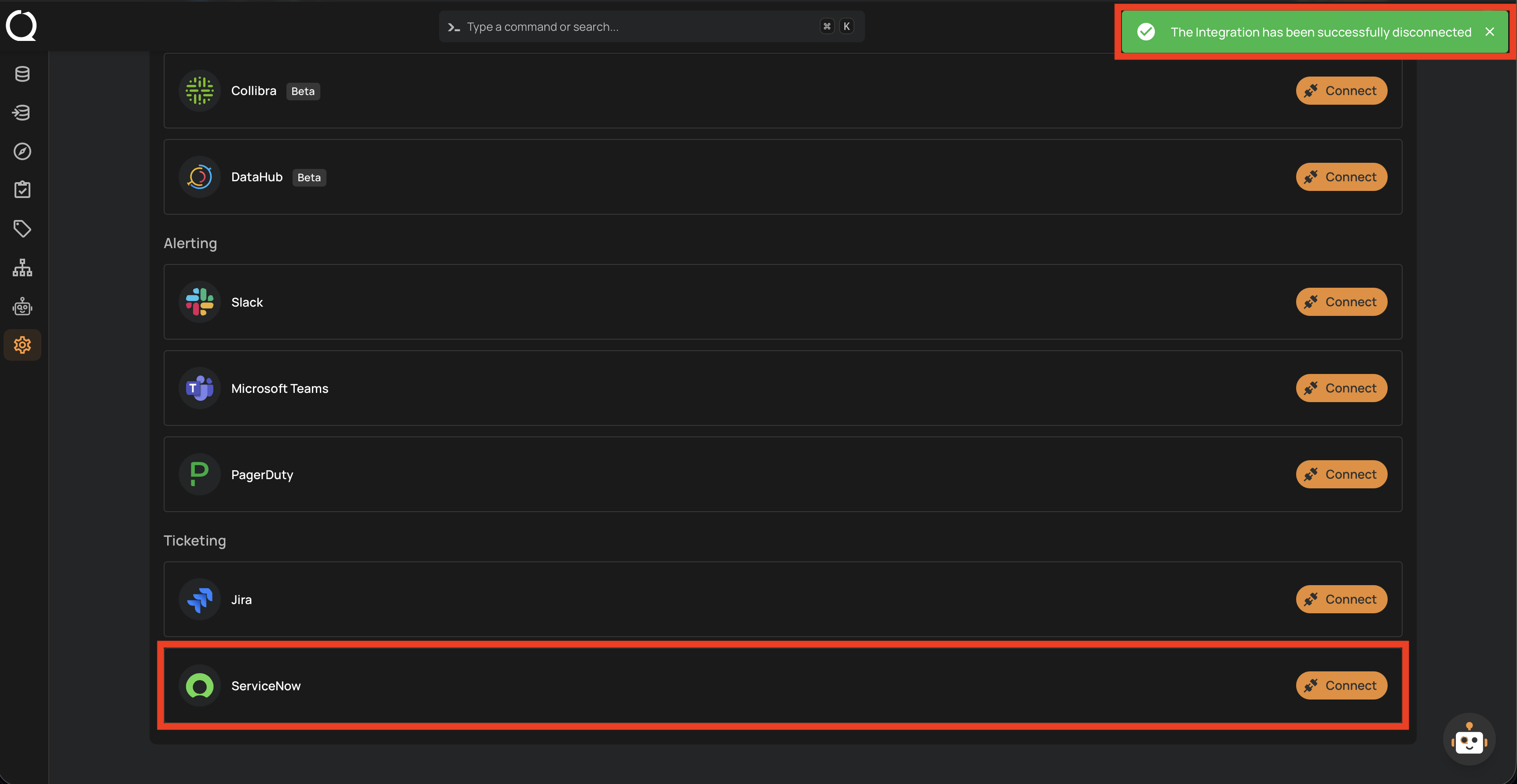
Step 6: A success message appears, and the ServiceNow row shows the Connect button again.