Generate License Request
- Self-hosted
The Generate License Request action creates a request code for an initial or renewed signed license. For more details on how licensing works, see the How Licensing Works page.
Permissions
Only users with the Admin role can generate a license request. See the Permissions page for details.
Steps
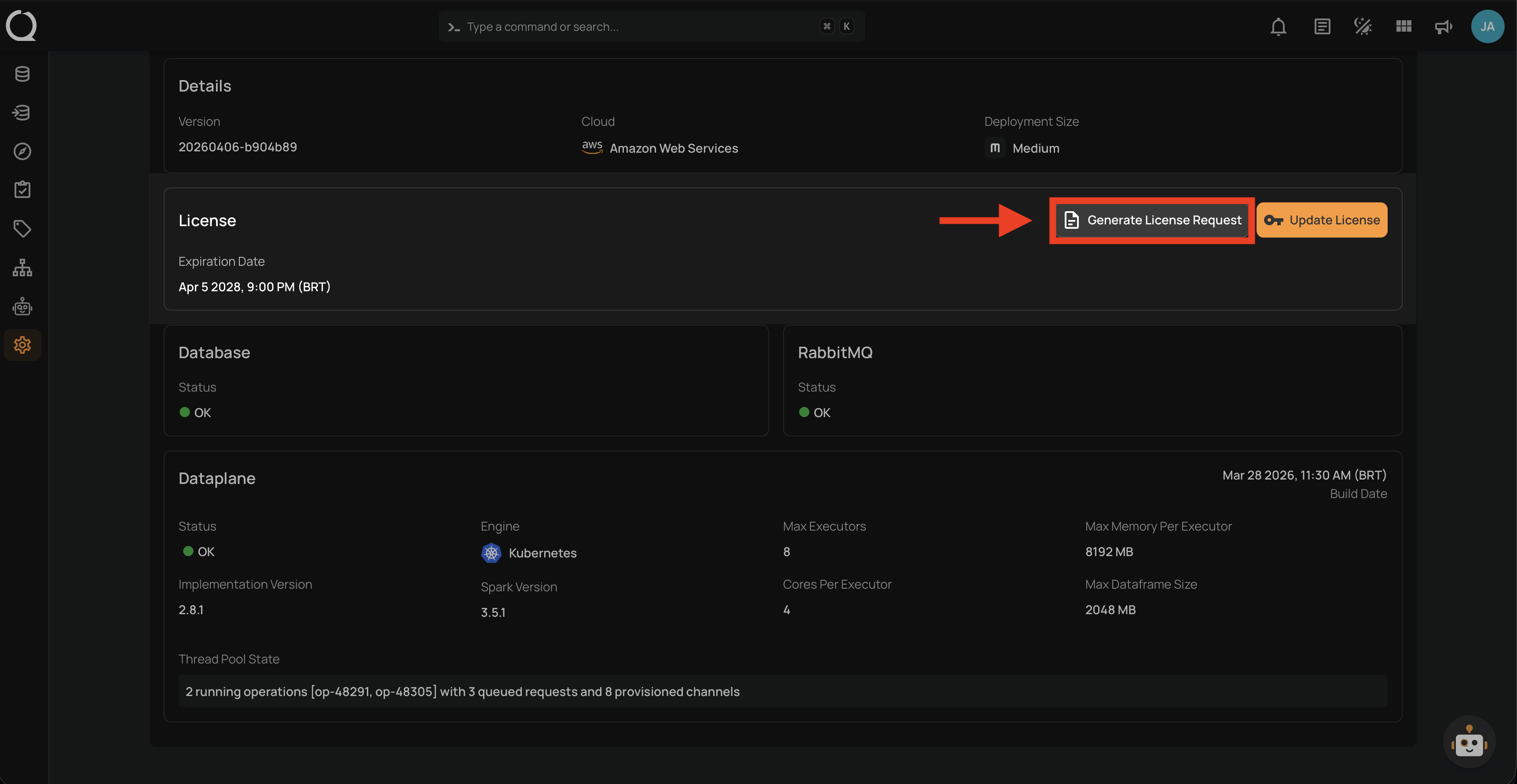
Step 1: In the License section of the Platform Status page, click the Generate License Request button.
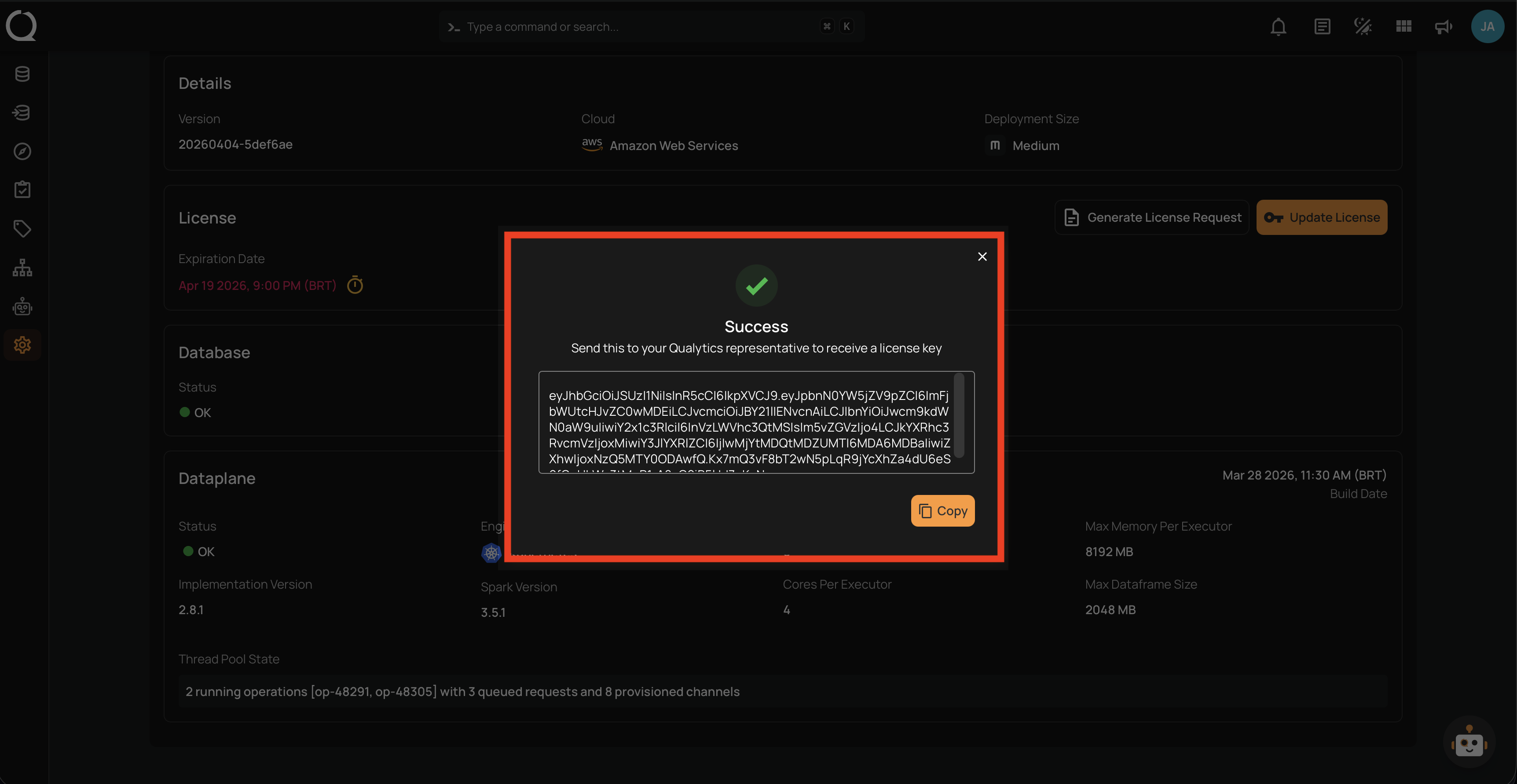
Step 2: A Success modal appears with the generated license request code in a read-only text area. Click the Copy button to copy the code to your clipboard.
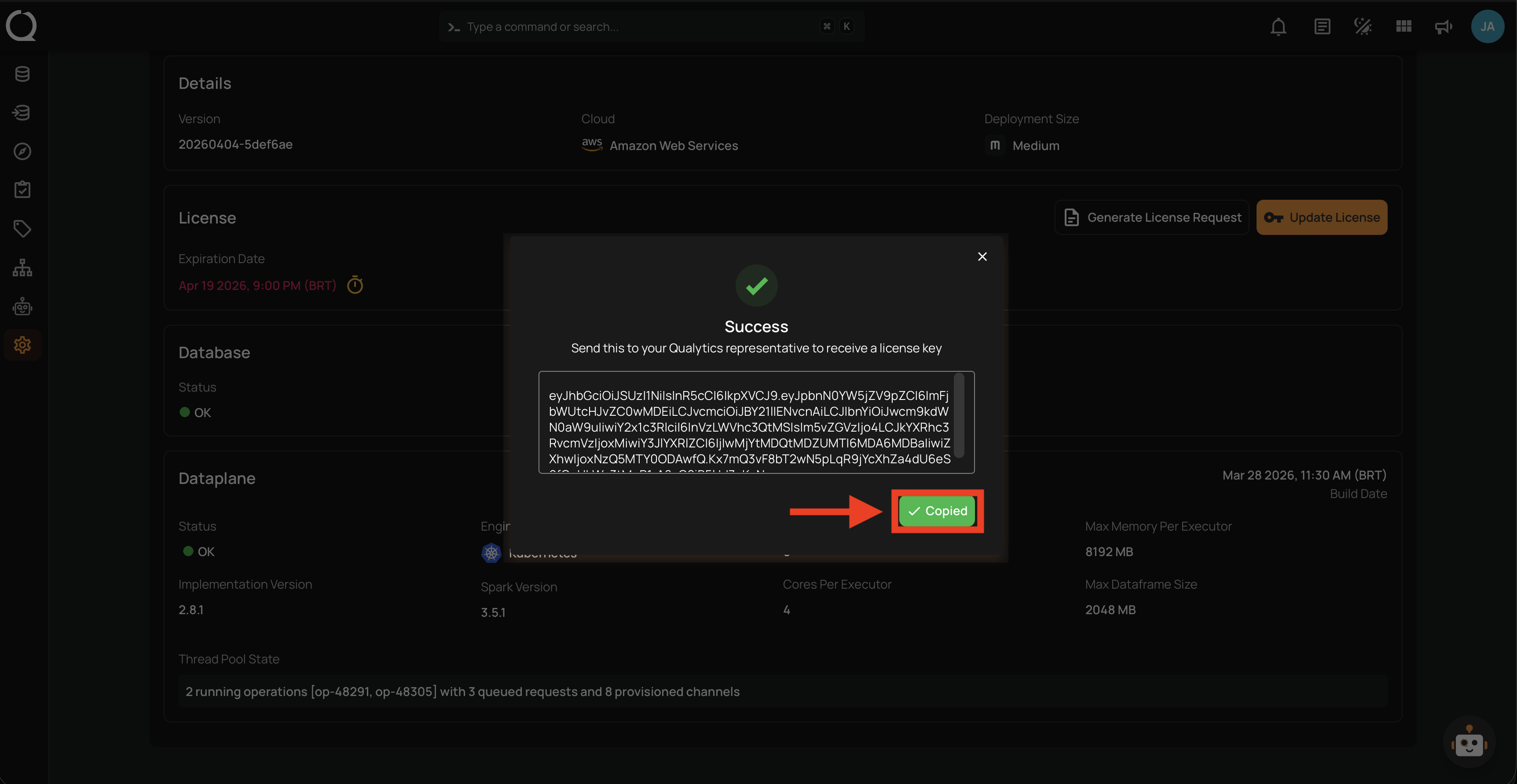
Step 3: After clicking Copy, the button changes to Copied to confirm that the code is on your clipboard.
Step 4: Contact your Qualytics account team or support team to arrange an approved secure transfer method. Share the request through that channel, not through ordinary email.
Qualytics returns a signed license through the agreed secure channel. Apply it using the Update License action.