Delete a Datastore Group
This guide walks you through the steps to delete a datastore group.
Note
You need the Manager role to delete datastore groups. See the Permissions page for details.
Warning
Deleting a group is permanent and cannot be undone. However, the datastores within the group are not deleted - they will become ungrouped and move to the bottom of the tree view.
Steps
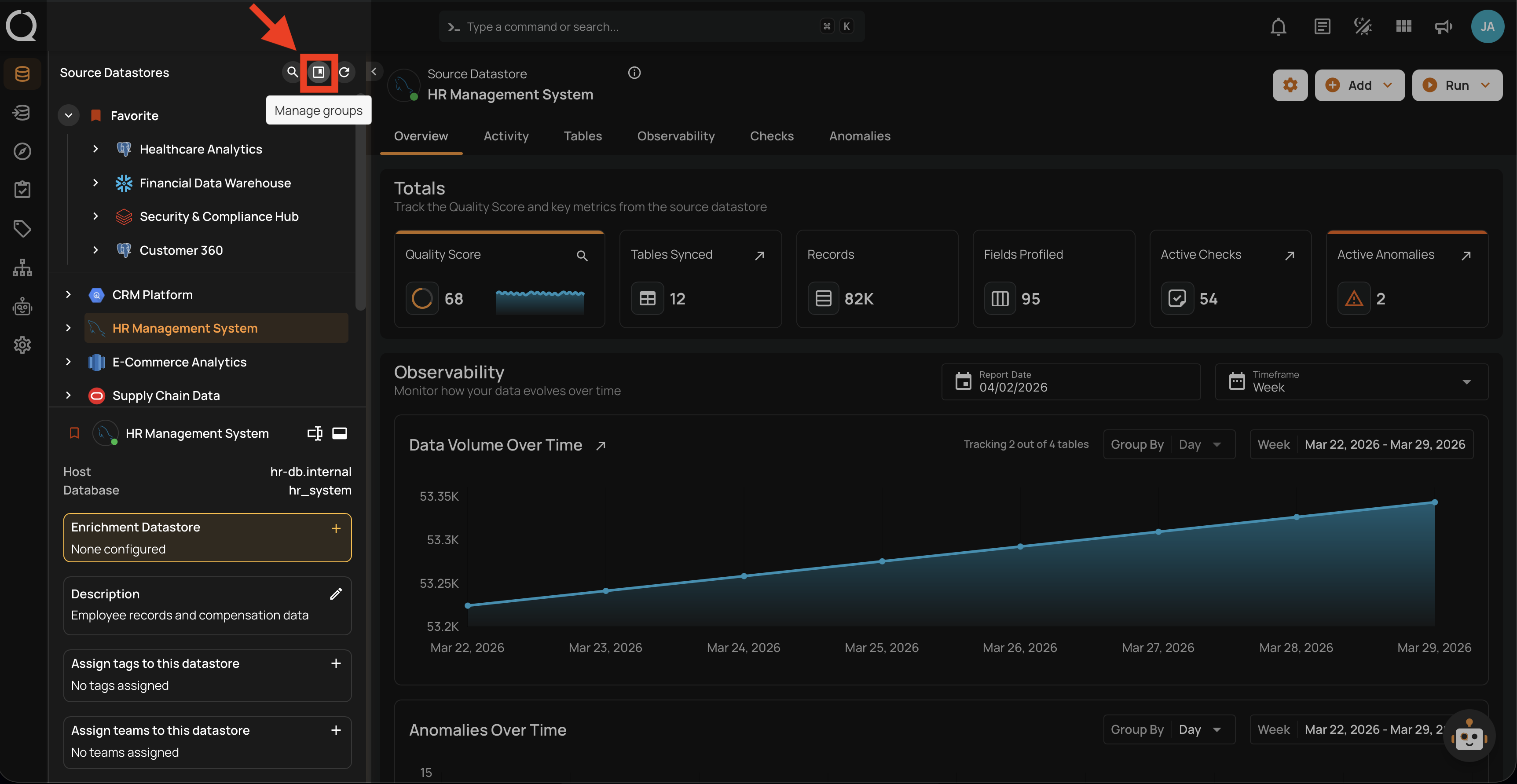
Step 1: In the tree view header (top-left area of the sidebar), click the Manage groups button.
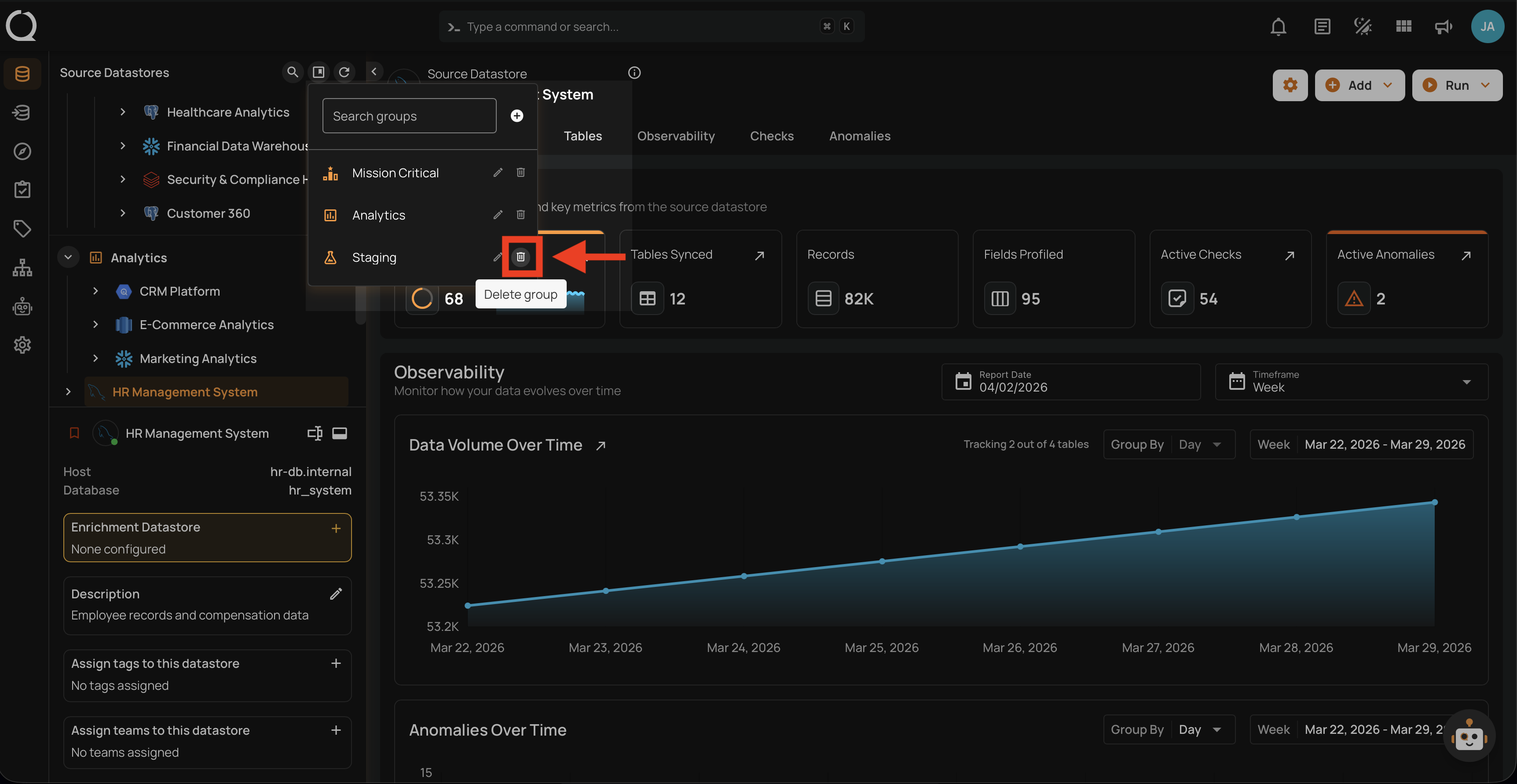
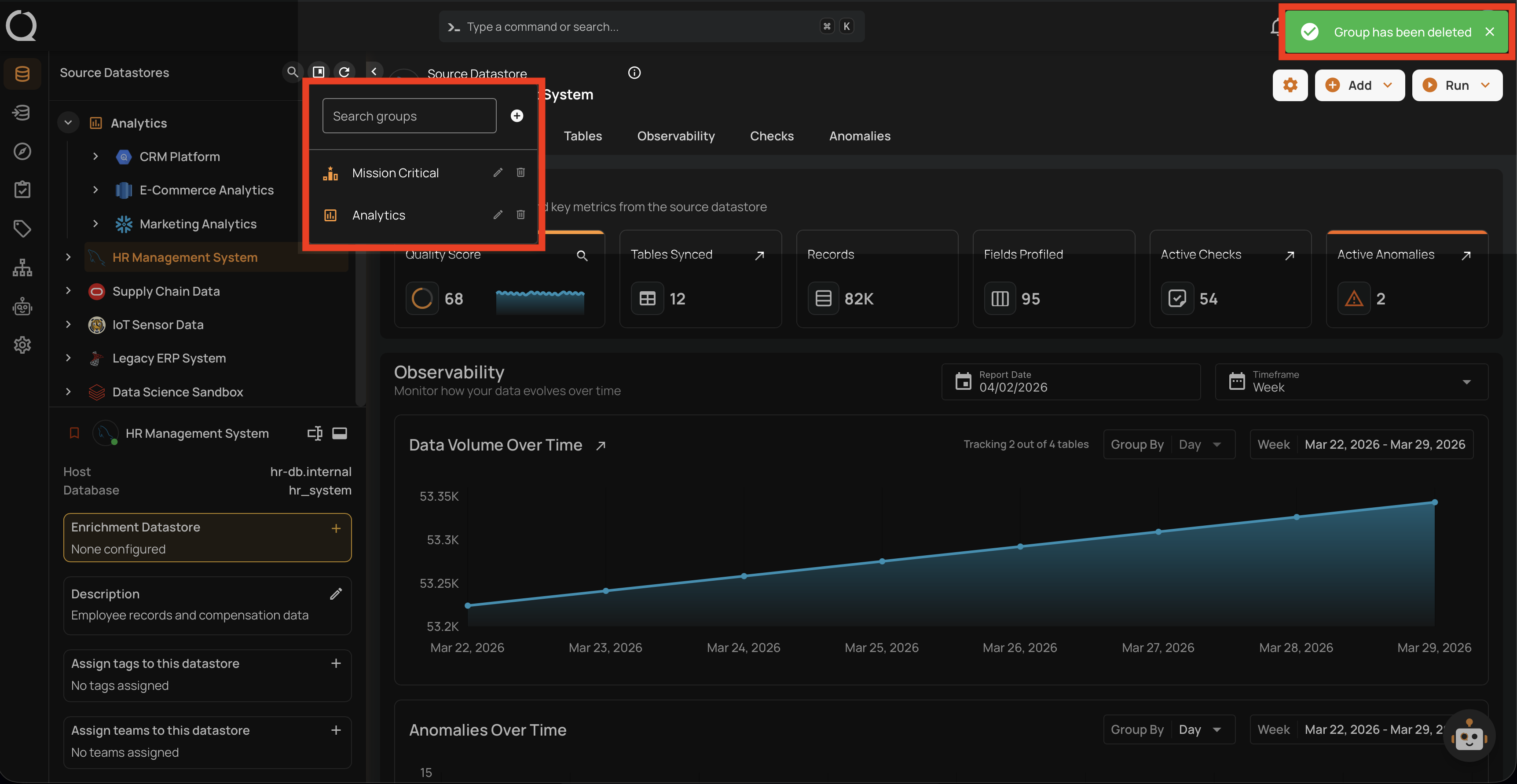
Step 2: In the Manage Groups panel, use the search field to find the group you want to delete, then click the Delete group button next to it.
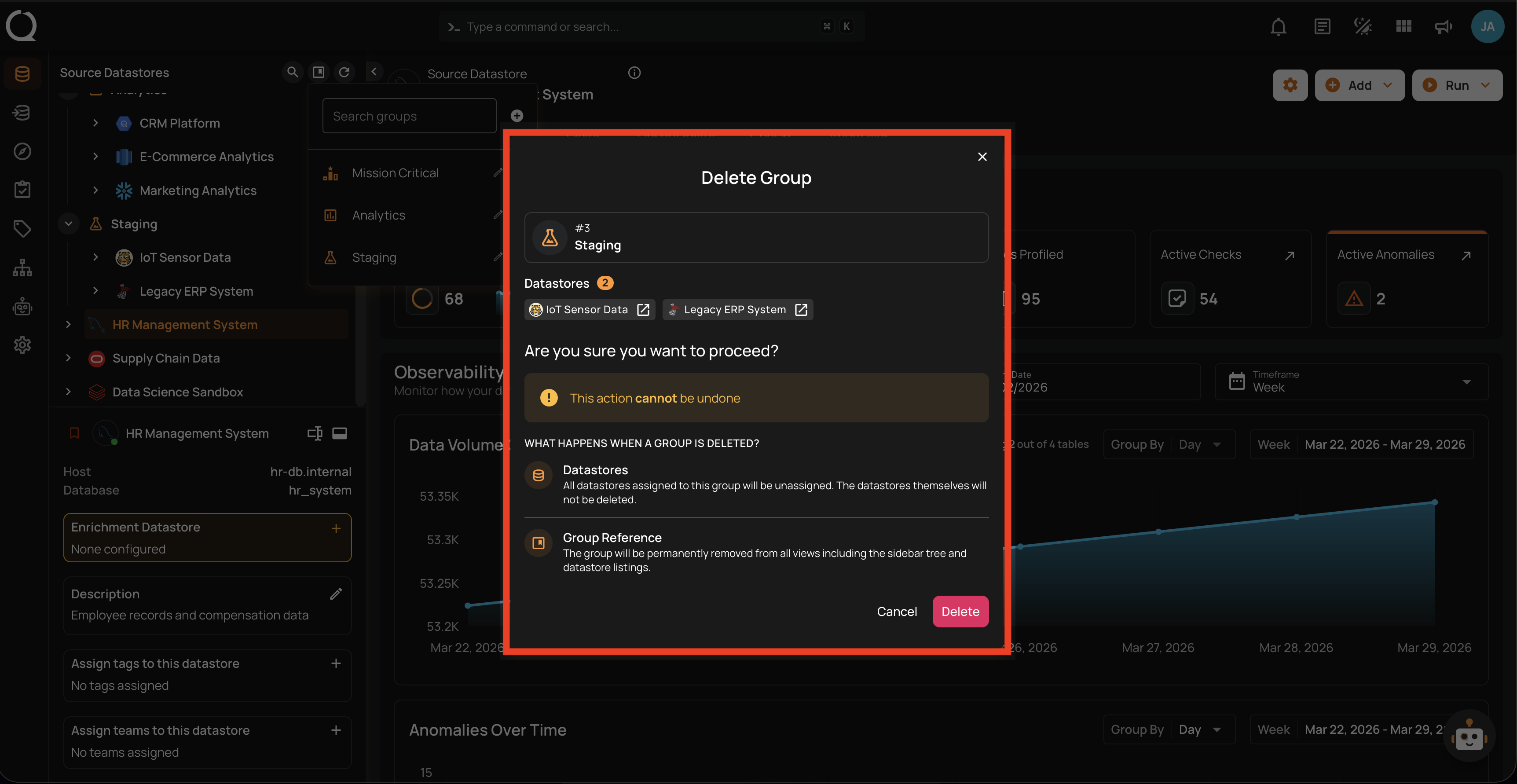
Step 3: A confirmation dialog will appear showing the group name, the datastores currently assigned to it, and what will happen when the group is deleted.
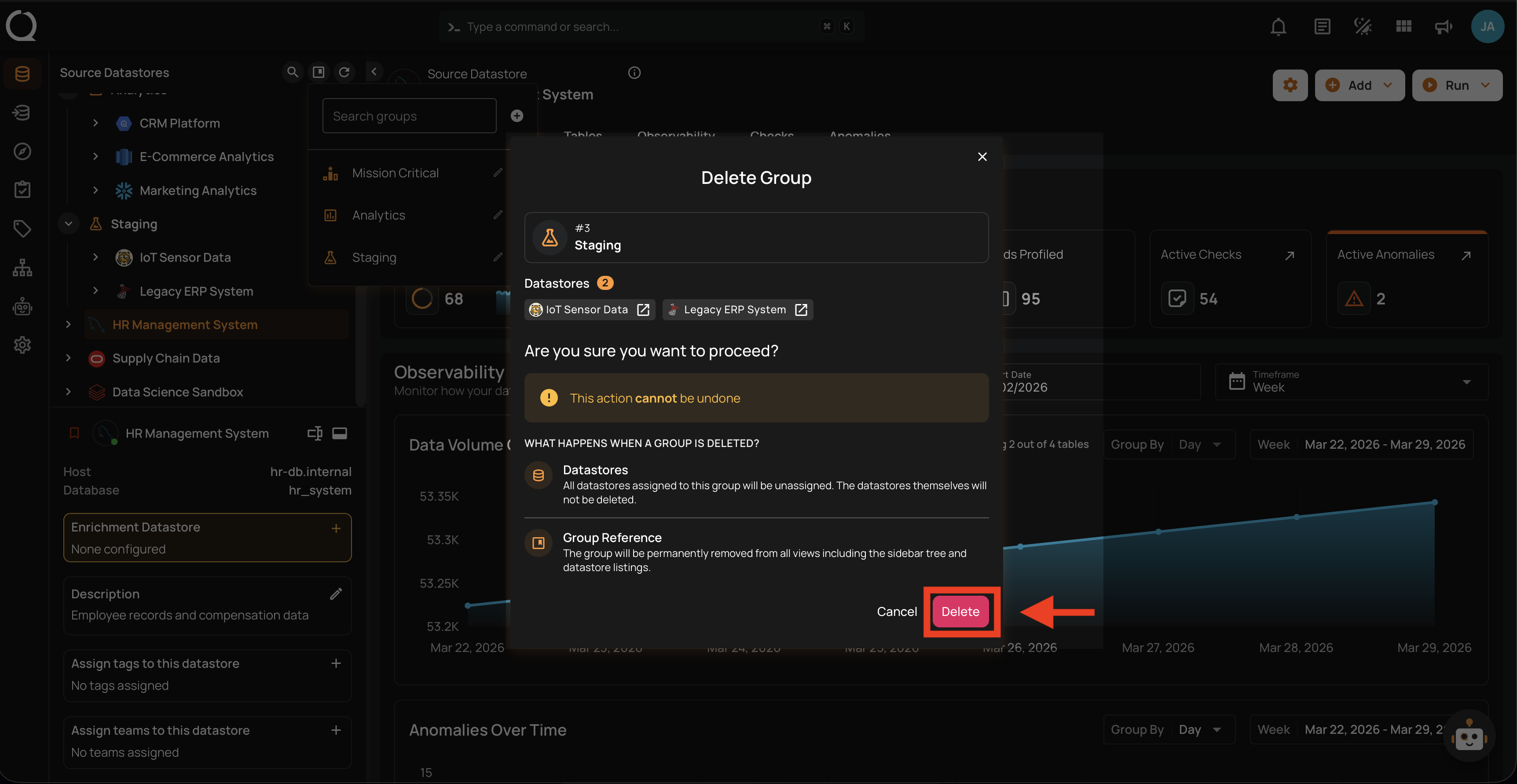
Step 4: Click the Delete button to confirm the deletion.
Tip
You can click Cancel or close the dialog at any time to keep the group unchanged.
Step 5: A success message will confirm that the group has been deleted. The datastores that were in the group now appear in the ungrouped list at the bottom of the tree view.
API and Automation Impact
If you delete a group, any scripts or API calls that reference the group by its name or ID will fail. Update your automations before or after deleting.
Info
After deleting a group, you can recreate a new group with the same name - the name becomes available again immediately.