Mark All In-App Notifications as Read
When the Notifications panel is full of items you've already reviewed, Mark all as read marks every notification as read at once, so you don't have to do it one at a time. On the Unread tab the list then empties; on the All and Read tabs the items stay visible in their read (dimmed) state.
Steps
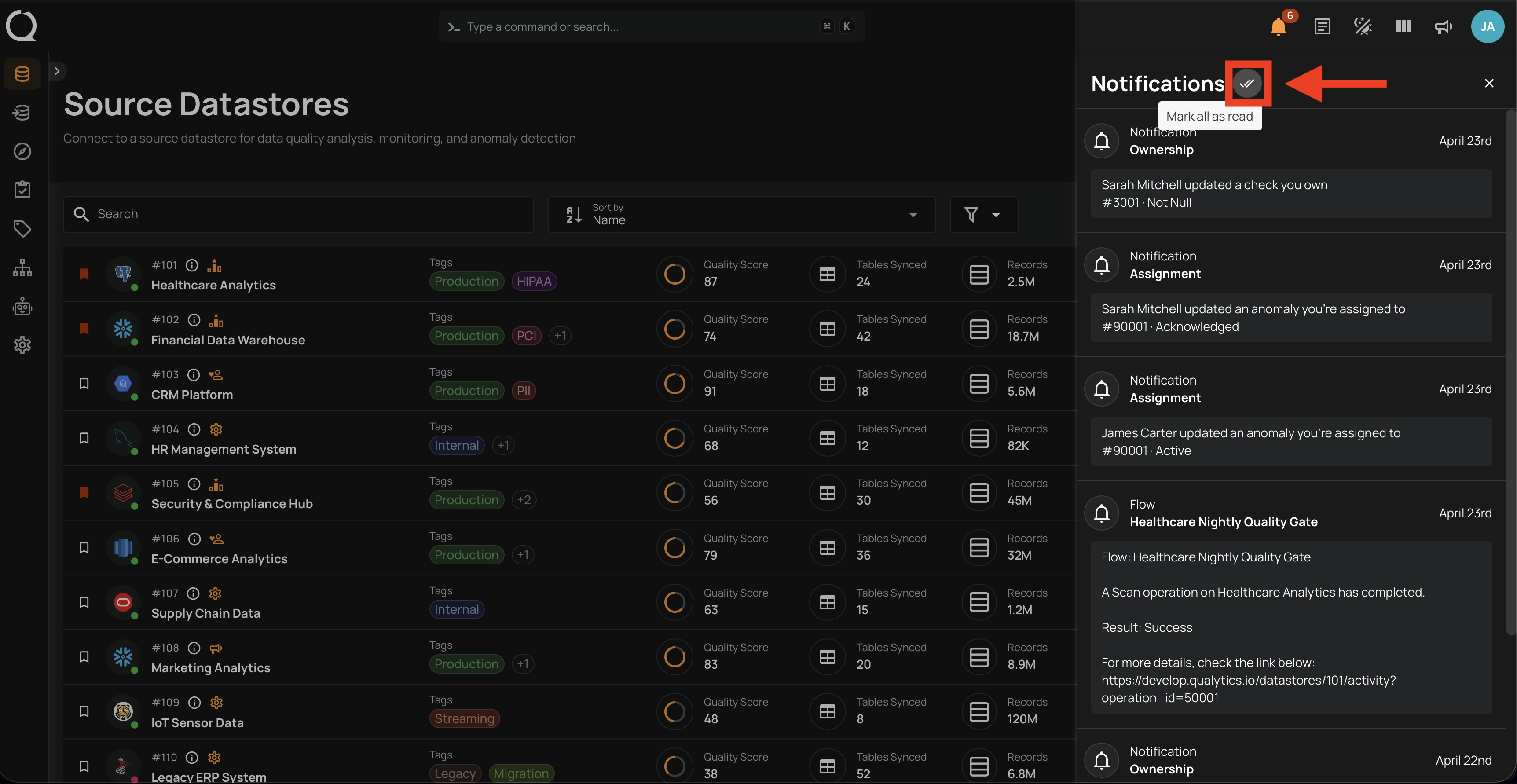
Step 1: With at least one unread notification in the panel, click the Mark all as read button in the panel header. The button appears only when no individual items are selected.
Step 2: Every notification is marked as read at once. On the Unread tab the panel switches to its empty state; switch to the All or Read tab to see the items you just marked as read.
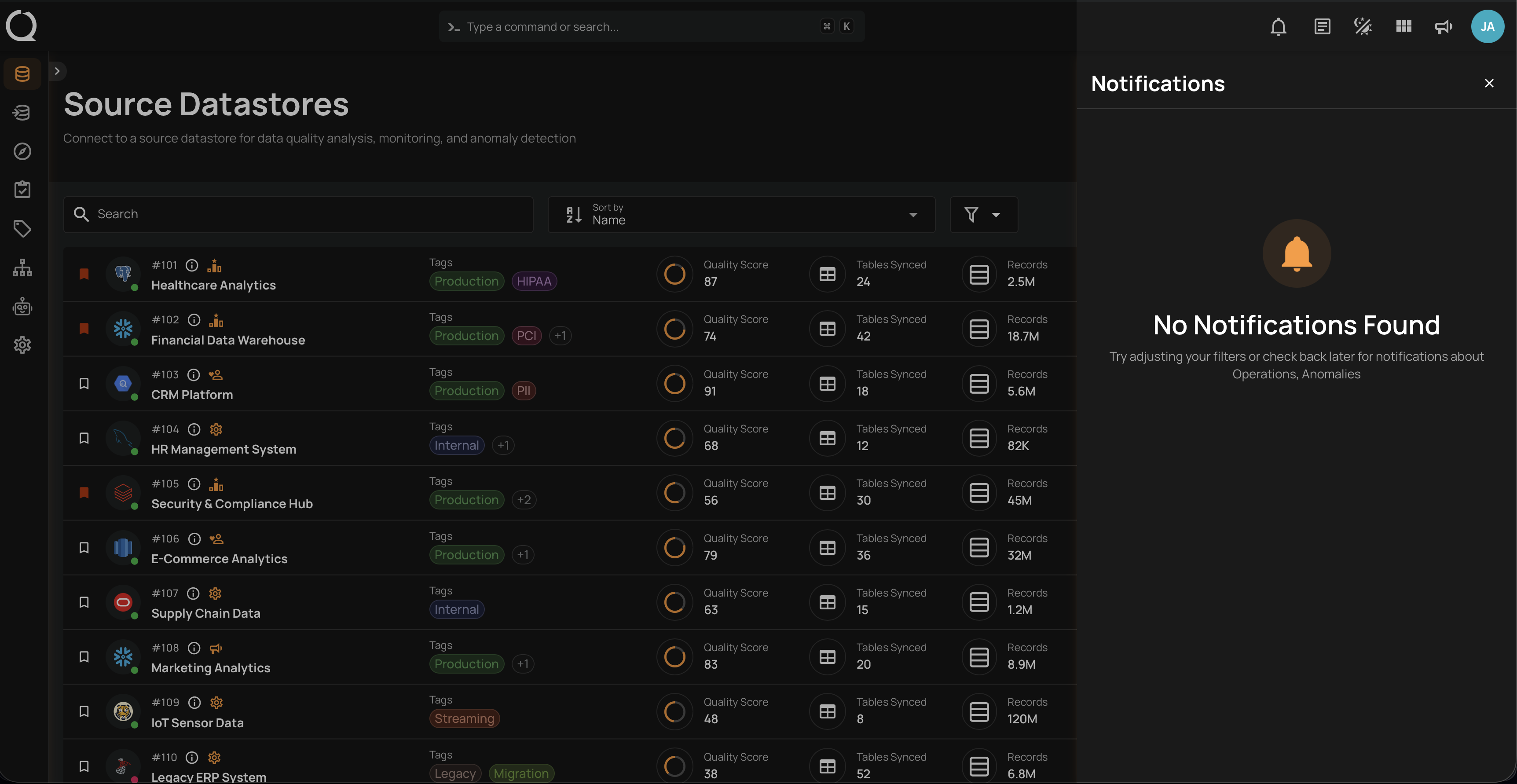
When the Empty State Appears
The same empty state appears on the Unread tab any time you have no unread notifications, whether your account hasn't received any qualifying event yet or you've marked every notification as read. In both cases, the bell icon in the toolbar loses its red dot.
Notifications are kept, not deleted
Marking a notification as read does not delete it; the record is still stored on the server. You can revisit read notifications from the Read or All tab in the panel, or through the API by setting status=read.