Teams List Columns
This page highlights the interactive elements in the Teams list — the tooltips that reveal extra information and the badges you can click to navigate to related resources.
Permissions
Only users with the Admin role can view the Teams list. See the Permissions page for details.
Name & Description
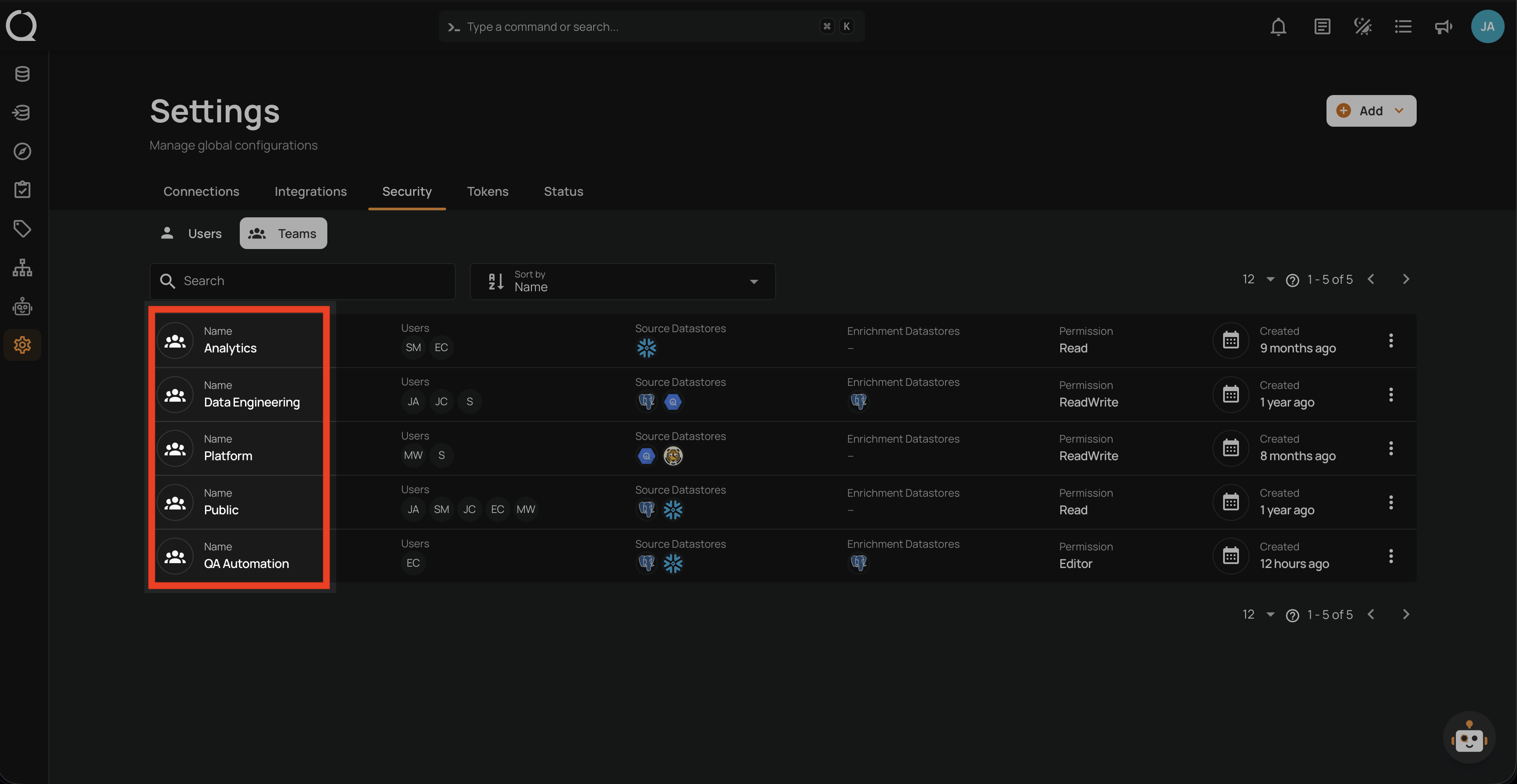
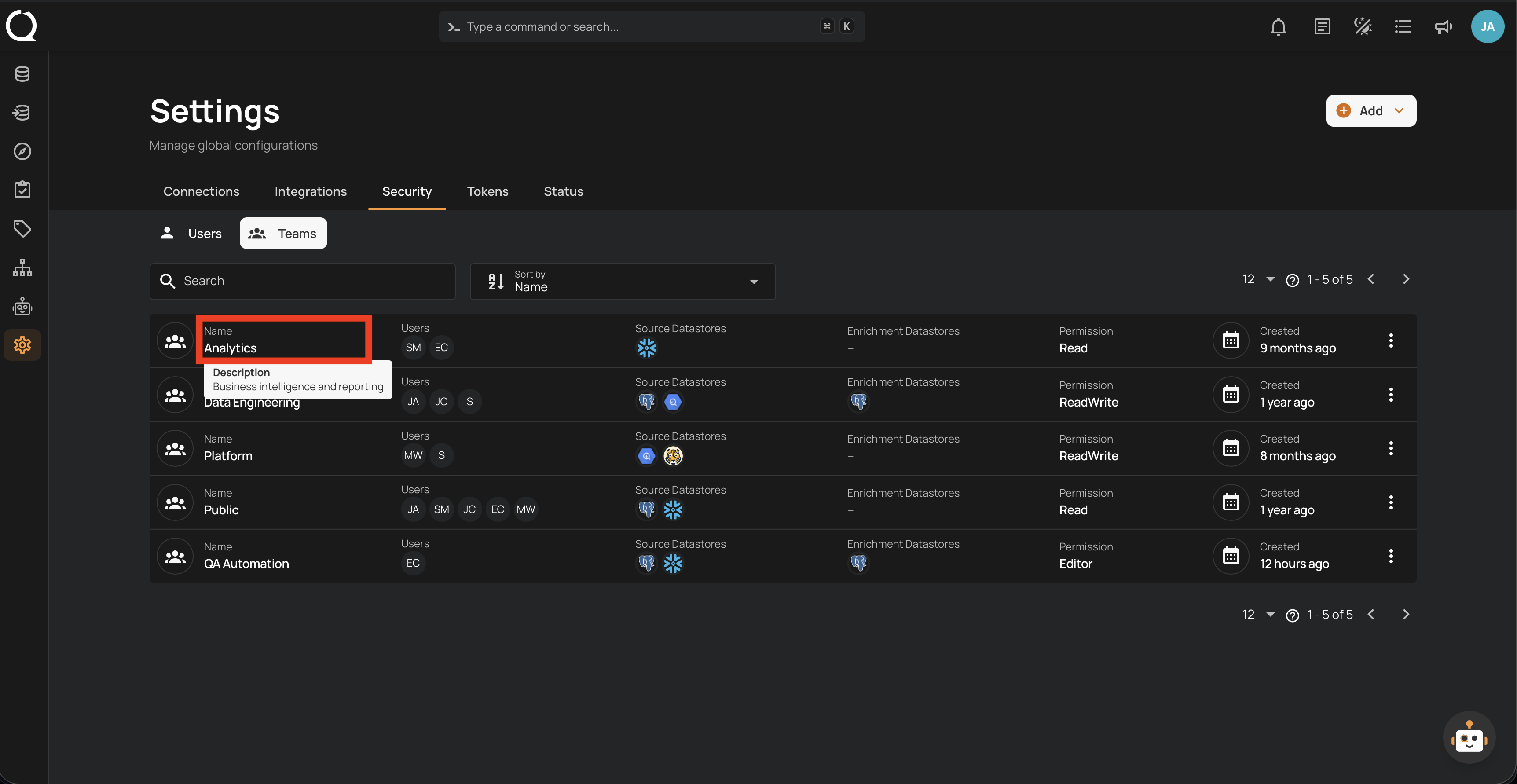
The leftmost column shows the team name alongside the team icon. Hovering over a team name reveals a tooltip with the team's description — a short summary of the team's purpose.
Tip
Use clear, concise descriptions that indicate the team's scope (e.g., "Quality assurance and automated testing team"). The description is set when creating a team and can be updated through the Edit Team action.
Users
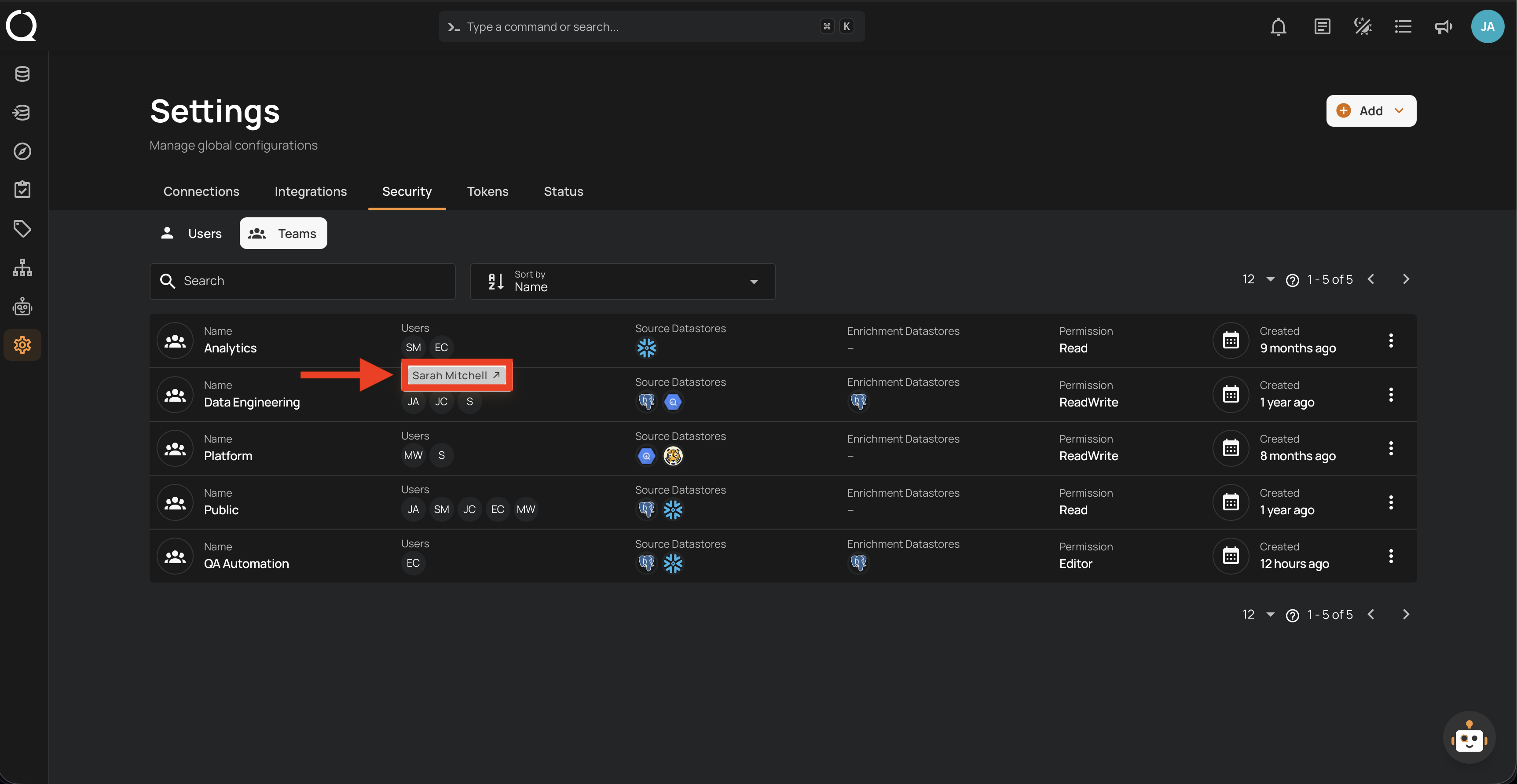
The Users column shows the members assigned to each team as a row of user avatars. This helps administrators monitor team size and membership at a glance.
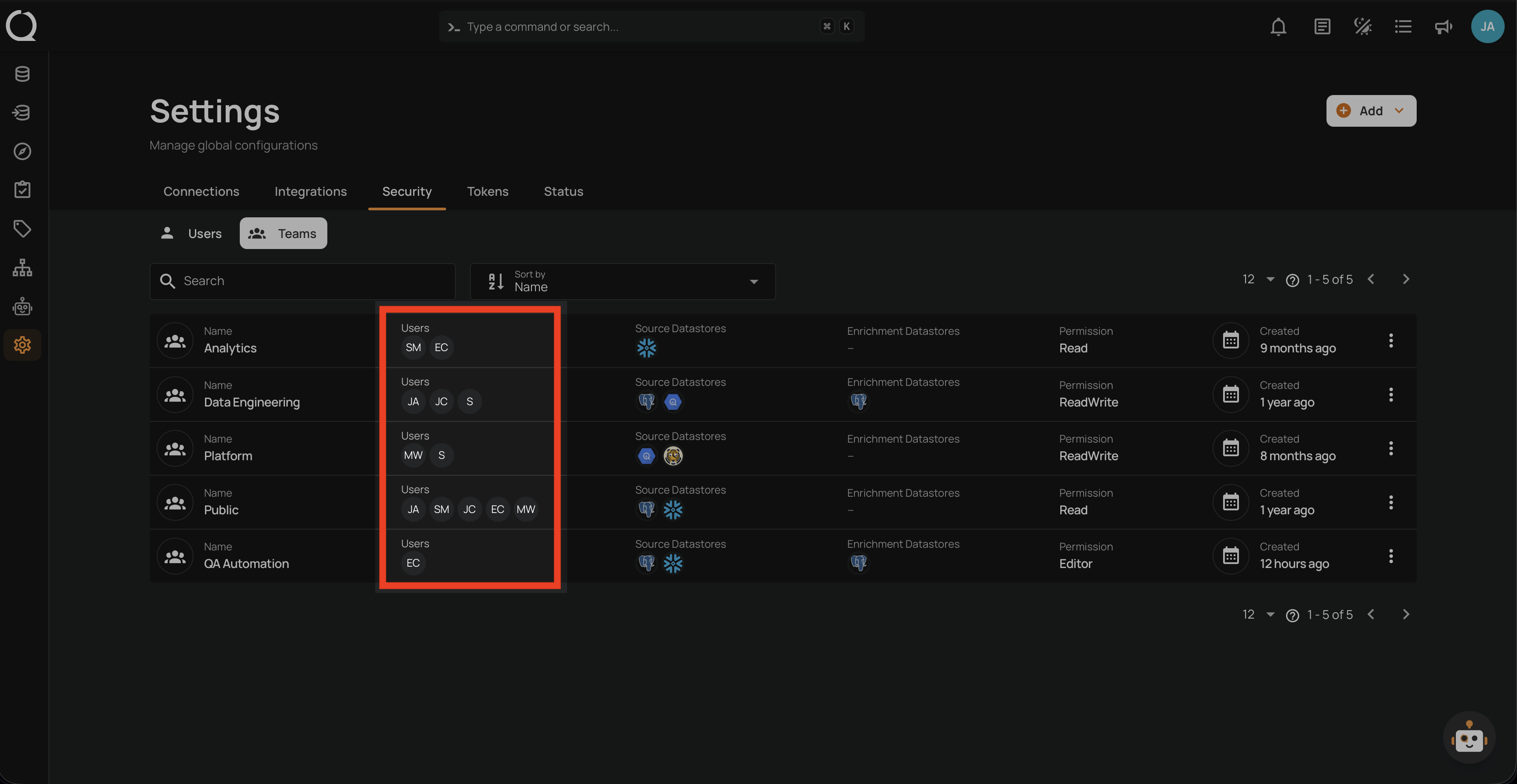
Hovering over the user avatars shows a tooltip with the user names.
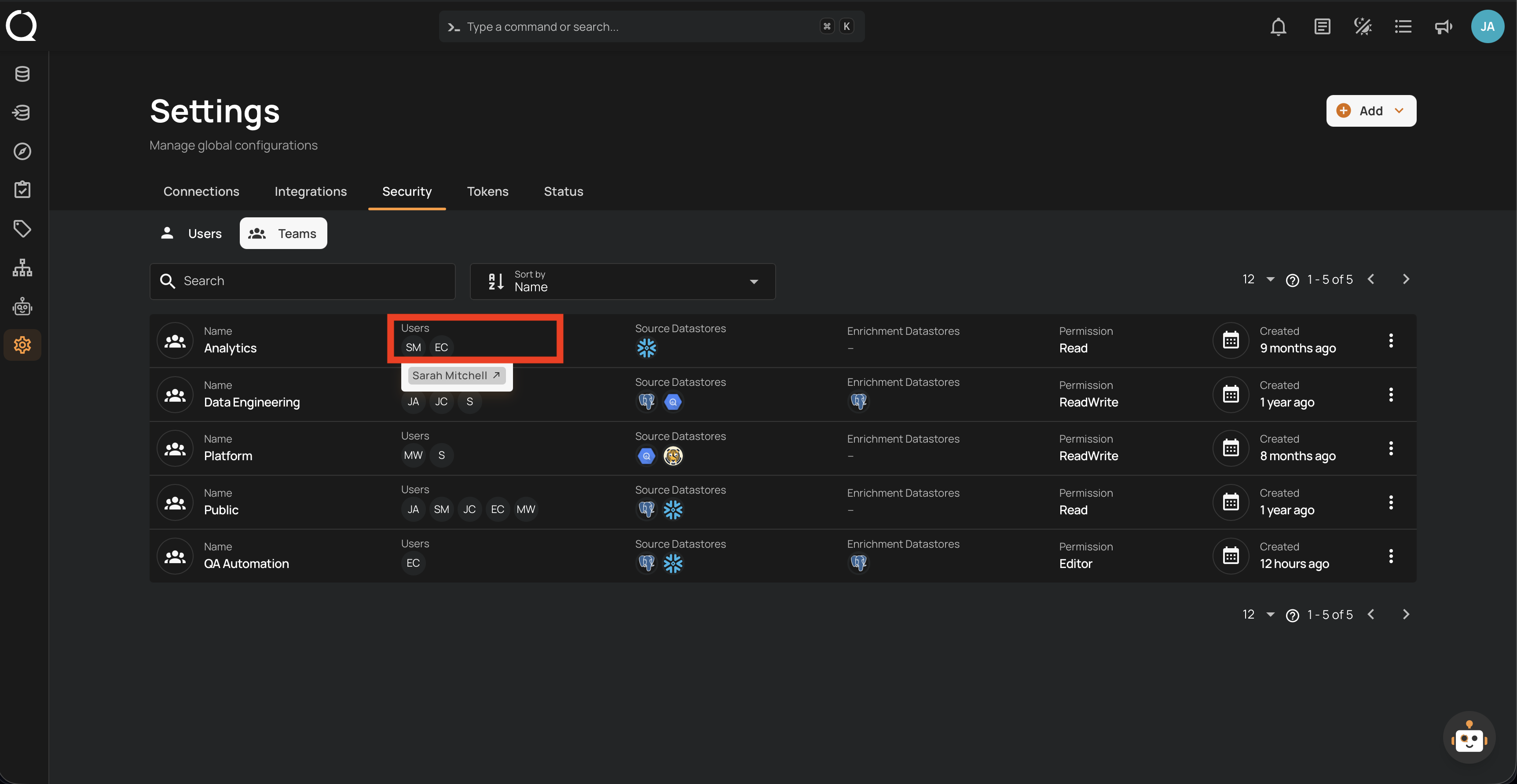
Clicking on an avatar navigates to the user's details.
Tip
To assign or remove users from a team, use the Edit Team action.
Source Datastores
The Source Datastores column shows which source datastores the team has access to. Teams with no assignments show an empty column.
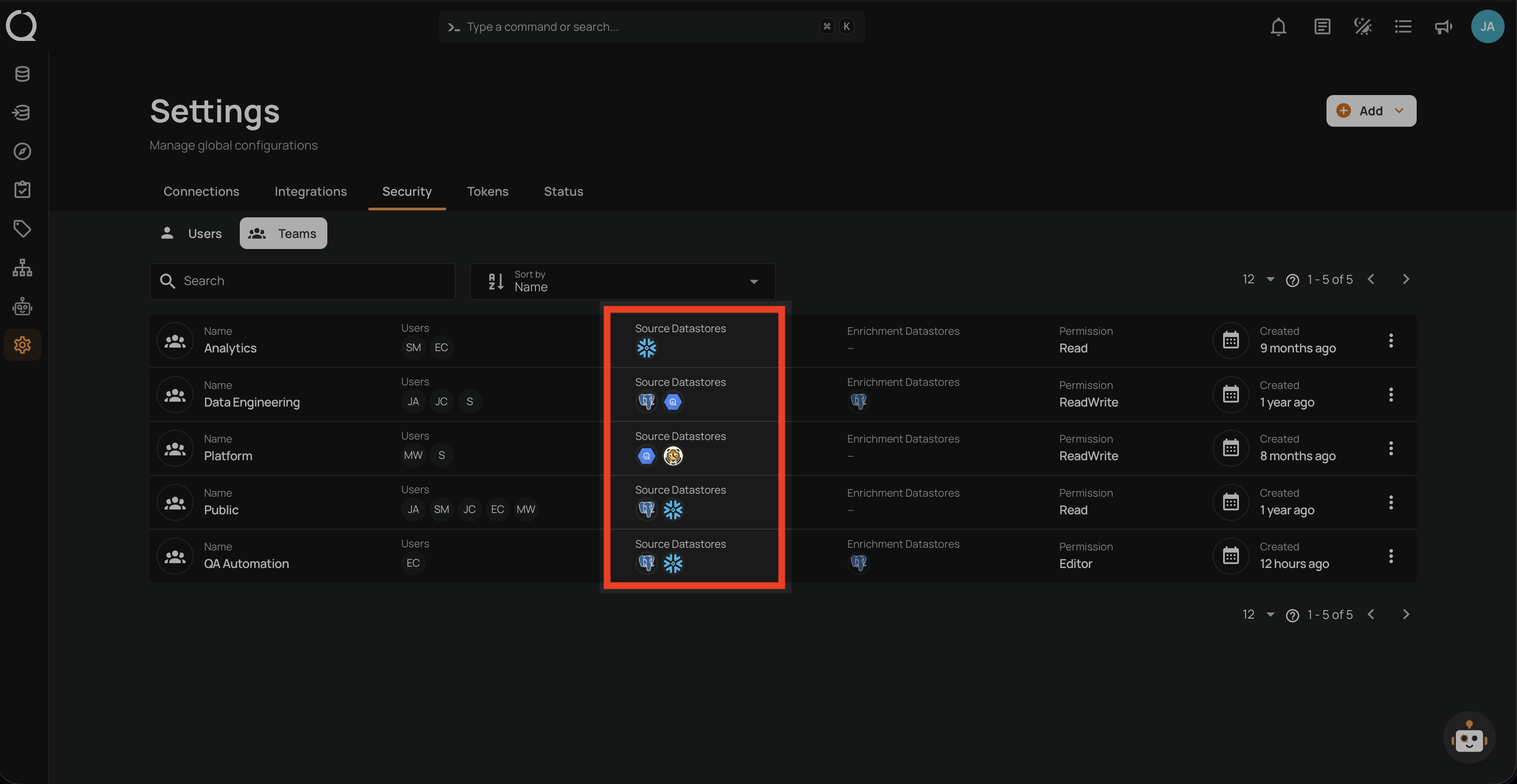
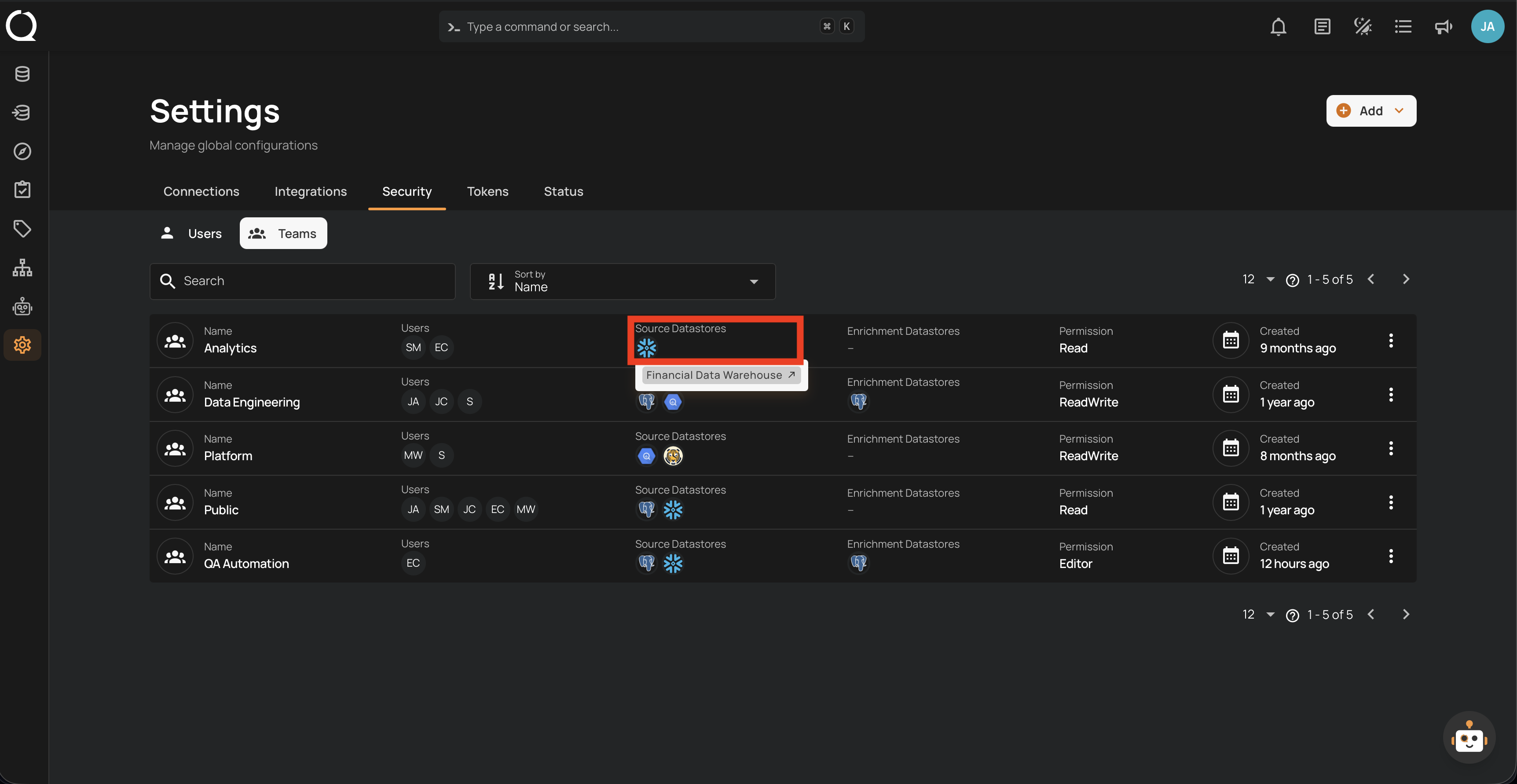
Hovering over a source datastore badge shows a tooltip with the datastore name.
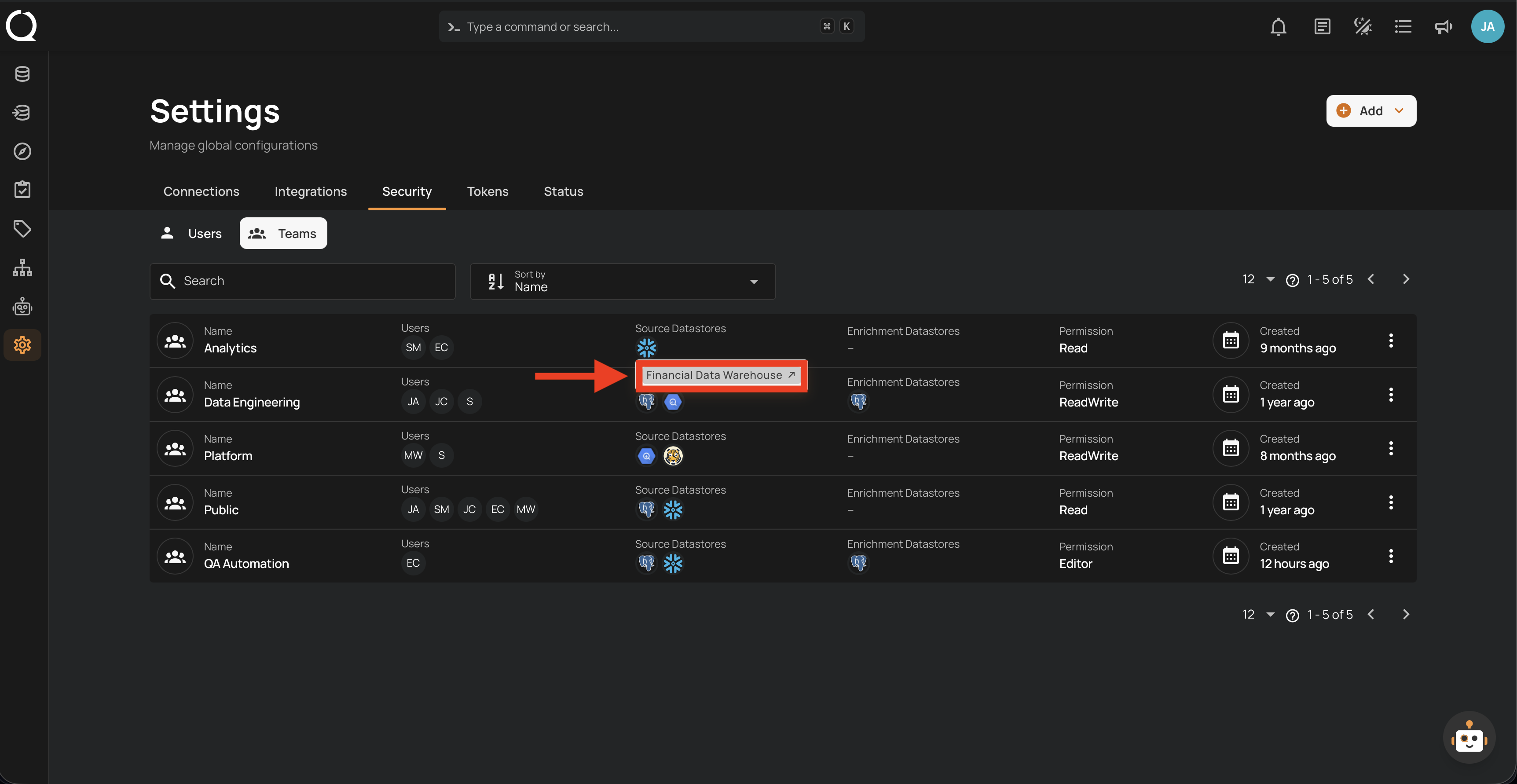
Clicking on the badge navigates to the source datastore details.
Tip
To assign or update source datastores for a team, use the Edit Team action.
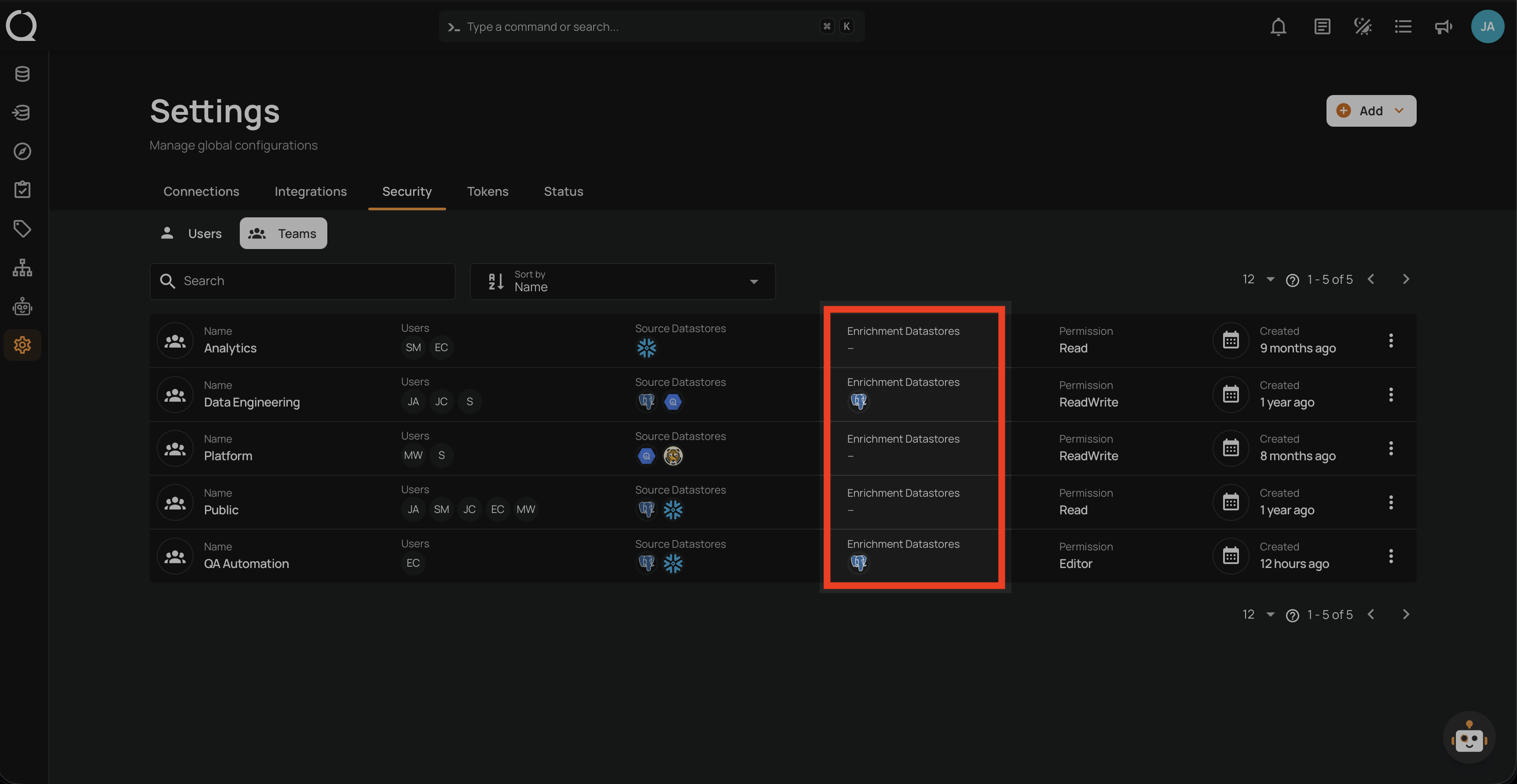
Enrichment Datastores
The Enrichment Datastores column shows which enrichment datastores the team has access to. Teams with no assignments show an empty column.
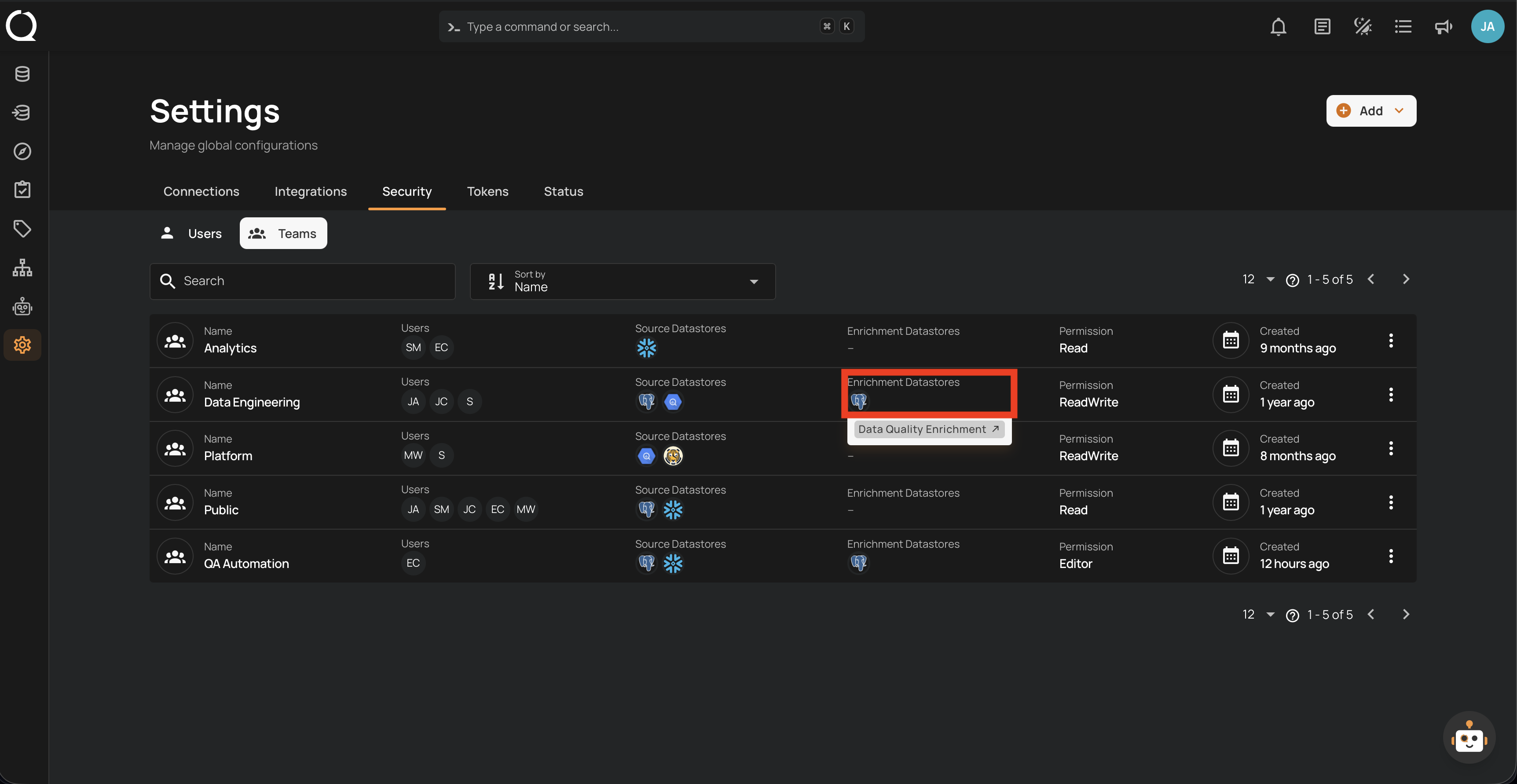
Hovering over an enrichment datastore badge shows a tooltip with the datastore name.
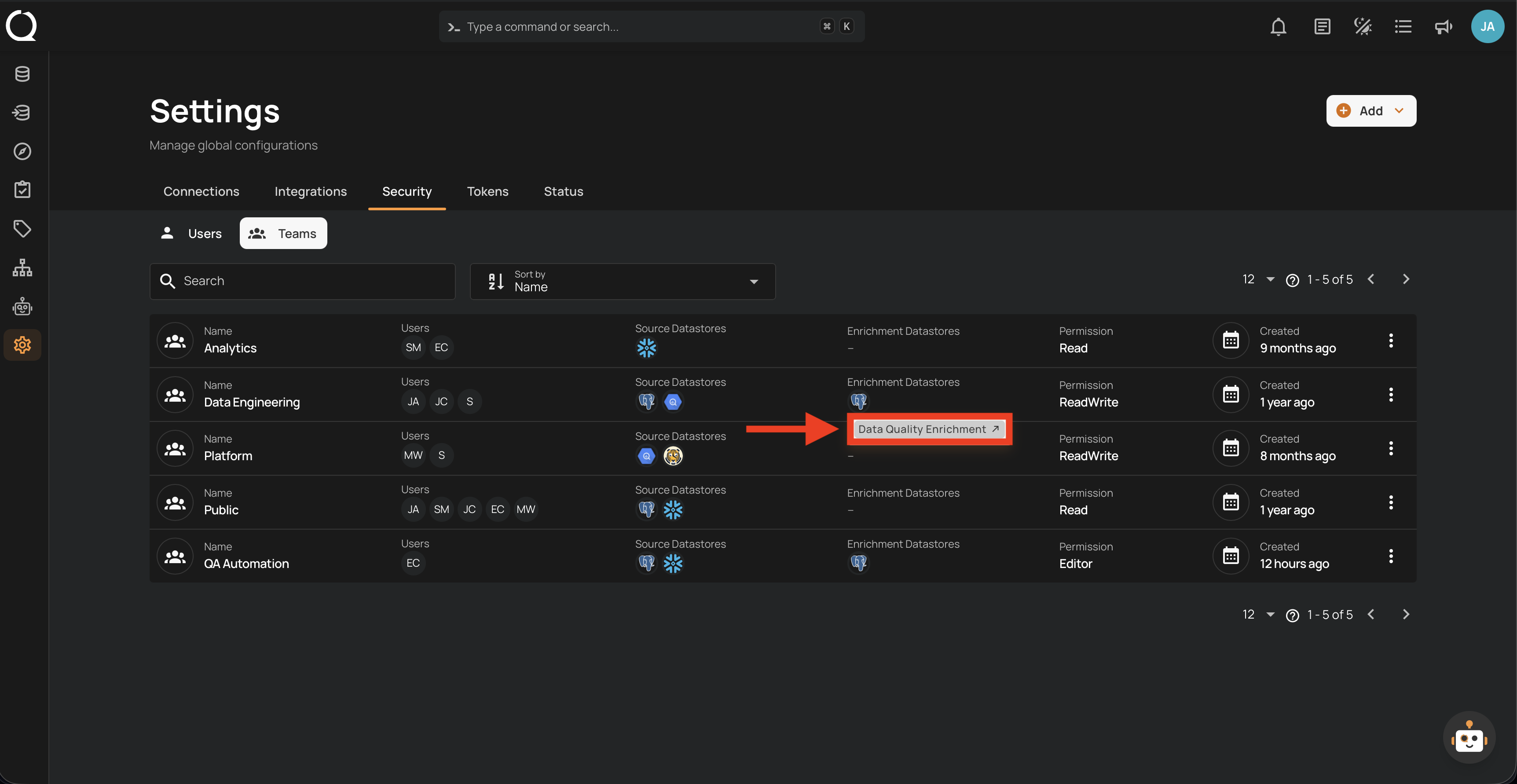
Clicking on the badge navigates to the enrichment datastore details.
Tip
To assign or update enrichment datastores for a team, use the Edit Team action.
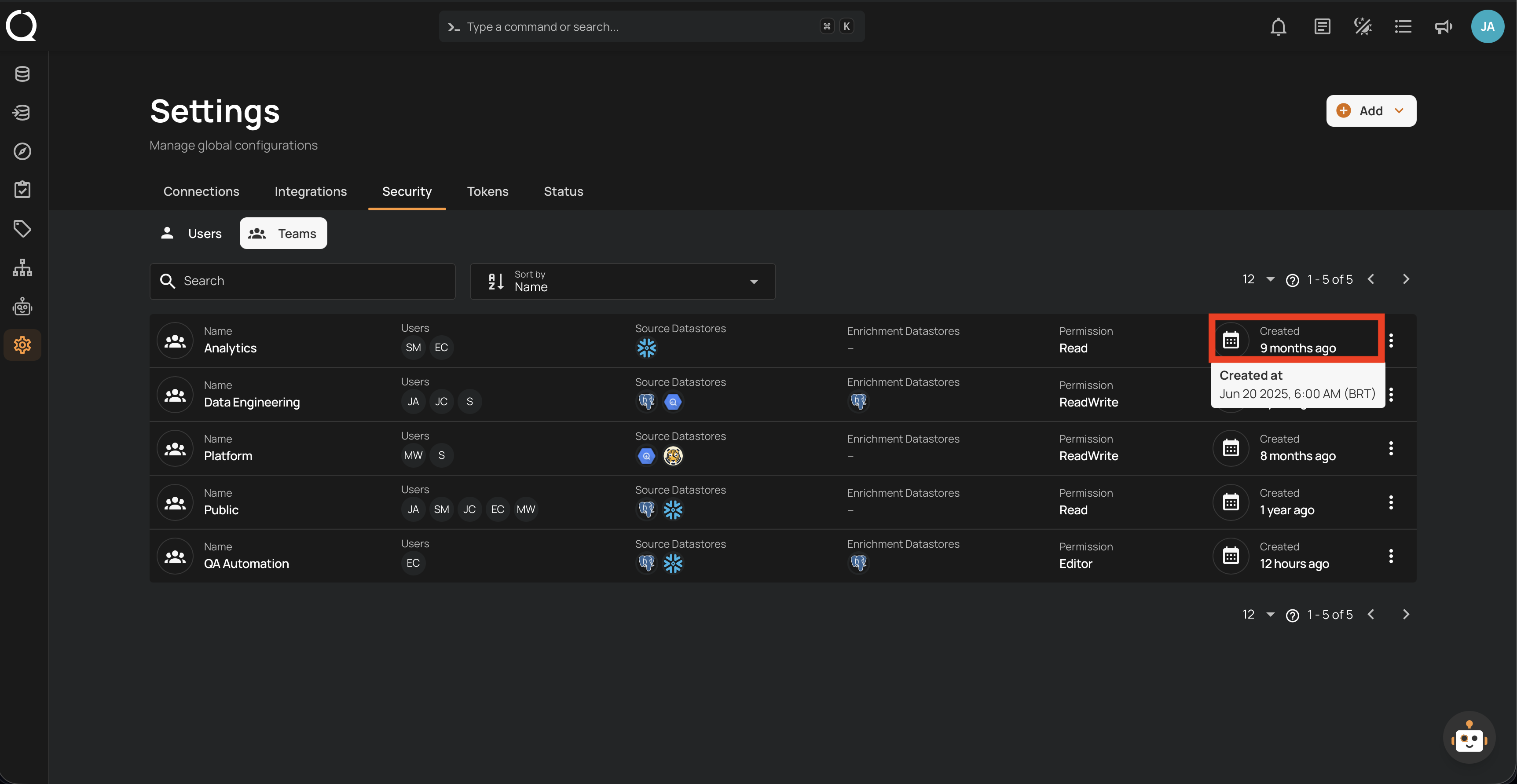
Created
The rightmost column shows when each team was created, displayed as relative time (e.g., "1 year ago", "9 months ago"). This helps administrators track team provisioning history.
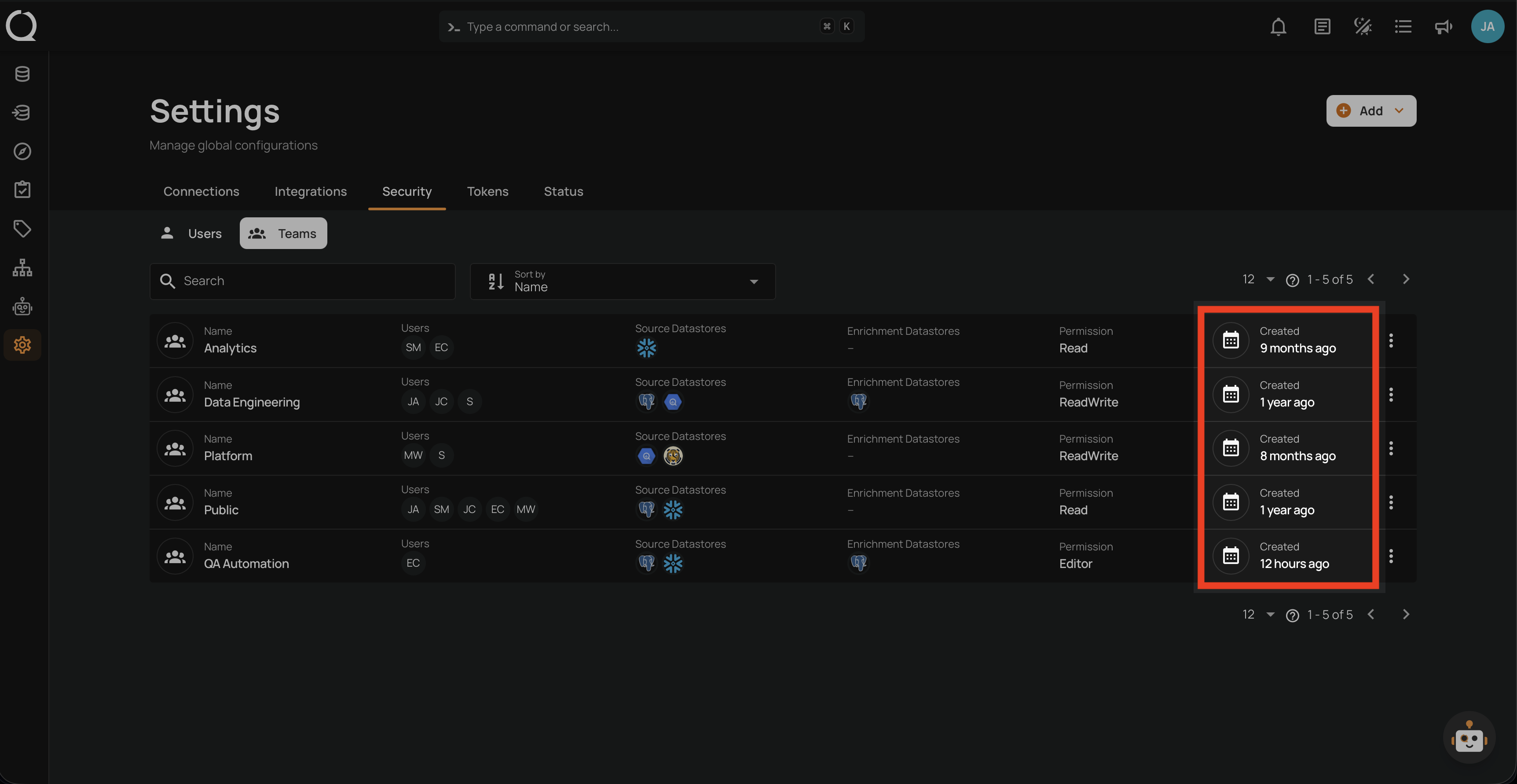
Hovering over the timestamp shows a tooltip with the exact date and time in your local timezone (e.g., Jun 20 2026, 6:00 AM (BRT)).
Note
The timezone displayed in the tooltip is determined by your browser settings. All timestamps are stored in UTC and converted to your local timezone automatically.