Read Settings
This is Step 3 of 5 in the Scan Operation modal. You decide how the scan reads records: which records to include (Incremental or Full), an optional starting point inside that range (available only with Incremental), and a per-container cap on how many records to scan.
Step disabled when only Metadata is selected in Step 2
If you unchecked Data Integrity in Step 2, every field on this page is disabled and a banner reads "This step is skipped since Metadata checks don't require data to be loaded". Click Next to advance to Step 4: Scan Settings without filling anything in.
Read Strategy
Pick one of two radio options. The default for a new scan is Incremental.
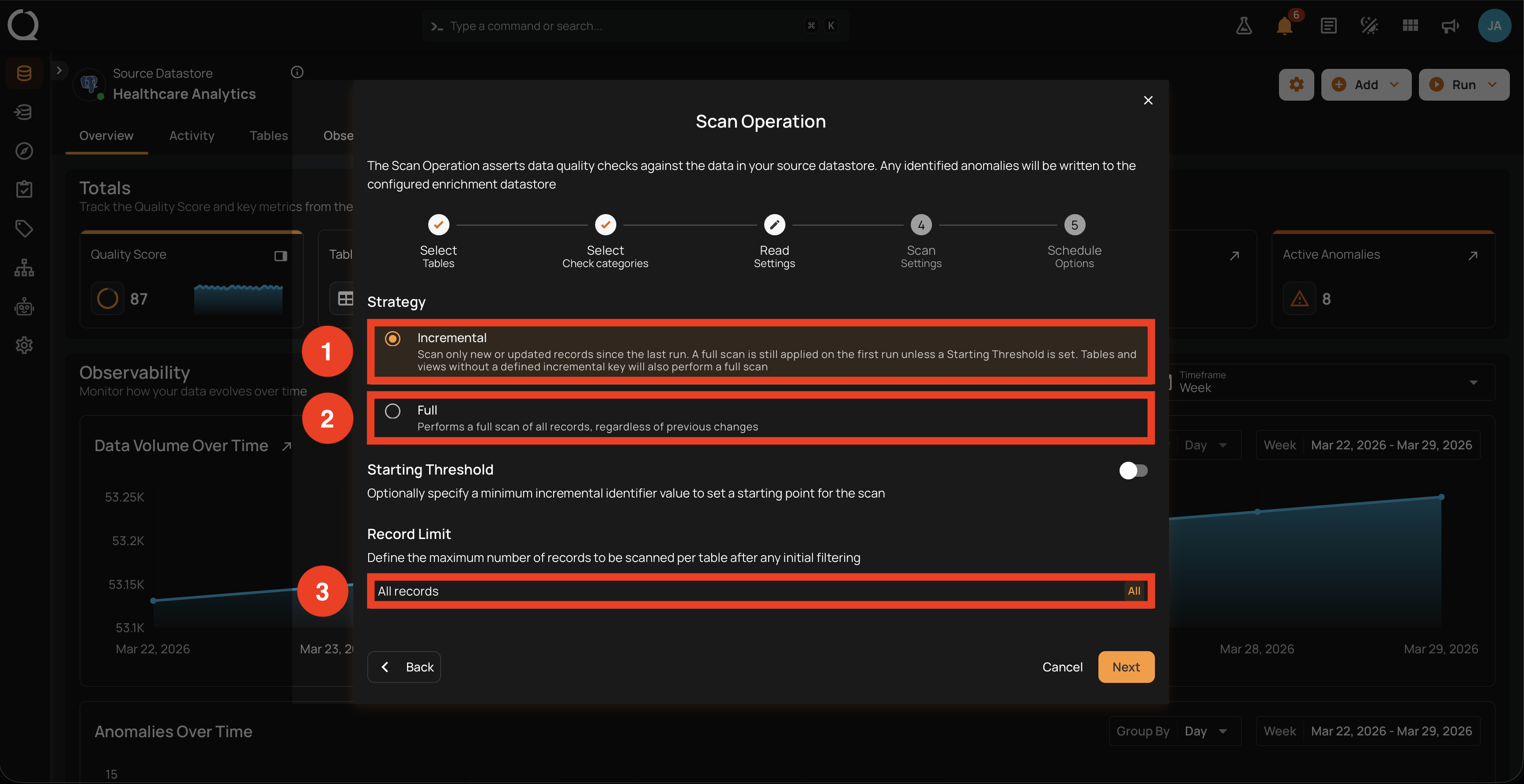
Option 1: Incremental
Selecting Incremental reads only the new or updated records since the last successful run on each container. On the very first Incremental run against a container, a Full scan is performed to establish the baseline; from the second run on, only records whose incremental identifier value moved forward are processed.
For JDBC datastores, the helper text also notes: "Tables and views without a defined incremental key will also perform a full scan". The fallback is per container, decided at scan time; the rest of the scan continues with Incremental as configured. When some of the selected containers do not have an incremental identifier, an inline warning appears above this step listing how many will be scanned in full.
For an in-depth look at how Incremental compares to Full and at the Auto-Resolve eligibility rules, see Read Strategies.
Starting Threshold (optional)
Use the Starting Threshold toggle when you want the Incremental scan to start from a specific point instead of relying on the automatically tracked baseline. Useful for backfills, for re-validating a corrected window, or for re-baselining after a schema change. This toggle is only available when Incremental is selected. Switching to Full hides it and clears any values you had set. The threshold a scan ran with is shown on its Run's Overview as Greater Than Time or Greater Than Batch, so you can confirm it after the fact.
The toggle is off by default. When off, both threshold fields are cleared. When on, one or two inputs appear depending on the datastore type.
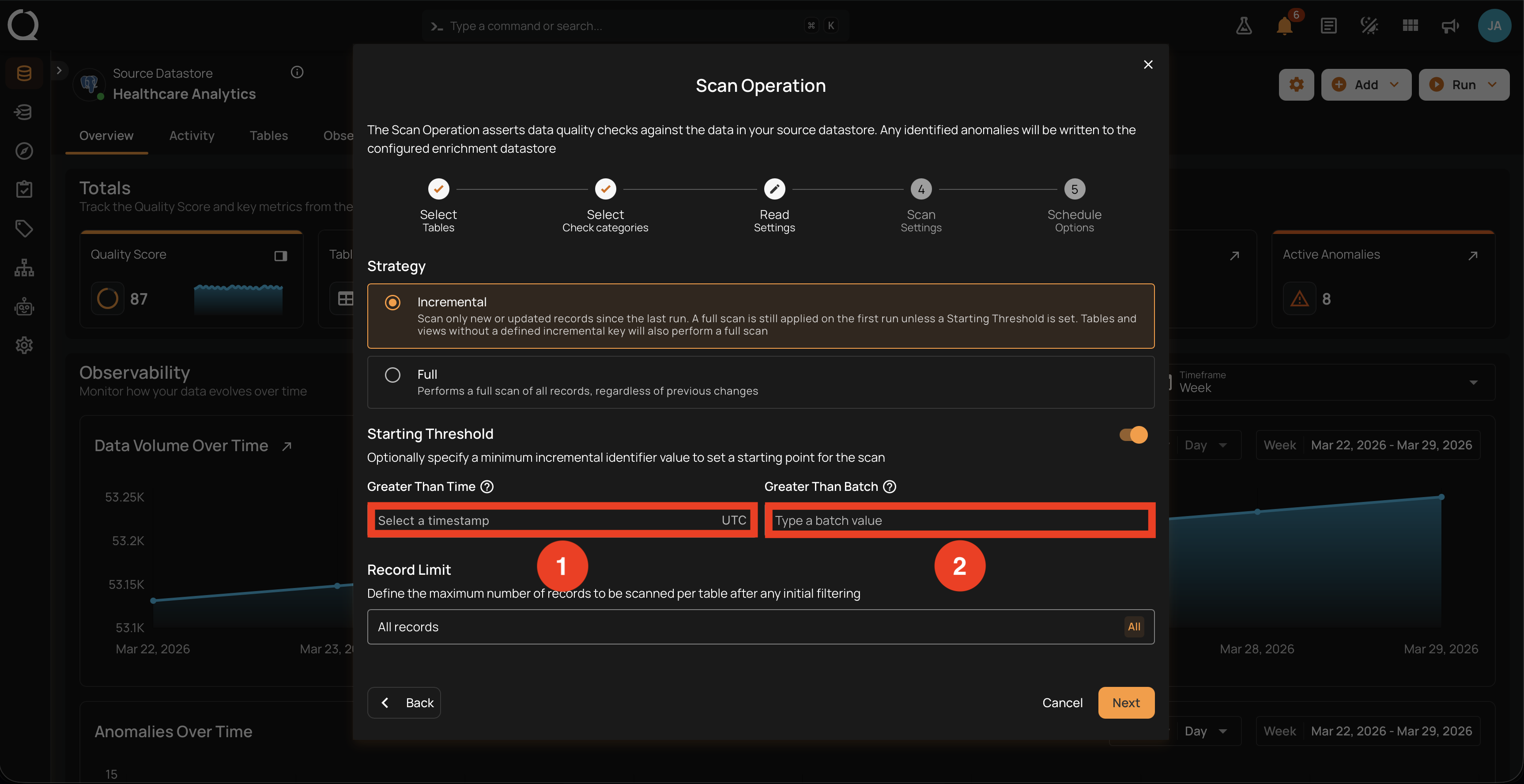
Option 1: Greater Than Time
Greater Than Time applies to containers with a time-based incremental identifier (timestamp column). Enter the lower bound as a UTC timestamp; records whose incremental timestamp is strictly greater than this value are scanned and older records are skipped.
This field is shown for every datastore type.
Option 2: Greater Than Batch
Greater Than Batch applies to containers with a batch-based incremental identifier (monotonically increasing integer). Enter the lower bound as a non-negative integer; records whose batch value is strictly greater than this value are scanned.
This field is shown only for JDBC datastores (schema-based stores). DFS datastores do not expose it.
The UI does not pre-detect identifier type per container
When both Time and Batch inputs are visible, the UI does not know which incremental strategy each individual container uses. You can set either or both: each value applies only to containers that actually use the matching identifier type. Containers whose identifier type does not match the value you set fall back to their automatic baseline.
Option 2: Full
Selecting Full reads every record in each selected container, regardless of previous runs. This is the only strategy that makes Auto-Resolve eligible to evaluate previously open anomalies.
Switching to Full hides the Starting Threshold section entirely and clears any threshold values you previously entered. Threshold values do not apply when reading every record, and direct API callers receive a validation error if they try to combine Full with greater_than_time or greater_than_batch; see API for the supported combinations.
Record Limit (per container)
The Record Limit input caps the number of records scanned per container, after the read strategy and any starting threshold have been applied. The default value is All records (no cap).
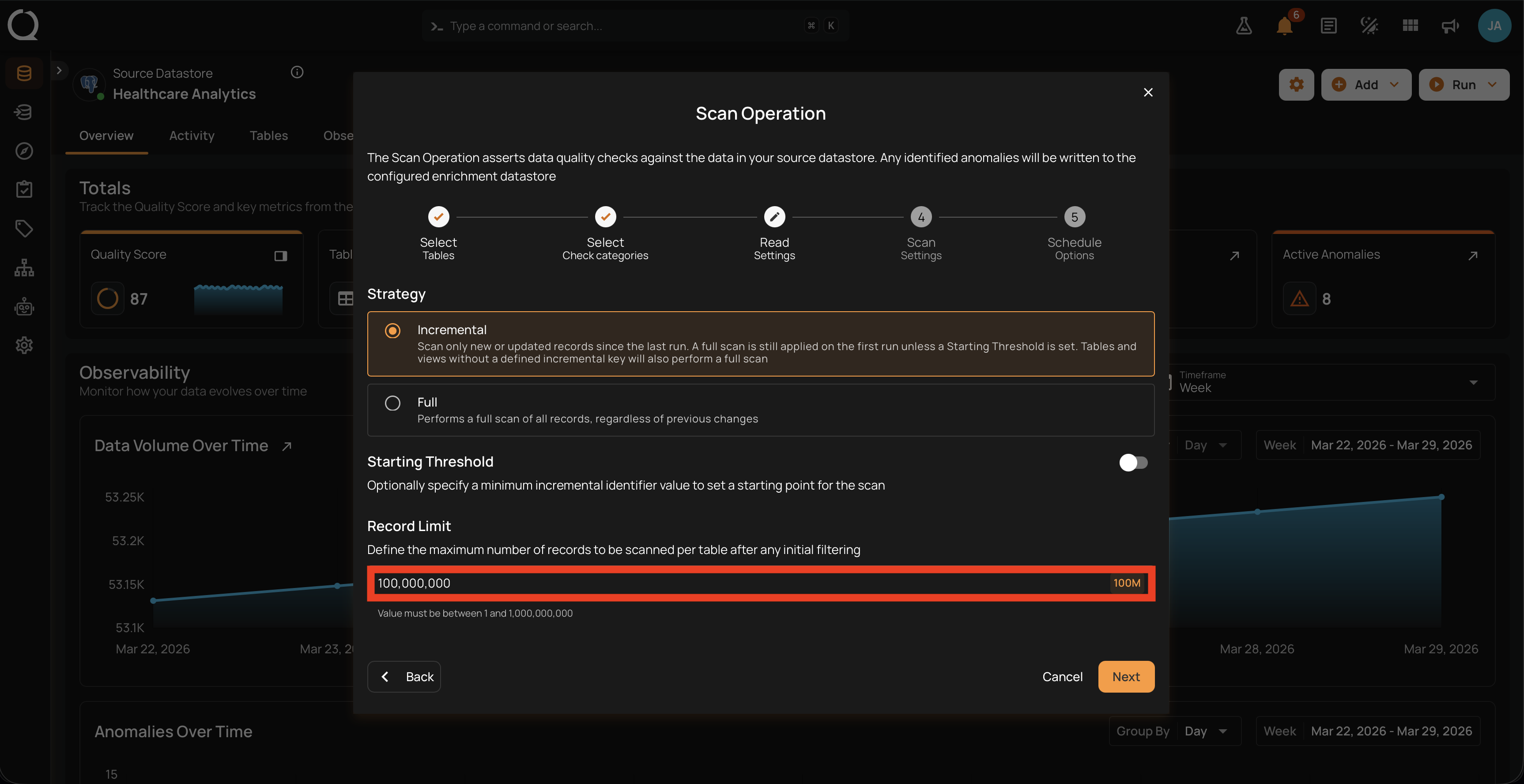
There are two ways to set this value, both modifying the same field. The Record Limit input shows either the current preset label (1M, 10M, 100M, All) or the literal word Custom when you have a numeric value that does not match a preset.
Type any integer between 1 and 1,000,000,000 directly into the input. Non-digit keys are blocked. When the value does not match a preset, the button label changes to Custom, and the helper text "Value must be between 1 and 1,000,000,000" appears underneath the input.
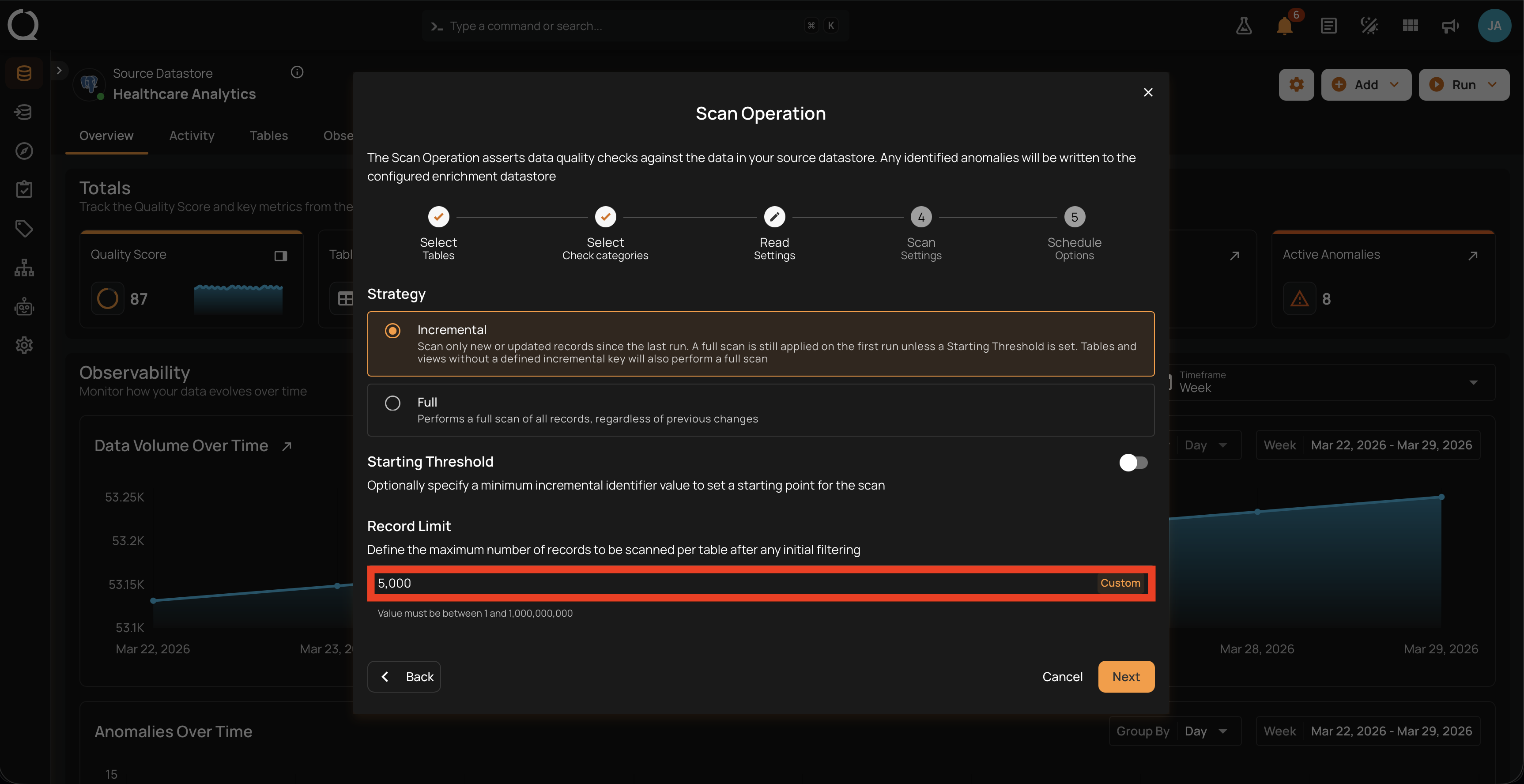
Use this when you need a specific cap that does not match one of the four presets (for example, 5,000 to bound a partition during a re-run, or 25,000,000 for a custom sampling target).
The button on the right of the input opens a menu with four ready-made values.
Step 1: Click the button on the right of the Record Limit input.
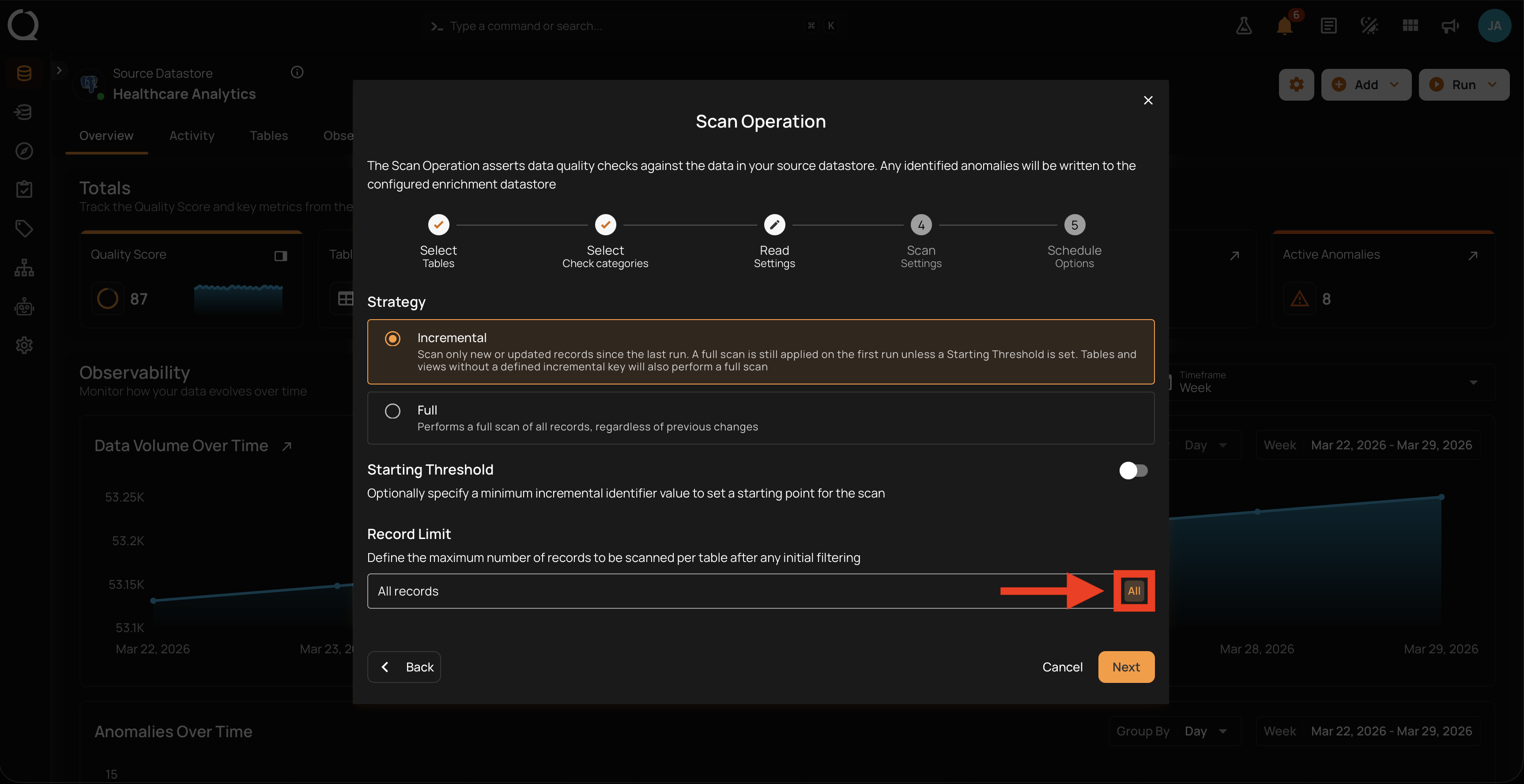
Step 2: The menu opens with four ready-made values. Click the one you want.
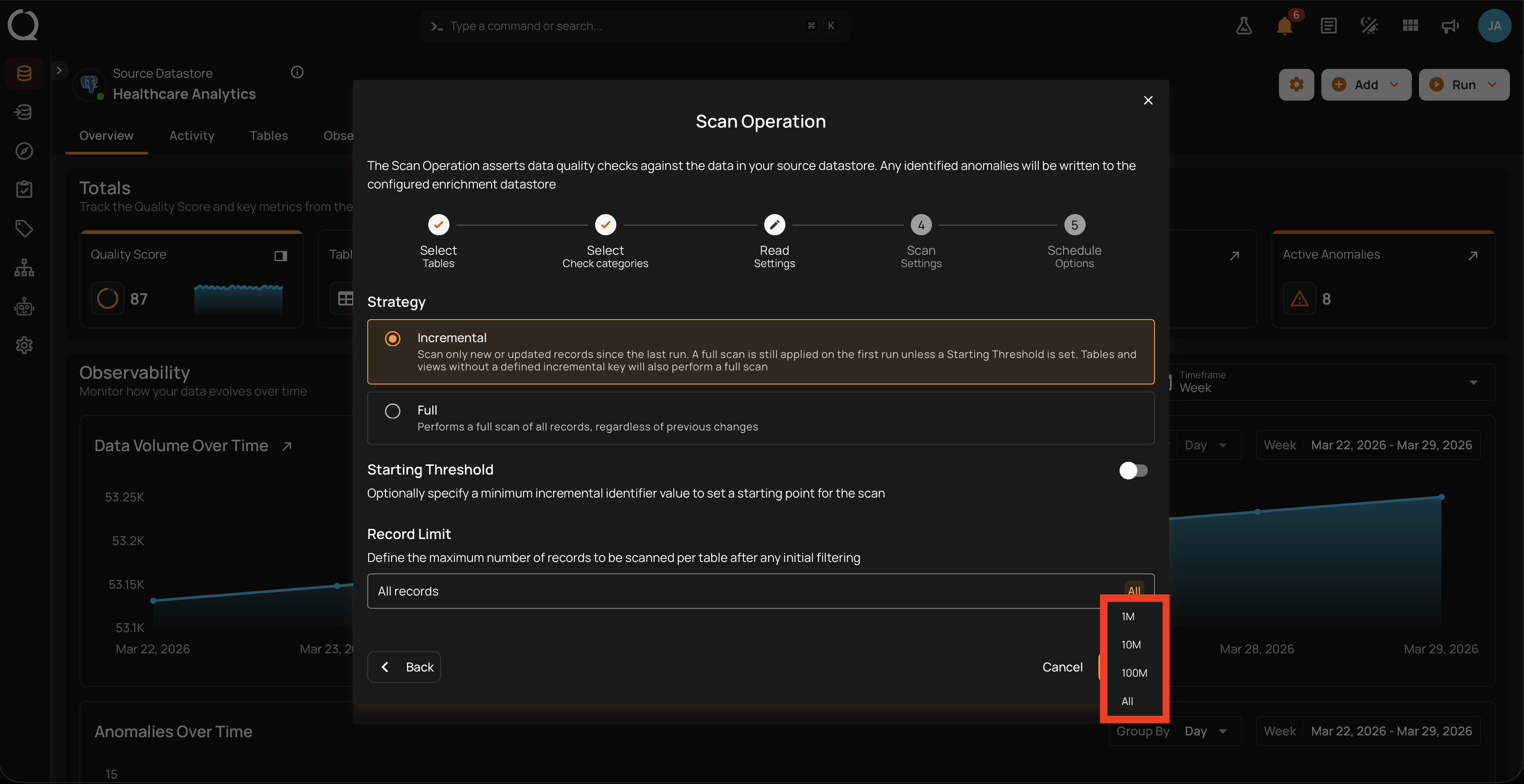
The available presets are:
- 1M = 1,000,000 records per container
- 10M = 10,000,000 records per container
- 100M = 100,000,000 records per container
- All = no cap (every record in the container is scanned)
Step 3: The input updates immediately and the button label changes to the selected preset (1M, 10M, 100M, or All).
It is a single maximum, not a range
Record Limit is a single per-container cap, not a range. There is no minimum-value control or window. To restrict the lower bound of an incremental scan, use the Starting Threshold inside Option 1 instead.
Continue to the next step
Click Next to advance to Step 4: Scan Settings.
The Back button returns you to Select Check Categories.
Examples
Telecom carrier: daily incremental on call records: A mobile carrier ingests call_records partitioned by event_timestamp. The table grows by 3M rows per day on top of a 5B-row historical base. They keep Incremental selected with Starting Threshold off and Record Limit on All: the nightly scan only re-validates yesterday's calls, avoiding a full re-read of five years of history every night.
Media streaming: weekly Full with sampling: A streaming service has ad_impressions with 8B rows partitioned by hour. A full nightly scan is too expensive, so they schedule a weekly Full scan on Sundays with Record Limit set to 100M. Each container in the datastore is sampled at 100 million rows, giving every check a chance to fire across the full table set without paying the cost of reading everything.
Energy utility: backfill after a metering correction: A power utility discovers that its smart-meter ingestion produced wrong consumption_kwh values between 2026-03-12 00:00 and 2026-03-14 18:00 due to a timezone bug in the upstream collector. They keep Incremental, turn on Starting Threshold, and set Greater Than Time to 2026-03-11 23:59:59 UTC. The scan re-evaluates only the affected three-day window instead of all of Q1.
Manufacturing: Full re-baseline after MES schema change: A factory's Manufacturing Execution System renamed assembly_line_id to production_line_id across all OEE tables. After the migration, the data team switches to Full + Auto Resolve. The Full scan re-validates every record under the new schema, and Auto Resolve clears the now-irrelevant anomalies that referenced the old field name. Record Limit stays on All so the baseline is exhaustive.
Gaming platform: batch backfill with custom record limit: A multiplayer game stores match_events in numbered ingestion batches. Batches 41,200 through 41,250 were reprocessed after a server bug was patched. The team picks Incremental, sets Greater Than Batch to 41199, and types a custom Record Limit of 2,000,000 to cap each partition during the re-validation, so the re-run does not exhaust cluster memory.
Where to go next
-
Scan Settings
Anomaly Options (including Auto Resolve), record-anomaly limits, and source examples.
-
Schedule Options
Set up a recurring run, or skip this step and use Run Now.
-
Select Tables
Choose the containers to scan: All, Specific, or by Tag.
-
Select Check Categories
Choose Metadata, Data Integrity, or both.