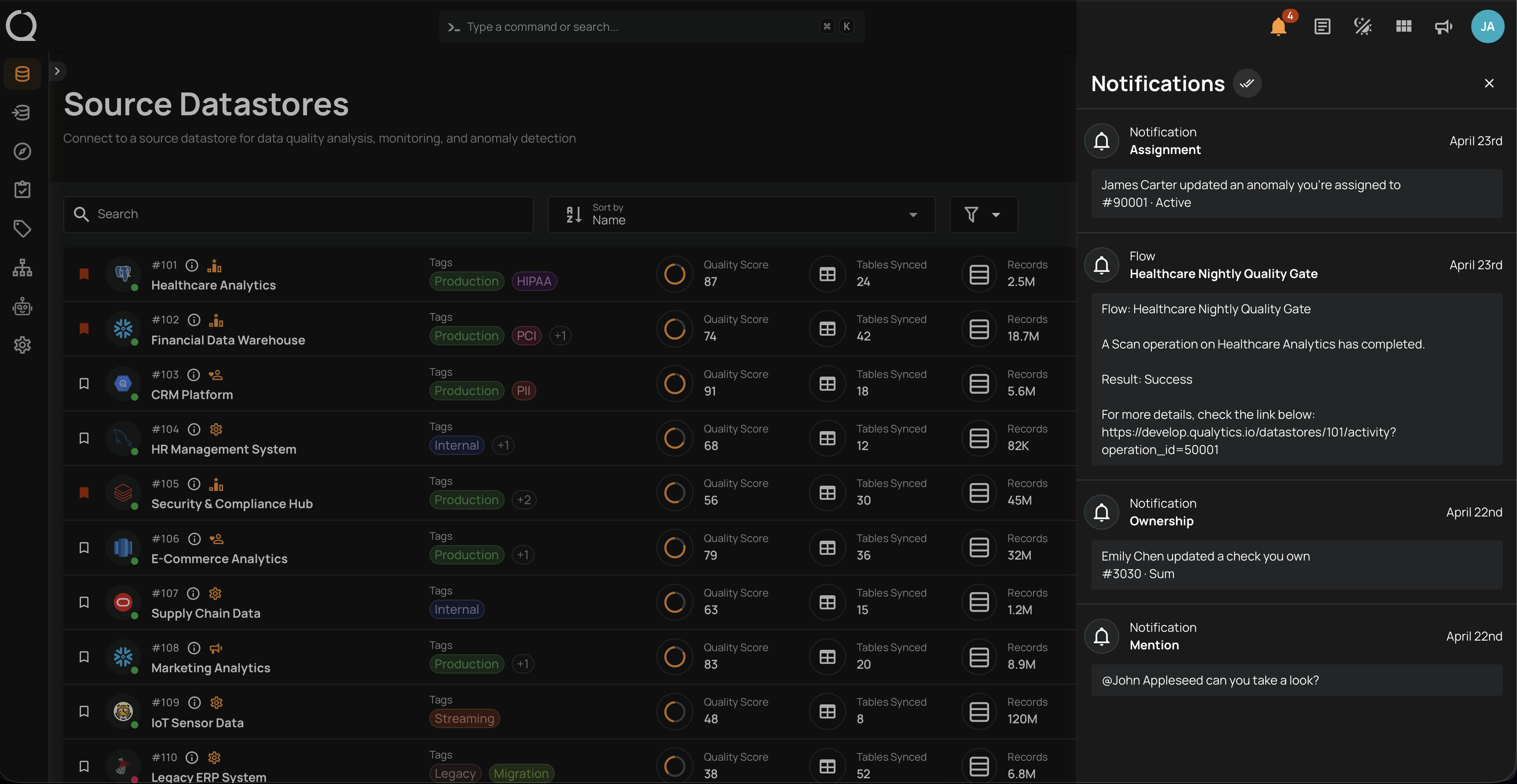
Bulk Mark In-App Notifications as Read
When the notifications panel has several entries you want to mark as read while keeping the rest, use bulk mark as read: select a subset of items with the checkboxes and mark them as read in one action. Items you don't select stay in the list.
This is different from Mark all as read, which marks every visible item as read without selection, covered in the Mark All In-App Notifications as Read page.
Steps
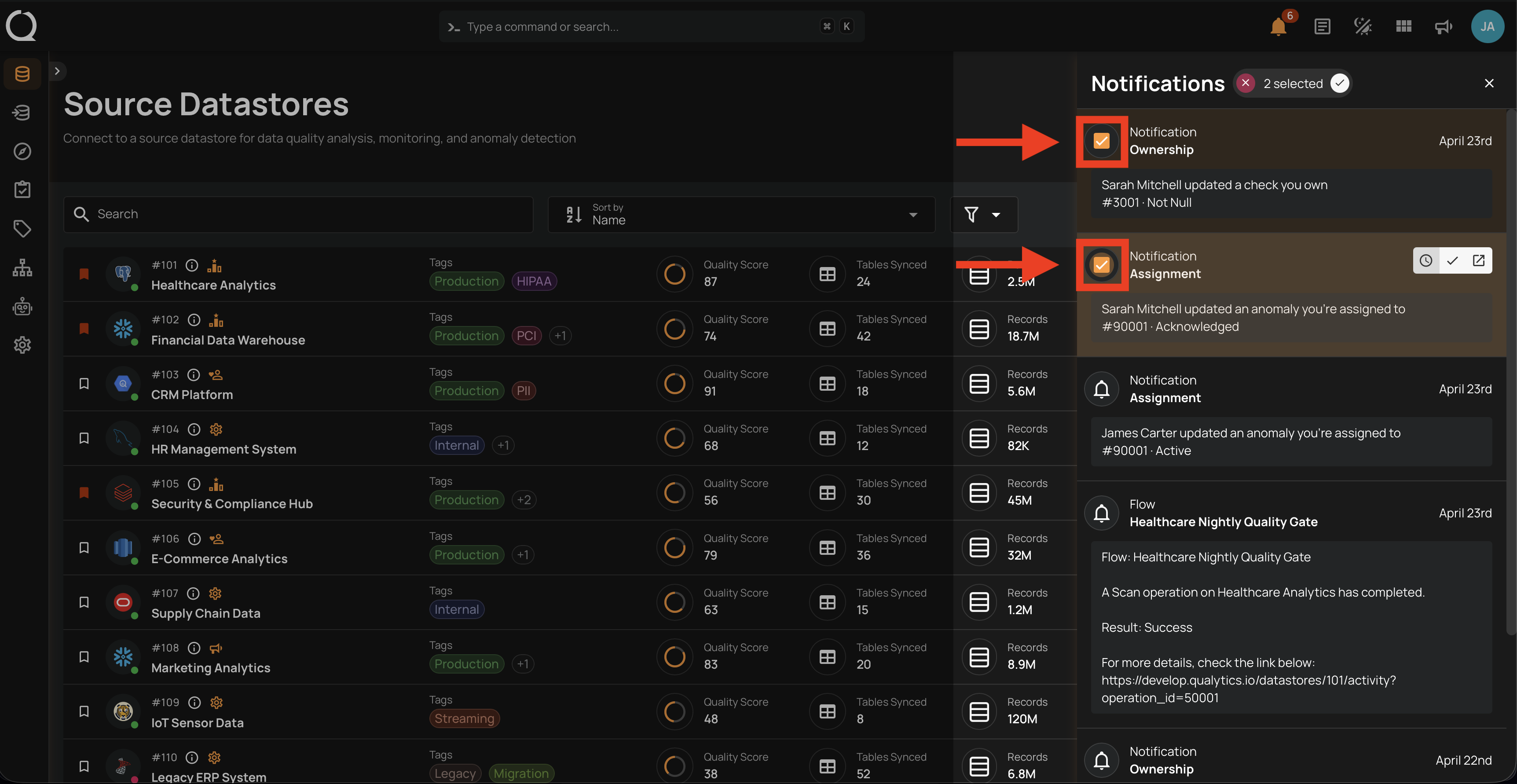
Step 1: Open the Notifications panel and tick the checkbox at the left of each notification you want to mark as read. The panel header switches to selection mode and shows the count, e.g., 2 selected.
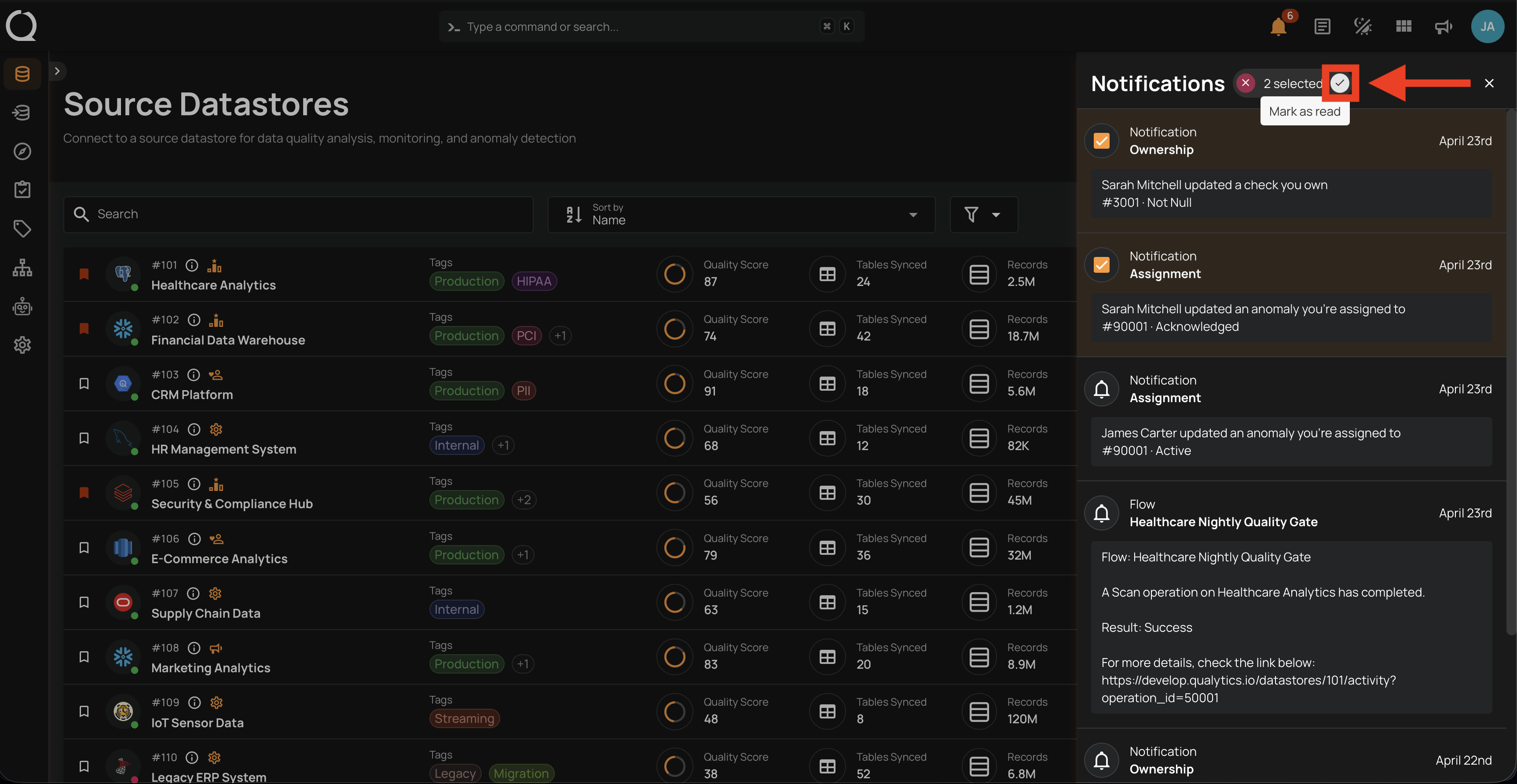
Step 2: Click the Mark as read button in the panel header to mark every selected notification as read at once.
Step 3: The selected notifications are marked as read. On the Unread tab they leave the list; on the All and Read tabs they stay visible in their read (dimmed) state. Items you did not select are unaffected.