In-App Notifications Navigation
The Notifications panel is the side drawer that lists every personal notification delivered to your account. This page walks through how to open it, what each notification displays, and the actions available on every item.
Open the Notifications Panel
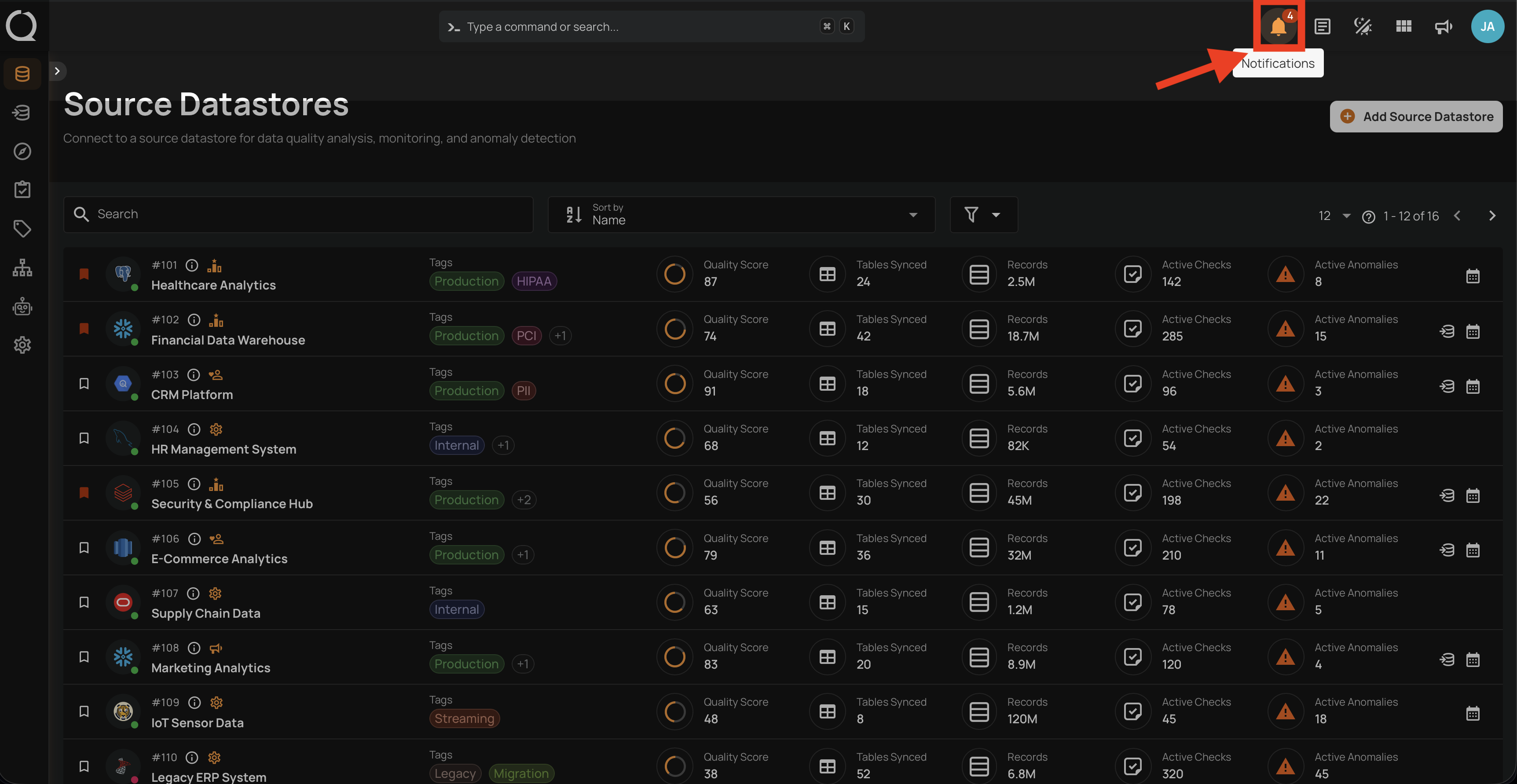
Step 1: Click the Notifications button in the top-right toolbar. A red dot appears on the icon when there are unread notifications.
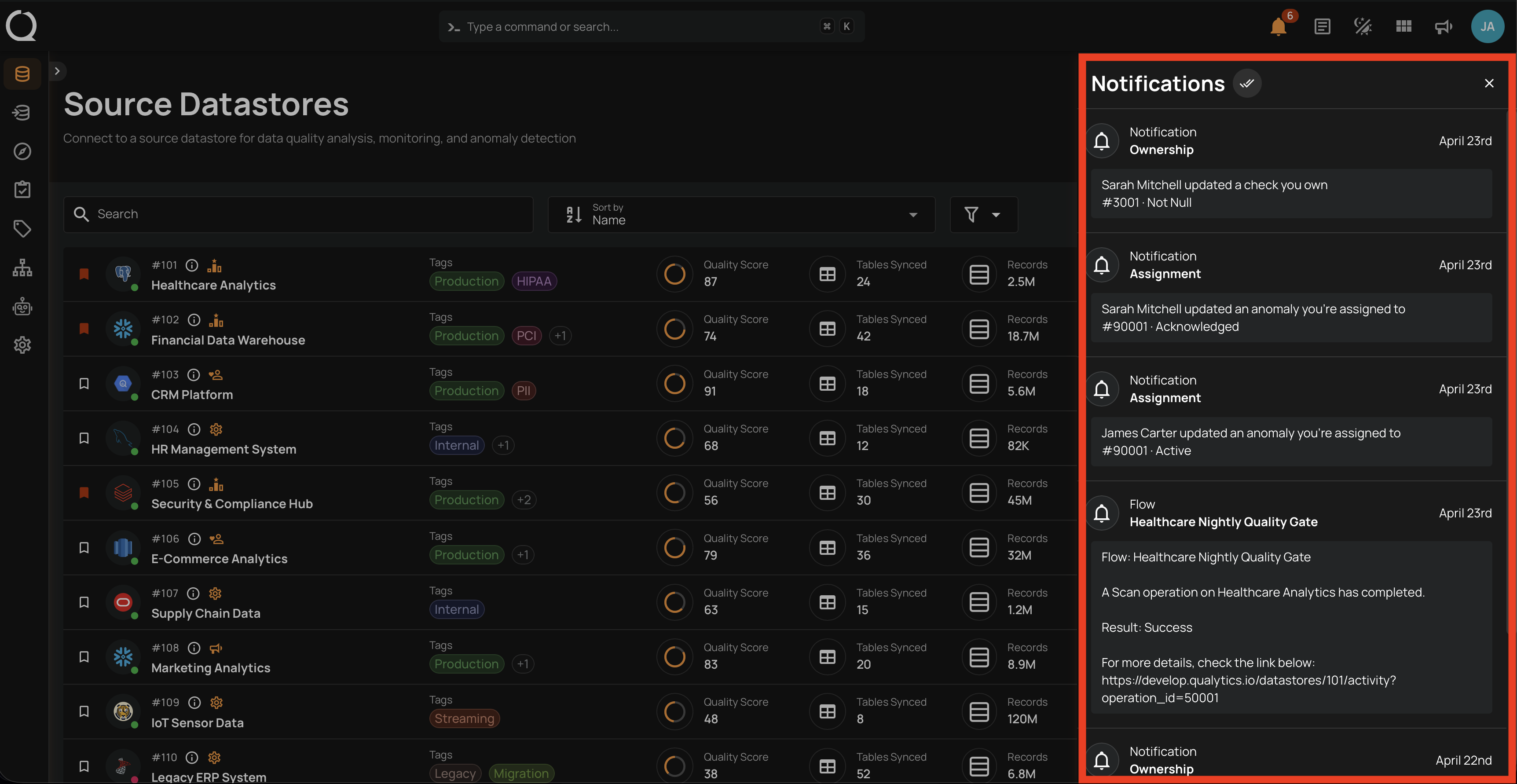
Step 2: The Notifications side panel opens on the right, listing your notifications from newest to oldest. Use the All, Unread, and Read tabs at the top to filter by read status. Scroll down to load older entries automatically.
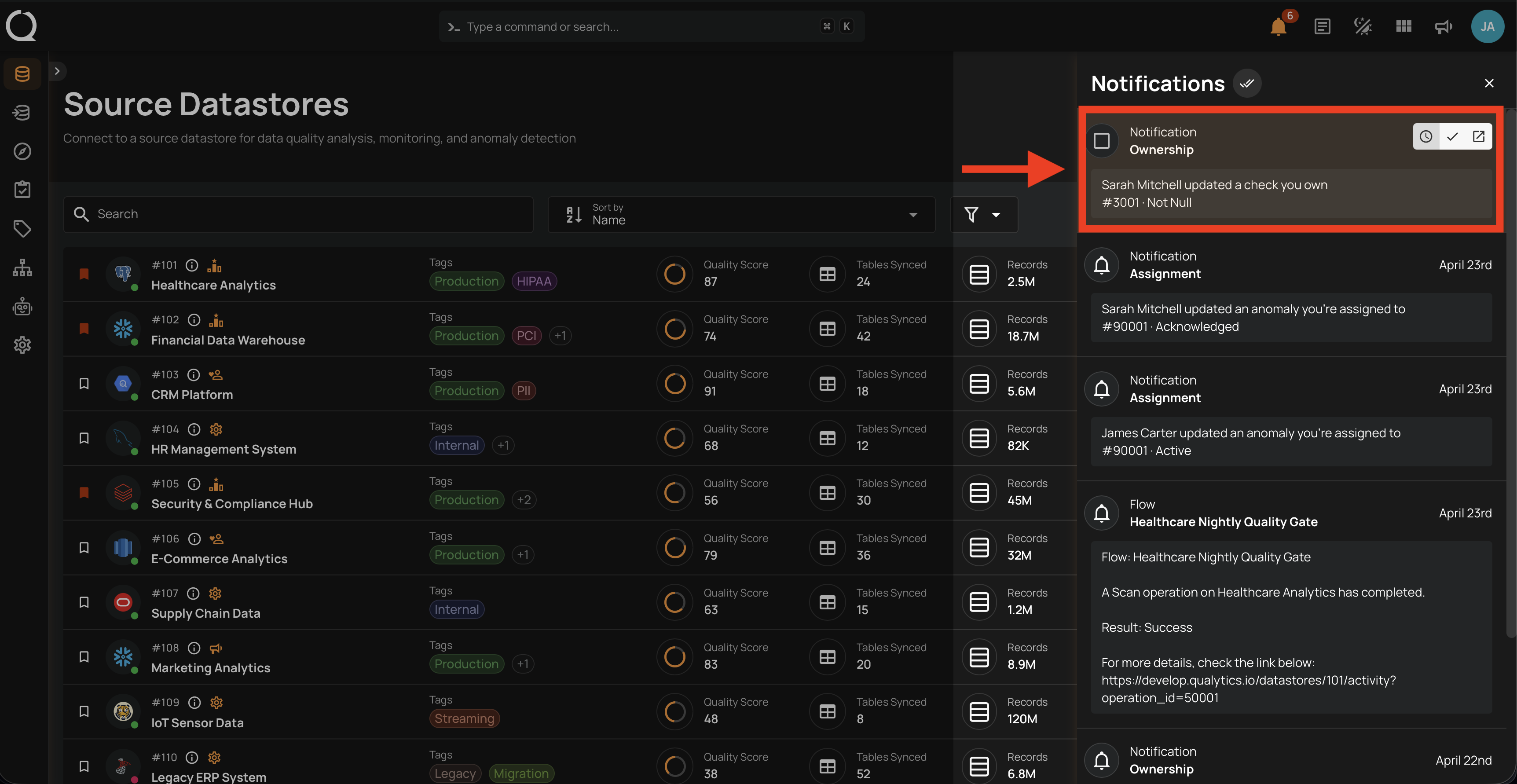
Notification Item
Each entry in the panel surfaces the same set of fields, regardless of the notification type.
| Field | Description |
|---|---|
| Category | The subject of the notification, shown as a colored label: Mention, Ownership, Anomaly, Assignment, Operation, Flow, or System. |
| Title | A short headline for the event, such as the flow name or the anomaly's table and datastore. |
| Message | A short summary of what happened, including the related entity (anomaly ID, check ID, datastore name). |
| Date | The relative time since the event (e.g., "2 hours ago", "yesterday"). For the full UTC timestamp, hover the icon in the per-item actions. |
| Unread indicator | A colored dot next to the date marks an unread notification; items you've read appear dimmed. |
| Checkbox | Selects the item for bulk mark as read. |
Per-Item Actions
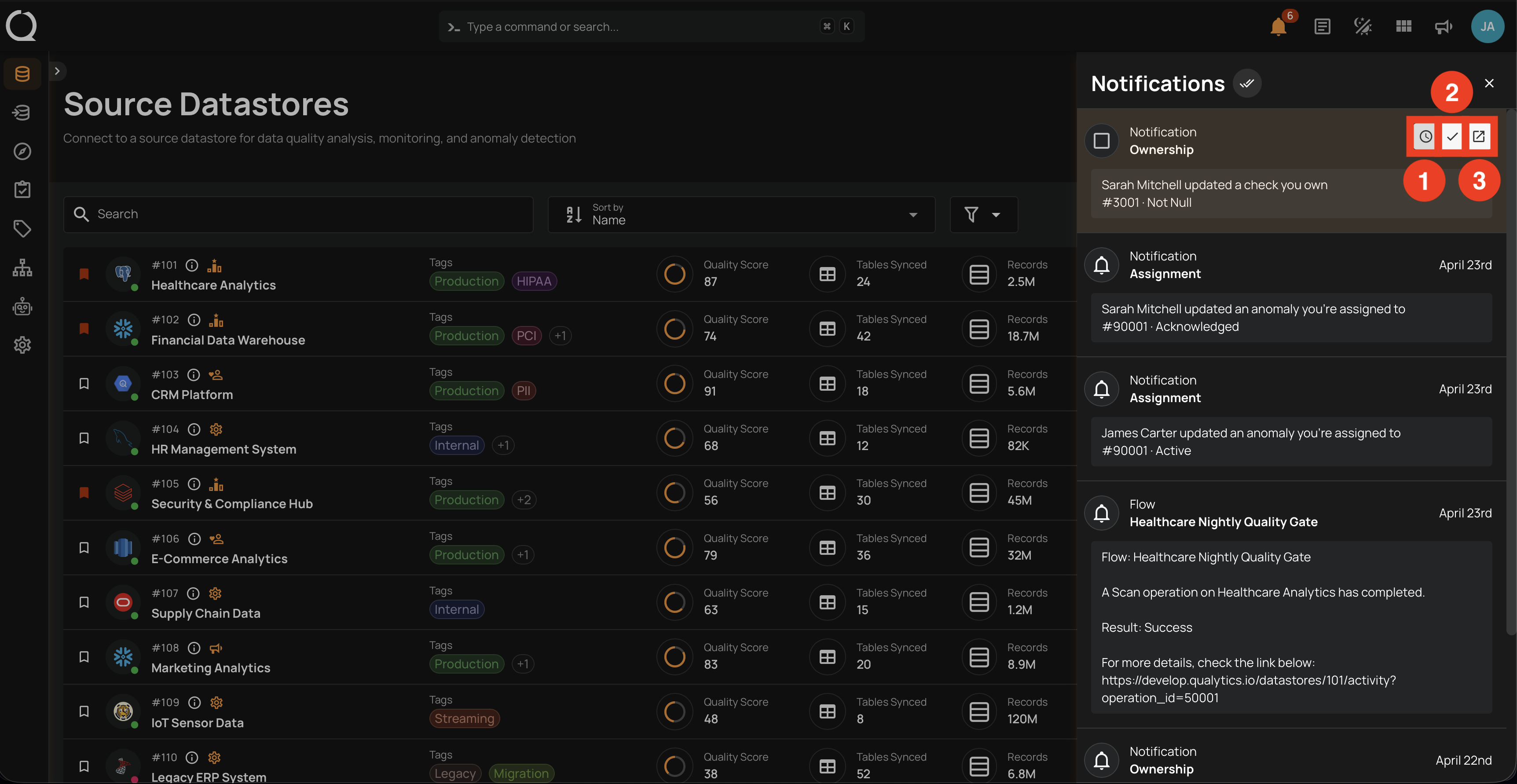
Hover any notification to reveal the action icons in the item header.
| ICON | ACTION | DESCRIPTION |
|---|---|---|
| Timestamp | Displays the full UTC timestamp of when the event occurred. This icon is informational only and is not clickable. | |
| Mark as read | Marks an unread notification as read and removes it from the unread list. Shown on unread items. | |
| Mark as unread | Returns a read notification to the unread list. Shown on items you've already read. | |
| View linked page | Navigates to the entity the notification refers to (anomaly, check, datastore, or other linked asset). |
Flow-Specific Action
Flow notifications include one additional icon that links to the flow execution itself.
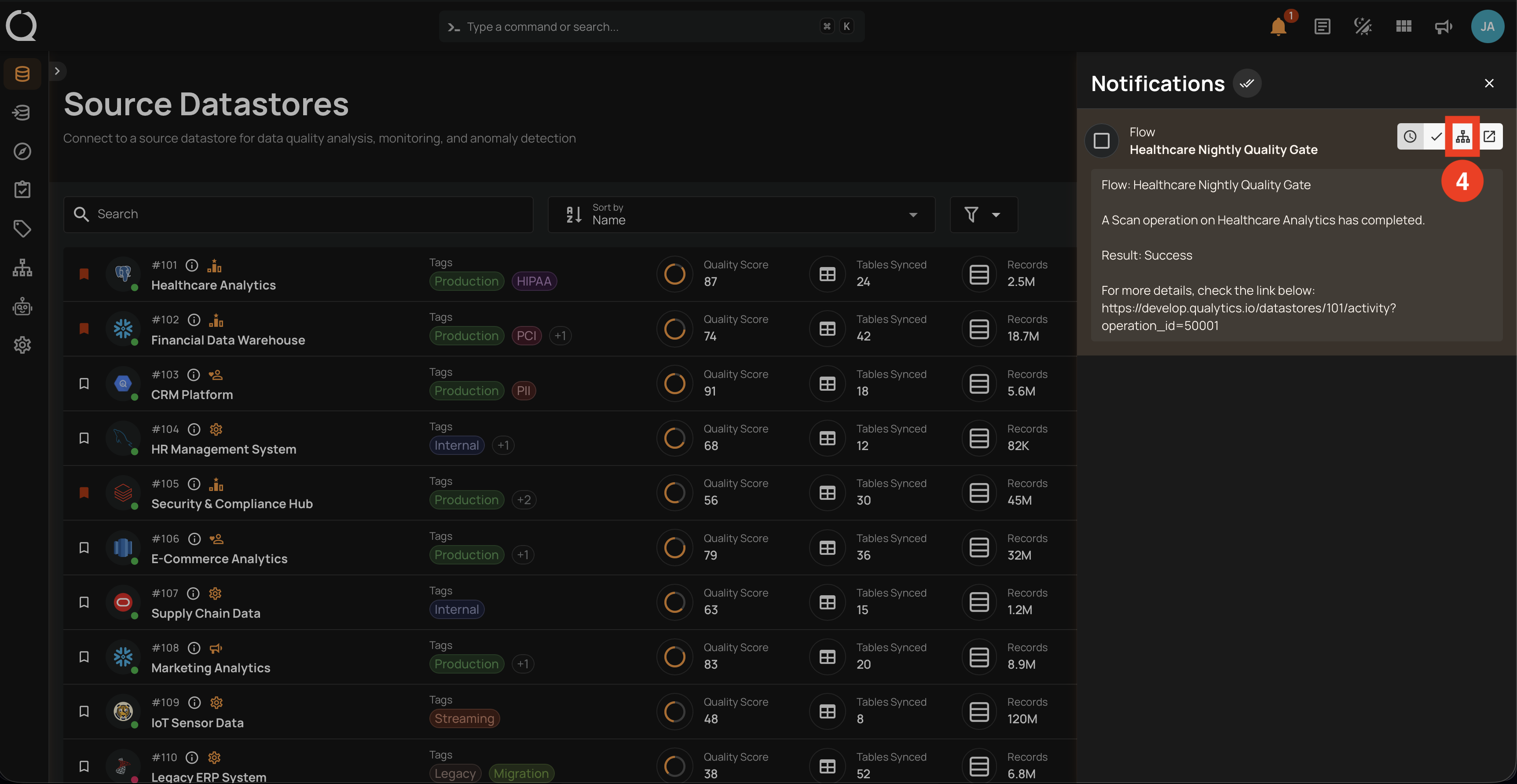
| ICON | ACTION | DESCRIPTION |
|---|---|---|
| View flow execution | Opens the flow execution detail page so you can inspect the run, its steps, and any anomalies it produced. |
Right-click for more actions
Right-click any notification to open a context menu with the same read and unread actions, plus Open in new tab and Copy link for the linked page.
Automatic updates
The bell icon refreshes its unread badge automatically while you're signed in, so there's no need to reload the page to see new notifications arrive.