Keyboard Shortcuts
Qualytics provides keyboard shortcuts for navigation, operations, check management, and entity actions across the platform. This page lists every available shortcut, grouped by category.
About the Command Palette
Many shortcuts also surface in the Command Palette, the overlay you open with Cmd+KCtrl+K. To learn how the palette behaves and how asset results appear, see Command Palette.
How Sequential Shortcuts Work
Some shortcuts use a two-key sequence written as G then E. Press each key in turn, not together, and complete the sequence within about two seconds. If you wait too long, the sequence resets and you can start again.
Open the Keyboard Shortcuts List
Step 1: Click the Search bar at the top of the dashboard, or press Cmd+KCtrl+K.
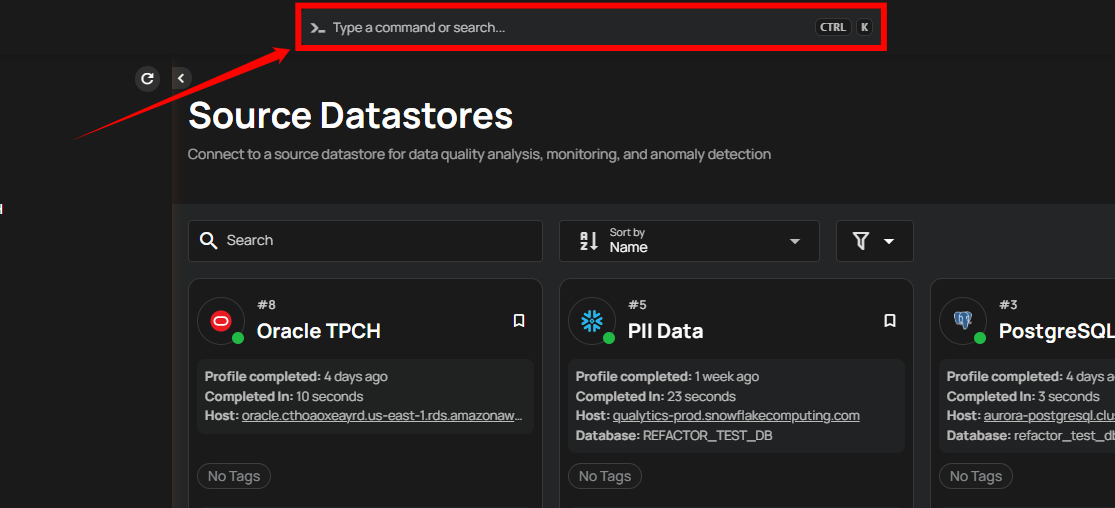
A popup window appears with the available commands.
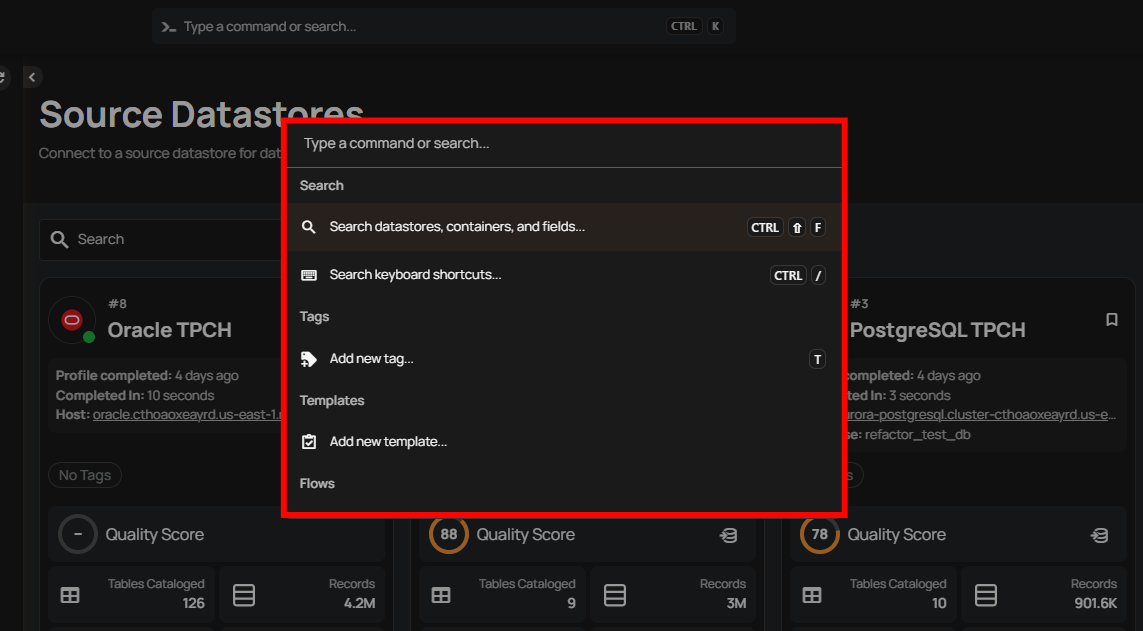
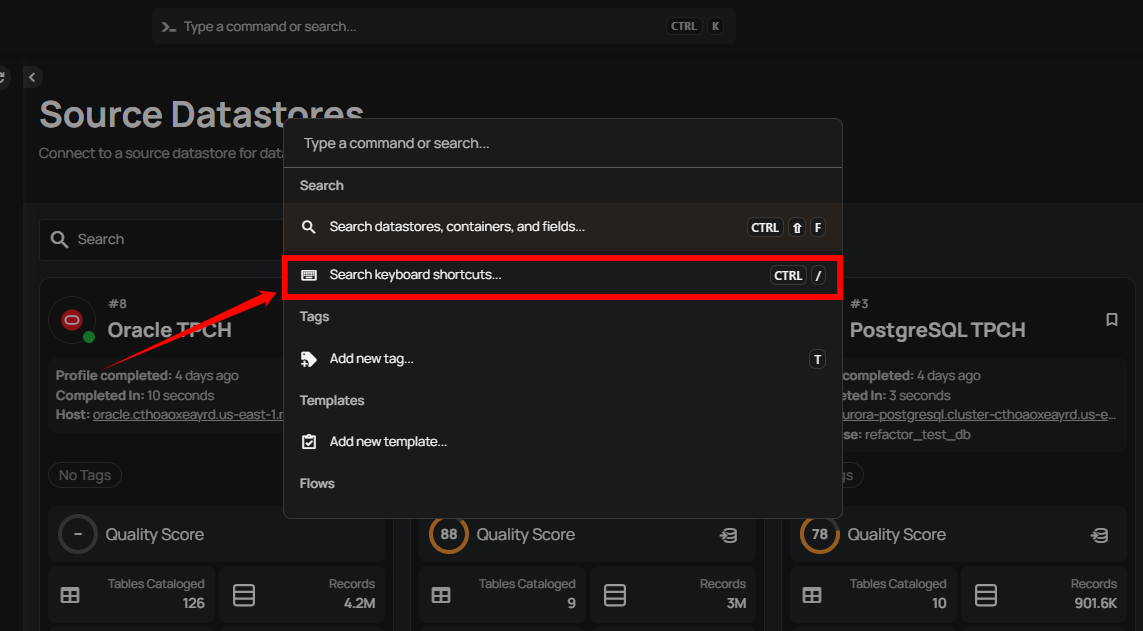
Step 2: Select Search keyboard shortcuts.
The full list opens, organized by category.
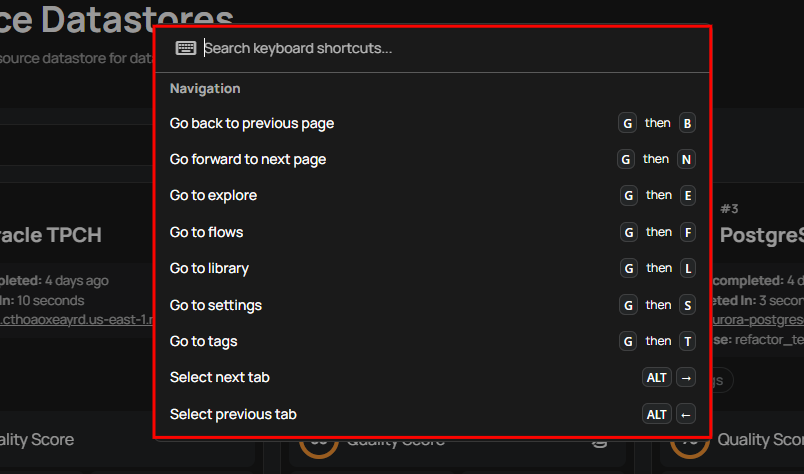
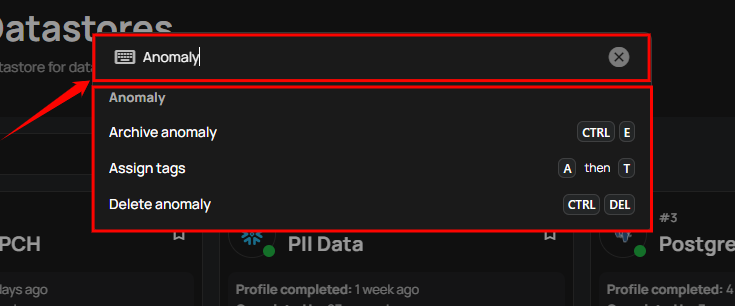
Step 3: Scroll through the list or type to filter for a specific shortcut.
Shortcuts Reference
Anomaly
Available on anomaly detail pages.
| Shortcut | Action |
|---|---|
| Cmd+ECtrl+E | Archive anomaly |
| A then T | Assign tags |
| Cmd+BackspaceCtrl+Del | Delete anomaly |
Check
Available on check detail pages.
| Shortcut | Action |
|---|---|
| Cmd+ECtrl+E | Archive check |
| A then T | Assign tags |
| Cmd+BackspaceCtrl+Del | Delete check |
| E | Edit check |
| Option+FAlt+F | Mark as favorite |
Checks
Available where new checks can be created (datastore and template pages).
| Shortcut | Action |
|---|---|
| Cmd+Shift+CCtrl+Shift+C | Add multiple checks from template |
| Shift+C | Add new check from template |
| C | Add new check |
Container
Available on container detail pages.
| Shortcut | Action |
|---|---|
| A then T | Assign tags |
| Cmd+BackspaceCtrl+Del | Delete container |
| Option+FAlt+F | Mark as favorite |
| E | Open container settings |
Datastore
Available on datastore detail pages.
| Shortcut | Action |
|---|---|
| A then T | Assign tags |
| Cmd+BackspaceCtrl+Del | Delete datastore |
| E | Edit datastore |
| Option+FAlt+F | Mark as favorite |
Field
Available on field detail pages.
| Shortcut | Action |
|---|---|
| A then T | Assign tags |
| Cmd+BackspaceCtrl+Del | Delete computed field |
| E | Edit field |
Flow
Available on flow detail pages.
| Shortcut | Action |
|---|---|
| Cmd+DCtrl+D | Clone flow |
| Cmd+BackspaceCtrl+Del | Delete flow |
| Cmd+EnterCtrl+Enter | Execute flow |
| P | Publish flow |
Flow Execution
Available on flow execution pages.
| Shortcut | Action |
|---|---|
| Cmd+BackspaceCtrl+Del | Delete flow execution |
How-tos
Available across the platform.
| Shortcut | Action |
|---|---|
| H | Browse How-tos for this page |
H opens the Command Palette scoped to the How-tos group: interactive walkthroughs for the tasks available on the current page, filtered to what your permission allows. The key is inert while you are typing in a text field. With a dialog open that offers a walkthrough (shown by the Show me how link in its header), H starts that dialog's walkthrough directly instead of opening the palette.
Interface
Available across the platform.
| Shortcut | Action |
|---|---|
| Cmd+BCtrl+B | Collapse navigation sidebar |
| Cmd+Shift+LCtrl+Shift+L | Switch theme |
| Q | Toggle AgentQ chat |
Navigation
Available across the platform.
| Shortcut | Action |
|---|---|
| G then B | Go back to previous page |
| G then N | Go forward to next page |
| G then D | Go to datastores |
| G then Q | Go to AgentQ |
| G then E | Go to explore |
| G then F | Go to flows |
| G then L | Go to library |
| G then R | Go to recipes |
| G then S | Go to settings |
| G then T | Go to tags |
| Option+→Alt+→ | Select next tab |
| Option+←Alt+← | Select previous tab |
Operations
Available on datastore pages, with permission to run operations.
| Shortcut | Action |
|---|---|
| R then C | Run sync operation |
| R then E | Run export operation |
| R then M | Run materialize operation |
| R then P | Run profile operation |
| R then S | Run scan operation |
Search
Available across the platform.
| Shortcut | Action |
|---|---|
| Cmd+/Ctrl+/ | Search keyboard shortcuts |
Tags
Available on the Tags page.
| Shortcut | Action |
|---|---|
| T | Add new tag |
Template
Available on template detail pages.
| Shortcut | Action |
|---|---|
| Cmd+ECtrl+E | Archive template |
| E | Edit template |