Configure ServiceNow
Complete these steps in your ServiceNow instance to create a service account and gather the values needed to connect the integration in Qualytics.
Prerequisites
Before starting, review the ServiceNow instance requirements, service account requirements, and required roles.
Steps
Step 1: Create the Service Account
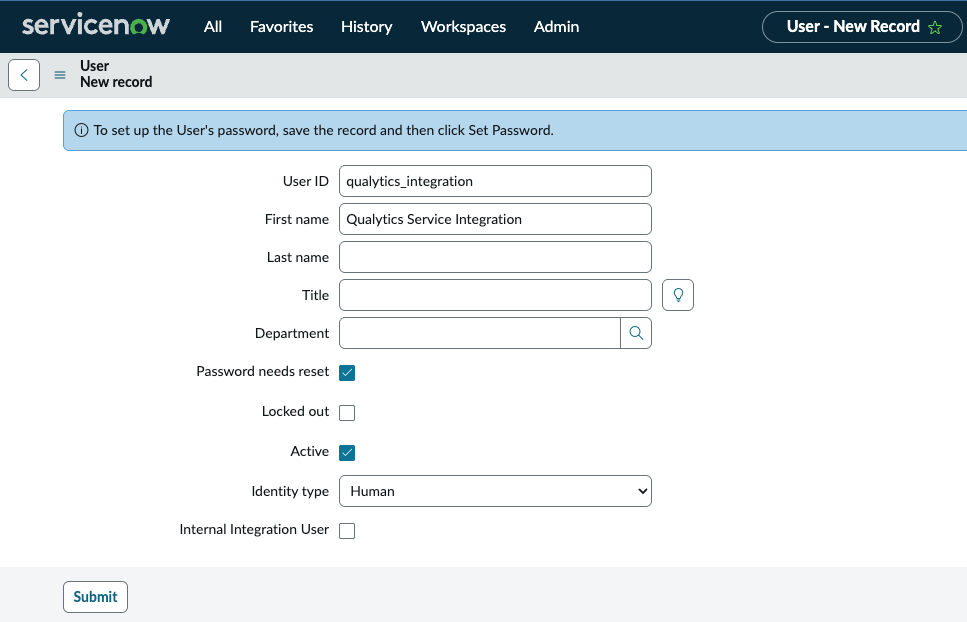
- Navigate to User Administration → Users
- Click New to create a new user

- Enter the User ID (e.g.,
qualytics_integration) - Set a secure password
- Check "Web service access only" if the account should not have UI access
- Save the user record
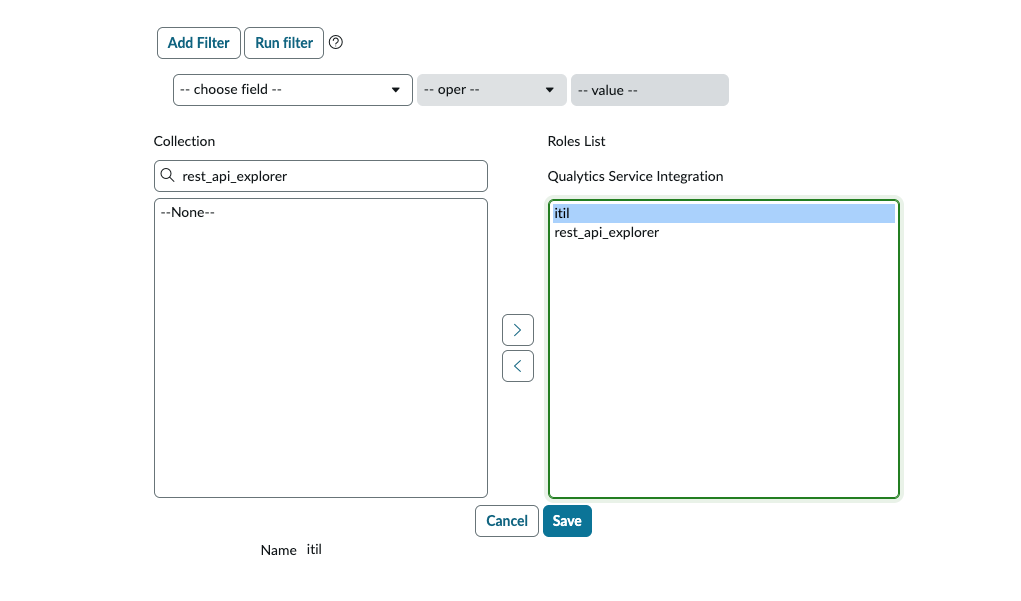
- Navigate to the Roles tab and assign the
itilrole
Step 2: Verify API Access
Confirm that the REST API is enabled for your instance:
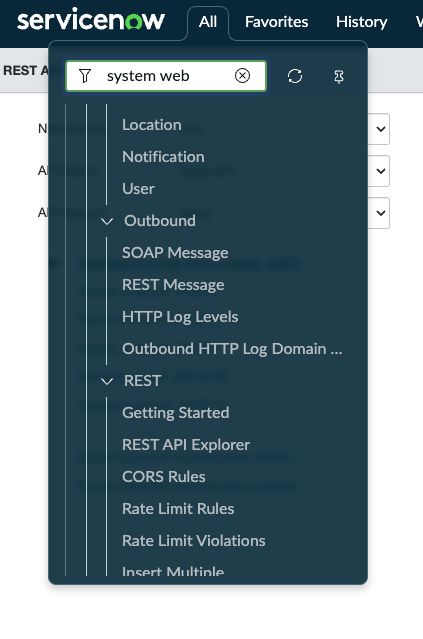
- Navigate to System Web Services → REST API Explorer
- Verify you can access the Incident table API
- Test a simple GET request to confirm connectivity
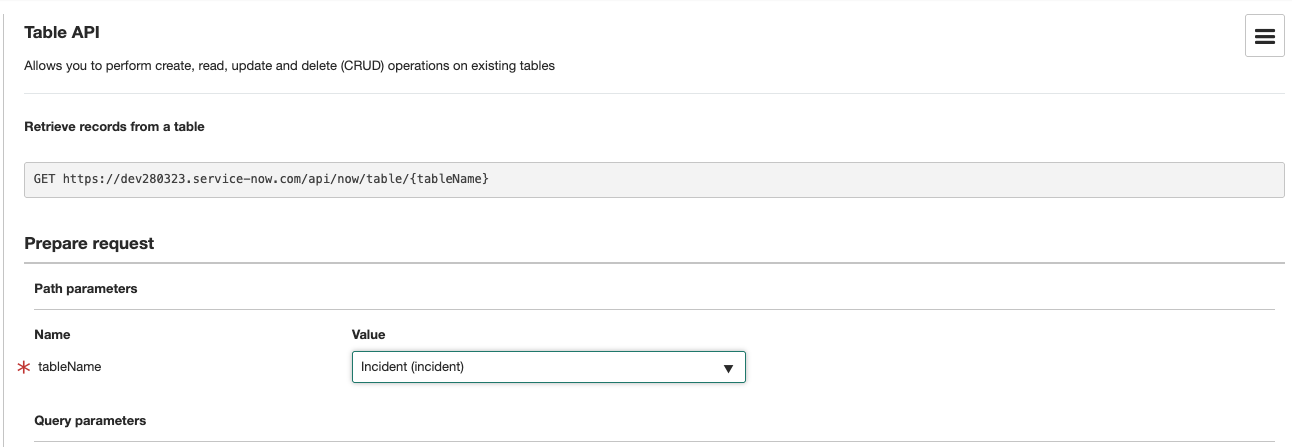
- Verify the response returns successfully

Step 3: Network/Firewall Configuration
If your ServiceNow instance has IP restrictions, you may need to allowlist Qualytics IP addresses. Contact Qualytics support for the current list of egress IPs used by the Qualytics cloud platform.
Step 4: Gather Configuration Values
Collect the following values needed for Qualytics configuration:
| Value | How to Find | Example |
|---|---|---|
| Instance URL | Your ServiceNow URL | https://your-instance.service-now.com |
| Credentials | Service account username and password combined with a colon | qualytics_integration:YourPassword |
| Category Names | Incident → Right-click Category → Show choice list | Software, Network |
| Subcategory Names | Same process, filter by Category | Email, Database |
| Assignment Group SysID | User Administration → Groups → Copy sys_id | a1b2c3d4e5f6... |
Next Step
With the service account created and the values gathered, you can now connect the integration on the Qualytics side. See the Add Connection guide.