Actions on Container
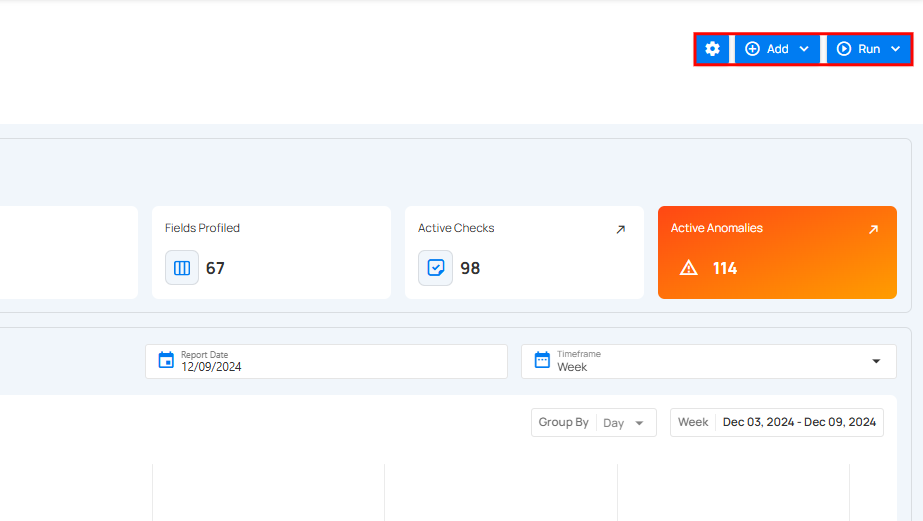
Users can perform various operations on containers to manage datasets effectively. The actions are divided into three main sections: Settings, Add, and Run. Each section contains specific options to perform different tasks.
Settings
The Settings button allows users to configure the container. By clicking on the Settings button, users can access the following options:
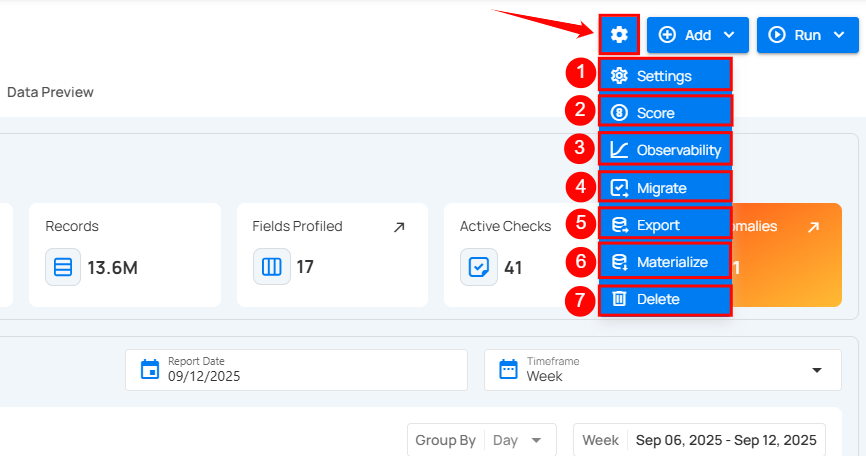
The options depend on the container and its datastore:
- Edit appears only on computed containers (Computed Tables, Computed Files, and Computed Joins).
- Data Catalog appears only when a data catalog integration is connected and the container can be linked to a catalog asset.
- Export and Materialize appear only when the datastore has an enrichment datastore linked and you have permission to run operations.
| No | Options | Description |
|---|---|---|
| 1. | Settings | Configure grouping and excluded fields. On tables, also set the incremental strategy and, except on computed containers, the partition field. |
| 2. | Rename | Change the name of the container. |
| 3. | Edit | Change the definition of a computed container, such as its query or join settings. |
| 4. | Score | Score allowing you to adjust the decay period and factor weights for metrics like completeness, accuracy, and consistency. Note: To understand how each score metric works in detail (completeness, accuracy, consistency, decay period, and weights), please refer to the Quality Score Page. Score settings modified here apply only to this container and do not affect any other container in the datastore. |
| 5. | Data Catalog | Link the container to an asset in a connected data catalog. See Data Catalog Links. |
| 6. | Observability | Enables or disables tracking for data volume and freshness. Volume Tracking: Monitors daily volume metrics to identify trends and detect anomalies over time. Freshness Tracking: Records the last update timestamp to ensure data timeliness and detect pipeline delays. |
| 7. | Promote | Opens a submenu to promote Computed Fields or Quality Checks from this container to another container (even across datastores), so you can reuse rules without recreating them. On a Computed Table or Computed File, the submenu also offers to promote the container itself. See Promote. |
| 8. | Export | Export quality checks, field profiles, and anomalies to an enrichment destination for further action or analysis. |
| 9. | Materialize | Captures snapshots of data from a source datastore and exports it to an enrichment destination for faster access and analysis. |
| 10. | Delete | Delete the selected container from the system. |
Add
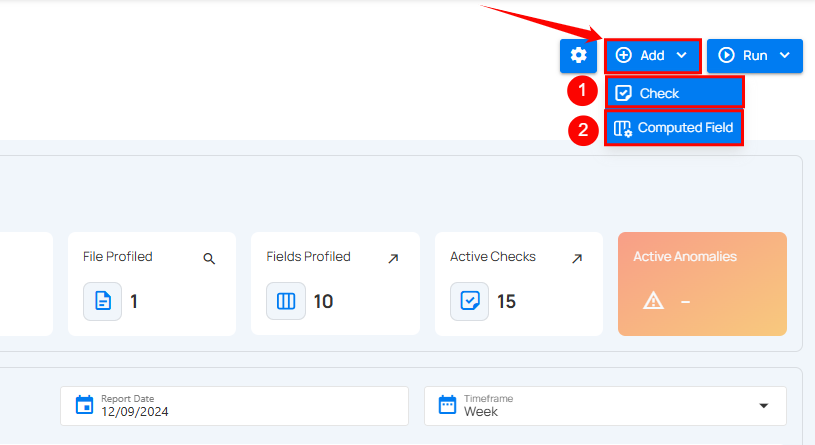
The Add button allows users to add checks or computed fields. By clicking on the Add button, users can access the following options:
| No. | Options | Description |
|---|---|---|
| 1. | Checks | Checks allow you to add new checks or validation rules for the container. Note: To learn how to add checks, refer to the Check Templates documentation. |
| 2. | Computed Field | Allows you to add a computed field. Note: To learn how to create a computed field, refer to the Computed Field Guide. |
Run
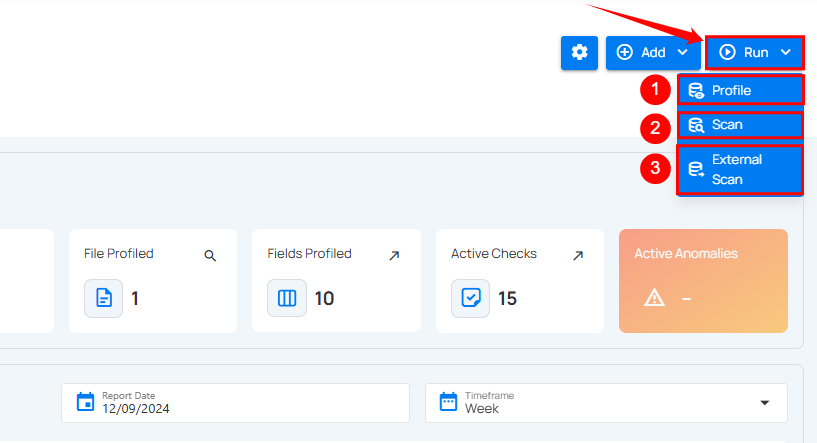
The Run button provides options to execute operations on datasets, such as profiling, scanning, and external scans. By clicking on the Run button, users can access the following options:
| No. | Options | Description |
|---|---|---|
| 1. | Profile | Profile allows you to run a profiling operation to analyze the data structure, gather metadata, set thresholds, and define record limits for comprehensive dataset profiling. Note: For profile operation, please refer to the Profile Operation documentation. |
| 2. | Scan | Scan allows you to perform data quality checks, configure scan strategies, and detect anomalies in the dataset. Note: For scan operation, please refer to the Scan Operation documentation. |
| 3. | External Scan | External Scan allows you to upload a file and validate its data against predefined checks in the selected table. Note: For external scan, please refer to the External Scan documentation. |