Use the Toolbar
The Lineage tab has a floating toolbar at the bottom-left of the canvas that controls the viewport and the graph layout. This guide walks you through each control and when to use it.
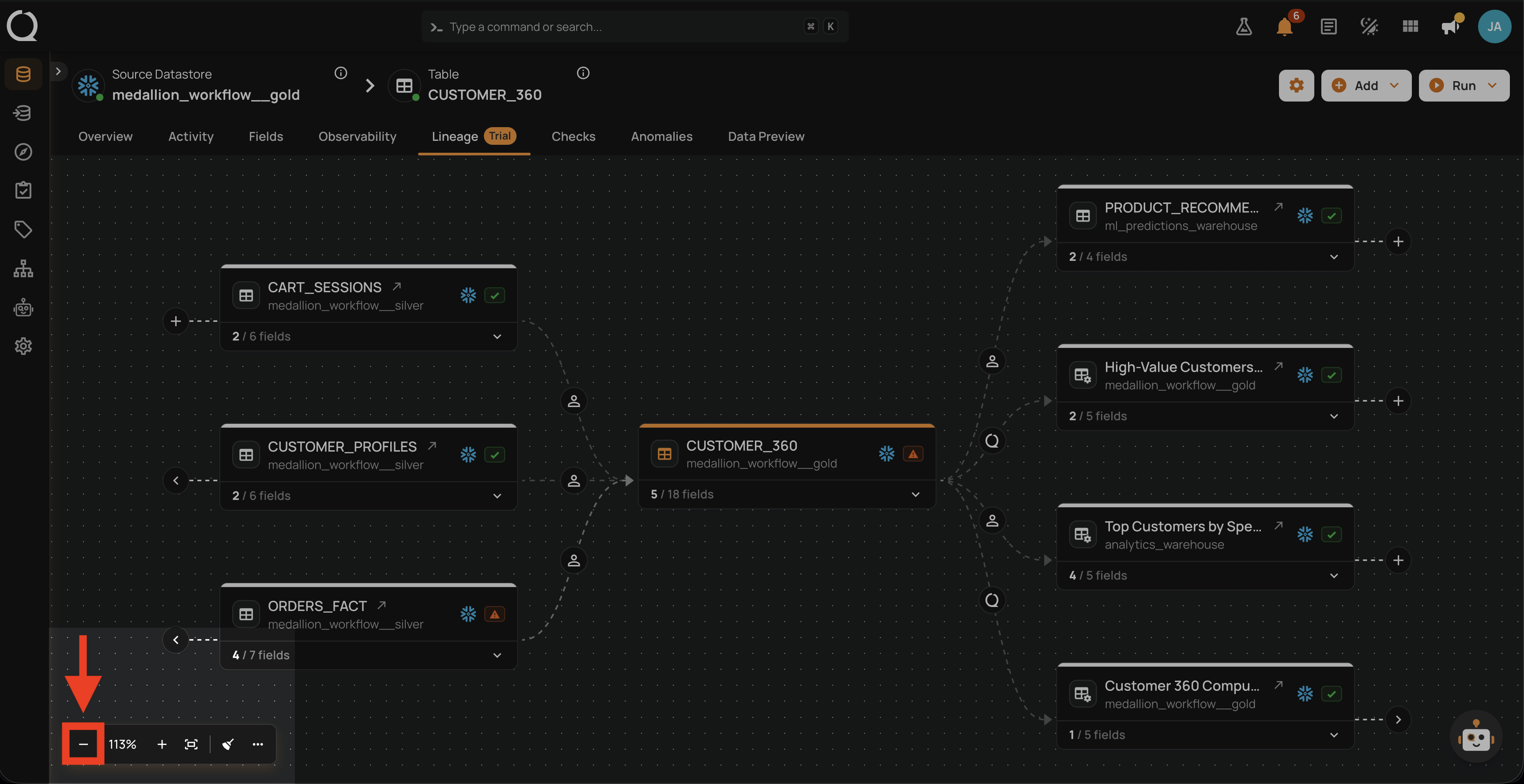
Zoom Out
Click the Zoom out button on the left side of the toolbar to decrease the canvas magnification by one step.
Zoom Level
The Zoom level between the Zoom out and Zoom in buttons shows the current zoom percentage.
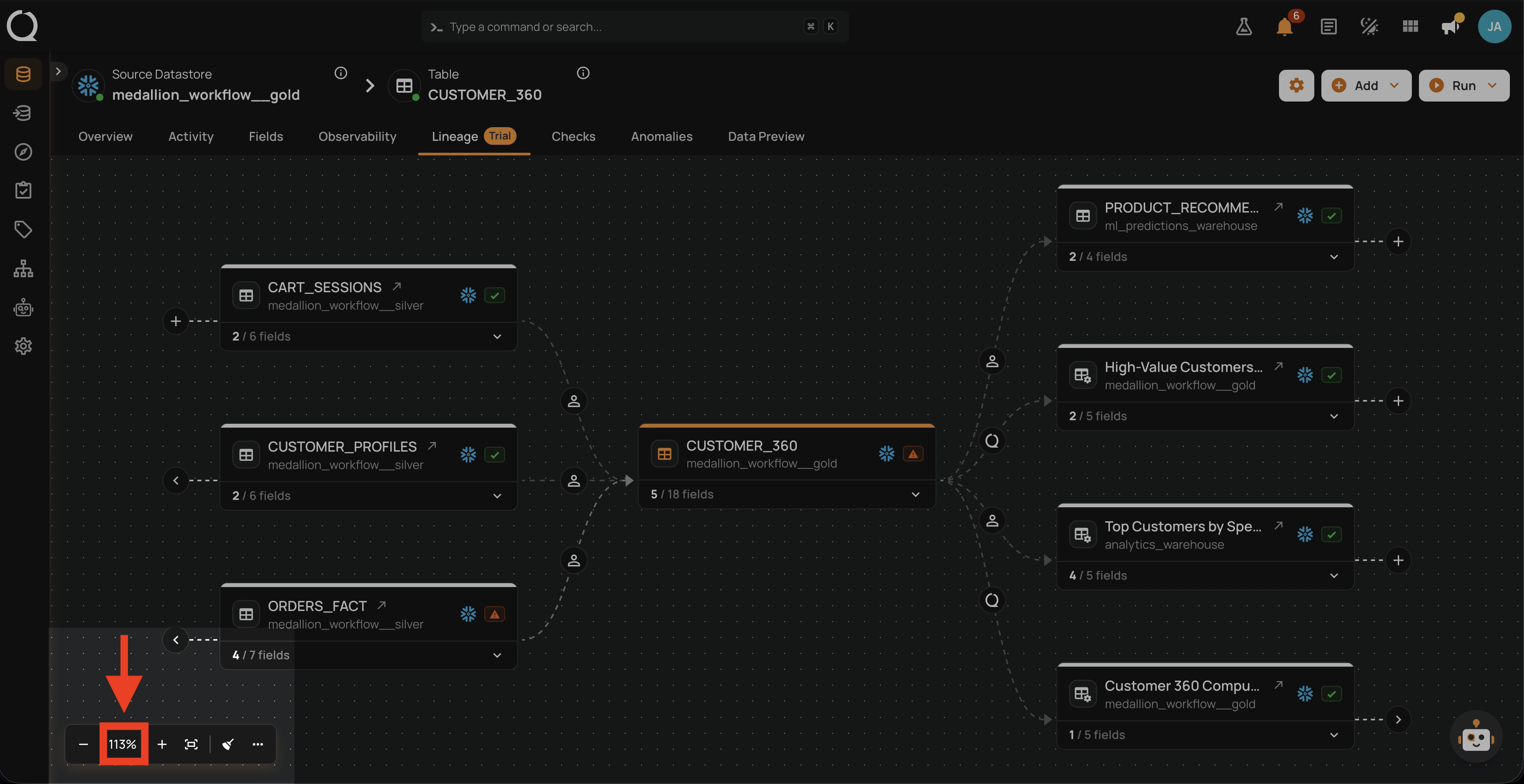
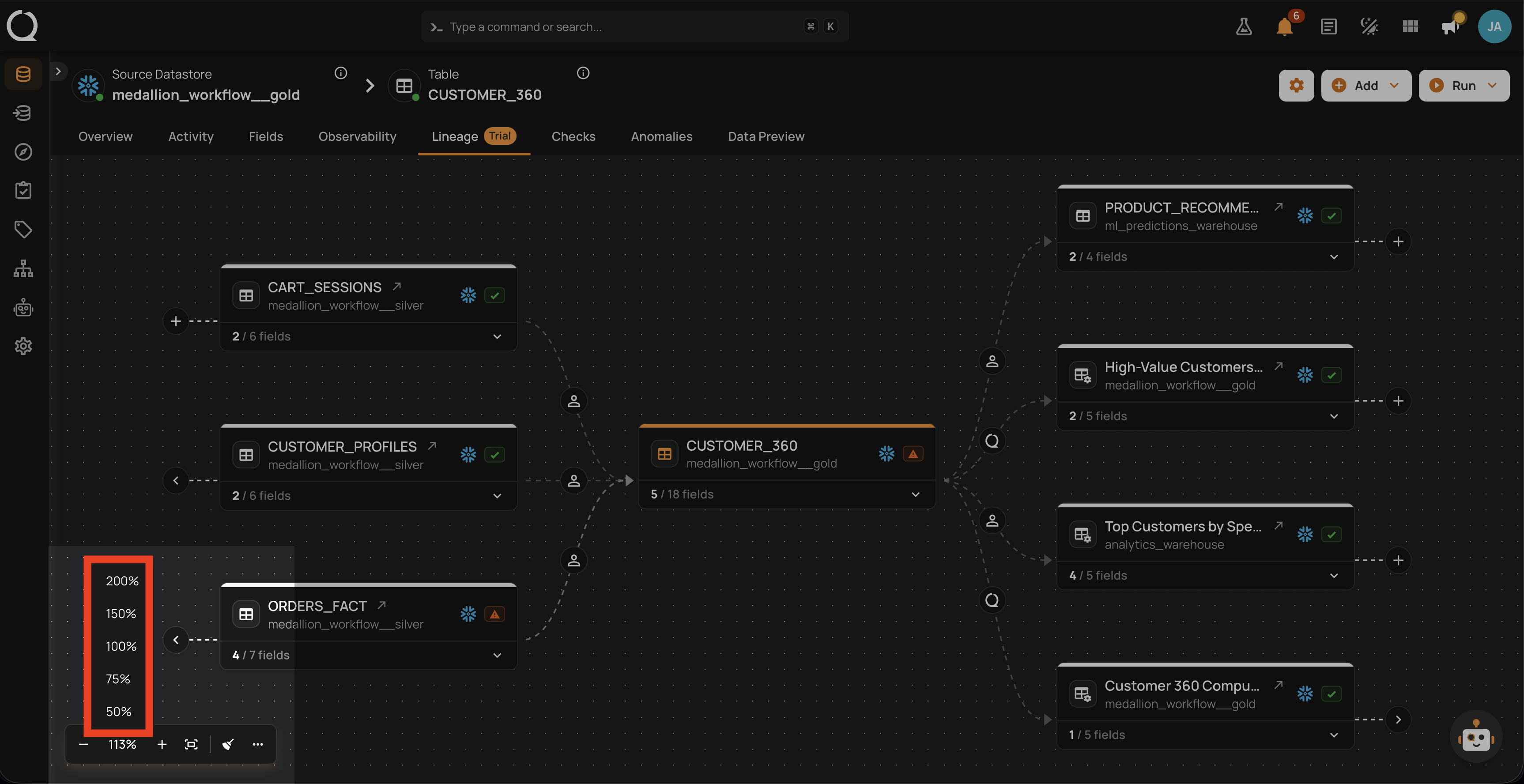
Click the percentage to open a menu with presets at 200%, 150%, 100%, 75%, and 50%. Pick a preset to jump directly to that magnification.
Zoom In
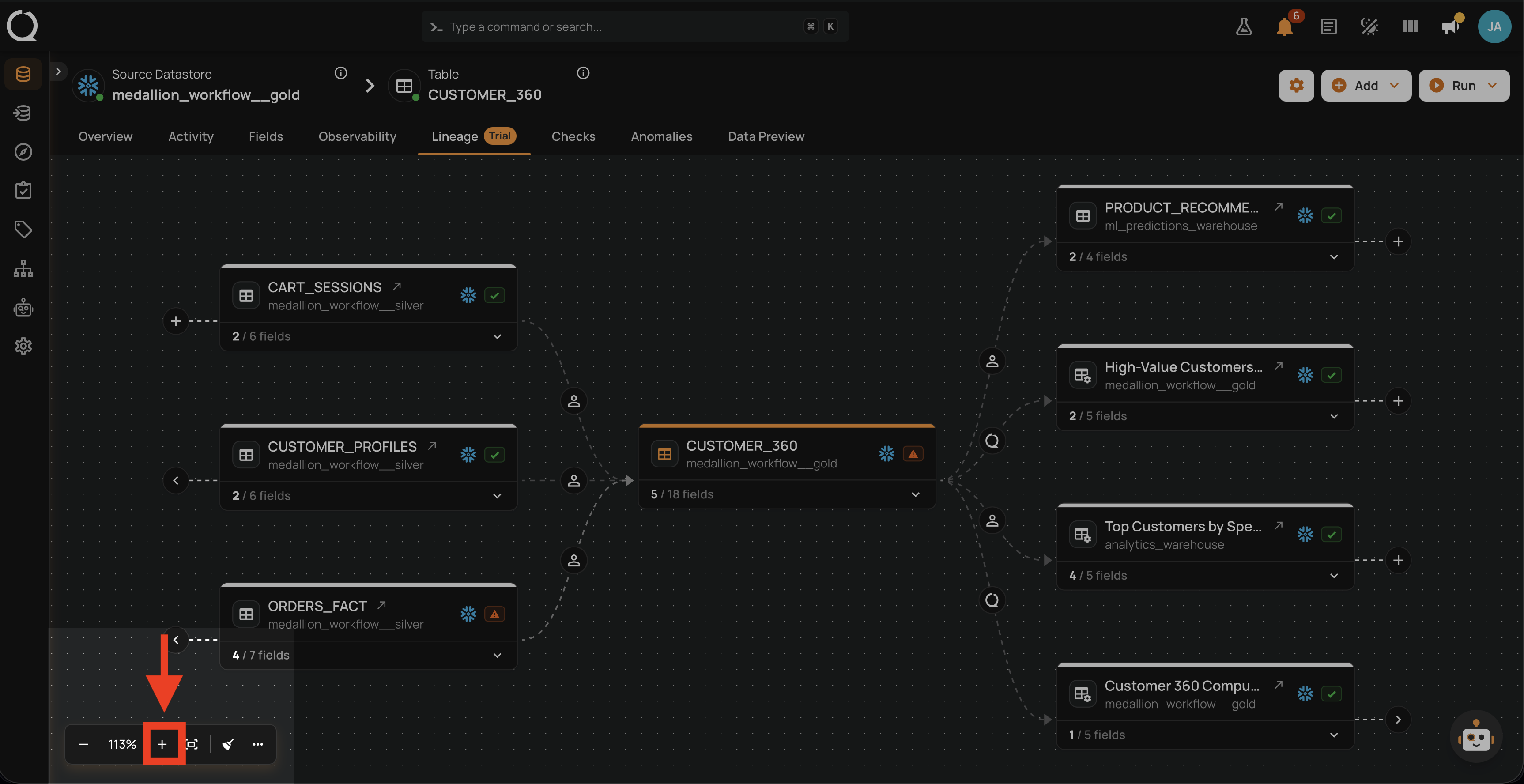
Click the Zoom in button on the right side of the zoom controls to increase the canvas magnification by one step.
Tip
You can also zoom with the trackpad pinch gesture or the mouse wheel while hovering the canvas.
Fit View
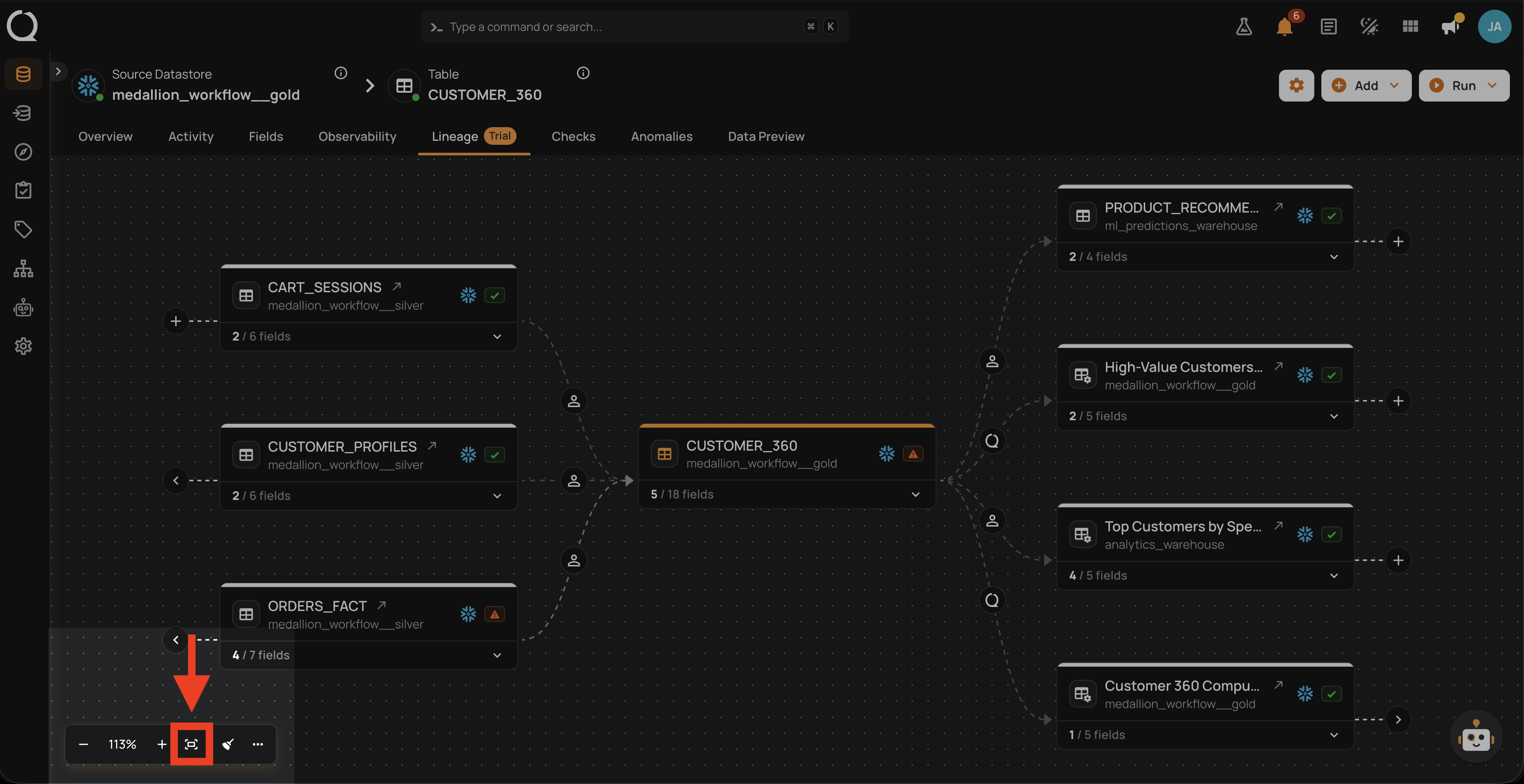
Click the Fit view button to re-center the canvas so every visible node fits inside the viewport. Use it after manually dragging nodes or after a sequence of expansions, when the graph extends beyond the visible area.
Reorganize
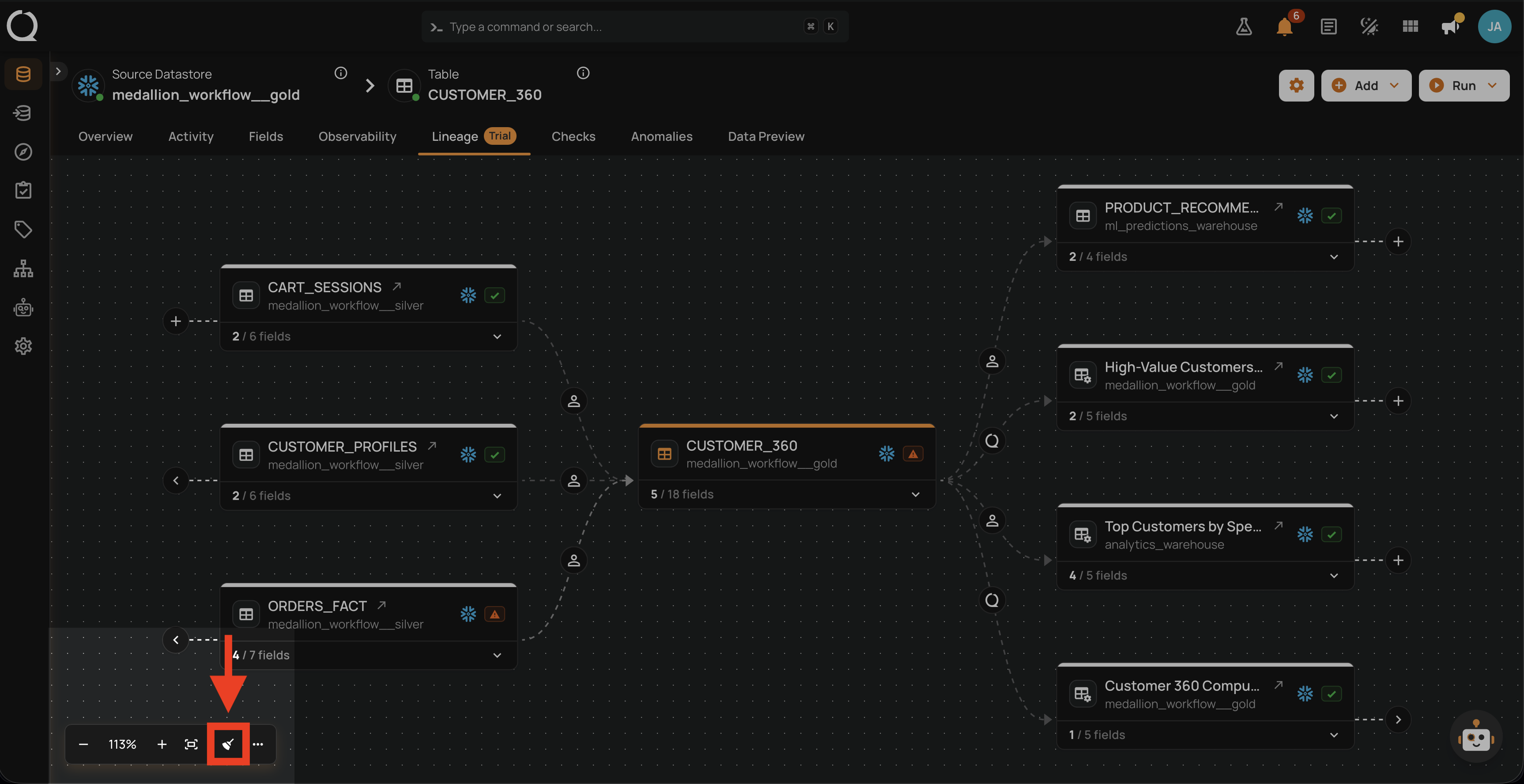
Click the Reorganize button to re-apply the default left-to-right auto-layout. Any manual drag-and-drop positions you set are discarded, and the graph returns to a clean state.
Use it after several expansions when nodes start to overlap, or whenever the canvas feels cluttered.
More Options
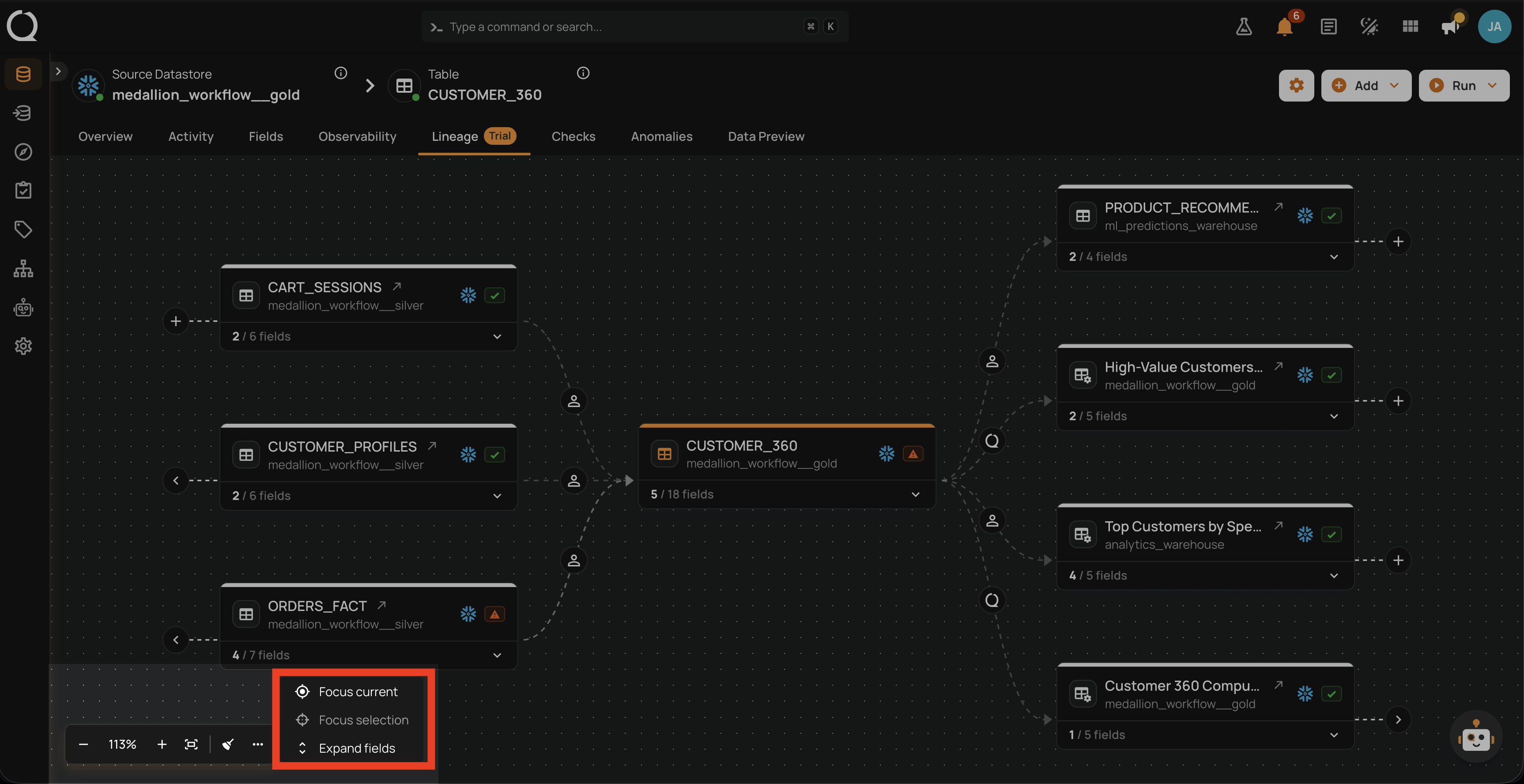
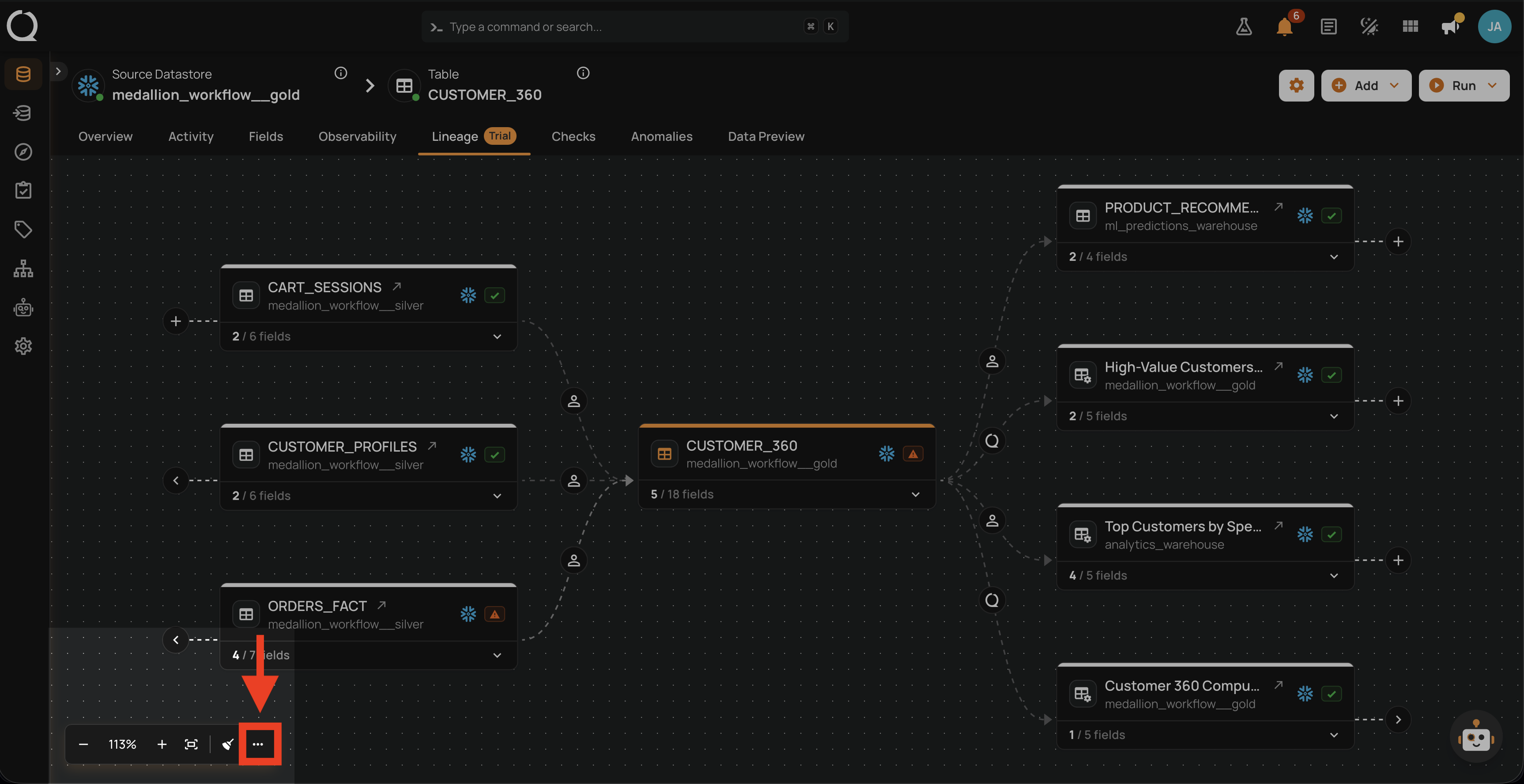
The More options button opens a menu with the remaining controls.
Click it to open the menu.