Unmask a Field
Unmasking a field restores its actual values across the platform, making them visible without requiring explicit reveal actions.
Tip
For a detailed explanation of what happens when a field is unmasked, platform behavior changes, and best practices, see Field Masking — Unmasking a Field.
Show me how
The app can walk you through this. Open the unmask dialog from the field's own page, as described in Unmask from the Field View, then click Show me how in its header, or press H while it is open, and the Unmask a Field walkthrough highlights each step while you fill in the real form. The walkthrough is not offered when you unmask from the container's field list or with Bulk Unmask. See The How-tos Scope for every way to start one.
Unmask from the Container View
- Navigate to the container's field listing.
- Click the Masked tab to view masked fields.
- Locate the field you want to unmask.
-
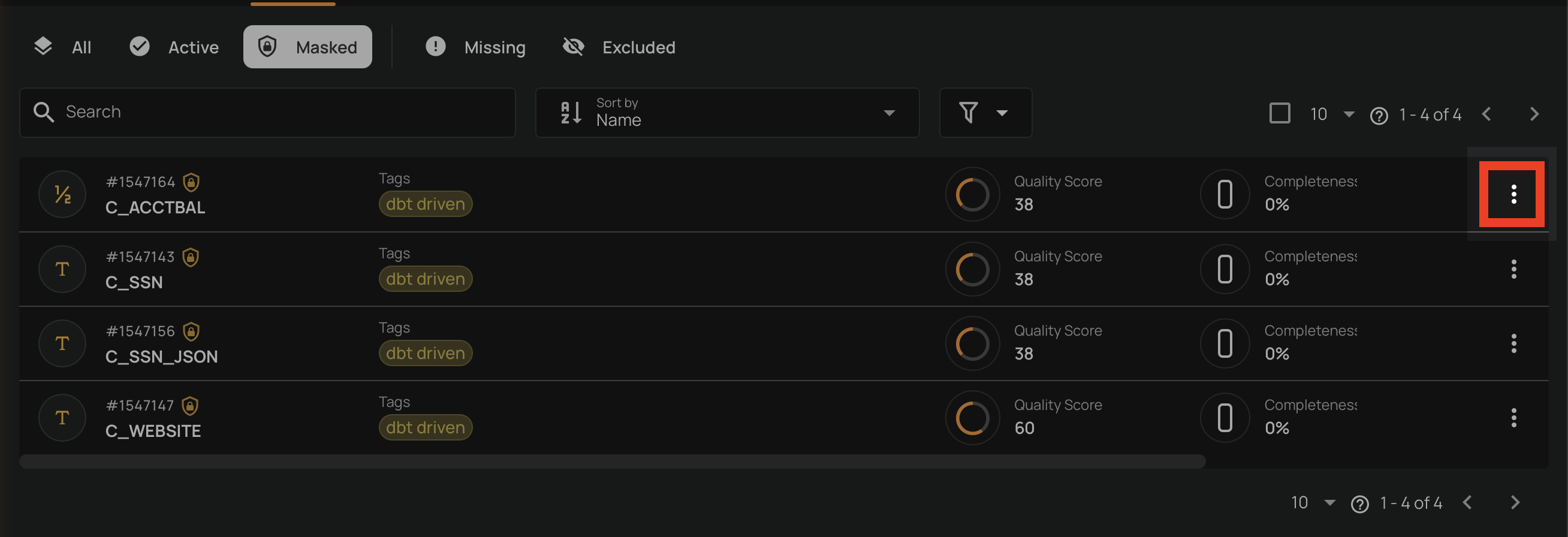
Click the vertical ellipsis on the field row.
-
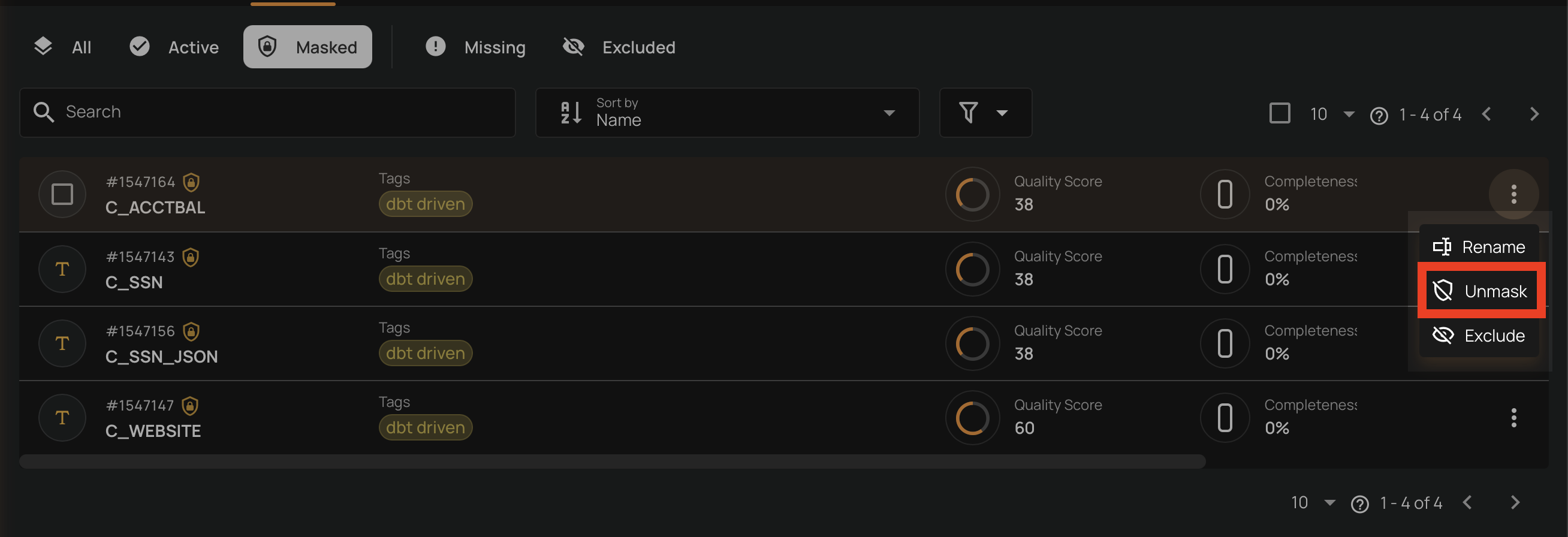
Click the Unmask option from the menu.
-
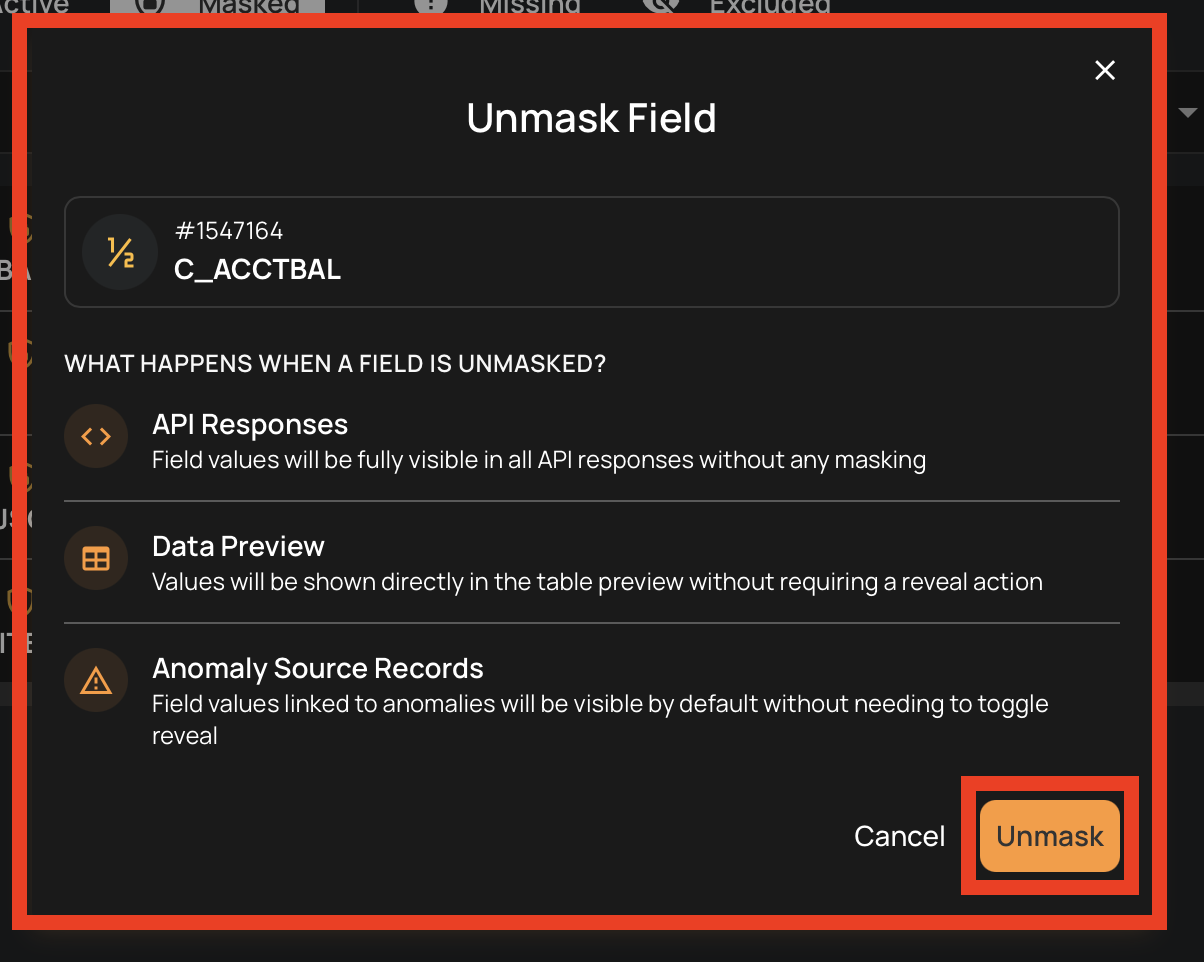
Click the Unmask button to confirm the unmasking in the dialog.
Unmask from the Field View
- Navigate to the field's detail page by clicking on the field name in the container's field listing.
-
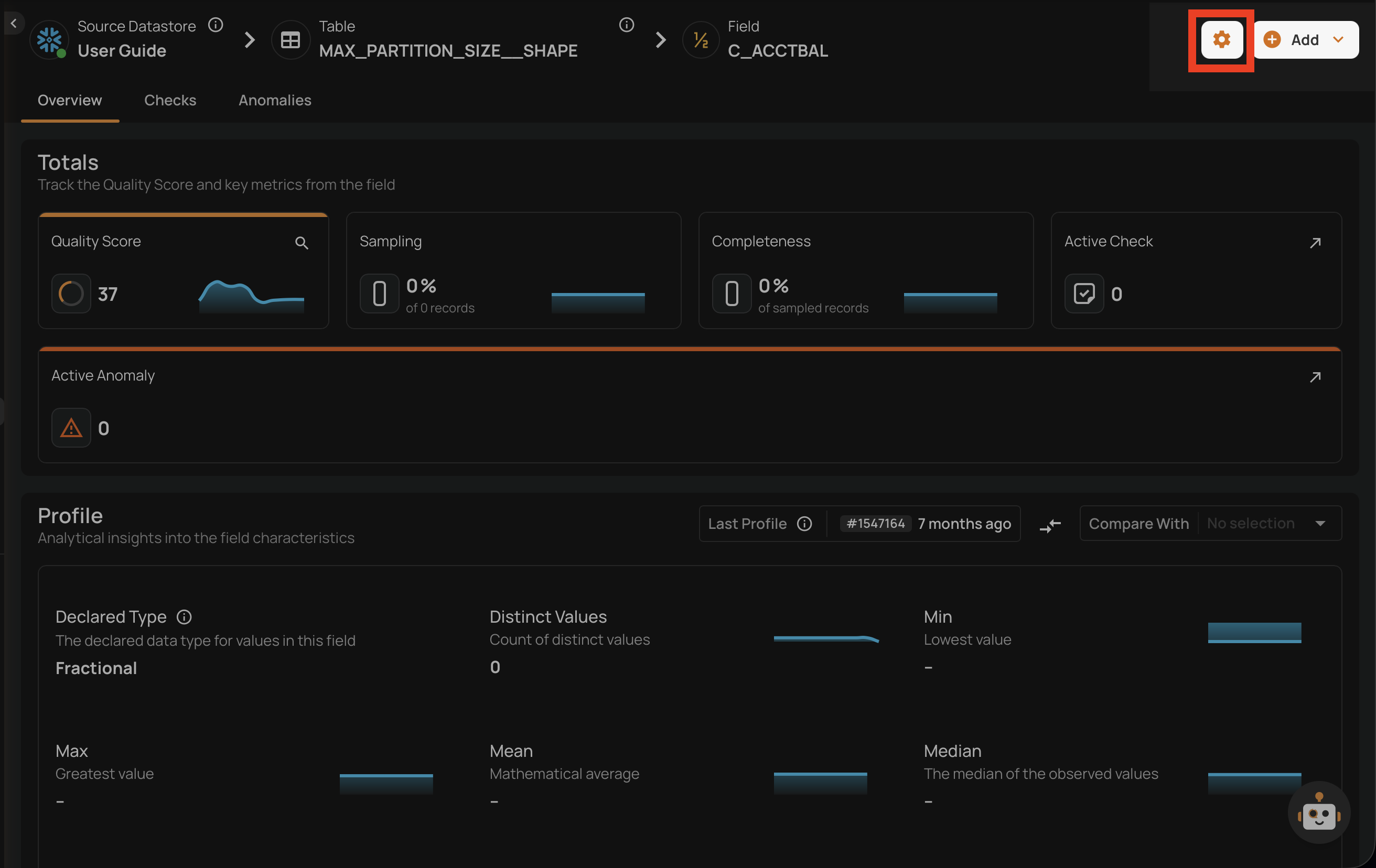
Click the button in the top-right corner of the field page.
-
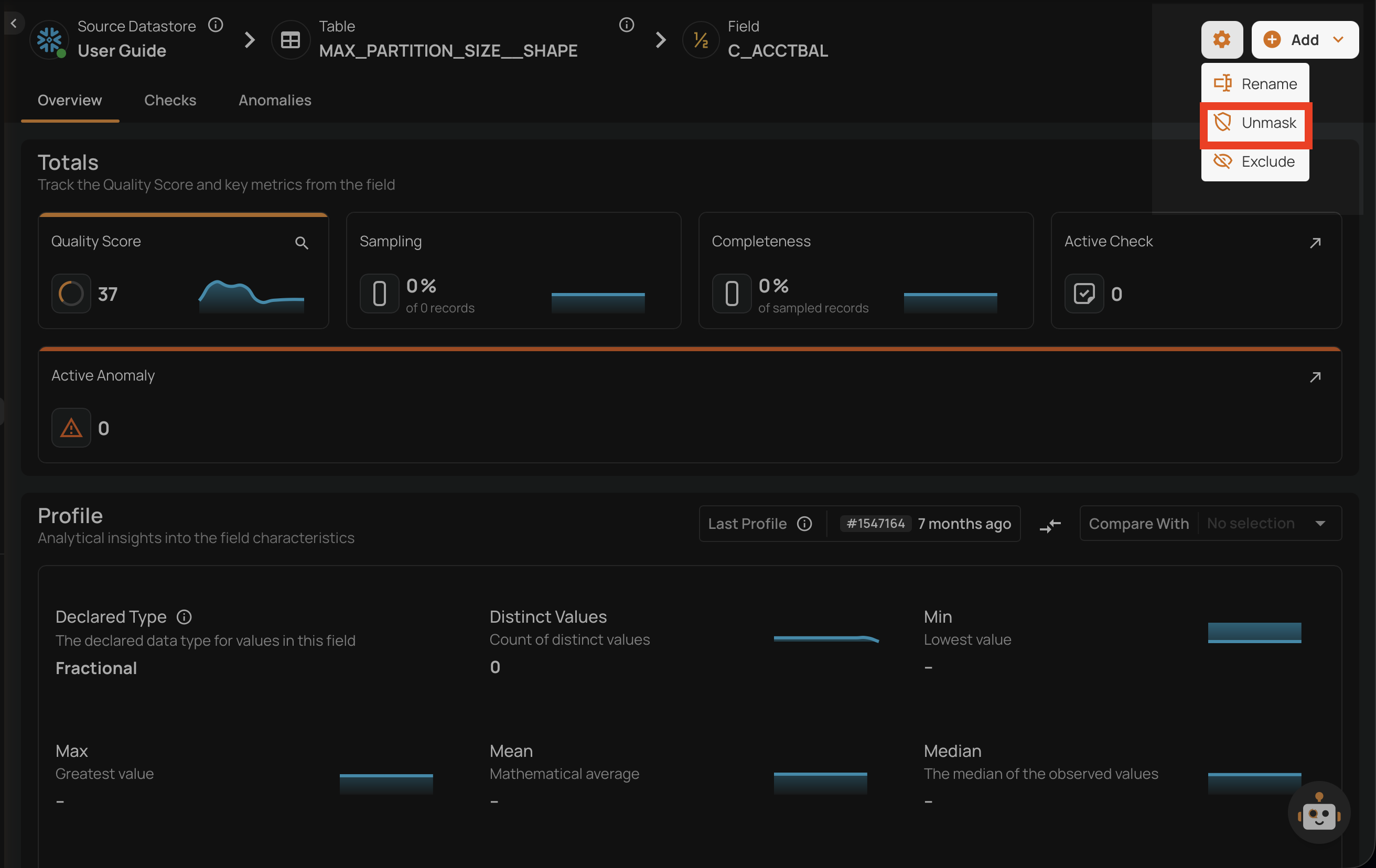
Click the Unmask option from the dropdown menu.
-
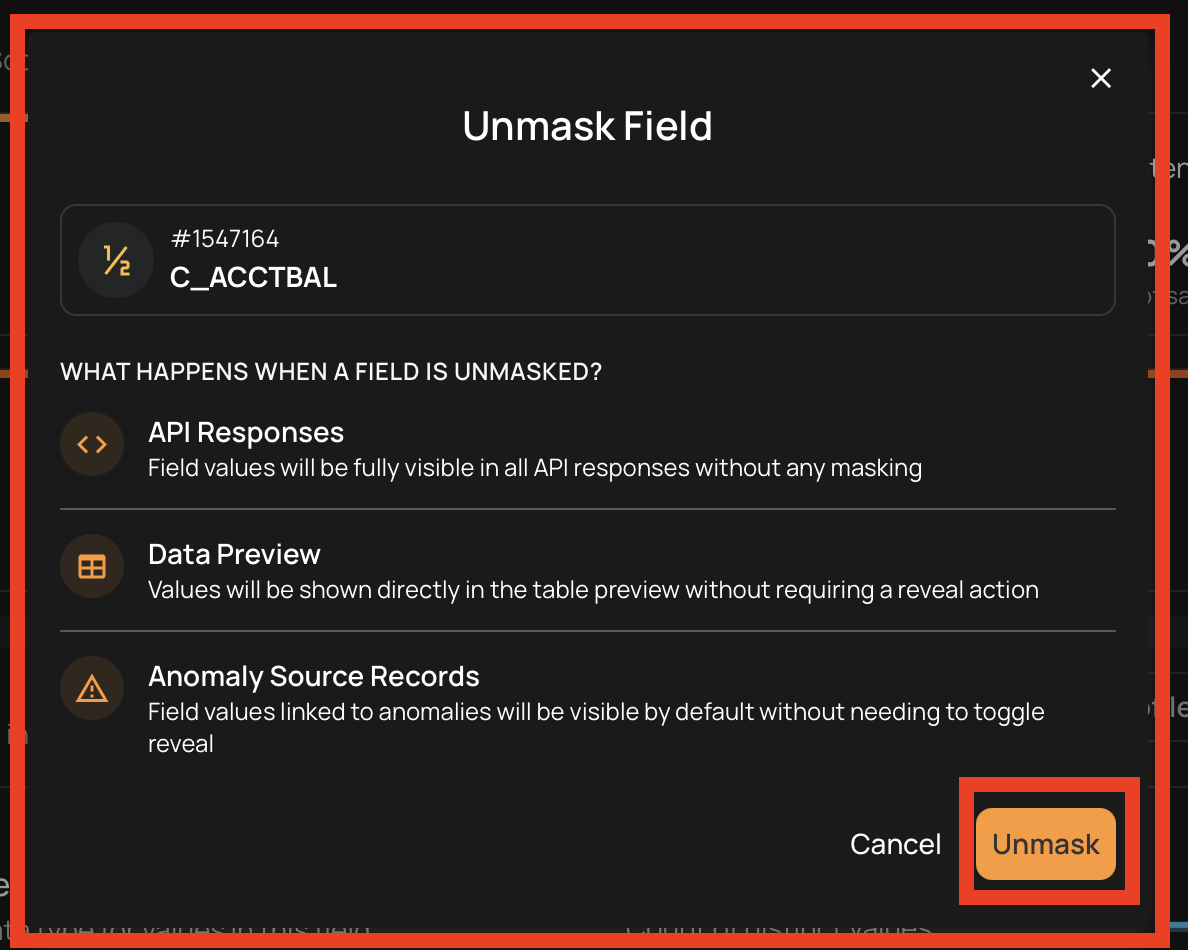
Click the Unmask button to confirm the unmasking in the dialog.
Bulk Unmask
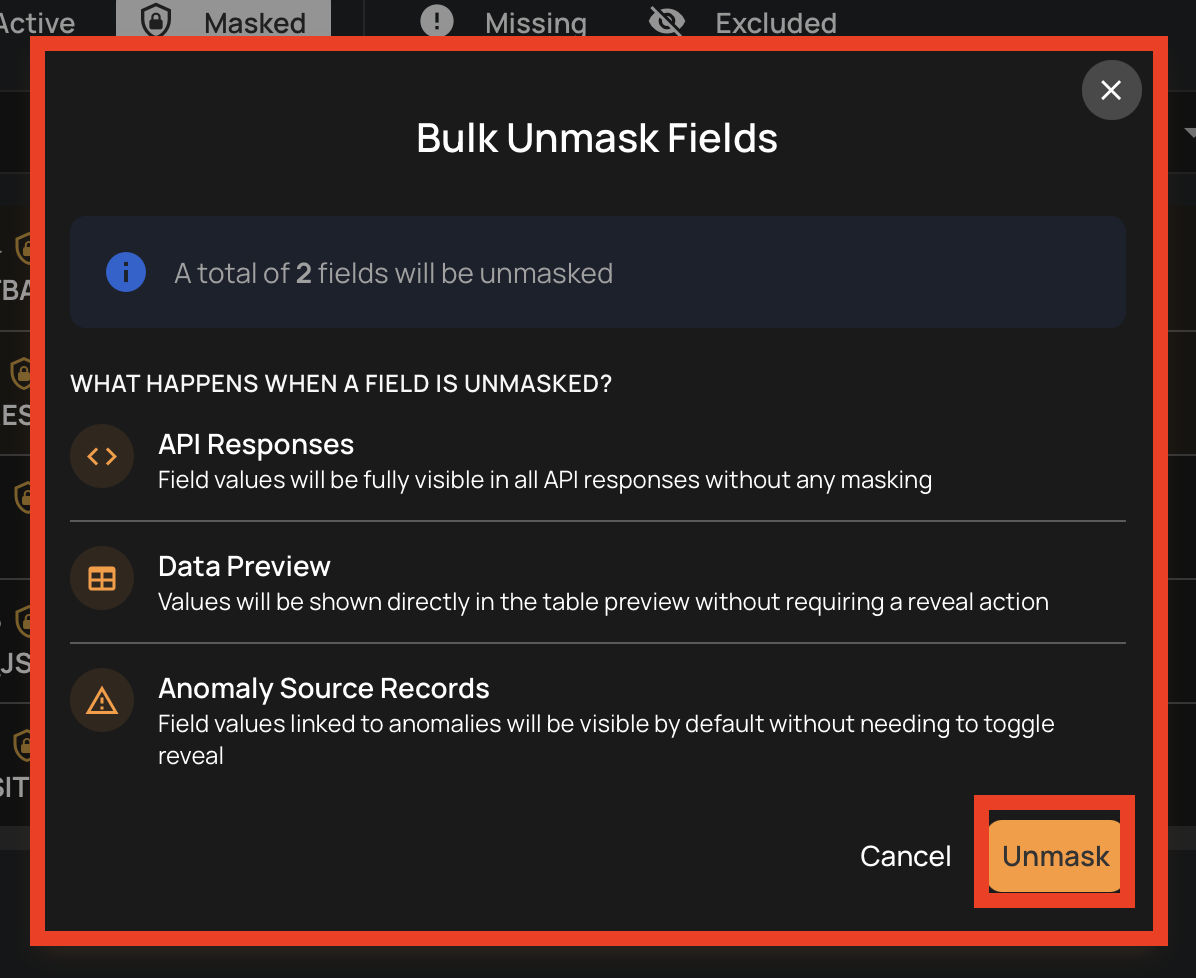
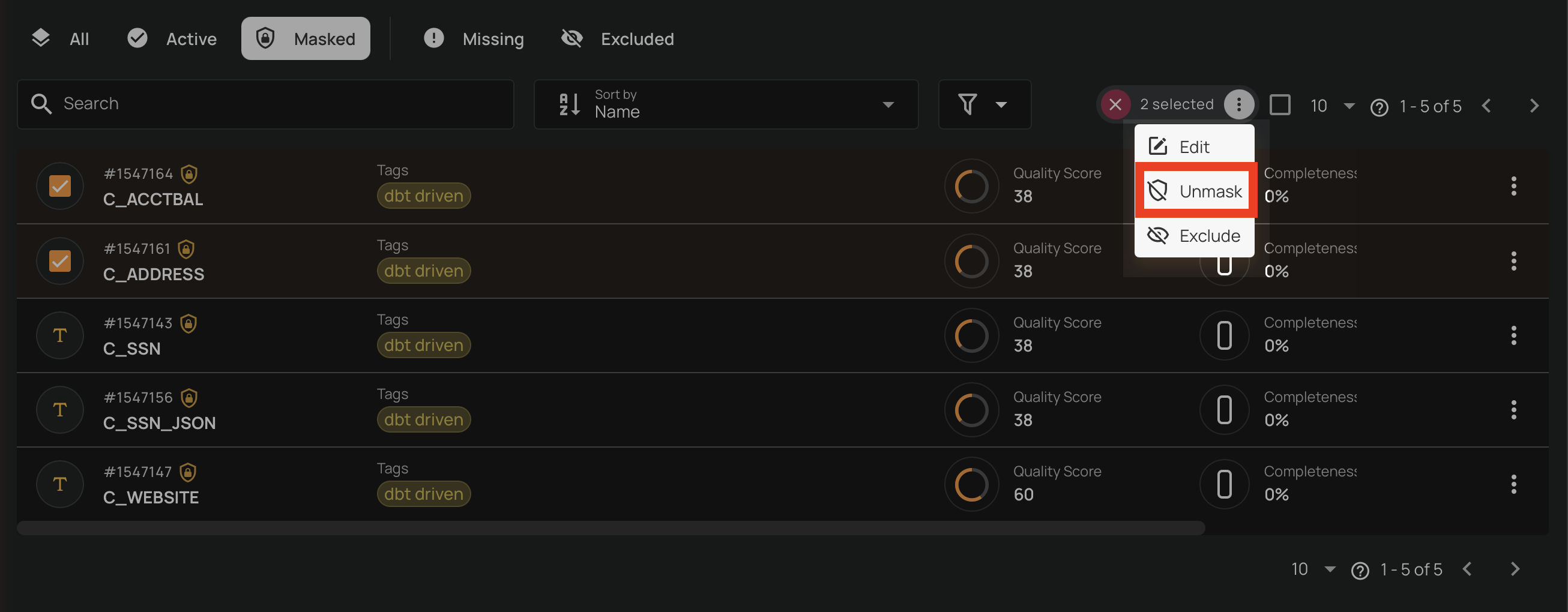
You can unmask multiple fields at once from the container's field listing.
- Navigate to the container's field listing.
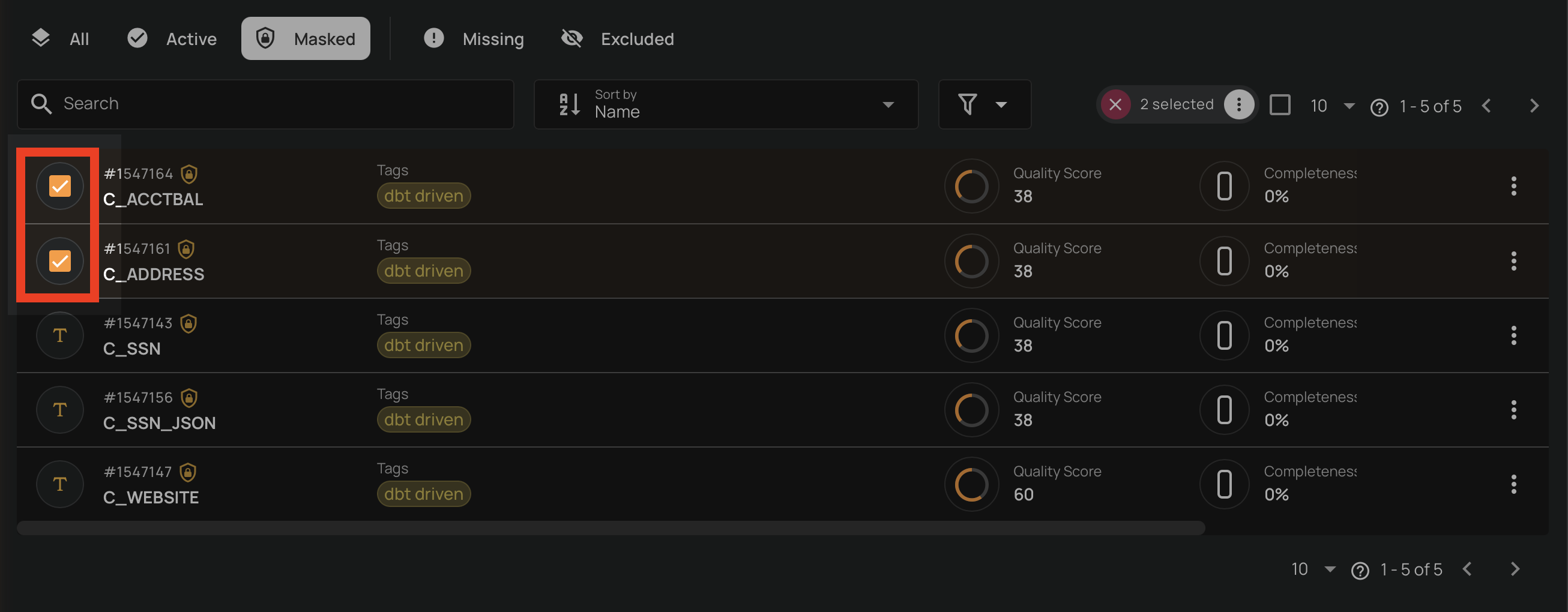
- Click the Masked tab to view masked fields.
-
Select the fields you want to unmask by clicking the checkbox on each field row.
-
Click the Unmask action in the selection toolbar that appears at the top.
-
Click the Unmask button to confirm the bulk unmasking in the dialog.