Users List Columns
This page highlights the interactive elements in the Users list. The tooltips that reveal extra information, the badges you can click to navigate to related resources, and the labels used for activity and lifecycle states.
Permissions
Only users with the Admin role can view the Users list. See the Permissions page for details.
Name & Email
The leftmost column shows the user's avatar alongside their name and email address. A small status badge on the avatar indicates whether the account is Active or Deactivated. Hovering over the badge reveals the status as a tooltip.
When a user has only an email on file, the email is shown in place of the name. Service accounts created internally appear with their service identifier.
Tip
The avatar uses the picture provided by the identity provider when available. Otherwise it falls back to the user's initials.
Type
The Type column identifies whether the account is a Human user (a person who logs in to the platform) or a Service user (a non-interactive account used by automation and integrations).
Service users are visually distinguished by a key icon, while human users show a standard person icon.
Tip
To filter the list by type, use the Sort Users dropdown and select Type. For more information on service users, see the Service Users section.
Role
The Role column shows the platform-level role assigned to the user: Admin, Manager, or Member. Roles control what the user can do across the platform.
For a breakdown of what each role can do, see the User Roles pages. Datastore-level permissions are controlled separately through Team Permissions.
Tip
To change a user's role, use the Edit User action.
Last Active
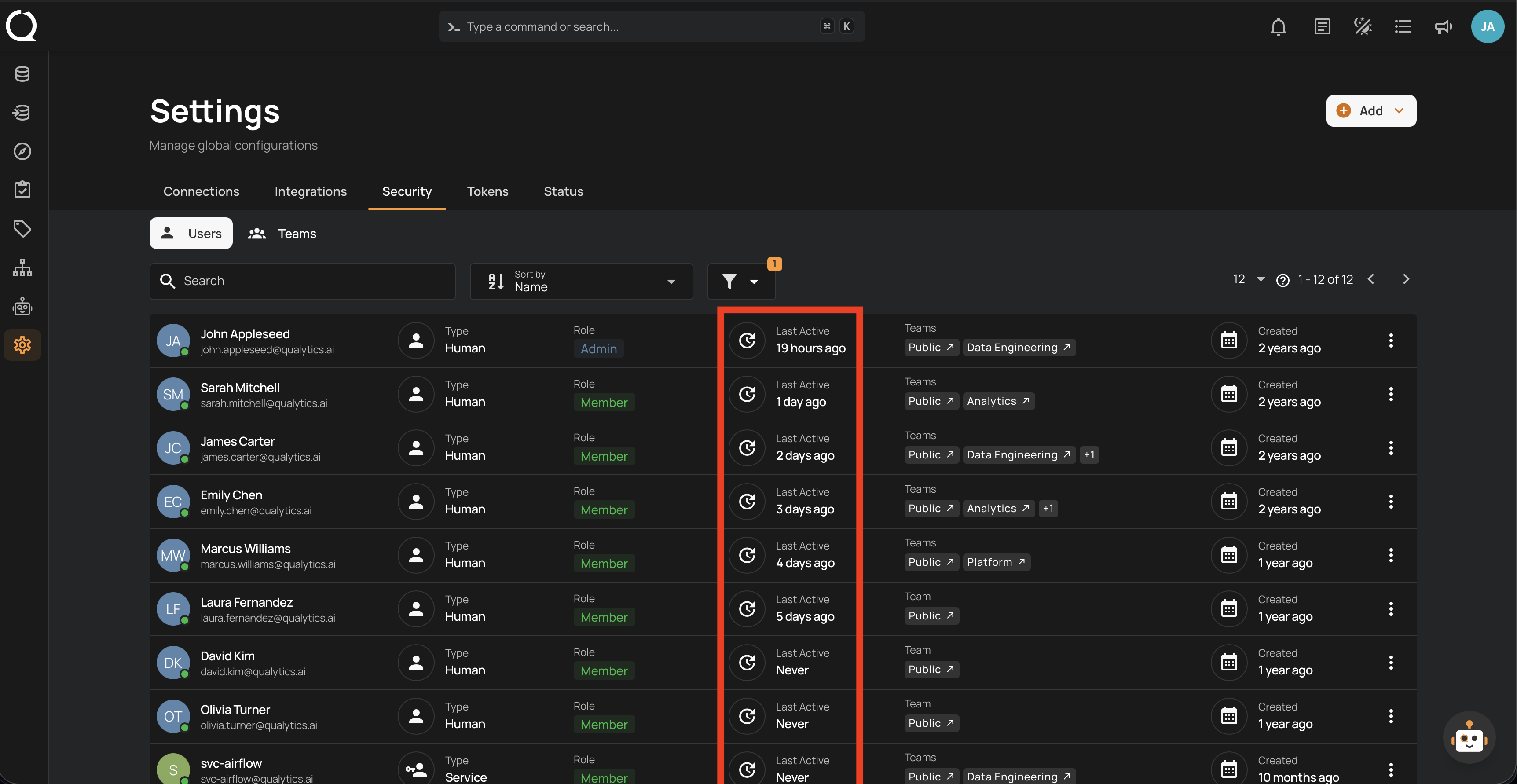
The Last Active column shows when each user last interacted with the platform. This helps administrators identify inactive accounts and manage account lifecycle.
The value is displayed as relative time (e.g., 19 hours ago, 3 days ago).
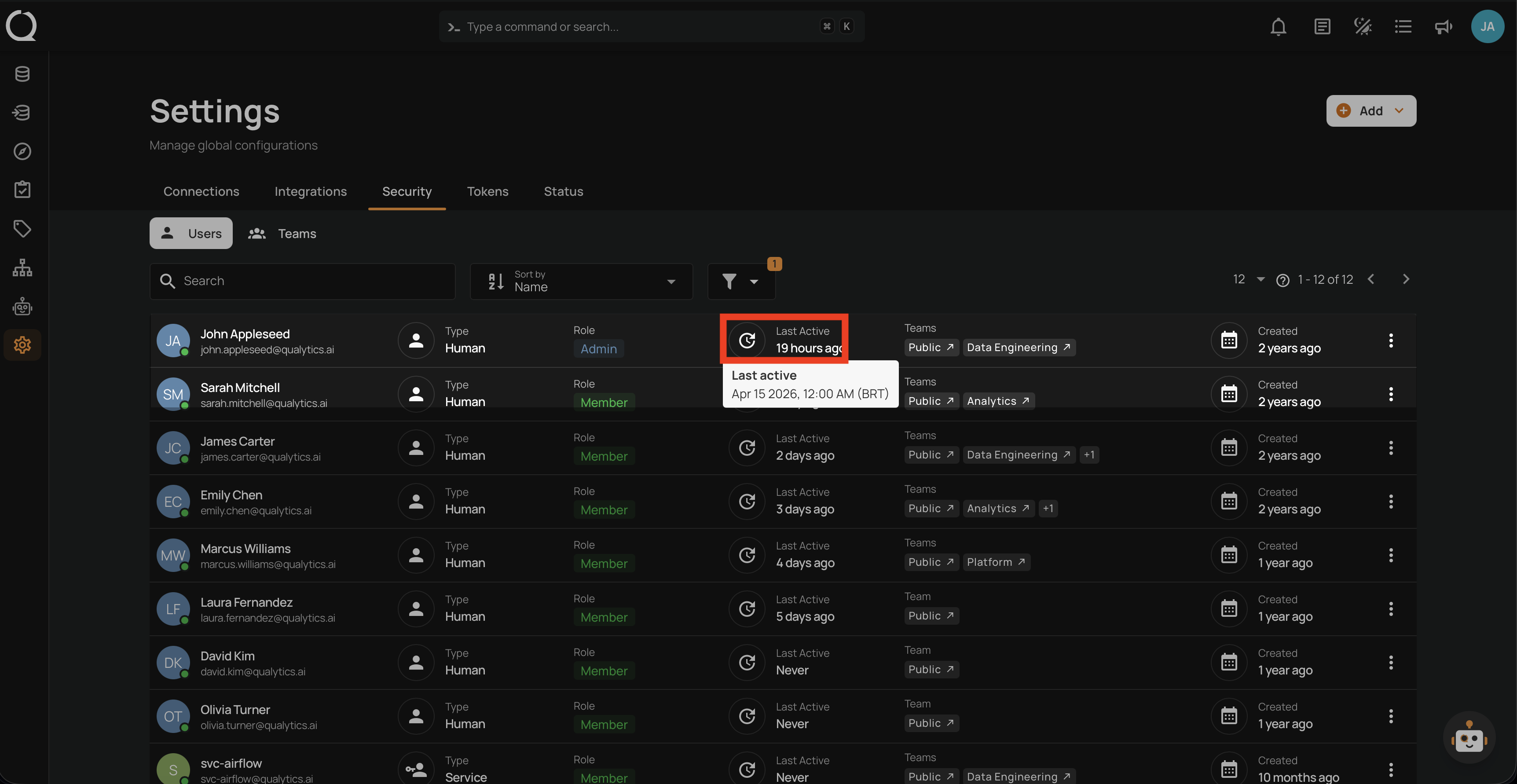
Hovering over the timestamp shows a tooltip with the exact date and time in your local timezone (e.g., Apr 15 2026, 12:00 AM (BRT)).
Note
The timezone displayed in the tooltip is determined by your browser settings. All timestamps are stored in UTC and converted to your local timezone automatically.
Activity States
The Last Active column uses three distinct labels:
| Label | Meaning |
|---|---|
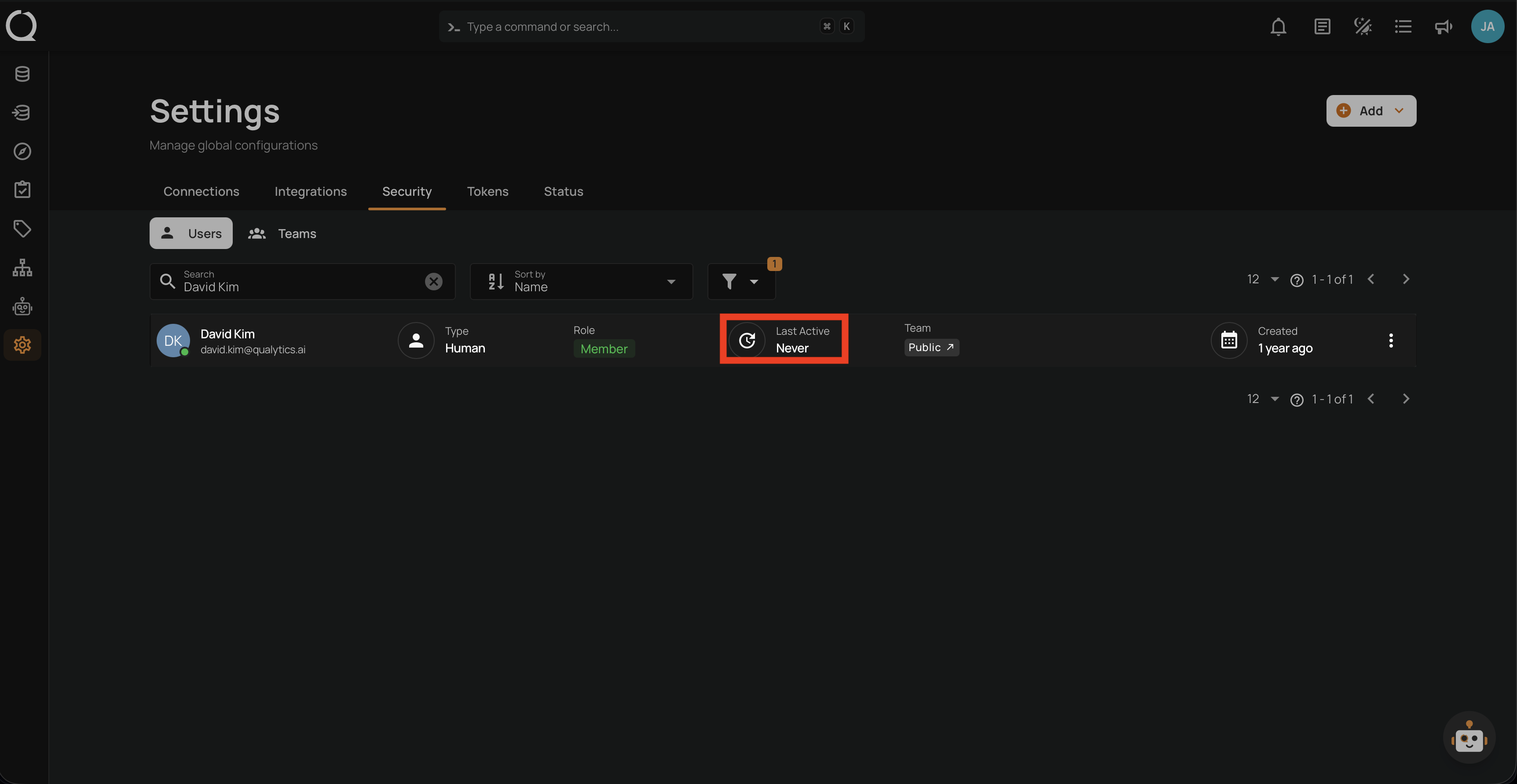
| Never | The user has never logged in or made an API request. |
| Just now | The user was active within the last 5 minutes. |
| Relative time | Anything older, shown as timeAgo (e.g., 19 hours ago, 3 days ago). |
Users with the Never label appear like this:
Tip
Users showing Never for an extended period may indicate accounts that were provisioned but never used. Consider deactivating them to maintain security.
Teams
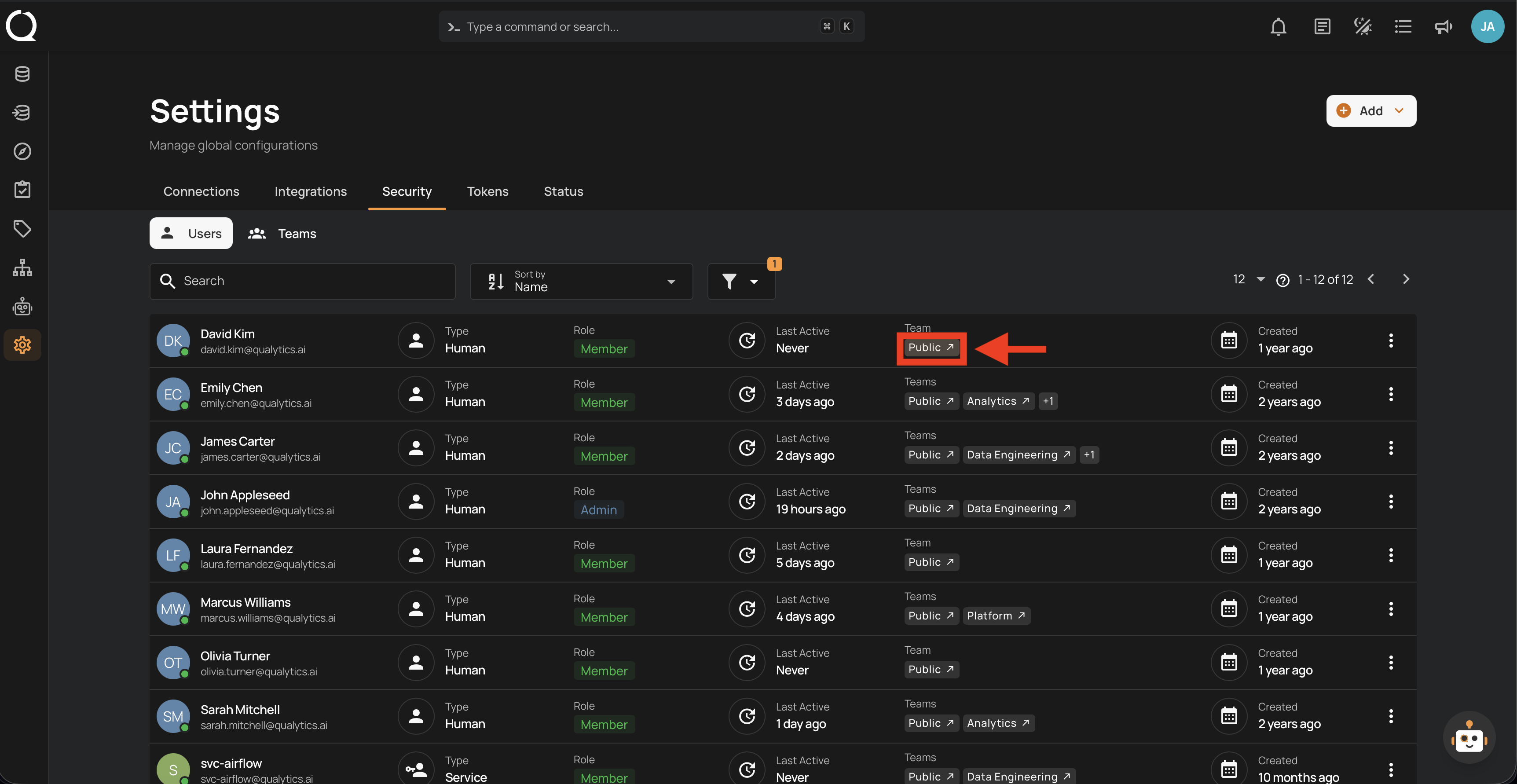
The Teams column shows which teams each user belongs to, displayed as a row of team badges. This helps administrators audit team membership and access distribution at a glance.
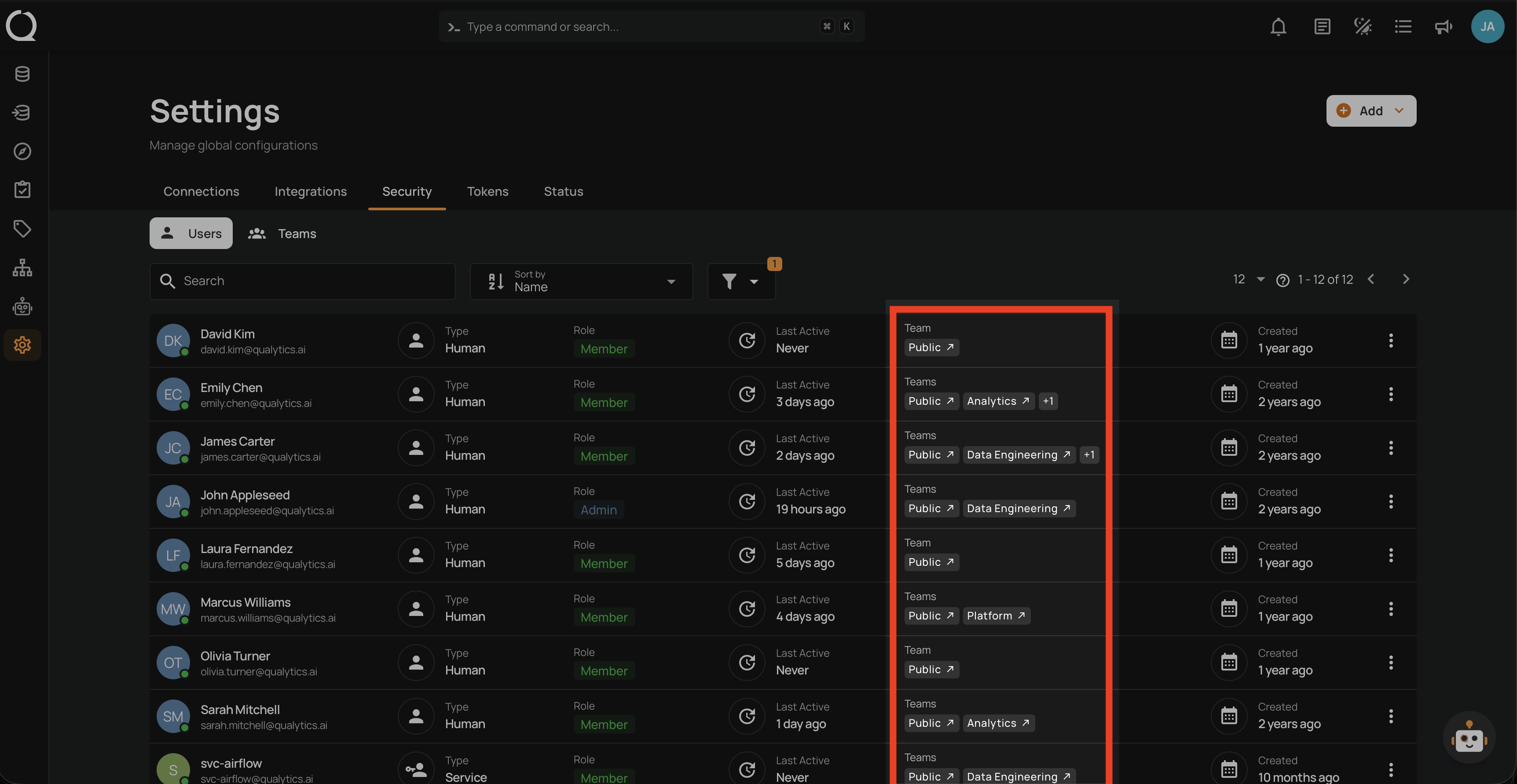
Clicking on a team badge navigates to the team details.
Tip
To assign or remove a user from teams, use the Edit User action.
Created
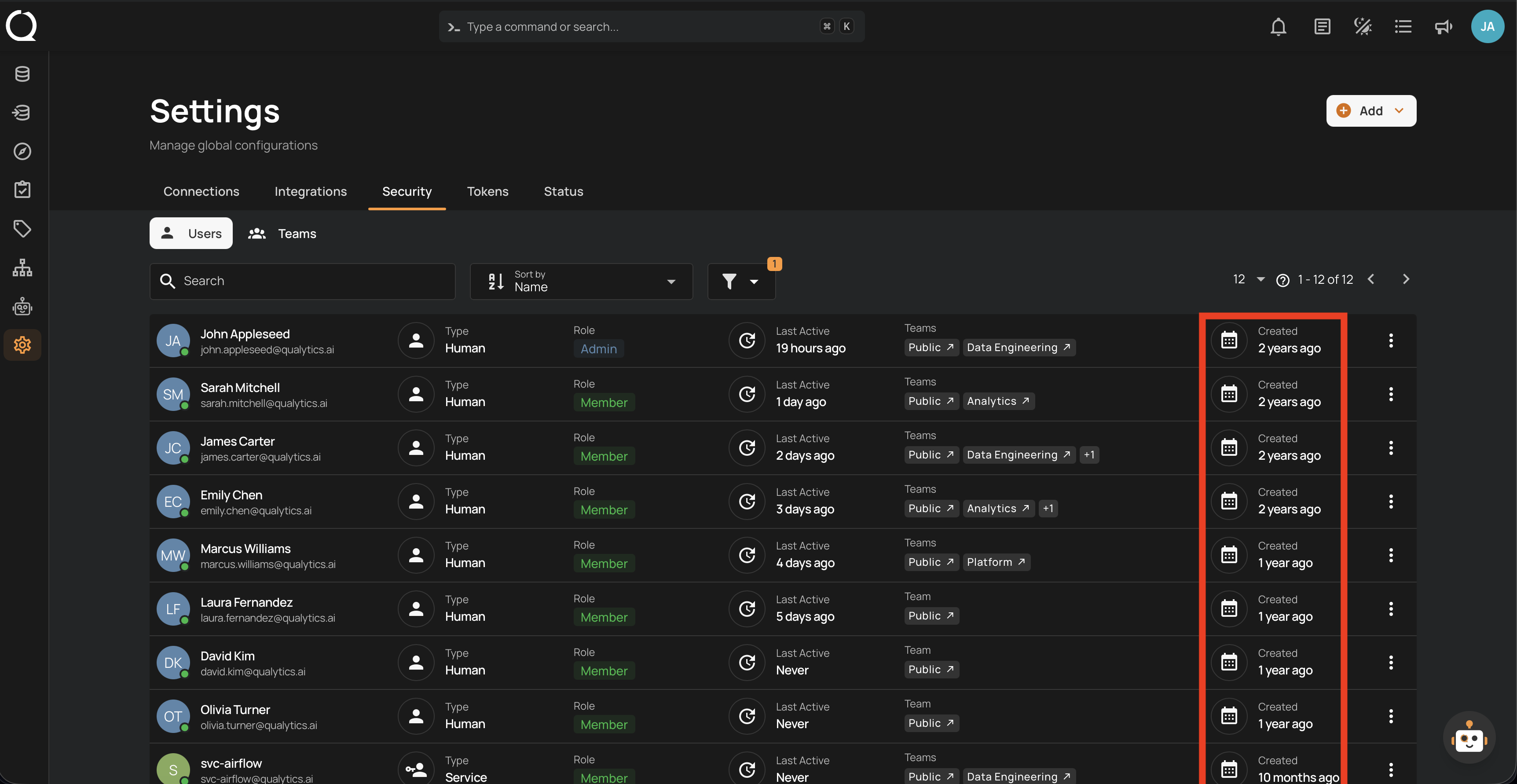
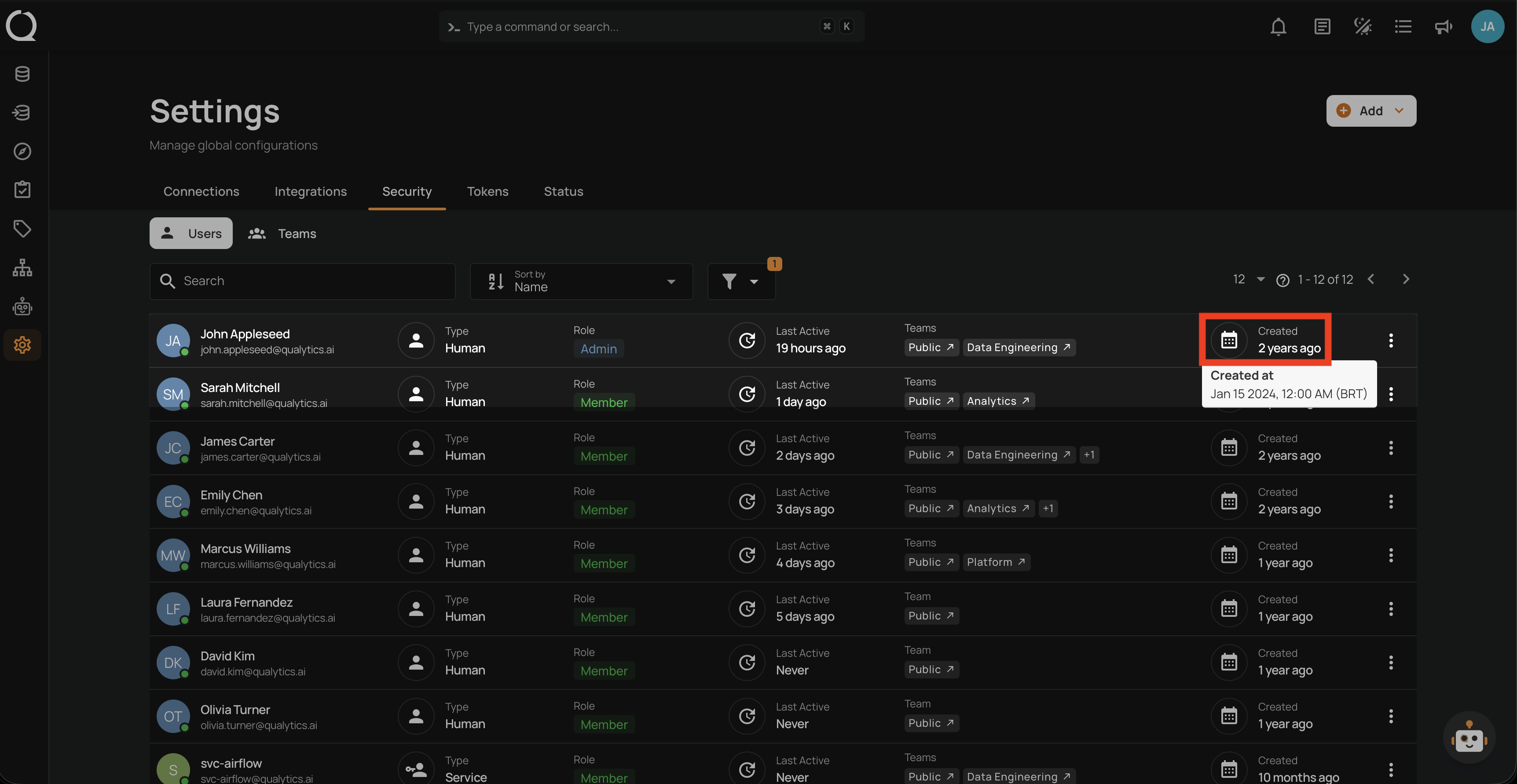
The Created column shows when each user account was created, displayed as relative time (e.g., 2 years ago, 1 year ago). This helps administrators track account provisioning history and identify recently added users.
Hovering over the timestamp shows a tooltip with the exact date and time in your local timezone (e.g., Jan 15 2026, 12:00 AM (BRT)).
Note
The timezone displayed in the tooltip is determined by your browser settings. All timestamps are stored in UTC and converted to your local timezone automatically.
Tip
Sort by the Created column to see the most recently provisioned users at the top of the list.